


 Video Converter Ultimate
 Screen Recorder
 Videó javítás
 Biztonságos letöltés
MP4 lejátszása a Windows Media Player programban a Windows 10 számítógépen
Néha egy MP4 fájl nem játszik le a Windows Media Player programban, de más lejátszókon, például a VLC Media Player vagy a KM Player lejátszható. Mivel az MP4 a legnépszerűbb videó formátum, amely kompatibilis az összes médialejátszóval és multimédiás eszközzel. Lehet, hogy sok videofájlt mentett MP4 formátumban. Nagyon bosszantó, ha az MP4 fájlt nem sikerült lejátszani a Windows Media Player programban. Tehát hogyan lehet lejátszani az MP4 fájlokat a Windows 10 rendszerben? Nos, nem kell aggódni. Itt található az összes megoldás annak javítására, hogy a Windows Media Player nem játszik le MP4 fájlokat.

1. rész: Miért nem játszik le a Windows Media Player MP4-et?
A Microsoft szerint nem minden Windows Media Player verzió támogatja az MP4 fájlformátumot. A Windows Media Player 7, a Windows Media Player for Windows XP, a Windows Media Player 9 Series, valamint a Windows Media Player 10/11 nem támogatja az MP4 formátumot.
Ha a Windows Media Player nem tudja lejátszani az MP4 videoklipet, akkor az MP4 videó valószínűleg sérült vagy sérült. Ebben az esetben megpróbálhatja lejátszani a lejátszhatatlan MP4 fájlt más médialejátszóban.
Másik oka, hogy a Windows Media Player nem játszik le MP4-et, az, hogy az MP4 fájl nem rendelkezik megfelelő kodekcsomaggal.
2. rész: Játssz MP4-et a Windows Media Player legjobb alternatívájával
Ha az MP4 videók továbbra sem játszhatók le, válthatsz egy másik médialejátszóra, például a FVC Free Video Player programra. Ez egy ingyenes online videolejátszó, amely minden népszerű multimédia fájlt lejátszik – például MP4, MKV, FLV, MOV, AVI, 3GP, MP3, FLAC, AAC stb. – Windows és Mac rendszeren. HTML5 technológián alapul, így bármilyen videófájlt lejátszhatsz, akár a helyi számítógépről származik, akár letöltött fájl.
1. lépés. Látogasd meg az FVC Free Video Player hivatalos weboldalát (https://www.free-videoconverter.net/free-video-player/). Kattints a Play Now gombra a launcher letöltéséhez és telepítéséhez.

2. lépés. Kattints az Open File gombra annak az MP4 fájlnak a betöltéséhez, amelyet le szeretnél játszani. A File menüre is kattinthatsz, majd válaszd az Open File lehetőséget az MP4 fájl hozzáadásához.

Miután az MP4 videó feltöltésre került, automatikusan lejátszásra kerül a Windows számítógépeden. Ha a videóeffekteket szeretnéd szerkeszteni, kattints a Tools menüre, válaszd az Effects opciót, és beállíthatod az árnyalatot (hue), fényerőt, kontrasztot, telítettséget és gammát a videó javításához.

3. rész: Konvertálja az MP4 fájlt a Windows Media Playerben való lejátszásra
Ha a Windows Media Player nem tudja lejátszani az MP4 fájlt, egy egyszerű megoldás, ha az MP4 fájlt a Windows Media Player által támogatott másik formátumba konvertálod. Használhatsz egy videokonvertáló eszközt, például az FVC Video Converter Ultimate programot, hogy az MP4 fájlt a Windows Media Player alapértelmezett formátumává – például WMV, ASF vagy WMA – alakítsd át.
Ingyenes letöltés Windows 7 vagy újabb rendszerre Biztonságos letöltés
Ingyenes letöltés macOS 10.7 vagy újabb rendszerre Biztonságos letöltés
1. lépés. Töltsd le ingyen, telepítsd és indítsd el a Video Converter Ultimate programot a Windows számítógépeden. Kattints az Add Files gombra a lejátszani kívánt MP4 fájl hozzáadásához.

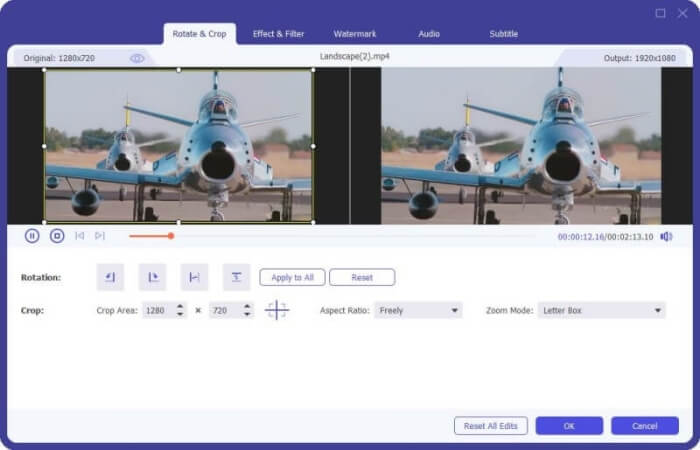
2. lépés. Ha effektusokat szeretnél hozzáadni az MP4 fájlhoz, kattints az Edit ikonra a szerkesztőfelület megnyitásához. Itt effekteket adhatsz hozzá, szűrőt alkalmazhatsz, elforgathatod vagy vághatod az MP4 fájlt, vízjelet adhatsz hozzá, illetve módosíthatod a hangsávot és a feliratokat.
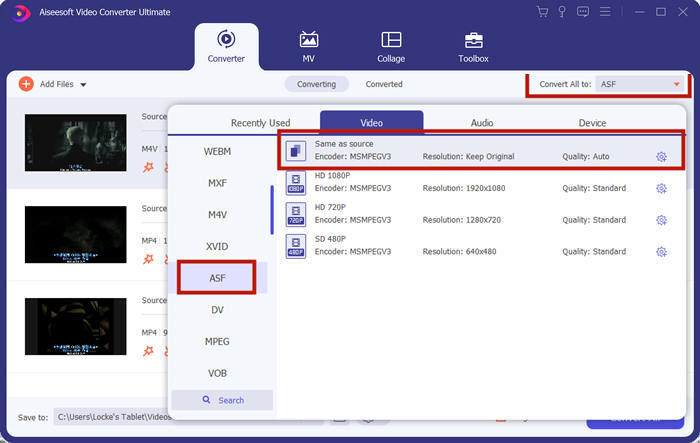
3. lépés. Ezután kattints a Convert All to melletti legördülő nyílra, lépj a Video fülre, és válaszd ki kimeneti formátumként az ASF vagy WMV formátumot.
4. lépés. Végül állítsd be azt a kimeneti mappát, ahová az átalakított MP4 fájl mentésre kerül. Kattints a Convert All gombra az MP4 fájl konvertálásához. Az átalakítás után a konvertált MP4 fájlt le tudod játszani a Windows Media Playerben.

4. rész: Általános tippek az MP4 lejátszásához a Windows Media Player alkalmazásban
MP4 fájlok lejátszásához Windows 10 alatt keresd meg azt a mappát, ahol az MP4 fájlok találhatók. Kattints jobb gombbal a lejátszani kívánt MP4 fájlra, válaszd az Open with lehetőséget, majd a Windows Media Player programot. Bár ez ilyen egyszerű, előfordulhat, hogy néha mégsem sikerül megnyitni az MP4 fájlt a Windows Media Playerben. A probléma megoldásához próbáld ki az alábbi tippeket.
1. Játssz MP4-et más médialejátszókkal
Ha az MP4 fájl nem játszható le a Windows Media Playerben, kipróbálhatsz más médialejátszókat is az MP4 fájl megnyitásához. Számos médialejátszó érhető el, például az FVC Free Video Player, a VLC Media Player, a KM Player, a Real Player, a GOM Player, a BS Player, a DivX Player és még sok más.
2. Telepítse a megfelelő kodeket a Windows Media Player programhoz
Hiányoznak kodekek, ha a Windows Media Player nem játszik le MP4 fájlt. A probléma megoldásához telepítenie kell a megfelelő kodeket a Windows Media Player programhoz.
1. lépés. Nyisd meg a Windows Media Playert. Kattints az Organize menüre, majd válaszd az Options lehetőséget.
2. lépés. Lépj a Privacy fülre, és jelöld be a Download usage rights automatically when I play or sync a file opciót.
3. lépés. Az MP4 fájl lejátszásához kattints az OK gombra a módosítások mentéséhez.
3. Futtassa a hibaelhárítót Windows rendszeren
Ha az MP4 lejátszása nem sikerült a Windows Media Player alkalmazásban, akkor a Hibaelhárító eszközzel megoldhatja a problémát a Windows 10 rendszerben. A probléma elhárításához kövesse a lépéseket.
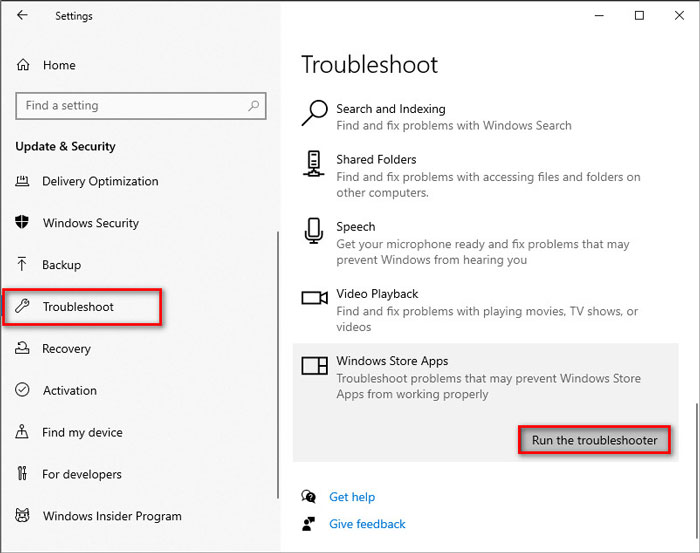
1. lépés. A Windows 10 számítógépeden nyisd meg a Settings menüt, és válaszd az Update & Security lehetőséget.
2. lépés. Lépj a Troubleshoot részhez, és kattints a Windows Store Apps opcióra.
3. lépés. Kattints a Run the troubleshooter gombra a Windows Media Player lejátszási problémáinak elhárításához.
5. rész: GYIK az MP4 lejátszásáról a Windows Media Player alkalmazásban
Mi a Windows Media Player alapértelmezett videóformátuma?
A Windows Media Player alapértelmezett fájlformátuma a WMV (Windows Media Video) és a WMA (Windows Media Audio). Támogatja az ASF-t (Advanced Systems Format) és a saját XML alapú lejátszási lista formátumát, a Windows Playlist-et is.
Mi a legjobb MP4 lejátszó?
Számos népszerű MP4 lejátszó érhető el a piacon, többek között az FVC Free Video Player, a VLC Media Player, a KM Player, a QuickTime Player, a RealPlayer, a Media Player Classic, a GOM Player, a PotPlayer és még sok más.
Lejátszhatok MKV-t a Windows Media Player programban?
A Windows 10 beépített Windows Media Player 12 nem támogatja az MKV lejátszást. A lejátszáshoz telepítenie kell a megfelelő kodeket.
Következtetés
Az MP4 a legnépszerűbb digitális multimédia formátum, amelyet általában a videók és a hang tárolására használnak. Frusztráló, ha az MP4 fájlt nem sikerült lejátszani a Windows Media Player programban. Remélem, hogy minden tippünkkel és megoldásunkkal folyékonyan lejátszhatja MP4 fájljait a Windows 10 rendszerben. Kipróbálhat egy másik videolejátszót, például az FVC Free Video Player alkalmazást az MP4 fájlok lejátszásához.
-
 MP4 fájlok lejátszása a Google Drive-ban
 Az MP4 nem játszik le a Google Drive-on? Hogyan lehet lejátszani MP4 fájlokat a Google Drive-ban? Ez a bejegyzés három módszert ismertet az MP4 videók lejátszásával a Google Drive-ban.
-
 MP4 fájlok lejátszása a Chromebook 2021 készüléken
 Lejátszhat videókat Chromebookon? Hogyan lehet lejátszani az MP4 fájlokat USB-ről Chromebookon? Ez a bejegyzés háromféle módon osztja meg az MP4 lejátszását Chromebookon.
-
 Hogyan lehet DVD-t játszani a Windows Media Player-en 2021-ben
 Miért nem játssza le a DVD -imet a Windows Media Player? Hogyan lehet DVD-t játszani Windows 7 médialejátszón? Ez a bejegyzés háromféle módon osztja meg a DVD-ket WMP-vel vagy anélkül.
