


 Video Converter Ultimate
 Screen Recorder
 Videó javítás
 Biztonságos letöltés
A legjobb 5 WebM felvevő a WebM videó kiváló minőségű rögzítéséhez
A WEBM fájlkiterjesztést általában webböngészők használják. Többségük modern böngésző, mint a Google Chrome, Opera, Firefox, Safari és Edge. Ezek a böngészők általában HTML5‑ös webhelyekhez tartoznak, amelyek támogatják az élő videóközvetítést. Jó példa erre a YouTube, a Twitch és más médiaplatformok. A formátum a 360p‑től a legmagasabb felbontásig támogatja a videókat. Ha összehasonlítjuk ezt a formátumot másokkal, akkor egy tömörített formátumról van szó, hasonlóan az MKV‑hoz, MOV‑hoz és MP4‑hez. A különbség a formátum fájltartalmában rejlik. Mind Windows, mind Mac rendszeren lejátszható ez a fájltípus, feltéve, hogy a lejátszó rendelkezik a megfelelő kodekekkel és bővítményekkel. Ha pedig jobb módot keresel WebM fájlok rögzítésére vagy megszerzésére, nézd meg az alábbi legjobb WebM felvevőket.

1. rész. A legjobb WebM -felvevő: FVC Screen Recorder
Az FVC Screen Recorder segítségével legegyszerűbben pillanatképeket készíthet, rögzítheti képernyőjét és rögzítheti a WebM videofájlokat három egyszerű lépésben. Ez a .webm képernyőfelvevő Windows és Mac rendszerekhez képes WebM webhelyek, például YouTube, Skype hívások és élő közvetítés rögzítésére, és más webhelyek támogatják a WebM formátumot. Rögzítse a játékmenet élő közvetítését a videó minőségének veszélyeztetése nélkül. Ezen felül képes rögzíteni a videót, a hangot és a mikrofont. Garantáltan nincs háttérzaj, mert rögzíti a rendszer hangjait. Tehát tapasztalja meg a zökkenőmentes rögzítést és a kiváló szerkesztési funkciókat a videó oktatóanyagában az FVC Screen Recording segítségével. Másrészt itt van az eszköz használata.
1. lépés. Töltsd le az FVC Screen Recorder programot az alábbi letöltés gombok segítségével.
Ingyenes letöltésWindows 7 vagy újabb rendszerhezBiztonságos letöltés
Ingyenes letöltésmacOS 10.7 vagy újabb rendszerhezBiztonságos letöltés
2. lépés. Telepítsd és indítsd el az alkalmazást a telepítővarázsló lépéseinek követése után.
3. lépés. Amint megjelenik a lebegő eszköztár, kattints a Video Recorder lehetőségre.
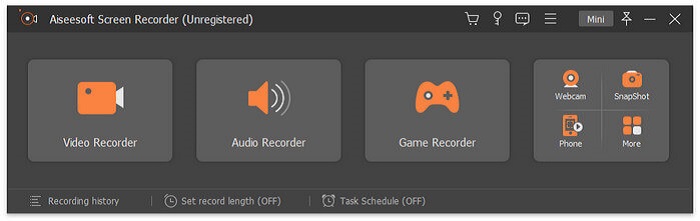
Ekkor egy újabb ablak jelenik meg. Most kattints a Custom vagy Full Screen opcióra. Ha az egyedit választod, állítsd be a keret méretét a kívánt méretre.
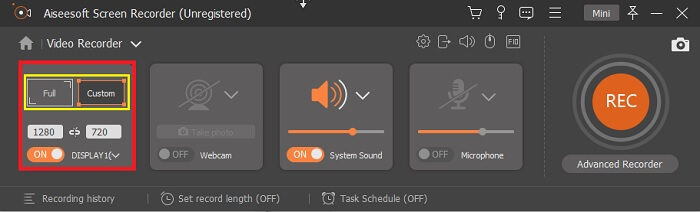
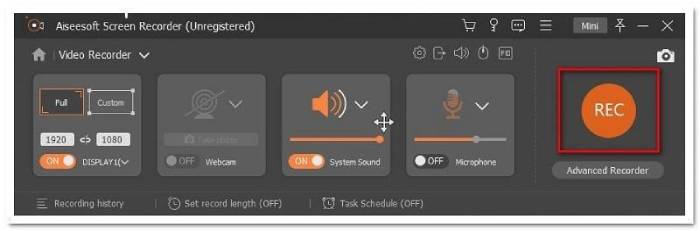
4. lépés. A felvétel megkezdéséhez kattints a REC gombra, majd végezd a szokásos tevékenységeidet.
Ezután megjegyzéseket fűzhet, nyilakat adhat hozzá és szöveget írhat a felvételhez.
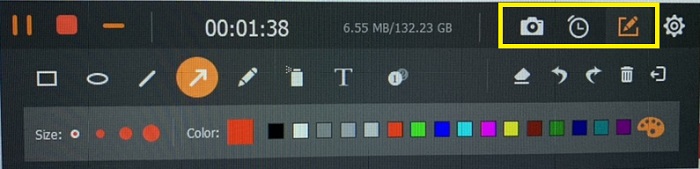
5. lépés. Ezután kattints a piros négyzet gombra a felvétel leállításához. Egy új ablak jelenik meg, ahol választhatsz a mentés és az újrarögzítés között. A felvétel ellenőrzéséhez nézd meg a listát a lebegő sáv alján.
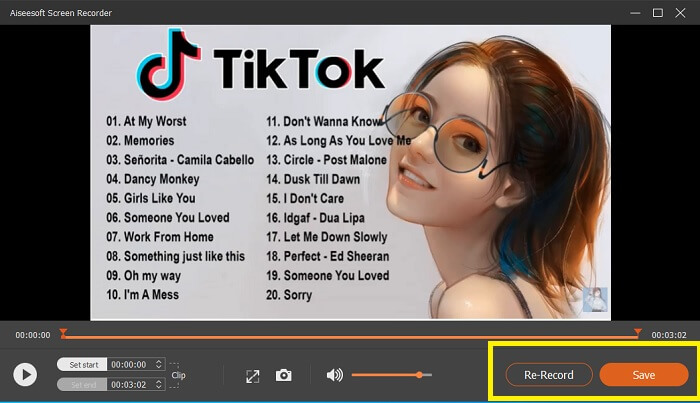
2. rész. Egyéb népszerű WEBM -felvevők számítógépéhez
1. FVC Free Screen Recorder
Megkülönböztető jellemző: Kártékony programoktól mentes. 100% biztonságos
Ha az első eszköz nem nyerte el a tetszésed, lehet, hogy egy gyakorlatiasabb megoldást keresel. A FVC Free Screen Recorder a te eszközöd, ha szeretnéd a remek funkciókat maximálisan kihasználni anélkül, hogy egy fillért is költenél. Bár a legtöbb ingyenes eszköz alacsonyabb minőséget nyújt a prémiumokhoz képest, ez az eszköz magasabbra teszi a lécet. Képes magas minőségű videókat és kristálytiszta hangot rögzíteni, annak ellenére, hogy ingyenes. Ráadásul könnyen használható. Kövesd az alábbi lépéseket, hogy többet megtudj róla.
1. lépés. Indítsd el az alkalmazást a számítógépeden a webböngésző segítségével. Mindegy, melyik böngészőt használod, ez az eszköz elég rugalmas ahhoz, hogy bárhonnan elérd. Kattints a linkre, hogy közvetlenül a hivatalos weboldalra juss.
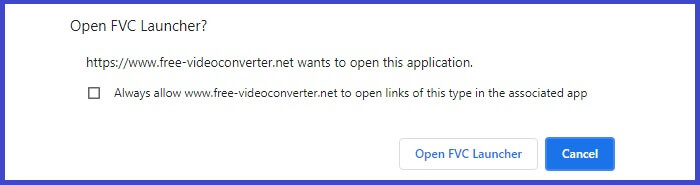
2. lépés. Indítsd el az eszközt a Start Recording gombra kattintva.
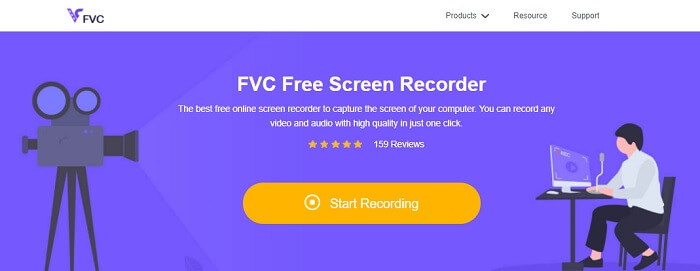
3. lépés. Az eszköz elindítása után látni fogod, hogy megjelenik a lebegő eszköztár. Állítsd be a keretet az oldalarány módosításához, majd kezdd el a felvételt a REC gomb megnyomásával.
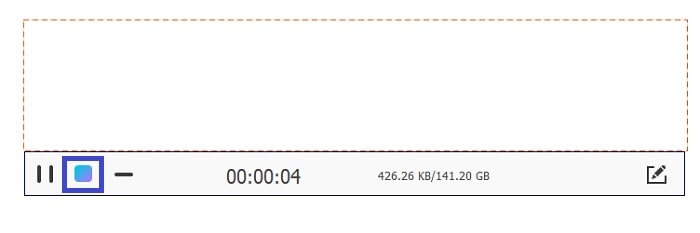
4. lépés. A felvétel leállításához kattints az alábbi képen látható négyzet alakú gombra.
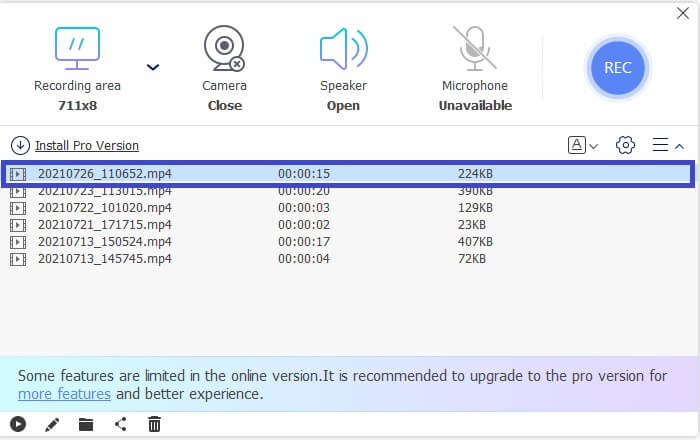
5. lépés. A rögzített fájl megtekintéséhez ellenőrizd a listát a lebegő eszköztár alatt.
Előnyök
- 100% biztonságos a rosszindulatú programok ellen.
- Rugalmasan állítja be a képarányt, a bitsebességet és a képsebességet.
- Kép a képben támogatott.
Hátrányok
- Nem támogatja a hardveres gyorsítást.
2. Apró Take
Megkülönböztető jellemző: Támogatja az együttműködést és a távmunkát.
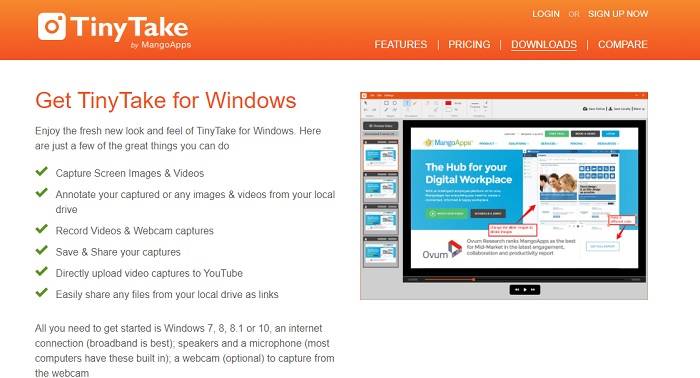
A TinyTake egy videofelvételi és ingyenes képernyőfelvételi eszköz, amelyet a Mango Apps fejlesztett ki. A Tiny Take nagyszerű megoldásokat kínál professzionális vagy személyes találkozók egyszerű képernyőfelvételéhez vagy rögzítéséhez. Ez az eszköz népszerűvé tette az együttműködési funkciót, ahol távolról dolgozhat, tömeges fájlmegosztást végezhet, használhat jegyzetelési funkciókat és hosszú távú tárolást, valamint Galéria (Online).
Előnyök
- Képeket és videókat rögzíthet a helyi meghajtóról.
- Ossza meg közvetlenül a YouTube -on.
- Jegyzetelés rögzítés közben.
Hátrányok
- Nincs zárható ablak funkció.
3. Screencast-O-Matic
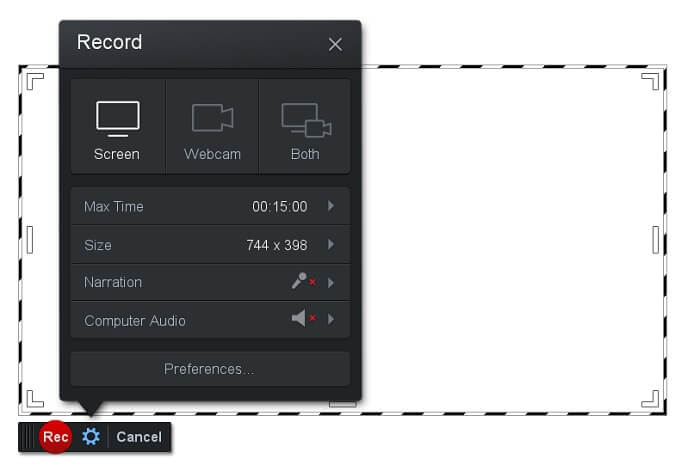
Megkülönböztető jellemző: Az eszköz felülete könnyen használható és áttekinthető. Nagyon egyértelmű.
A Screencast-O-Matic az egyik leggyakrabban használt szoftver. Ingyenes regisztráció után képes rögzíteni a számítógép képernyőjét. Ajánlott fiókot létrehozni az ingyenes eszköz használatához. Ezen felül a fejlesztő egy olyan funkciót is beépített, amellyel a videót közvetlenül exportálás előtt szerkesztheted. Támaszkodhatsz az eszköz beépített stock könyvtárára, hogy ihletet meríts, és folyamatosan fejleszd a videóidat. Emellett készíthetsz képernyőképeket, és az összes tartalmat megoszthatod a közösségi médiafiókjaiddal.
Előnyök
- Felhőalapú tárhely funkcióval rendelkezik.
- Videó feltöltése szerkesztésre.
- Host tartalom.
Hátrányok
- Regisztráció szükséges.
4. Screencastify
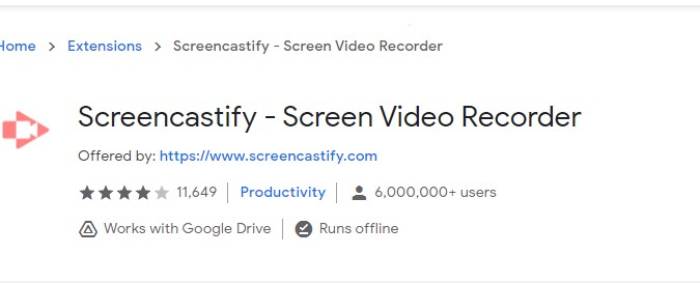
Megkülönböztető jellemző: Böngészőbővítmény
Adjunk egy kis változatosságot a listának. A Screencastify egy internetfüggő eszköz, kifejezetten a Chrome böngésző kiterjesztése. Ezt leginkább a pedagógusok és a diákok használják. Elsősorban az eszköz egyszerűsége és a feliratozási képesség miatt, amely megtartja a pedagógust és a tanulót az osztályban. A legtöbb ember, aki az Udemy -n és az ilyen tanulási oldalakon keresztül tanul, használja ezt a képernyőrögzítőt. Ha ugyanezt teszi, fontolja meg a használatát. Eközben itt van részletesebb információ az eszközről.
Előnyök
- Kompatibilis minden média platformmal.
- Host tartalom.
- Videó feltöltése szerkesztésre.
Hátrányok
- Bár könnyen hozzáférhető, mert böngészőfüggő, hátrányos is lehet.
- Használatához sok engedély szükséges.
3. rész: GYIK a WebM Recorderről
Miért nem nyílik meg a WebM fájlom?
Érthető a zavarodottság, azt hiheted, hogy modern böngészőt használsz, mégsem játszik le semmit. Ellenőrizted már, hogy a böngésző legújabb verzióját futtatod‑e? Ha nem, kérlek frissítsd. Ez az egyik leggyakoribb oka annak, hogy egy videó nem játszható le. Vedd azonban figyelembe, hogy ezek a WebM‑fájl által támogatott verziók közé tartoznak: Chrome 6, Firefox 4, valamint az Internet Explorer 9 és újabb verziók. Vagy megpróbálhatsz WebM lejátszókat használni, hogy megnyisd a fájlt.
Miért nem tudom lejátszani a WebM videót a Mac gépemen?
Nagyon ajánlom a VLC lejátszó vagy a VLC letöltését Mac OS X bővítményhez. 64 bites Intel processzorral kell rendelkeznie.
4. rész: Összehasonlító táblázat
| Funkció | FVC képernyőfelvevő (prémium) | FVC Screen Recorder Ingyenes | TinyTake | ScreenCast-O-matic | ScreenCastify |
| Hang- és videofelvétel |  | | | | |
| Videó szerkesztő funkció | | |  | | |
| Zárható ablak funkció | | | | | |
| Megjegyző funkció | | | | | |
| WebM támogatott | | | | | |
| Malware Safe | | | | | |
| Állítható bitráta és képarány | | | | | |
Következtetés
A cikkben ismertetett összes WebM rögzítési eszköz megbízható és hatékony. Csak azt kell látnia, hogy melyik eszköz felel meg a számítógép és az operációs rendszer követelményeinek. A legtöbb ember biztonságos alapokon megy, ha webalapú alkalmazást használ. De még mindig az Ön hívása a döntés.
-
 Az elfogulatlan Cinch Review Audio Recorder és a legjobb alternatíva
 A Cinch Audio Recorder a legjobb módja a zene letöltésére a streaming webhelyekről. Csak többet tudjon meg az elfogulatlan felülvizsgálatról és a cikk legjobb alternatívájáról.
-
 A legjobb 5 legjobb egér- és billentyűzetrögzítő Windows és Mac számára
 Íme az öt legjobb egér és billentyűzet felvevő program, amelyek menthetik az egér mozgását és a billentyűzet kattintásait, és megismételhetik az eseményeket.
-
 A legnépszerűbb 4 ingyenes AVI képernyőfelvevő a videó videó rögzítéséhez AVI fájlként
 A képernyő kiváló minőségű AVI fájlokban történő rögzítéséhez a cikk azonosítja és megosztja a bejegyzésben szereplő 4 legjobb ingyenes AVI képernyő felvevőt. Tudjon meg további részleteket, hogy ennek megfelelően megtalálja a kívántat.
