


 Video Converter Ultimate
 Screen Recorder
 Videó javítás
 Biztonságos letöltés
Lépésről lépésre a VLC DVD-lemezek rögzítésére minden operációs rendszeren
VLC is a well-known media player used by millions of users in the entire world. It is not simply for playing video or audio. Maybe this is new for you, but did you know that this media player has other uses. For example, it can edit, record DVDs with video and audio, and also read encrypted and rip DVDs. But not all the DVDs can be ripped by the VLC if they have copy-protection. Also, ripping will take your time instead of watching the video you'll probably wait to finish the rip. For some reason, users tend to record DVD movies using VLC while watching or leave it alone rather than rip the video content from the DVD to share with others. In this article, you will understand that you don't need to rip the video audio output from the DVDs. But instead, you can record it while watching while retaining the same quality. Continue reading and understand the value of each tool.

1. rész: Hogyan lehet DVD -filmeket rögzíteni a VLC Media Player segítségével
VLC Media Player
Ez a médialejátszó egy nyílt forráskódú többplatform, amely szinte minden médiaformátumot támogat, amire csak gondolni tud. A videókat DVD -ről is ki tudja rippelni, de a VLC -nek időbe telik a fájl másolása. A másolási folyamat több mint 15–45 percet vesz igénybe, attól függően, hogy mennyi ideig, mennyi ideig és milyen méretű a média. A lemez feltépése helyett miért nem rögzíti a VLC segítségével.
Ahogy haladunk, itt van néhány lépés, hogyan lehet video-hangot rögzíteni a VLC-re.
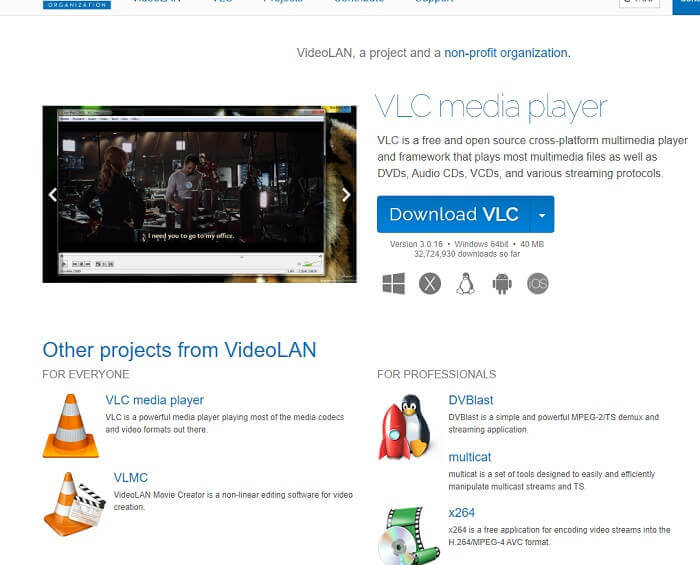
Step 1. Download the VLC Media player over the browser then install it. Set your preferences then click Finish to proceed. If you don't have an idea what it looks like then this is it.
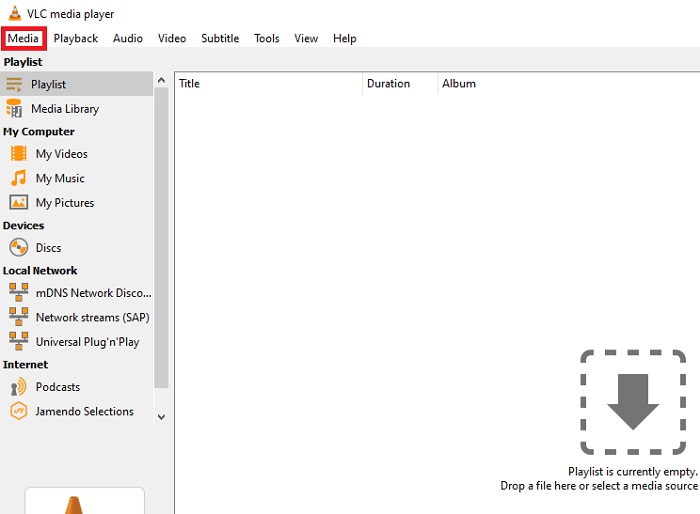
Step 2. Click the Media in the upper left end of the interface. Click Open File and choose the file. Or you can as well drag and drop the media file.
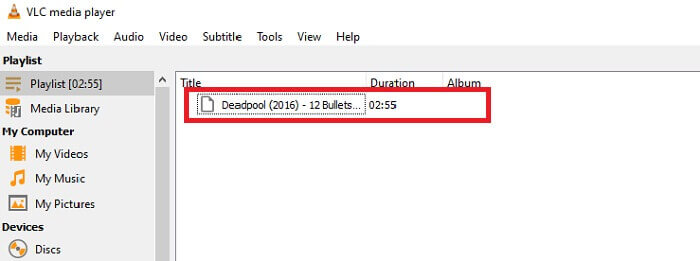
Step 3. Click the video file you insert in the interface to play.
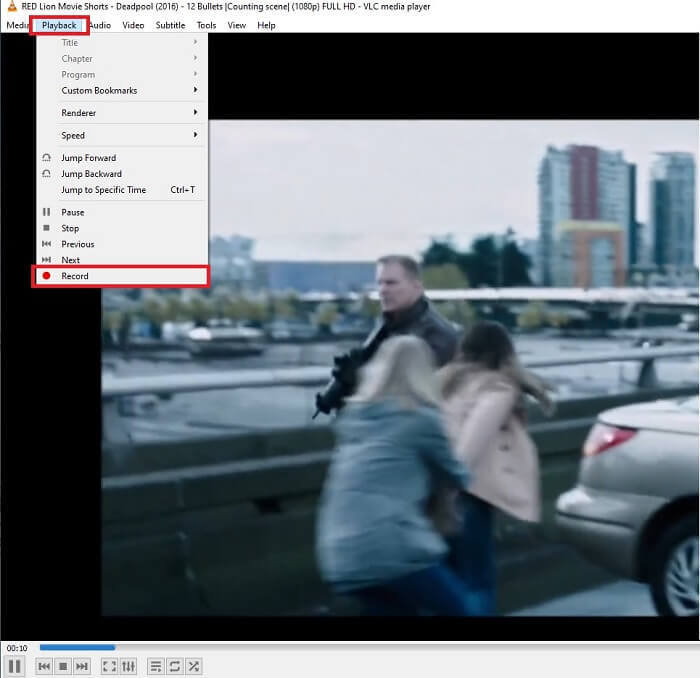
Step 4. Hit the Playback button at the top of the interface next to the media. Click the Record below the drop-down to start recording. Note that if you click to record the record will start already. Wait until the video is finished before stopping it.
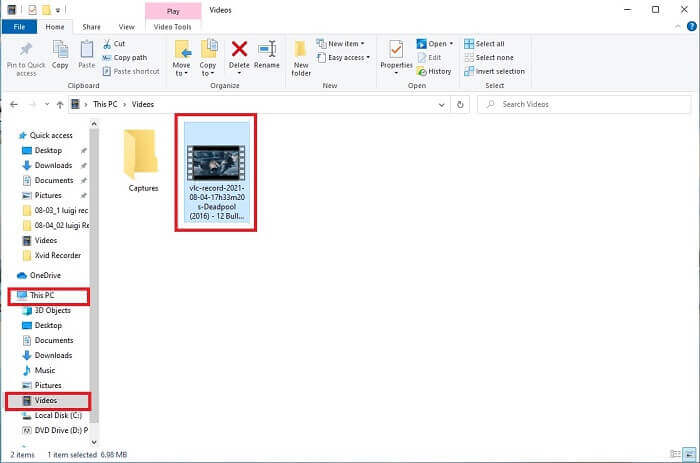
Step 5. When the video is finished, You can check it in your file explorer or manager then click it. Find This PC hit it, next trace the videos, lastly in the video you will see the VLC recorded file is in.
Előnyök
- Támogat bármilyen típusú audio-video formátumot, kodeket és egyéb titkosított fájlokat.
- Ez egy ingyenes nyílt forráskódú eszköz a hivatalos webhelyén.
- Nézze meg bárhol és bármikor. Nincs szükség internetre a videók lejátszásához.
Hátrányok
- A felvétel befejezése után nincs saját előzménylistája.
- A felhasználók nehezen tudják, hogy a felvétel elkezdődött -e már. Nincs képkocka / mp, a videó hossza, tárhely, és számos egyéb olyan funkció, amelyet a képernyőrekordnak rendelkeznie kell.
2. rész. DVD rögzítésének módja az FVC Free Screen Recorder segítségével
A VLC felveheti, hogy mi van a felületén. Mi van akkor, ha nem szeretné letölteni a VLC -t, de bármilyen eszköz letöltése nélkül szeretne rögzíteni. Csak fel szeretné venni a DVD filmeket egy online platformra. Ingyenes online eszköz, amelyet bárki és bárhol elérhet internetkapcsolattal.
Then this online tool - FVC Screen Recorder is for you, no download just launch the tool. Instead of recording DVDs with VLC, this internet-dependent tool makes your life easier for recording with a quality video audio output. No hidden charges included. It is available to all platforms. With the help of the floating toolbar, it became user-friendly and easy to manage.
És most folytassuk az eszköz használatának lépéseivel.
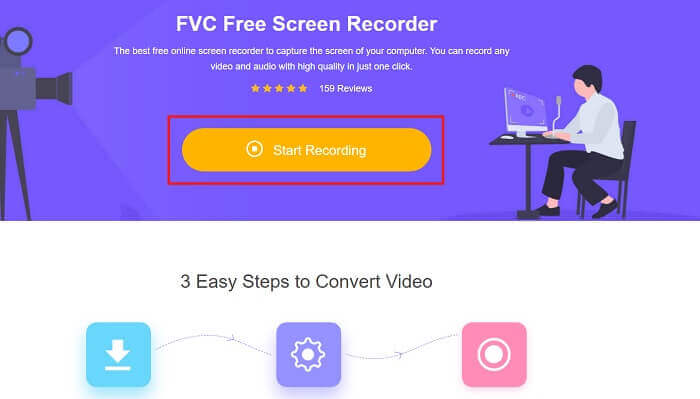
Step 1. Click the link to proceed to the tool. Click the Start Recording to launch the software.
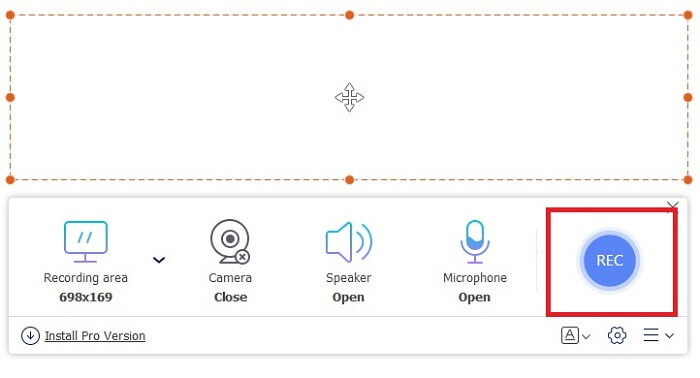
Step 2. A floating toolbar will show up on your screen. Select a region you want to record. Turn on the Speaker for the system sound and click the round button to start recording. Leave the screen recorder for a while to record the video or you may as well watch it.
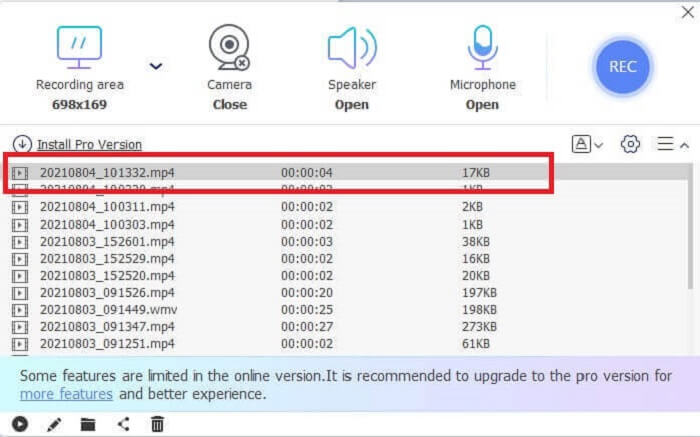
Step 3. Click the square button to stop the recording. History list will show up and click the first file to watch the recorded version with the same video audio quality.
Előnyök
- Ingyenes online eszköz. Nem aktiválódnak rejtett díjak, és nincs szükség regisztrációra sem.
- Használat előtt nincsenek bosszantó hirdetések a programban.
- Felvétel korlátozás nélkül.
Hátrányok
- Internetfüggő.
- Nincs zárható képernyő funkció.
3. rész: Hogyan rögzítsünk DVD -ket a legjobb VLC alternatívával
A VLC képes felvételt készíteni, de mi van akkor, ha kiváló minőségű videót kell rögzítenie kristálytiszta hanggal. Ezenkívül kiválaszthatja azt a formátumot, minőséget és kodeket is, amelyet a VLC rögzítő DVD nem tud biztosítani.
FVC képernyőfelvevő
Bemutatjuk ezt a fenomenális eszközt, amely segít a felhasználónak bármilyen típusú video-audio formátum előállításában, amelyet a többi eszköz nem tud biztosítani. Ez az FVC képernyőrögzítő elvégzi a nehéz munkát egy képernyőfelvevő számára; a zárolt képernyő funkciói megkülönböztetik a többi eszközt. Ennek az eszköznek a segítségével bármikor rögzítheti DVD -tartalmát a világon bárhol, akár online, akár offline platformról van szó. Emellett jegyzetelhet a képernyőn felvétel közben, és zajcsökkentéssel is rendelkezik a tisztább hangkimenet érdekében. Ha többet szeretne megtudni erről az eszközről, itt talál lépéseket az eszköz használatáról.
Step 1. Click the download button that suits your program. Set it up and launch.
Ingyenes letöltésWindows 7 vagy újabb rendszerhezBiztonságos letöltés
Ingyenes letöltésmacOS 10.7 vagy újabb rendszerhezBiztonságos letöltés
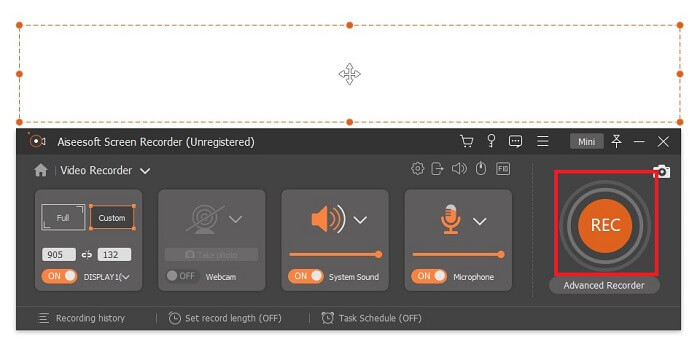
Step 2. In the floating toolbar click the Video Recorder. It transfers you to another floating toolbar. Adjust the frame ratio, activate the System Sound to record the audio in the system. Then, click the round REC button to start the recording.
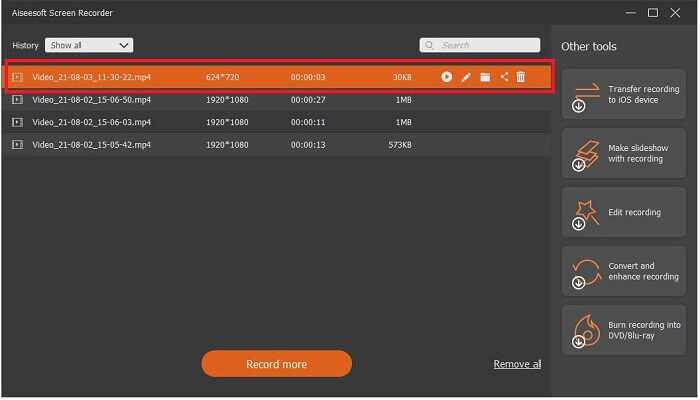
Step 3. After recording, click the square button to stop. The first video in the history list is the latest, click the Play button to watch the recorded version and enjoy.
Előnyök
- Lock-In képernyő funkció, hogy elkerülje a videofelvételben fellépő zavarokat.
- Könnyen hozzáférhető, mert online és offline felvételre is használható.
- Támogat minden típusú formátumot hardveres gyorsítással a média kimenetének gyors feldolgozása érdekében.
Hátrányok
- Fizetés az eszköz használata előtt.
- A hozzáféréshez le kell tölteni.
4. rész. GYIK a DVD rögzítéséről VLC -vel és következtetéssel
Milyen formátumokat támogat a VLC Media Player?
These are some of the supported formats in VLC Media for video: MPEG (ES,PS,TS,PVA,MP3), AVI, ASF / WMV / WMA, MP4 / MOV / 3GP, OGG / OGM / Annodex, Matroska (MKV), Real, WAV (including DTS), Raw Audio: DTS, AAC, AC3/A52, Raw DV, FLAC, FLV (Flash), MXF, Nut, Standard MIDI / SMF, Creative™ Voice.
For audio: MPEG Layer 1/2, MP3 - MPEG Layer 3, AAC - MPEG-4 part3, Vorbis, AC3 - A/52, E-AC-3, MLP / TrueHD>3, DTS, WMA 1/2, WMA 3, FLAC, ALAC, Speex, Musepack / MPC, ATRAC 3, Wavpack, Mod, TrueAudio, APE, Real Audio, Alaw/µlaw, AMR (3GPP), MIDI, LPCM, ADPCM, QCELP, DV Audio, QDM2/QDMC, MACE. As well as this, it supports different formats such as the listed and many more.
A VLC továbbra is ingyenes médialejátszó?
Igen, még mindig ingyenes, mert a kölcsönvett GNU GPL licenc védi, de adományozhat PayPal -on is minimális adomány nélkül.
Biztonságos a VLC letöltése?
If you download it to the official site then there is no problem. Also, it is free from malware, viruses, worms, spyware and many more. It is also protected from intended damages to the file. If you are still worried about that, you can try the alternatives to VLC Media Player.
Következtetés
Összefoglalva az összes részletet felülről. Jobb rögzíteni a videót, ahelyett, hogy bemásolná. Mivel nem minden DVD -t lehet bemásolni, mert néhányat szerzői jog véd. A VLC képes a rippelésre, de sok időt vesz igénybe. Tehát, hogy csökkentse a bajt, rögzítenie kell a videót, hogy élvezze a megtekintését, és később megoszthatja másokkal.
De a nap végén még mindig azon kell gondolkodnia, hogy melyik a legjobb képernyőfelvétel a DVD -kimenet rögzítéséhez anélkül, hogy károsítaná a média tartalmi minőségét. Akkor a helyes választás még mindig a kezedben van, az Ön által megadott részletek azt az elképzelést adják, hogy az FVC Screen Record elengedhetetlen eszköz. Ezt nemcsak nemcsak DVD -ről történő filmfelvételre használhatja, hanem számos más célra is. Ez egy all-in-one screencast felvevő. Szóval mit vársz ahelyett, hogy várnád a varázslat megtörténését? Miért nem varázsol, és nem az első trükk az FVC Screen Recorder.
-
 Snagit 2021 Review - Előnyök, hátrányok és a legjobb alternatíva
 Mi a legjobb alternatíva a Snagit helyett? Van olyan képernyő-rögzítő eszköz, mint a Snagit? Ez a bejegyzés áttekinti a Snagit-ot, és megosztja a Snagit legjobb alternatíváját a képernyő rögzítéséhez.
-
 QuickTime képernyőfelvétel - Videofelvétel hanggal Mac és PC-n
 Hasznos a felvételi képernyő, amelyen hang van a Mac-en. A beépített lejátszó, a QuickTime Player képes rá. Olvassa el a bejegyzését, és tudja, hogyan készítsen hangos képernyőt Mac és PC-n.
-
 Pillanatkép VLC-ben - Pillanatkép készítése a VLC Media Player-ben
 Hogyan készítsünk pillanatképet a VLC Media Player-ben? Hol van mentve a VLC pillanatkép? Csak többet megtudhat a VLC pillanatkép funkciójáról és a cikk legjobb alternatívájáról.
