


 Video Converter Ultimate
 Screen Recorder
 Videó javítás
Ismerje meg, hogyan importálhat AVI-fájlokat az iMovie-ba Mac OS rendszeren
Mint mindannyian tudjuk, az iMovie hírhedten jó videószerkesztő Macen. Ha használod ezt az eszközt, rögtön látni fogod, miért számít az egyik legjobbnak a vágásban. De miközben az iMovie előnyeiről beszélünk, vannak helyzetek, amikor nem tudsz videókat importálni szerkesztéshez. Ez nagyon gyakran előfordul, amikor AVI formátumú fájlt próbálsz betölteni. Az AVI a sokféle kodektámogatása miatt vált népszerűvé a felhasználók körében. Ugyanakkor ennek a formátumnak a használata elég kihívást jelent, különösen akkor, ha az általad használt eszköz nem támogatja a szükséges kodeket. Így aztán azon gondolkodsz, hogyan tudnád az AVI-t iMovie-kompatibilis formátumba konvertálni, hogy később szerkeszteni tudd a videót. Az alábbi listában felsorolunk néhány eszközt, amellyel átalakíthatod az AVI fájlokat, és közben megismerheted, miért nem tudod betölteni a videófájlokat az iMovie-ba.

1. rész: Miért nem sikerült az iMovie-nak importálnia az AVI fájlformátumot?
Bár az iMovie csak Mac-en érvényes, ezért számítson arra, hogy a Windows kodekei kisebb prioritást élveznek. De van néhány oka annak, hogy miért nem tud videókat importálni. Itt a listában arról a 2 okról fogunk beszélni, amelyek miatt nem tud másik formátumot importálni az iMovie-ba.
Első ok: az iMovie csak viszonylag kevés kodeket támogat. Ez lehet az oka annak, hogy nem tudsz szerkeszteni az iMovie-ban, mert nem kompatibilis a használt kodekkel. AVI formátum esetén a fájlt MJPEG adatra kell kódolni, különben a program nem fogja tudni importálni.
Második ok: az iMovie vagy a Mac OS nincs frissítve. Ez az ok könnyen érthető: ha a szoftvered vagy az operációs rendszered nem naprakész, előfordulhat, hogy nem támogatja az újabb formátumokat.
Ezek a leggyakoribb okok, amiért nem tudsz az iMovie-ban szerkeszteni, de minden problémára létezik megoldás. Ezért az alábbiakban bemutatunk néhány módszert a hiba elhárítására, és meg kell tanulnod, hogyan konvertáld az AVI fájlokat iMovie által elérhető formátumra és kodekre.
2. rész. AVI konvertálása iMovie-kompatibilis formátummá a legjobb AVI konverterek segítségével
1. FVC Free Online Video Converter
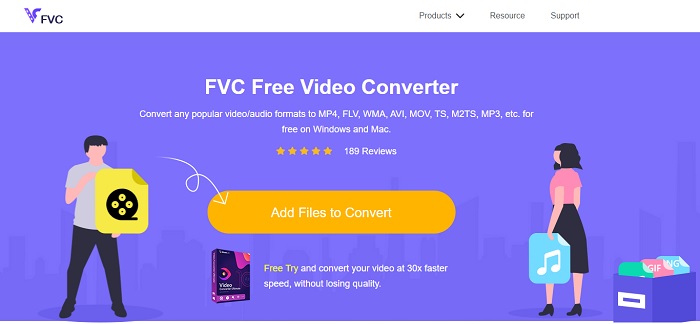
Ez az ingyenes AVI–iMovie átalakító képes elvégezni a konvertálást. A lenti eszközzel ellentétben az FVC Free Video Converter ingyenesen elérhető, és nem igényel letöltést. Emellett ez az online eszköz a lenti program ingyenes változata. Ahogy említettük, jó tömörítést biztosít, de a kettő közti különbség az, hogy ez az eszköz nem rendelkezik a prémium verzió főbb funkcióival, és kevesebb formátum közül választhatsz. Ennek ellenére még mindig a legjobb online eszköz a többi olyan konverterhez képest, amelyre támaszkodhatsz. Szóval mielőtt továbbmennénk, nézzük meg, hogyan működik ez az eszköz az alábbi egyszerű lépések követésével.
1. lépés. Kattints erre a linkre, hogy a program fő weboldalára juss.
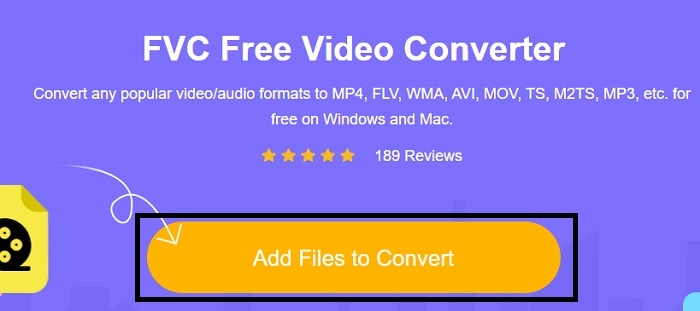
2. lépés. Nyomd meg az Add Files to Convert gombot az online konverter elindításához.
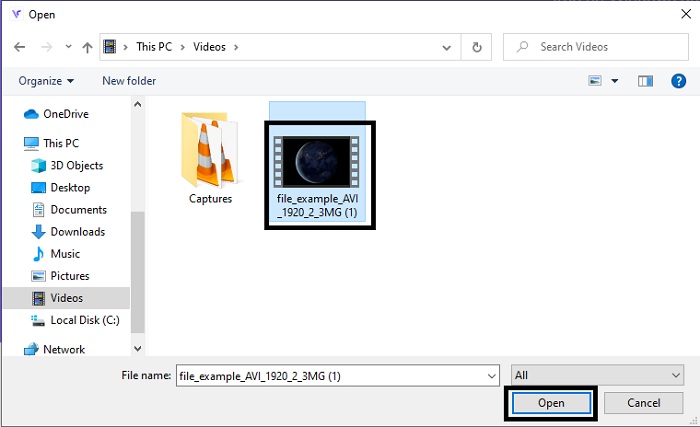
3. lépés. Ezután válaszd ki az AVI fájlt, majd kattints az Open gombra, hogy betöltsd a felületre.
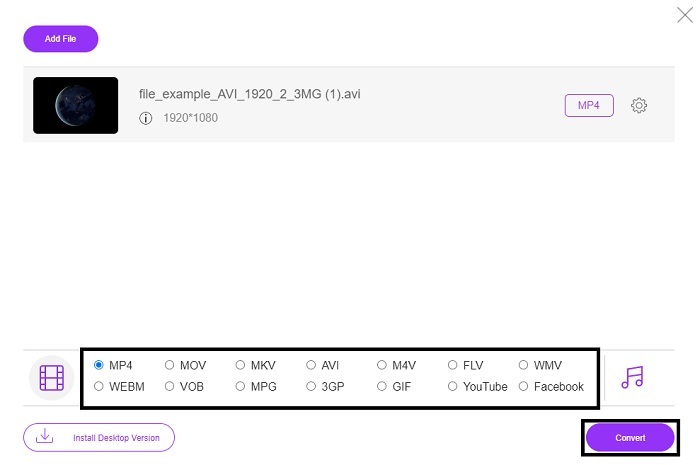
4. lépés. Válaszd ki, milyen iMovie-formátumot szeretnél. A kiválasztás után kattints a Convert gombra a folyamat elindításához.
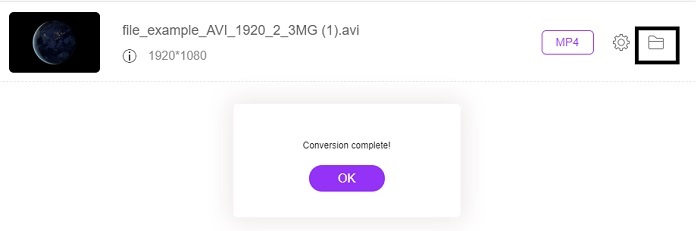
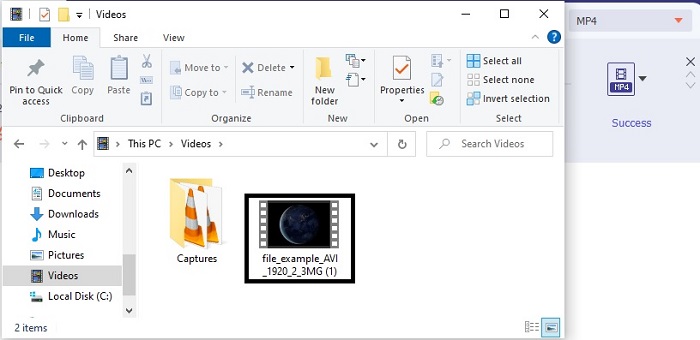
5. lépés. Nyisd meg a fájlkezelőt, és keresd meg az elkészült videót.
2. FVC Video Converter Ultimate
Ahogy korábban említettük, az online eszköz nem biztosítja a szerkesztési funkciókat és a többi formátumot sem. Az FVC Video Converter Ultimate az iMovie alternatívájaként használható, különösen a szerkesztés során. Lehetővé teszi a felhasználóknak és az ügyfeleknek, hogy minden médiafájlt kezeljenek, és javítsanak, szerkesszenek vagy újabb verziót hozzanak létre. De ezt az eszközt fizetni kell, de nem költséges, így nem kell aggódnia, mert minden fillér, amit ezért az eszközért fizet, még mindig megéri.
Miután az AVI-t iMovie-formátumba konvertáltad, később tovább javíthatod, mielőtt beviszed az iMovie-ba, vagy akár meg is tarthatod itt, és helyben szerkesztheted. Ha részletesen akarnánk beszélni arról, mennyire tökéletes ez az eszköz, nagyjából két vagy több cikkre lenne szükség, hogy mindent megfelelően elmagyarázzunk. Szóval különösebb késlekedés nélkül folytassuk az utunkat, hogy sikeresen új formátumba konvertáljuk az AVI-t az alábbi lépések lemásolásával.
1. lépés. Mielőtt használhatnád ezt az eszközt, le kell töltened az asztali gépedre. Válaszd ki a megfelelő operációs rendszert, amely támogatja a számítógépedet. A letöltés befejezése után kövesd a telepítési utasításokat, majd kattints a Befejezés gombra a program elindításához.
Ingyenes letöltés Windows 7 vagy újabb rendszerre Biztonságos letöltés
Ingyenes letöltés macOS 10.7 vagy újabb rendszerre Biztonságos letöltés
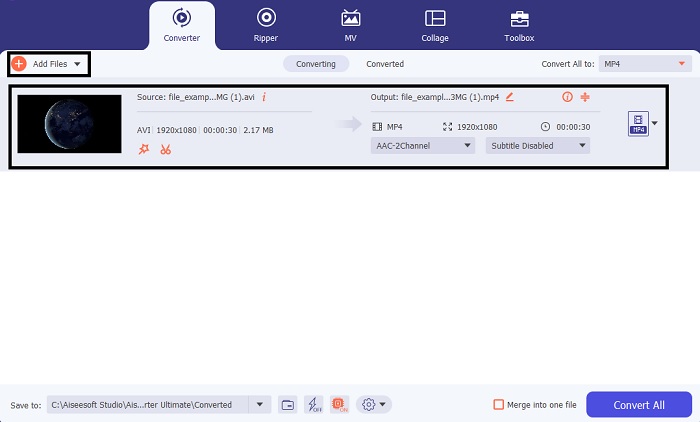
2. lépés. Az AVI fájl betöltéséhez kattints az Add Files gombra vagy a plusz jelre – bármelyiket választod, jó. Válaszd ki az átalakítani kívánt fájlt, majd kattints az Open gombra a folytatáshoz.
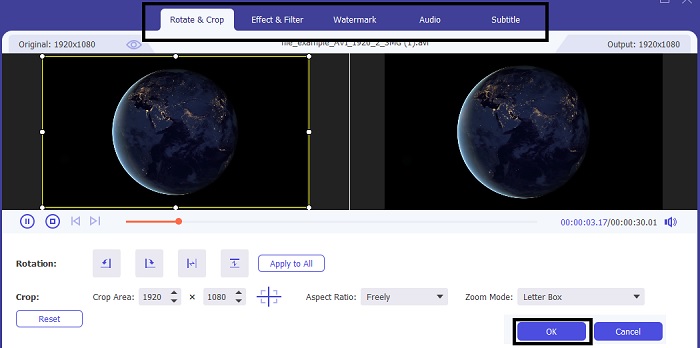
3. lépés. Az FVC eszköz felületén látsz majd egy varázspálca-szerű ikont, kattints rá. Egy új felület jelenik meg a képernyőn, ahol jobbá teheted a videót. Figyelmeztetés: ez a lépés csak extra lehetőség, ha szeretnél szerkeszteni a konvertálás előtt. Így később akár nem is lesz szükséged az iMovie-ra a szerkesztéshez, ha nem akarod. Nyomd meg az OK gombot a mentéshez.
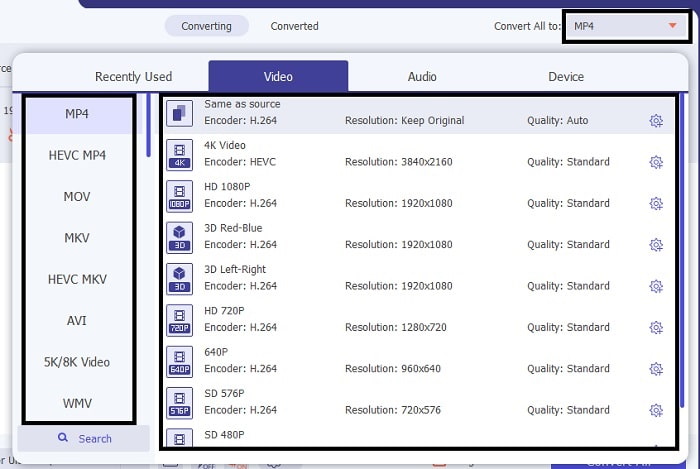
4. lépés. Miután mindennel megvagy, kattints a legördülő menüre, és válaszd ki, milyen iMovie-formátumot szeretnél. Ha már kiválasztottad az új AVI formátumot, kattints a Convert All gombra, hogy jelezd a programnak a konvertálás indítását.
5. lépés. Az átalakítás csupán néhány másodpercet vesz igénybe, és amikor befejeződött, egy mappa jelenik meg a képernyőn az új formátummal. Kattints a fájlra a lejátszáshoz, és gratulálunk, most már tudod szerkeszteni az iMovie-ban.
3. rész. GYIK az AVI-ról az iMovie-ra
Ki az iMovie megalkotója?
Az iMovie-t az Apple Inc. hozta létre, hogy saját szerkesztőeszközük legyen. Egyéb tények az Apple Inc.-ről a QuickTime lejátszót és a MOV formátumot is kifejlesztették natív médialejátszóként és formátumként a Mac felhasználók számára.
Mi a legjobb alternatíva az AVI formátumhoz Macen?
Valószínűleg a MOV formátumról van szó, mivel ezt kifejezetten Macre szánták. Szeretnéd tudni, hogyan konvertálhatod az AVI fájlokat MOV formátumba? Akkor kattints erre a linkre, és tudj meg többet az AVI–MOV átalakítókról.
Mi a hátránya az AVI formátum használatának?
Fentebb említettük, hogy ez a formátum különböző kodeket tartalmazhat, ami jó. De az AVI formátum nincs tömörítve, így 2-3 perces videó esetén hatalmas fájlméretre számíthatunk. Ennek ellenére, ha többet szeretne megtudni az AVI-ról, kattintson erre, hogy megtudja, mi az AVI.
Következtetés
Korábban úgymond vakon tapogatóztunk, és összezavart minket, hogy fogalmunk sem volt, hogyan kezeljük ezt a problémát. De most már világos, hogy az iMovie-ban történő szerkesztéshez az AVI fájlt át kell konvertálni. Tehát többé nem kell azon gondolkodnod, hogyan importáld az AVI fájlokat az iMovie-ba, majd szerkeszd őket. Ha a FVC Video Converter Ultimate mellett döntöttél, megérdemelsz egy tapsot. Ugyanis azt az eszközt választottad, amely megoldást kínál mindenféle konvertálási, összefűzési, javítási, tömörítési és egyéb problémára, amelyekkel a jövőben szembesülhetsz. Döntsd el, mi a legjobb számodra – és ez a legjobb a FVC Video Converter Ultimate.
-
 Konkrét útmutató az AVI ingyenes FLV formátumba konvertálásához
 Az AVI FLV formátumba konvertálásához nagy teljesítményű videokonverterre van szükség. Szerencsére ebből a cikkből kettőt és lépésenkénti útmutatót tanulhat meg.
-
 Az AVI videók konvertálása animált GIF fájlokká Windows / Mac rendszeren
 Szeretné kiválasztani az érdekes AVI szegmenseket a GIF mémek létrehozásához? Ez a cikk megmondja a 2 legjobb módszert az AVI videók klipelésére és az AVI animált GIF fájlokká történő ingyenes konvertálására.
-
 [2 legjobb megoldás] Hogyan játszhat le egyszerűen AVI-filmeket iPhone-on/iPadon
 Nem tud AVI-filmeket lejátszani iPhone/iPad készülékén, és nem szeretne harmadik féltől származó videolejátszót letölteni? Megtanulhat két hatékony módszert az AVI-videók iPhone-on való lejátszására való konvertálására.
