


 Video Converter Ultimate
 Screen Recorder
 Videó javítás
Sajátítsa el, hogyan gyorsíthatja fel a videókat a Windows Media Playerben a lehető legjobb módon [bizonyítékon alapuló]
Az egyes videójelenetek lejátszási sebessége eltér egymástól, és az is különbözik, mi a céljuk a sebesség változtatásával. Amikor növeled a videó sebességét, az a filmben vagy videóban lévő lényegtelen, nem túl érdekes eseményeket szimbolizálja. Ezzel szemben, amikor lelassítod a videót, az olyan pillanatokat vagy jeleneteket emel ki, amelyek nagyon fontosak a képi ábrázolás szempontjából. Ezek a lejátszási sebességre vonatkozó módosítások alapvetően fontosak a videók szerkesztésekor vagy készítésekor. Olvasd el ezt a cikket, hogy megtanuld, hogyan lehet felgyorsítani a videókat, különösen az olyan gyakori médialejátszókban az asztali gépünkön, mint a Windows Media Player.

1. rész. Windows Media Player: Hogyan lehet felgyorsítani a videókat
A Windows Media Player a Microsoft ingyenes médialejátszója, amely a Windows minden példányához tartozik. A Microsoft WMP vagy WM lejátszóként is ismeri. Amellett, hogy fényképeket nézegethetnek és zenét hallgathatnak, videókat is nézhetnek. A Windows Media Player (WMP) segítségével audio-CD-k másolása és zenei könyvtárának rendszerezése egyaránt lehetséges. Szerkesztő lappal is rendelkezik, amely segít a videók, képek és zene beállításában. Ha fel szeretné gyorsítani a videót a Windows Media Player használatával, kövesse az alábbi lépéseket:
1. lépés: Nyisd meg a Windows Media Playert; a bal sarokban válaszd a Videó fület.
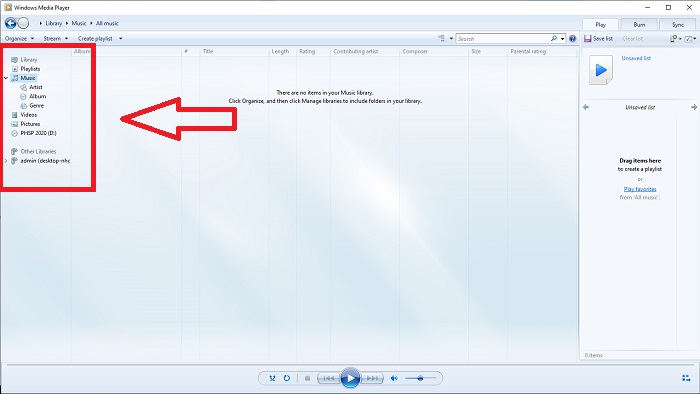
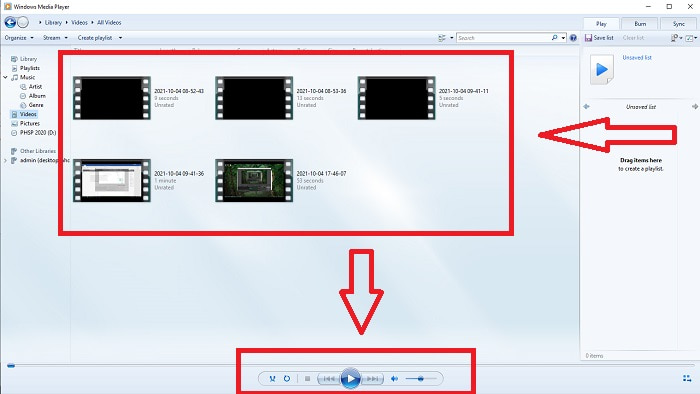
2. lépés: Indítsd el a videót dupla bal kattintással vagy jobb kattintással, illetve az interfész alsó, középső részén található Lejátszás gombbal.
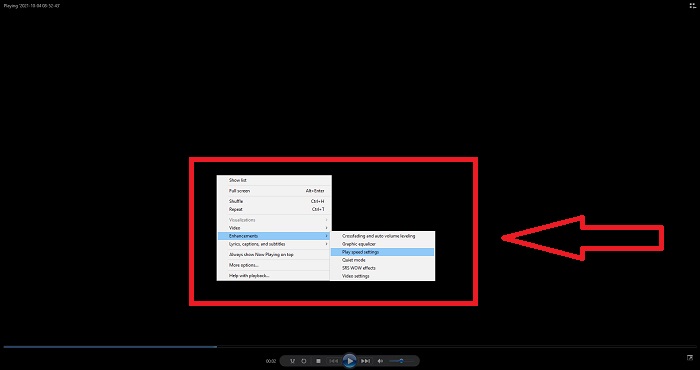
3. lépés: Ezután kattints jobb gombbal a képernyőre a szerkesztési lap eléréséhez. Folytasd azzal, hogy a Javítások, majd a Lejátszási sebesség beállításai lehetőséget választod. Ezt követően a csúszka húzásával már módosíthatod a videoklip lejátszási sebességét.
2. rész. Mi a teendő, ha a Windows Media Player lejátszási sebessége nem működik?
AVI, WAV vagy MOV videofájlok lejátszásakor előfordulhat, hogy befut a Windows médialejátszóba, és problémákba ütközhet a fájl lejátszása közben. A közepes minőségű videókat gyakran AVI formátumban tekintik meg. Más médialejátszóknak nincs problémája az AVI lejátszásával. A WMP viszont hibás lehet az AVI fájl lejátszásakor. A Windows Media Player nem támogatja az AVI fájlokat, mert kodekekkel vannak kódolva. Lehet, hogy a következő értesítést kapta: A Windows Media Player nem tudja lejátszani a fájlt. Előfordulhat, hogy a Player nem támogatja a fájltípust, vagy nem támogatja a fájl tömörítésére használt kodeket. Ennek a jelenségnek két magyarázata van.
1. Mivel nem egyezik a szükséges fájllal, a Windows Media Player (WMP) nem támogatja a fájl kodekjét.
2. A Windows Media Player nem támogatja a tömörítési kodekeket.
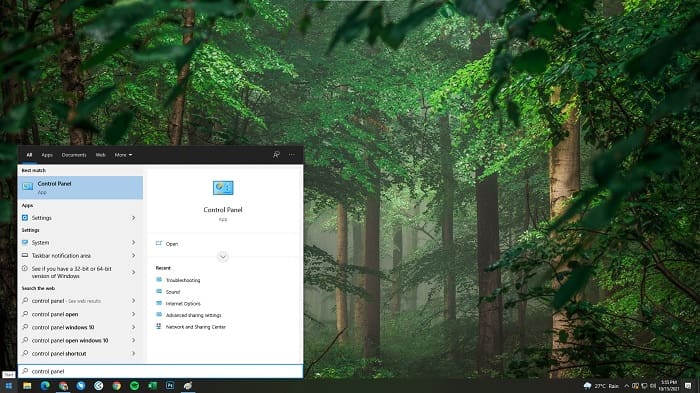
1. lépés: Nyisd meg a Vezérlőpultot a számítógépeden, és keresd meg a Nézet beállítást, majd kattints a Nagy ikonok lehetőségre, hogy elérd a Vezérlőpult összes funkcióját.
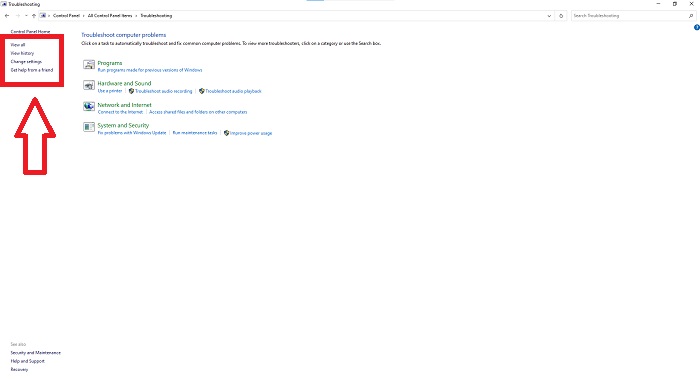
2. lépés: Kattints a Hibaelhárítás lehetőségre. A bal sarokban kattints a Összes megjelenítése opcióra, majd keresd meg a Windows Media Player könyvtár elemet.
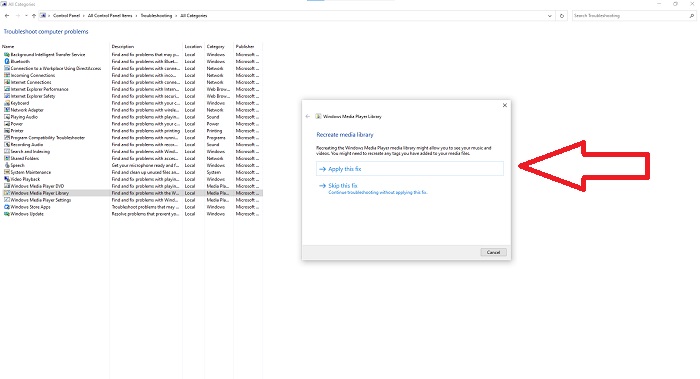
3. lépés: Végül hárítsd el a Windows Media Player hibáit azzal, hogy a megjelenő ablakban a Tovább gombra kattintasz, majd kiválasztod az Ez a javítás alkalmazása lehetőséget. Ha a hibaelhárítás befejeződött, válaszd ki, hogy bezárod a hibaelhárítót, vagy értékelést adsz róla.
3. rész. Egy másik megvalósítható módszer a videók felgyorsítására
Tegyük fel, hogy problémái vannak a videóid lejátszási sebességének javításával a bonyolult lépések miatt. Ezenkívül, ha a hibaelhárítás nem működik, és továbbra sem tudja lejátszani a videót. Vannak webes eszközök az interneten, és néhányat meg kell vásárolni, mielőtt hozzáférhetnénk a teljes eszközhöz. A Video Converter Ultimate a legjobb alternatíva a videók felgyorsítására, és ingyenesen használható. Ez a szoftver a következő szintre tudja szerkeszteni a videót, és a következő lépések vannak:
1. lépés: Válaszd a „Free Download” lehetőséget, és töltsd le közvetlenül a számítógépedre a szoftvert. Ezután testre szabva telepítsd a programot.
Ingyenes letöltés Windows 7 vagy újabb rendszerre Biztonságos letöltés
Ingyenes letöltés macOS 10.7 vagy újabb rendszerre Biztonságos letöltés
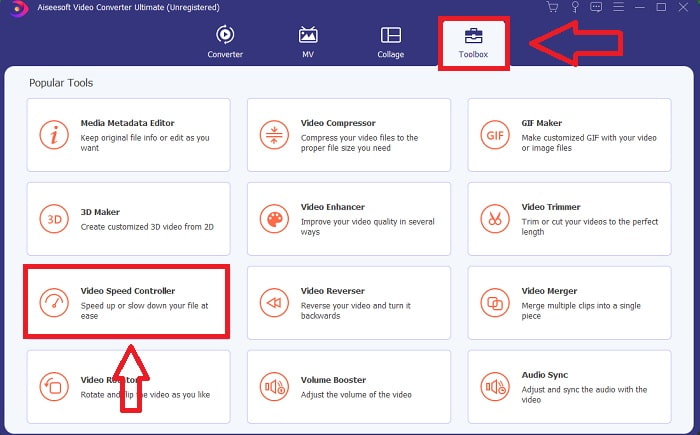
2. lépés: Miután a szoftver telepítve lett, indítsd el a menüsorból a Toolbox (Eszköztár) opció kiválasztásával, majd a megjelenő listából válaszd a Video Speed Controller (Videósebesség-szabályzó) lehetőséget.
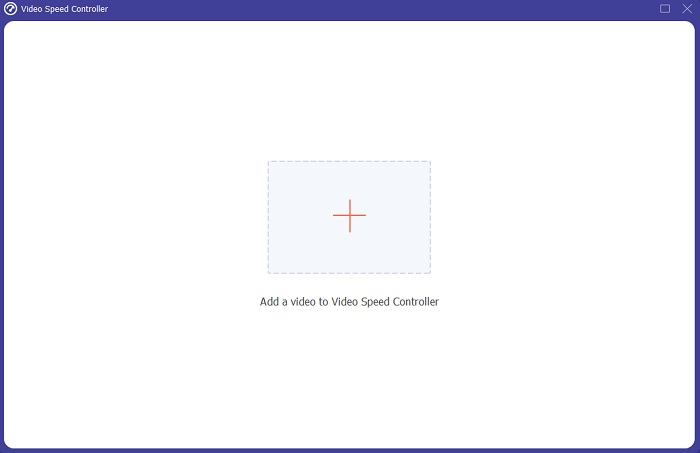
3. lépés: Kattints a + gombra a kívánt fájl hozzáadásához, majd folytasd a videó szerkesztését.
4. lépés: Válaszd ki, hányszorosára növelje vagy csökkentse a program a videó képkockasebességét, hogy megváltoztasd a lejátszási sebességet.
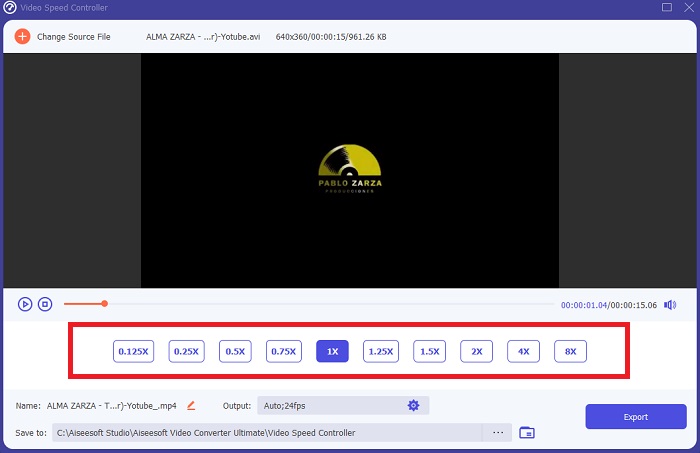
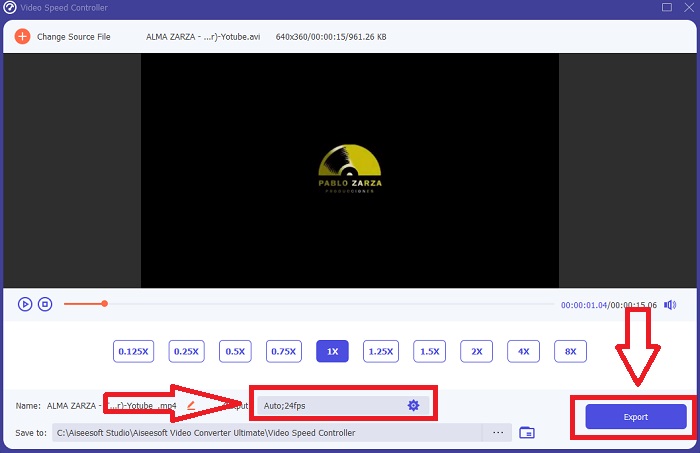
5. lépés: A formátum, felbontás, minőség stb. módosításával kiválaszthatod a kívánt kimenetet, miután befejezted a videód lejátszási sebességének beállítását. Kattints az Export gombra, majd válassz egy helyet a munka elmentéséhez, amikor elkészültél.
4. rész. GYIK a videók felgyorsításáról a Windows Media Player alkalmazásban
Hogyan lehet kijavítani azokat az MP4-videókat, amelyek nem játszhatók le a Windows Media Playerrel?
Ahogy a cikk korábban említette, a Windows Media Player nem támogat széles körű videóformátumokat. Mivel elsősorban a Windows számára megfelelő formátumokat támogatja, nehéz a hibák javítása ezzel a médialejátszóval. Ezért kell megtanulnod, hogyan lehet konvertálni, illetve hogyan lehet MP4 videóformátumokat lejátszani. A link egy hasznos cikk ehhez a probléma megoldásához.
Hogyan lehet DVD-t lejátszani a Windows Media Playerben?
Vannak olyan filmek, amelyek DVD-n érhetők el, és ezek lejátszásához megfelelő médialejátszót kell találnod. A Windows Media Player az egyik legelterjedtebb DVD-lejátszásra alkalmas médialejátszó. Emellett ez a médialejátszó néhány olyan beállítást is kínál, amelyek segítenek a szerkesztésben a DVD lejátszása közben. Itt találsz további részleteket arról, hogyan lehet DVD-ket lejátszani a Windows Media Playerben.
A videó fájlmérete kisebb lesz, ha növeli a lejátszási sebességet?
Csak a képkocka kerül felosztásra minden alkalommal, amikor növeli vagy csökkenti a videó lejátszási sebességét. Ha 0,5-szer gyorsabban növeli, a képkocka 1/120 másodpercenként 60 képkocka lesz. Röviden, ez nem befolyásolhatja a videót, kivéve, ha a videónak már alacsony a képkockasebessége.
Következtetés
Összefoglalva, bár a Windows Media Player hibás szoftvernek tűnhet, amely csak kevés formátumot támogat, mégis vannak olyan funkciói, amelyekkel a videóformátumokkal kapcsolatos problémák egy része megoldható. Ha azonban növelni szeretnéd a videoklip lejátszási sebességét, töltsd le a Video Converter Ultimate programot, amely nemcsak a videó felgyorsítására képes. Ez a szoftver teljesen új szintre emelheti a videódat. A rendelkezésre álló funkciók összességével ez lesz a legjobb és legkönnyebben elérhető szoftver, amelynek használatát ajánljuk.
-
 WebM - GIF - 3 ingyenes WebM - GIF konverter saját GIF létrehozásához
 A WebM GIF? Hogyan lehet egy videót GIF -re alakítani? Van ingyenes WebM -GIF konverter? Ez a bejegyzés 3 ingyenes módot oszt meg, amelyek segítenek a WebM GIF -re konvertálásában.
-
 Hogyan lehet átalakítani az MKV videókat animált GIF -re Photoshop/FFmpeg nélkül
 Miután letöltötte és megtekintette az MKV filmeket a számítógépén, érdemes megosztania néhány csodálatos pillanatot barátaival vagy az interneten GIF -ként. Ebben a cikkben megismerheti az MKV GIF -re konvertálásának 2 legegyszerűbb módját.
-
 Készítse el legjobb animált GIF-jét az Online GIF Maker segítségével [2021]
 Informatív áttekintés arról, hogyan készíthet GIF-et ezekkel az egyszerű online GIF-készítőkkel, amelyekkel már találkozik vagy nem az interneten.
