


 Video Converter Ultimate
 Screen Recorder
 Videó javítás
 Biztonságos letöltés
A számok egyesítésének legegyszerűbb módja az Audacityben [2025. évi útmutató]
Az elemek, például más hangok, zene vagy számok egyesítése elengedhetetlen ahhoz, hogy egy audioprojekt kreatív és egyedi legyen. Ezt a folyamatot általában egy dedikált hangszerkesztő alkalmazással hajtják végre, amely rendelkezik a számok egyesítésével. Manapság egy eszközt gyakran használnak több sáv egyesítésére, ez az Audacity.
Sokak számára ismert ez az eszköz ingyenes és nyílt forráskódú jellege miatt, emellett pedig nagyon jó szerkesztési funkciókkal is rendelkezik, amelyek vonzóak a felhasználók számára. Ha tehát útmutatót keresel arról, hogy hogyan lehet sávokat egyesíteni Audacityben, vagy egy alternatív, egyszerűbb módszert szeretnél megismerni, olvasd tovább ezt a cikket.

1. rész: Számok egyesítése az Audacityben
Az Audacity egy széles körben használt ingyenes hangszerkesztő szoftver, amely számos szerkesztési funkciót kínál, beleértve a híres Audacity egyesítési sávot.
Ezzel a funkcióval a felhasználók könnyen importálhatnak különféle hangelemeket a szerkesztési idővonalra. Ezután a szerkesztési idővonalról a számokat egyetlen sávba igazíthatják úgy, hogy manuálisan mozgatják őket a kívánt sorrendbe. Ezen kívül ez az eszköz nagyszerű szerkesztési funkciókkal rendelkezik, amelyek elengedhetetlenek a kombinált sáv csiszolásához. A be- és kiúsztatási funkciók zökkenőmentes átmenetet hozhatnak létre a műsorszámok között. Eközben a hangerő-beállítás funkcióval az összes zeneszám kiegyensúlyozottan szólal meg, ha egyesítik őket.
Miért egyesítik a hangszerkesztők a számokat?
Folyamatos átmenetek létrehozásához. Több sáv egyesítésével a felhasználók simább átmeneteket hozhatnak létre, nyilvánvaló vágások vagy szünetek nélkül a különböző hangsávok között.
A munkafolyamat egyszerűsítéséhez. Több sáv egyesítése egyetlen sávba tömöríti a különféle hangrétegeket. Ez a folyamat megkönnyíti a sávok kezelését és szerkesztését anélkül, hogy külön fájlokkal kellene zsonglőrködni.
Kiegyensúlyozott hangzás létrehozásához. A különböző hangelemek egyesítésével a hangszerkesztők be tudják állítani a hangerőszinteket, szinkronizálni tudják az időzítést, és össze tudják keverni a különböző sávokat.
A következőképpen egyesítheti a számokat az Audacityn:
1. lépés: Először töltsd le és telepítsd az Audacityt a számítógépedre.
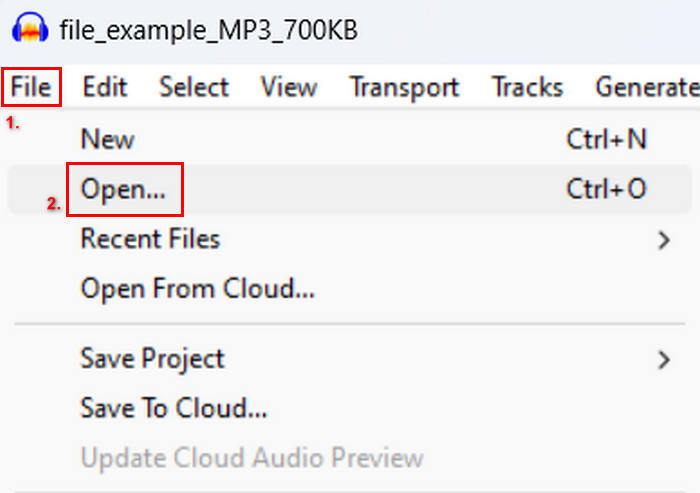
2. lépés: Nyisd meg az eszközt, menj a File menüpontra, kattints az Open lehetőségre, és importáld azokat a sávokat, amelyeket össze szeretnél fűzni.
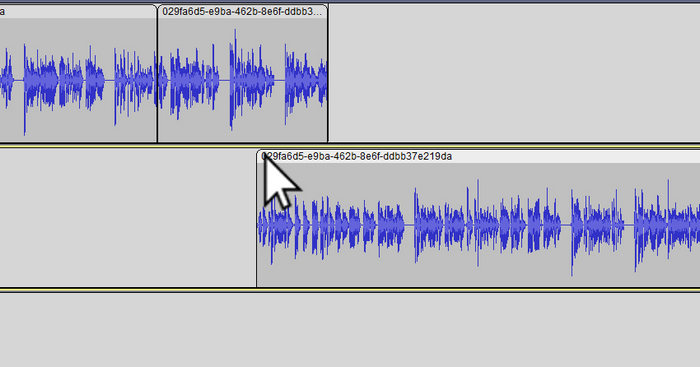
3. lépés: Miután minden sáv megjelent az idővonalon, a következő lépés, hogy a sáv Clip fejére kattintva áthelyezd és elrendezd őket a kívánt sorrendben.
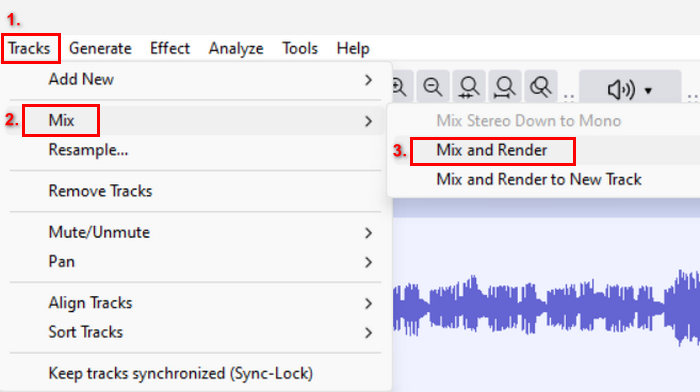
4. lépés: Miután sorba rendezted a sávokat, olvaszd össze őket egyetlen kompozícióvá. A kívánt sávok kijelöléséhez tartsd lenyomva a Ctrl billentyűt, miközben rájuk kattintasz. Ezután, hogy a kiválasztott sávokat egyetlen sávvá egyesítsd, menj a Tracks menübe, kattints a Mix opcióra, majd válaszd a Mix and Render parancsot.
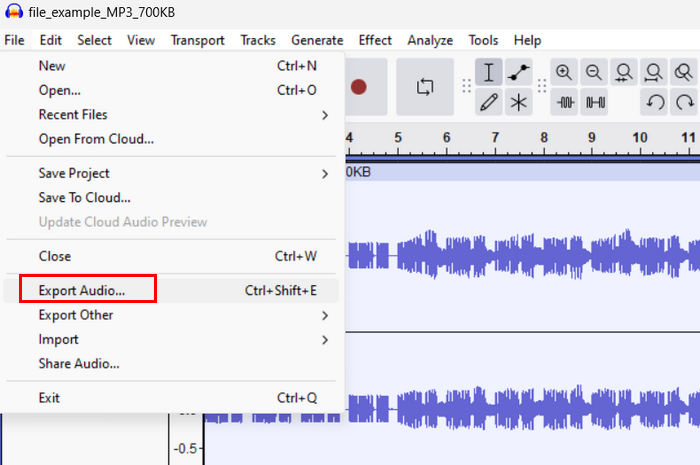
5. lépés: A fájl exportálásához menj a File menüpontra, és válaszd az Export Audio lehetőséget.
A sima átmenetek és a kiegyensúlyozott hangzás érdekében használd az eszközön belül az Amplify vagy Normalize effektet. Emellett alkalmazz fade-int és fade-outot is, hogy a sávok között még professzionálisabb és finomabb átmeneteket hozz létre. Itt nézheted meg, hogyan lehet fade-elni a hangot Audacityben.
2. rész. Egyesítse a számokat az Audacity Alternative-val
Ha kiváló alternatívát keresel, mert nehéznek találod megérteni, hogyan működik az Audacity sávegyesítő funkciója, akkor használhatod az FVC által ajánlott Video Converter Ultimate programot. Ez egy teljes funkcionalitású eszköz, amely számos hang- és videószerkesztő modult kínál, például hangösszefűzőt is. A program lényege, hogy miután beimportáltad az egyesíteni kívánt hangfájlokat, könnyedén módosíthatod a sávok sorrendjét tetszésed szerint, és azonnal szerkesztheted is őket, mielőtt egyetlen kattintással összeolvasztanád őket.
Főbb funkciók:
• Több audiofájlt tud egyesíteni 1000 formátumban, mint például MP3, AAC, WAV, FLAC, OGG stb.
• Olyan alapvető szerkesztési funkciókat tartalmaz, mint a vágás, a gyors felosztás, a be- és a kiúsztatás.
• Lehetővé teszi a hangkimenet szerkesztését, akárcsak a kódolót, a mintavételezési sebességet, a bitrátát, a csatornát stb.
• Gyors összevonási folyamat.
• Windows és MacOS rendszeren is elérhető.
A következőképpen egyesítheti a számokat az FVC által kiválasztott Video Converter Ultimate programmal:
1. lépés: Először töltsd le és telepítsd az eszközt az eszközödre.
Ingyenes letöltés Windows 7 vagy újabb rendszerre Biztonságos letöltés
Ingyenes letöltés macOS 10.7 vagy újabb rendszerre Biztonságos letöltés
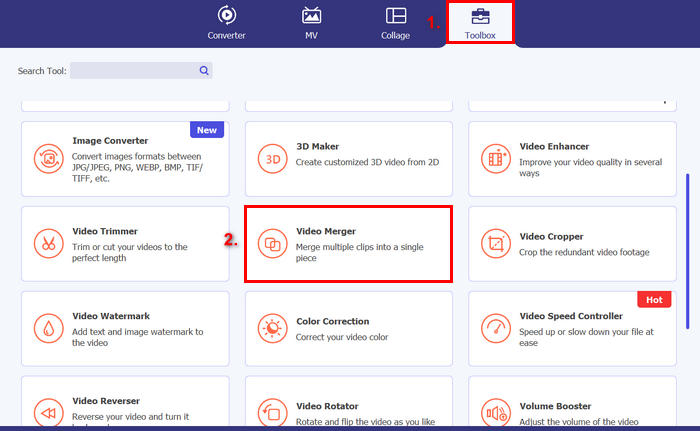
2. lépés: Nyisd meg az eszközt, menj a Toolbox fülre, és válaszd a Video Merger lehetőséget. Ezután kattints a Plusz ikonra, hogy könnyen be tudd importálni az egyesítendő hangfájlokat.
3. lépés: Most az összes importált hangsávot alul láthatod. Ha módosítanod kell a sorrendjüket, egyszerűen húzd a hangklipet a megfelelő helyre. Vagy válaszd ki a klipet, és kattints a Forward vagy Backward gombra. Ezután kattints az Export gombra a projekt mentéséhez.
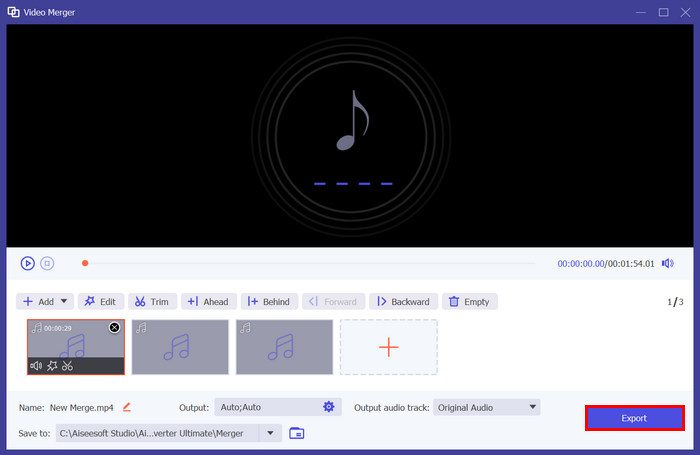
Megjegyzés: Ha módosítanod kell a hangformátumot, vagy testre szeretnél szabni bizonyos hangbeállításokat, menj az Output beállításokra. Itt megváltoztathatod a formátumot, az enkódert, a mintavételezési frekvenciát, a csatornát és a bitrátát is. Ha elkészültél, kattints az Export gombra.
Itt van. Az FVC által kiválasztott Video Converter Ultimate valóban nagyszerű alternatíva az Audacity számára. Nagyon felhasználóbarát és intuitív kezelőfelületének köszönhetően még a kezdők is könnyedén használhatják az eszközt több sáv egyesítésekor.
3. rész. GYIK a számok egyesítésével kapcsolatban az Audacityben
Hogyan importálhatok több hangfájlt egy sávba az Audacityben?
Több hangfájl Audacitybe történő importálásához menj a File menüpontra, kattints az Open lehetőségre, és válaszd ki az egyesíteni kívánt hangfájlokat. Mindegyik fájl külön sávként fog megjelenni az idővonalon. Innen manuálisan igazíthatod őket egymáshoz, majd a Tracks menü Mix and Render opciójával egyesítheted a sávokat.
Hogyan helyezhetek át hangot egyik sávról a másikra az Audacityben?
Kétféleképpen mozgathat egy számot, ha több számot egyesít az Audacityben. Egyetlen sáv mozgatásához kattintson és húzza a sáv klip fogantyúját, és helyezze el a kívánt sorrendbe. Eközben több sáv mozgatásához válassza ki az összes mozgatni kívánt sávot a Kijelölő eszköz segítségével. Ezután húzza el a klip fogantyúját a kijelölt területen belül az összes kiválasztott klip egyidejű mozgatásához.
Hány szám van az Audacity-ben?
Az Audacity nem korlátozza a szerkeszthető zeneszámok számát. Ezzel annyi számot hozhat létre és importálhat, amennyit csak akar. Ha azonban több sávval dolgozik, figyelembe kell vennie a számítógép kapacitását, mert a teljesítmény függhet a rendszer feldolgozási teljesítményétől és memóriájától.
Következtetés
Most, hogy már tudod, hogyan lehet sávokat egyesíteni Audacityben, könnyedén hozhatsz létre sima átmeneteket és kiegyensúlyozott hangzást a projektjeidhez. Emellett felfedezheted egyéb funkcióit is, például a fade-int, fade-outot és a hangerő finomhangolását a jobb hangzás érdekében. Ha pedig egyszerűbb vagy fejlettebb megoldást szeretnél, próbáld ki az FVC által ajánlott Video Converter Ultimate programot. Könnyen használható, és több testreszabási lehetőséget kínál a hangfájljaidhoz.
-
 Az Audacity használata a hang visszafordításához Windows 10/11 rendszeren
 Ha egy hangfájlt szerkeszt az Audacityben, és azon tűnődik, hogyan fordíthatja vissza az egészet vagy annak egy részét, olvassa el itt, és tanulja meg, hogyan lehet egyszerűen visszafordítani a hangot az Audacityben.
-
 A hang elhalványítása az Audacityben: 4 különböző módszer [2025]
 Fedezze fel az Audacity hangjának hatékony elhalványításának lépéseit, valamint további ismereteket az Audacity be- és kikapcsolási effektusairól. Kapcsold be most, és merüljünk bele.
-
 A hang felosztása az Audacityben nagy pontossággal [Útmutató]
 Megpróbálja megtanulni, hogyan lehet számokat felosztani az Audacityben? Jó oldalon vagy! Ebből a cikkből megtudhatja, hogyan lehet egy sávot könnyedén ketté választani.
