


 Video Converter Ultimate
 Screen Recorder
 Videó javítás
 Biztonságos letöltés
Egyesítse zökkenőmentesen WAV-fájlokat a szoftvereszközökkel és tippekkel
Akár kezdő, akár profi vagy hangszerkesztésben, a megfelelő eszközökkel és technikákkal történő WAV‑fájlok egyesítése elengedhetetlen ahhoz, hogy két különböző WAV‑fájlt veszteségmentes minőségben tudd összefűzni és exportálni. A megfelelő eszköz felkutatása viszont idő- és energiabefektetést igényelhet a felhasználó részéről. E cikk segítségével azonban különböző eszközöket mutatunk be, lépésről lépésre bemutatva a használatukat, valamint tippeket adunk, hogy könnyebben el tudd kezdeni, és az egész folyamat átláthatóbbá és hatékonyabbá váljon.

1. rész: WAV-fájlok veszteségmentes kombinálása másodpercek alatt [GPU-gyorsítással]
Amikor két WAV‑fájlt szeretnél egyetlen fájlként egyesíteni és exportálni, a legjobb és legegyszerűbb módszer a FVC által ajánlott Video Converter Ultimate használata. Az Aiseesoft által fejlesztett szoftver minden felhasználó számára elérhető, mivel teljesen ingyenesen letölthető a hivatalos weboldaláról. Ez az eszköz videó- és hangszerkesztő funkciókat is kínál, és képes több WAV‑fájlt egyetlen fájlba egyesíteni. Emellett a program nagy sebességű feldolgozási technológiával rendelkezik, ami a WAV‑fájlok egyesítését és exportálását sokkal hatékonyabbá teszi a felhasználó számára. A WAV‑fájlok egyesítésének könnyebb átláthatóságához kövesd az alábbi útmutatót.
1. lépés. Töltsd le és telepítsd a WAV‑fájl‑összefűzőt az asztali gépedre, majd nyisd meg a programot.
Ingyenes letöltés Windows 7 vagy újabb rendszerre Biztonságos letöltés
Ingyenes letöltés macOS 10.7 vagy újabb rendszerre Biztonságos letöltés
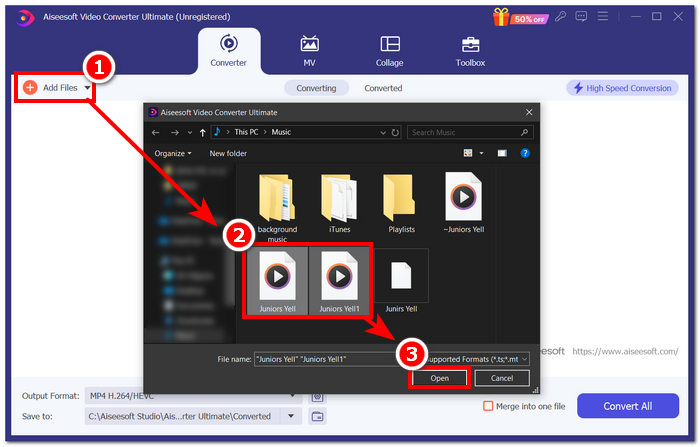
2. lépés. Miután beléptél a szoftver felületére, kattints a bal felső sarokban található Add Files gombra. Ezután válaszd ki és nyisd meg azokat a WAV‑fájlokat, amelyeket egyetlen fájlba szeretnél egyesíteni, majd kattints az Open gombra.
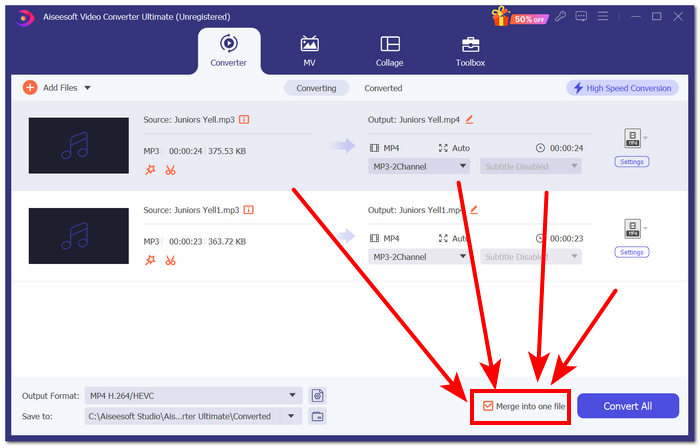
3. lépés. Miután feltöltötted a WAV‑fájlokat a programba, be kell állítanod az egyesítést. Ehhez jelöld be a Merge into one file menüpontot, amely a Convert All gomb mellett, a szoftver felületének jobb alsó részén található.
4. lépés. Kattints a Convert All gombra az egyesítési folyamat elindításához; a program ezután automatikusan exportálja az egyesített fájlt a letöltési mappádba.

Tippek
• A szoftvereszközben egyszerre több WAV-fájlt is egyesíthet.
• A szoftver interfész bal alsó sarkában beállíthatja a kimeneti formátumot a leginkább kívánt fájlformátumra, mielőtt exportálná.
• Az egyesített WAV-fájl célhelyét is módosíthatja, ha eléri és kiválasztja a szoftverfelület bal alsó sarkában található mappát.
• A nagysebességű feldolgozási technológia maximalizálása érdekében a WAV-fájl egyesítése és exportálása során engedélyezze a Nagy sebességű konvertálás beállítást a szoftverfelület jobb felső sarkában.
• Ez az eszköz számos formátumot támogat, így például MP4-, MKV-, FLV-, MP3-, FLAC‑fájlokat és egyéb formátumokat is egyesíthetsz.
2. rész: WAV fájlok online egyesítése
Ha nagyon nehéznek találja a WAV-fájlok egyesítését egy szoftver-alapú eszközön keresztül, egy online megoldás lehet az, amire szüksége van. A Descript egy webalapú eszköz, amely hang-, videó- és átíró szerkesztő eszközként működik egyben. A WAV-fájlok egyesítése viszonylag egyszerű, mivel a webalapú eszköz mesterséges intelligencia segítségével automatikusan egyesíti a bevitt WAV-fájlokat a feltöltés pillanatában, és lehetővé teszi a felhasználók számára, hogy a letöltés előtt megtekinthessék őket.
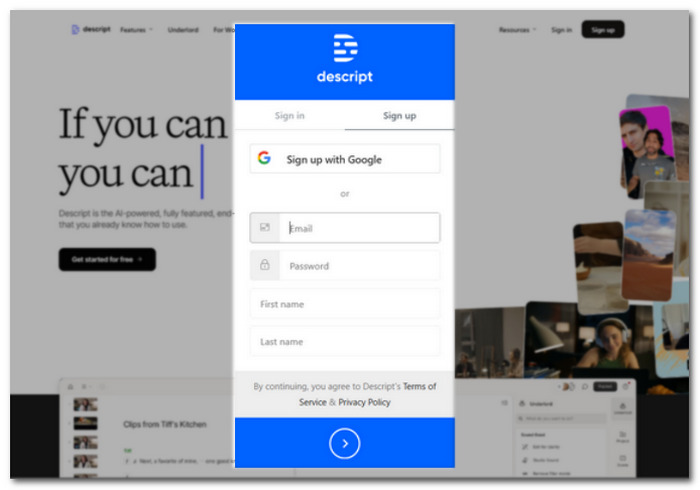
1. lépés. Látogass el a Descript hivatalos weboldalára, és hozz létre egy fiókot, hogy használni tudd a szoftvert a WAV‑fájlok egyesítésére.
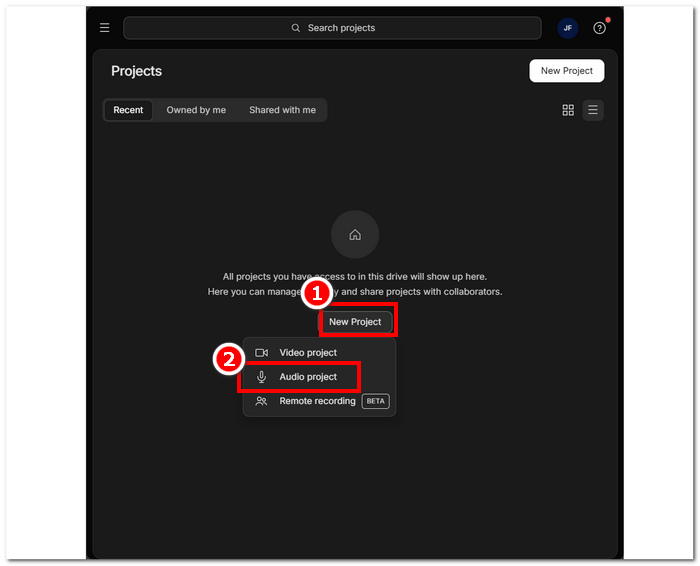
2. lépés. Miután bejelentkeztél a felületre, kattints a New Project > Audio Project lehetőségre.
3. lépés. Töltsd fel azokat a WAV‑fájlokat, amelyeket egyetlen fájllá szeretnél kombinálni és összefűzni, a felületen található Upload a file mezőbe.
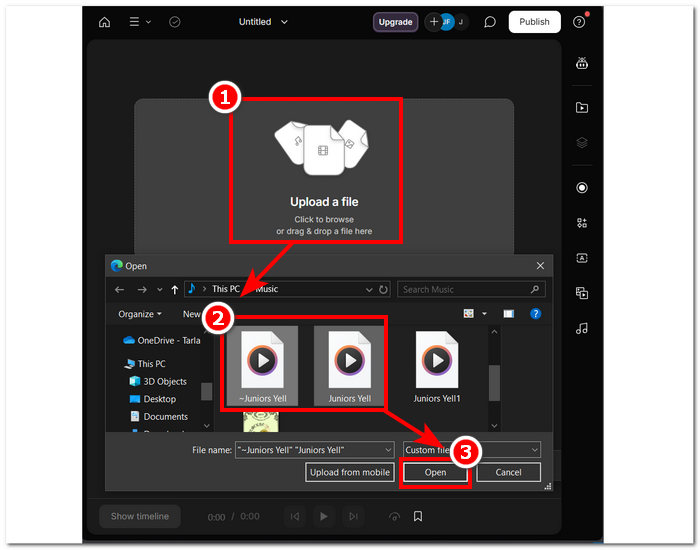
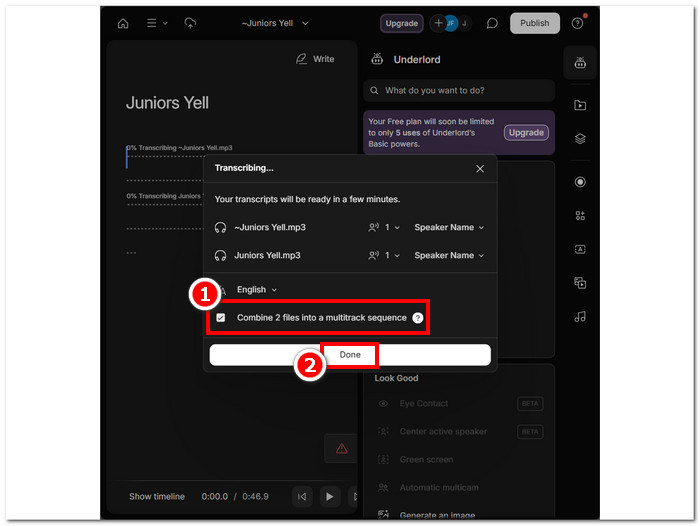
4. lépés. Amíg a WAV‑fájlok feltöltődnek a program felületére, megjelenik egy ablak, amelyben eldöntheted, szeretnéd‑e, hogy automatikusan összefűzze őket. Jelöld be a négyzetet az AI‑alapú egyesítés engedélyezéséhez, majd kattints a Done gombra.
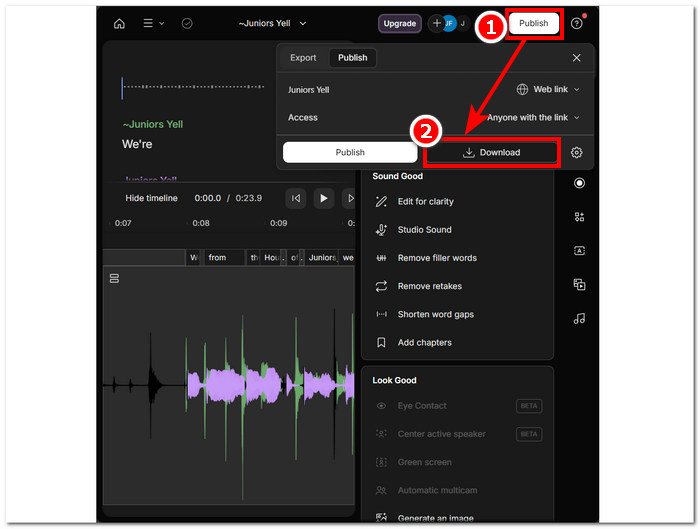
5. lépés. Várd meg, amíg az eszköz befejezi a WAV‑fájlok egyesítését. Ha elkészült, lejátszhatod a kész kimenetet, hogy ellenőrizd, mennyire végezte jól a feladatot az MI, és ha szükséges, módosításokat végezhetsz. Amint elégedett vagy az eredménnyel, kattints a Publish > Download gombra, hogy a gépedre letöltsd az egyesített WAV‑fájlt.
Tippek
• A kombinált WAV-fájlok letöltése előtt alaposan ellenőrizze a hangsávot, hogy elkerülje a felhasadásokat.
• Az eszköz ismerete hatékonyan gyorsíthatja a WAV-fájlok egyesítési folyamatát.
3. rész: WAV fájlok kombinálása az Audacityvel
Nyílt forráskódú hangszerkesztőként az Audacity is képes sávok, például WAV‑fájlok egyesítésére további költségek nélkül. Ez az ingyenesen letölthető szoftver már régóta segíti a felhasználókat a hangszerkesztési feladatokban, és jelentősen megkönnyíti a WAV‑fájlok összefűzését. Az Audacity lehetővé teszi, hogy egyszerre több WAV‑fájlt adj hozzá, miközben különféle más hangformátumok importálását is támogatja. Továbbá rendelkezik egy gyors funkcióval, amellyel minden sávot pontosan az előző végéhez igazíthatsz, így jóval egyszerűbb az egyesítés anélkül, hogy felülírástól kellene tartanod. A lenti, részletes útmutató követésével könnyebben eligazodhatsz a program használatában.
1. lépés. Töltsd le az Audacity programot az asztali gépedre. Miután telepítetted, nyisd meg, és töltsd be azokat a WAV‑fájlokat, amelyeket egyetlen fájllá szeretnél egyesíteni.
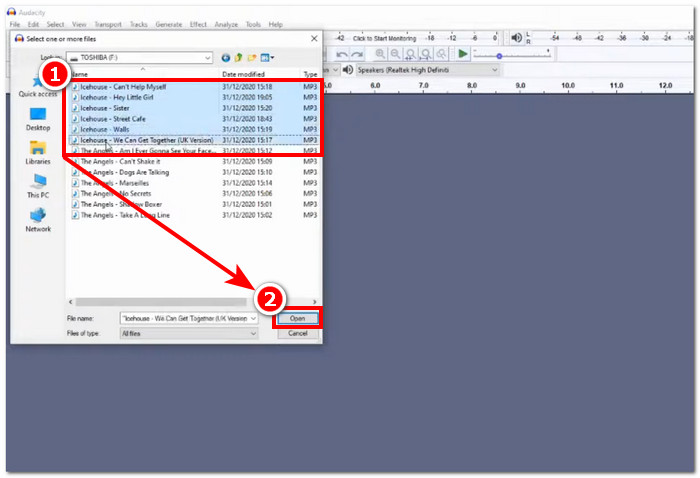
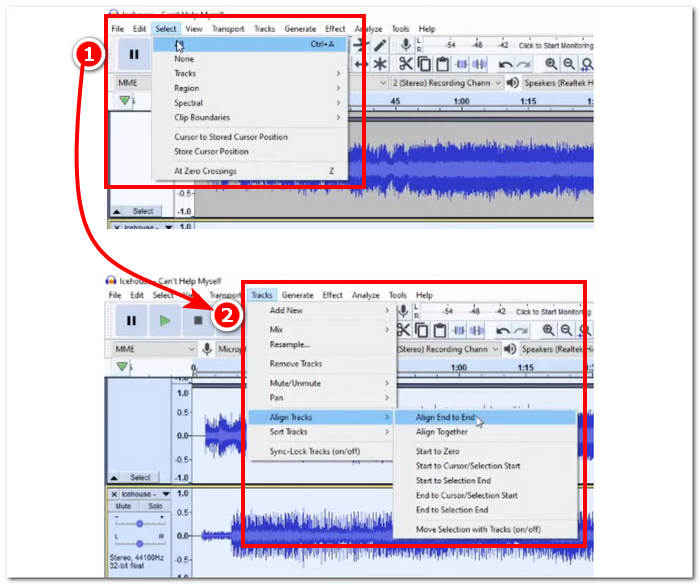
2. lépés. Ha a WAV‑fájlok már betöltődtek a felületre, kezdd azzal, hogy az összes sávfájlt kijelölöd: kattints a felső menüsorban a Select > All lehetőségre. Ezután igazítsd a kijelölt WAV‑sávokat: kattints a Track menüpontra, majd az Align Tracks alatt válaszd az Align End to End opciót.
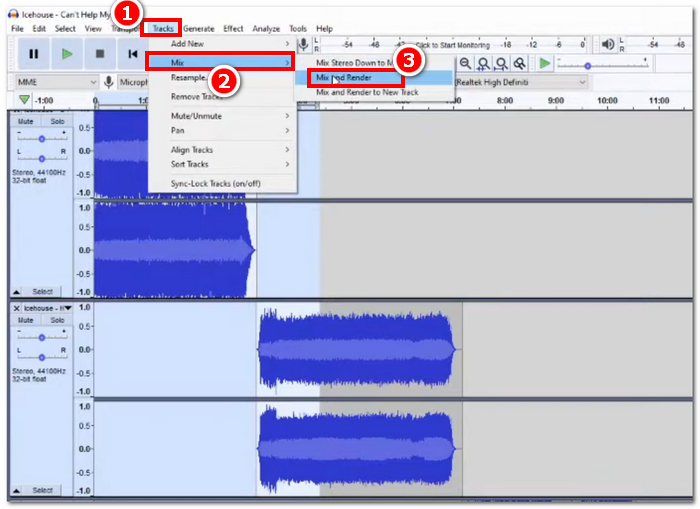
3. lépés. Miután a WAV‑fájlok sávjai egymás végéhez igazodtak, kattints ismét a Track menüre, majd a Mix funkción belül válaszd a Mix and Render lehetőséget az egyesítési folyamat elindításához.
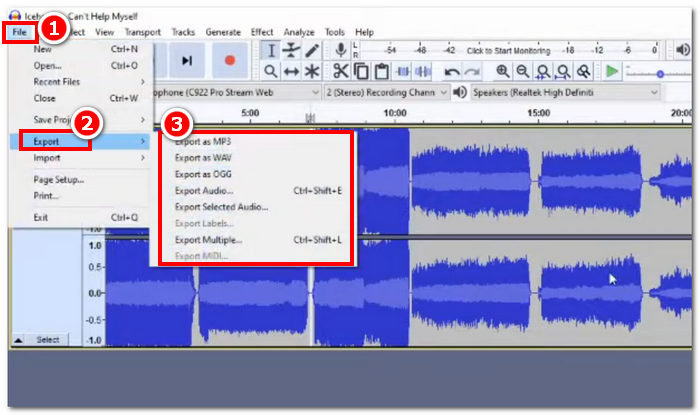
4. lépés. Ha a folyamat befejeződött, exportálhatod az egyesített WAV‑fájlt: kattints a File > Export menüpontra, majd válaszd ki a számodra megfelelő kimeneti formátumot.
Tippek
• A kombinált WAV-fájlok exportálásakor válassza az exportálást WAV-ként, mivel ez megőrzi az eredeti hangminőséget.
4. rész: WAV fájlok egyesítése FFmpeg segítségével
Egy másik nyílt forráskódú szoftvereszköz a hang- és képkezeléshez az FFmpeg. Ez a nagy teljesítményű multimédiás keretrendszer használható konverterként és multimédiás szerkesztésre, például videó-, hang- és egyéb médiafájlokra. Az olyan feladatok kezelésekor, mint például a WAV-fájlok egyesítése, a szoftver egy adott kódot ír be a parancssorba, hogy elindítsa a WAV-fájlok egyetlen kimeneti fájlba történő összefűzését. Az alábbiakban egy részletes útmutató található az FFmpeg WAV-fájl egyesítéseként való használatához.
1. lépés. Lépj a FFmpeg weboldalára, és telepítsd a programot az általad használt eszköznek megfelelően.
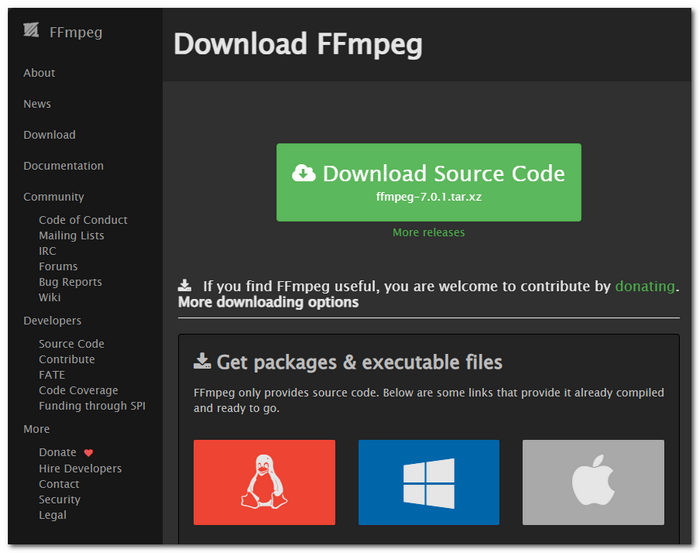
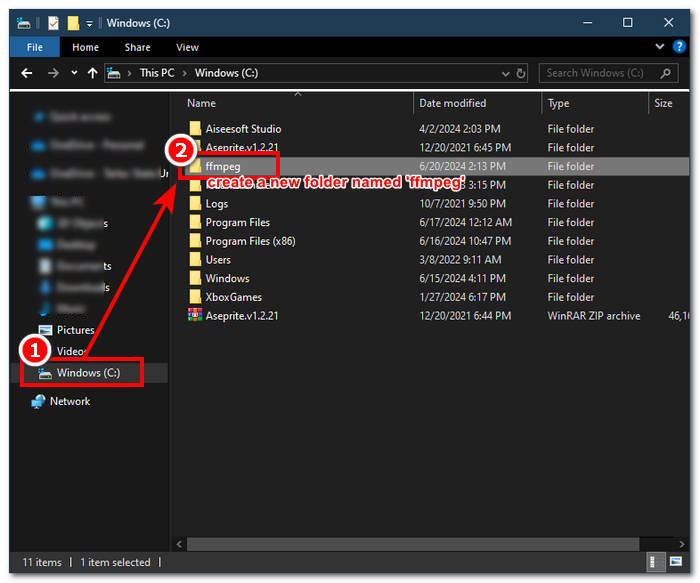
Töltse le a zip fájlt a webhelyről, és hozzon létre egy új mappát a rendszer elérési útjában az összes FFmpeg végrehajtható fájl tárolásához, beleértve a zip fájl áthelyezését a mappába.
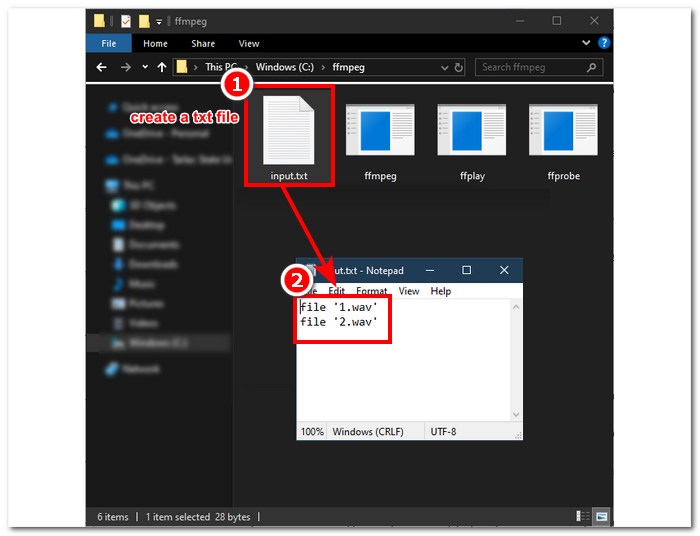
2. lépés. Helyezd át a WAV‑fájlokat az általad létrehozott ffmpeg mappába, és készítsd elő őket azzal, hogy a könyvtáron belül nevezd át őket ‘input1.wav’ és ‘input2.wav’ fájlokra.

Megjegyzés: Ugyanebben a mappában hozz létre egy ‘input.txt’ nevű fájlt, és írd bele a következő tartalmat:;
file 'input1.wav'
file 'input2.wav'
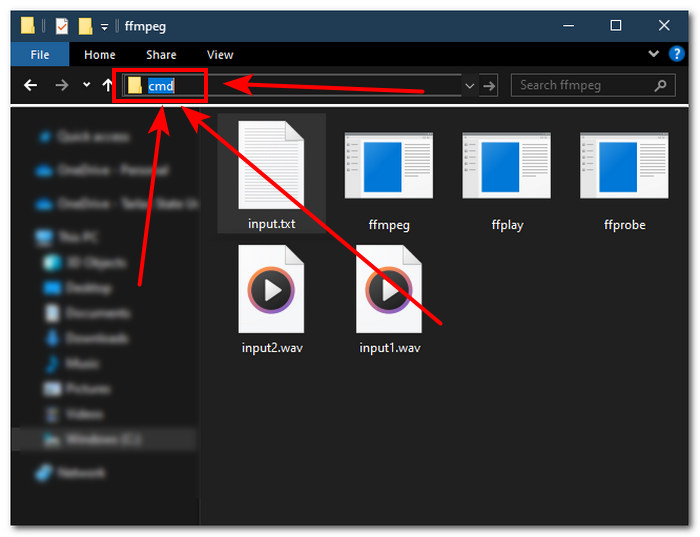
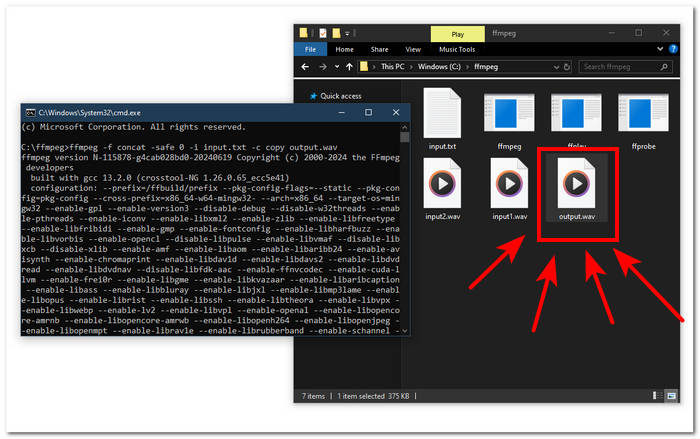
3. lépés. Indítsd el az FFmpeg parancssort úgy, hogy beírod a ‘cmd’ szót a mappaablak tetején lévő címsorba, majd megnyomod az Entert.
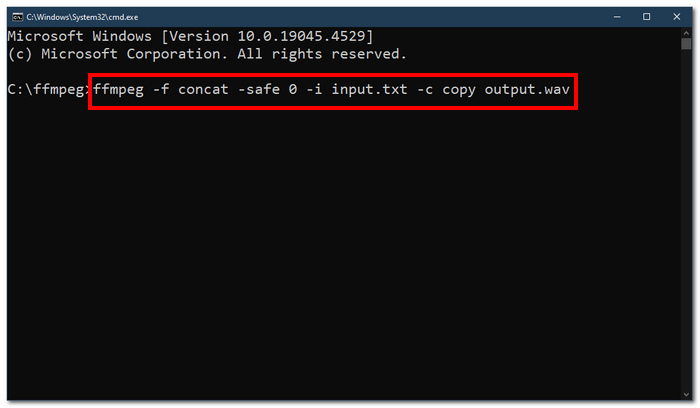
4. lépés. Miután megnyílt az FFmpeg parancssor, írd be az alábbi parancsot, majd nyomj Entert:;
ffmpeg -f concat -safe 0 -i input.txt -c copy output.wav
5. lépés. A mappában megjelenik egy új WAV‑fájl, ami azt jelzi, hogy sikeresen egyetlen fájlba egyesítetted a WAV‑fájlokat.
Tippek
• Mivel az eszköz parancssori alapú, fontos, hogy ismerje és ismerje az alapvető parancssort az eszköz hatékony navigációjához.
• Tartsa az összes FFmpeg-hez kapcsolódó mappát és fájlt egyetlen mappában a rendszerezés és a könnyű hozzáférés érdekében.
• Tekintse meg az oktatóanyagokat és olvasson útmutatókat az interneten, ha a WAV-fájlok egyesítésén kívül más feladatokat is szeretne végezni.
5. rész. GYIK a WAV-fájlok kombinálásával kapcsolatban
Tudsz WAV fájlokat keverni?
Igen, keverhet WAV-fájlokat harmadik féltől származó WAV-fájlok egyesítésére készült szoftverekkel, mint például az FVC által kiválasztott Video Converter Ultimate és az Audacity.
Egyesíthet a VLC hangfájlokat?
A VLC médialejátszó nem képes WAV-fájlok egyesítésére, mivel kizárólag média streamingre és médiakonverzióra készült.
Hogyan lehet videofájlokat egyesíteni a Windows Media Playerben?
A Windows Media Player nem támogatja a WAV-fájlok szerkesztését, nem beszélve a WAV-fájlok egyesítéséről. A Windows Media Player egy Windows-eszközökhöz készült szoftver, amelyet médiatartalom lejátszására terveztek.
Mi a legegyszerűbb módja a hangfájlok kombinálásának?
A WAV-fájlok egyesítésének legegyszerűbb módja az FVC által kiválasztott Video Converter Ultimate használata; ezt a szoftvert nagysebességű feldolgozási technológiával tervezték, hogy kényelmes legyen azoknak a felhasználóknak, akik a legkevesebb tapasztalattal rendelkeznek a hangszerkesztési feladatokban, például a WAV-fájlok kombinálásában.
A WAV fájlok kombinálása befolyásolhatja a hangminőséget?
Igen, a szoftvereszközök nagymértékben befolyásolhatják a WAV-fájlok minőségét a használt szoftver minőségétől függően. Vázlatos eszköz használata esetén lehet a legrosszabb minőség. Ha megbízható és megbízható szoftvereszközöket használ, mint például az FVC által kiválasztott Video Converter Ultimate, az Audacity és egyebek, ez segíthet megőrizni az eredeti minőséget.
Következtetés
Összefoglalva, WAV‑fájlok egyesítésére használd a bemutatott szoftveres eszközöket, hogy hatékonyan tudd őket kombinálni és veszteségmentes minőségben exportálni. Fontos szem előtt tartani, hogy a megfelelő eszköz kiválasztása és a használatának elsajátítása kulcsfontosságú része a folyamatnak. A teljes funkcionalitású Video Converter Ultimate‑től, amelyet az FVC ajánl, egészen az FFmpeg fejlett parancssoros eszközéig a cikk részletesen felsorolja a lépéseket és a hasznos tippeket, így neked már csak követned kell őket egy egyenes vonalú, problémamentes egyesítési folyamathoz.
-
 Hogyan konvertálhatom az MP4-et WAV Online-ba ingyen
 Keményen próbál konvertálni MP4-et WAV-ba? Nem tudod, melyik átalakító tud ebben tökéletesen segíteni egy fillér fizetése nélkül? Olvassa el ezt a bejegyzést, és minden kérdésére választ kapunk.
-
 10 legjobb ingyenes MP3 zenelejátszó áttekintése
 Mi a legjobb MP3 zenelejátszó? Hogyan tehetek zenét MP3-lejátszóra? Hogyan lehet letölteni az MP3 zenelejátszót? Ez a bejegyzés részletes áttekintést ad a 10 legjobb ingyenes MP3-lejátszóról Windows PC-re és Mac-re.
-
 8 legjobb MOV-lejátszó PC-re és Mac-re a QuickTime MOV videofájlok lejátszásához
 Csak tudjon meg többet a Windows 8 és a Mac számára elérhető 8 legjobb MOV-lejátszóról. Kiválaszthatja a kívánt és megfelelőt a MOV fájlok eredeti minőségben történő lejátszásához.
