


 Video Converter Ultimate
 Screen Recorder
 Videó javítás
 Biztonságos letöltés
WMA fájlok kivágása: Végső útmutató Windows és Mac felhasználók számára
Hangfájlokat szerkeszteni szórakoztató, egészen addig, amíg nem kell olyan hosszú WMA-sávokkal foglalkoznod, amelyeket szinte lehetetlennek tűnik megvágni. Akár podcaster vagy, zenész, akár csak valaki, aki szeret hangokkal bíbelődni, a WMA-fájlok vágása rémisztő feladatnak tűnhet a megfelelő eszközök és tudás nélkül. Ez a cikk azért készült, hogy egyszerűsítse a folyamatot Windows- és Mac-felhasználók számára egyaránt, lépésről lépésre követhető útmutatóval és a legjobb elérhető eszközök bemutatásával, hogy a hangvágás gördülékenyebb és hatékonyabb legyen. Olvasd tovább a részletekért.

1. rész: A WMA-fájlok kivágásának legjobb módja Windows/Mac rendszeren
A legjobb és egyben leghatékonyabb módja a WMA-fájlok vágásának Windows és Mac alatt a FVC által ajánlott Video Converter Ultimate használata. Ez a minden az egyben videó- és hangkonvertáló eszköz különösen jól kezeli a WMA-formátumot, főleg ha a vágásról van szó. A program egy speciális funkcióval rendelkezik, amellyel egyszerűen lehet hangfájlokat megnyirbálni. Ez különösen hasznos azoknak, akik olyan WMA-fájlokat szeretnének vágni, amelyek indokolatlanul hosszúak, vagy nem kívánt részeket, szegmenseket tartalmaznak. Emellett ezzel az eszközzel manuálisan is kiválaszthatod a WMA-fájl azon részét, amelyet le szeretnél vágni, vagy automatikusan is megteheted a gyors felosztási funkció (Fast Slip) segítségével.
1. lépés. Először töltsd le és telepítsd a Video Converter Ultimate programot a Mac vagy Windows számítógépedre.
Ingyenes letöltés Windows 7 vagy újabb rendszerre Biztonságos letöltés
Ingyenes letöltés macOS 10.7 vagy újabb rendszerre Biztonságos letöltés
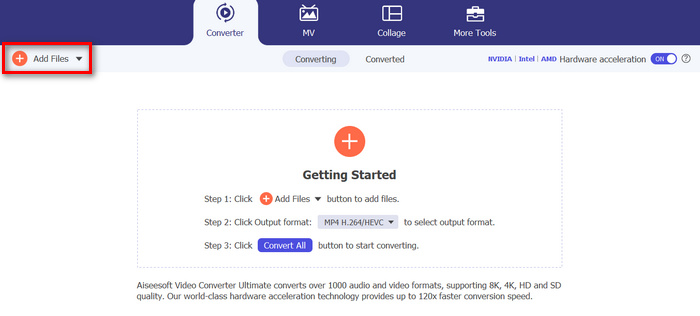
2. lépés. A vágni kívánt WMA-fájlok importálásához kattints az Add Files (Fájlok hozzáadása) gombra.
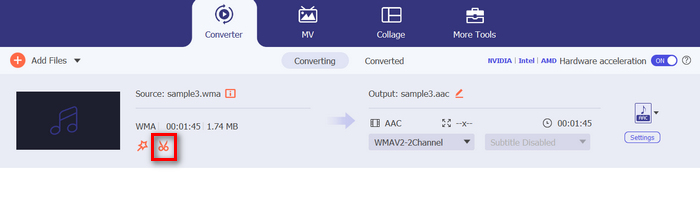
3. lépés. Ezután kattints a Cut (Vágás) gombra.
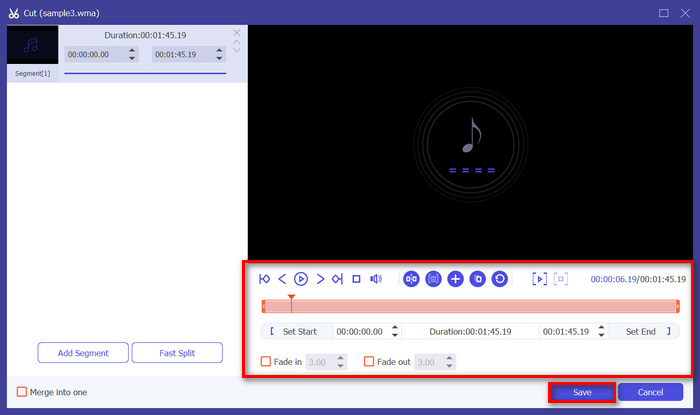
4. lépés. A WMA-fájlok megvágásához manuálisan is eljárhatsz: egyszerűen állítsd be vagy mozgasd a klip elejét és végét jelző sávot, húzd balról jobbra, vagy írd be a WMA-fájl azon részének kezdő- és végidőpontját, amelyet le szeretnél vágni.
Ez a folyamat automatikusan levágja a hang részét a vágás megkezdésének és befejezésének időpontja alapján.
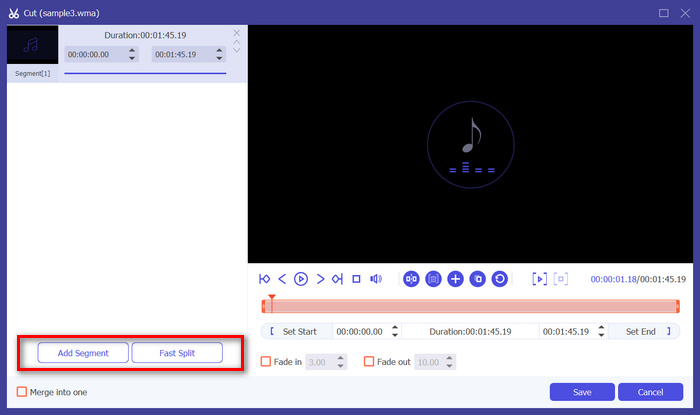
5. lépés. Ha inkább a Fast Slip vágófunkcióval szeretnéd megvágni a fájlt, csak kattints a Fast Slip gombra az Add Segment (Szegmens hozzáadása) gomb mellett. Ezután válaszd ki, milyen módon szeretnéd felosztani a szegmenst. Ha az egyenlő részekre osztást választod, add meg a részek számát, ha pedig idő szerinti felosztást szeretnél, add meg az időtartamot. Végül kattints a Save (Mentés) gombra.
6. lépés. Végül a megvágott WMA-fájl exportálásához kattints a Convert All (Összes konvertálása) gombra.
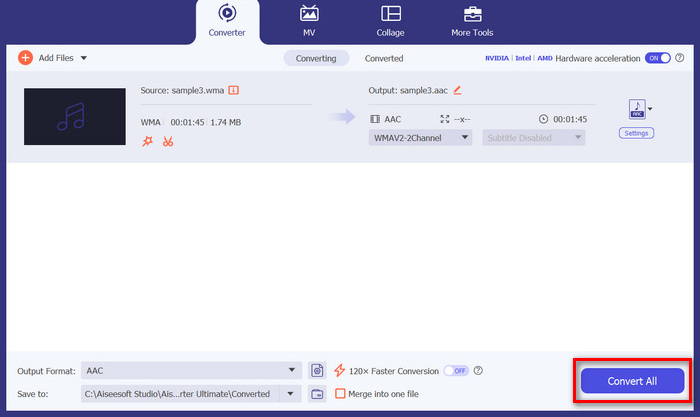
A WMA fájlok vágásakor ez az FVC által kiválasztott Video Converter Ultimate valóban kötelező megoldás. Egyszerű és felhasználóbarát kezelőfelülete biztosítja, hogy könnyedén és pontosan vághassa le WMA fájljait, a különféle vágási opciói pedig rugalmasságot biztosítanak az audiofájlok egyszerű vágásához.
2. rész: Vágja ki a WMA fájlt online ingyen
Az Audio Trimmer egy ingyenes eszköz, amellyel a felhasználók menet közben vághatnak hangfájlokat. Ez a népszerű audioformátumok széles skáláját támogatja, beleértve a WMA-t is, így ez az eszköz az egyik legjobb alternatíva, ha inkább online vágja ki a WMA fájlokat.
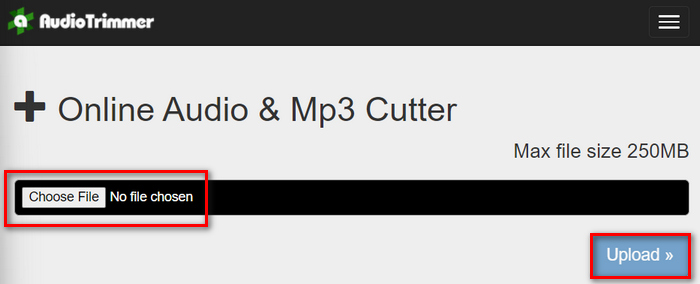
1. lépés. A vágni kívánt WMA-fájlok importálásához kattints a Choose File (Fájl kiválasztása) gombra, majd az Upload (Feltöltés) gombra.
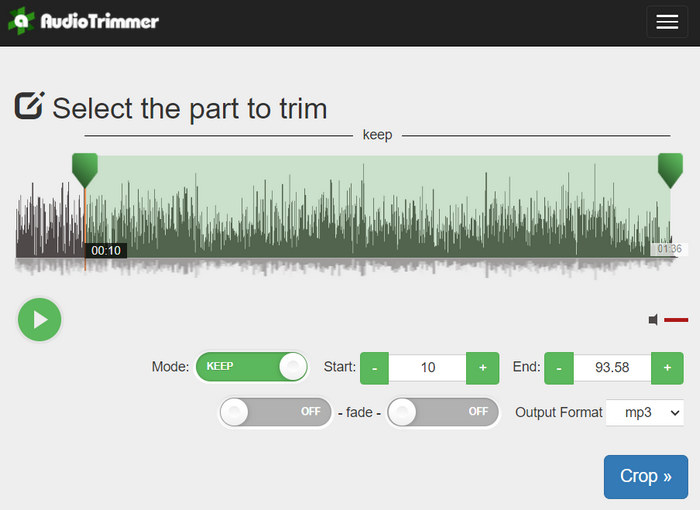
2. lépés. Ezután húzd le a csúszkát, és jelöld ki a hangsáv azon részét, amelyet meg akarsz vágni. Ha elkészültél, kattints a Crop (Vágás) gombra.
3. lépés. Végül a megvágott WMA-fájl mentéséhez kattints a Download (Letöltés) gombra.
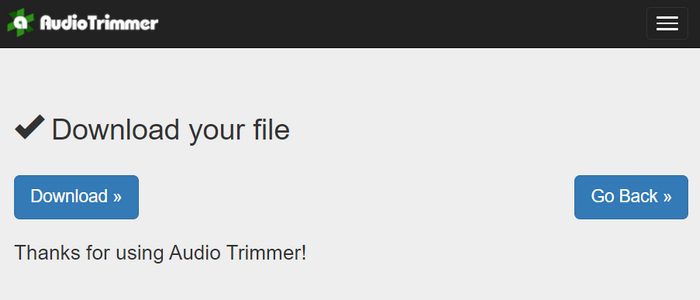
Ennyi az egész, ezután már le is játszhatod a klipeket a WMA lejátszóval, hogy megnézd, valóban megfelelően vágtad-e meg őket. Egyszerű és nagyon intuitív felületének köszönhetően a WMA-fájlok vágása mindössze 3 lépésből áll. Bár ez az online eszköz megkönnyíti a hangfájlok vágását, nem minden felhasználó tudja teljes mértékben kihasználni, mivel csak 250 MB alatti fájlok feldolgozására alkalmas.
3. rész: WMA vágása VLC Media Player segítségével
A VLC Media Player egy széles körben használt nyílt forráskódú médialejátszó sokoldalúsága miatt. Ez az eszköz a hang- és videóformátumok széles skáláját támogatja, beleértve a WMA fájlokat is. A lejátszás, adatfolyam és adatrögzítés funkciói mellett ez az eszköz WMA fájlok kivágására is használható. Ezzel a felhasználók valós idejű rögzítéssel könnyedén levághatják a részeket anélkül, hogy manuálisan kellene módosítaniuk a lejátszási időt.
1. lépés. Nyisd meg a VLC Media Player programot. Egyszerűen húzd be (drag & drop) a megvágni kívánt WMA-fájlt.
2. lépés. A hang automatikusan lejátszásra kerül. Állítsd meg egy pillanatra, majd kattints a View (Nézet) menüre, és jelöld be az Advanced Controls (Speciális vezérlők) opciót. Ekkor négy új gomb jelenik meg a lejátszás ikonjai fölött.
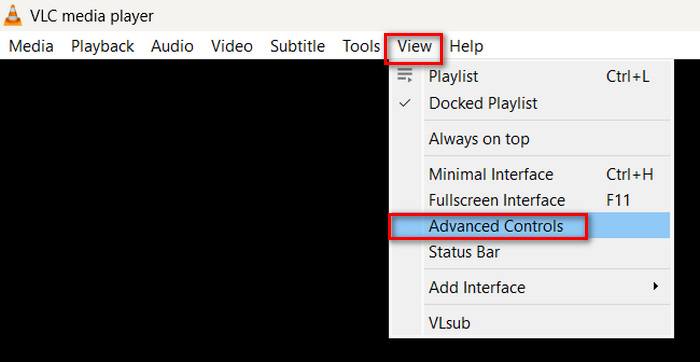
3. lépés. Húzd a folyamatjelző sávot arra a pontra, ahol a klipet indítani szeretnéd. Most állítsd be a sávot a WMA-fájl azon pontjára, ahonnan a vágást kezdeni akarod. Ezután indítsd el a lejátszást, és kattints a Record (Felvétel) gombra.
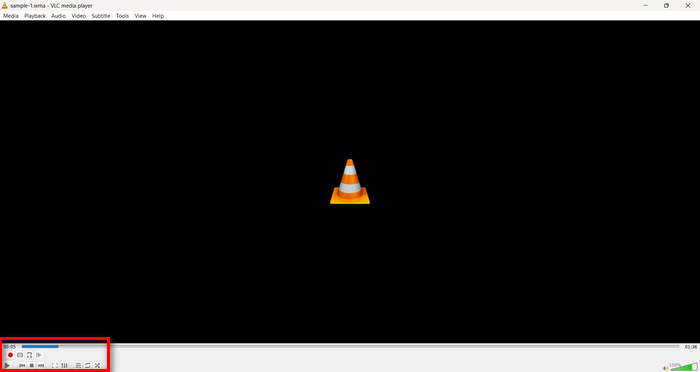
4. lépés. Amikor elérsz annak a szakasznak a végére, amelyet el szeretnél menteni, kattints ismét a Record (Felvétel) gombra a felvétel leállításához.
Kerüld a folyamatjelző sáv húzását a lejátszási idő módosítására felvétel közben, mivel a VLC-nek valós időben kell rögzítenie a szegmenst. Ha tetszik ez az eszköz, ne hagyd ki a VLC alternatívákat sem, amelyeket itt találsz.
4. rész: GYIK a WMA kivágásáról
Hogyan vághatok ki egy részt egy hangfájlból?
Ha ki szeretne vágni egy részt egy hangfájlból, olyan eszközöket használhat, mint a Video Converter Ultimate. Ehhez csak importálnia kell a WMA-fájlt, kattintson a Kivágás gombra, és állítsa be a kezdési és befejezési időt.
A WMA jobb, mint az MP3?
A WMA gyakran jobb hangminőséget biztosít alacsonyabb bitrátán, mint az MP3, így kisebb fájlméret érhető el jó hangminőség mellett. Ugyanakkor az MP3 sokkal elterjedtebb és szélesebb körben támogatott különböző eszközökön és platformokon. A WMA és az MP3 közötti választás attól függ, hogy a hangminőség vagy a kompatibilitás fontosabb számodra. Emellett a WMA–MP3 konverter eszközökkel gyorsan át is alakíthatod a WMA-t MP3-má.
Hogyan vághat le audio fájlokat a Windows Media Playerben?
A hangfájlok Windows Media Playerben történő vágásához a SolveigMM WMP Trimmer Plugin Home Edition nevű beépülő modult kell használnia. Ez a beépülő modul lehetővé teszi a felhasználók számára, hogy a hangfájlokat közvetlenül a Windows Media Player felületén belül vágják le, kényelmes megoldást nyújtva a hangszerkesztési feladatokhoz.
Következtetés
A WMA-fájlok vágása nem kell, hogy stresszes legyen. Akár egy olyan szoftvert használsz, mint a Video Converter Ultimate, akár egy online eszközt, mint az Audio Trimmer, vagy a sokoldalú VLC Media Playert, Windows és Mac rendszeren egyaránt hatékony módszerek állnak rendelkezésedre. Válaszd ki a számodra leginkább megfelelő megoldást, és kezdd el gond nélkül szerkeszteni a hangfájljaidat. Készen állsz, hogy megkönnyítsd a hangvágást? Próbáld ki még ma valamelyik módszert!
-
 2 módszer az FLV-ből WMA hanggá konvertálására [ingyenes és online]
 Szeretné kivonni a WMA audiót az FLV videókból? Íme 2 ingyenes WMA hangelszívó az FLV (Flash Video) WMA (Windows Media Audio) konvertálásához gyors konverziós sebességgel Mac OS X és Windows 10/8/7 rendszereken.
-
 A legnépszerűbb WMA metaadatszerkesztők, amelyeket nem szabad kihagyni [2024]
 Miért nem szerkeszthetem a WMA címkéket? Ez a probléma gyakori a' lekérdezések. De ma bemutatjuk a 2024-ben használható WMA metaszerkesztőket.
-
 8 módszer az MP4 konvertálására MP3 hangzásra (kötegelt átalakítás és nagy méret)
 Ha MP3 hangot szeretne kivonni MP4 videóból, akkor ellenőrizze ezt a cikket, és 8 megoldást kaphat. Online és offline módokon is könnyen konvertálhatja az MP4-et MP3-ba a telefonján vagy a számítógépén.
