


 Video Converter Ultimate
 Screen Recorder
 Videó javítás
 Biztonságos letöltés
Hogyan lehet konvertálni az AVI videofájlokat FLV formátumba asztali és online
Although AVI and FLV are totally different video formats, you can convert AVI files to FLV. AVI is a commonly used video format developed by Microsoft to store both video and audio. The biggest advantage is to save contents in high quality. However, it will produce large file size. FLV, on the other hand, was created for delivering videos through the web. Therefore, a FLV file is much smaller than AVI in the same condition. That may be why you need to convert AVI to FLV.

1. rész: Ingyenes szoftver az AVI FLV-vé konvertálásához PC / Mac-en
There are a lot of professional video converters on market. However, some freeware is as powerful as paid software, such as FVC Free FLV Converter, even though it does not ask any payment. Moreover, it is able to convert AVI files for portable devices.
Key Features of the Best AVI to FLV Converter
- 1. Konvertáljon több AVI fájlt FLV-vé, több szálból.
- 2. Konvertálás közben védje meg és tartsa meg az eredeti videó minőségét.
- 3. Különféle bónusz funkciókat kínál, például videoszerkesztést.
Ingyenes letöltésWindows 7 vagy újabb rendszerhezBiztonságos letöltés
Ingyenes letöltésmacOS 10.7 vagy újabb rendszerhezBiztonságos letöltés
Mondanom sem kell, hogy ez a legegyszerűbb módja annak, hogy az AVI fájlokat FLV formátumba konvertálja a minőség romlása nélkül.
Hogyan lehet konvertálni az AVI-t FLV-be tételenként
Step 1: Import AVI files
Firstly, you need to install the best AVI to FLV converter software on your computer and then launch it. The software is free to download and use. Then click the Add File(s) button in the home interface to add the AVI files that you want to convert. It supports batch converting.

Step 2: Set FLV as output format
You can edit the videos by hitting the Edit menu or preview them with the built-in media player. To select the output format, head to the bottom, click and open the Output format drop-down list. Go to the General Video tab, scroll down and select FLV or relative format.
Tip: You can also change resolution and other parameters by hitting the Settings icon on each title.

Step 3: Convert AVI to FLV
Next, click the Open Folder button next to Output folder field to select a location folder for saving the FLV files. Finally, click on the Convert button at the bottom right corner to begin the process. When it finishes, you will find the output in the location folder.

2. rész: Hogyan lehet konvertálni az AVI-t FLV Online-ba
It makes sense that web video converters are increasingly popular when you considering the convenience. Most web apps have various downsides, like file size limit. However, FVC Free Online Video Converter is the exception. It is not only easy to use, but also lets you convert videos without file size, watermark or other restrictions. It works smoothly in major web browsers, like Chrome, Firefox, Safari, etc.
Step 1: When you need to convert AVI to FLV, open your browser. Copy and paste https://www.free-videoconverter.net/free-online-video-converter/ into the address bar and hit the Enter button to open the home page. Click the Add Files to Convert button to download the launcher.
Töltse le az asztali verziót a fájlok kötegelt konvertálásához.
Step 2: When the launcher pops up, click the Add File button and upload the AVI files you intend to convert. The web app is able to convert several videos per time. Next, go to the format section at the bottom and select FLV.
Tip: To change the resolution, video codec and other options, click the Gear icon to open the Settings dialog.
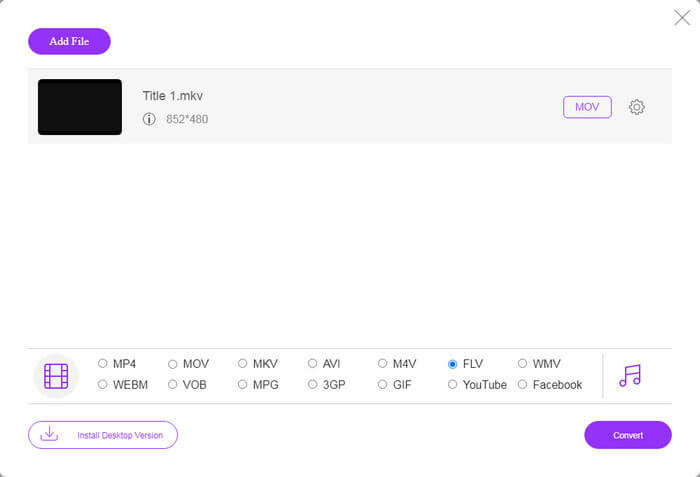
Step 3: Hit the Convert button to initiate converting AVI to FLV online. Wait for the process to complete and then download the FLV files to your hard drive.
Ezek is érdekelhetik:
AVI vs. FLV
A Resource Interchange File Format (RIFF) alapján az AVI formátumot a Microsoft 1992-ben vezette be. Kiváló minőségű videót/hangot tud menteni, mivel kevesebb tömörítést használ. Ez azonban az AVI-fájlok nagy fájlméretét is okozza, ami problémát jelenthet, ha korlátozott a hely.
Az Adobe Flash Player az FLV-t használta videotartalom, például filmek és tévéműsorok továbbítására. Manapság az Adobe már nem fejleszti a lejátszót, és biztonsági okokból azt javasolja a felhasználóknak, hogy távolítsák el. Azonban továbbra is használhatja az FLV formátumot sok nem Adobe/Macromedia programban.
3. rész: GYIK az AVI-ről az FLV-re
Konvertálhatok egy YouTube videót FLV formátumra?
Kétféle módon lehet a YouTube videókat FLV formátumba konvertálni. YouTube-videó letöltésekor kiválaszthatja az FLV formátumot annak közvetlen konvertálásához. Természetesen letöltheti a videót, majd átalakíthatja FLV-re egy videó konverterrel.
Jobb az FLV, mint az AVI?
Nehéz megmondani. Az FLV kisebb fájlméretet generál, mint az AVI, de rontja a videó minőségét. Ez azt jelenti, hogy az FLV segítségével helyet takaríthat meg eszközén, míg az AVI jobb megtekintési élményt nyújt.
Hogyan lehet megnyitni az FLV videókat?
Az FLV egy általánosan használt videó formátum, így a legtöbb médialejátszó képes dekódolni, például VLC, BS Player, MK Player és így tovább. Videokonverter nélkül azonban nem lehet FLV-t lejátszani mobil eszközökön.
Következtetés
Ez az útmutató kétféleképpen osztotta meg az AVI videofájlok FLV formátumba konvertálását Windows és Mac rendszeren. A webes videokonverter alkalmazás hordozható módja a munka online elvégzésének. Az FVC Free FLV Converter internetkapcsolat nélkül konvertálhat videofájlokat az asztalra. Ráadásul a kimeneti minőség félelmetes. További problémák? Kérjük, vegye fel velünk a kapcsolatot, ha üzenetét a bejegyzés alatti megjegyzés területén hagyja.
-
 2 egyszerű módszer a MOV fájlok FLV formátumba konvertálására Windows / Mac rendszeren
 Hogyan lehet átalakítani MOV-t FLV-re ingyen? Itt vannak a legjobb video-átalakítók asztali és online, amelyek MOV fájljait másodpercek alatt FLV-vé konvertálják, fillér fizetése nélkül.
-
 4 ellenőrzött módszer a TS FLV-vé konvertálására asztali / online
 Alapértelmezés szerint nem nyithatja meg a TS-t számítógépén vagy mobilján. A videofájlok megtekintésének egyetlen módja a TS konvertálása FLV formátumba vagy más formátumba konkrét útmutatónk segítségével.
-
 2 legegyszerűbb módszer a WMV fájlok FLV formátumba konvertálására PC / Mac rendszeren
 Hogyan lehet konvertálni a WMV-t FLV-vé? Először el kell olvasnia az ajánlásunkat és meg kell találnia a kedvenc módszerét, majd kövesse útmutatónkat a munka gyors elvégzéséhez.

