


 Video Converter Ultimate
 Screen Recorder
 Videó javítás
Offline és online eszközök a TRP FLV-vé konvertálásához, amelyeket tudnia kell
A TRP egy olyan fájlformátum, amelyet rögzített televíziós felvételek tárolására használnak. Mivel kevés lejátszó képes kezelni ezt a fájltípust eredeti formájában, előfordulhat, hogy meg kell változtatnia a formátumát, mielőtt lejátszhatná. A TRP fájlok FLV fájlokká alakításához a megfelelő szoftvereszközt kell használnia. Szerencsére ez sokkal egyszerűbb a szoftverünk vagy az online változata segítségével, amelyek a teljes konvertálási folyamat során semmilyen kellemetlenséget nem okoznak. Kövesse az általunk megadott lépéseket, hogy sikeresen FLV formátumra konvertálja TRP videóit.

1. rész: Offline módszer a TRP FLV-vé konvertálására
A TRP fájlformátum a legtöbb videófogyasztó számára szinte ismeretlen, és az alkotók sem használják gyakran. Emiatt a legtöbb szoftver és online eszköz nem támogatja ezt a fajta videófájlt. Ezért érdemes számításba venni a Video Converter Ultimate programot, amikor bármilyen videót egyik formátumból a másikba kell átalakítani. Ez a szoftver egyetlen kattintással bármilyen tetszőleges formátumra át tudja alakítani TRP fájlját.
Ez a videokonvertáló eszköz fejlett szerkesztési funkciókat és grafikus felületet kínál, amely akkor is egyszerűen használható, ha nem rendelkezik műszaki ismeretekkel vagy készségekkel. Az alkalmazás segítségével konvertálhat fájlokat, és élvezheti a szupergyors átalakítási időket és a kiváló minőségű kimenetet. Az alábbiakban bemutatjuk azokat az egyszerű lépéseket, amelyeket követnie kell:
1. lépés: Töltse le az .exe fájlt az alábbi Ingyenes letöltés gombra kattintva, az Ön által használt operációs rendszernek megfelelően. Miután befejeződött a letöltés, nyissa meg a fájlt, és indítsa el a telepítési folyamatot. Várja meg, amíg a program feltelepül, majd indítsa el a szoftvert.
Ingyenes letöltés Windows 7 vagy újabb rendszerre Biztonságos letöltés
Ingyenes letöltés macOS 10.7 vagy újabb rendszerre Biztonságos letöltés
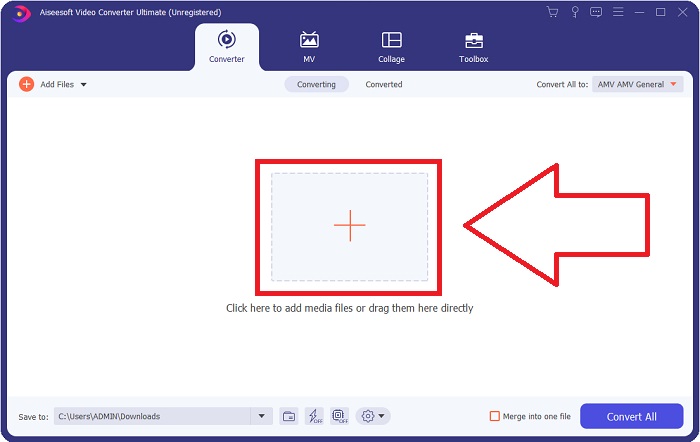
2. lépés. Amint elindul a szoftver, megjelenik a felület. Itt kattintson a középen lévő + gombra, és kezdje el beimportálni a konvertálni kívánt videófájlt, vagy egyszerűen húzza át és dobja a fájlt az ablakba.
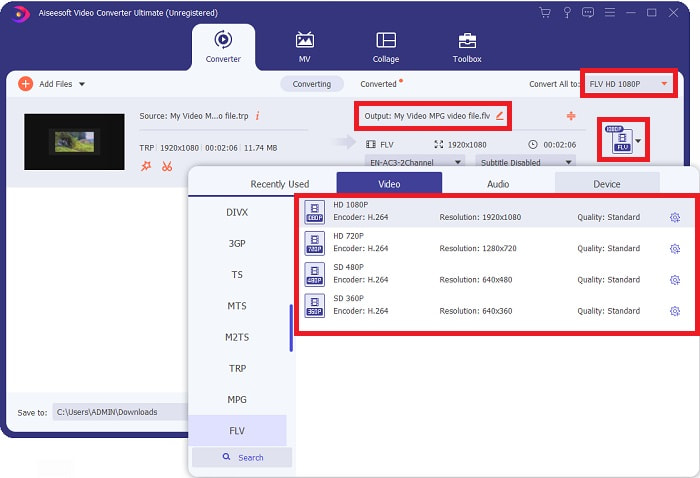
3. lépés: A fájl jobb oldalán látni fogja a videó jelenlegi formátumát. Ahhoz, hogy kiválassza, milyen formátumra legyen átalakítva a videó, kattintson erre, és megjelenik az összes elérhető formátum. Keresse meg az FLV-t, vagy írja be a keresősávba. A jobb oldalon különböző videóminőségek közül is választhat.
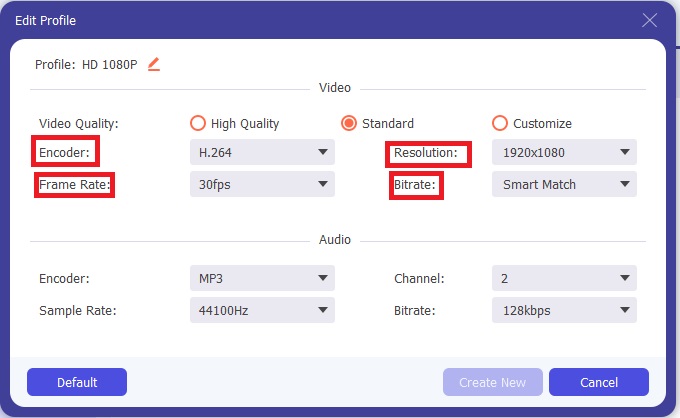
4. lépés: Az általunk említett további funkciókhoz kattintson a fogaskerék ikonra az Ön által választott videóminőség jobb oldalán, és egy új ablak jelenik meg. Itt számos videó- és hangbeállítást módosíthat az igényeinek megfelelően. A módosítások mentéséhez kattintson a Új létrehozása gombra.
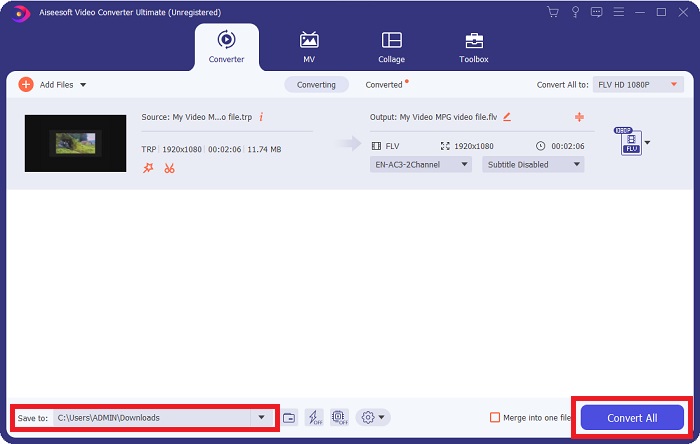
5. lépés: Miután végzett az összes szerkesztéssel és beállítással, kattintson a felület jobb alsó sarkában lévő Összes konvertálása gombra a konvertálási folyamat elindításához, majd várja meg, amíg befejeződik.
2. rész. Online módszer a TRP FLV-vé konvertálására
A videófájlok konvertálásánál egy másik lehetőség, ha nem szeretné telepíteni a teljes szoftvert, hanem egy webes eszközt használna. Ebben az esetben rendelkezésre áll a szoftver online megfelelője is – a FVC Free Video Converter Online. Ez is kínálja a szoftver egyes extra beállításait, bár nem az összes funkciót. Ennek ellenére megfelelő időn belül elvégzi a feladatát. A webes eszköz használatához kövesse az alábbi lépéseket:
1. lépés: Nyissa meg a konvertert az alábbi linkre kattintva. Innen kezdheti a szükséges indítóprogram letöltését, amelyre a fájlok importálásához van szükség. Kattintson az oldal közepén található Add Files to Convert gombra a folyamat elindításához.
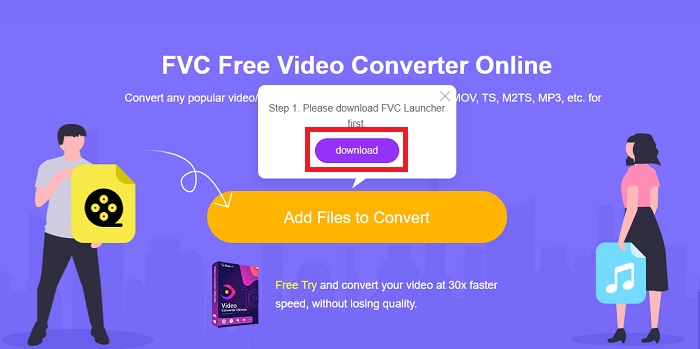
2. lépés: Kattintson ismét a jelzett gombra, és töltse fel a konvertálni kívánt videófájlt. A fájl importálása után egy új felület jelenik meg, amely az összes elérhető formátumot megmutatja. Ebben az esetben válassza az FLV formátumot.
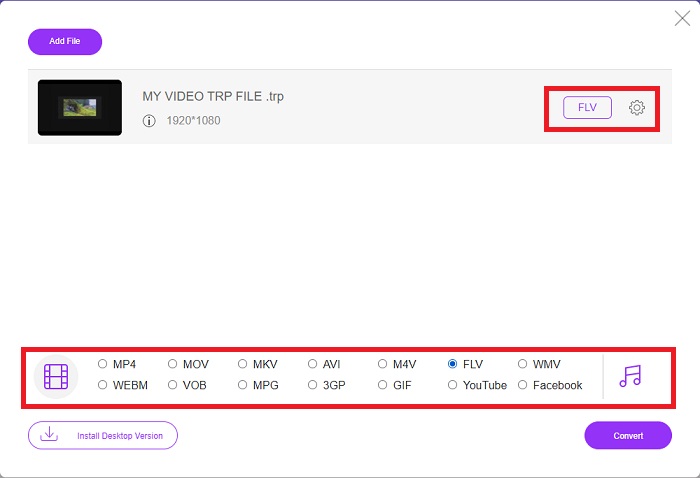
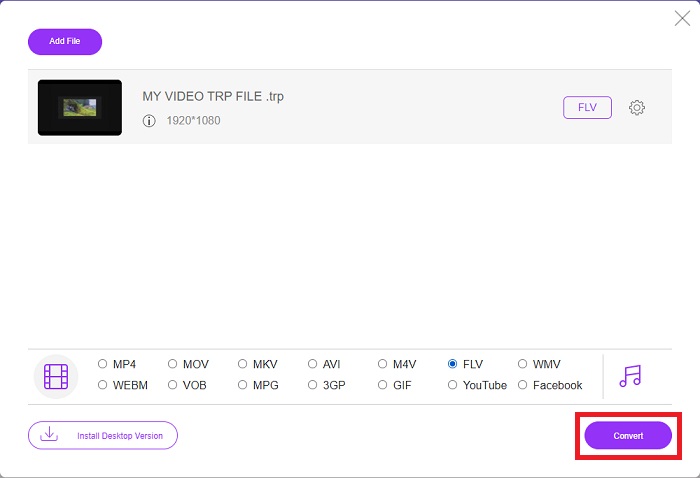
3. lépés: A további beállításokért – akárcsak magában a szoftverben – kattintson a jobb oldalon lévő fogaskerék ikonra. Megjelennek a videó- és hangbeállítások, amelyekkel tovább szabhatja a videót a felbontás, a képfrissítési ráta és sok más szempont szerint. Ha végzett, kattintson az OK gombra a módosítások mentéséhez. Végül indítsa el az átalakítást az ablak jobb alsó sarkában található Convert gombra kattintva.
Összefüggő:
3. rész: TRP és FLV bővített ismerete
Ha többet szeretne megtudni a két említett formátumról, rövid tájékoztatást adunk, valamint a kettő összehasonlítását.
A TRP fájlok általában a VideoLAN VLC-hez vannak társítva. A TRP fájlnév-kiterjesztés nagyfelbontású filmeket tartalmazó MPEG-2 Part 1-hez gyűjthető. A TRP fájlok tartalmazhatnak és tárolhatnak adatcsomagokat, amelyeket digitális videóként és hangként küldenek el digitális videoműsorszóró hálózatokon, rádiófrekvenciákon vagy lineáris rögzítőeszközökön, például videofelvevőkön. Egy TRP-fájl több hang- és videofolyamot, valamint hibajavító kódot tartalmaz. A felhasználók metaadatokat, például rögzítési időt, kameraazonosítót és forrást is megadhatnak a fájl tartalmában.
Másrészt egy .flv kiterjesztésű fájl a Flash Video rövidítése. Az FLV fájlkiterjesztés az Adobe Flash Player vagy az Adobe Air segítségével interneten keresztül küldött videó- vagy hangfájlra vonatkozik. A Flash Video régóta az elsődleges videóformátum szinte az összes beágyazott videóhoz az interneten, beleértve a YouTube-on, a Hulu-n és számos más webhelyen található videókat is. A streaming szolgáltatók és a szoftverfejlesztők viszont az Adobe hivatalos megszűnése óta elhagyták a Flash-t, és a HTML5-re és más formátumokra helyezték a hangsúlyt.
| TRP | FLV | |
| Fájlkiterjesztés | .trp | .flv |
| Fejlesztő | VideoLAN Project Team | Adobe Systems Incorporated |
| Támogató programok | ◆ SMPlayer ◆ VLC Media Player ◆ Apple QuickTime Player | ◆ RealPlayer ◆ Apple QuickTime Player ◆ Mplayer ◆ VLC Media Player |
4. rész. GYIK a TRP-ről FLV-vé konvertálással
Hogyan lehet megnyitni a TRP videó formátumot VLC segítségével?
Miután telepítette a VLC Media Playert a számítógépére, keresse meg a TRP videofájlt a merevlemezen, és válassza ki a jobb egérgombbal. Válassza ki a „VLC médialejátszó” elemet a „Megnyitás ezzel” legördülő menüből. A rendszer azonnal megnyitja az ebből a programból lejátszott videofájlt, amint az elindul.
Hogyan konvertálhatok egy FLV fájlt Windows Media Playerre?
Először ki kell választania a konvertálni kívánt FLV fájlt. Kiválaszthatja a WMV-t formátumként, amelyre konvertálni szeretné az FLV fájlt. Az FLV fájl konvertálásához válassza a „Konvertálás” lehetőséget a legördülő menüből.
Játszhatok bárhol TRP-t?
A TRP konvertálása széles körben ismert MP4, AVI, MOV, MKV, FLV, WMV és más formátumokká egy javasolt lehetőség, ha TRP fájlokat szeretne lejátszani mindenhol, bármilyen eszközön vagy médialejátszón.
Következtetés
Összességében a Video Converter Ultimate és online eszköztársa az, amelyet keres, hogy a teljes konverziós folyamatot elvégezhesse, miközben minden szükséges funkciót biztosít. Nem okoz kellemetlenséget, ráadásul a nap bármely szakában elérhető, ha a szoftver telepítve van az asztalon. Soha nem tudhatja, mikor lesz szüksége egy ilyen konverterre, ezért javasoljuk ennek a szoftvernek a használatát a könnyebbség érdekében.
-
 A legegyszerűbb útmutató a TRP AVI-vé konvertálásához Windows és Mac rendszeren
 Lehet, hogy nem ismeri a TRP videó formátumot, és kíváncsi, hogyan fogja a TRP-t AVI-vé konvertálni? Olvassa el ezt a cikket, hogy megismerje a problémával kapcsolatos részleteket.
-
 3 megoldás az MTS átalakítására FLV Free & Online formátumra
 Szeretné konvertálni az MTS-t FLV-vé? Itt van 3 ingyenes MTS FLV átalakító szoftver, amelyet megpróbálhat konvertálni FLV formátumba Mac OS X és Windows 10/8/7 rendszereken.
-
 A VOB FLV-vé konvertálásának legjobb módjai [ingyenes és online]
 Szeretne konvertálni egy VOB fájlt FLV fájlba? Könnyedén elvégezheti a feladatot asztali vagy online konverterekkel. Olvassa el ezt az útmutatót, és tanulja meg, hogyan lehet a VOB-t könnyen és gyorsan átalakítani FLV-vé.
