


 Video Converter Ultimate
 Screen Recorder
 Videó javítás
A legjobb MPG-GIF konvertáló az MPG-ből GIF-be konvertálásához [ Költségmentes és prémium verzió]
A legjobb módja annak, hogy kifejezze érzéseit szeretteinek, ha értelmes üzenetet hoz létre. De szeretné tudni, mi az, amit sokkal jobb másképpen kifejezni? Használhat GIF-et. Graphics Interchange Format néven is ismert, ezek az Ön által elküldött képek, de frissítve vannak. Ezeket a mozgóképeket azért hozták létre, hogy közvetlenül vagy közvetve kifejezzék érzéseidet valaki iránt. Tudta, hogy a legtöbb üzenetküldő alkalmazás támogatja a GIF-et, valamint a beépített üzenetküldőnket? De a telefon néhány régi verziójában nem biztosítja ezt a formátumot. Bár a GIF szórakoztató, nem mindig biztosítja a kifejezni kívánt érzelmet.
Szóval azért vagy itt, hogy megtudd, mi a legjobb módja annak, hogy a(z) MPG formátumot GIF-fé alakítsd. Nem izgalmas, hogy saját GIF-et készíthetsz? Ahelyett, hogy azt keresgélnéd, mit kellene használnod, miért nem próbálod meg magad elkészíteni a GIF-et, saját egyedi stílusodat hozzáadva? A legjobb módja annak, hogy megtudd, hogyan kell ezt csinálni, ha elolvasod ezt a cikket. Mert elegendő információt, lépéseket és eszközöket ad a feladathoz. Szóval minden további kerülgetés nélkül térjünk rá a cikk fontos részleteire. Olvass tovább, hogy többet megtudj ezekről az átalakítókról.

1. rész. 4 A legjobb eszköz az MPG GIF formátumú konvertálására PC-n vagy Mac-en
1. FVC Video Converter Ultimate
Ha humoros üzenetet szeretnél megosztani anélkül, hogy túl sok részletet gépelnél be, akkor ez az eszköz segíteni fog. Ez az eszköz lehetővé teszi, hogy mpg-t animált giffé alakíts, és a FVC fejlesztette. A FVC Video Converter Ultimate lehetővé teszi a felhasználó számára, hogy bármilyen formátumot átalakítson tetszés szerinti lejátszható formátumba. Talán azon gondolkodsz, miért ezt az eszközt válaszd. Van benne valami különleges? Igen, ez az eszköz többcélú. Lehet a legmegbízhatóbb ripper, mv készítő, kollázskészítő és még sok egyéb. Ez azt jelenti, hogy ez az eszköz többre képes, mint a legtöbb másik. Egy másik lenyűgöző tulajdonsága az Ultragyors konvertálás, amellyel pillanatok alatt átalakíthatod a videót. Hogy megtudd, hogyan kell használni ezt az eszközt, kövesd gondosan az alábbi lépéseket, így sikeresen alakíthatod át a fájlodat a kívánt formátumminőségre.
1. lépés. Telepítsd az eszközt a PC-dre vagy Mac-edre. Kövesd az utasításokat a telepítés után, majd kattints a Befejezésre, hogy elindítsd az eszközt.
Ingyenes letöltés Windows 7 vagy újabb rendszerre Biztonságos letöltés
Ingyenes letöltés macOS 10.7 vagy újabb rendszerre Biztonságos letöltés
2. lépés. A telepítési folyamat után egy ilyen mini felület fog megjelenni a képernyőn.
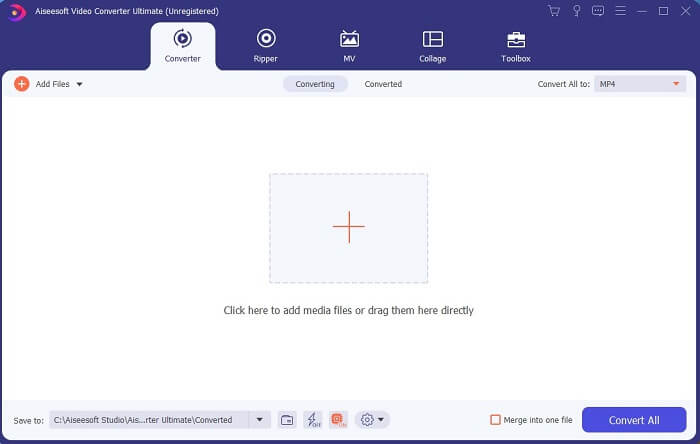
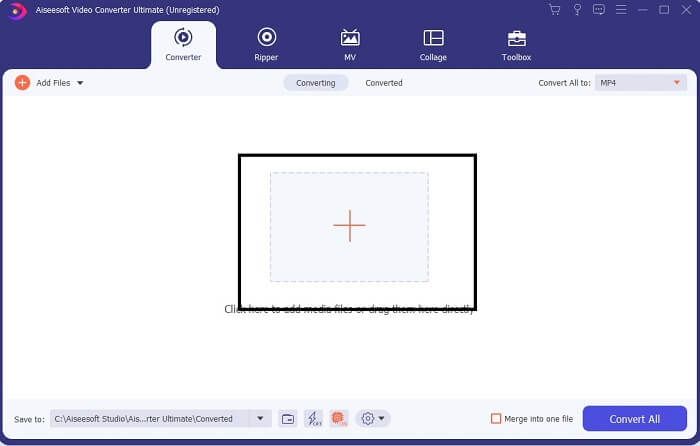
3. lépés. Kattints a plusz jelre a fájl hozzáadásához, majd kattints a Megnyitásra a konvertálás indításához, vagy egyszerűen húzd és ejtsd a videófájlt az eszközbe. A videó hossza egyáltalán nem számít.
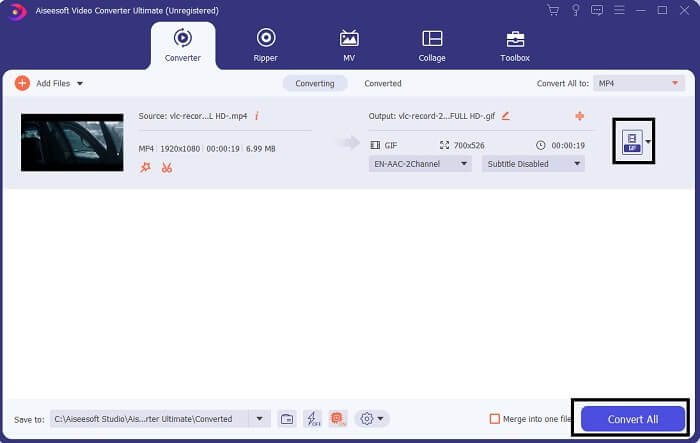
4. lépés. Kattints a legördülő gombra a felület jobb felső sarkában, görgess lefelé, majd kattints a GIF formátumra. Válaszd ki a kívánt felbontást; lehet Nagy, Közepes vagy Kicsi. Ha minden készen áll, kattints az Összes konvertálása gombra a konvertálás indításához.
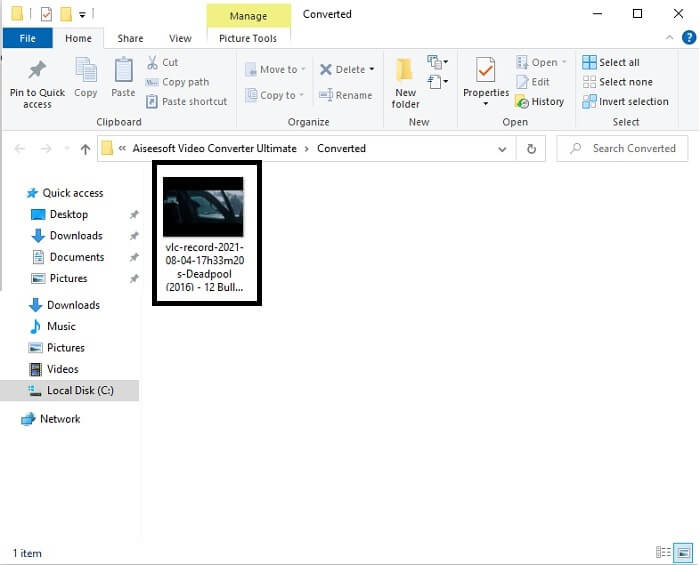
5. lépés. A konvertálás után egy fájlkezelő ugrik fel, amely megmutatja a végső kimenetet, és már élvezheted is a GIF formátumot. De ugyanilyen lépésekkel .gif fájlt is átalakíthatsz .mpg formátummá, csak a kimeneti formátumot kell megváltoztatnod.
2. FVC ingyenes online videokonverter
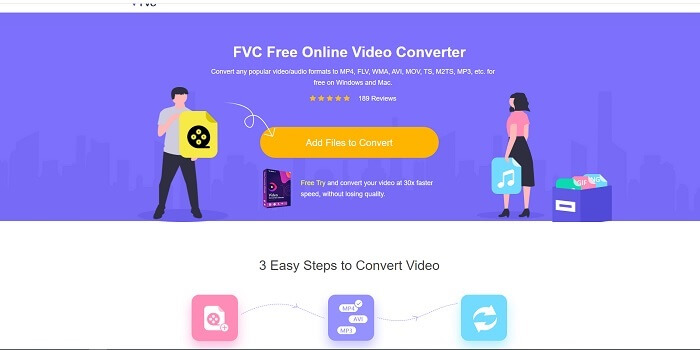
Esetleg arra gondol, hogy mi van, ha nincs pénze, akkor is ugyanazt az átalakulást tapasztalhatom meg, mint az elsőnél? A válasz nagy kövér IGEN. Az FVC mindig a legjobb élményt nyújtja pénztelen ügyfelei számára, és azoknak is, akik szeretnék kipróbálni eszközüket. Bár ez az eszköz csak egyszerű átalakítást végez, ezért ne várjon túl sokat, mint amit a prémium verzió nyújthat. És nem tud gyorsabban konvertálni több videó- és hangformátumot.
Az általa nyújtott konvertálási folyamat sokkal jobb, mint más fizetős vagy ingyenes konvertereké. A FVC Free Online Video Converter azért van, hogy megmentse a napot. Ahogy a neve is mutatja, ez egy ingyenes online eszköz, amely lehetővé teszi, hogy maximális szinten konvertálj. Más konverterekkel ellentétben ez az eszköz mentes a hirdetésektől és a kártevőktől, nem igényel regisztrációt, bejelentkezést vagy személyes adatok megadásét a használat előtt. Ha egy egyszerű konvertert keresel, akkor ez a megfelelő eszköz számodra. Kövesd ezeket a lépéseket, hogy megtudd, hogyan működik ez az eszköz konverterként.
1. lépés. Lépj a hivatalos weboldalra erre a linkre kattintva.
2. lépés. A weboldalnak így kell kinéznie. Ezután kattints az Add Files to Convert gombra az online eszköz elindításához.
Töltse le az asztali verziót a fájlok kötegelt konvertálásához.
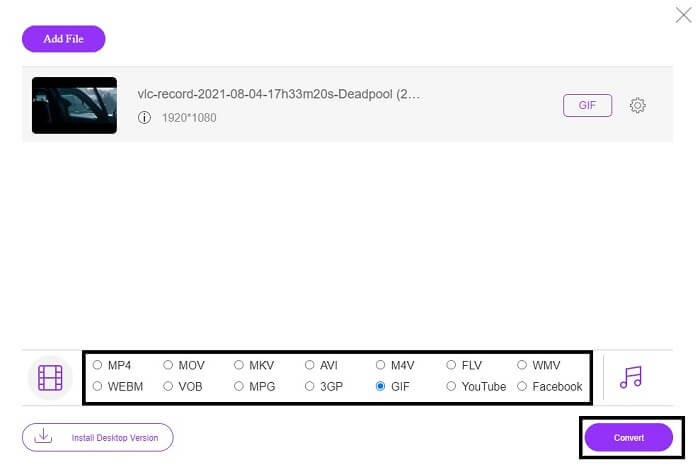
3. lépés. Válaszd ki a videót, amelyet konvertálni szeretnél. A videó kiválasztása után válaszd a GIF fájlformátumot. További információként: választhatsz más videó- és hangformátumokat is, ezeket később is megnézheted, ha szeretnéd.
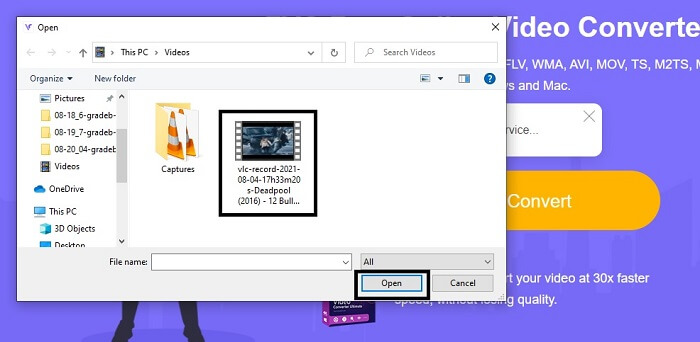
4. lépés. Válaszd ki, hova szeretnéd menteni a végső kimenetet. Ha minden készen áll, kattints a Convert gombra a konvertálás elindításához. Néhány másodpercig fog tartani, míg a folyamat befejeződik.
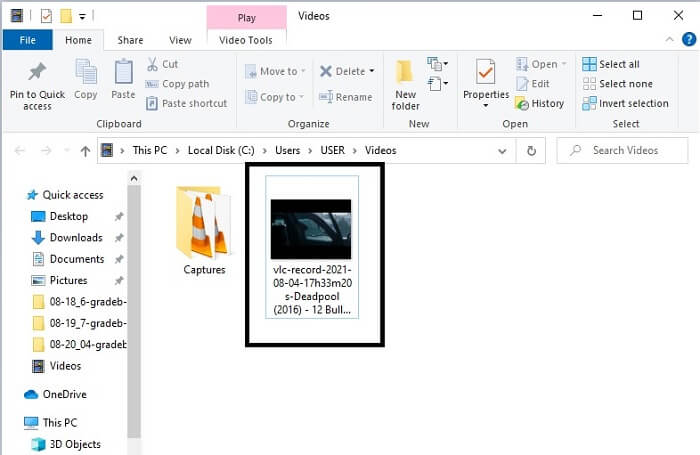
5. lépés. A sikeres konvertálás ellenőrzéséhez keresd meg az átalakított GIF-fájlt a fájlkezelőben vagy az Intézőben. Kattints rá, és élvezd.
3. VLC Media Player
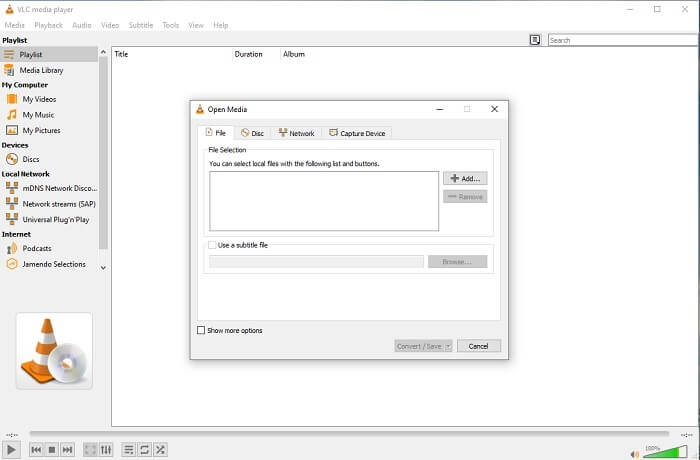
Ez az eszköz arról ismert, hogy az egyik legerősebb médialejátszó. De tudtad, hogy a VLC lejátszó MPG-t is tud GIF-fé alakítani? Az általa támogatott kimeneti formátumok köre azonban nagyon korlátozott, csak az ismert formátumokra terjed ki. Annak ellenére, hogy az egyik legjobb médialejátszóként ismert, a konvertálási funkciója nem a legjobb választás számodra. Ha jobb konvertert szeretnél, válaszd inkább a fenti online eszközt, mint ezt. Ha viszont videót akarsz nézni, akkor a VLC Media Player legyen a választásod, mert a másik eszköz nem szolgál videólejátszóként, mivel a fő célja a konvertálás.
4. Zamzar
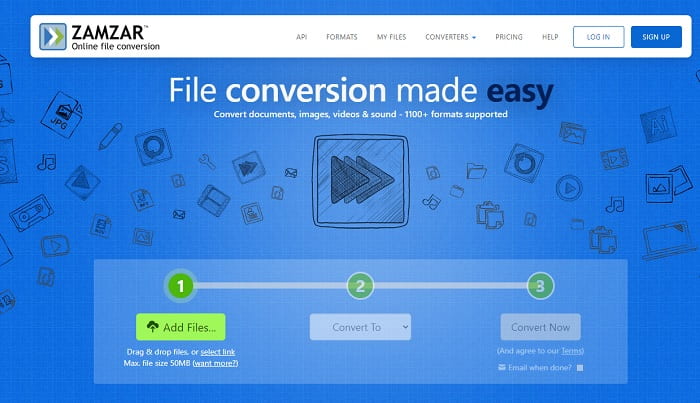
Egy másik online eszköz, amely nagyszerű konverziót biztosít, a Zamzar. Mint minden más online konverter, ugyanazt a felületet osztják meg, és pontos utasításokat ad a konvertáláshoz. De a konvertálás és a letöltés folyamata más. Bár az ingyenes verzió, csak maximum 50 MB fájlméret konvertálható. Mivel a videó konvertálása után el kell lépnie a letöltés fázisába. Ez sok gondot okoz azoknak, akik elhagyják az átalakítást, és csak várják a termék lejátszását.
2. rész. Összehasonlító táblázat
| Eszköz jellemzői | FVC Video Converter Ultimate | FVC ingyenes online konverter | VLC médialejátszó | Zamzar |
| Átalakító |  | | | |
| Szerkesztő eszköz | |  | | |
| Erőteljes konverter | | | | |
| Regisztráció szükséges | | | | |
| Platformok | Asztali alkalmazás | Web alapú alkalmazás | Asztali alkalmazás | Web alapú alkalmazás |
| Árkategória | $25,00 1 hónap/1 PC $55.20 Egyszeri vásárlás 1 PC-re $119.00 Élettartam 5 PC | Ez egy ingyenes online eszköz | Ez egy ingyenes online eszköz | Ingyenes online eszköz De havi prémiumot is biztosít. Az alaphoz: $9 Profinak: $16 Vállalkozásoknak: $25 |
MPG vs. GIF
A Moving Picture Experts Group (MPEG) által készített MPG egy elterjedt digitális videóformátum a video-, hang- és metaadatok tárolására. Nagyon hasznos filmek készítésekor az interneten való megosztáshoz. Az MPG-ben lévő fájlok általában MPEG-1 vagy MPEG-2 videó/audió tömörítést tartalmaznak.
A GIF egy általános képformátum a webes grafikákhoz. A kis képek és szöveget tartalmazó képek mentése mellett a GIF alapvető animációkat is tartalmazhat és megjeleníthet a webhelyeken. Ez egy veszteségmentes formátum, és a GIF-tömörítés nem rontja a kép tisztaságát.
3. rész. GYIK az MPG-ről GIF-re
Van mód a Photoshop használatára és a videó GIF formátumba konvertálására?
Igen, az MPG fájlokat Photoshop segítségével is GIF-fé alakíthatod. De nem csak az MPG formátumot, más formátumokat is választhatsz, amelyeket GIF-fé tud konvertálni. Egy másik különleges tulajdonsága, hogy a GIF-et tovább is javíthatod, hogy még jobb legyen. Kattints ide, ha meg szeretnéd tudni, hogyan kell MP4-et GIF-fé alakítani.
Melyik a legjobb képernyőrögzítő eszköz a GIF-ek rögzítésére?
A legjobb képernyőfelvevő eszköz, amelyet ehhez a feladathoz használhatsz, a FVC Screen Recorder. Ez az eszköz nemcsak videók rögzítésére a legjobb. Beépített hangrögzítővel és játékrögzítővel is rendelkezik a még jobb minőségű játékélmény érdekében. Azonban ez az eszköz fizetős, mielőtt használhatnád. Ne csüggedj, mert létezik egy online eszköz is, amely képes a felvételre.
Miért jött létre a GIF?
A GIF-et azért hozták létre, hogy úgy jelenítsen meg képet, hogy közben tárhelyet takarítson meg. A GIF megalkotója Steve Wilhite amerikai számítógéptudós volt, a techóriás CompuServe támogatásával, 1987 végén. Kattints ide, ha további információkat szeretnél megtudni a GIF-ekről.
Következtetés
Végre, most, hogy tudja, hogyan készítsen GIF-et magán, jobb, ha kipróbálja és élvezi. Ennek az egyszerű eszköznek a használatával változást hozhat. Ahelyett, hogy az interneten keresne, Ön most egy minősített GIF-készítő. Ezen kívül most már a saját módján fejezheti ki érzéseit személyes érintésével és szakértelmével, amelyet pusztán ennek a cikknek az elolvasásával fejlesztett ki. Remélem, élvezheti az általa készített jobb GIF életét, és megoszthatja legjobb GIF-jeit a világgal.
-
 [Útmutató] Hogyan konvertálhat M4V videókat animált GIF-ekké Windows/Mac rendszeren
 Ha animált GIF -fájlokat szeretne készíteni kedvenc M4V -videóiból, akkor ismerkedjen meg 2 egyszerű és hatékony módszerrel az M4V -videók GIF -formátumba való konvertálására, testreszabott beállításokkal.
-
 WebM - GIF - 3 ingyenes WebM - GIF konverter saját GIF létrehozásához
 A WebM GIF? Hogyan lehet egy videót GIF -re alakítani? Van ingyenes WebM -GIF konverter? Ez a bejegyzés 3 ingyenes módot oszt meg, amelyek segítenek a WebM GIF -re konvertálásában.
-
 Hogyan lehet átalakítani az MKV videókat animált GIF -re Photoshop/FFmpeg nélkül
 Miután letöltötte és megtekintette az MKV filmeket a számítógépén, érdemes megosztania néhány csodálatos pillanatot barátaival vagy az interneten GIF -ként. Ebben a cikkben megismerheti az MKV GIF -re konvertálásának 2 legegyszerűbb módját.

