


 Video Converter Ultimate
 Screen Recorder
 Videó javítás
 Biztonságos letöltés
Professzionális módszerek a képek vektorossá alakítására
A logókhoz és rajzokhoz a legjobb grafikus formátum a vektorgrafika. Ennek oka a jól elkülönülő görbékben és vonalakban rejlik. Ráadásul pixelek helyett egyenletekkel írják le őket. Bármilyen méretre nagyítható vagy kicsinyíthető anélkül, hogy romlana az élesség. A felhasználónak képesnek kell lennie fotókat vektorrá alakítani. A jó hír az, hogy mindent megtanulhat az internetről, köszönhetően a rengeteg eszköznek és oktatóanyagnak. A tervezőknek és marketingeseknek meg kell tanulniuk dolgozni az elterjedt fájltípussal, a vektorképekkel. Végül is a reklámtáblák és más hirdetési formák is ezt a formátumot részesítik előnyben. Számos módszer létezik a képek vektorrá alakítására. Ha a legjobb módját keresi annak, hogy képeket vektorrá alakítson, akkor ezért érdemes elolvasnia ezt az útmutatót.

1. rész: Mi az a képvektor?
A pontokat, vonalakat és görbéket tartalmazó számítógépes képet vektorképnek nevezzük. Matematikai egyenletek alapján különféle alakzatok létrehozására szolgál. Minden matematikai egyenlet egyedi tulajdonságokkal rendelkezik, például szín, vastagság, görbe stb. Emiatt a vektoros kép nagyítható és felfelé vagy lefelé méretezhető anélkül, hogy elveszítené a kép részleteit. Ez azt jelenti, hogy a vonalak, görbék és pontok simák maradnak a kép méretétől vagy nagyítási fokától függetlenül. Soha nem lesznek elmosódott vagy rongyos élek a műalkotásban. A logók gyakran vektoros fájlok. Ezenkívül a színek különböző formákra vannak osztva. Olyan egyszerű, mint egy gombra kattintani, leegyszerűsíti a grafikák színeinek megváltoztatását.
2. rész. A kép vektorizálásának legjobb módja
Hogyan lehet vektorizálni egy képet az Illustratorban
Ha vektorizálni szeretné a képeit, használhatja az Illustrator programot. Ezzel a programmal tökéletesen vektorizálhat egy képet. Tartalmaz minden szükséges eszközt és beállítást. Emellett szinte az összes elterjedt képformátumot támogatja, így bármilyen képet hozzáadhat. Hozzáadhat JPG, BMP, PNG, EPS, TIFF fájlokat és még sok mást. Ugyanakkor, ha napi szinten szeretné használni, meg kell vásárolnia a programot. Az Illustrator csak néhány napos ingyenes próbaverziót kínál. Ráadásul a telepítési folyamat is zavaró. Kezdőként nehéz lesz a kezelése. Ha Illustratorban szeretné vektorizálni a képeit, segítséget kell kérnie gyakorlott felhasználóktól. Ezenkívül a program összetett beállításokkal rendelkezik. Szükséges, hogy használat előtt tanulmányozza a programot. Továbbá egy kép vektorizálásakor sok lépésből álló folyamaton kell végigmenni. Az alábbi eljárásból megtudhatja, hogyan vektorizáljon egy képet.
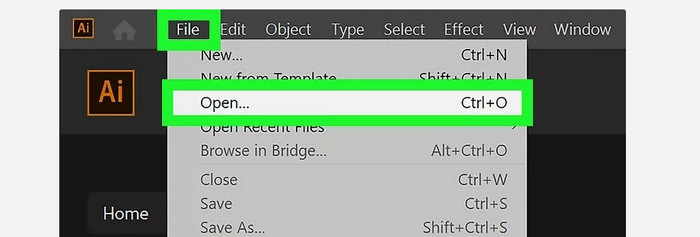
1. lépés. Töltse le az Illustrator programot az asztali számítógépére. Ha szeretné, használhatja az ingyenes próbaverziót. A telepítés után indítsa el a programot. Menjen a File > Open menüpontra, és adja hozzá a vektorizálni kívánt képet.
2. lépés. Az újonnan megjelenő ablakban jelölje be a Preview négyzetet, hogy valós időben láthassa a képét vektoros formátumban.
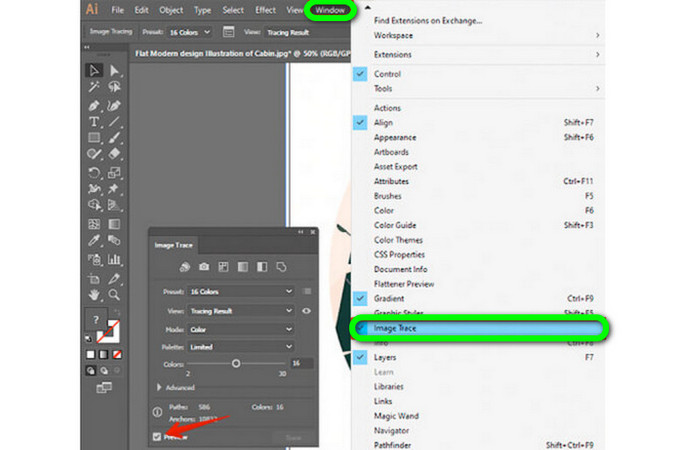
3. lépés. A következő lépés az üzemmód kiválasztása, ha meg szeretné érteni, hogyan kell vektorizálni Illustratorban. Keresse meg a Mode legördülő menüt az Image Trace panelen, majd válassza ki a listából az Ön tervéhez legjobban illő módot. A lehetséges módok: szürkeárnyalatos, fekete-fehér vagy színes.

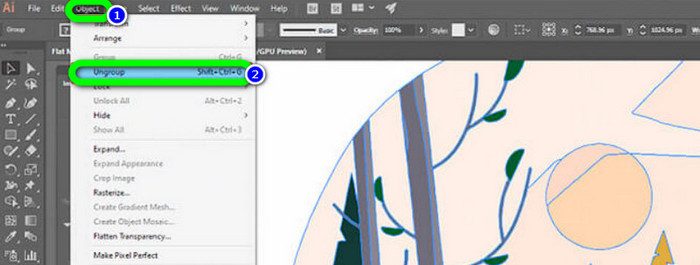
4. lépés. Ezután kattintson a jobb gombbal a képre. Válassza az Object fül legördülő menüjéből az Ungroup lehetőséget. Ha a gyorsbillentyűket részesíti előnyben a könnyebb eléréshez, használhatja a Shift+Ctrl+G/Shift+Cmd+G billentyűkombinációkat is. Ennek a műveletnek az eredményeként a színes alakzatok részekre fognak bomlani.
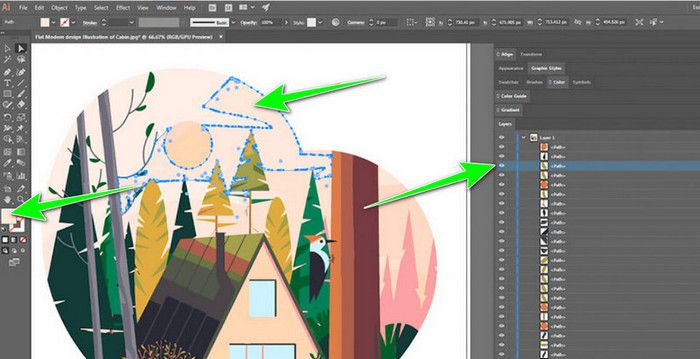
5. lépés. Ha az átalakítás befejeződött, szabadon módosíthatja a képet. Kattintson egy alakzatra, majd válassza a Select > Same > Fill Color lehetőséget, hogy törölje a kívánt színcsoportokat.
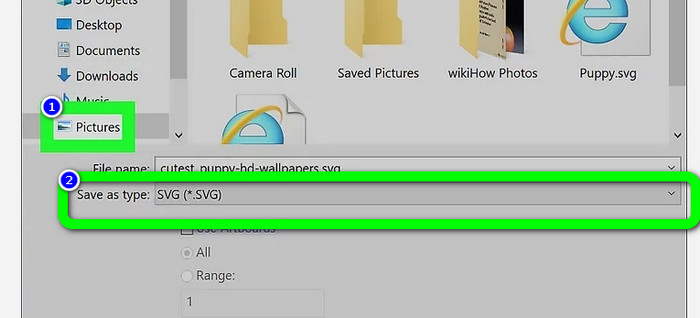
6. lépés. Végül mentse a képét vektoros fájlként. Lépjen a File > Save as menüpontra. Ezután válassza az SVG fájlformátumot.
Hogyan lehet vektorizálni egy képet a Photoshopban
Az Adobe Photoshop kiválóan alkalmas egy kép vektorizálására. Hatékony módszerekkel rendelkezik, amelyek minden felhasználó számára megkönnyítik a folyamatot. Emellett néhány lépésben vektorizálhat egy képet. Továbbá a Photoshop képszerkesztésre is képes. Ha a mentés előtt módosítani szeretné a képeket, ezt megteheti. A Photoshopnak azonban vannak hátrányai. Csak 7 napos ingyenes próbaverziót kínál. A próbaidőszak után elő kell fizetnie. A telepítési folyamat szintén időigényes.
1. lépés. Indítsa el az Adobe Photoshop programot a számítógépén. Ezután lépjen a File menübe, és válassza az Open lehetőséget a vektorizálni kívánt kép hozzáadásához.
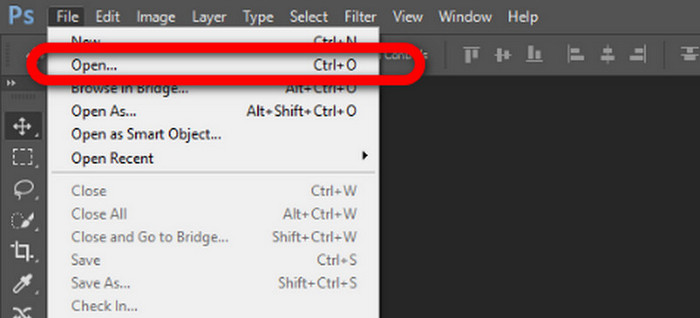
2. lépés. Nyomja meg a billentyűzeten a Ctrl + Alt + I billentyűket, hogy megjelenjen az Image Size ablak, majd állítsa a felbontást 300-ra.
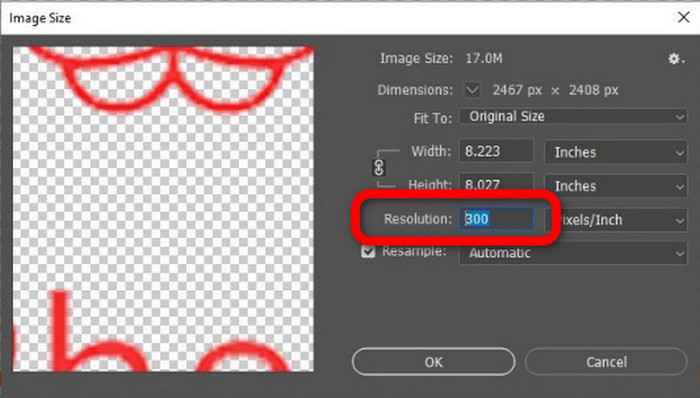
3. lépés. Vigye a kurzort a kijelölés fölé, válassza a Marquee eszközt az eszközpanelen, majd kattintson a jobb gombbal. Ezután válassza a menüből a Make Work Path lehetőséget.
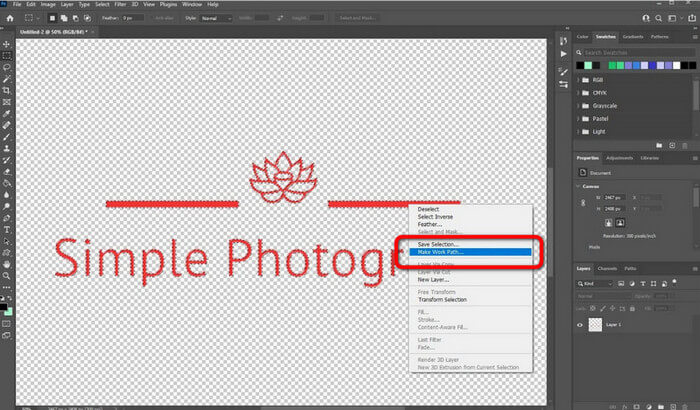
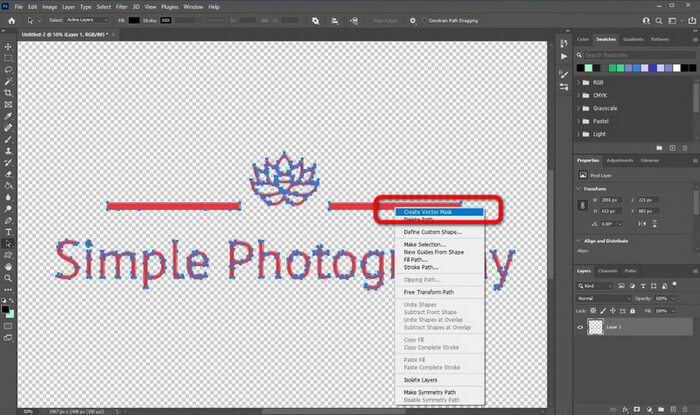
4. lépés. Ezután nyomja meg a billentyűzeten a Ctrl + A billentyűket a Direct Selection eszköz bekapcsolásához. Ezt követően kattintson a jobb gombbal a képre, és válassza a Create Vector Mask lehetőséget. Így a program vektormaszkot hoz létre a réteg fölött.
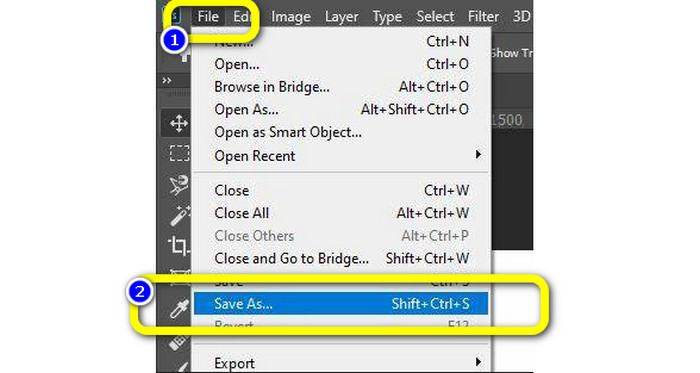
5. lépés. A vektorizált kép mentéséhez lépjen a File menübe, és válassza a Save as lehetőséget.
3. rész Vektoros képek konvertálása
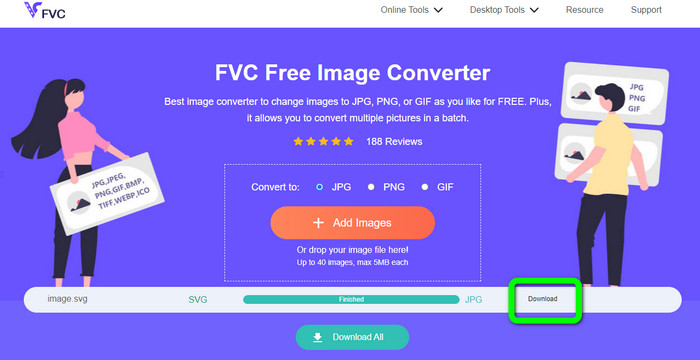
Egy kiváló online képkonverter a FVC Free Image Converter. Képes a vektorgrafikát más formátumokba, például JPG-be és PNG-be konvertálni. A felhasználói felület kiváló. Nem tartalmaz zavaró hirdetéseket, így teljes mértékben a fájlkonvertálásra koncentrálhat. Ezenkívül nincs szükség a konverter telepítésére. Közvetlenül a böngészőből vezérelhető. A konvertálás után a kép minősége az eredeti fájllal azonos marad. Egyszerűen követhető felületet és útmutatót biztosít, ami ideális a felhasználók számára. Továbbá több képfájlt is konvertálhat. Ez a képkonverter képes a kötegelt (batch) konvertálásra. Sőt, egyetlen kattintással több konvertált fájlt is letölthet. Emellett számos további bemeneti formátumot fogad, például PNG, BMP, TIFF és GIF. Ennek az eszköznek az egyik előnye, hogy nincsenek benne idegesítő hirdetések. Így biztosíthatja, hogy a végeredmény használata és megtekintése is kellemes legyen. A FVC Free Image Converter használatával a magánszférája védve marad. Nem tárolja az adatait a kép mentése után.
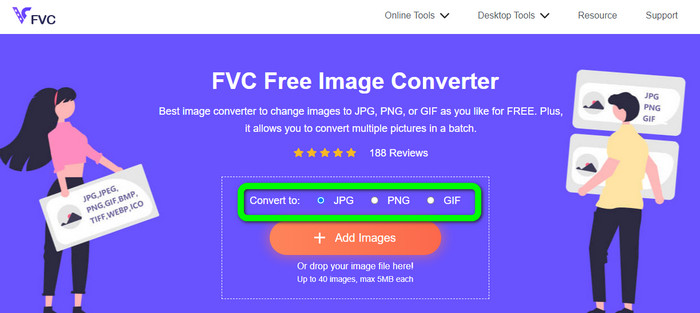
1. lépés. Nyissa meg a FVC Free Image Converter weboldalát. Lépjen a konvertálási (convert) opcióhoz, és válassza ki a kívánt kimeneti formátumot.
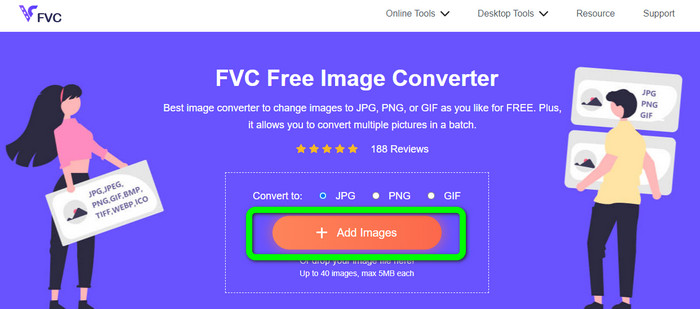
2. lépés. Kattintson az Add Images gombra a vektorkép feltöltéséhez. A képet egyszerűen behúzhatja a mezőbe is.
3. lépés. A vektorkép feltöltése után az eszköz automatikusan konvertálja a képet. A konvertálási folyamat befejezése után kattintson a Download gombra.
Kapcsolatos:
Gondtalan módszerek képek fekete-fehérré alakításához
A legjobb módszerek a képek linkké alakítására [Teljes útmutató]
4. rész. GYIK a képek vektorossá alakításáról
1. Mi a különböző felhasználási területe a vektoros képeknek?
Számos oka van annak, hogy miért kell vektorfájlokat használnia. Ha képeket szeretne nyomtatni, jobb, ha a képet vektorfájlba helyezi. A nyomtatás mellett animációhoz is tökéletes. A felhasználók ezt olyan képkockánkénti képekhez használják, amelyek kevesebb számítási teljesítményt igényelnek. Ezenkívül egyes tervezők vektoros képeket használnak óriásplakátokhoz és reklámokhoz.
2. Melyek a vektoros képformátumok főbb típusai?
Az elsődleges vektoros képformátumok a Scalable Vectors Graphics (SVG), a Windows Metafile (WMF), az Adobe Illustrator Artwork (AI), az Encapsulated PostScript (APS) és a Portable Document Format (PDF).
3. Mindig szükségem van vektorfájlra, ha tervezési munkám van?
Nem mindig. Vannak módok különböző fájlformátumok használatára. De az, hogy szükség van-e vektorfájlokra, végső soron az elvégzett munkától függ. Végül, ha elkészült a tervezési munkával, beszélje meg a fájlformátumokat a tervezővel. Így összegyűjtheti vagy előállíthatja a megfelelő fájlokat, ha nem érhetők el.
4. Hogyan lehet bármilyen képet fekete-fehér vektoros sziluettté alakítani?
A kép fekete-fehérré alakításához használhatja a Photoshop programot. Lépjen a Fájl menübe, és válassza a Megnyitás lehetőséget a kép hozzáadásához. Ezután a felső felületen kattintson a Kép menüre. Válassza a Korrekciók > Küszöb lehetőséget. Ezután megjelenik a Küszöb ablak. Ezután kattintson az OK gombra.
Következtetés
A vektorképek kiválóan használhatók reklámokhoz, óriásplakátokhoz és sok egyéb célra. Emiatt a cikk bemutatta a legjobb módszereket arra, hogyan lehet vektorizálni egy képet. Emellett megtanulta, hogyan alakíthatja a vektorképeket más formátumokba, például JPG-be és PNG-be. Ha vektorizálni szeretne egy képet és más formátumokba is konvertálná a képeket, használja a FVC Free Image Converter eszközt.
-
 Könnyen érthető módszerek a PSD PNG vagy JPG formátumba konvertálására
 Ez a bejegyzés kezelhető lépéseket kínál a PSD JPG vagy PNG formátumba konvertálásához. Különféle konverterek használhatók a fájlok konvertálására. Olvasson többet, hogy megtudja.
-
 Tesztelt módszerek a TGA egyszerű, de professzionális konvertálására PNG-vé
 Tekintse meg ezeket az útmutatókat, hogy megtudja, hogyan lehet TGA-t PNG-vé konvertálni online képátalakítók segítségével. Kattintson a cikkre, hogy megtudja a képátalakítás teljes részleteit.
-
 Összehasonlíthatatlan oktatóanyagok a képek SVG formátumba konvertálásához
 Szeretné konvertálni fényképeit SVG fájlformátumba? Ezután ez a bejegyzés kiváló konvertereket kínál, amelyeket online, offline és mobileszközökön használhat.
