


 Video Converter Ultimate
 Screen Recorder
 Videó javítás
 Biztonságos letöltés
Bámulatosan javítsa a képminőséget a legfantasztikusabb eszközökkel
Az alacsony minőségű kép meglehetősen zavaró. Ha neked is alacsony minőségű képed van, javítanod kell a kép minőségét. De hogyan teheted ezt meg? Számos képnagyító (image upscaler) létezik, amelyet a számítógépeden használhatsz, hogy növeld a képed minőségét. És ha arra vagy kíváncsi, hogyan lehet kijavítani a képed minőségét, ebben segítünk neked. Olvasd el a teljes cikket, hogy gyorsan megtudd, hogyan lehet kijavítani a képminőséget.

1. rész: A képminőség ingyenes online javítása
Rengeteg képfelújítót tölthet le számítógépére. A kép minőségének javítása előtt azonban meg kell vásárolnia őket. És ha ingyenes képfeljavítót keres, akkor nálunk megtalálja a megfelelő eszközt. Olvassa el alaposan ezt a részt, hogy megtudja, hogyan javíthatja ingyenesen a képminőséget a két legfantasztikusabb online eszköz használatával.
FVC Free Image Upscaler
A FVC Free Image Upscaler egy ingyenes online alkalmazás, amely segít kijavítani egy kép minőségét. Ez az online eszköz kezdőbarát, mivel könnyen használható felhasználói felülettel rendelkezik. Emellett négy eredményt is tud adni 2x, 4x, 6x és 8x nagyításban, kiváló minőséget biztosítva. Ráadásul nem kell aggódnod az adataid biztonsága miatt, mert az FVC Free Image Upscaler biztosítja, hogy használata biztonságos. Ami még lenyűgözőbb ebben az eszközben, hogy mesterséges intelligenciát (AI Technology) használ, amely automatikusan felismeri az elmosódott részeket. Továbbá ez az eszköz tökéletesen alkalmas az elveszett pixelek, színtextúrák és egyéb részletek helyreállítására. Ha ezzel az eszközzel szeretnéd javítani a képed minőségét, olvasd el az alábbi útmutatót.
A fényképminőség online javítása az FVC Free Image Upscaler használatával:
1. lépés. A használt böngészőben írd be a keresőmezőbe, hogy FVC Free Image Upscaler. Kattints erre a linkre, hogy közvetlenül a főoldalra juss.
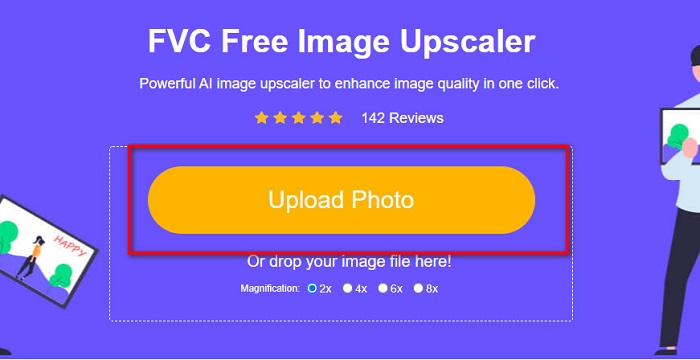
2. lépés. A fő felhasználói felületen kattints az Upload Photo gombra, hogy feltöltsd a felnagyítani kívánt képet. Megnyílnak a számítógéped fájljai, ahol kiválasztod az alacsony minőségű képet, és feltöltöd.
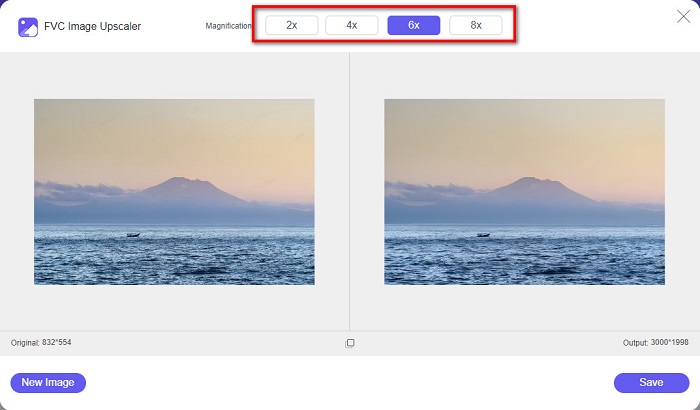
3. lépés. Ezután válaszd ki a kívánt nagyítás mértékét a képedhez. Minél nagyobb a nagyítás, annál jobb lesz a minőség. Választhatsz a 2x, 4x, 6x és 8x közül.
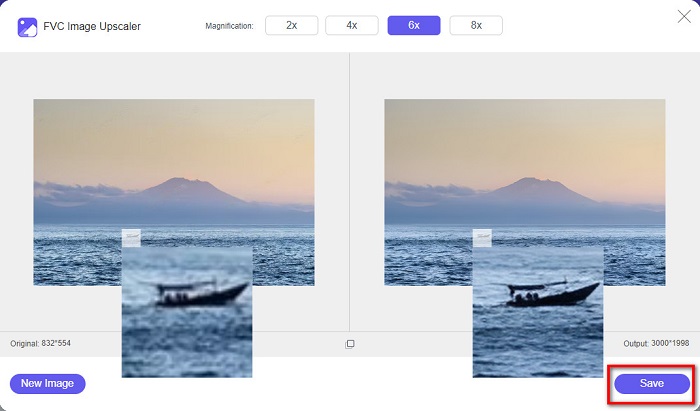
4. lépés. Ezután nyomd meg a Save gombot, hogy elmentsd a javított képet a számítógéped mappáiba.
Egyszerű, igaz? Olyan könnyű, mint az A-B-C, így javíthatod a képminőséget az FVC Free Image Upscaler használatával.
Icons8.com
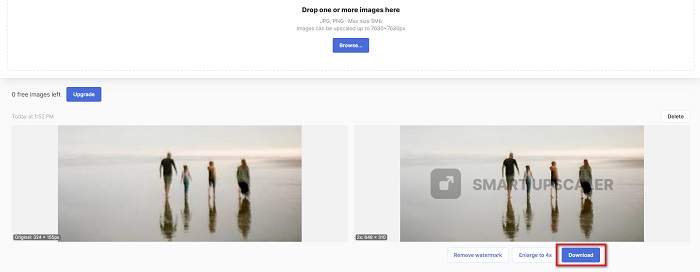
Az Icons8.com egy másik online képnagyító, amely szinte minden webböngészőből elérhető, többek között a Google Chrome‑ból, a Firefoxból és a Safariból. Ez az online alkalmazás egyszerűen használható, mert letisztult felhasználói felülettel rendelkezik. Emellett ez az online eszköz is AI technológiát használ, amely automatikusan felismeri a kép elmosódott részeit. Továbbá a képeid akár 7680 × 7680 px méretig is felnagyíthatók. Az elkészült képen azonban vízjel marad. Ennek ellenére még mindig hatékony eszköz a képeid felnagyítására.
Az Icons8.com rossz minőségű képének javítása:
1. lépés. Nyisd meg a böngésződet, és keresd meg az Icons8.com oldalt. Ezután a fő felületen kattints a Browse gombra.
2. lépés. Mivel az Icons8.com szintén AI technológiát használ, automatikusan felismeri a képed elmosódott részeit.
3. lépés. Végül kattints a Download gombra, hogy elmentsd a képet a számítógépedre.
2. rész: A rossz minőségű képek javítása a Photoshopban
Nem nehéz javítani a minőségről alkotott képet. De a Photoshop használata a kép felskálázására meglehetősen nagy kihívást jelenthet a felülete és funkciói miatt. De ne aggódjon, mert megtanítjuk, hogyan használhatja az Adobe Photoshopot a kép minőségének javítására.
Az Adobe Photoshop kiváló fotószerkesztésre és fotómanipulációra. Ezt a szerkesztőprogramot világszerte sok profi szerkesztő használja. Ezenfelül számos fejlett szerkesztőeszközt tartalmaz, amelyeket a képeid szerkesztésére használhatsz. Az Adobe Photoshop minden főbb platformra letölthető, beleértve a Windowst, a Macet és a Linuxot is. Emellett bannereket, logókat, brosúrákat stb. is szerkeszthetsz ezzel az alkalmazással. És amit sok felhasználó nem tud, hogy a képminőséget is javítani tudja. Bár meg kell vásárolnod, mielőtt letöltenéd, az Adobe Photoshop megéri a pénzét.
Az alacsony minőségű képek javítása a Photoshopban:
Ebben az oktatóanyagban javítani fogunk egy kép minőségén, ha kinagyítjuk, hogy lássuk a felbontását.
1. lépés. Töltsd le az Adobe Photoshop programot a számítógépedre. Kövesd a telepítési folyamatot, majd futtasd az alkalmazást a gépeden.
2. lépés. Nyisd meg az alacsony felbontású képet az Adobe Photoshopban. Itt egy példa, amely 100% nagyításra van kinagyítva. Amint látod, a kép alacsony felbontású.
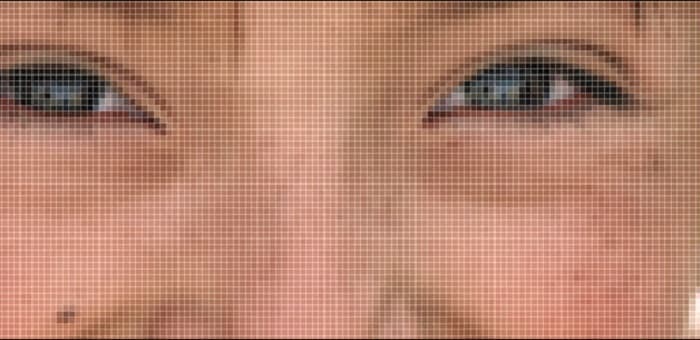
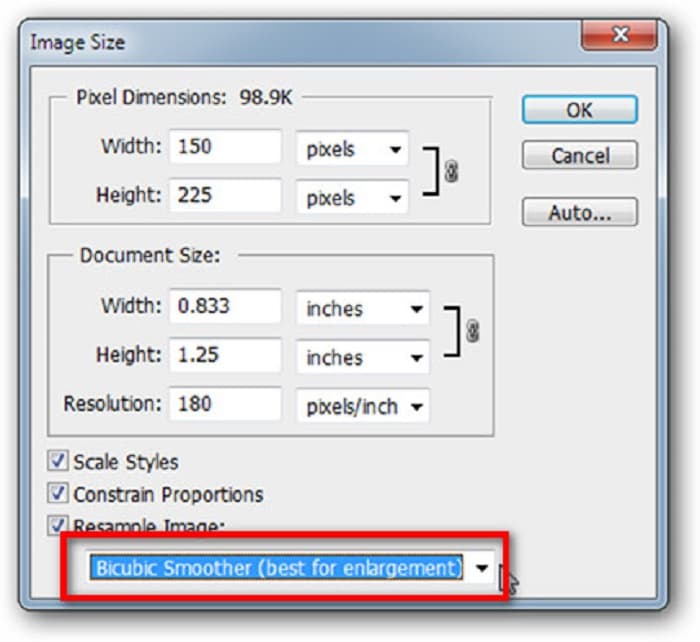
3. lépés. Ezután menj a Image > Image Size menüpontra. Majd a Resample Image beállításnál változtasd meg az élsimítás (anti-aliasing) típusát, hogy felnagyítsd és kisimítsd a képedet. Állítsd Bicubic Smoother értékre, amely a legjobb a nagyításhoz.
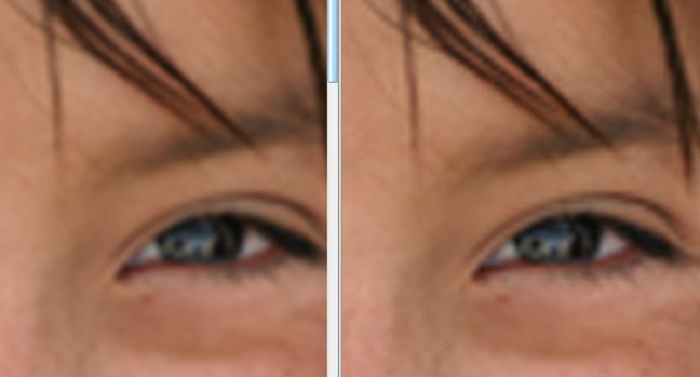
4. lépés. Amikor Bicubic Smoother verzióra váltasz, az alábbi két kép közötti különbséget is láthatod. Az élsimítás megváltoztatása hatalmas különbséget eredményez a képed simaságában.
5. lépés. Most tovább javítjuk a felnagyított képet a részletek módosításával. A legtöbb Photoshop‑felhasználó nem megy tovább az RGB és CMYK színmódoknál. Ma azonban egy másik színmódot fogunk használni, a Lab Color módot. Menj a Image > Mode > Lab Color menüpontra.
6. lépés. Ezután győződj meg róla, hogy megnyitod a panelt a Windows > Channels > Lightness csatorna útvonalon. Az a és b csatorna mellett is rákattinthatsz a réteg elrejtése ikonra.
7. lépés. A Lightness csatorna kiválasztása után menj a Filter > Smart Sharpen > Sharpen menüpontra, hogy hozzáadd a Smart Sharpen szűrőt.
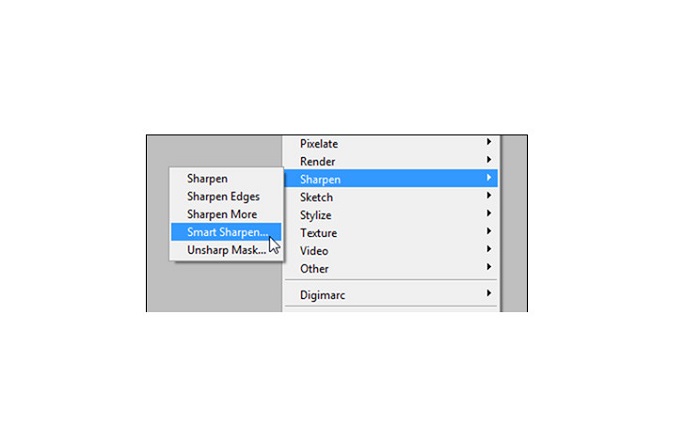
8. lépés. Ezután beállíthatod a fotód paramétereit, és megtalálhatod a kívánt eredményt. Mindig tartsd szem előtt, hogy a Remove beállítást Gaussian Blur értéken kell hagyni.
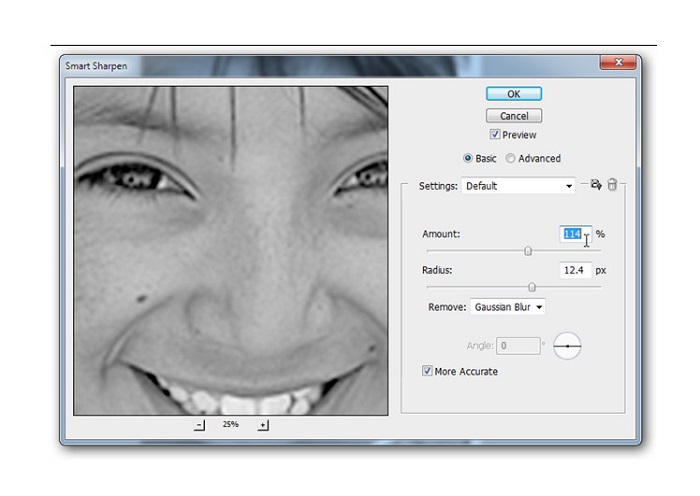
9. lépés. Eldöntheted, hogy a képet Lab Color módban tartod, vagy visszaállítod RGB-re. És ennyi! Itt az elkészült képed. Észre fogod venni, hogy az képminőség javult, és gazdagabb lett a textúrája.
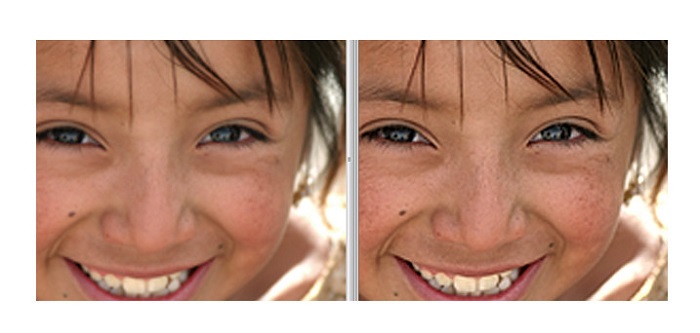
És íme! Ha követi a fenti útmutatót a rossz minőségű képek Photoshop programban történő javításáról, javíthatja a kép minőségét.
3. rész. GYIK a képminőség javításával kapcsolatban
Javíthatom a rossz minőségű képeket az iPhone-on?
Igen. Számos alkalmazást letölthet iPhone-jára, amelyek segítenek javítani a képminőséget. Az egyik legjobb képfeldolgozó alkalmazás a Remini, egy felhasználóbarát alkalmazás.
Módosíthatom a JPEG képek felbontását?
Bármelyik képformátum felbontását módosíthatja, amelyet fel akar lépni. A fent említett eszközök segítségével javíthatja a JPEG kép minőségét.
Hogyan lehet javítani a képminőséget az Instagramon?
Ha az Instagramon szeretnéd javítani a képek minőségét, állítsd nagyobbra a bővítmény Image Resolution (kép felbontás) beállítását, hogy a kép a megfelelő felbontásban jelenjen meg. Ezt az alábbi útvonalon teheted meg: Instagram Feed > Customize > Posts > Photos > Image Resolution.
Következtetés
Reméljük, választ adtunk a hogyan lehet kijavítani a képminőséget kérdésedre. A fenti eszközök közül kiválaszthatod, melyik a legjobb számodra. Az Adobe Photoshop talán professzionálisabb eszköz, de nem túl felhasználóbarát. Tehát ha egy könnyen használható, ingyenes képnagyítót szeretnél, használd az FVC Free Image Upscaler eszközt.
-
 Alacsony felbontású kép nagy felbontású online konvertálása
 Ha szeretné megtanulni, hogyan alakíthat át alacsony felbontású képeket nagy felbontású képekké online, akkor ez a cikk neked szól. Olvassa el teljesen, hogy megtudja, hogyan.
-
 Távolítsa el a DaVinci Resolve vízjelet az exportált videókról a teljes oktatóanyag segítségével
 A Davinci Resolve vízjel eltávolításához egy eszközt kell használnia, vagy meg kell vásárolnia annak hivatalos verzióját. Olvassa tovább ezt, hogy többet megtudjon.
-
 Hogyan lehet ingyenesen megszabadulni a Power Director vízjeltől [teljes]
 Hogyan lehet ingyenesen megszabadulni a Power Director vízjeltől? A vízjel eltávolításának legjobb eszközei itt találhatók, ezért tanulja meg őket ennek elolvasásával.
