


 Video Converter Ultimate
 Screen Recorder
 Videó javítás
 Biztonságos letöltés
Hogyan lehet növelni a kép felbontását asztali számítógépen ingyenesen és fizetősen
Érdekel a kiváló minőségű képek készítése? Akkor tudnod kell, hogy magas PPI-re (pixel per inch – hüvelykenkénti pixelek száma) van szükség ahhoz, hogy a rögzített képen finom részletek jelenjenek meg. Frusztráló lehet, amikor kiderül, hogy az elkészített kép PPI-értéke alacsony, ami gyenge minőséget eredményezhet nyomtatáskor vagy online megosztáskor. Szerencsére vannak módszerek, amelyekkel növelheted a kép PPI-jét. Az itt bemutatott eszközök bizonyították, hogy képesek megnövelni a képed pixeleinek számát, és így magasabb minőségű eredményt adnak. Olvasd tovább ezt a bejegyzést, mert bemutatjuk és lépésről lépésre ismertetjük, hogyan növeld a képek felbontását, hogy a lehető legjobb képeredményt érd el.

1. rész: Hogyan lehet növelni a képfelbontást ingyenesen online [bármilyen webböngészőn elérhető]
FVC Free Image Upscaler
A FVC Free Image Upscaler lehet az az eszköz, amelyre szükséged van, ha könnyen és ingyen szeretnéd tudni, hogyan növeld egy fotó felbontását. Ez az online eszköz nem a hagyományos újramintavételezési (resampling) módszerrel nagyítja fel a képet, hanem egy automatikus javítót használ, amely felismeri a képen lévő elmosódott részeket. Ha a feltöltött képről pixelek vesztek el, ez az eszköz képes új pixeleket generálni, hogy a kép jobb minőségű legyen. A kép felnagyítása után láthatod a különbséget az előtte és utána állapot között. Ha meg szeretnéd tudni, hogyan oldhatod meg ezzel az eszközzel a problémát, lemásolhatod az egyszerű lépéseket, amelyeket a kép felskálázásához összegyűjtöttünk.
Hogyan nagyíts fel egy képet az FVC Free Image Upscaler használatával:
1. lépés. Kattints erre a linkre, hogy megnyisd az FVC fő weboldalát, ahol elkezdheted a kép felskálázását.
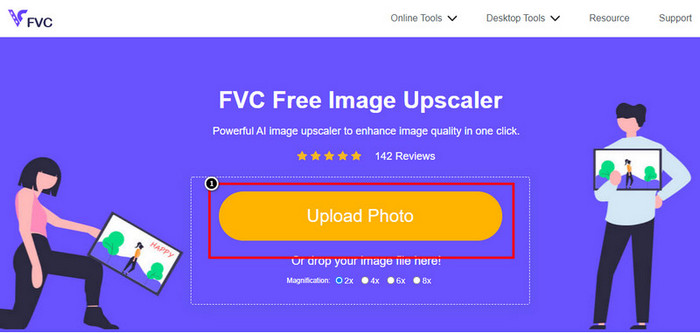
2. lépés. A főoldalon kattints az Upload Image gombra, hogy importáld azt a képet, amelynek felbontását növelni szeretnéd.
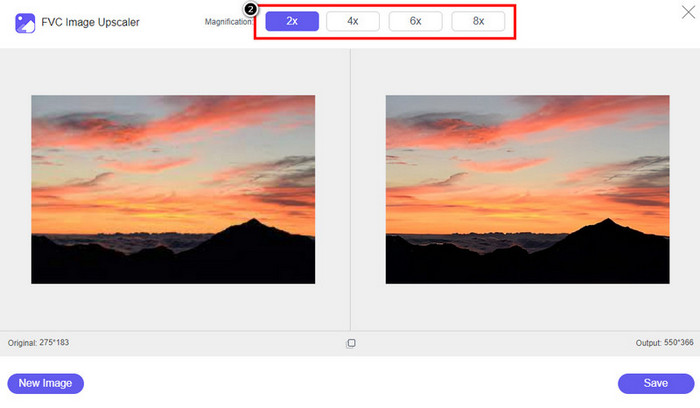
3. lépés. Feltöltés után két oszlop jelenik meg a képernyőn: az eredeti kép és a felnagyított változat. Válaszd ki, milyen Magnification értéket szeretnél alkalmazni a kép felskálázásához.
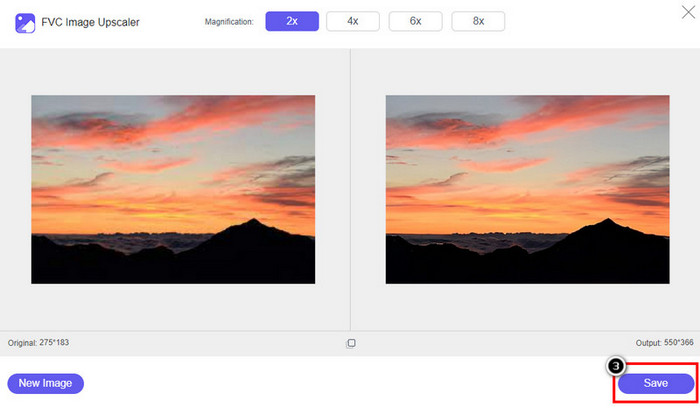
4. lépés. Nyomd meg a Save gombot, hogy letöltsd a végső eredményt a helyi meghajtódra; ilyen egyszerűen el is készült a felnagyított kép.
Képnagyítás
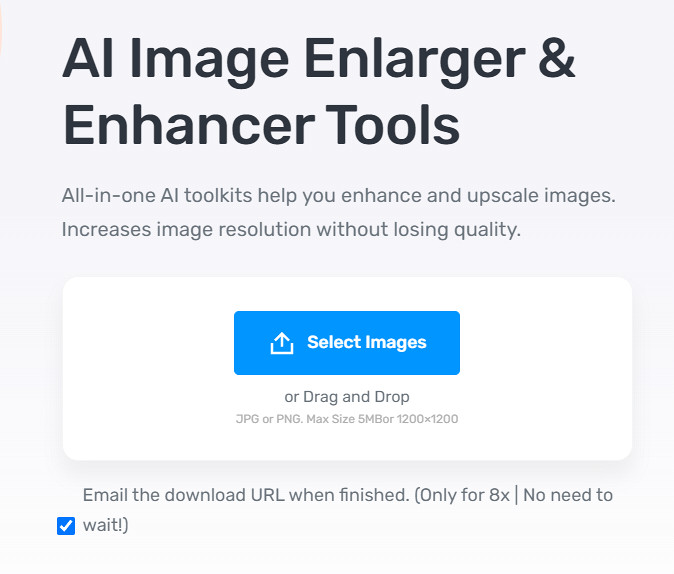
Az Image Enlarger segíthet abban, hogy megtanuld, hogyan növeld egy kép felbontását online. Ez az eszköz továbbra is a hagyományos újramintavételezési módszert használja, amely többféle kép esetén is jól működik. Itt JPG, PNG, GIF és BMP formátumú képeket tölthetsz fel, legfeljebb 4100 x 4100 pixeles méretig és maximum 5 MB fájlméretig. Hátránya, hogy nincs előnézeti kép, így nem látod előre, hogyan fog kinézni a kép a felbontás növelése után. Ez sokak számára problémát jelenthet, mert kíváncsiak lennénk, milyen lesz a végeredmény. Ennek ellenére ez az online eszköz már számos felhasználó számára bizonyított. Most eljött az ideje, hogy te is meggyőződj róla, jó választás lehet-e a felskálázáshoz, ha követed az alábbi lépéseket.
Hogyan javíts fel egy fotót az Image Enlarger segítségével:
1. lépés. Nyisd meg ennek a képnagyítónak a hivatalos weboldalát a böngésződben.
2. lépés. Kattints a Choose File gombra, hogy feltöltsd a felnagyítani kívánt képet; ha szeretnéd, az URL megadásával is feltöltheted a képet.
3. lépés. Módosítsd a kívánt cél szélesség (width) és magasság (height) értékét a saját igényeidnek megfelelően a kép felnagyításához. Add meg a pontos méreteket, amelyeket el szeretnél érni, hogy a kép tökéletes méretű legyen.
4. lépés. Nyomd meg a Start gombot, hogy felskálázd a korábban feltöltött képet.
Picverse
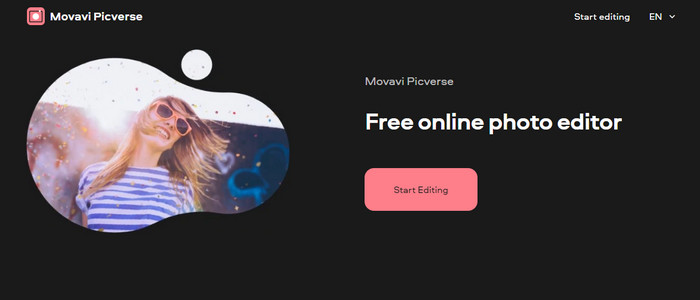
A Picverse egy Movavi által támogatott eszköz, amelyet arra használhatsz, hogy online és ingyenesen növeld a fotók felbontását. Ez az eszköz alapvető képszerkesztő funkciókkal rendelkezik, amelyekkel javíthatod a képek színeit, hogy jobban mutassanak. Ugyanakkor nem hoz létre új pixeleket a feltöltött kép felbontásának növeléséhez. Ennek ellenére a képeiden elérhető javítás hatása kiváló más online képszerkesztőkhöz képest. Összességében egy mini professzionális szerkesztőt élhetsz át, ha kipróbálod ezt a szoftvert. Szeretnéd tudni, hogyan? Kövesd az eszközzel kapcsolatban megadott lépéseinket.
Hogyan készíts nagy felbontású képeket a Picverse használatával:
1. lépés. Látogasd meg a hivatalos weboldalt, és kattints az Upload Image gombra, hogy betöltsd a képet, amelynek a minőségét javítani szeretnéd.
2. lépés. Miután a javítani kívánt képek betöltődtek, elkezdheted a minőségük javítását az alábbi beállítások módosításával.
Kiegészítés: Ha valamilyen effektust szeretnél alkalmazni a képre, válaszd ki az effektusok (effects) opciót, és válaszd ki a számodra tetsző, elérhető hatást. Az egyes effektek erősségét is tetszés szerint állíthatod.
3. lépés. A módosítások alkalmazásához kattints a Save gombra.
2. rész: Nagy felbontású képek készítése Windows és macOS rendszeren offline [Fizetős és ingyenes verzió]
Adobe Photoshop
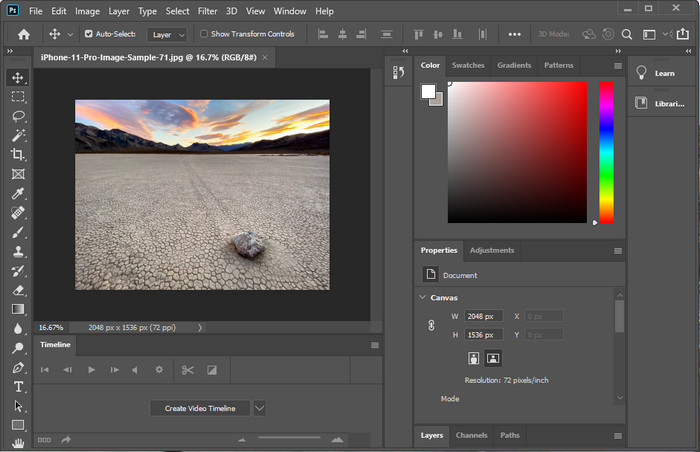
Nem szabad megfeledkeznünk az Adobe Photo-ról, mert ez egy profi eszköz; tudnia kell, hogyan készítsen nagyobb felbontású fényképet. Nem újdonság számunkra, hogy ez a szoftver pixeleket tud hozzáadni a képhez, így a felbontása lesz a legjobb. Automatizált funkcióival több képpontot adhat hozzá a képhez, miután javította azt. Annak ellenére, hogy itt átméretezi a képet, van egy olyan funkciója, amely segíthet a képek kinagyításában anélkül, hogy kinyújtaná azokat. De mielőtt ezt a professzionális eszközt használná, meg kell vásárolnia az Adobe hivatalos webhelyén. Tegyük fel, hogy nincs pénze megvenni. Ebben az esetben kipróbálhatja az ingyenes próbaverziót, hogy megtapasztalja, mennyire professzionális ez az eszköz. Ha letöltötte ezt a szoftvert az asztali számítógépére, kövesse az alábbi lépéseket a kép felskálázásához.
Hogyan növeld egy kép felbontását az Adobe Photoshop használatával:
1. lépés. Töltsd be a felbontásnövelésre szánt képet a File menüpontra kattintva.
2. lépés. A felső eszköztáron kattints az Image menüpontra, majd válaszd az Image Size lehetőséget, hogy megnöveld a kép felbontását.
3. lépés. A megjelenő párbeszédpanelen írd be a kívánt méreteket, majd nyomd meg az OK gombot az alkalmazáshoz.
4. lépés. Nyisd meg a File menüt, és kattints a Save lehetőségre. Egy újabb párbeszédablak jelenik meg, ahol beállíthatod a kép minőségét, majd elmentheted azt.
ZSINÓR
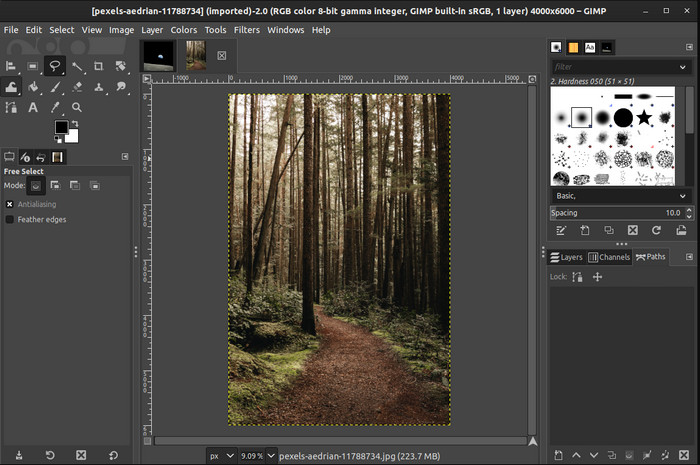
A GIMP a Photoshop egyik alternatívája, amelyet letölthetsz, és amely segít alacsony felbontású fotókat magas felbontásúvá alakítani. Azért vált ismert alternatívává, mert nagyon jó munkát végez a képekkel, bár a Photoshop több eszközzel rendelkezik. A GIMP segítségével könnyedén növelheted a képek felbontását Windows vagy Mac rendszeren, ha letöltöd. Amint említettük, ez az eszköz hasonlít az Adobe képszerkesztőjéhez; összetettsége azonban messze meghaladja azt a szintet, amelyet egy teljesen kezdő könnyedén kezelni tudna. Ha azonban követed az itt megadott útmutatót, használni tudod a szoftvert, és a GIMP-ben beállíthatod a képedet.
Hogyan növeld egy fotó felbontását GIMP-pel:
1. lépés. Töltsd le a szoftvert az eszközödre, kövesd a telepítési folyamatot, majd indítsd el, ha minden rendben lezajlott.
2. lépés. Lépj a File menüpontra, és kattints az Open lehetőségre, hogy feltöltsd azt a képet, amelynek felbontását növelni szeretnéd.
3. lépés. Nyisd meg az Image menüt, és válaszd a Scale Image opciót, hogy elkezdd a kép átméretezését GIMP-ben.
4. lépés. A Scale Image gombra kattintás után megjelenik egy beállítási panel, ahol módosíthatod a kép felbontását. Állítsd be az egyes értékeket, hogy növeld a kép felbontását.
5. lépés. Nyomd meg a Scale gombot, hogy elmentsd az általad beállított értékeket.
3. rész. GYIK a képfelbontás növeléséről
Melyik a jobb, a GIMP vagy a Photoshop a képfelbontás növelésére?
A GIMP és az Adobe Photoshop kiváló szoftverek, és szinte kiegyenlített képszerkesztőkkel rendelkeznek, amelyeket letölthet eszközére. A Photoshop azonban messze felülmúlja a képfelbontás növelését.
Szükséges-e a szoftver letöltése a képfelbontás javításához?
A szoftver letöltése hasznos lehet, ha nem rendelkezik internettel, és javítani szeretné a felbontást, de erősen javasoljuk egy webes eszköz használatát, ha megfelelő internettel rendelkezik. Az FVC Free Image Upscaler-hez hasonlóan ez az eszköz is megbízható képfeljavító, amelyhez fájlok letöltése nélkül is hozzáférhet az interneten.
Kihívást jelent egy kép felskálázása?
Vannak, akik ezt a kihívást az eszközeik miatt kellemetlennek találják, de itt mindent kényelmesebbé teszünk az Ön számára. Miután elolvasta ezt a cikket, most már hatalmas ismeretekkel rendelkezik arról, hogyan kezelheti ezt a problémát egyszerűbben.
Következtetés
Szóval, mit gondol, melyik szoftvert fogja használni az előnyei miatt? A fényképek felbontásának online vagy offline növeléséhez szoftverre és egy oktatóanyagra lesz szüksége a használatukról; ezt adjuk hozzá ehhez a cikkhez. Kiválaszthatja, hogy melyik a legmegfelelőbb az Ön számára, és kövesse az általunk hozzáadott lépéseket a probléma egyszerű kezeléséhez.
-
 Az Animaker vízjel eltávolítása költség nélkül [Bevált módszerek]
 Hogyan lehet eltávolítani az Animaker vízjelet? Az ebben a blogban található legjobb eszközökkel megszabadulhat a vízjeltől.
-
 Oktatóanyag a vízjel eltávolításáról az eredetdiagramról [100% Working]
 A vízjel eltávolításához az Origin Graphból segítségre lesz szüksége. Ebben a cikkben megtalálható a szükséges segítség, ezt elolvashatja.
-
 A vízjel egyszerű eltávolítása a SmartDraw-ban [2 bevált módszer]
 Hogyan lehet eltávolítani a vízjelet a Smart Draw-ban? Ha ugyanilyen kérdése van, számíthat erre a cikkre, mivel mi foglalkozunk vele!
