


 Video Converter Ultimate
 Screen Recorder
 Videó javítás
 Biztonságos letöltés
Távolítsa el az objektumot a fényképek közül a 6 hatékony szoftverrel [ingyenes]
Fotósok milliói – még azok is, akik csak most kezdenek ismerkedni a fotózással – több felvételt készítenek naplementéről, tengerpartról, turista-látványosságokról, holdról és még sok másról. A képekkel kifejezhetjük, kik is vagyunk valójában. Egyetlen kattintással is felébresztheted mások kreativitását és bennük rejlő művészi énjüket. Nem minden egyes pillanatban sikerül tökéletes fotót készíteni; néha el kell távolítanunk egy-egy zavaró elemet, amelyet valójában nem szerettünk volna a képen látni. Szükséged van egy eszközre, amellyel eltávolíthatod az objektumot a fotókról? Itt bemutatunk különböző módszereket és eszközöket, amelyekkel azonnal eltávolíthatod a felesleges objektumokat az elkészült képről.

1. rész: Távolítsa el az objektumot a fényképről a legjobb objektumeltávolítóval [Webszolgáltatás]
Az FVC Free Watermark Remover az első választásunk, ha ingyen, online szeretnél objektumokat eltávolítani fotóidról. Ezzel azonnal kiretusálhatsz bármit, ami zavarja a tökéletes képet, anélkül hogy programot kellene letöltened a számítógépedre, még akkor is, ha nincs tapasztalatod az ilyen jellegű szerkesztésben. Nyugodtan támaszkodhatsz erre az eszközre, mert csak ki kell jelölnöd az objektumot, és eltünteti azt a képről úgy, hogy nem maradnak maradványok. Úgy találtuk, hogy ez az eszköz szórakoztató és hatékony a felesleges elemek eltávolításában; ha szeretnéd használni, másold le az alábbi lépéseket.
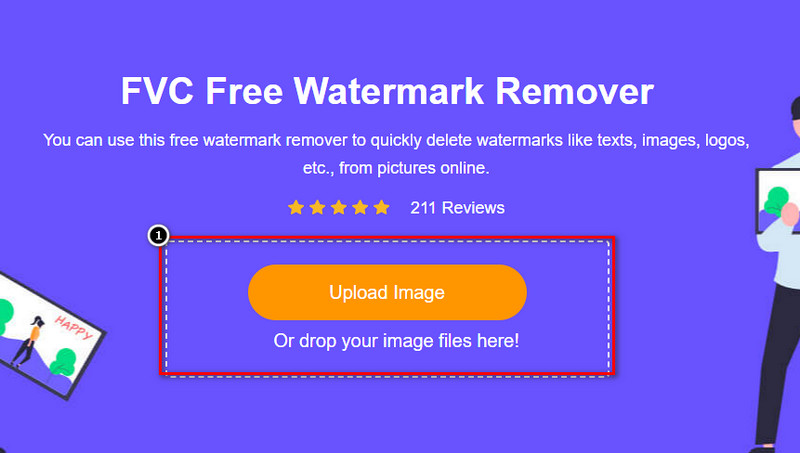
1. lépés. Az objektum megnyitásához és az FVC fejlesztés eltávolításához kattints erre a linkre, amely a hivatalos weboldalra vezet.
2. lépés. Kattints az Upload Image gombra, hogy importáld azt a fotót, amelyen zavaró objektum található.
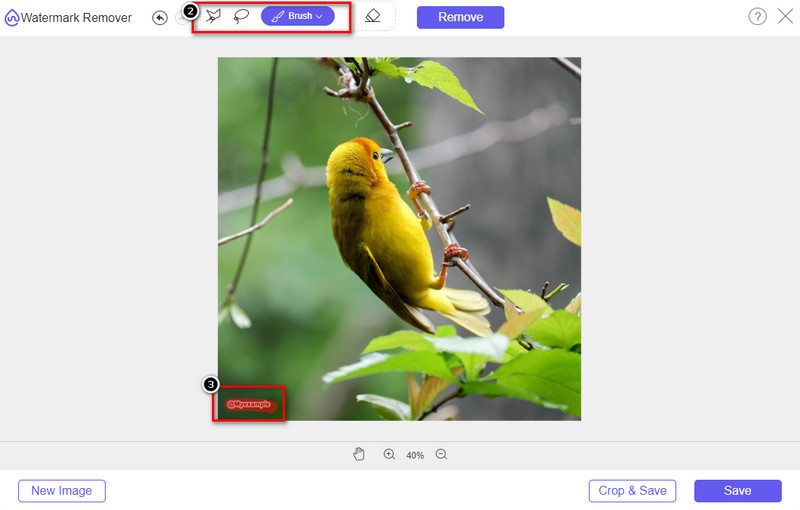
3. lépés. Az itt elérhető eszközökkel jelöld ki az objektumot.
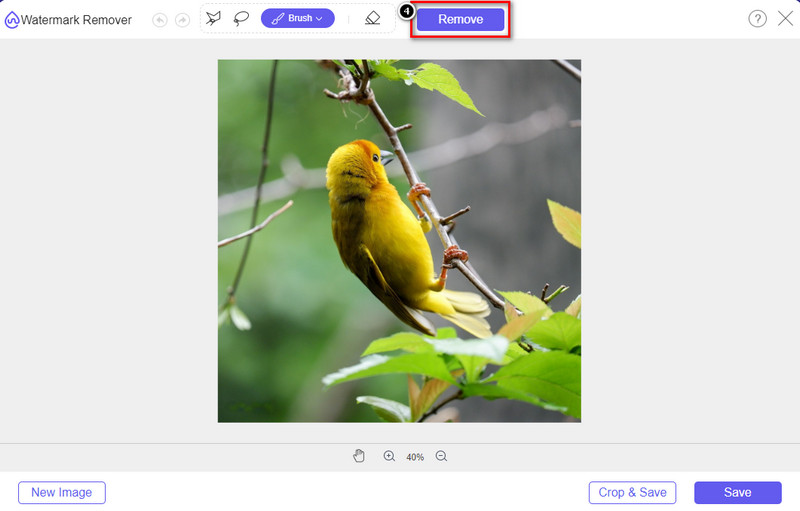
4. lépés. Nyomd meg a Remove gombot, hogy az eszköz által használt MI-technológiával eltávolítsd az objektumot.
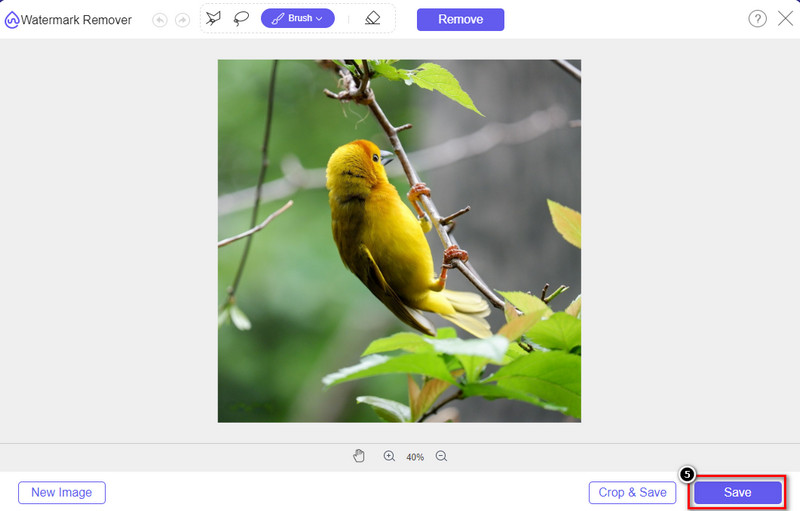
5. lépés. A szerkesztett, tökéletes kép letöltéséhez kattints a Save gombra.
2. rész: Objektum eltávolítása a fényképről professzionálisan asztali programok segítségével [Windows és Mac]
Photoshop
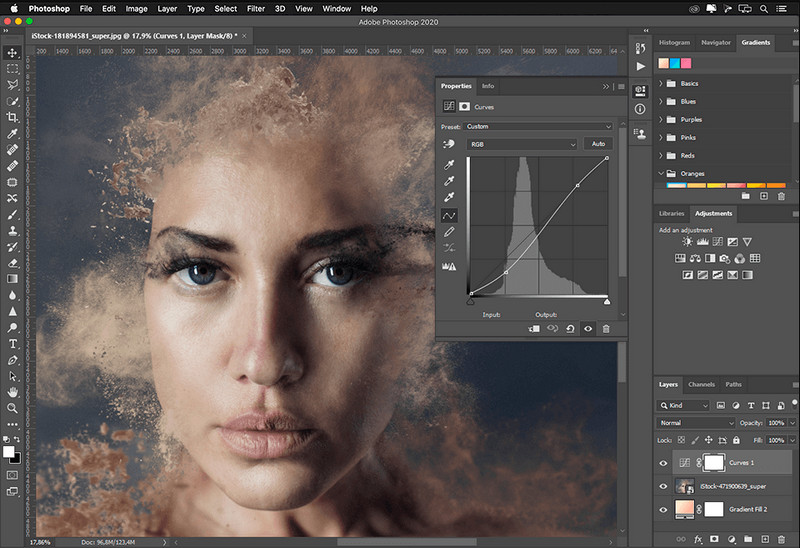
Ha professzionális eszközre van szüksége a tárgyak eltávolításához a fényképekről, akkor a Photoshop a megoldás! Ez az eszköz egy teljes képszerkesztő, amelyet az Adobe büszkén mutat be nekünk. Semmi sem akadályozza meg abban, hogy a kép funkciójával és funkciójával hihetetlenül nézzen ki. A szakemberek körében népszerűsége miatt sok kezdő próbálja meg használni ezt a szoftvert képeinek szerkesztéséhez és létrehozásához. Tehát, ha szeretné tudni, hogyan kell használni ezt a professzionális eszközt, kövesse az alább hozzáadott oktatóanyagot.
1. lépés. Nyisd meg az Adobe hivatalos weboldalát, majd töltsd le a Photoshopot a számítógépedre.
2. lépés. Kattints a File menüre, majd az Openre, hogy feltöltsd a szerkesztendő képet.
3. lépés. A bal oldali sávban válaszd ki a Magic Wand Tool-t, hogy automatikusan körvonalazd az objektumot a képen.
4. lépés. Menj az Edit menübe, és válaszd az alatta található Content-Aware Fill lehetőséget.
5. lépés. Miután megnyitottad, a program automatikusan eltávolítja a vízjelet, majd kattints az OK gombra.
ZSINÓR
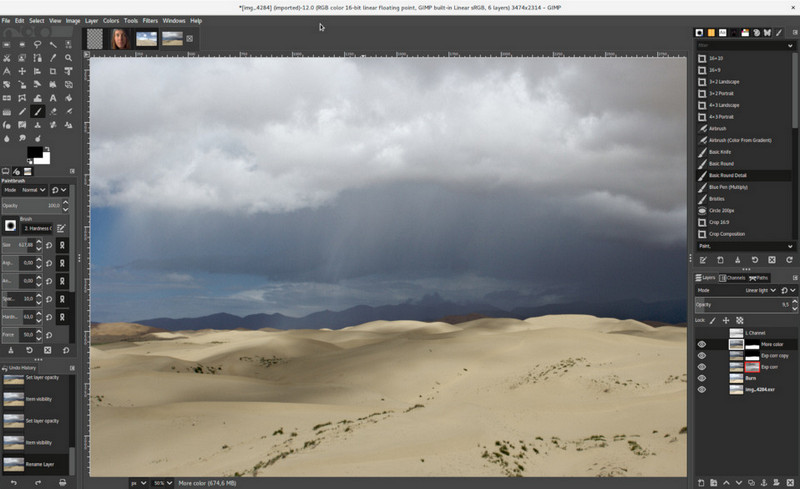
A GIMP egy teljes értékű képszerkesztő, amellyel ingyen távolíthatsz el objektumokat fotókról Macen, Linuxon és Windowson. Megbízható eszköz, hasonlóan a Photoshophoz. Bár az Adobe Photoshop alternatívái között az egyik legnépszerűbb, a program fejlesztése továbbra is aktívan zajlik. Ezzel az eszközzel alaposan szerkesztheted a képeidet, hogy igazán vonzóvá tedd őket a közönség számára. Emellett személyre szabhatod a felületét, ha szeretnéd megkönnyíteni a munkát. Ha azon gondolkodsz, hogy letöltsd-e professzionális szerkesztéshez, biztosíthatunk róla, hogy elérheted vele a célodat. Bár nyílt forráskódú szerkesztőről van szó, a program még nincs teljesen véglegesítve, mivel a grafikus felülete fejlesztés alatt áll. Ha mégis használni szeretnéd, az alábbi lépések végigvezetnek azon, hogyan távolíthatsz el objektumot fotóról GIMP-ben. Az alább megadott lépések segítséget nyújtanak.
1. lépés. Töltsd le, majd indítsd el a szoftvert, hogy feltölthesd a szerkesztendő képet. Emellett töltsd le a Resynthesizer bővítményt is.
2. lépés. A bal oldali eszköztárban válaszd a Free Select eszközt, és állítsd a módot Add Current Selection-re.
3. lépés. Rajzold körbe az eltávolítani kívánt objektumot; miután sikerült pontosan körvonalaznod, nyomd meg az Enter gombot a billentyűzeten.
4. lépés. A letöltött bővítmény használatához menj a Filter, majd az Enhance menübe, és kattints a Heal Selection lehetőségre.
5. lépés. Felugrik egy párbeszédablak, ahol szükség esetén módosítsd a mintavételi szélességet, állítsd a mintavételt all-around-ra, a kitöltési sorrendet pedig random-ra. Nyomd meg az OK gombot az objektum képen belüli szintetizálásának elindításához.
Photo App Mac rendszeren
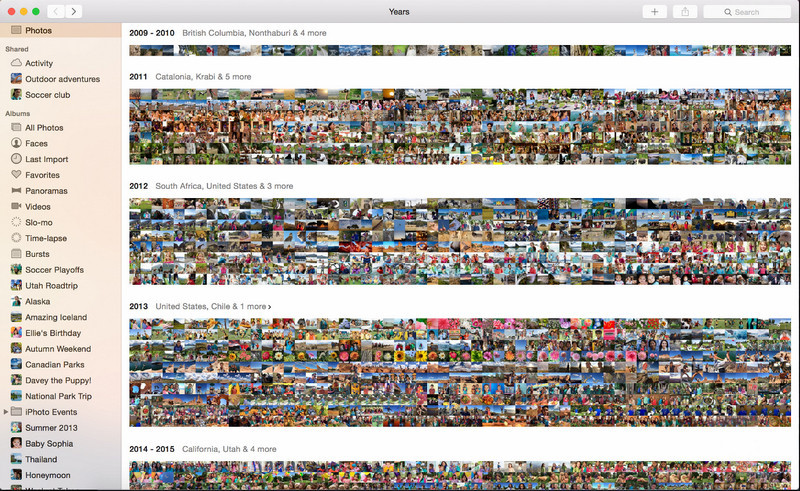
A Photo App beépített funkció a frissített Apple-termékeken, például Macen. Az alkalmazás előre telepítve érkezik, így kihagyhatod a letöltési folyamatot, és azonnal használhatod. A szoftver nem klasszikus képszerkesztő, mivel elsődleges célja, hogy könyvtárként és képnézegetőként szolgáljon Macen vagy iOS-eszközökön. Még ha nincs is professzionális képszerkesztő programod Macen, ezzel a funkcióval egyetlen kattintással is profi hatású eredményt érhetsz el. Ha tehát el szeretnéd távolítani az objektumot a Photos alkalmazásban, kövesd az alább felsorolt lépéseket.
1. lépés. Nyisd meg a Photos alkalmazást Macen, és válaszd ki azt a képet, amelyen zavaró objektum található.
2. lépés. A jobb felső sarokban kattints az Edit gombra, hogy elkezdhesd a kép szerkesztését.
3. lépés. A jobb oldali részen látni fogod a Retouch opciót; kattints rá a funkció használatához.
4. lépés. Kattints és húzd az egeret azon a területen, amelyet el szeretnél távolítani.
5. lépés. Nyomd meg a Done gombot a kép módosításainak mentéséhez.
3. rész: Távolítsa el az objektumot a fényképről Android és iOS alkalmazás használatával
Photoshop FIX
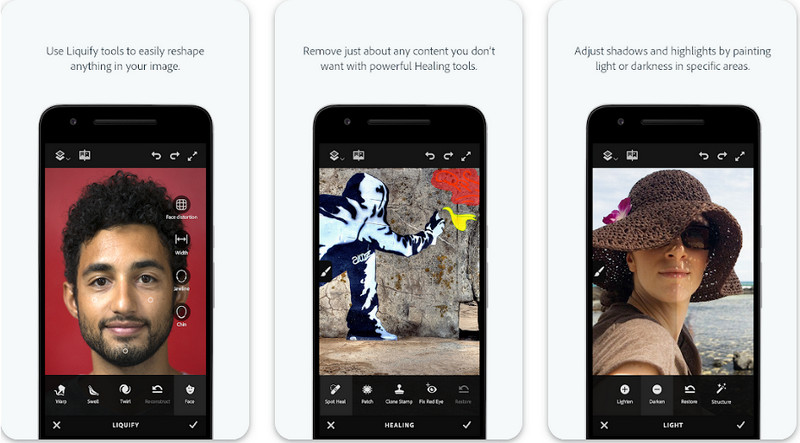
A Photoshop FIX egy hatékony Android-alkalmazás objektumok eltávolítására fotókról, amely professzionális szintű munkát végez, mégis könnyen használható. Nyílt forráskódú app, amelyet letölthetsz az eszközödre a Play Áruházból. Annak ellenére, hogy nyílt forráskódú, az objektumeltávolító funkciója kétségkívül kiváló. Az egyik leggyakrabban letöltött alkalmazás Androidon erre a feladatra. Ha szeretnéd megtudni, hogyan kell használni, olvasd tovább az alábbiakat.
1. lépés. Töltsd le az alkalmazást Android-eszközödre.
2. lépés. Nyomd meg az On My Phone opciót, hogy megjelenjen a teljes képkönyvtárad. Válaszd ki a szerkeszteni kívánt képet.
3. lépés. Az objektumeltávolító funkció használatához kattints a Healing opcióra.
4. lépés. Itt két lehetőség közül választhatsz. Ha egyszerűen le akarod „ecsetelni” az objektumot, válaszd a Spot Heal-t. Ha pixeleket szeretnél klónozni, a Clone Stamp-et kell kiválasztanod. A választott móddal jelöld ki a vízjelet.
5. lépés. Mentsd el a képet a kameratáradba – és kész is!
Fotó retusálás
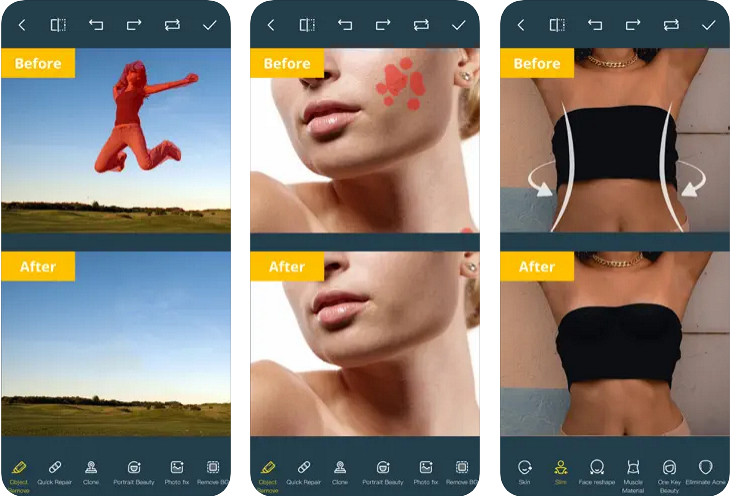
A Photo Retouch megbízható alkalmazás az objektumok gondtalan eltávolításához fotóidról iPhone-on. Akkor is hatékonyan eltávolíthatod a zavaró elemeket, ha nem vagy rutinos a képszerkesztésben. Az App Store-ból ingyen letöltheted, ha ki szeretnéd próbálni. Emellett a fotóid hátterét és vízjeleit is el tudod távolítani vele, ha szükséged van ilyen funkcióra. Ha készen állsz az alkalmazás használatára, hogy megszabadulj a zavaró objektumtól a képen, kövesd az általunk felsorolt lépéseket.
1. lépés. Töltsd le a hivatalos alkalmazást, majd indítsd el.
2. lépés. Kattints a Photo Eraser, majd a Photo lehetőségre. Válaszd ki azt a képet, amelyen a felesleges hátteret szeretnéd eltávolítani, és győződj meg róla, hogy a kép az iPhone-od Photos mappájában található.
3. lépés. Az alsó részen válaszd ki az Object Removal opciót.
4. lépés. Használd az alkalmazás által biztosított ecsetet az eltávolítani kívánt objektum körberajzolásához, majd kattints a GO gombra az objektum eltávolításához.
Összefüggő:
Dreamstime vízjel eltávolítása
Picsart szűrő vízjelének eltávolítása
4. rész: GYIK az objektumok fotókról való eltávolításával kapcsolatban
Miért kell eltávolítanom az objektumokat a fényképekről?
Sokszor megörökítünk valamit, és vannak Photobomberek is. Ez az objektum a legtöbb szakember számára problémát jelent másokon, mert nem emeli ki a rögzített képet. Tehát a kép újbóli elkészítése helyett elolvashatja a következő ideális módszereket a tárgy eltávolítására a fényképen.
Kivághatom a képet az objektumok eltávolításához?
Igen tudsz. Ha az eltávolítani kívánt objektum a fénykép oldalán található, akkor megpróbálhatja levágni a képet a beépített szerkesztővel. Ez a választás azonban nem választható, különösen akkor, ha az objektum a középső részben vagy az elkészített kép közelében van. A kép levágásával kivágja a fényképet, ezért jobb, ha kétszer is meggondolja, ha ki akarja próbálni ezt a lehetőséget.
Miért nem tudok képet feltölteni az objektum eltávolításához?
Nem tudja feltölteni a képet; vagy a kép sérült, vagy a képkiterjesztés nem támogatott. Ha a kép sérült, van mód a javításra. Megtalálhatja őket a neten, ha rákeres. Általában ez lehet a kép fájlkiterjesztése; a probléma megoldásához konvertálnia kell.
Következtetés
Az ebben a cikkben szereplő eszköznek és alkalmazásnak köszönhetően az objektumok eltávolítása a fényképről egyszerű. Tehát melyik eszközt részesíti előnyben? Reméljük, hogy az általunk hozzáadott útmutató segít a probléma egyszerű megoldásában.
-
 Alacsony felbontású kép nagy felbontású online konvertálása
 Ha szeretné megtanulni, hogyan alakíthat át alacsony felbontású képeket nagy felbontású képekké online, akkor ez a cikk neked szól. Olvassa el teljesen, hogy megtudja, hogyan.
-
 Egyszerű módszerek a lőálló vízjel eltávolítására
 Távolítsa el a Shootproof vízjelet az alábbi egyszerű módszereket követve. Ezekkel a csodálatos vízjeleltávolítókkal könnyedén eltávolíthatja a Shootproof vízjelet a képéről.
-
 Hogyan távolítsuk el a Bandicam vízjelet könnyedén [3 hatékony módszer]
 Hogyan lehet eltávolítani a Bandicam vízjelet? A hozzáadott eszközökkel tudni fogja, hogyan kezelje hatékonyan!
