


 Video Converter Ultimate
 Screen Recorder
 Videó javítás
 Biztonságos letöltés
Figyelemre méltó módszerek a vízjelek fotóról való eltávolítására
Szeretnéd megtanulni, hogyan lehet eltávolítani a vízjeleket a fényképekről? Előfordulhat, hogy a lementeni kívánt képeken vízjelek vannak, amelyek zavaróak, elcsúfítják a látványt, és nem láthatod teljes szépségükben a képeket. Szerencsére különféle szoftverekkel eltávolíthatod ezeket a felesleges vízjeleket a számítógépedről, iPhone-odról és Android készülékedről. Így a vízjel-eltávolító alkalmazások segítségével már elmentheted a neked tetsző fotókat. Ennek a cikknek az elolvasása a legjobb választás, ha egyszerű módszereket szeretnél megtanulni a vízjelek eltávolítására.

1. rész: Hogyan távolítsuk el a vízjelet a fényképről a számítógépen
1. FVC-mentes vízjel-eltávolító
Ha ingyen, online szeretnél vízjelet eltávolítani egy fotóról, használhatod a FVC Free Watermark Remover alkalmazást. Ez a program segít bármilyen vízjel eltávolításában a képeidről, például logók, szövegek, képek stb. törlésében. Emellett különböző képformátumokat támogat, például JPG, PNG, JPEG, BMP és másokat. Továbbá a szoftver könnyen használható és érthető, mivel egyszerű felülettel, részletes útmutatóval és átlátható gombokkal rendelkezik. A tényleges vízjel-eltávolítás során a FVC Free Watermark Remover lehetővé teszi, hogy egérrel poligonvonalat vagy lasszó alakzatot rajzolj a képre, és így jelöld ki az eltávolítandó vízjelet. A „Brush” (ecset) eszköz is egy újabb lehetőség a vízjelek eltüntetésére a fotóidról. Ha ingyen szeretnéd eltávolítani a vízjelet a képről, kövesd az alábbi egyszerű lépéseket.
1. lépés: Lépj a FVC Free Watermark Remover weboldalára, és kattints az Upload Image gombra. Ezután add hozzá a vízjellel ellátott képet, amelyről el szeretnéd távolítani a vízjelet.

2. lépés: Miután megnyitottad a vízjeles képet, használd a vízjel-eltávolító eszközöket, mint például a Polygonal tool, Lasso és a Brush eszközt a vízjelek eltávolításához.
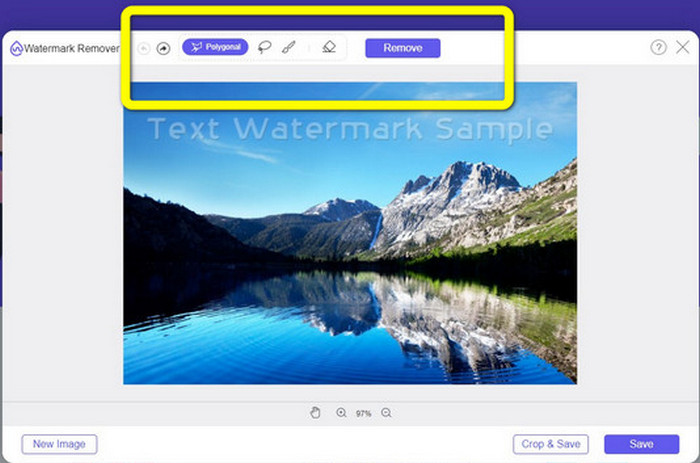
3. lépés: A Brush, a Lasso vagy a Brush eszköz segítségével jelöld ki a vízjeleket a fotódon.
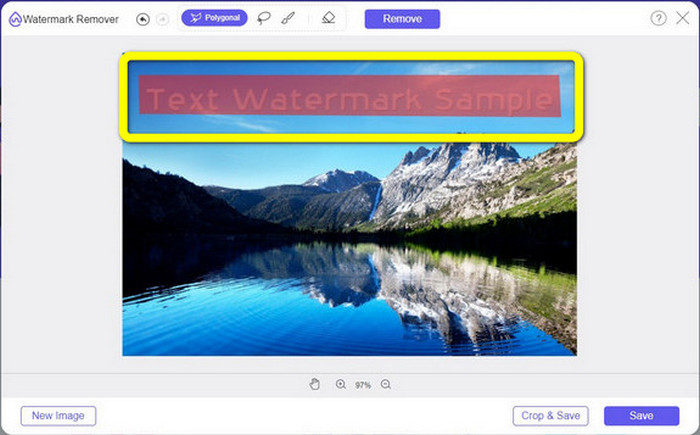
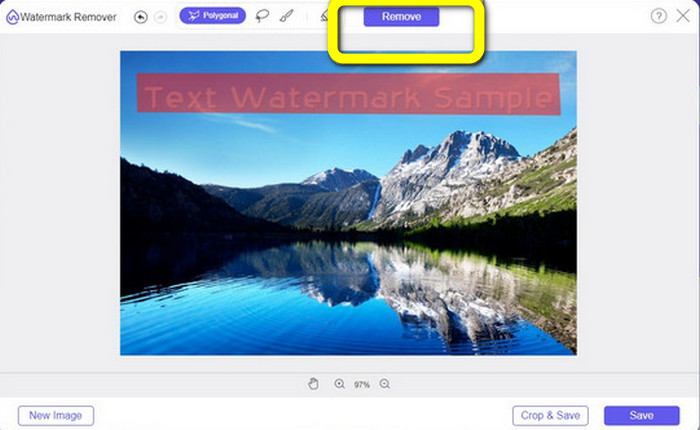
4. lépés: Ha végeztél a vízjelek kijelölésével a fényképen, kattints a Remove gombra.
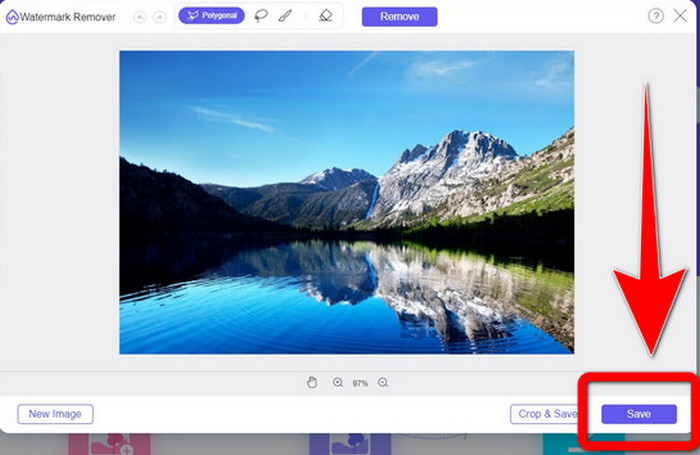
5. lépés: Ha a vízjel már el lett távolítva a fotódról, kattints a Save gombra a kép letöltéséhez, és ezután már élvezheted a képeidet anélkül, hogy a vízjelek zavarnának.
2. Photoshop
Ha megbízható, számítógépre letölthető alkalmazást keresel, a Adobe Photoshop az egyik legmegbízhatóbb program, amit használhatsz. Ez a rész bemutatja, hogyan távolítja el a Photoshop a vízjeleket a képekről. Ez az alkalmazás különösen alkalmas fotósoknak, webdizájnereknek, grafikusoknak, mémkészítőknek stb. Ugyanakkor az Adobe Photoshop fizetős, mivel csak 7 napos ingyenes próbaverziót kínál. Emellett a Photoshop nem ideális nagy mennyiségű kép egyidejű feldolgozására, és bonyolult a megtanulása. Ha a legegyszerűbb módot szeretnéd megismerni a vízjelek eltávolítására a képeidről, kövesd az alábbi egyszerű lépéseket.
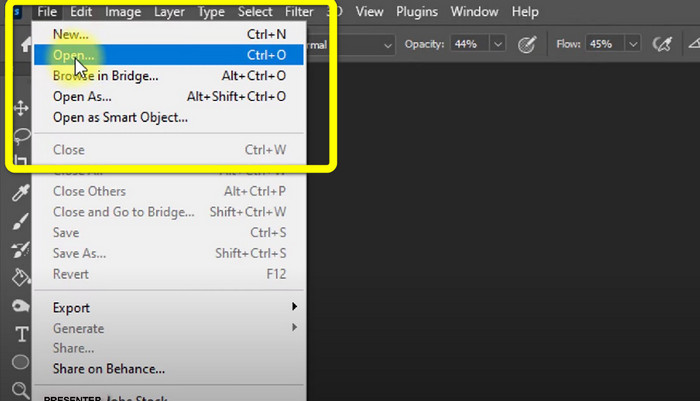
1. lépés: Nyisd meg az Adobe Photoshop programot. Válaszd a File > Open menüpontot, és add hozzá a vízjeles fotódat.
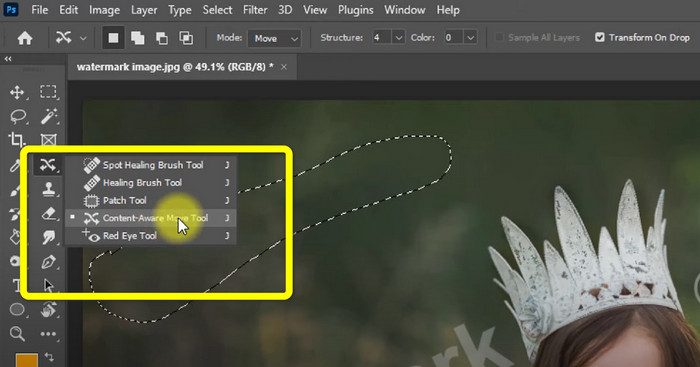
2. lépés: Kattints a Content-Aware Move Tool eszközre a szerkesztő eszköztárban.
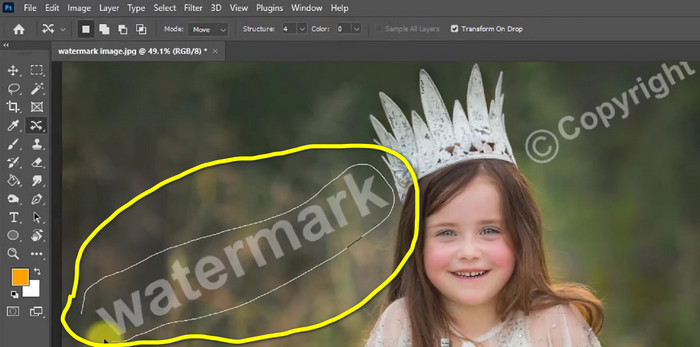
3. lépés: Miután kiválasztottad a Content-Aware Move Tool eszközt, jelöld ki a fotón a vízjeles területet, majd nyomd meg a Delete billentyűt a billentyűzeten.
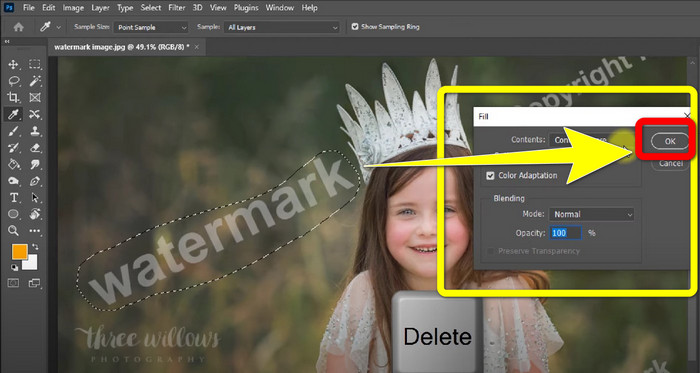
4. lépés: Miután megnyomtad a Delete gombot, megjelenik egy kis felugró ablak, ahol kattints az OK gombra.
3. GIMP
Egy másik megfelelő alkalmazás a vízjelek eltávolítására a fotóidról a GIMP. Ez egy nyílt forráskódú rasztergrafikus szerkesztő, amelyet képek manipulálására és szerkesztésére használnak, így hasznos eszköz a képszerkesztéshez. Továbbá számos fájlformátumot támogat, mint például JPG, PNG, TIFF, GIF stb. Viszont előfordul, hogy váratlanul összeomlik, és a rétegek rendezése is nehézkes lehet. Ha meg szeretnéd tanulni, hogyan távolítsd el a vízjeleket a fotóidról GIMP használatával, kövesd az alábbi egyszerű lépéseket.
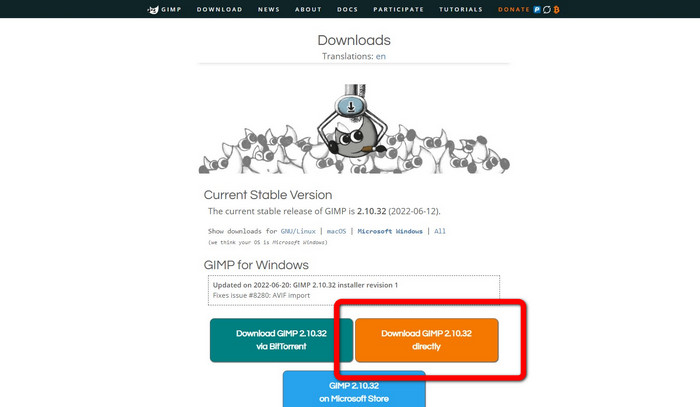
1. lépés: Amikor a GIMP weboldalán jársz, kattints a Download Directly gombra az alkalmazás letöltéséhez, majd kövesd a telepítési folyamatot.
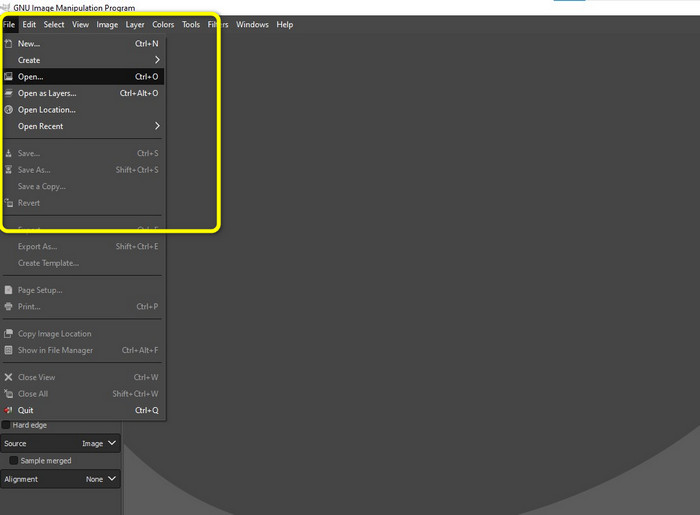
2. lépés: Nyisd meg az alkalmazást, majd kattints a File > Open menüpontra, hogy hozzáadd a vízjeles fotódat.
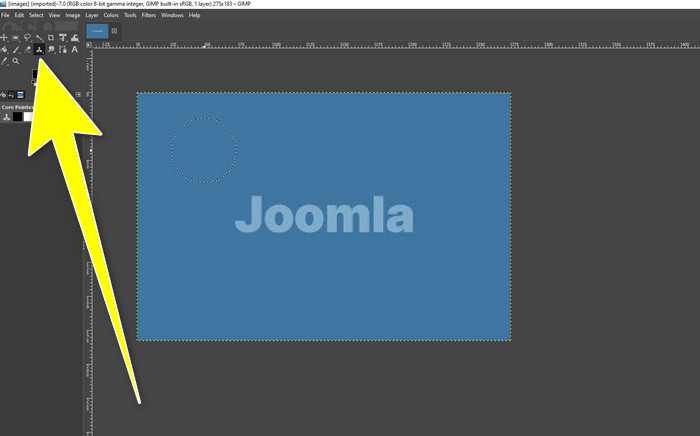
3. lépés: Kattints a Clone tool eszközre, és helyezd a kurzort egy üres területre. Nyomd le a Ctrl billentyűt, majd kattints az üres területre.
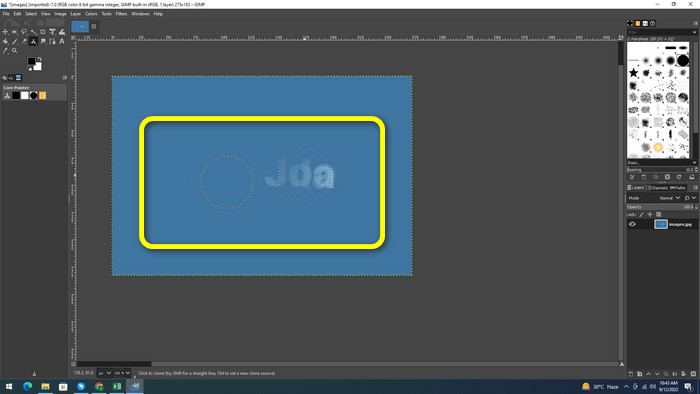
4. lépés: Húzd a kurzort a vízjelek fölé, hogy eltávolítsd őket. A vízjel ekkor már eltűnik. Ezután elmentheted a fotót.
4. Aiseesoft ingyenes vízjel eltávolító online
Ha a legjobb online fotó-vízjel eltávolítót keresed, akkor a Aiseesoft Free Watermark Remover Online megfelelő számodra. Ez az alkalmazás segít több vízjel, szöveg, dátumbélyegző, logó és egyéb elemek eltávolításában a képeidről. Emellett könnyen használható, ezért kezdők számára is ideális. Számos képformátumot támogat, például PNG, JPEG, BMP, JPG stb. Viszont ez az alkalmazás nem teljesen ingyenes; a fejlettebb funkciók használatához licencet kell vásárolni. Ha vízjeleket szeretnél eltávolítani a képeidről, kövesd ezeket a lépéseket.
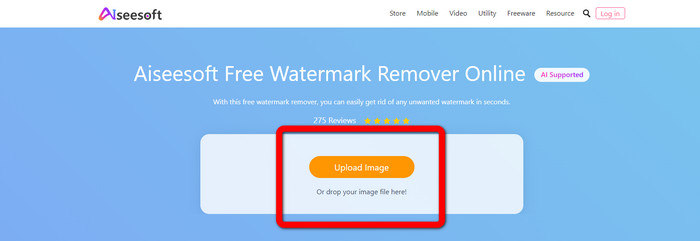
1. lépés: Lépj a Aiseesoft Free Watermark Remover Online weboldalára. Ezután kattints az Upload Image gombra, és add hozzá a vízjeles fotódat.
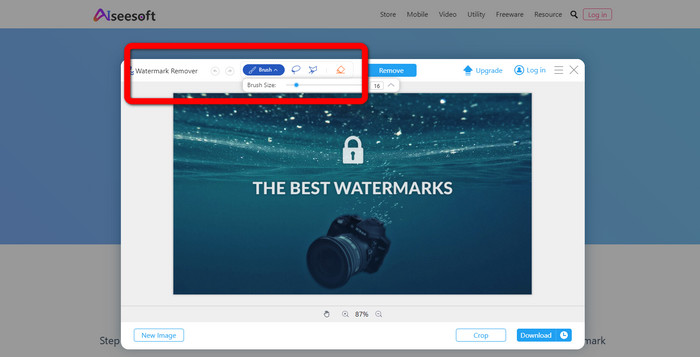
2. lépés: Ha már csatoltad a fotót, lépj tovább a watermark remover tool eszközhöz. Itt láthatod az eltávolító eszközöket, mint a Brush, Polygonal és a Lasso eszközöket.
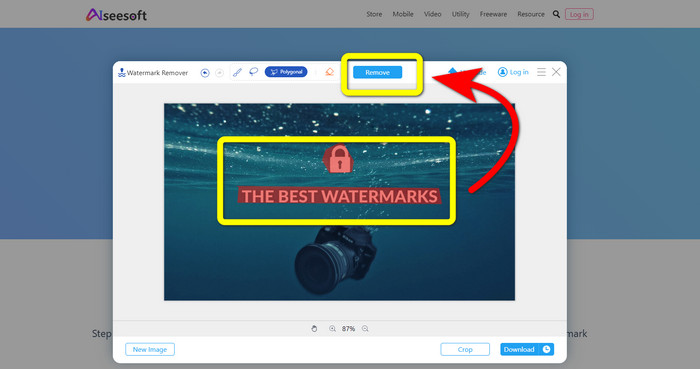
3. lépés: Használd ezeket az eszközöket, és jelöld ki a vízjeleket a fotódon, majd kattints a Remove gombra.
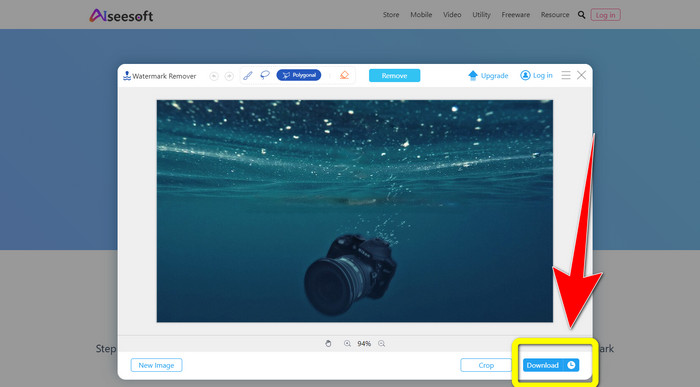
4. lépés: Ha elégedett vagy az eredménnyel, kattints a Download gombra a fotó mentéséhez.
5. Pixlr
A Pixlr egy újabb online eszköz, amellyel eltávolíthatod a vízjeleket a fotóidról. Könnyen használható, kezdők számára is megfelelő. Különböző képformátumokat támogat, például PSD, PNG, JPEG, WEBP és PXZ. Továbbá használhatod ezt az alkalmazást többféle eszközön, például iPhone-on, Androidon, asztali számítógépen és laptopon. Ugyanakkor kevesebb lehetőséget kínál, mint más alkalmazások, és az effektusok száma is korlátozott. Ha szeretnéd megtanulni, hogyan töröld ki a vízjelet egy képről, kövesd az alábbi lépéseket.
1. lépés: Lépj a Pixlr weboldalára. Kattints az Open Image gombra, és add hozzá a vízjeles képet.

2. lépés: Miután hozzáadtad a fotót, menj a retouch > heal eszközhöz.
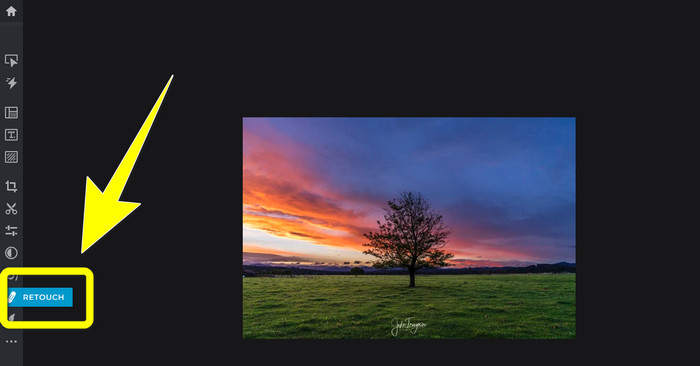
3. lépés: Miután rákattintottál a retouch > heal eszközre, kattints a képen lévő vízjelre.
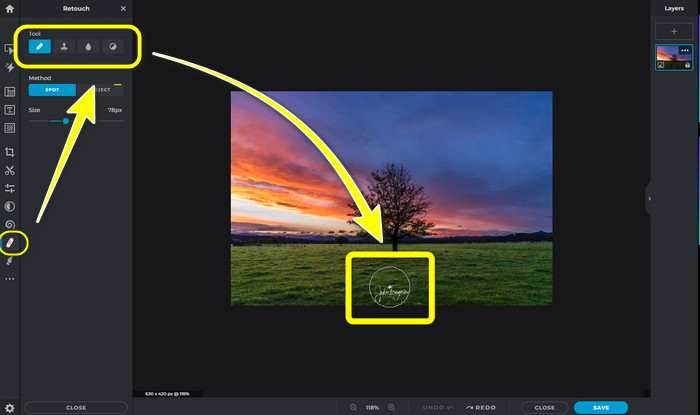
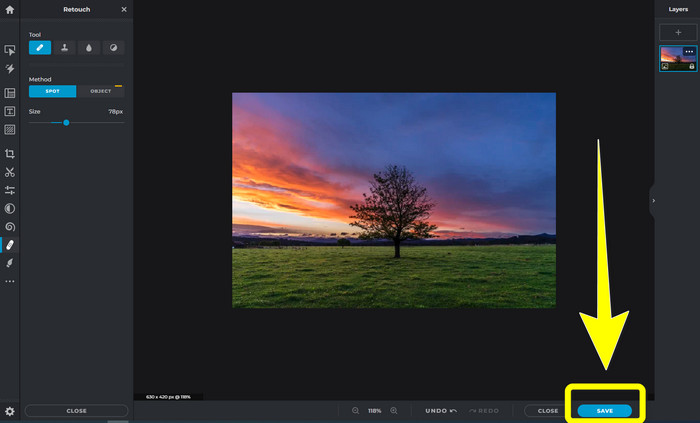
4. lépés: Ha a vízjel eltűnt, kattints a Save gombra.
6. Inpaint
Az Inpaint egy másik online alkalmazás, amelyet használhatsz, ha vízjeleket szeretnél eltávolítani a képeidről. Nemcsak vízjeleket, hanem logókat és szöveget is képes eltüntetni. Olyan képformátumokat is támogat, mint a JPG, PNG és WEBP. Ha azonban jó minőségű képeket szeretnél, meg kell vásárolnod az alkalmazást. Ha vízjeleket szeretnél törölni a fotóidról, kövesd az alábbi egyszerű lépéseket.
1. lépés: Lépj az Inpaint weboldalára. Kattints az Upload Image gombra, és töltsd fel a vízjeles képet.

2. lépés: Miután feltöltötted a képet, válaszd ki a watermark remover tools eszközök közül a Marker, Polygonal, Lasso és az Eraser tool valamelyikét, és jelöld ki a vízjeleket a fotón.
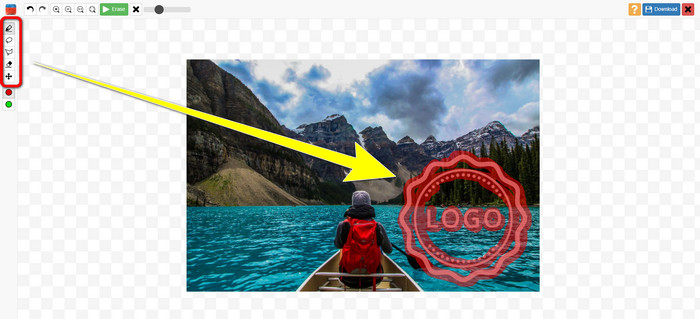
3. lépés: Ha befejezted a vízjelek kijelölését, kattints az Erase gombra.
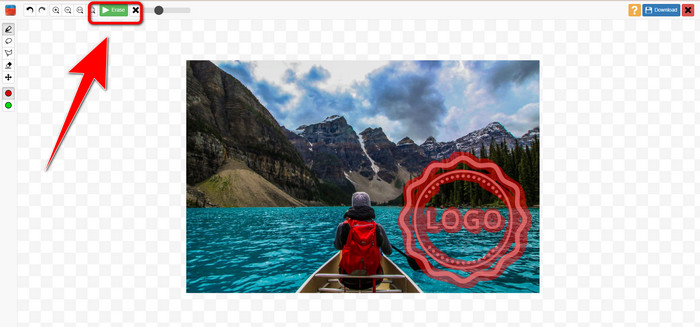
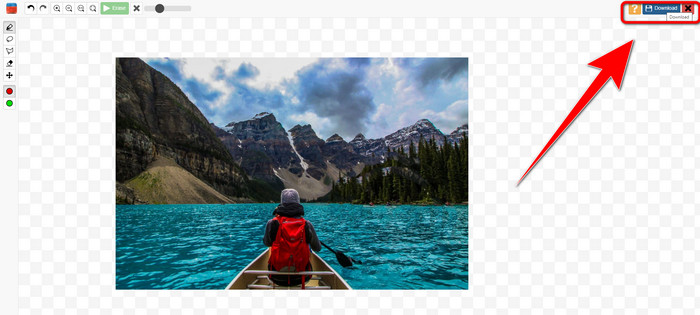
4. lépés: Ha a vízjel eltűnt, kattints a Download gombra a kép mentéséhez.
7. Fotóbélyeg-eltávolító
A Photo Stamp Remover egy olyan alkalmazás, amelyet számítógépével is használhat. Ingyenesen letöltheti. Ez az alkalmazás gyorsan eltávolíthatja a képekről a felesleges objektumokat, például logókat, szövegeket, vízjeleket és dátumokat. De nem teljesít jól bonyolult hátterű képeken. Sőt, ez a szoftver vissza tudja állítani az eredeti fénykép színeit és textúráját, hogy elfedje a vízjeleket, így hitelesnek tűnik. Kövesse ezeket a lépéseket a vízjelek eltávolításához a képekről.
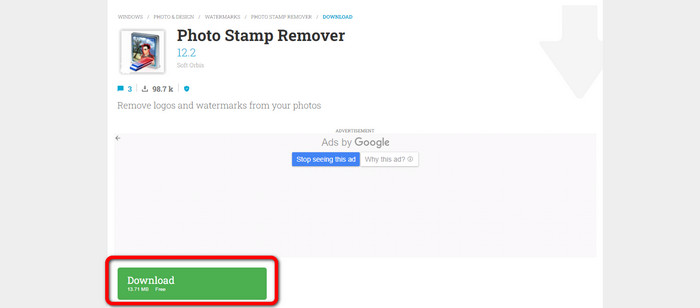
1. lépés: Kattints a Download gombra, hogy letöltsd a Photo Stamp Remover programot a Windows számítógépedre, majd kövesd a telepítési folyamatot.
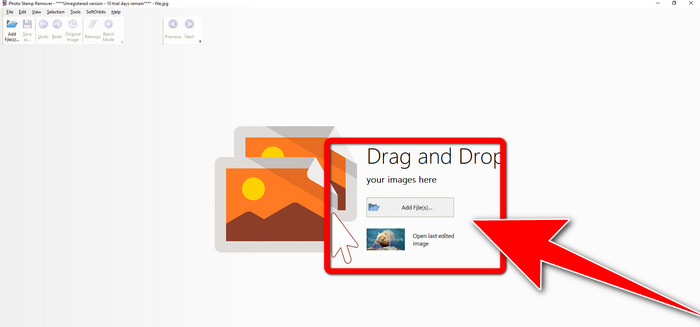
2. lépés: Indítsd el az alkalmazást, és kattints az Add File gombra, hogy hozzáadd a vízjeles fotódat.
3. lépés: Menj a Remover tools menüponthoz, és kattints a Selection Marker eszközre. Jelöld ki a vízjeleket, majd kattints a Remove gombra.
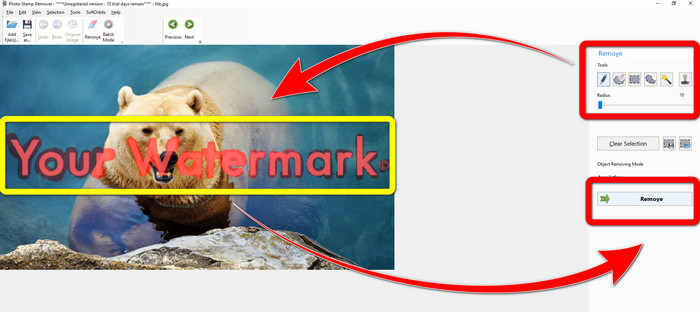
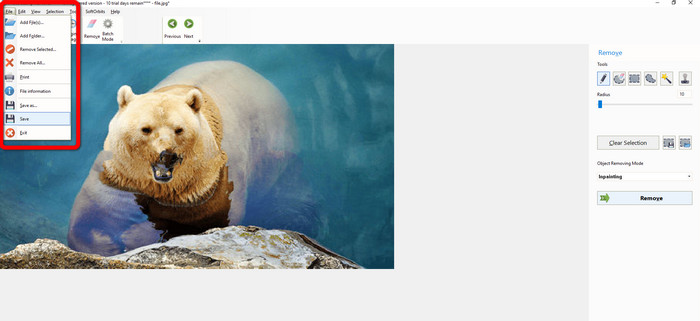
4. lépés: Ha már eltávolítottad a vízjeleket a képről, kattints a File > Save menüpontra. Ezzel befejezted a vízjelek eltávolítását a képedről.
2. rész: Hogyan távolítsuk el a vízjelet a fényképről iPhone és Android rendszeren
1. Videó radír
Ha olyan alkalmazást keresel, amely segít megtanulni, hogyan lehet vízjeleket eltávolítani fotóról Androidon, akkor a Video Eraser neked való. Ez az alkalmazás el tudja távolítani a felesleges elemeket a fotóidról, például szöveget, vízjeleket stb. Emellett ezzel az alkalmazással a videóidról is eltávolíthatod a vízjeleket. Hátránya viszont, hogy a kép foltossá válhat azon a területen, ahol a vízjelet eltüntették. Ha szeretnéd megtanulni, hogyan használd a Video Eraser alkalmazást, kövesd az alábbi lépéseket.
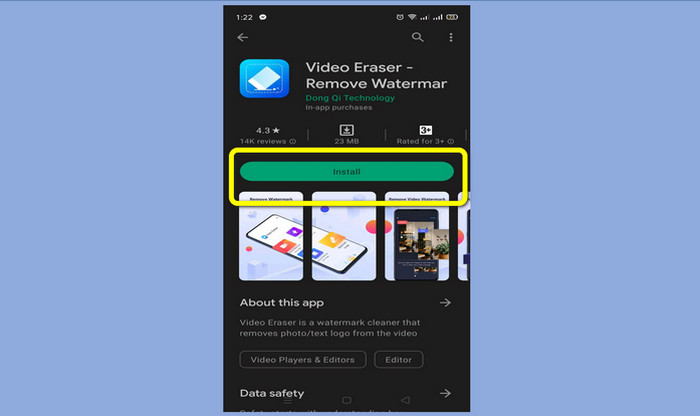
1. lépés: Telepítsd a Video Eraser alkalmazást az Android készülékedre. Amikor a telepítés befejeződött, nyisd meg az alkalmazást.
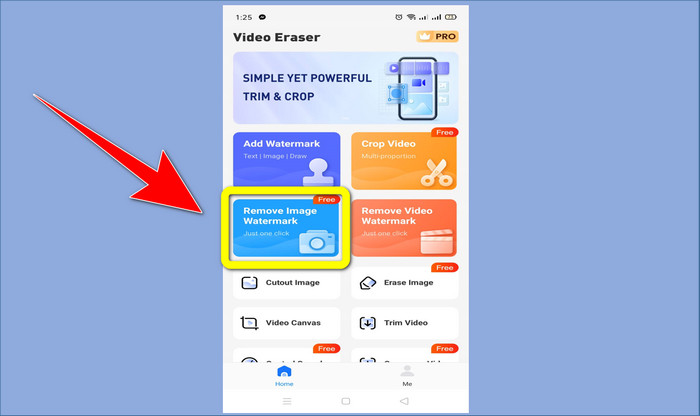
2. lépés: Kattints a Remove Image Watermark opcióra, hogy hozzáadd a vízjeles fotódat.
3. lépés: Jelöld ki a vízjelet a fotón, majd kattints a Done gombra.
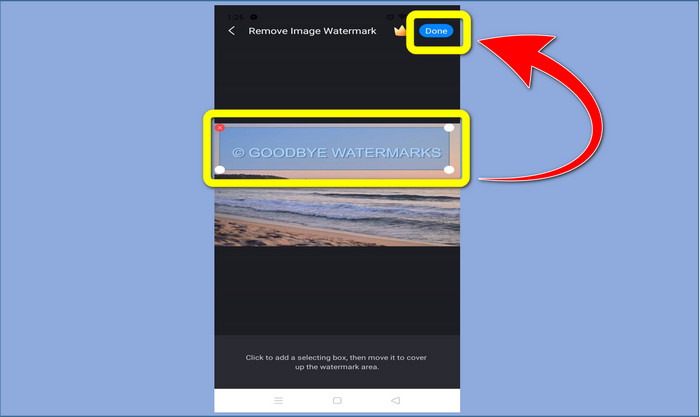
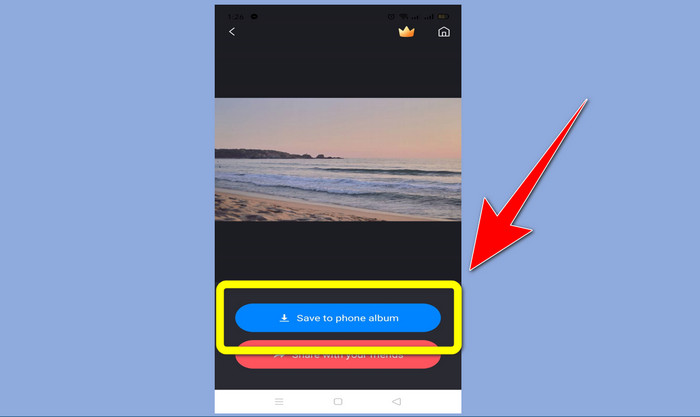
4. lépés: Miután a Done gombra kattintottál, a vízjel eltűnik. Kattints a Save to Photo Album opcióra a fotó mentéséhez.
2. Snapseed
A Snapseed egy kiváló szerkesztő, amelyet használhatsz, különösen akkor, ha meg akarod tanulni, hogyan lehet vízjelet eltávolítani egy fotóról iPhone-on. Ez az alkalmazás ideális, ha a képeidről szeretnél vízjeleket törölni. Ezen felül számos szerkesztő eszközzel rendelkezik, például vágás, forgatás és egyebek. Ugyanakkor nem kifejezetten kezdőknek való, főleg az összetettebb szerkesztési funkciók terén, és bár felhasználóbarát, némi tanulást igényel. Kövesd az alábbi lépéseket, ha ezzel az alkalmazással szeretnéd eltávolítani a vízjeleket a fotódról.
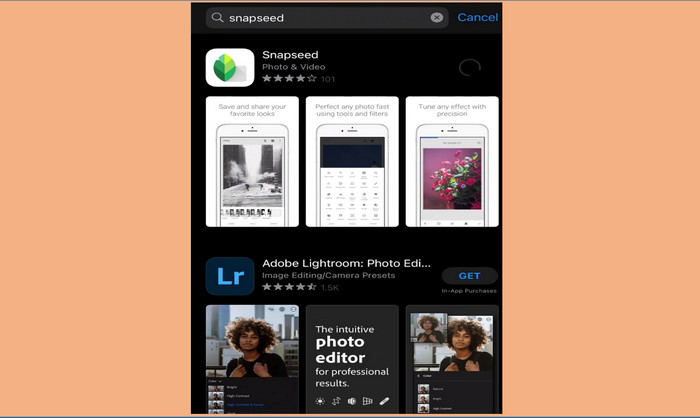
1. lépés: Telepítsd a Snapseed alkalmazást az iPhone-odra. Amikor a telepítés befejeződött, nyisd meg a programot.
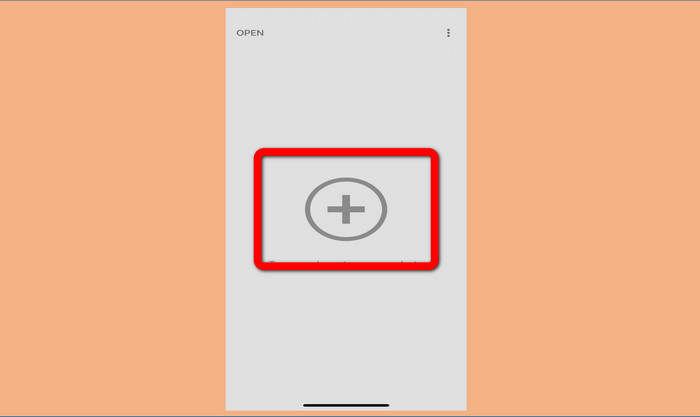
2. lépés: Kattints a Plusz jel gombra, hogy hozzáadd a vízjeles fotódat.
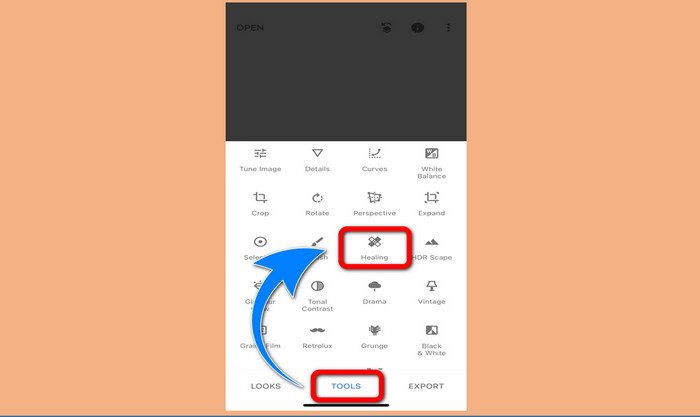
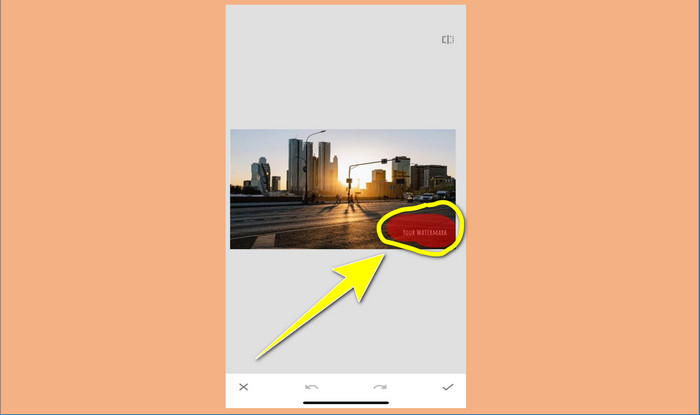
3. lépés: Miután hozzáadtad a fotót, válaszd a Tools > Healing menüpontot, és jelöld ki a vízjeleket a képen. Miután kijelölted a vízjeleket, azok automatikusan eltűnnek.
4. lépés: Miután kiemelted a vízjeleket, azok automatikusan eltűnnek.
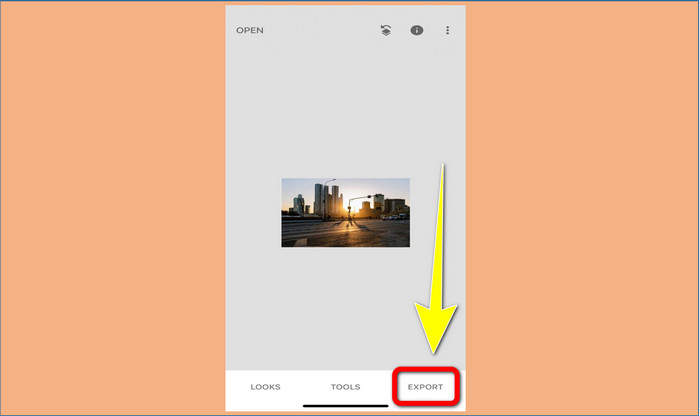
5. lépés: Amikor befejezted a vízjelek eltávolítását a fotóról, kattints a Check jelre, majd az Export gombra, hogy elmentsd a képet az iPhone-odra.
Kapcsolódik:
A leggyorsabb trükk az Adobe Stock vízjel eltávolítására egy videóról [Útmutató]
5 módszer a vízjel professzionális eltávolítására egy videóról
3. rész. GYIK a vízjelek fényképekről való eltávolításával kapcsolatban
Létezik olyan vízjel-eltávolító, amelyet ingyen használhatok, különösen Machez?
Igen, van! Számos vízjel-eltávolítót használhatsz Macen, például a FVC Free Watermark Remover eszközt. Ez egy online alkalmazás a vízjelek eltávolítására Mac számítógépen.
Van mód a vízjelek eltávolítására a videókról?
Egyértelműen! Ez egy könnyű dolog. A most használható vízjel-eltávolító alkalmazások némelyike képes eltávolítani a vízjeleket a fényképekről és videókról. Csak annyit kell tennie, hogy megkeresi a vízjel-eltávolítót a keresőmezőben, és megtekintheti az eredményoldalt.
Könnyű eltávolítani a vízjeleket?
Természetesen! Ha már rendelkezik a használni kívánt alkalmazással, akkor meg kell keresnie az eltávolító eszközöket, például az ecsetet, a jelölőt, a lasszót és a sokszögű eszközöket. Ezután jelölje ki a vízjeleket, és kész.
Következtetés
Amint fentebb látható, ez a cikk kiváló módszereket mutat be a vízjelek eltávolítására fotókról. Azonban ha egy igazán remek eszközt szeretnél a vízjelek eltávolításához, a FVC Free Watermark Remover a legjobb választás számodra.
-
 Hogyan lehet ingyen megszabadulni a Power Director vízjeltől [teljes]
 Hogyan lehet ingyenesen megszabadulni a Power Director vízjeltől? A vízjel eltávolításának legjobb eszközei itt találhatók, ezért tanulja meg őket ennek elolvasásával.
-
 A Canvasjs próbaverzió vízjelének eltávolításának legjobb technikái, amelyeket tudnia kell
 A Canvasjs vízjel eltávolításának legjobb módja egy eszköz használata. Ha még nem választott eszközt, ebben a cikkben kiválaszthatja.
-
 Az Animaker vízjel eltávolítása költség nélkül [Bevált módszerek]
 Hogyan lehet eltávolítani az Animaker vízjelet? Az ebben a blogban található legjobb eszközökkel megszabadulhat a vízjeltől.
