


 Video Converter Ultimate
 Screen Recorder
 Videó javítás
 Biztonságos letöltés
6 leghatékonyabb módja egy kép átméretezésének az interneten és az asztalon
Több milliárd tekintélyes fényképpel tölthetjük le, a legtöbben gyönyörű képeket készítünk, mégis van olyan eset, amikor a méretük nem az, amit a legjobban szeretünk. A felhasználók megpróbálták átméretezni a képüket a kép magasságának, szélességének és képarányának módosításával a szerkesztő segítségével, ami megváltoztatta a kép PPI-jét. Az eredmény nem az, amire mindenki számított; a nagy felbontású képek pixelessé válnak.
Miért? Mert az a szerkesztő, amellyel az átméretezést végezték, nem tud új pixeleket létrehozni vagy kitölteni a keletkező pixelréseket az átméretezett verzión. Így váltak népszerűvé az ezzel kapcsolatos kérdések, és most mi segítünk megoldani a problémát. Ebben a blogbejegyzésben gyakorlati tapasztalatot szerezhetsz arról, hogy hogyan lehet képet átméretezni úgy, hogy a végső kimeneten ne maradjon torzítás.

1. rész. Legjobb fénykép-átméretezők, amelyek a weben elérhetők a kép online átméretezéséhez [3 ingyenes eszköz]
Ezek az itt hozzáadott online eszközök az eszközén található különböző webböngészőkön érhetők el. Ezenkívül ezek ingyenesek, de van egy eszköz, amelyet meg kell vásárolnia a korlátozások nélküli használathoz. Mindazonáltal ezek alkalmas online eszközök, amelyekhez hozzáférhet a kép átméretezéséhez. Olvassa el a lépéseket, hogy megtudja, hogyan kell használni őket.
1. FVC Free Image Upscaler – A legjobb képátméretező a weben [Kedvező lehetőség]
A FVC Free Image Upscaler Online egy mesterséges intelligencián alapuló webes eszköz, amely gyorsan, minőségromlás nélkül tudja átméretezni a képeket. A webes eszköz valóban automatikusan átméretezi az összes képfájlt, amelyet itt feltöltesz. Annak ellenére, hogy online eszközről van szó, az átméretezés terén gyorsan és hatékonyan teljesít. Minden kép, amelyet feltöltesz, automatikusan törlődik a szerverről, miután átméretezted. Emellett ez az egyik legtisztább és legsokoldalúbb átméretező, amire szükséged lehet; bármilyen eszközt is használsz, elérheted ezt a webes eszközt, amennyiben van internetkapcsolatod. Szeretnéd látni, hogyan teljesít ez a szoftver ebben a feladatban? Ha igen, olvasd el az alábbi lépéseket, és kövesd őket, hogy gyorsan és hatékonyan megváltoztasd a kép méretét.
Hogyan lehet képet átméretezni a FVC Free Image Upscaler segítségével:
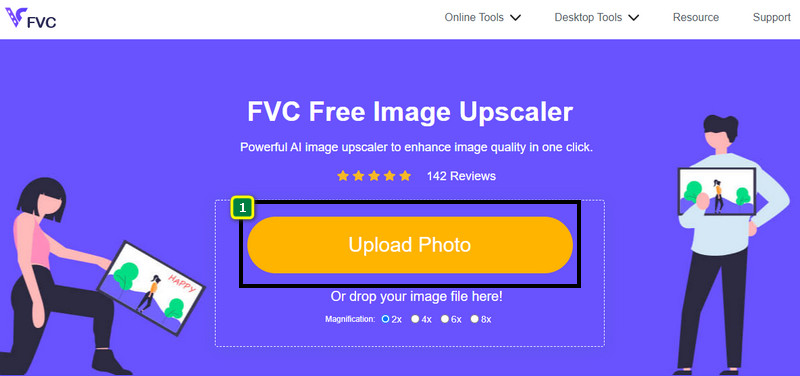
1. lépés. Az eszköz eléréséhez kattints erre a linkre, amely automatikusan a méretező hivatalos weboldalára irányít.
2. lépés. Kattints az Add Image gombra, ekkor megjelenik egy mappa az oldaladon; válaszd ki a feltölteni kívánt képfájlt, majd nyomd meg az Open gombot.
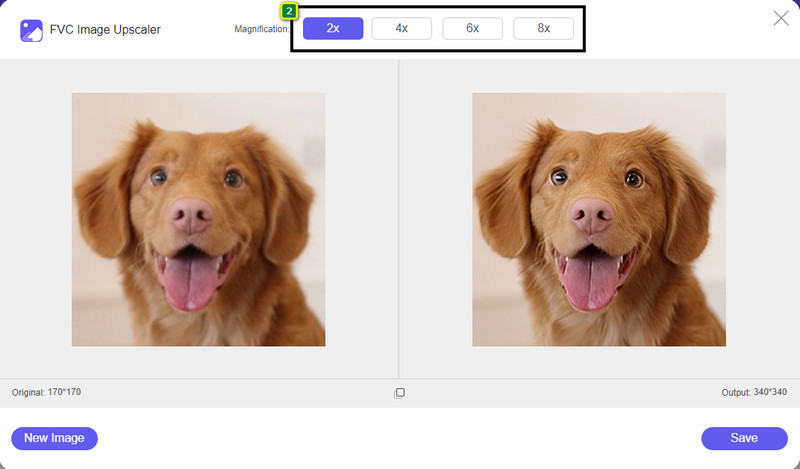
3. lépés. A kép méretének megváltoztatásához ki kell választanod, milyen nagyítást szeretnél alkalmazni. Láthatod, hogy a kép teljes mérete megváltozik, amint kipróbálod és rákattintasz a 2x, 4x, 6x vagy 8x opciókra.
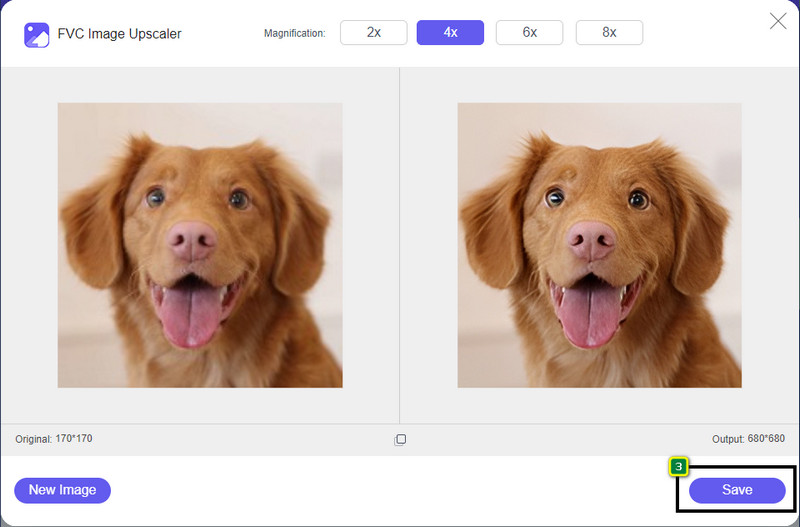
4. lépés. Miután kiválasztottad a kívánt nagyítást, voilà, most már megnyomhatod a Save gombot, hogy letöltsd az átméretezett verziót az asztali meghajtódra.
2. Legyen funky – Fényképszerkesztő [ingyenes és fizetős]
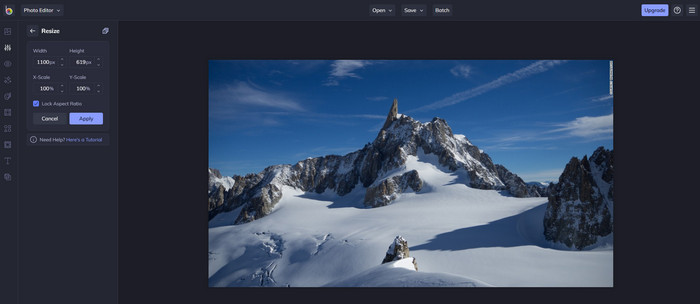
A Be Funky - Photo Editor egy kreatív platform, amellyel rendkívüli dolgokat hozhatsz létre a képeiden. Minőségromlás nélkül tudsz vele BMP fájlokat átméretezni. Ezt az eszközt az egyik legjobb online elérhető képszerkesztőnek tartják. Bár a felülete hasonlít a Photoshopéra, a funkciói egyszerűek és könnyen érthetők, így nyugodtan mondhatjuk, hogy felhasználóbarát. Ha tehát szeretnéd könnyedén online átméretezni a képedet ezzel az eszközzel, kövesd az alább felsorolt lépéseket.
Hogyan lehet képet átméretezni a Be Funky segítségével:
1. lépés. Keresd meg a nevét a böngésződben, majd kattints a Get Started and Edit Photo gombra.
2. lépés. Nyomd meg az Open gombot, hogy feltöltsd a BMP-t vagy bármely más képet, amelyet itt szeretnél átméretezni.
3. lépés. Lépj az Edit menüpontra, és válaszd a Resize opciót.
4. lépés. Itt szabadon módosíthatod a kép szélességét és magasságát, illetve az x és y skálát. Ezután nyomd meg az Apply gombot, hogy lásd, hogyan néz ki az átméretezett verzió.
3. Egyszerű képátméretező [ingyenes]
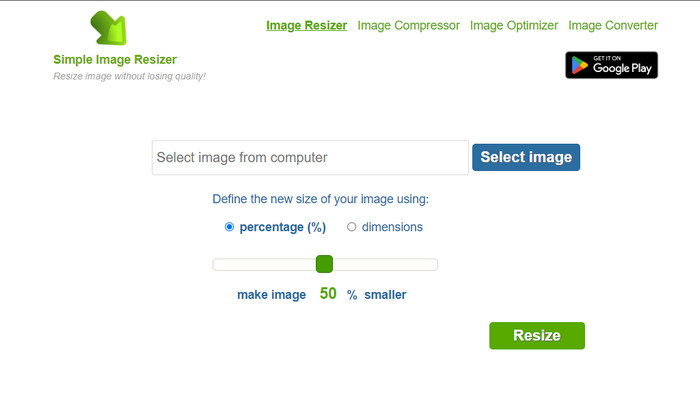
A Simple Image Resizer lehetővé teszi, hogy egy kép méretét úgy változtasd meg, hogy beállítod az új méretét százalék vagy konkrét mértékegység módosításával. Ez az utolsó képméretező, amelyet ebben a cikkben bemutatunk. Egyszerű felülete és könnyű használhatósága volt a fő oka annak, hogy felvettük a listára. Az átméretezés mellett ingyenesen optimalizálhatod, tömörítheted és konvertálhatod is a képeidet, de számolnod kell zavaró webes hirdetésekkel. Ha szeretnéd kipróbálni ezt az online méretezőt, kövesd az alábbi lépéseket.
Hogyan lehet képet átméretezni a Simple Image Resizer segítségével:
1. lépés. A böngésződben keresd meg a nevét, hogy használni tudd ezt a webes méretezőt.
2. lépés. Nyomd meg a Select Image gombot, hogy hozzáadd a képet, amelyet itt szeretnél átméretezni.
3. lépés. Válaszd ki, milyen módon szeretnél átméretezni, majd módosítsd a százalékot vagy a mértékegységet. Akárhogy is döntesz, mindkettő ugyanarra szolgál.
4. lépés. Kattints a Resize gombra, hogy elmentsd a végső kimenetet az asztalodra.
2. rész: Kép átméretezése Windows és Mac rendszeren [Fizetős és ingyenes offline]
Ellentétben az első három említett online eszközzel, a következő eszközök, amelyeket bemutattunk, nem internetfüggőek, ami azt jelenti, hogy még ha nincs is interneted, gond nélkül használhatod őket. Mert letölthetők vagy már előre telepítve vannak az asztalon. Tanulja meg ezeket még ma, ha elolvassa azokat az információkat, amelyeket mindegyikhez hozzáadunk.
1. Adobe Photoshop [Windows és Mac]
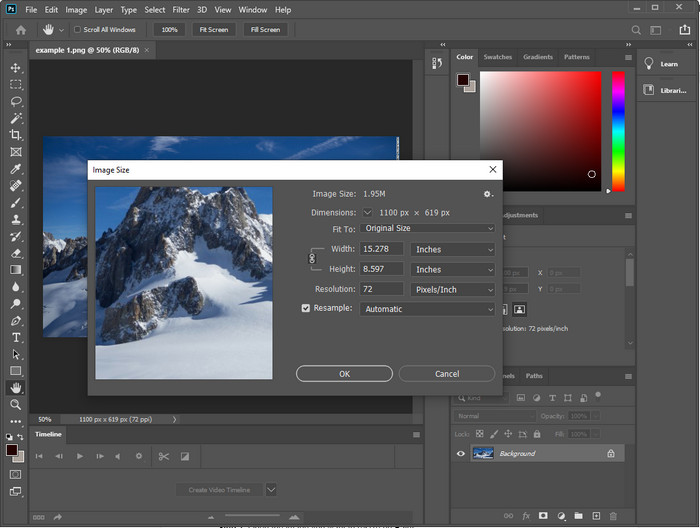
Az elsőként ajánlott, letölthető offline képméretező az eszközödre az Adobe Photoshop. Miért? Mert amikor átméretezel, új pixeladatokat hoz létre, és így elkerüli, hogy a folyamat végén gyenge minőségű legyen a kimenet. Ráadásul ez a szoftver professzionális képszerkesztőként ismert, amely könnyedén képes raszteres és vektoros képek feldolgozására. Bár professzionális eszközről van szó, kicsit drága lehet, ha kizárólag átméretezésre használnád. Ha azonban érdekel, hogyan lehet képet átméretezni Photoshopban, olvasd tovább.
Hogyan lehet képet átméretezni Adobe Photoshop segítségével:
1. lépés. Töltsd le és telepítsd a szoftvert az asztali gépedre a hivatalos weboldaláról.
2. lépés. Kattints a File menüre, majd a megnyíló mappában keresd meg a képet, és nyomd meg az Open gombot.
3. lépés. Nyomd meg felül az Image menüt, majd válaszd az Image Size opciót.
4. lépés. Módosítsd a szélesség és magasság mértékét az igényeidnek megfelelően, majd kattints az OK gombra a változtatások alkalmazásához.
5. lépés. Térj vissza a File menübe, és mentsd el a képet az asztalodra.
2. Festés [Alapértelmezett alkalmazás a Windows rendszeren]
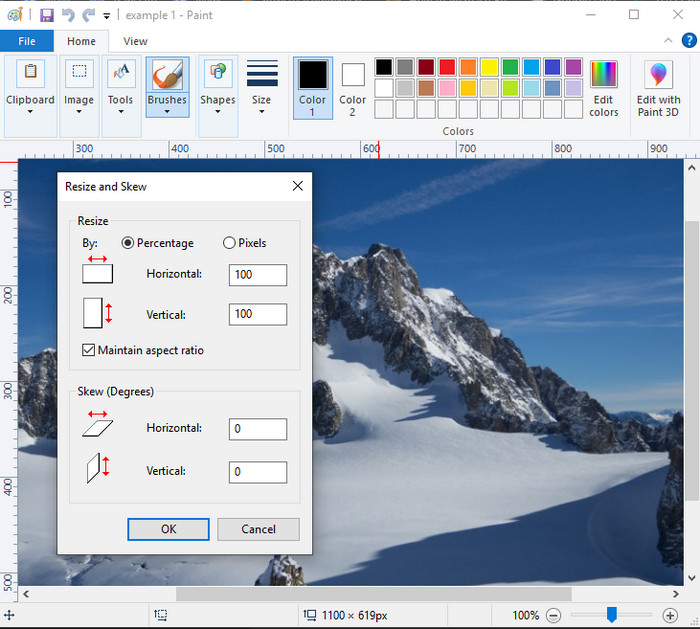
A Paint arról ismert, hogy egy olyan alkalmazás, amelyben üres vásznon rajzolhatsz. Különböző Windows-felhasználók általában arra használják, hogy valamit létrehozzanak egy üres lapon, részleteket adjanak hozzá a képekhez, és szükség szerint átméretezzék azokat. Bár nem kifejezetten dedikált szerkesztő, mégis át tudsz vele méretezni bármilyen raszteres képet, amely a helyi meghajtódon van. Előnye, hogy Windows alatt nem kell külön letöltened, mivel előre telepítve érkezik. Ha szeretnéd tudni, hogyan lehet alacsony felbontású képeket átméretezni ezzel az alkalmazással, olvasd el az alábbi útmutatót.
Hogyan lehet képet átméretezni Paint segítségével:
1. lépés. Nyisd meg a Paintben azt a képet, amelyet át szeretnél méretezni.
2. lépés. Miután megnyitottad a képet, kattints a két négyzet ikonjára, hogy elindítsd a megnyitott kép átméretezését.
3. lépés. A kép átméretezéséhez százalék vagy pixel alapján módosíthatod a méretet. Miután megváltoztattad az értéket, nyomd meg az OK gombot a változtatások alkalmazásához.
4. lépés. Kattints a Mentés ikonra, hogy exportáld az itt átméretezett képet.
3. Előnézet [Default App on Mac]
A Preview egy olyan beépített alkalmazás, amelyre támaszkodhatsz, ha meg szeretnéd tanulni, hogyan lehet képet átméretezni Macen. Ha nem szívesen töltesz le külön alkalmazást macOS-re, akkor érdemes ezt az appot használnod. Alulértékelt megoldás, mégis képes átméretezni a gépeden lévő fotókat. Ha megtanulod használni, nagy előnyödre válhat, mert így maximálisan ki tudod használni a szoftverben rejlő lehetőségeket. Ha érdekel, hogyan működik ez az eszköz, olvasd el a következő információkat.
Hogyan lehet képet átméretezni Preview segítségével:
1. lépés. Kattints jobb gombbal a képre a Maceden, válaszd az Open with lehetőséget, majd nyomd meg a Preview ikont.
2. lépés. Felül kattints a Tools menüre, majd válaszd az Adjust Size opciót.
3. lépés. Módosítsd a kép méreteit az igényeidnek megfelelően, majd nyomd meg az OK gombot, hogy elmentsd a végrehajtott változtatásokat.
3. rész További: Legjobb képátméretező, amelyet letölthet Androidra és iPhone-ra
1. Fénykép- és képátméretező [Android]
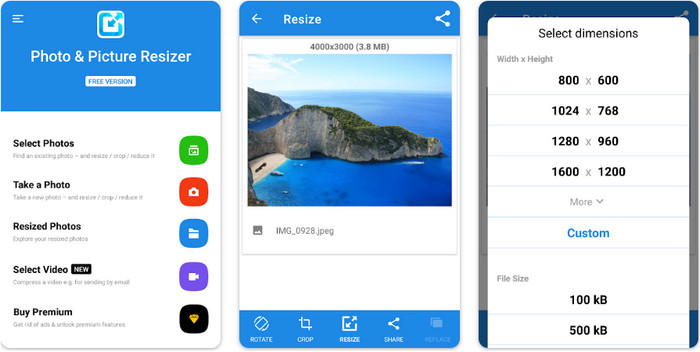
A Photo & Picture Resizer az egyik leggyorsabb és legegyszerűbb módja annak, hogy átméretezd a képeket az Android-eszközödön. Még a tapasztalatlan felhasználók is könnyen letölthetik és használhatják képméretezőként. Az alkalmazás ingyenes, de ha a további funkcióit is igénybe szeretnéd venni, vásárlásra lesz szükség. Összességében az átméretezési funkciói kiválóak, és már az első használatkor könnyen elsajátíthatod.
2. Képátméretező ingyenes [iPhone]
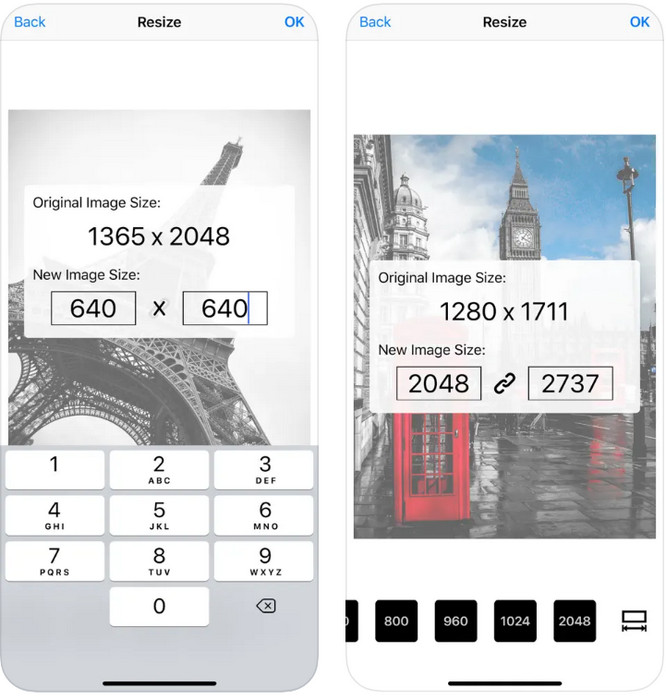
Az Image Resizer Free egy iOS-alapú alkalmazás, amely iOS 7.0-tól felfelé tölthető le. Ez az alkalmazás egy célzott, kifejezetten átméretezésre szolgáló képméretező, amelyet sok iOS-felhasználó használ. A fő funkcióján, az átméretezésen kívül nincsenek extra szolgáltatásai. Bár az eszköz felhasználóbarát, sok felhasználó panaszkodik arra, hogy nem tudja felülírni az eredeti képet az átméretezett verzióval.
4. rész. GYIK a kép átméretezésével kapcsolatban
Melyik formátumban jobb átméretezni, raszteres vagy vektoros?
A raszteres formátumok apró pixelekből állnak, hogy létrehozzák a kép megjelenését, és ha módosítja a méretét vagy méreteit, ezek a pixelek megnyúlnak, és láthatóvá válnak. Ellentétben a vektoros kép átméretezésével, ez kifejezetten a kép átméretezésére és felskálázására készült, anélkül, hogy rendetlenséget okozna rajta.
Átméretezhetem a BMP-t online?
Igen, átméretezheti a BMP-t az itt hozzáadott online megoldás segítségével. A kép nagyításakor azonban a BMP képpontossá válik, mivel raszteres képekről van szó. Tehát, ha el akarja kerülni a BMP fájl átméretezésének problémáját, akkor jobb, ha az FVC Free Image Upscaler Online-t választja, mert az nem hagy pixelezést az átméretezett BMP végső kimenetén.
Növekszik a fájl mérete a kép átméretezése után?
Dehogynem. Főleg azért, mert az átméretezett kép további pixeladatokat ad hozzá a tényleges kimenethez. Ennek ellenére a fájl mérete nem különbözik sokban az eredeti fájlmérettől.
Következtetés
Szerinted melyik képméretezési technika illik hozzád a legjobban? Válassz az itt bemutatott átméretezők közül. Ha gondot okoz a választás, és van internetkapcsolatod, erősen ajánljuk a FVC Free Image Upscaler Online használatát az átméretezési teljesítménye miatt. Ha ezt a webes méretezőt használod, nem fog gondot okozni a képek átméretezése.
-
 1440p kép – Mindent magában foglaló információ, amire szüksége lesz [2022-ben frissítve]
 Szeretne tudni az 1440p-s képekről? Vagy hol lehet kapni? 1440p-re állítod a képet? Olvassa el ezt, hogy mindegyiket megismerje.
-
 Oktatóanyag a kép képpontozásának megszüntetéséhez a 3 legjobb fotófelvevő segítségével
 Problémái vannak a pixeles képek kezelésével? Mára megoldottuk a problémát, és használhatja az itt hozzáadott eszközöket.
-
 A kép élesítése a fényképen 3 módszerrel [Gyors bemutató]
 Probléma van az életlen képpel? Itt bemutatjuk, hogyan élesítheti a képeket a Photoshopban az általunk hozzáadott három módon.
