


 Video Converter Ultimate
 Screen Recorder
 Videó javítás
 Biztonságos letöltés
MP3 konvertálása csengőhanggá iPhone-on könnyedén
Do you find the default ringtones on your iPhone less of your favorite and hope that one from your MP3 files could be your iPhone ringtones instead? What if we told you that it is possible to convert MP3 to ringtone on an iPhone?
Ebből a cikkből megtudhat 3 különböző módszert, amellyel iPhone-ján lévő MP3-zenei fájljait csengőhanggá alakíthatja. Átalakításuk kissé bonyolult, de a megfelelő eszközzel és módszerrel tegyük ezt annyira egyszerűvé és kényelmessé az Ön számára. mire vársz? Merüljünk el!

1. rész. MP3 konvertálása csengőhanggá iPhone-ra Mac/Windows rendszeren
One of the easiest and fastest ways to convert MP3 to ringtone on iPhone is by using the FVC-picked Video Converter Ultimate through your Windows or macOS computers. This all-in-one converter tool supports up to 300 various formats, including the M4R format, which makes it a reliable tool for turning MP3 music files into an iPhone ringtone. Moreover, this converter is up to 120 times faster compared to other converter tools, making the conversion process quick and hassle-free.
Here’s how to use the FVC-picked Video Converter Ultimate to convert your MP3 into a ringtone:
Step 1. First, download and install the tool on your computer, either Windows or Mac.
Step 2. Launch the tool, and once you’re on its main interface, click the Add Files button. This will allow you to import the MP3 file that you want to convert into an iPhone ringtone.
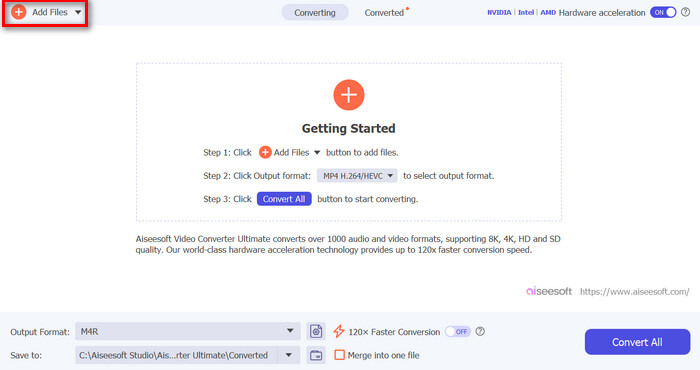
Step 3. Now, go to the Output format, and from the list of various audio formats, choose the M4R. M4R is the file format for iPhone ringtones.
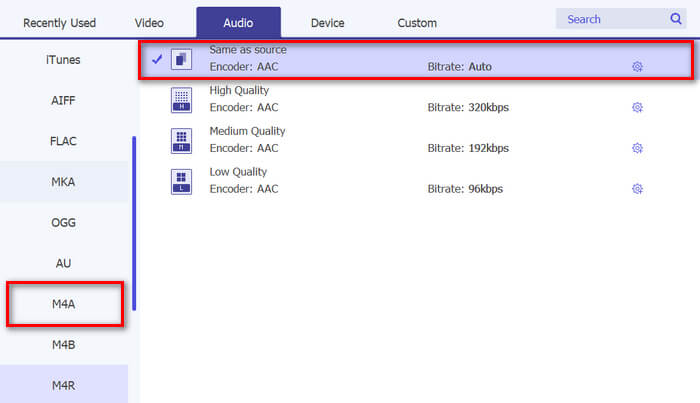
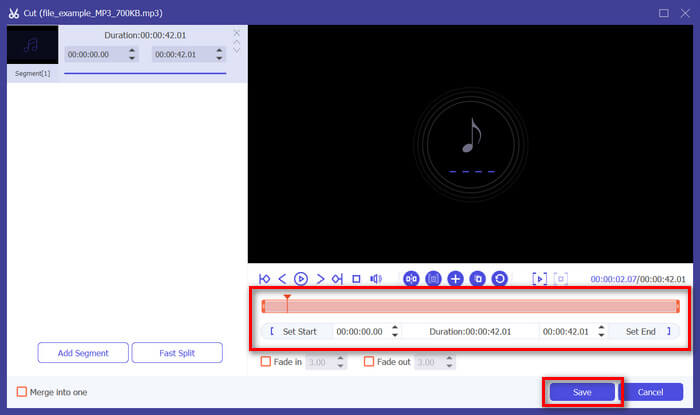
Step 4. After that, make sure that your MP3 file is only 30 seconds long. If it goes beyond that length, go to the Cut button and adjust the length of your file by simply adjusting the bar on the timeline or manually setting the end time of the file to 30 seconds.
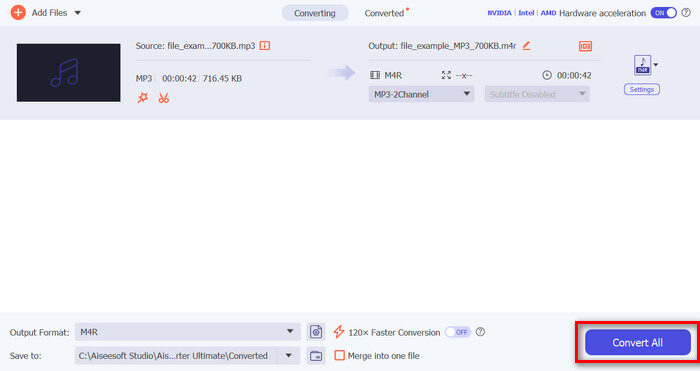
Step 5. Now click the Convert All button to start converting your MP3 files to iPhone ringtones. Converted files are saved directly to the folder on your computer.
Ez gyors, igaz? Valóban hihetetlen, hogy ez az FVC által kiválasztott Video Converter Ultimate eszköz milyen egyszerűvé és gyorssá teszi az MP3 átalakítást iPhone csengőhanggá. Tehát, ha olyan konvertáló eszközt keres, amellyel időt takaríthat meg, próbálja ki most ezt az eszközt.
2. rész. MP3 konvertálása csengőhanggá iPhone-on
Ha a közvetlen módszert részesíti előnyben számítógép használata nélkül, a GarageBand kényelmes megoldást kínál az MP3 csengőhangokká konvertálására közvetlenül az iPhone készülékén. Ez az eszköz egy hatékony zenekészítő alkalmazás, amely a legtöbb iPhone-on előre telepítve található. Ez az eszköz nem csak felhasználóbarát, hanem különféle funkciókat is kínál a hangfájlok hatékony testreszabásához.
Here’s how to use GarageBand to convert your MP3 into a ringtone:
Step 1. First, launch the GarageBand app on your iPhone. If you don’t have the app installed, go to the App Store and install it.
Step 2. Tap the Project icon and then the Loop icon near the top-right corner.
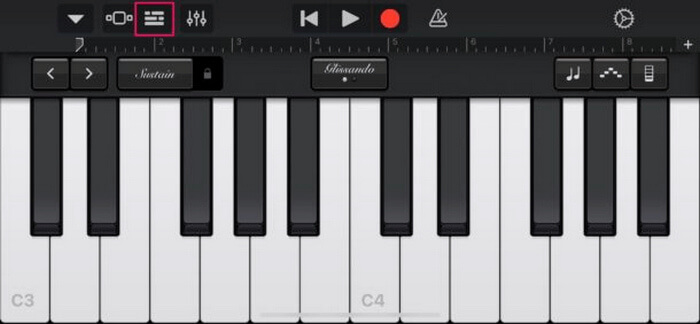
Step 3. Now, tap Music or Files to choose the MP3 file and long-press it to import it to GarageBand.
Step 4. After that, tap on the track and drag both ends to trim the audio. Ensure the ringtone is less than 30 seconds.
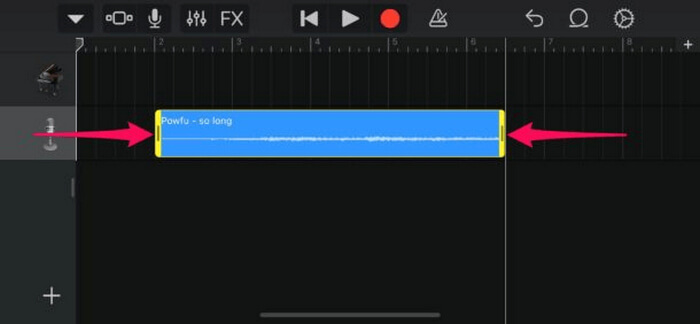
Step 5. You’ll see the Downward Arrow at the top left-hand corner. Tap it, and then choose My Songs to save the clip.
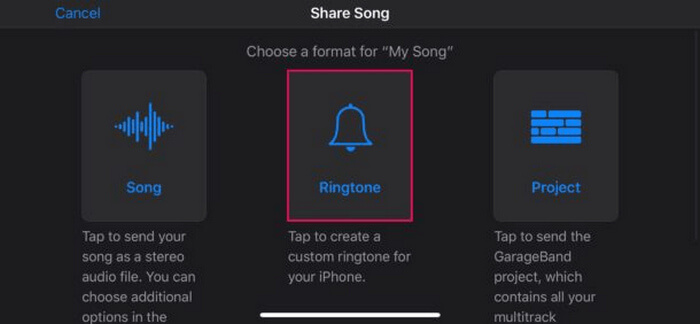
Step 6. Find the clip you made, long-press it, tap Share, and choose the Ringtone option. Don’t forget to name the ringtone and tap Export.
Step 7. To use the converted MP3 file as a ringtone on your iPhone, tap Use Sound As to set the ringtone as the default text message or for a specific contact. Alternatively, go to Settings, Sounds & Haptics, and Ringtone to change the ringtone on your iPhone.
Ha inkább MP3 fájlokat szeretne közvetlenül csengőhangokká konvertálni iPhone-ján, ez a módszer tökéletesen megfelel az Ön számára. Az új felhasználóknak azonban időre lesz szükségük, hogy megtanulják ezt, mivel olyan összetett funkciókat tartalmaz, amelyek eleinte túlterhelhetik őket.
3. rész. MP3 konvertálása iPhone csengőhanggá [Online és ingyenes]
Meanwhile, if you prefer a free and online method to convert MP3 to iPhone ringtone, the FVC Free Audio Converter is the one for you. With this tool, you can convert any format of your audio file easily, especially MP3 to M4R, as it supports MP3, AAC, AC3, WMA, WAV, AIFF, FLAC, MKA, M4A, M4B, and M4R audio formats. Moreover, this tool is perfect for those who need an on-the-go audio converter tool because of its very intuitive and simple interface.
Here’s how to use the FVC Free Audio Converter to convert your MP3 into a ringtone:
Step 1. Click the Add Files button to import the MP3 files that you want to convert to ringtone.
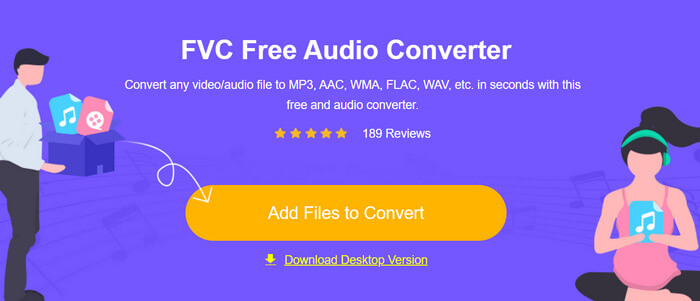
Step 2. Choose M4R as your audio output format.
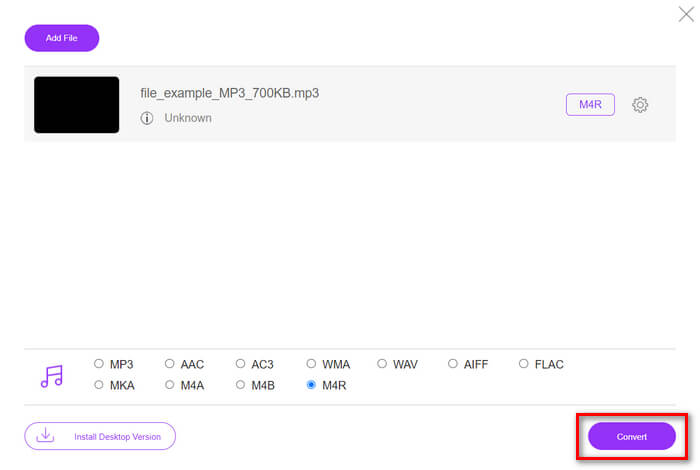
Step 3. Lastly, to process the conversion of your MP3 file to ringtone, click the Convert button. The converter file will be directly saved to your computer.
If you’re looking for a free and online alternative method to convert MP3 to M4R ringtone on an iPhone, the FVC Free Audio Converter is a perfect solution. Its intuitive interface simplifies the conversion process, and it supports a variety of audio formats, ensuring compatibility with different file types.
4. rész Konvertált csengőhangok átvitele iPhone-ra számítógépről
Most, hogy az MP3-fájlokat végre csengőhangokká konvertálta a számítógépén, az iTunes használatával a leggyorsabb módja annak, hogy átvigye őket iPhone-jára.
Here’s how to transfer converted ringtones to iPhone using iTunes:
Step 1. Open iTunes on your computer and connect your iPhone with a USB cable.
Step 2. Drag the converted ringtone file into the iTunes library. Ensure it appears under the Tones section.
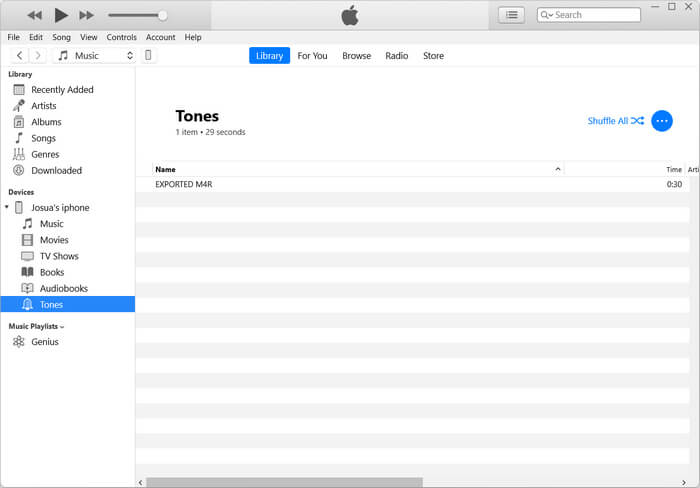
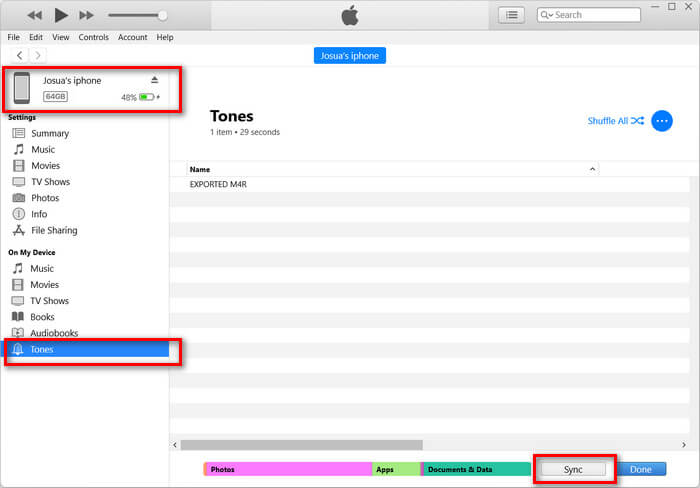
Step 3. Select your iPhone icon in iTunes, go to the Tones tab, and check Sync Tones. Then, choose the ringtone file you have imported and click Apply to sync.
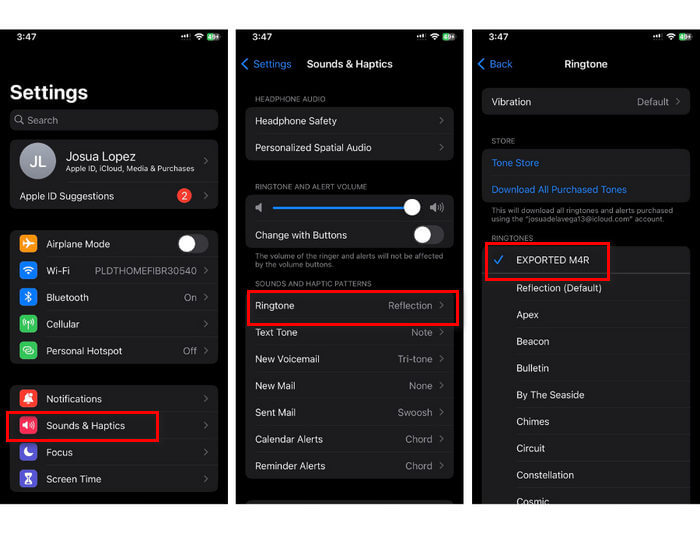
Step 4. Now, on your iPhone, go to Settings, choose Sounds & Haptics, tap Ringtone, and select your new ringtone.
Itt van. Mostantól egyszerűen átmásolhatja és csengőhanggá alakíthatja az MP3-at iPhone-ján, így készüléke személyessé válik kedvenc hangjaival.
5. rész. GYIK az MP3 csengőhanggá alakításáról
Melyik a legjobb ingyenes csengőhang oldal?
Számos webhely kínál ingyenes csengőhangokat, de néhány népszerű és megbízható webhely között szerepel a Zedge, a Mobile9 és a Tones7. Ezek a webhelyek csengőhangok széles választékát kínálják, amelyeket letölthet és használhat telefonján.
Milyen formátumú az MP3-ból iPhone csengőhang?
Az iPhone csengőhang formátuma M4R. Amikor egy MP3 fájlt konvertál, hogy csengőhangként használhassa iPhone-on, azt M4R formátumban kell menteni.
Hogyan adjunk MP3-at iPhone csengőhanghoz?
MP3 hozzáadásához iPhone csengőhangjához először konvertálnia kell az MP3 fájlt M4R-re egy olyan konvertáló eszközzel, mint az FVC által kiválasztott Video Converter Ultimate. Miután konvertálta az MP3 fájlt, az iTunes segítségével vigye át iPhone-jára, és használja új csengőhangként.
Következtetés
You can now use your favorite MP3 files and make a ringtone for your iPhone. Just choose the converter tool that best suits your needs. Each of them offers a straightforward way to convert MP3 to a ringtone on iPhones. So what are you waiting for? Start creating your unique ringtone now and make your iPhone truly yours!
-
 MOV VS MP4 - melyiket választja?
 MOV VS MP4, melyik a jobb? Ez a bejegyzés elmondja a különbséget az MP4 és a MOV között, így jobb választást kaphat a videofájlokhoz.
-
 FLAC vs. MP3: Melyik hangfájlformátum uralkodik
 Ez a bejegyzés összehasonlítja a FLAC és az MP3 közötti főbb különbségeket. Ez magában foglalja a hangminőséget, a fájlméretet, a kompatibilitást és egyebeket.
-
 MP3 konvertálása M4A-ra a jobb hangminőség érdekében
 Szakértői tippjeink és trükkjeink segítségével javíthatja zenei fájljai minőségét MP3 formátumú M4A formátumba konvertálásával. Útmutatónk lépésről lépésre tartalmaz utasításokat és ajánlott szoftvereket.
