


 Video Converter Ultimate
 Screen Recorder
 Videó javítás
 Biztonságos letöltés
Hogyan lehet a WebP-t MP4-re konvertálni PC-n animált videokimenethez
Számos oka van annak, hogy miért szeretnénk a WebP-t MP4-re konvertálni. Az egyik fő ok az, hogy amikor WebP formátumú animált képek gyűjteményével rendelkezik, az eszközei nem támogatják ezt a formátumot. Frusztráló azzal szembesülni, hogy nem élvezheti a saját fájljait a saját eszközén. Ezért a hasonló helyzetben lévő felhasználók többsége úgy dönt, hogy WebP fájljait olyan formátumba alakítja, mint az MP4, hogy digitális anyagaik kompatibilisebbek és kisebbek legyenek. De hogyan csinálja ezt meg első alkalommal? Szerencsére ez a cikk összegyűjtötte azokat a megfelelő konvertereket, amelyek nagy segítségére lesznek. Emellett bemutatunk egy professzionális megoldást is, amely szintén támogatja Önt ebben.

1. rész: WebP konvertálása MP4 Online formátumba
Ez a rész bemutatja a 3 legjobb megoldást a WebP MP4-re konvertálására.
1. EZGIF
A legnépszerűbb online megoldások közül az első az EZGIF. Ez egy praktikus, költségmentes eszköz, amelyet az interneten érhet el. Ezzel az eszközzel GIF-eket hozhat létre, módosíthat és finomíthat. De ez nem csak a GIF-ekről szól, mert kezeli a WebP, AVIF és APNG formátumokat is. Ezenkívül az EzGIF segítségével váltogathatja ezeket a formátumokat GIF, JPG, PNG és természetesen MP4 segítségével. Ahogy a neve is sugallja, az EZGIF célja a dolgok egyszerűsítése. Akár animált képeket szeretne készíteni, akár az animációkat videókká szeretné alakítani, ez az eszköz a háta mögött áll. Így arra is használható, hogy a WebP fájlokat, mind az álló, mind a mozgó fájlokat MP4-re váltsa. Ezért itt vannak az EZGIF egyszerű lépései.
1. lépés. Az EZGIF weboldalán keresse meg a WebP>WebP to MP4 eszközt, hogy elérje a WebP–MP4 konverterét. Ha ott van, kattintson a Fájl kiválasztása gombra a WebP fájl feltöltéséhez.
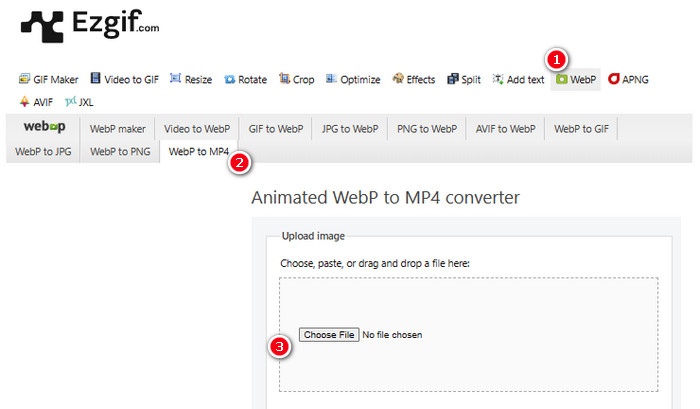
2. lépés. Miután feltöltötte a WebP fájlt, rátérhet az átalakítási folyamatra. Kattintson a Convert gombra az indításhoz.
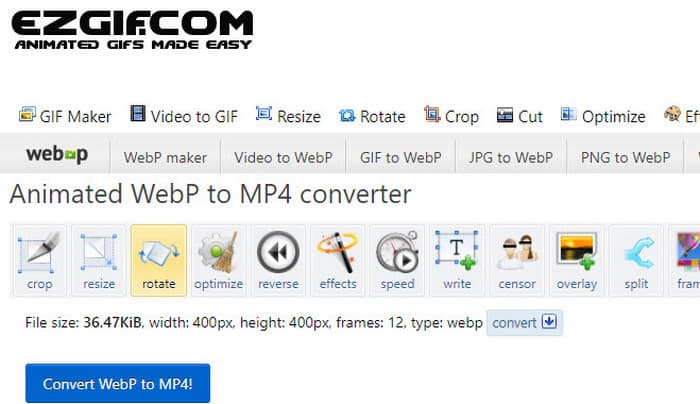
3. lépés. Ha elkészült, töltse le az újonnan konvertált fájlt.
2. MConverter
A következő eszköz az MConverter. Ez a konverter egy igazán praktikus eszköz az interneten, amely segít a fájlok egyik típusról a másikra váltásában. Figyelemre méltó, hogy ha van egy csomó WebP-képe, amelyet MP4-videóvá szeretne alakítani, az MConverter lehetővé teszi, hogy egyszerre készítse el őket. Nem spórol meg sok időt? Ezenkívül számos formátummal rendelkezik, amelyeket képes kezelni – például videókat, dalokat, képeket, feliratokat stb. Az ingyenes verziónak azonban van egy bökkenője: legfeljebb 200 MB méretű fájlokat tesz lehetővé. Addig is nézzük meg, hogyan működik az MConvert, amikor a WebP-t MP4-re konvertálja vele.
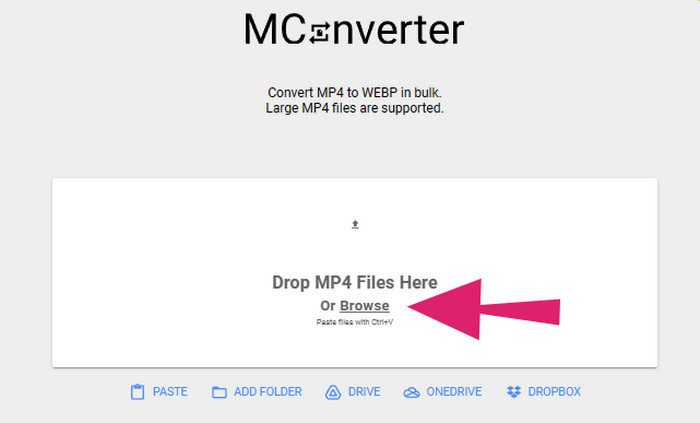
1. lépés. Az online eszközön kattintson a Browse gombra, hogy feltöltse az átalakítani kívánt WebP fájlokat.
2. lépés. Amikor a fájl sikeresen feltöltődött, válassza ki az MP4 formátumot a megadott lehetőségek közül.
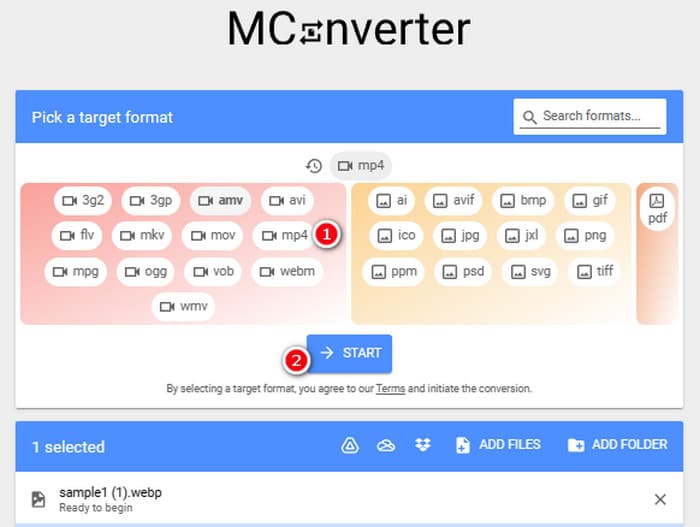
3. lépés. Ezután kattintson a START gombra az átalakítás végrehajtásához.
3. Online-konvertálás
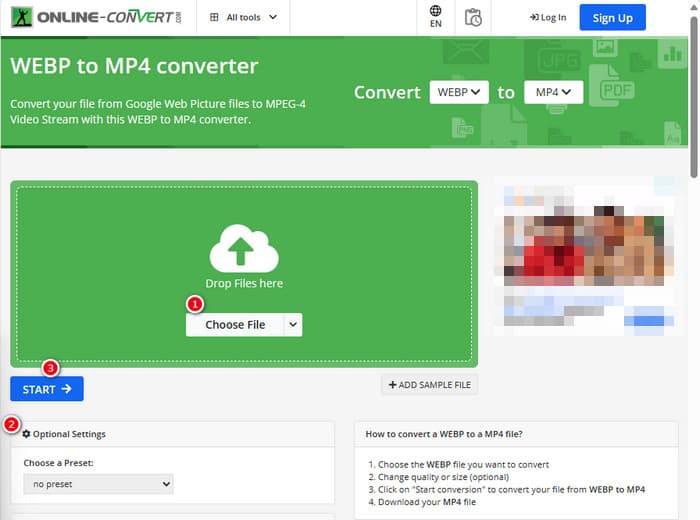
Végül engedje meg, hogy az Online Convert betöltse az utolsó online pozíciót. Ez az Online Convert egy figyelemre méltó konverter, amely szinte bármilyen típusú médiafájlt megváltoztathat az Ön számára. Ennek ellenére nem kerül egy fillérbe sem minden olyan átalakítás, amelyet szeretne végrehajtani, amíg támogatja azt. Ezenkívül elég gyorsan működik, kivéve, ha problémás az internet. Most, ha egy WebP fájlt MP4-re szeretne alakítani, megteheti a webhelyükön. Nem csak ez, hanem módosíthatja a videó paramétereit, például a méretet, a képkockasebességet és a minőséget, és akár meg is fordíthatja, levághatja vagy kivághatja azokat a részeket, amelyekre nincs szüksége. Tehát, ha a WebP fájl készen áll az átalakításra, akkor azonnal kövesse az alábbi lépéseket.
1. lépés. Győződjön meg arról, hogy a WebP–MP4 konverter eszközt használja, miután elérte a hivatalos weboldalt.
2. lépés. Kattintson a Choose File gombra, és töltse be a WebP fájlt. Ezután dönthet úgy, hogy finomhangolja a beállításokat a felületen megadott opciókkal.
3. lépés. Ellenkező esetben kattintson a START gombra az átalakítási folyamat elindításához.
2. rész: Professzionális megközelítés a WebP fájl MP4 formátumba konvertálásához: FFmpeg
Ha szakértői módszerrel szeretne egy képfájlt videóvá alakítani, használhatja az FFmpeg-et. Ez egy hatékony szoftvereszköz multimédiafájlok feldolgozásához. A program lehetővé teszi hang-, videó- és képformátumok átalakítását a legkülönfélébb kodekek között. Ugyanakkor parancssoros megközelítéssel működik, ami a kezdők számára nehézkes lehet. Íme tehát az egyszerűsített lépések, amelyeket követhet. Tájékoztatásul: az FFmpeg, mint professzionális videótranszkóder, még sérült videók javítására is képes.
1. lépés. Nyissa meg az FFmpeg-et, miután telepítette a számítógépére. Ezután kezdje a CD megnyomásával a parancssor indításához.
2. lépés. Most már navigálhat abba a könyvtárba, amely a WebP fájlt tartalmazza. Ezután használja a következő parancsot: ffmpeg -i input.webp output.mp4.
3. lépés. Indítsa el az átalakítási folyamatot azzal, hogy megnyomja az ENTER billentyűt a billentyűzetén.

3. rész. Bónusztipp: A legjobb módja az MP4 fájlok konvertálásának bármilyen online video-/audiotípussá
Mit szólna ahhoz, ha online konvertálná MP4 fájljait a kívánt videó- és hangformátumokba? Ez egyszerű, gyors és hatékony lesz, ha a FVC Free Video Converter Online eszközt használja. Ez egy ingyenes megoldás, amely lehetővé teszi, hogy MP4 formátumú videóit különböző videó- és hangformátumokká alakítsa, például WMV, MOV, FLV, AVI, MKV, AAC, MP3, WAV és még sok más formátumba. Emellett könnyedén alakíthatja át nagy felbontású videóit kisebb MP4 fájlokká minőségromlás nélkül. Még jobb, hogy egyszerre több fájlt is konvertálhat, miközben a folyamat végig egyszerű és gyors marad. Ráadásul nem kell aggódnia a videókon megjelenő vízjelek vagy az adatok elvesztése miatt, mivel ez az online konverter tiszta és biztonságos kimenetet biztosít! Íme a három egyszerű lépés, amellyel MP4 fájljait különböző formátumtípusokká alakíthatja.
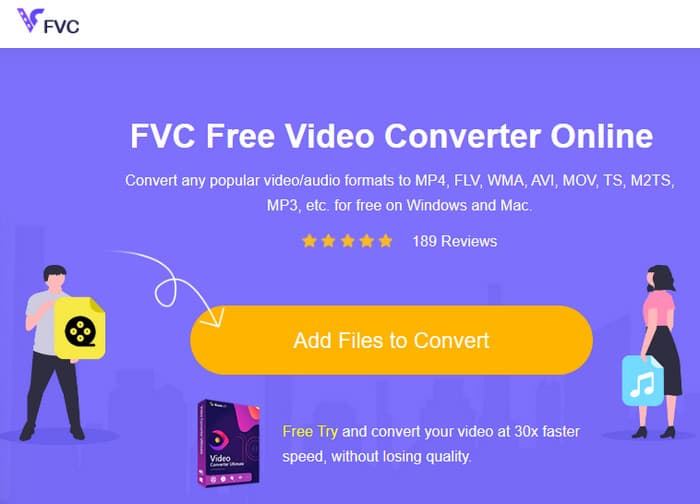
1. lépés. Kattintson az Add Files to Convert fülre, miután elérte a weboldalt. Ez lehetővé teszi az MP4 fájlok feltöltését.
2. lépés. A fájlok importálása után állítsa be őket a kívánt kimeneti formátumra.
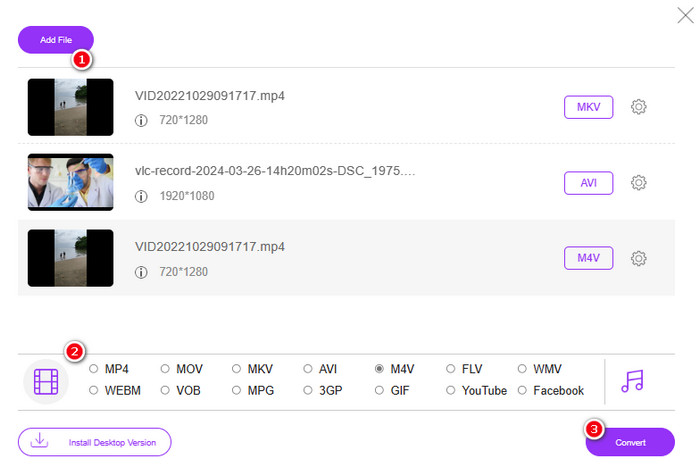
3. lépés. Amint beállította őket, kattintson a Convert gombra az átalakítás megkezdéséhez.
Az alábbiakban további tippeket talál a kép MP4-re konvertálásához.
Részletesebb olvasnivaló
Hogyan konvertáljuk a VLC-t MP4-re: a leggyorsabb elsajátítható eljárások
iPhone videók egyszerű konvertálása MP4-re PC-n minőségromlás nélkül
4. rész. GYIK a Webp és MP4 konvertálásról
Miért konvertálhatnék egy képfájlt, például a WebP-t MP4-hez hasonló videóvá?
- A képet videóvá kell konvertálnia a szélesebb körű kompatibilitás és megőrzés érdekében.
Megjeleníthetők a WebP formátumú képek minden webböngészőben?
-Nem. Néhány régebbi böngésző, különösen az Internet Explorer, natívan nem támogatja a WebP-t. A modern böngészők azonban támogatják a megjelenítését.
Hogyan konvertálhatok egy képet WebP-re?
- Dedikált WebP készítőt kell használnia. Ezenkívül számos eszköz és könyvtár áll rendelkezésre a képek WebP formátumba konvertálásához.
Következtetés
A fenti WebP–MP4 konverterek segítségével az átalakítási folyamat mostantól egyértelmű és problémamentes lesz. A kívánt konverzió eléréséhez a három leggyakrabban alkalmazott módszer áll rendelkezésre. Ha az egyiknél nehézségekbe ütközik a folyamat kezelése során, nyugodtan végezze el az átalakítást a többivel.
-
 Ismerje meg a WebP gyors JPG formátumba konvertálásának legegyszerűbb módjait
 Tanuljunk meg hatékony módszereket a webes képek egyszerű JPG formátumba konvertálására. Ez a cikk kiváló képátalakítókat kínál, amelyekkel képfájlokat konvertálhat.
-
 Tökéletes módszerek a WebP egyszerű konvertálására PNG-re
 Legyen tisztában a WebP PNG-re konvertálásának figyelemre méltó módszereivel. Ez az útmutató tartalmazza a leghasznosabb képátalakítókat, amelyeket kipróbálhat.
-
 Végső módszerek a WebP tökéletes GIF formátumba konvertálására
 Szeretné konvertálni a WebP-t GIF formátumba, de fogalma sincs, mit tegyen? Szerencsére ez a bejegyzés többféle módot mutat be a WebP azonnali GIF formátumba konvertálására.
