


 Video Converter Ultimate
 Screen Recorder
 Videó javítás
 Biztonságos letöltés
Hogyan konvertálhatom az MP4-et WAV Online-ba ingyen
Az MP4 egy meglehetősen elterjedt videoformátum, amelyet az emberek a mindennapi életben használnak. Ugyanakkor a WAV is nagyszerű választás a veszteségmentes hang tárolására. Előfordulhat azonban, hogy szeretné MP4-et WAV formátumba konvertálni, hogy eszközein hallgathassa. Ilyen helyzetben egy professzionális átalakítóra van szüksége, amely képes a videóból kinyerni a hangot anélkül, hogy romlana a hangminőség.
Ezért ma részletesen összehasonlítjuk az MP4-et és a WAV-ot, és bemutatjuk a legjobb MP4–WAV konvertereket, online és offline megoldásként egyaránt.

1. rész MP4 vs WAV
Hogy őszinte legyek, az MP4 és a WAV között nem nagyon lehet összehasonlítani. Végül is két különböző formátumról van szó, amelyeket különböző helyzetekben használnak, az egyiket videók tárolására, a másikat a hang mentésére. De mindkettő fájltípus és digitális hangot tartalmazhat. Ennek alapján az alábbi táblázat felsorolja néhány különbségüket.
| MP4 | WAV | |
| Tartalmaz | Videó, hang és feliratok | Csak hang |
| Fájlnévkiterjesztés | .mp4, .m4a, .m4p, .m4b, .m4r és .m4v | .hullám és .hullám |
| Által kifejlesztett | Nemzetközi Szabványügyi Szervezet | Az IBM és a Microsoft |
| Tulajdonságok | Tömörített és veszteséges (a legtöbb ideig) | Tömörítetlen és veszteségmentes |
2. rész: A legjobb MP4 - WAV átalakító online
Most megtanulta ennek a 2 formátumnak az előnyeit. Itt az ideje, hogy találjon egy hasznos MP4-WAV konvertert, amely minden konverziós igényt kielégít.
Itt egy böngészőalapú konvertáló eszközt ajánlunk, amelynek neve FVC Free Audio Converter. Ezzel könnyedén átalakíthat MP4 videofájlokat WAV formátumba online, ingyenesen. Ennek az online konverternek a legjobb része, hogy bármilyen operációs rendszeren futtatható, például Windows-on vagy Mac OS-en, anélkül, hogy egy nagy szoftvercsomagot kellene letöltenie. Mindössze egy böngészőre és stabil internetkapcsolatra van szükség. Ezután gond nélkül alakíthatja át az MP4 videókat, például videoklipeket és beszélgetős műsorokat WAV fájlokká.
Ingyenes letöltés Windows 7 vagy újabb rendszerre Biztonságos letöltés
Ingyenes letöltés macOS 10.7 vagy újabb rendszerre Biztonságos letöltés
Kövesse az alábbi lépéseket, és az átalakítást is profiként működtetheti.
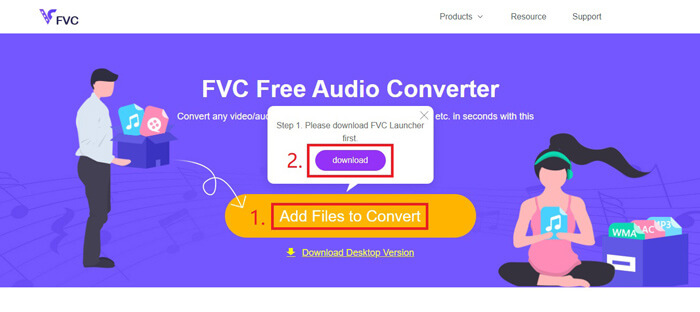
1. lépés: Kattintson a fenti linkre, hogy felkeresse a FVC Free Audio Converter hivatalos weboldalát. Kattintson az Add Files to Convert gombra. Ezután le kell töltenie és telepítenie kell egy egyszerű indítót.
2. lépés: A telepítés után az Open ablak azonnal felugrik. Ekkor kiválaszthatja azt az MP4 videót, amelyet konvertálni szeretne.
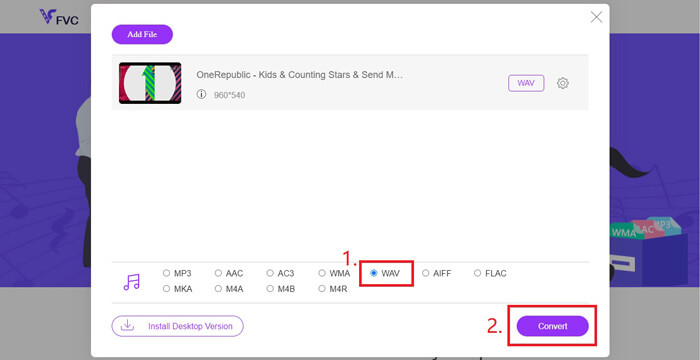
3. lépés: Mivel Önnek WAV fájlra van szüksége, az exportformátumot WAV-ra kell módosítania. Kattintson a Convert gombra, és válassza ki a WAV fájl mentési helyét.
4. lépés: Várjon egy kicsit, és az átalakított fájl automatikusan mentésre kerül a számítógépére.
3. rész: Konvertálja az MP4-et WAV-ba Audacity-vel
Sokan kérdezik, hogyan lehet MP4-et WAV formátumba konvertálni az Audacity segítségével. Utánanéztünk, és azt találtuk, hogy ez a módszer kissé bonyolult lehet, mivel az Audacity nem tud MP4 fájlokat közvetlenül megnyitni az opcionális FFmpeg könyvtár nélkül. Szerencsére ezt a problémát az Audacity felvételi funkciójának használatával sikerült megkerülnünk.
Azok számára, akik nem ismerik az Audacity-t, ez egy nyílt forráskódú és platformokon átívelő audio szabad szoftver, amelyet önkéntesek fejlesztettek ki. Normál esetben többsávos hang szerkesztésére és rögzítésére használják. WAV fájlok MP4-ből való Audacity exportálásához kövesse az alábbi lépéseket.
1. lépés: Keresse meg azt az MP4 videofájlt, amelyet konvertálni szeretne, és játssza le a számítógépén található médialejátszóval. Annak érdekében, hogy semmilyen tartalom ne maradjon ki, a videó megnyitása után állítsa meg a lejátszást, majd tekerje vissza az elejére.
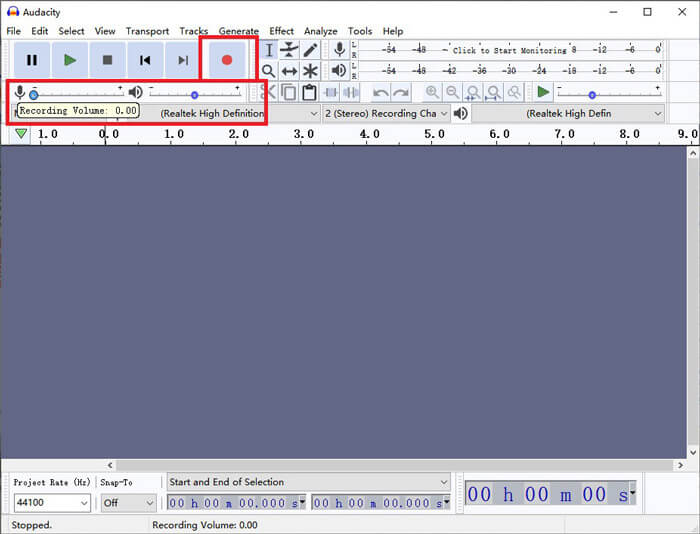
2. lépés: Most indítsa el az Audacity programot. Először némítsa le a mikrofont a felvételi hangerő csúszkáját 0-ra állítva. Ezután állítsa be a rendszerhang hangerejét tetszés szerint. Kattintson a Record gombra.
3. lépés: Térjen vissza a médialejátszóhoz, és indítsa el az MP4 videó lejátszását. Az Audacity rögzíteni fogja a videó hangrészét. Amint az MP4 videó lejátszása befejeződött, bezárhatja a médialejátszót.
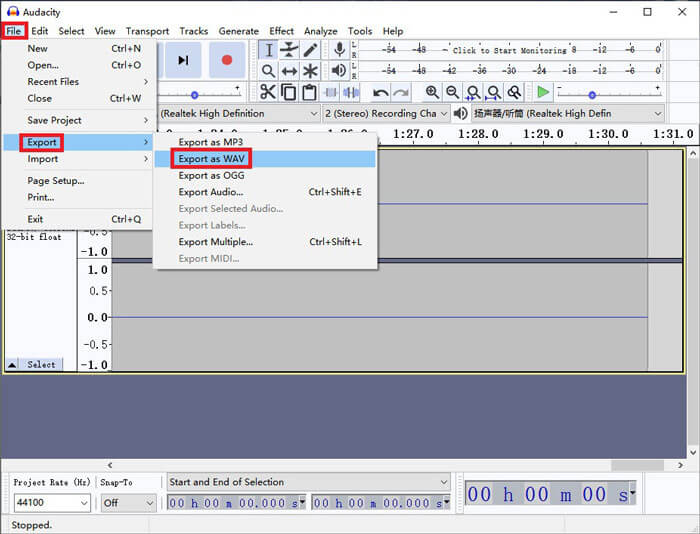
4. lépés: Térjen vissza az Audacity-hez, és kattintson a Stop ikonra. Ezután a felső menüsorban lépjen a File menüpontra. Keresse meg az Export lehetőséget, majd válassza az Export as WAV opciót.
5. lépés: Mielőtt elmentené ezt a hangfájlt a számítógépére, adjon neki nevet.
4. rész: Gyakori kérdések az MP4 konvertálásáról WAV-ra
1. Hogyan konvertálhatom az MP4-et WAV-ba az iTunes-ban?
Nyissa meg az iTunest, és a felső menüsorban válassza az Edit menüpontot. Ezután kattintson a Preferences lehetőségre. A General Preferences ablakban keresse meg az Import Settings opciót. Itt az Import Using beállítást módosítsa AAC Encoder-ről WAV Encoder-re. Kattintson az OK gombra. Kattintson a jobb egérgombbal a konvertálni kívánt videofájlra, majd válassza a Create WAV Version lehetőséget.
2. Hogyan lehet konvertálni MP4-et WAV-ba a Windows Media Player programban?
Nyissa meg az MP4 fájlt a Windows Media Playerrel. Kattintson a Menu ikonra, hogy a Windows Media Player kezdőlapjára jusson. Kattintson az Organize menüpontra, és válassza az Options lehetőséget. Ezután keresse meg a Rip Music fület, és módosítsa a kimeneti formátumot WAV-ra. Itt módosíthatja a hangfájl mentési helyét is. Kattintson az OK gombra az MP4–WAV konvertálás elindításához.
3. Melyik a jobb, MP4 vagy WAV?
Ha csak a hangminőséget szeretné összehasonlítani, akkor a WAV egyértelműen jobb, mint az MP4, mert a WAV formátumú hangfájl tömörítetlen és veszteségmentes. Ugyanebből az okból azonban a WAV fájl nagyobb lehet, mint az MP4 fájl, miközben ugyanazt a hanganyagot tartalmazza. Ha többet szeretne megtudni az MP4 videóról, legalább más videoformátumokkal is érdemes összehasonlítania, például a AVI VS MP4 vagy a MOV VS MP4 cikkek segítségével.
Következtetés
Azokkal a módszerekkel együtt, amelyeket a GYIK-ben említettünk, most már 4 módon is át tudja alakítani az MP4 fájlokat WAV formátumba. Ha csak egy időtakarékos konvertáló eszközt szeretne használni hangfájlok átalakításához, a FVC Free Audio Converter remek munkát végez extra bonyodalmak nélkül.
Ha hasznosnak találja ezt a cikket, megoszthatja barátaival. Nyugodtan hagyja el nekünk véleményét.
-
 MP4 konvertálása WMV formátumba Mac / Windows rendszerre
 Ez a bejegyzés megosztja az MP4 videó konvertálását WMV formátumba Mac vagy Windows rendszeren. Számos lehetőséget kínálunk Önnek, beleértve az asztali szoftvert és a webalapú online konvertereket is. Készen áll a legjobb MP4 - WMV konvertáló eszközök megismerésére?
-
 Az MP4 konvertálása MP3-ba Windows / Mac / iPhone / Android / Online rendszeren
 Ha MP3 hangot szeretne kivonni MP4 videóból, akkor ellenőrizze ezt a cikket, és 8 megoldást kaphat. Online és offline módokon is könnyen konvertálhatja az MP4-et MP3-ba a telefonján vagy a számítógépén.
-
 Hogyan lehet konvertálni a WMV-t MP3-ra asztali és online
 Bármely ingyenes videokonverter szoftvert megtalálhat az FVC stúdióban. Bármilyen video / audio formátum támogatott, beleértve az MP4, MOV, TS, AVI, WMV, FLAC, MP3 stb.
