


 Video Converter Ultimate
 Screen Recorder
 Videó javítás
 Biztonságos letöltés
VLC-MP4 konverterek: A leggyorsabb és legtökéletesebb eszközök, amelyeket tudnia kell
A VLC médialejátszó nem csak egy egyszerű lejátszó filmnézéshez és zenéhallgatáshoz, hiszen sokkal sokoldalúbb, mint gondolnád. Ha VLC‑rajongó vagy, jó eséllyel rengeteg filmed van eltárolva a médiatárában. Tudtad, hogy a VLC‑t videóid különböző formátumokba, például MP4‑be történő konvertálására is használhatod? Így ha valaha is gondoltál már arra, hogy ezeket a filmeket vagy videókat VLC‑ből MP4 formátumba alakítsd, hogy a telefonodon vagy más hordozható eszközön nézhesd őket, akkor szerencséd van! Ez a bejegyzés megtanítja a leggyorsabb és legegyszerűbb átalakítási folyamatra, amelyet a számítógépeden elvégezhetsz. Szóval, hogy ne is húzzuk tovább, olvasd el az alábbi tartalmat, és sajátítsd el a tudnivalókat minél előbb!

1. rész: A VLC-fájlok MP4-re konvertálásának leggyorsabb módja
Ha olyan remek szoftvert keresel, amely bajnokként kezeli a videókonvertálást minőségromlás nélkül, akkor nem kell tovább kutatnod, mert bemutatjuk a FVC Video Converter Ultimate programot. Ez a végső konvertáló nemcsak villámgyorsan alakítja át a VLC‑videókat különféle formátumokba, például MP4, MKV, WMA, AVI, MOV és más formátumokba, hanem mindezt képminőség‑vesztés nélkül teszi. Továbbá rendkívül gyors, akár 120x‑os sebességre is képes, mivel hardveres gyorsítást támogat.
De várj, van még! Ez a VLC-MP4 konverter kiváló videószerkesztőként is működik. A szerkesztő lehetővé teszi a körbevágást, kivágást, elforgatást, vízjelek hozzáadását és sok más ismert szerkesztést. Ezen kívül olyan kulcsfontosságú funkciókat is tartalmaz, amelyeket nem szeretne kihagyni. Funkciók, amelyek segítségével lenyűgöző videokollázsokat hozhat létre klipjeiből, fotóiból és dallamaiból! Eközben térjünk át egy gyors konverziós folyamatra, amelyet az FVC hozott Önnek az alábbi lépésekkel.
1. lépés. Kezdésként töltsd le a szoftvert a számítógépedre. Az alábbi Letöltés gombok közül választhatsz a rendszerednek megfelelően. Igen, ezzel a szoftverrel VLC‑t konvertálhatsz MP4‑re Macen és Windowson is.
Ingyenes letöltés Windows 7 vagy újabb rendszerre Biztonságos letöltés
Ingyenes letöltés macOS 10.7 vagy újabb rendszerre Biztonságos letöltés
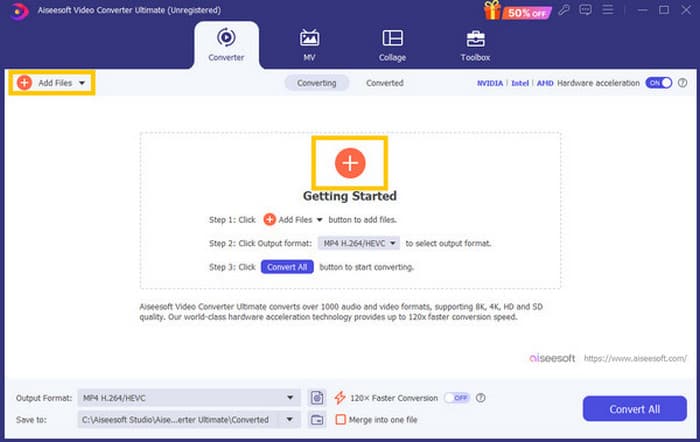
2. lépés. A letöltés és telepítés után indítsd el a szoftvert, majd kezdd el betölteni az összes VLC‑fájlt, amelyet konvertálni szeretnél. Egyszerűen kattints a piros Plusz gombra a munkaterület közepén, vagy a Fájlok hozzáadása gombra a jobb felső sarokban.
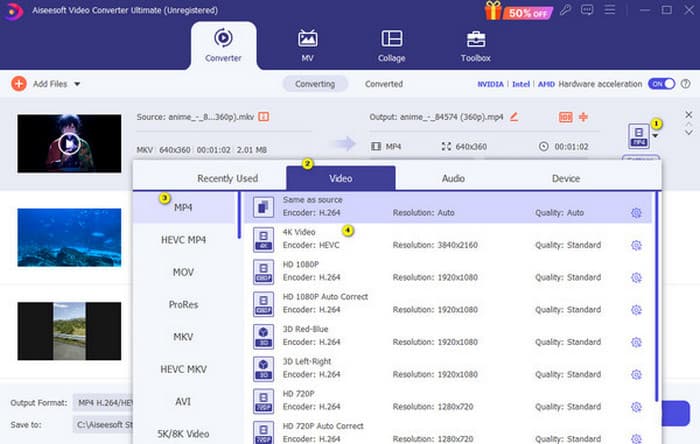
3. lépés. A fájlok tömeges importálása után itt az idő, hogy az MP4‑et állítsd be kimeneti formátumként. Ehhez kattints az egyes fájlok végén lévő fordított háromszög gombra. Ezután navigálj a Videó>MP4 kiválasztása>Kódoló kiválasztása útvonalon.
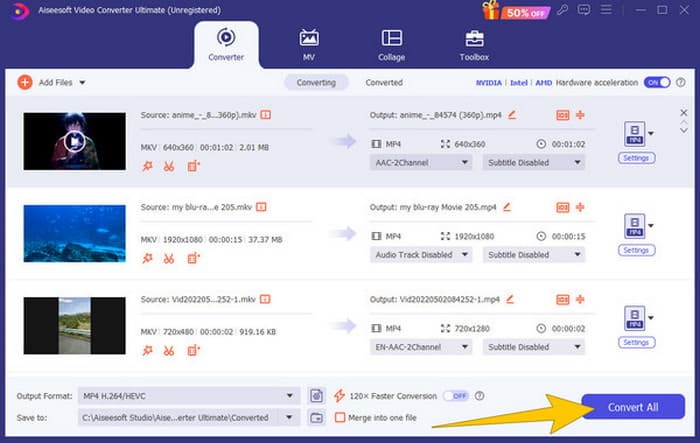
4. lépés. Ilyen egyszerű: most már rákattinthatsz az Összes konvertálása gombra, hogy elindítsd a szupergyors konvertálási folyamatot.
Előnyök
- Jó multifunkcionális szoftver videofájlok konvertálásához, szerkesztéséhez és létrehozásához.
- Ingyenes próbaverziót kínál, amely ugyanazt a konverziós teljesítményt biztosítja.
- Lehetővé teszi a tömeges VLC-fájlok konvertálását.
- Alakítsa át VLC fájljait 120x gyorsabbá.
- Különféle bemeneti és kimeneti formátumok támogatottak.
Hátrányok
- A speciális funkciókhoz előfizetést kell vásárolnia.
2. rész. Végezze el a fájlok MP4 formátumba konvertálásának lépéseit VLC-ben
Mivel Ön VLC fájlokkal dolgozik, valóban jó lehetőség a VLC segítségével konvertálni őket. A korábbi VLC-MP4 konverterrel ellentétben azonban a VLC-t kissé nehézkes lehet működtetni, ha konvertálásról van szó. Ezért tettük könnyebben követhetővé a folyamatot az alábbiakban ismertetett átfogó lépésekkel.
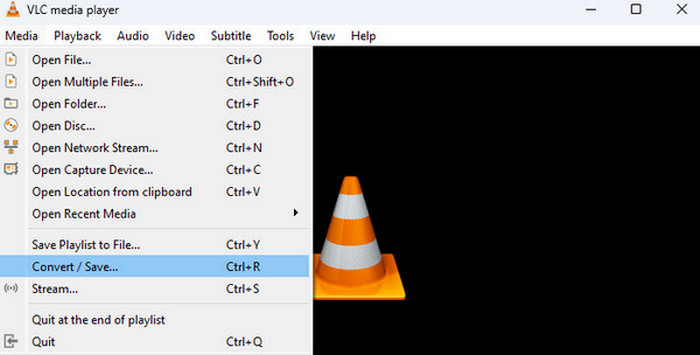
1. lépés. Nyisd meg a VLC‑t a számítógépeden, majd hozd be a videófájlt is. Hogyan? Lépj a Média menübe, és kattints az Átalakítás/Mentés almenüre.
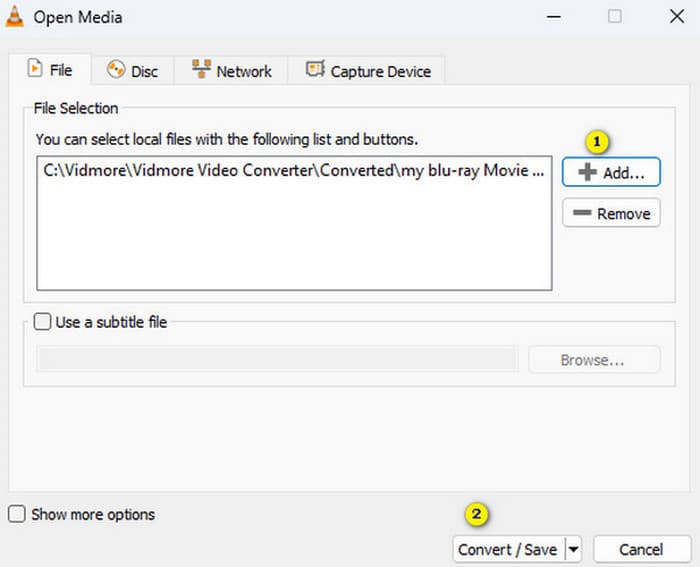
2. lépés. A Média megnyitása ablakban kattints a +Hozzáadás gombra a fájl betöltéséhez. Amikor a fájl betöltődött, kattints alul az Átalakítás/Mentés gombra.
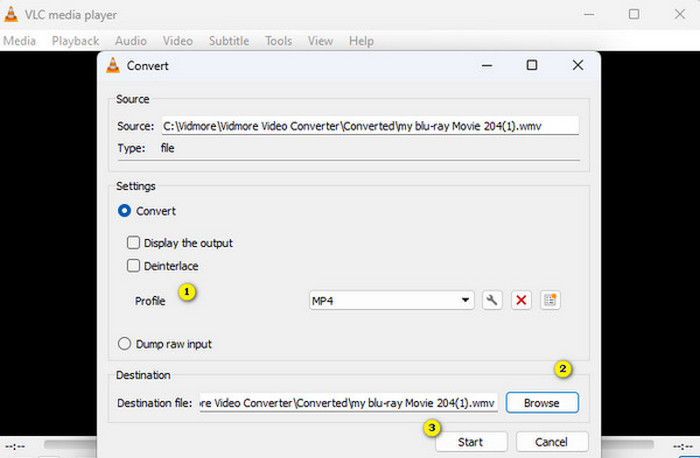
3. lépés. Ezután a VLC egy újabb ablakot nyit, ahol ki kell választanod az MP4‑et kimeneti formátumként. Ehhez menj a Profil szakaszhoz. Majd a Böngészés részben állítsd be a fájl célhelyét, és kattints az Indítás gombra a konvertálási folyamat elindításához.
Előnyök
- Ez egy ingyenes konverter és médialejátszó.
- Ez egy többplatformos VLC-MP4 konverter.
- Közvetlenül dolgozhat VLC-fájljaival harmadik féltől származó eszköz nélkül.
- Különféle videóformátumokkal dolgozhat.
Hátrányok
- Az átalakítási folyamat nem olyan gyors.
- A konvertáláshoz fájlméret-korlátozás tartozik.
3. rész Fájlok konvertálása VLC-ről MP4 Online-ra
Tegyük fel, hogy szeretnél még egy szintet lépni, és online szeretnéd konvertálni a videófájlokat. Ebben az esetben érdemes megtanulnod, hogyan konvertálhatsz fájlokat a FVC Free Video Converter Online használatával. Ez a webalapú konverter arra lett kifejlesztve, hogy a multimédiás átalakítást egyszerűvé és ingyenessé tegye. Szinte bármilyen videó‑, sőt hangfájlt is képes különféle formátumokba konvertálni minőségromlás nélkül. Ezzel a konverterrel gyorsan átalakíthatod HD‑videóidat népszerű formátumokba, miközben megőrzöd az eredeti képélességet. Sőt, több fájlt is konvertálhatsz egyszerre, döbbenetesen gyors folyamat mellett!
Ez az eszköz szerkesztési funkciókat is kínál, ahol beállíthatja a videóbeállításokat, például a képkockasebességet, a bitsebességet és a felbontást, valamint a hangbeállításokat, például a bitsebességet és a hangerőt. Ez azt jelenti, hogy a kívánt módon módosíthatja videóit, és minőségromlás nélkül exportálhatja őket! Kövesse az alábbi lépéseket a VLC-ről MP4-re való online konvertálásához.
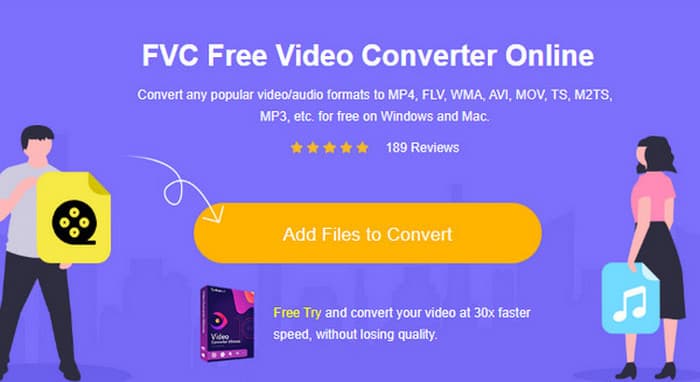
1. lépés. Miután megérkeztél az online konverter hivatalos weboldalára, kattints a Fájlok hozzáadása konvertáláshoz gombra. Ezzel feltöltheted az első videófájlokat.
2. lépés. Amikor megjelennek a fájljaid, kattints rájuk, és válaszd az MP4‑et kimeneti formátumként a felület alján megjelenő lehetőségek közül.
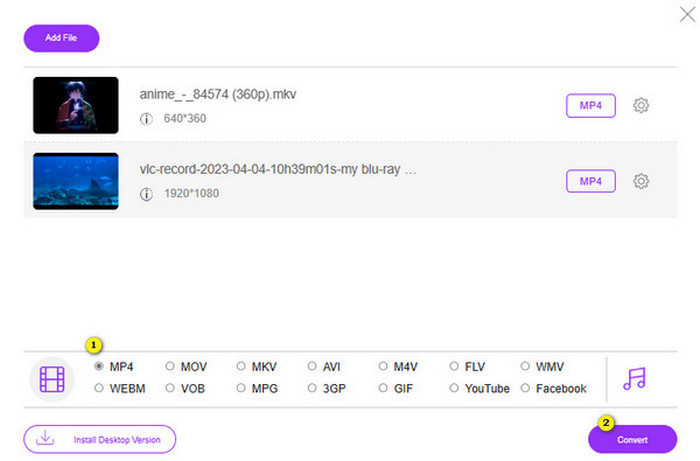
3. lépés. Miután az összes fájlt MP4‑re állítottad, kattints a Konvertálás gombra.
Előnyök
- Sokkal könnyebben használható.
- Nem igényel szoftver telepítést.
- Az összes fájlt egyszerre konvertálhatja.
Hátrányok
- A szellős átalakítási folyamathoz stabil internetkapcsolattal kell rendelkeznie.
4. rész. GYIK a VLC-ről MP4-re konvertálással
Hogyan konvertálhat VLC-t MP4-re Mac-en?
Használd az FVC Video Converter Ultimate Mac‑es verzióját, hogy videófájljaidat MP4‑re konvertáld minőségvesztés nélkül.
Használhatok VLC-t titkosított vagy DRM-védett videók konvertálására?
Nem. Sajnos a VLC nem tud titkosított vagy DRM‑védelemmel ellátott videókat MP4‑re vagy bármely más formátumra konvertálni.
A VLC veszteségmentes átalakítást végez?
A VLC lehetőségeket kínál a video- és hangbeállítások módosítására a legjobb veszteségmentes átalakítás érdekében.
Következtetés
Láthatod, hogy a VLC‑t MP4‑re konvertálni valójában nagyon egyszerű, amennyiben tudod, mit kell tenned. Ha viszont gyors és csúcsminőségű kimenetre vágysz, akkor egy olyan erőteljes konverterre kell támaszkodnod, mint az FVC Video Converter Ultimate. Ez a konverter nem igényli, hogy részletes beállításokkal bajlódj a jó minőségű eredményért, mint ahogy az a VLC‑nél gyakran szükséges.
-
 Folyamat a DVD másolásához és rögzítéséhez VLC -vel a lejátszható formátum digitalizálásához
 A VLC számos tömörített audio-video fájlformátumot támogat, beleértve a DVD-re történő rögzítést. Csak tartsa gördülten a labdát, hogy további vitákat és részleteket nyújtson a végéig.
-
 Kiváló lehetőségek lehetségesek | A VLC audio késleltetés javítása [2024]
 Nehezen nézi meg kedvenc filmjét VLC médialejátszóján a hang bizonytalansága miatt? Olvassa tovább ezt a cikket, hogy megismerje a VLC audio késleltetésének javításának összes lehetséges módját.
-
 Hogyan használjuk a VLC-t videók javítására | Az Ön végső útmutatója
 Törött videók ragadtak a fájljaidra? Fedezze fel a VLC-videójavítás tökéletes útmutatóját, amellyel megjavíthatja videóit, és könnyedén újra lejátszhatja őket.
