


 Video Converter Ultimate
 Screen Recorder
 Videó javítás
 Biztonságos letöltés
2 egyszerű mód az MKV fájlok lejátszására iPad-en
Le tudok játszani MKV fájlokat iPaden?
Nem tudsz közvetlenül MKV fájlokat lejátszani iPaden, akár iPad Prót, iPad Airt, iPad minit vagy iPad 2/4/6/8-at használsz. Az MKV egy népszerű multimédiás konténerformátum, de nem támogatja minden Apple-termék, beleértve az iPadet, iPhone-t, iPodot és Macet sem. Akkor hogyan lehet MKV fájlokat lejátszani iPaden?

Használhatsz egy harmadik féltől származó alkalmazást MKV fájlok iPaden való lejátszásához. Emellett dönthetsz úgy is, hogy az MKV-t iPad által támogatott formátumba, például MP4-be vagy MOV-ba konvertálod. Ebben a cikkben 2 hatékony módszert osztunk meg, amelyek segítenek MKV fájlokat lejátszani iPad Pro, Air, mini és más modelleken.
1. rész: Hogyan lehet közvetlenül lejátszani az MKV fájlokat iPad-en VLC-vel
Ahogy fentebb említettük, nem játszhatsz le közvetlenül MKV fájlokat iPad Pro, Air, mini vagy iPad 8/6/4/2 készüléken. Azonban az App Store-ban elérhető néhány külső MKV lejátszó alkalmazás, amelyek segítenek MKV fájlokat lejátszani iPaden, iPhone-on vagy iPod touch-on. Támaszkodhatsz a népszerű médialejátszóra, a VLC-re, hogy bármilyen videót, köztük MKV fájlokat is lejátsz iOS eszközödön.
A VLC Media Player egy nagyon népszerű médialejátszó eszköz, amely támogatja az összes gyakran használt videoformátumot, beleértve az MKV-t, MOV-ot, MP4-et, AVI-t, FLV-t és egyebeket. Lehetővé teszi médiafájlok lejátszását Windows, Mac és Linux számítógépen. Ráadásul a VLC rendelkezik iOS alkalmazással is, amely lehetővé teszi MKV fájlok lejátszását iPaden és iPhone-on.
1. lépés. Nyisd meg az App Store-t iPadeden, és keress rá a VLC-re. Az első találat a VLC for Mobile lesz. Koppints rá, majd érintsd meg a Get gombot, hogy ingyen telepítsd iPadre. Ez a VLC alkalmazás kompatibilis iPaddel, iPhone-nal, iPod touch-csal és Apple TV-vel.
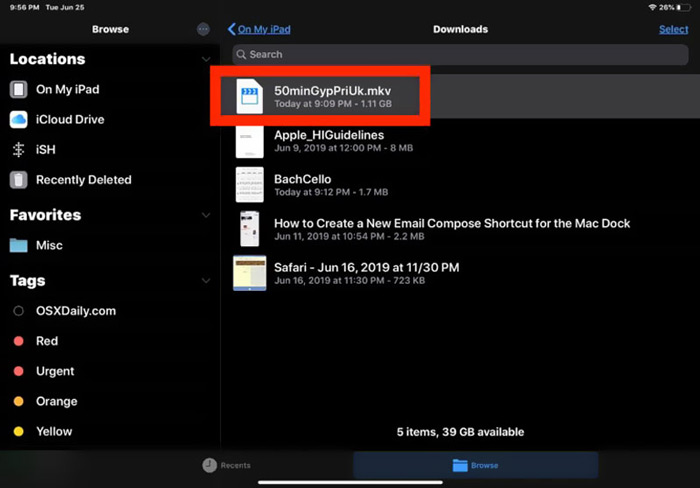
2. lépés. Koppints a VLC ikonra a megnyitáshoz. Most már szinkronizálhatod MKV fájljaidat iTuneson, Wi-Fi megosztáson vagy felhőszolgáltatásokon keresztül. Ezt követően a Video részben nézheted meg őket. Itt az MKV fájlokat a Files alkalmazásban is ellenőrizheted. Válaszd ki az iPaden lejátszani kívánt MKV fájlt, majd koppints a Share gombra.
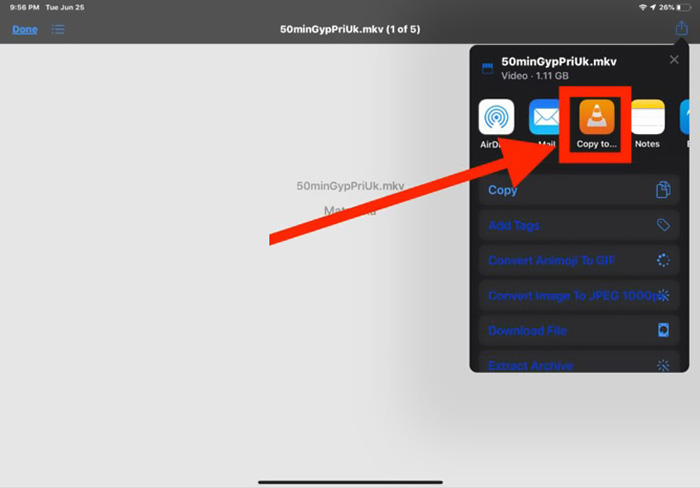
3. lépés. Válaszd az Open in VLC vagy a Copy to VLC lehetőséget a legördülő listából. Ezután ezzel a VLC alkalmazással tudod lejátszani az MKV fájlt az iPaden.
Az MKV fájlokon kívül a VLC-re más médiafájlok egyszerű lejátszásához is támaszkodhatsz. Természetesen léteznek más MKV lejátszók is, mint például a KMPlayer és mások, amelyek szintén segítenek MKV fájlokat nézni iPaden.
2. rész: Hogyan lehet konvertálni az MKV-t MP4-be lejátszáshoz iPad-en
Amikor MKV fájlokat szeretnél lejátszani iPaden, dönthetsz úgy is, hogy az MKV-t iPad által támogatott videoformátumba, például MP4-be vagy MOV-ba konvertálod. Ehhez támaszkodhatsz a professzionális MKV konvertáló szoftverre, a Free Online Video Converter-re.
Ez az MKV-iPad átalakító nagyban támogatja a gyakran használt video- és hangformátumokat. Ez lehetővé teszi az MKV átalakítását iPad által támogatott formátumba, beleértve a MOV-ot és az MP4-et is, minőségromlás nélkül. A következő útmutató megmutatja, hogyan lehet átalakítani az MKV-t iPad-re.
1. lépés. Nyisd meg a böngésződet, például a Chrome-ot, IE-t, Firefoxot vagy Safarit, és lépj erre a Free Online Video Converter oldalra. Amikor odaérsz, kattints az Add Files to Convert, majd a download gombra, hogy gyorsan telepíts egy kis méretű FVC Launchert az MKV konvertáláshoz.

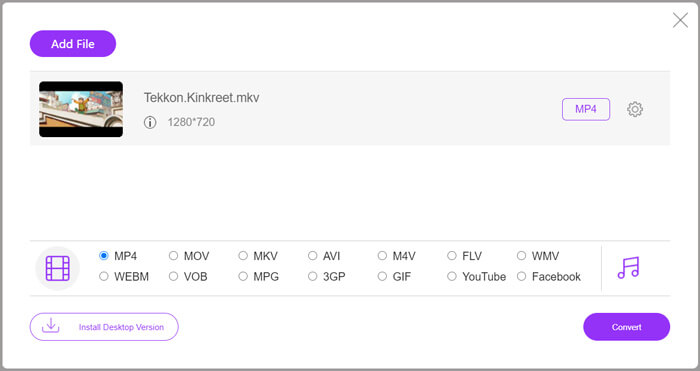
2. lépés. Megjelenik egy felugró Open File ablak, ahol tallózhatod és importálhatod az MKV fájlodat. Ezután a fő konvertáló ablakba kerülsz. Láthatod, hogy sok népszerű videoformátum fel van sorolva, például MP4, MKV, MOV, AVI, FLV, WMV, VOB, WEBM és egyebek. Itt az MP4-et vagy a MOV-ot kell kimeneti formátumként kiválasztanod.
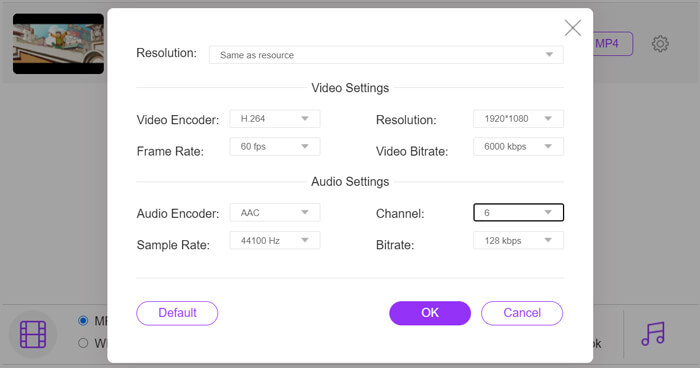
3. lépés. Konvertálás előtt a kimeneti formátum mellett lévő Settings ikonra kattintva testre szabhatod a különféle video- és audióbeállításokat. Itt módosíthatod a videó felbontását, kódolóját, képfrissítési sebességét, bitrátáját, a hangcsatornát, mintavételezési frekvenciát és egyebeket. A módosítások mentéséhez kattints az OK gombra.
4. lépés. Miután minden beállítást elvégeztél, kattints a Convert gombra az MKV MP4-be konvertálásának elindításához. A kimeneti fájl megőrzi az eredeti kép- és hangminőséget. Ezután átmásolhatod iPadre lejátszáshoz.
3. rész: Gyakran feltett kérdések az MKV fájlok iPad-en történő lejátszásáról
1. kérdés: Az iMovie szerkesztheti az MKV fájlokat?
Nem. Mint fent említettük, az összes Apple eszköz és a kapcsolódó szoftver nem tudja támogatni az MKV formátumot. Az iPad, iPhone és Mac alapértelmezett szerkesztőjeként az iMovie nem képes megnyitni és szerkeszteni az MKV fájlokat.
2. kérdés: A VLC képes átalakítani az MKV-t MP4-be?
Igen. A VLC Media Player képes átalakítani az MKV fájlokat. Megnyithatja a VLC-t, kattintson a Média menüre, és használhatja a Konvertálás / Mentés funkciót. Az Open Media ablakban kattintson a Hozzáadás gombra az MKV fájl betöltéséhez. Kattintson a Konvertálás gombra, majd válassza az MP4-et célformátumként. Ezt követően kiválaszthatja a megfelelő célmappát, és átnevezheti a kimeneti fájlt. Ezután kattintson a Start gombra a videó konvertálásához MKV-ből MP4-be VLC-vel.
3. kérdés: Lejátszhatja-e a Windows 10 MKV fájlokat?
Nem támaszkodhat az alapértelmezett lejátszóra, a Windows Media Playerre az MKV fájlok lejátszásához egy Windows 10 számítógépen. Ha MKV fájlokat akar megnyitni, akkor támaszkodnia kell valamilyen harmadik féltől származó médialejátszóra, például a VLC-re, a PotPlayerre és egyebekre.
Következtetés
A cikk elolvasása után 2 hasznos tippet kapsz arra, hogyan játssz le MKV fájlokat iPaden. Akár közvetlenül szeretnél MKV-t nézni iPaden, akár MKV-t szeretnél iPad által támogatott formátumba konvertálni, megtalálhatod a megfelelő eszközt. Ha további kérdéseid vannak az MKV iPaden történő lejátszásával kapcsolatban, írhatsz nekünk üzenetet.
-
 M2TS to iPad - Ingyenes módok az M2TS videofájlok lejátszására az iPad készülékén
 Olvassa el és szerezze meg az M2TS iPad-re konvertálásának legjobb módját. Itt vannak online és offline M2TS fájl konverterek iPad M2TS lejátszáshoz. Csak olvassa el és válassza ki a tetsző megoldást.
-
 MKV-ból MOV-ba - Hogyan lehet konvertálni az MKV-t MOV-ba
 Hogyan konvertálhatom az MKV-t MOV-ra Mac-en? Az iMovie képes olvasni az MKV-t? Mit jelent a MOV formátum? Ez a bejegyzés 2 egyszerű módszert ismertet az MKV konvertálásához MOV-ba ingyenes online és professzionális videokonverterekkel.
-
 Oktatóanyag - 4 ingyenes módszer az iPhone-on található videók újba egyesítéséhez
 Olvassa el és szerezzen be 4 egyszerű módszert a videók egyesítésére iPhone-on. Minden iPhone modell és iOS verzió támogatott. Az iPhone-on 2 és több videót gyorsan új videóvá kombinálhat.
