


 Video Converter Ultimate
 Screen Recorder
 Videó javítás
 Biztonságos letöltés
3 tipp, hogy az MP4 nem játszik le a Google Drive-ban
A Google Drive egy felhőalapú együttműködési szolgáltatás, amely lehetővé teszi, hogy biztonsági másolatot készíts az összes fájlodról, és bármilyen eszközről, bárhonnan hozzáférj hozzájuk. 15 GB ingyenes tárhelyet biztosít, amelyen a Google Drive, a Gmail és a Google Fotók osztoznak, így mindenféle adatot tárolhatsz. Feltölthetsz MP4 fájlokat a Google Drive-ra, és közvetlenül le is játszhatod őket.
Általánosságban a Google Drive-ban lévő MP4 fájlokat egyszerűen duplakattintással lejátszhatod. Előfordulhat azonban, hogy bizonyos MP4 videók nem játszhatók le a Google Drive-ban, és ilyen hibák jelennek meg: This video cannot be played (Ezt a videót nem lehet lejátszani) vagy Whoops! There was a problem playing this video (Hoppá! Probléma történt a videó lejátszása közben).

Ha a szokásos módon nem tudod lejátszani az MP4 fájlokat a Google Drive-ban, támaszkodhatsz az alábbi 3 alternatív módszerre, hogy lejátszd a Google Drive-on tárolt videóidat.
1. rész: Játssz MP4-et a Google Drive-ban egy új ablakkal
Ha MP4-et szeretne lejátszani a Google Drive-ban, a beépített videolejátszóval duplán kattinthat a lejátszás megkezdéséhez. Ha azonban nem sikerül lejátszani az MP4 fájlokat ezzel a módszerrel, választhatja a Google Drive videó új ablakban történő lejátszását.
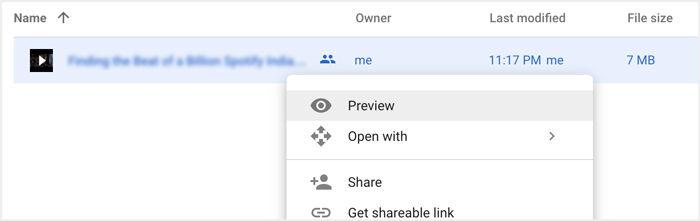
1. lépés. Nyisd meg a Google Drive-ot, és keresd meg a megtekinteni kívánt MP4 videót. Kattints rá jobb gombbal, majd válaszd az Előnézet lehetőséget.
2. lépés. Most a jobb felső sarokban lévő hárompontos ikonra kattintva nyithatod meg a menüt. A legördülő listából válaszd az Megnyitás új ablakban opciót.
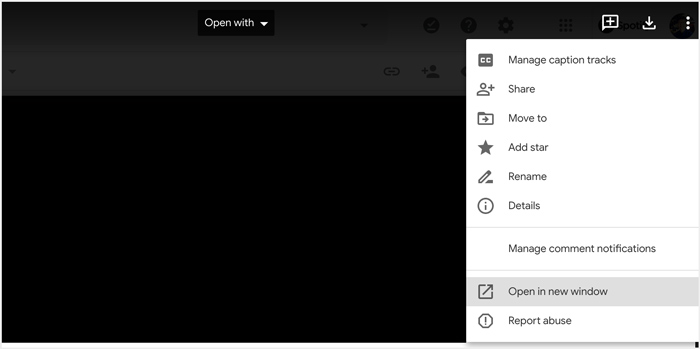
Az összes művelet után a Google Drive MP4 fájlja új ablakban fog lejátszódni. Ellenőrizheti, hogy ez a videó normálisan lejátszható-e.
2. rész: Távolítsa el a fiókokat az MP4 fájlok lejátszásához a Google Drive-ból
Bizonyos esetekben a Google Drive-ban nem lejátszott MP4 fájlokat több Google-fiók okozza. Tehát megpróbálhat eltávolítani néhány nem kívánt fiókot annak kijavításához.
1. lépés. A nem kívánt fiókokból való kijelentkezéshez lépj a Google-fiókod beállításaihoz a Google webhelyén. A jobb felső sarokban találod. Kattints a profilképedre, és ellenőrizd az összes ott megjelenő Google-fiókot.
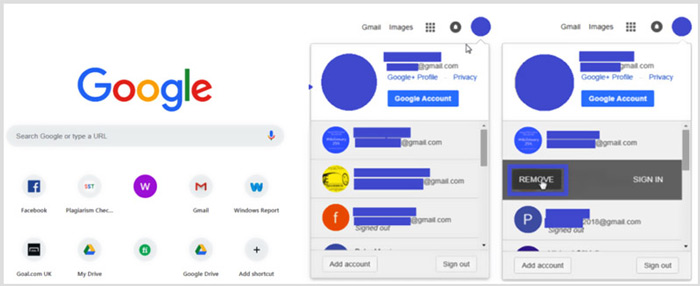
2. lépés. Keresd meg az eltávolítani kívánt fiókot, majd kattints az Eltávolítás gombra. Itt csak egy, számodra hasznos fiókot hagyhatsz bejelentkezve. Ezután frissítsd a Google oldalát, majd térj vissza a Google Drive-hoz. Keresd meg a megtekinteni kívánt MP4 fájlt, és játszd le.
3. rész Videó konvertálása MP4 lejátszásra a Google Drive-ban
Bár a Google Drive támogatja az MP4 formátumot, ha az MP4 fájlok mégsem játszhatók le a Google Drive-ban, érdemes ellenőrizni a videófájl méretét, felbontását és egyéb kapcsolódó jellemzőit. Hogy videódat a Google Drive által támogatott formátumba konvertáld, igénybe veheted a professzionális Video Converter Ultimate programot. Ez bármilyen videó- és hangfájlt képes konvertálni minőségromlás nélkül.
- 1. Konvertáljon bármilyen videót, beleértve az MP4-et is, kiváló minőségű Google Drive-ra támogatott fájlokká.
- 2. Konvertálja a 8K / 5K / 4K, 1080p / 720p HD és SD videókat több mint 500 formátumba, például MP4, MOV, AVI, FLV, MP3, FLAC, AAC és így tovább.
- 3. Szerkessze a videót, állítsa be az effektusokat, javítsa a minőséget, tömörítse a videót, szerkessze az ID3 információkat, és GIF-eket készítsen aplomb segítségével.
- 4. Példátlan hardvergyorsító technológia, amely szupergyors konverziós sebességet kínál.
Ingyenes letöltés Windows 7 vagy újabb rendszerre Biztonságos letöltés
Ingyenes letöltés macOS 10.7 vagy újabb rendszerre Biztonságos letöltés
1. lépés. A videó Google Drive által támogatott formátumba történő konvertálásához először ingyenesen telepítened kell ezt az átalakítót a számítógépedre. Kattints duplán a letöltés gombra, majd kövesd az utasításokat a telepítéshez.
2. lépés. Nyisd meg ezt a Google Drive videokonvertáló eszközt, és használd a Converter funkcióját. Kattints a nagy + jelre vagy az Fájlok hozzáadása gombra az MP4 fájl(ok) betöltéséhez.
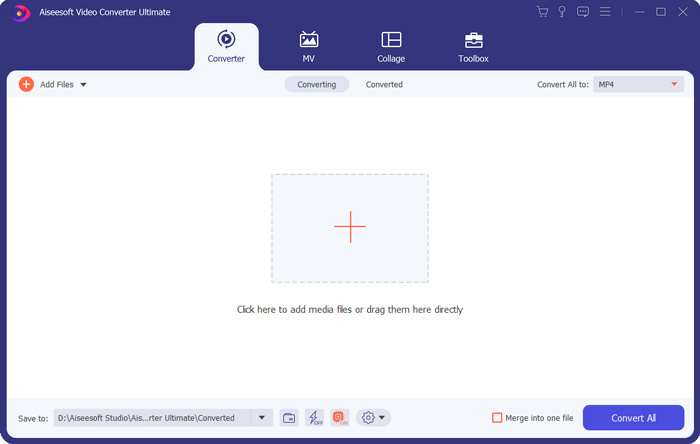
3. lépés. A kimeneti formátum alapértelmezetten MP4 lesz. Rákattintva kiválaszthatsz egy másik, megfelelő formátumot is.
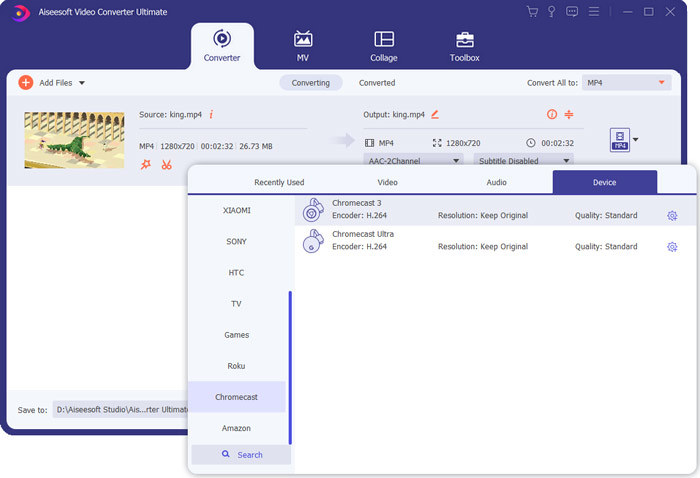
Ebben a lépésben rákattinthatsz a Custom Profile ikonra, hogy további beállításokat szabj testre.
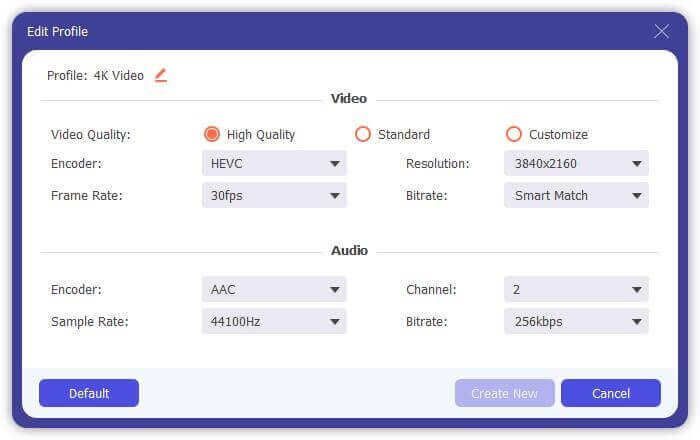
4. lépés. Miután mindent beállítottál, kattints a Összes konvertálása gombra a videókonvertálás elindításához. A konvertálás előtt átnevezheted a kimeneti fájlt, kiválaszthatod a megfelelő célmappát, szerkesztheted a videót, valamint módosíthatod a kép- és hanghatásokat.
4. rész: Gyakran feltett kérdések az MP4 fájlok lejátszásáról a Google Drive-ban
Milyen videó felbontást támogat a Google Drive?
Videókat tárolhat és lejátszhat a Google Drive-on. Bármilyen felbontású videókról készíthet biztonsági másolatot. De tudnia kell, hogy a Google Drive maximális lejátszási felbontása 1920x1080.
Miért nem tudok videókat lejátszani a Google Drive-ban?
Sokféle ok miatt a videók nem jelennek meg a Google Drive-on. Az egyik fő ok a nem támogatott videó formátum. Ezenkívül néhány más tényező, például az elavult böngésző, a gyenge internetes sebesség, a nagyobb felbontás, a nagyobb fájlméret, az útválasztó biztonsági beállításai és harmadik féltől származó plug-inek, és így tovább okozhatnak problémákat a Google Drive videólejátszásában.
Hol kezelhetem Google-fiókomat?
A Google lehetővé teszi egy vagy több fiók hozzáadását és használatát. Ha szeretné kezelni Google-fiókja (i) t, nyissa meg a Chrome böngészőt, és kattintson a Google Fiók ikonjára a jobb felső sarokban. A legördülő menüben kattintson a Google-fiók kezelése gombra.
Hogyan tölthetem fel az MP4-et a Google Drive-ra?
Az MP4 videót tartalmazó fájlok feltöltéséhez a Google Drive-ra egyszerűen kattintson az Új ikonra a bal felső sarokban, majd válassza a Fájl feltöltése vagy a Mappa feltöltése lehetőséget a fájlok hozzáadásához.
Következtetés
A Google Drive kényelmes módot kínál mindenféle fájl biztonsági mentésére, kezelésére és megtekintésére. Ez a bejegyzés elsősorban 3 tippet mutatott be a Google Drive videólejátszási hibáinak kezelésére. Reméljük, hogy ezen oldal elolvasása után hatékonyabban tudod majd lejátszani az MP4 fájlokat a Google Drive-ban.
-
 A Cisco WebEx ARF átalakítása MP4 formátumba ingyenesen PC-n és Mac-en
 Szerezzen be egy ARF fájlt, de nem tudja hogyan nyissa meg? Ez a bejegyzés pontosan segíthet. Íme 2 ingyenes módszer az ARF MP4-re konvertálására Mac és PC-n.
-
 Az 5 legjobb iPhone -videólejátszó, amelyet nem szabad kihagyni 2021 -ben
 Ha bármilyen formátumban szeretne videókat lejátszani, és jobb megtekintési élményt szeretne elérni iPhone-ján, olvassa el ezt a cikket, és ismerje meg az iPhone 12/11/X/8/7/6 legjobb 5 videolejátszóját.
-
 5 legjobb ingyenes WAV-lejátszó Androidra, iOS-re és számítógépre
 Hogyan lehet WAV fájlokat lejátszani Android telefonon? Milyen játékos játszhat WAV-ot? Ez a bejegyzés 5 legjobb ingyenes WAV-lejátszót oszt meg Androidra, iPhone-ra, Mac-re és PC-re.
