


 Video Converter Ultimate
 Screen Recorder
 Videó javítás
 Biztonságos letöltés
5 módszer a Windows 7/8/10 rendszeren nem működő Windows Media Player javítására
A Windows Media Player leállt. Egy probléma miatt a program nem működött megfelelően. Hangot is lejátsz, de videót nem. Hogyan lehet megoldani ezt a problémát?
Amikor a Windows Media Player leáll, akkor a „Windows Media Player leállt” hibát kaphat, anélkül, hogy erről konkrét információt adna, vagy értesítést kap arról, hogy „A fájltípus nem támogatott”. Még nincsenek sem felszólítások, és a kattintásai sem működnek.
Számos oka lehet annak, hogy a Windows Media Player nem működik. A leggyakoribb probléma, hogy a fájlok nem támogatottak, ami ahhoz vezethet, hogy a videók kép, hang vagy felirat nélkül játszódnak le. Egyéb esetekben az okok nagyon különfélék lehetnek konkrét hibaüzenet nélkül. Ilyenkor végig kell néznie az alábbi cikkben felsorolt összes lehetséges problémát, hogy kijavítsa ezt az összetett hibát. Ugyanakkor választhatja azt is, hogy egy alternatív videolejátszót használ, amellyel bármilyen videót gond nélkül és korlátozások nélkül nézhet meg.

1. rész: A legjobb alternatív médialejátszó, amelyet nem szabad kihagynia
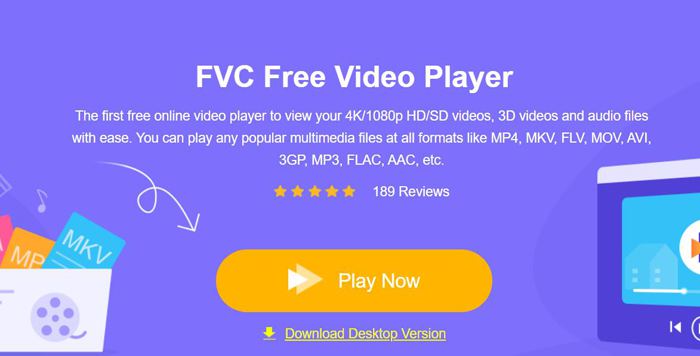
Annak érdekében, hogy elkerülje, hogy a Windows Media Player ne működjön, érdemes egy professzionális alternatívát választani. A FVC Free Video Player egy ingyenes online videolejátszó, amely megoldja az összes olyan problémát, amellyel a Windows Media Player használata közben találkozhat. Formátum- és felbontáskorlátozás nélkül támogatja a videók lejátszását. Ráadásul más szoftverek letöltése nélkül minden videóformátumot zökkenőmentesen lejátszhat.
- 1. Támogatja szinte az összes formátum lejátszását, beleértve az FLV, MKV, RMVB és DVD vagy Blu-ray fájlokat.
- 2. Játsszon kiváló minőségű videókat, amelyek elérik a 4K felbontást.
- 3. Képes a hangsávok és a feliratok különböző nyelveken történő beállítására.
- 4. Videók lejátszása közben bármikor készítsen képernyőképet.
1. lépés: Nyissa meg bármely böngészőben a FVC Free Video Player weboldalát. Ezután kattintson a 'Play Now' gombra a launcher telepítéséhez. Néhány perc múlva kattintson ismét a Play Now gombra az FVC Free Video Player elindításához.
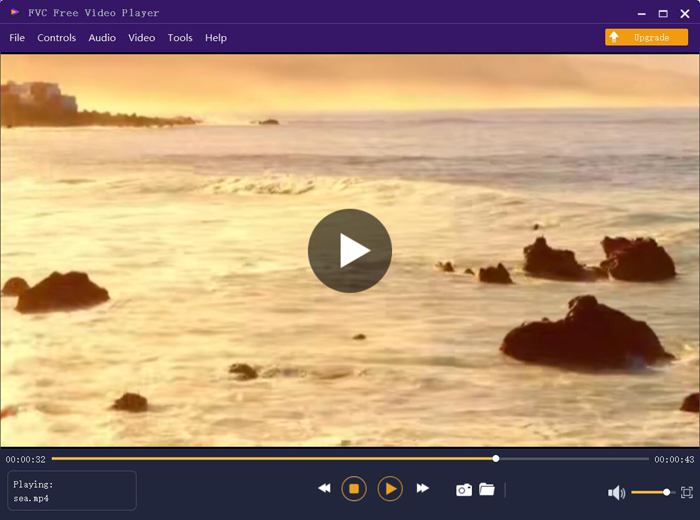
2. lépés: Kattintson az Open Files gombra a kívánt videó kiválasztásához. Ezután a lejátszás automatikusan elindul. A Control menüben láthatja a gyorsbillentyűket a hangerő beállításához. Emellett igény szerint kiválaszthatja a hang- vagy videósávokat is. Sőt, ha a Tools gombra kattint, majd az Effect opciót választja, a színtónust, a fényerőt, a kontrasztot, a telítettséget és a gammát is módosíthatja.
2. rész: A Windows 7/8/10 rendszeren nem működő Windows Media Player javítása
Amint azt korábban említettük, sok ok miatt a Windows Media Player nem működik, és 3 módszer létezik a probléma megoldására különböző helyzetekben.
1. módszer: Indítsa el a Windows Media Player hibaelhárítóját
Ha a Windows Media Player nem reagál kattintások után, ez segít megoldani.
1. lépés: Nyomja meg a billentyűzeten a Windows és az R gombokat a Futtatás program elindításához. Ezután másolja és illessze be a keresősávba a következőt: msdt.exe -id WindowsMediaPlayerConfigurationDiagnostic. Kattintson az OK gombra a Windows Media Player beállításainak hibaelhárítójához való ugráshoz. Ezután kattintson a Next gombra a hibaelhárító elindításához.
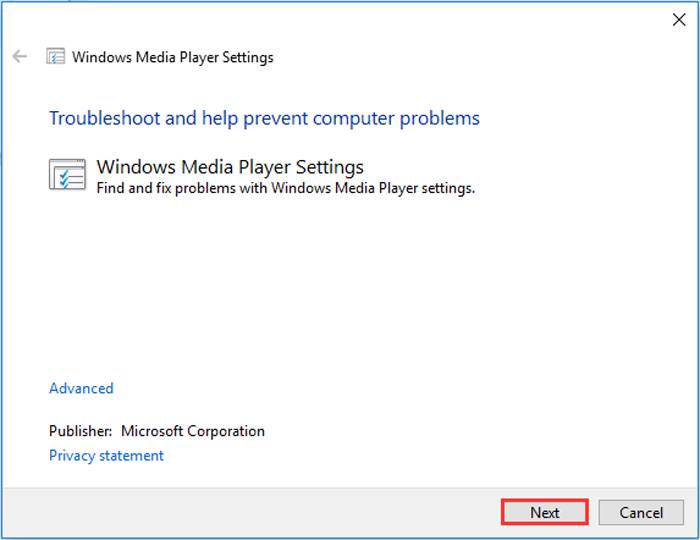
2. lépés: Miután megjelenik az ablak, kattintson az Apply this fix gombra, hogy visszaállítsa a Windows Media Playert az alapértelmezett beállításokra. Ezután próbálja meg újraindítani a Windows Media Playert.
2. módszer: Telepítsen más dekódereket a Windows Media Player-re
Ha a Windows Media Player nem működik speciális videókkal vagy audióval, letöltheti a válaszoló dekódert a videók lejátszásához.
1. lépés: Nyissa meg a Microsoft Store-t a számítógépén. Kattintson a Search gombra, majd írja be a keresősávba, hogy Video Extension. Ezután letöltheti a kívánt videobővítményt a számítógépére.
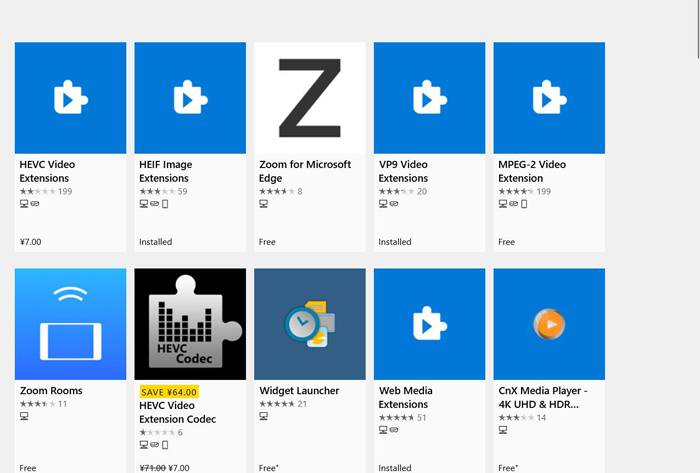
2. lépés: A telepítés után nyissa meg újra a videókat a Windows Media Playerrel. Arra viszont figyeljen, hogy továbbra is sok formátum marad nem támogatott, például az FLV, RMVB stb.
3. módszer: Telepítse újra a Windows Media Player programot.
Ha az említett módszer nem működik, próbálja meg újratelepíteni a szoftvert, amikor a Windows Media Player leáll.
1. lépés: Nyomja meg a billentyűzeten a Windows és az R gombokat a Futtatás program megnyitásához. Ezután írja be a keresősávba: optionalfeatures.exe. Kattintson az OK gombra a szolgáltatások be- vagy kikapcsolásához. Ezután vegye ki a pipát a Windows Media Player mellől.
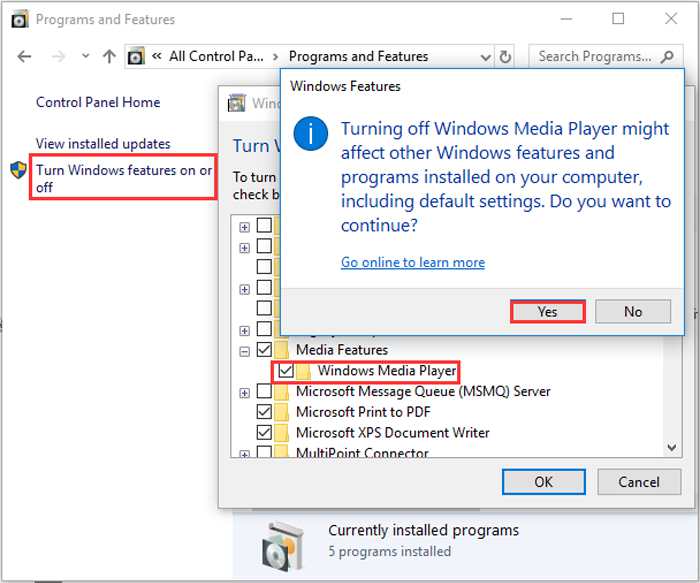
2. lépés: Indítsa újra a számítógépet, majd ismételje meg az előző műveletet. Ezután tegye vissza a pipát a Windows Media Player mellé. Ezt követően indítsa újra ismét a számítógépet, és a szoftver automatikusan újratelepül a gépére.
Ezeket a problémákat leszámítva a Windows Media Playernek számos hátránya van. Nem lehet beállítani a videó lejátszásának sebességét, és a gyorsbillentyűk mindig haszontalanok. Akkor miért nem választja az ingyenes online videolejátszót az összes probléma megoldására?
3. rész: Gyakran ismételt kérdések a Windows Media Player működéséről
1. Miért nem lehet az FLV videofájlokat lejátszani a Windows Media Player alkalmazásban?
Noha a Windows Media Player támogatja többféle dekóder telepítését, hogy ritkább formátumú videókat is le tudjon játszani, az FLV formátumot nem támogatja. Ilyen esetben megpróbálhat Windows Media Player alternatívákat letölteni, vagy átkonvertálni a videófájlokat más formátumba.
2. Miért nem működik a Windows Media Player a Windows 10 frissítések után?
Lehet, hogy a Windows Media Player megsérült a frissítés után. Kipróbálhatja az említett 3. módszert a Windows Media Player újratelepítéséhez.
3. Hogyan válasszuk ki a felirat sávokat a Windows Media Player-en?
Sajnos nincs lehetőség különféle feliratok, video- és hangsávok kiválasztására a Windows Media Player alkalmazásban. A videók lejátszásához más alternatívákat is választhat.
Következtetés
A Windows Media Player működésképtelenségének okai nagyon összetettek lesznek, ami megnehezíti a probléma megoldását. Így egyszerűen letöltheti a legjobb alternatív médialejátszót - az FVC Free Video Player alkalmazást, hogy kiváló minőségű videókat játsszon le simán. Ily módon megakadályozhatja a Windows Media Player örök működését.
-
 Hogyan lehet DVD-t játszani a Windows Media Player-en 2021-ben
 Miért nem játssza le a DVD -imet a Windows Media Player? Hogyan lehet DVD-t játszani Windows 7 médialejátszón? Ez a bejegyzés háromféle módon osztja meg a DVD-ket WMP-vel vagy anélkül.
-
 6 ellenőrzött megoldás a Chrome-ban nem lejátszott videók javítására
 Annak a problémának a megoldásához, hogy a videók nem játszódnak le a Chrome-ban, mindössze annyit kell tennie, hogy elolvassa a hibaelhárításunkat, és egyesével végrehajtja az ellenőrzött megoldásokat.
-
 5 100% működő megoldás az iPaden nem lejátszott videók javításához
 A videóid nem játszódnak le iPad-en? Íme öt megoldás, amelyek segítenek megszabadulni ettől a problémától, majd könnyedén élvezheti kedvenc videóit a kézibeszélőn.
