


 Video Converter Ultimate
 Screen Recorder
 Videó javítás
 Biztonságos letöltés
3 legjobb Facebook hívásrögzítő - Hogyan rögzíthetünk Facebook videohívásokat
Hogyan rögzítsd a Facebook videóhívásokat, hogy megőrizd a barátaiddal és a családoddal töltött értékes pillanatokat? Miután a Facebook bevezette a videóhívás funkciót, egyre több felhasználó inkább Facebook-hívásokon keresztül lép kapcsolatba másokkal, mint hagyományos telefonhívással. De mivel ez egy közösségi média platform kiegészítő kommunikációs szolgáltatása, nem rendelkezik olyan beépített rögzítő funkcióval, mint a telefonhívások. A külön alkalmazásként működő Facebook Messengerben sincs beépített felvevő. Ebben az esetben ebben a cikkben 3 könnyen használható Facebook hívásrögzítőt ismerhetsz meg számítógépre, iOS‑eszközökre és Android mobilokra, részletes útmutatókkal.

1. rész: A legjobb online Facebook hívásrögzítő Windows / Mac rendszerhez
Bármilyen harmadik féltől származó szoftver letöltése nélkül használhatod a FVC Free Screen Recorder online eszközt, hogy ingyen rögzítsd a Facebook videóhívásokat. Ez egy felhasználóbarát Facebook hívásrögzítő, letisztult felülettel és több, számodra hasznos funkcióval.
- 1. Rögzítse online módon a Facebook-hívásokat és videókat egyszerű lépésekkel.
- 2. Hangok és videók veszteségmentes rögzítése a kiváló minőségű videók megtartása érdekében.
- 3. Nincs vízjel a tulajdonjog védelme érdekében.
- 4. A felvételek automatikusan mentésre kerülnek a médiatárban, és választhat, hogy szabadon törli, letölti és megosztja-e az SNS-en.
1. lépés: Nyisd meg bármelyik böngészőben a FVC Free Screen Recorder weboldalát. Kattints a Start Recording gombra, hogy néhány másodperc alatt telepítsd az indítót, majd kattints ismét a Start Recording gombra a felvevő elindításához.
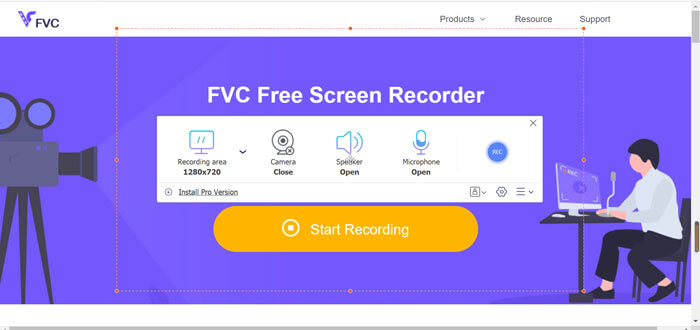
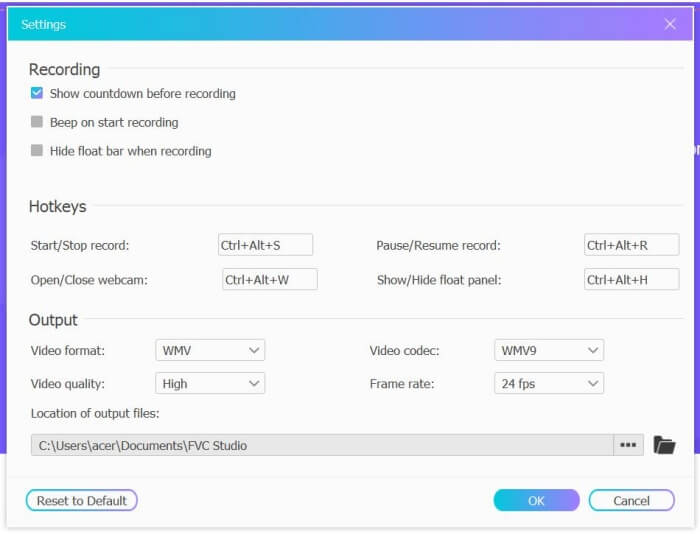
2. lépés: Kattints a Recording Area menüre, és válaszd ki a teljes képernyőt vagy tetszőlegesen a rögzíteni kívánt területet. Ezután kapcsold be a Microphone és a Speaker hangot. A videobeállítások módosításához kattints a Setting ikonra. Itt MP4 formátumot, magas minőséget és 24 fps képsebességet választhatsz a jó minőségű felvétel érdekében. Ezután kattints a REC gombra a Facebook‑hívások rögzítésének megkezdéséhez.
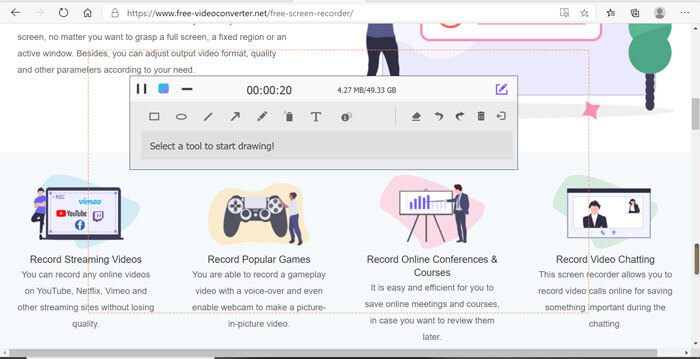
3. lépés: Megjelenik egy eszköztár több szerkesztőeszközzel. Igény szerint hozzáadhatsz alakzatokat, szöveget és vonalakat. Ezután kattints a Stop ikonra, hogy elmentsd a felvételt a felhőbe. Jobb egérgombbal kattintva letöltheted a számítógépedre is.
Ennek az ingyenes online Facebook videohívás-felvevőnek a használata a számítógép-felhasználók számára a legjobb módja a Facebook-videohívások online rögzítésének. A felvételi beállítások előzetes beállításával MP4 formátumban, kis méretben és kiváló minőségben mentheti a Facebook-hívásokat. Ha hozzászokott ahhoz, hogy Facebookon telefonáljon mobilon, olvassa el ezt a cikket.
2. rész: Hogyan rögzítsük a Facebook-hívást iOS-hez az alapértelmezett felvevő segítségével
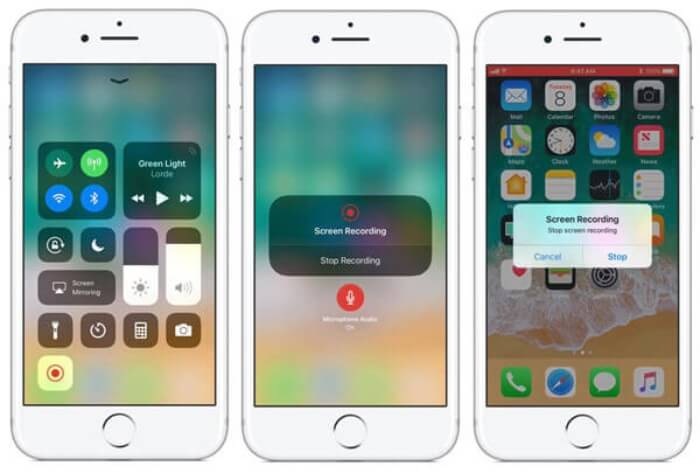
A frissített iOS 11 vagy újabb verzió iPhone-on és iPad-jén új alapértelmezett felvevő van, amely a legjobb választás a Facebook-os videohívások rögzítésére alkalmazás letöltés nélkül. Itt megtudhatja, hogyan kell hozzáadni a Facebook hívásrögzítőt a vezérlőközpont parancsikonjaihoz és annak használatát.
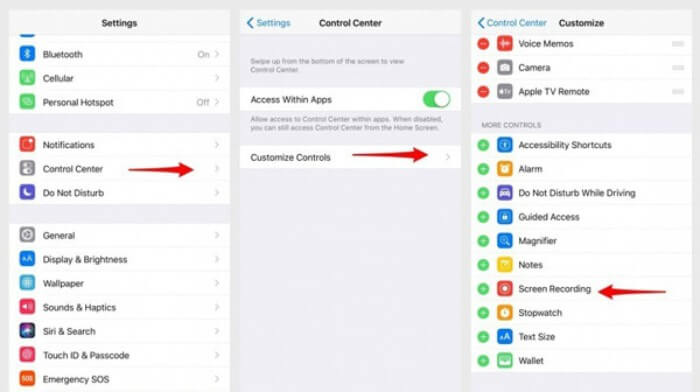
1. lépés: Nyisd meg a Beállítások alkalmazást iPhone‑odon vagy iPadeden, és görgess le a Vezérlőközpont menüponthoz. Ezután koppints a Vezérlők testreszabása fülre, és keresd meg a Képernyőfelvétel funkciót. Koppints a Plusz ikonra, hogy hozzáadd ezt a funkciót a vezérlőközponthoz.
2. lépés: Húzd le az ujjad a képernyő tetejéről a vezérlőközpont megnyitásához, és a képernyő alján megtalálod a felvétel ikonját. Koppints a Képernyőfelvétel ikonra a rögzítés indításához; választhatsz, hogy videót rögzítesz, vagy csak a hangot veszed fel. Ha be akarod fejezni, koppints felül a piros Állapotsáv sávra, majd a felugró ablakban a Stop opcióra.
3. rész: Egyszerű Facebook Messenger felvevő Android-hoz
Egyes Android telefonok nem rendelkeznek beépített felvevőkkel, és túl sok a Facebook videohívás felvevője, amelyek közül az Android választhat. Így megtanulhatja az Android mobilok egyik legjobb felvevőjét a következő rész részletes lépéseivel.
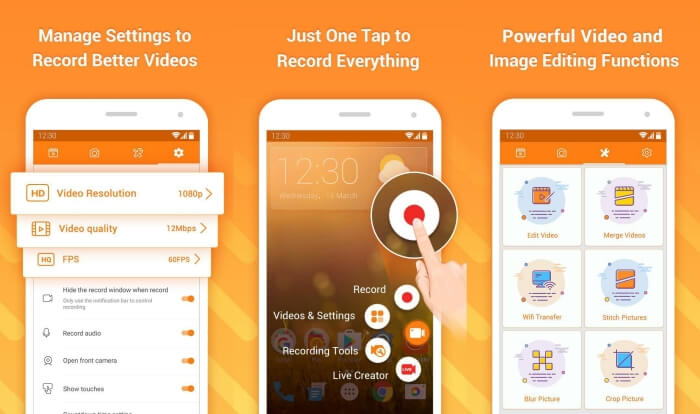
A DU Recorder egy könnyen használható Facebook hívásrögzítő Androidra, amely sima, akadozásmentes felvételéről ismert. Rootolás nélkül, bárki egyetlen koppintással rögzítheti vele a Facebook Messenger‑hívásokat.
1. lépés: Indítsd el a felvevőt; négy menüt látsz majd: felvételek, képernyőmentések, szerkesztőeszközök és beállítások. Először koppints a Settings menüre a videoparaméterek beállításához. A jó minőség érdekében választhatsz 1080p felbontást és 30 fps képkockasebességet.
2. lépés: Ne zárd be a felvevőt, csak indítsd el a Facebook Messengert. Ekkor megjelenik a felvevő ikonja. Koppints az ikonra, majd a Recording ikonra a képernyő és a hang rögzítéséhez. Újabb koppintással leállíthatod a felvételt. Ezután a Editing ikonra koppintva megvághatod a felvételt, és zenét adhatsz hozzá.
Ezek is érdekelhetik:
Action Screen Recorder értékelés
4. rész: A Facebook Call Recorder gyakran ismételt kérdései
1. Adja-e a Facebook az alapértelmezett felvevőt a videohívások PC-re történő rögzítésére?
Nem, nem. Így más professzionális Facebook hívásrögzítőkre kell támaszkodnia. Ha nem szeretne más szoftvert letölteni, amely elfoglalja a számítógépen lévő tárhelyet, akkor az FVC Free Screen Recorder a legjobb választás.
2. Hogyan kezdjünk el beszélgetni egy barátommal a Facebook Messager alkalmazásban?
Először nyissa meg a Facebook Messengert a mobilján, majd válassza ki annak a barátnak a csevegőmezőjét, akivel Facebook-hívást szeretne kezdeményezni. Most pedig láthatja a Videó ikont, így rákattintva elindíthatja a videohívást.
3. Milyen formátumot válasszam a felvételek mentéséhez a Facebook Messenger felvevők használatakor?
Akár számítógépes, akár mobil telefonon használ Facebook-hívásrögzítőt, a Facebook-videohívások mentésének legjobb formátuma az MP4. Több tárhelyet takaríthat meg, és kompatibilis az összes eszközzel.
Következtetés
A fenti cikk 3 Facebook videóhívás‑rögzítőt mutatott be. iPhone‑on, iPaden és egyes Android készülékeken egyszerűen használhatod a telefon beépített felvevőjét. Más esetben bármelyik külső alkalmazást választhatod, például a DU Recordert a Google Playről. PC‑n a FVC Free Screen Recorder a legjobb választás a Facebook‑hívások rögzítésére. Ha további problémákba ütközöl a Facebook hívásrögzítők használata közben, írd meg kérdésedet kommentben lentebb.
-
 Snagit 2021 Review - Előnyök, hátrányok és a legjobb alternatíva
 Mi a legjobb alternatíva a Snagit helyett? Van olyan képernyő-rögzítő eszköz, mint a Snagit? Ez a bejegyzés áttekinti a Snagit-ot, és megosztja a Snagit legjobb alternatíváját a képernyő rögzítéséhez.
-
 6 legjobb WAV-felvevő, amelyet nem szabad kihagynia asztali és online
 A cikkben megosztott legjobb WAV-felvevő szoftver számos hasznos funkcióval rendelkezik, amelyek segítenek a hang és a hang rögzítésében, mint a szakemberek.
-
 A legjobb 4 ingyenes AIFF hangrögzítő, amelyek kiváló minőségű hangot állítanak elő
 Ez a cikk az AIFF-ről és néhány olyan legnépszerűbb eszközről szól, amelyek segítségével kiváló minőségű AIFF formátumot állíthat elő.
