


 Video Converter Ultimate
 Screen Recorder
 Videó javítás
A 4 legjobb FLV-felvevő Chrome, Windows és Mac számítógépekhez
Elgondolkozott már azon, hogy mitől futnak át a látott videók az interneten? A legtöbb HTML 5 webhely WebM formátumot használ a videók lejátszására. A WebM mellett az FLV-t is használják. Leginkább az ingyenes film- és tévéműsorok ingyenes webhelyei. Honnan tudhatod, hogy FLV fájlról van szó? Általában, ha a videót nem lehet lejátszani, akkor egy hibaüzenet jelenik meg, amely szerint telepítse az Adobe Flash Player-t. Manapság sok videót beágyaznak FLV-fájlokba. Ha azonban akár a beépített felvevővel, akár egy másik felvevővel rögzíti a videót, nagy a valószínűsége annak, hogy a videó minősége megváltozik.
So, it will be better to use a recorder that can produce FLV files too or that can produce better quality regardless of the file format. If you are worried about the video quality being altered, discover FLV Recorders that do not require a registration for you to use them.

1. rész. A felhasználó legjobb választása – FVC Screen Recorder
Among the FLV Recorders seen online, FVC Screen Recorder is one of the crème de la crème or should we say in a simple word, it is the very best. User's demands are sometimes higher than what the product can give and not all can be the best choice. Other customers are searching for the best product that they should use. FVC Screen Recorder surpasses more than a thousand premium recorders, especially with your current recorder. With its seamless recording performance, you can get the most out of the video that you want to record. What's more, you can change the bit rate and the frame rate of the video that will result in better video quality. So it is a must that you must keep an eye on this best FLV recorder review. Meanwhile, to use the tool here is an easy-to-follow guide.
Step 1. Use the download buttons below to get the app. Install it and follow the guide until the app Is launched.
Ingyenes letöltésWindows 7 vagy újabb rendszerhezBiztonságos letöltés
Ingyenes letöltésmacOS 10.7 vagy újabb rendszerhezBiztonságos letöltés
Step 2. Choose between the tabs. Since we are trying to record a video, click on Video Recorder. After that a dotted frame will appear along with the floating bar.
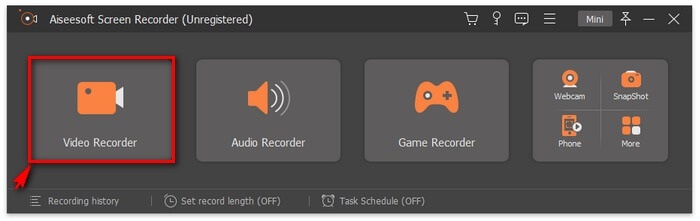
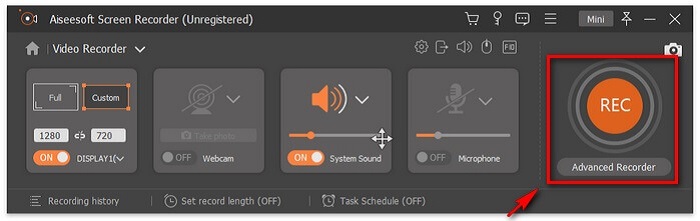
Step 3. Adjust the dotted frame to set the aspect ratio of the screen then click the REC button to begin recording.
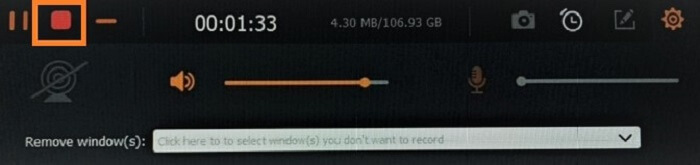
Step 4. To stop the recording, click the red Square button from the floating bar. From there, another window will pop. This is where you can choose to save or re-record if you are not satisfied with the output.
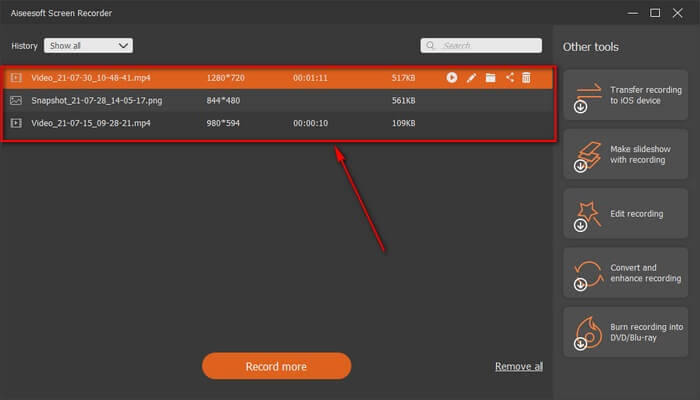
Step 5. Let us say you saved the file, the next window will allow you to choose the file location that will be saved. Choose the folder and click on Next.
2. rész Egyéb ingyenes FLV videórögzítő
FLV Recorder minden böngészőhöz – FVC ingyenes képernyőrögzítő
It is known for the fact that FVC Free Screen Recorder is lightweight and it also has a powerful feature. So, if you are a beginner who would like to record for fun you can use this, or if you are a professional who wants to record a business meeting. Either way, it works. The best feature this recorder provides is that you can record any part of your screen without being bothered by the tool floating bar. It automatically records the screen alone. Take as many screenshots without disturbance as you want with the help of the Lock-in screen feature. Without any discussion let's now proceed on how to use this FLV recorder. You must follow the step provided below.
Step 1. Visit the official website of FVC Free Screen Recorder and launch the app.
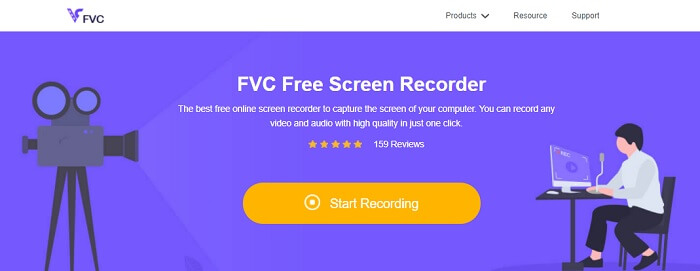
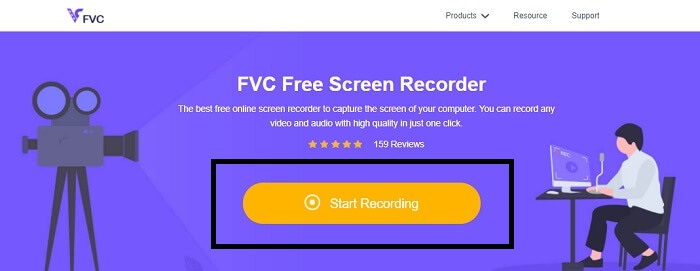
Step 2. Launch the tool by clicking the Start Recording and proceed to the next step.
Step 3. In its toolbar, click the gear button to change the settings according to your needs. If you are now in the preferences menu, find the Output and change the video format according to your wants. Click OK if everything is settled out.
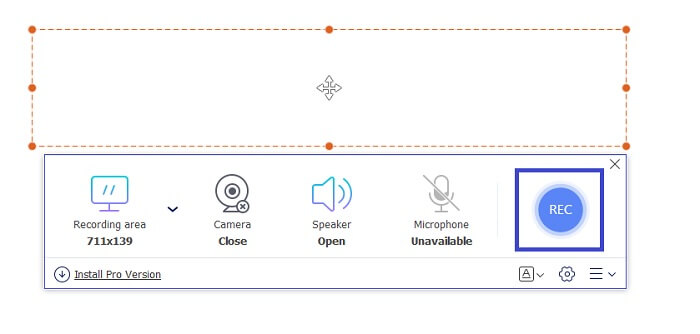
Step 4. On the floating toolbar, you can now adjust the frame ratio of the screen. Also, add the reaction of your face by turning the Webcam. System Sound is used to add the natural sound of the program. And at last, add your voice by turning the Microphone on. To start the FLV recording click the REC button to start.
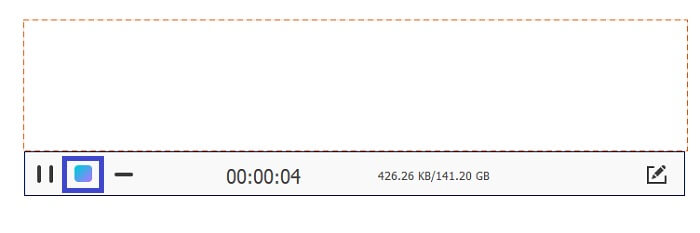
Step 5. To end the FLV recording, click the cube button to stop. After that, click Save and Next. All the recordings you perform are in the History list.
FLV-felvevő Chrome-hoz - SCREEN.IO
Ha nem szeretne további fájlokat letölteni a meghajtóra, használhatja ezt a beépített Chrome-felvevőt. Ez a Chrome-hoz készült FLV-felvevő rengeteg embernek segít az egész weben. Tehát, ha rajongója a helytakarékosságnak a tárhelyén, akkor ki kell próbálnia ezt a SCREEN.IO-t. Bár az eszköz nem nyújt olyan speciális funkciókat, amelyek hasonlóak egy másik felvevőhöz. De a rögzítési képessége nagyon szabványos. Ha egy Chrome-felvevőt és egy asztali felvevőt hasonlítunk össze, akkor az asztali számítógép a leghatékonyabb módja a rögzítésnek, mert nem bánja, ha az internetkapcsolat megszakad.
FLV Recorder for Windows - VLC Media Player
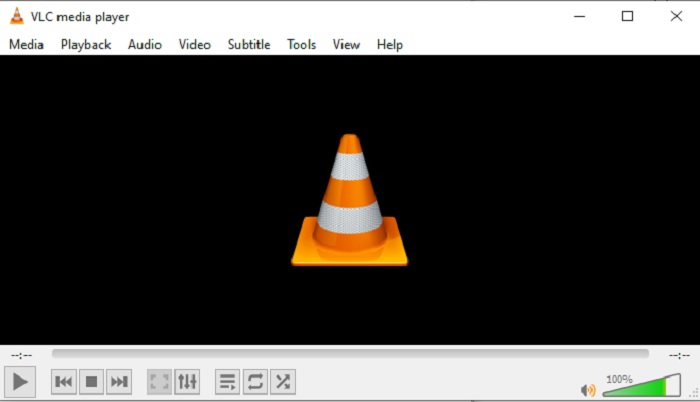
VLC Media player is not only renowned as the best media player in town. It also has several features like recording, converting, and more. Although it is the best media player, all of these mentioned features are not the best. And in some cases, video or audio formats are unplayable here because their codecs are proprietary. So, instead, you can use the VLC Media Player Alternative that supports even if the file is proprietary.
FLV Recorder for Mac - OBS Studio
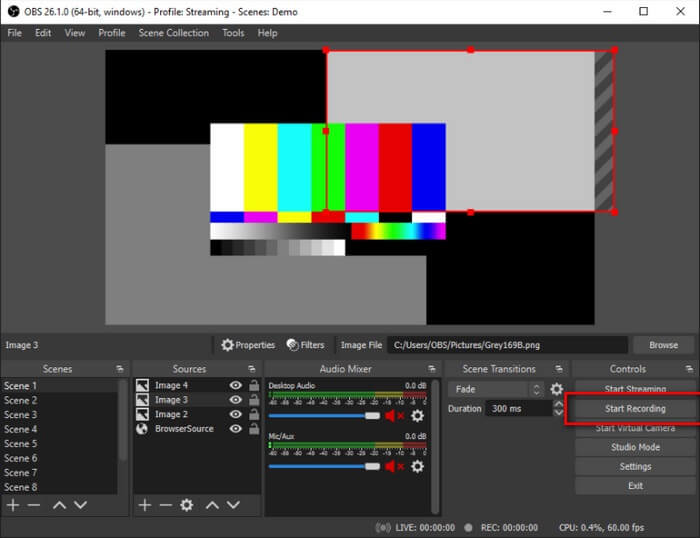
Maybe you're thinking that we forgot the Mac users. This FLV recorder for Mac is one of the powerful recorders in the list because you can do streaming also in here. Despite its amazing feature the tool itself is a bit intimidating especially if you are new to recording. Because there is a lot going on the interface when you open the tool.
3. rész. GYIK az FLV Video Recorderről
FLV fájl, biztonságos-e letölteni a számítógépemre?
Valójában nem erről a fájlról beszélünk, amikor a biztonságról van szó. Az FLV fájlok be vannak ágyazva a videómegosztó oldalakba, így a kérdésed az lenne, hogy hogyan állapíthatom meg, hogy a webhelyről letöltött videóban nincs-e rosszindulatú program? Használjon védőeszközt a számítógépéhez. Rengeteg szoftvervédőt és szkennert találhat az interneten. De maga a fájl biztonságos. Hacsak nem tesznek bele rosszindulatú programokat, biztonságos.
Milyen programmal lehet megnyitni az FLV fájlokat?
There are a lot of media players out there, but what I recommend is VLC player. This player is versatile and can play almost all file formats. Regardless if it's uncompressed or compressed. Click here to get more popular FLV players.
Mik az FLV fájlok előnyei?
Az FLV első nagy előnye, hogy képes kis méretben is kiváló minőségű videót készíteni. A fájl természeténél fogva rugalmas. Miért? Ezt a fájlt könnyedén konvertálhatja más formátumba akár online konverterek használatával is.
4. rész: Összehasonlító táblázat
| Jellemzők | FVC képernyőfelvevő | FVC Free Screen Recorder | VLC Media Player | OBS Stúdió |
| Screen Recorder |  | | | |
| Hangrögzítő | | | | |
| Támogatja az FLV-t | | | | |
| Multimédia lejátszó |  | | | |
| Állítható bitsebesség és képkockasebesség | | | | |
Következtetés
Az összes felsorolt eszköz segít az FLV-videók rögzítésében és a lehető legjobb videóminőségben. Továbbá, ha nem biztos abban, hogy melyik eszközt használja, tekintse meg az összehasonlító táblázatot. De a felsorolt FLV-felvevők között. Az FVC Screen Recorder nagyobb előnnyel rendelkezik az ablakzár funkció miatt.
-
 2021 leghasznosabb OGG-felvevője [ingyenes és online]
 Ez az írás a legjobb OGG rögzítési eszközökről szól, amelyek segítenek az OGG hangrögzítésben. Ha részletesebb információkat szeretne adni a felhasználónak, olvassa tovább.
-
 Az 5 legjobb M4B felvevő szoftver PC-hez és Mac-hez [ingyenes és fizetős]
 Az M4B felvétel veszteségesen tömörített az MPEG-4 hangoskönyv fájlhoz. Bizonyos szempontból az M4A és az M4B szinte gyakori, de vannak különbségek. Hogy megtudja, mi ez, olvassa el a cikket.
-
 A legjobb 5 legjobb AMR felvevő eszköz minden operációs rendszer számára
 Szeretné tudni, mi az AMR formátum, és melyik a legjobb AMR -felvevő, amelyet érdemes választania, és amely csodálatos felvételt biztosít.
