


 Video Converter Ultimate
 Screen Recorder
 Videó javítás
 Biztonságos letöltés
Játékmenet rögzítése PS5-re korlátozás nélkül [Átfogó irányelvek]
Mindössze három év alatt a PlayStation 5 szinte lerobbant a boltok polcairól. Megjelenése óta már több mint 50 millió darab talált gazdára, hiszen menő a hardvere, és 4K-s játékélményt nyújtó konzol. Ha szeretnéd megmutatni a játékbeli ügyességedet, vagy megosztanád epikus pillanataidat a rajongóiddal, a PS5-ön történő rögzítés remek megoldás. Ha azon tűnődsz, hogyan lehet felvenni PS5-ön, jó hír, hogy a konzol rendelkezik egy praktikus funkcióval, amellyel rögzítheted, szerkesztheted és megoszthatod játékélményeidet különböző platformokon. De pontosan hogyan is működik mindez? Maradj velünk, és megtudod, hogyan készíthetsz felvételeket és képernyőképeket PS5-ön, sőt azt is, hogyan csinálhatod mindezt egy korlátlan felvételi módszerrel.

1. rész: Játékmenet rögzítése PS5-ön
A PS5 minden bizonnyal rendelkezik egy beépített felvevővel, amely segít rögzíteni a lélegzetelállító játékmenetet. Érdemes azonban megjegyezni, hogy a konzol felvevőjének korlátai és hatékonysága van. Ha a hatékonyságról van szó, nyugodtan kijelenthetjük, hogy rendkívül hatékony a kiváló minőségű rögzített videók készítésében. Másrészt, ha a korlátairól van szó, ne feledje, hogy ez a konzol legfeljebb 60 perces játékidő rögzítését teszi lehetővé. Eltekintve attól, hogy támogatott kimeneti formátumként csak MP4 és WebM formátumban készíthet videókat.
Mindeközben arra a kérdésre, hogy hogyan lehet képernyőfelvételt készíteni a PS5 beépített játékrögzítőjén, engedje meg, hogy az alábbi lépések választ adjanak.
Játékmenet rögzítése
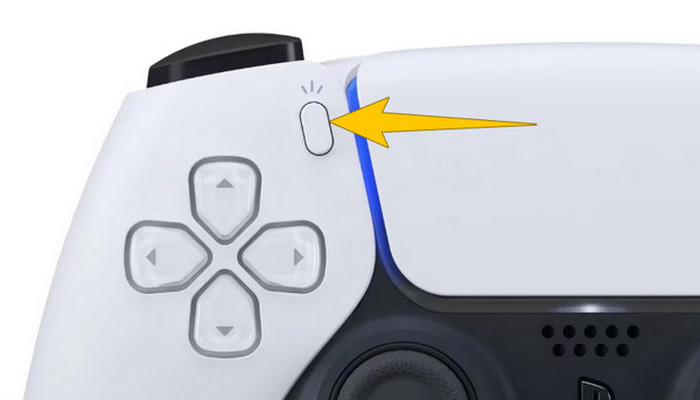
1. lépés. Fogd a DualSense kontrollert, és nyomd meg a gombot a nyilak felett. Ez jelöli a Create (Létrehozás) funkciót, és akkor kell megnyomni, amikor el akarod kezdeni a játékmenet rögzítését.
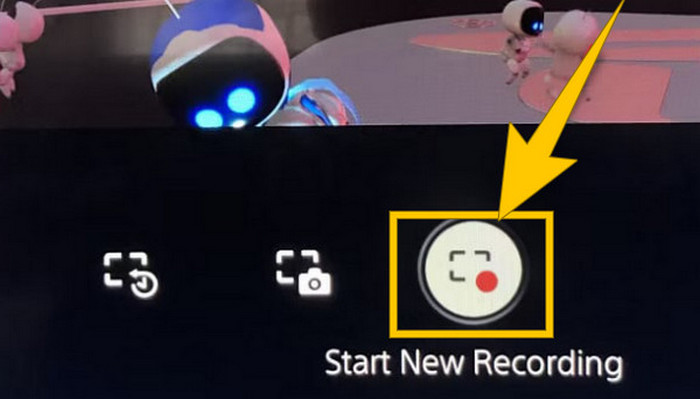
2. lépés. A gomb megnyomása után nézz a képernyőre, és kattints a Start New Recording (Új felvétel indítása) opcióra. Ezt az alsó részen fogod látni. A felvétel azonnal elindul, így máris kezdheted a játékot.
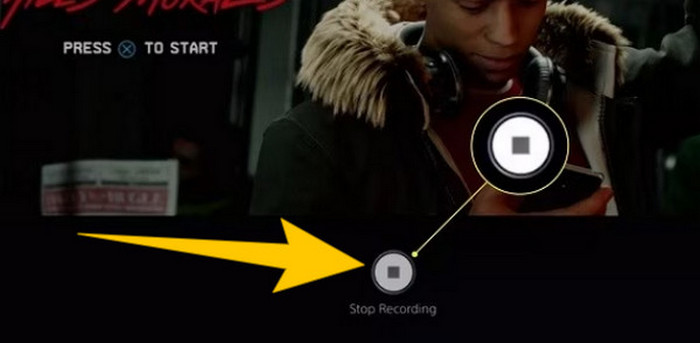
3. lépés. Ha végeztél a játékkal, íme, hogyan tudod leállítani a játékmenet rögzítését PS5-ön. Egyszerűen nyomd meg újra a Create gombot, és ezúttal válaszd a Stop Recording (Felvétel leállítása) opciót, amely megjelenik a képernyőn.
Töltse le a felvételeket
A felvétel után a PS5 automatikusan elmenti a kimenetet a Media Gallery-be, ahol az összes fájlt tárolja. Ha most szeretné megtartani a másolatot a különálló készülékére, akkor nem szerencsés közölni, hogy az említett galériában nincs letöltési lehetőség. Azonban még mindig van mód a fájlok megtartására.
1. lépés. Csatlakoztasd a külső SD- vagy USB-meghajtót a konzolodhoz. Ezután lépj a Media Galleryre (Médiagaléria), és nyisd meg.
2. lépés. Válaszd ki a legutóbb elmentett képernyőfelvételt. Ezután kattints az Ellypsis vagy hárompontos gombra a képernyő alján, a többi megjelenő opció mellett.
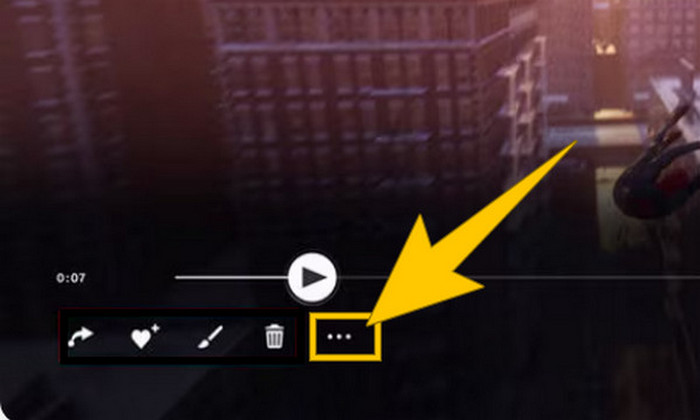
3. lépés. A gombra kattintva válaszd a Copy to USB Drive (Másolás USB-meghajtóra) opciót, hogy elkezdődjön a felvett videó másolása az USB-re. Ha elkészült, másold át a videót arra az eszközre, ahol a felvételt tárolni szeretnéd.
2. rész: Képernyőfelvétel PS5-ön 4K minőségben korlátlanul
Ne aggódj amiatt, hogy a PlayStation 5 alapból csak legfeljebb egy óra játékmenetet enged jó minőségben rögzíteni. Tudjuk, hogy ez sok játékos számára frusztráló, és nem is minden játék támogatja megfelelően. Ha tehát korlátlan ideig szeretnél 4K minőségben rögzíteni minden PS5-játékot, érdemes kipróbálnod az FVC Screen Recorder programot. Ez a képernyőfelvevő nem korlátozza a felvétel hosszát, csak a számítógéped tárhelye szab határt. Ráadásul nem lassítja a játékmenetet sem. Ezzel a fantasztikus játékrögzítővel a felvételeket mentés előtt is finomhangolhatod: vághatod, egyesítheted, tömörítheted, konvertálhatod, módosíthatod a metaadatokat, javíthatod a minőséget, és egyszerűen megoszthatod a kiválasztott platformokon.
Azt is érdemes megjegyezni, hogy az FVC Screen Recorder különféle rögzítési eszközöket kínál a felvételi feladatokhoz. Felvehet vele videót, hangot, ablakokat, webkamerákat, telefonokat stb. Figyelemreméltó, hogy vízjelek nélkül is élvezheti felvételeit! Tehát, ha többet szeretne megtudni az FVC képernyőrögzítőről, kövesse az alábbi lépéseket a képernyőrögzítés PS5 rendszeren történő megtekintéséhez.
1. lépés. Szerezd be az FVC Screen Recorder programot úgy, hogy letöltöd a számítógépedre. Ehhez kattints a Free Download (Ingyenes letöltés) gombra, majd kövesd az utasításokat a telepítéshez és a program megnyitásához.
Ingyenes letöltésWindows 7 vagy újabb rendszerhezBiztonságos letöltés
Ingyenes letöltésmacOS 10.7 vagy újabb rendszerhezBiztonságos letöltés
2. lépés. Amikor megjelenik az FVC felülete, keresd meg és kattints a Game Recorder (Játékfelvevő) eszközre. Ez a képernyő jobb-középső részén található. Innen kattints a kis nyílra a Select the Game (Játék kiválasztása) mellett, hogy kiválaszd azt az ablakot, ahol a PS5 képe megjelenik.
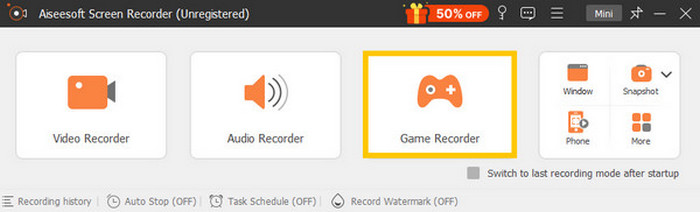
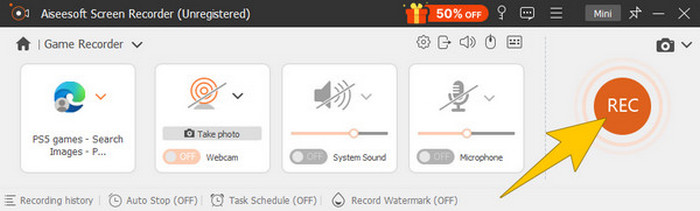
3. lépés. Miután kiválasztottad az ablakot, észre fogod venni, hogy a felvevő arra a területre fókuszál. Ráadásul eldöntheted, hogy szeretnéd‑e beilleszteni a webkameraképet kép‑a‑képben módban, illetve hogy a rendszerhangot és a mikrofonhangot is rögzítse‑e. Ha mindent beállítottál, kattints a REC gombra, és kezdődhet a játék és a felvétel.
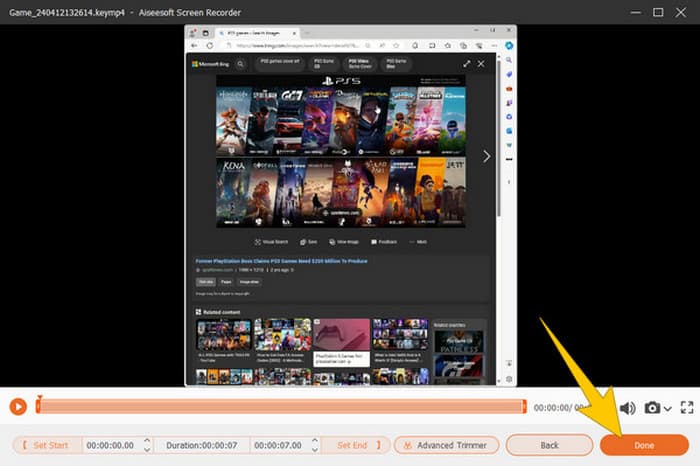
4. lépés. Ha befejezted a felvételt, kattints a Stop gombra a lebegő vezérlősávon. Ezután az új ablakban elérhető szerkesztőeszközökkel módosíthatod a videót. Ha elkészültél, kattints a Done (Kész) gombra, hogy elmentsd a felvételt a galériádba.
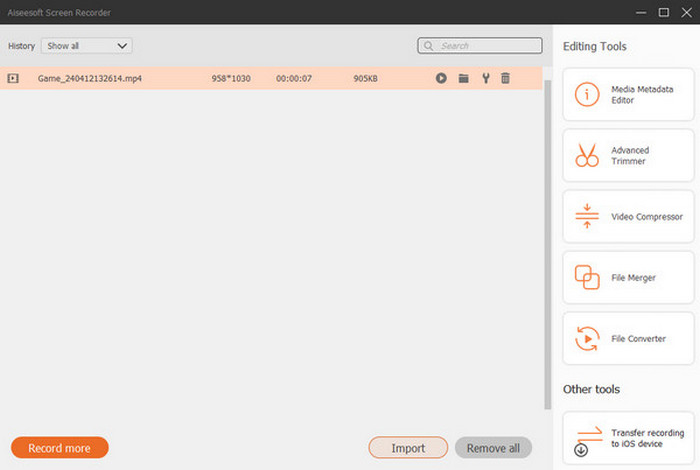
5. lépés. Ez egy opcionális lépés. Ha meg szeretnéd osztani a felvételedet a közösségi médiafiókjaidban, kattints jobb gombbal a legutóbbi játékmenetfelvételedre, majd válaszd a Share (Megosztás) opciót. Emellett további fejlett szerkesztőeszközöket is használhatsz a felvételek továbbjavítására.
Ha többet szeretne megtudni erről a felvevőről, itt további tippeket találhat.
További olvasnivaló
5 hatékony módszer a képernyő GIF formátumban történő rögzítésére Macen és Windowson
Hogyan rögzítsd az elképesztő mutatványokat, clutchöket vagy útmutatókat Minecraftban
3. rész. GYIK a játékmenet rögzítésével kapcsolatban PS5-ön
Hogyan lehet kikapcsolni a játék rögzítését PS5-ön?
A játékmenet rögzítésének kikapcsolásához vagy leállításához PS5-ön csak meg kell nyomnia a Létrehozás gombot a játékvezérlőn. Ezután a képernyőn kattintson a Felvétel leállítása lehetőségre.
Hol láthatom a rögzített játékmenet klipjeimet a PS5-ön?
A rögzített játékmenet-klipek a főgaléria Rögzítés szakaszában tárolódnak. Ezt a galériát a kezdőképernyőről érheti el. Ezzel megtekintheti, szerkesztheti és megoszthatja klipjeit, ahogy a galériája lehetővé teszi.
Hogyan oszthatom meg a felvételeimet PS5-ön?
A PS5-re való felvétel után megoszthatja klipjeit közvetlenül a Capture Gallery-ből. Csak ki kell választania a megosztani kívánt klipet, kattintson az Opciók gombra a vezérlőn, és válassza a Megosztás lehetőséget.
Következtetés
Mostantól nem kell többé azt kérdezgetned, hogyan lehet felvenni PS5-ön, hiszen ez a cikk bemutatta az alapértelmezett és egyben legjobb módszereket. Így kiváló minőségű és hosszú játékmenet-felvételeket készíthetsz a neked tetsző játékokról. Oszd meg ezeket a megoldásokat játékostársaiddal is, hogy ők is ugyanolyan izgalmas rögzítési élményt élvezhessenek PS5-ön!
-
 5. a vezető játékrögzítő szoftverről, amelyet egy játékosnak ismernie kell [2024]
 Játékos vagy, aki játékfelvételt szeretne készíteni? Akkor ez a cikk bemutatja a legjobb játékrögzítőt, amellyel új játékmagasságokat tapasztalhat meg.
-
 Az 5 legjobb Android-képernyőrögzítő alkalmazás, amelyet 2024-ben meg kell szereznie
 Problémái vannak, mert nem tud képernyőfelvételt készíteni Android-eszközén? Ha igen, ez a cikk áttekintette azokat az Android képernyőrögzítőket, amelyekről letöltheti.
-
 Az 5 legjobb zoom-megbeszélés-rögzítő a találkozók rögzítésére a Zoom segítségével [2024]
 Rögzítenie kell egy zoom-megbeszélést, hogy ne maradjon le a találkozó fontos részleteiről? Ha igen, ez a cikk a legjobb zoom rögzítőket tartalmazza, amelyeket tudnia kell.
