


 Video Converter Ultimate
 Screen Recorder
 Videó javítás
 Biztonságos letöltés
Web Launch Recorder - 4 ingyenes módszer a képernyőn megjelenő tevékenységek rögzítésére letöltés nélkül
Van egyszerű módja annak, hogy videókat, például népszerű játékvideókat, videohívásnaplókat, konferenciavideókat rögzítsen, és elmentse őket gyűjteményeként? Az ingyenes webindító felvevők mindig az első választás a képernyős videók rögzítésére, amelyek webalapú szolgáltatások a képernyőn megjelenő tevékenységek rögzítésére. Csak tudjon meg többet a kiváló webindító rögzítőkről, hogy elindítsa a képernyőrögzítési funkciót az interneten.

1. rész: A legnépszerűbb 4 ingyenes internetes indító felvevő
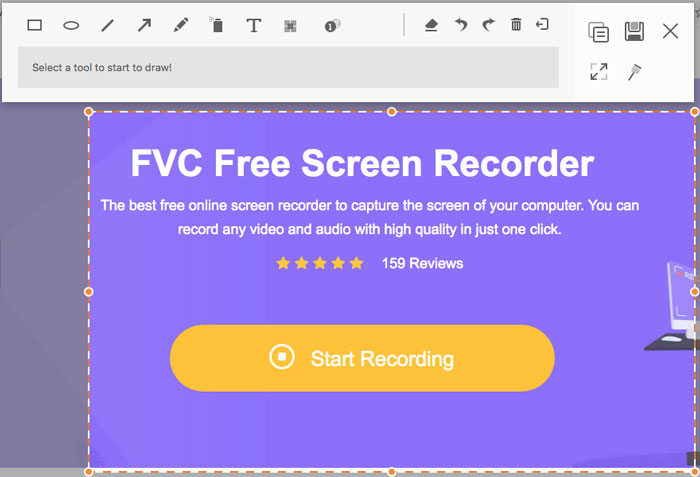
1. legjobb: FVC Free Screen Recorder
A FVC Free Screen Recorder egy ingyenes, böngészőből indítható képernyőfelvevő, amely bármelyik webböngészőben használható. Lehetővé teszi bármilyen videó és hang rögzítését vízjelek hozzáadása nélkül. Testre szabhatja a felvételi területet, például teljes képernyőt vagy csak a képernyő egy részét választhatja videórögzítéshez. Emellett a felvételt különböző fájlformátumokba, például MP4 és WMV formátumba exportálhatja.
1. Ingyenes online képernyőfelvevő regisztráció vagy egyéb korlátozás nélkül.
2. Adjon valós idejű sorokat és szöveget a képernyőfelvétel jegyzetéhez.
3. Helyezze a webkamera és a mikrofon hangját a képernyõbe.
4. Tekintse meg az összes korábbi felvételi fájlt a felvételi előzmények listájáról.
Top 2: Screencast-O-Matic
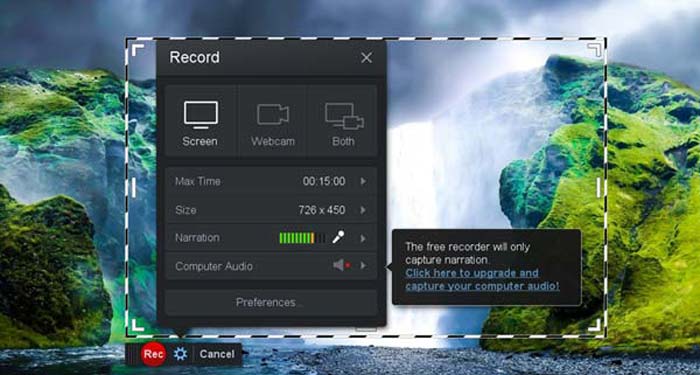
A Screencast-O-Matic egy webalapú képernyőfelvevő, amellyel egyszerűen rögzítheti a képernyő bármely területét. Lehetővé teszi, hogy a videót közvetlenül egy videómegosztó platformra töltse fel. Ezenfelül használhatja a szövegfelolvasó eszközöket, az automatikus feliratozást és még számos egyéb funkciót.
Előnyök
- 1. Testreszabhatja a felvételi területet, például a teljes képernyőt vagy annak egy részét.
- 2. Töltse fel a felvételeket a Screencast-O-Maticba, a Google Drive-ba stb.
- 3. Adjon hozzá hangos elbeszélést, állományzenét és feliratot, és könnyebben.
Hátrányok
- 1. A felvétel minősége nem elég jó.
- 2. Ennek az online képernyőfelvevőnek van időbeli korlátozása.
A 3. felső: Clipchamp
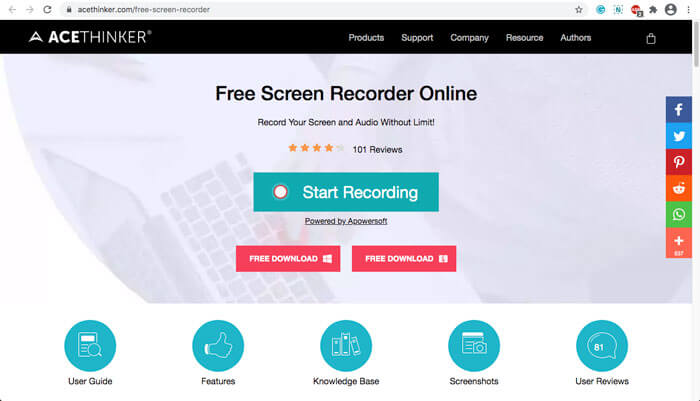
A Clipchamp egy nagyon kényelmes, ingyenes, online, böngészőből indítható felvevő. Használhatja videók rögzítésére és feltöltésére, valamint videók tömörítésére az eredeti minőség romlása nélkül. Emellett számos funkcióval rendelkezik, például külső mikrofon használatának lehetőségével, különböző felbontásokkal stb.
Előnyök
- 1. Rögzítse a teljes képernyőt, egy előre beállított felvételi területet vagy egy testreszabott képet.
- 2. Lehetővé teszi a rögzített videók konvertálását más népszerű videó formátumokra.
- 3. Elbeszéléssel és mikrofonnal történő hangfelvételeket képes rögzíteni.
Hátrányok
- 1. Teljes funkcionalitás érdekében frissítenie kell a Pro verzióra.
- 2. Nem lehet közvetlenül szerkeszteni a felvételt az online média könyvtárban.
2. rész: A képernyő rögzítése a Web Launch Recorder segítségével
Amikor arra kerül a sor, hogy hogyan rögzítsen képernyővideókat egy böngészőből indítható felvevővel, vegyük példának a FVC Free Screen Recorder programot. Az alábbiakban megismerheti a részletes lépéseket.
1. lépés: Ha ingyen szeretné rögzíteni a képernyőt, lépjen a böngészőből indítható felvevő oldalára, és kattintson a kezdőlapon található Start Recording gombra. Ekkor letöltődik a böngészős indító. Telepítse a programot, majd indítsa el a számítógépén.
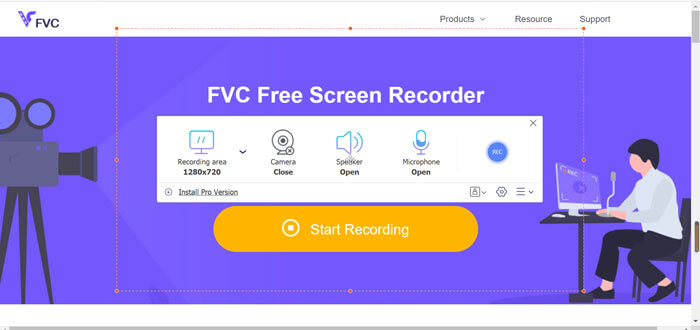
2. lépés: Az alkalmazás elindítása után láthatja az alkalmazás felvételi beállításait. Itt a Recording area opcióra kattintva választhat teljes képernyős vagy részleges képernyőrögzítést, illetve bekapcsolhatja a Speaker menüt a hangfájlok rögzítéséhez. Ha narrációval ellátott videót szeretne készíteni, kapcsolja be a Webcam opciót.
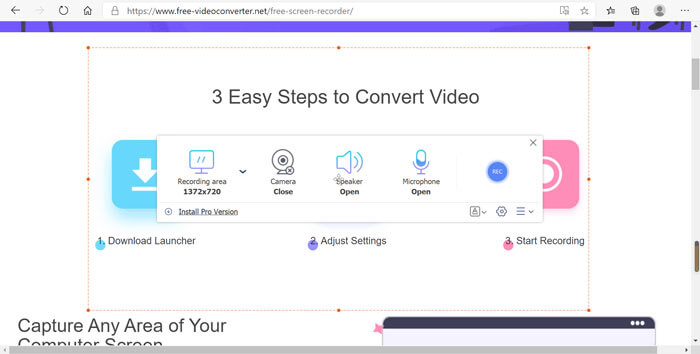
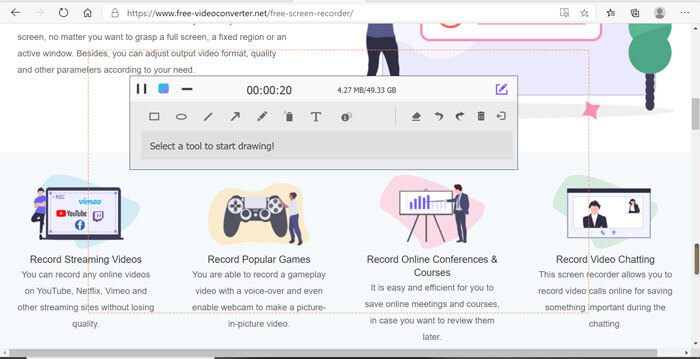
3. lépés: Ha további fájlbeállításokat szeretne módosítani, keresse meg a Gear ikont a böngészőből indítható felvevő jobb alsó sarkában, és ott testre szabhatja az opciókat. A felugró beállítások ablakban módosíthatja a rögzített fájl tárolási helyét és a kimeneti fájl formátumát.
4. lépés: Ezután kattintson a REC gombra a felvétel indításához. Amikor a felvétel elkészült, kattintson a Stop gombra a folyamat befejezéséhez. A böngészőből indítható felvevő alján található háromvonalas ikonra kattintva megnyithatja és kezelheti a rögzített videók listáját.
3. rész: GYIK a Web Launch Recorder-ről
1. Hogyan rögzíthetek képernyőt webkamerával?
Amikor a böngészőből indítható felvevő aktív, az interfészen megtalálhatja és bekapcsolhatja a webkamera funkciót, majd beállíthatja a webkamera-ablak méretét, visszatérhet a fő felületre, és a REC ikonra kattintva elindíthatja a felvételt a beépített webkamerán keresztül.
2. Miért nincs hang a képernyőfelvételemen?
A program fő felületén lehetőség van a rendszer hangjára és a mikrofonra. Felvétel előtt elfelejtheti bekapcsolni őket. Felvétel előtt ellenőrizze, hogy engedélyezve van-e ez az opció, hogy hanggal rögzített videót kaphasson.
3. Hogyan tölthetem fel a videóimat a YouTube-ra?
Indítsa el az ingyenes webindító rögzítőt, keresse meg és kattintson a felület jobb alsó sarkában található háromsoros ikonra. Ezután keresse meg a feltölteni kívánt videót a felugró felvételi listából, és kattintson az alábbi megosztás ikonra. Végül válassza ki a videót a médiaplatformról, és a rögzített videó könnyedén megosztható bármely platformon.
Következtetés
Összefoglalásképpen, ez a cikk bemutatja a piac 4 legnépszerűbb ingyenes online webes felvevőjét, és részletesen bemutatja az FVC Free Screen Recorder, az egyik legjobb online alkalmazás videofelvételi módszerét. Segíthet ingyenes videó és hangfelvétel rögzítésében a minőség károsítása nélkül.
-
 6 legjobb WAV-felvevő, amelyet nem szabad kihagynia asztali és online
 A cikkben megosztott legjobb WAV-felvevő szoftver számos hasznos funkcióval rendelkezik, amelyek segítenek a hang és a hang rögzítésében, mint a szakemberek.
-
 QuickTime képernyőfelvétel - Videofelvétel hanggal Mac és PC-n
 Hasznos a felvételi képernyő, amelyen hang van a Mac-en. A beépített lejátszó, a QuickTime Player képes rá. Olvassa el a bejegyzését, és tudja, hogyan készítsen hangos képernyőt Mac és PC-n.
-
 DU Recorder Review 2021: Biztonság, ár és funkciók, használat és értékelések
 A DU Recorder egy képernyő és hangrögzítő iPhone és Android készülékekhez. Érdemes letölteni? Biztonságos? Olvassa el a teljes értékelést, hogy lássa, az alkalmazás megfelel-e Önnek.
