


 Video Converter Ultimate
 Screen Recorder
 Videó javítás
Legyen széleskörű kritika a szinkronizálás kiküszöbölésében [Hang és videó]
Holnapra online beszámoló projekted van az órádra. Épp a legjobb alkalmazásokat vagy szoftvereket keresed, amelyekkel felveheted a videódat, hogy elkészítsd a holnap beadandó beszámolót. Ahelyett azonban, hogy megoldást találnál a problémádra, káosz és gondok kezdenek el túlgondolkodásra késztetni, mert az audió és a videó nincs szinkronban. Nem kell aggódnod a helyzeted miatt, mert ma szerencsés napod van: ez a cikk mindent tartalmaz, amit tudnod kell ahhoz, hogy megoldást találj a problémádra.

1. rész Miért nincs szinkronizálva a hang a videóval?
A hang és a kép több okból is nem szinkronban lehet, többek között a következők miatt: Az adás vagy a kábeles/műholdas set-top box közötti kapcsolat lehet a probléma TV-műsor nézésekor. Egy megbízhatatlan DVD- vagy Blu-ray DiscTM-lejátszó, vagy maga a lemez lehet a hibás, ha ezen eszközök egyike csatlakozik a TV-hez. Ha házimozi-rendszere optikai kábelen keresztül csatlakozik a TV-hez, akkor előfordulhat, hogy hang késést észlel, amelyet manuálisan kell kijavítani. Másrészt a TV beállításai is okolhatók.
2. rész. 3 legjobb bevált eszköz: Hang és videó szinkronizálása
1. Használja a Video Converter Ultimate programot
Számos mód és szoftver érhető el az interneten, amelyek segíthetnek az adott probléma megoldásában, és ez az egyik legjobb eszköz, amelyet javasolunk. Töltse le számítógépére az FVC Video Converter Ultimate szoftvert, amely különféle funkciókkal rendelkezik, amelyek javítják a videoklipet. Az egyik kínált szolgáltatás kijavíthatja a videoklipek hang- és képszinkronizálási problémáját a Windows 10 rendszerben – például – a késleltetés beállításával. Kövesse az alábbi lépéseket a szoftver használatának megismeréséhez:
1. lépés: A szoftver letöltéséhez az asztali gépedre kattints az Ingyenes letöltés gombra. Ezután telepítsd a szoftvert, és állítsd be a telepítést igényeid szerint. Ha minden rendben van, indítsd el a szoftvert a telepítés után.
Ingyenes letöltés Windows 7 vagy újabb rendszerre Biztonságos letöltés
Ingyenes letöltés macOS 10.7 vagy újabb rendszerre Biztonságos letöltés
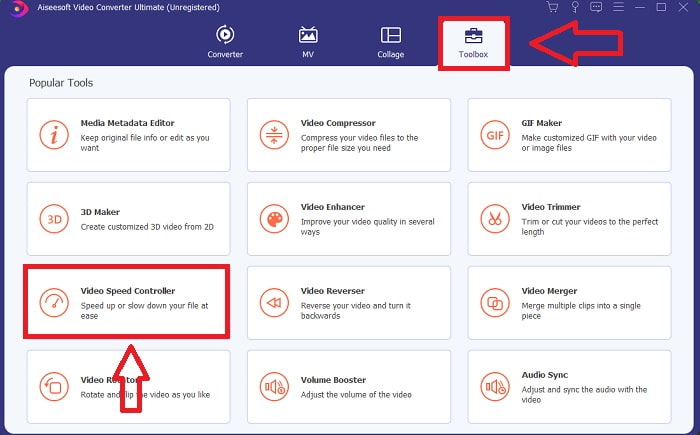
2. lépés: A fő felületen kattints az eszköztárban található Toolbox funkcióra, majd válaszd az Audio Sync lehetőséget.
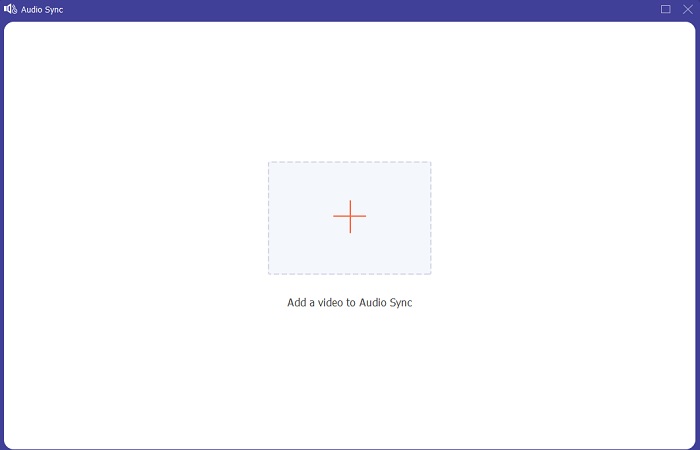
3. lépés: Adj hozzá bármilyen fájlt a + gomb megnyomásával a kívánt helyről, majd kezdd el a videoklip szerkesztését.
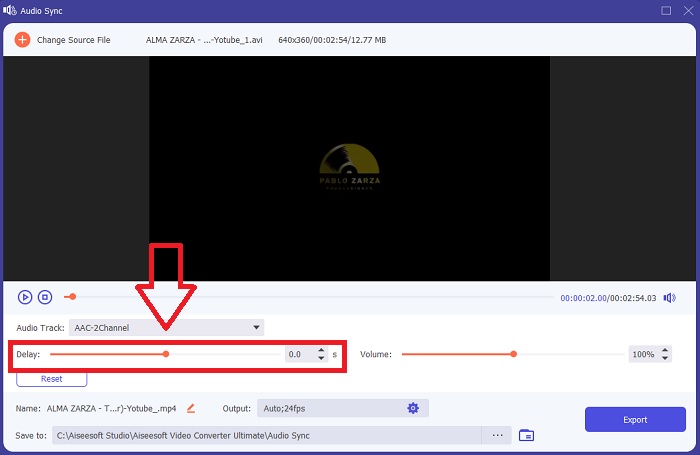
4. lépés: Állítsd be az audió csúszkáját, hogy szinkronba hozd a videoklippel. Emellett megváltoztathatod a kimeneti eszközt, és testre szabhatod a videoklip hangerejét is.
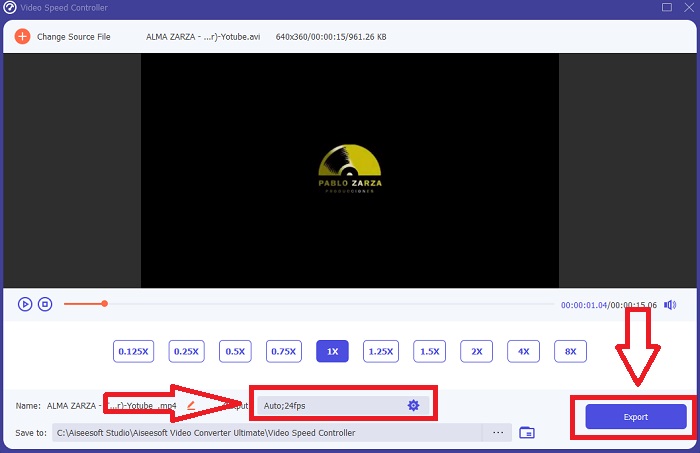
5. lépés: Ha befejezted a videoklip szinkronjának szerkesztését, kattints az Export gombra, és válaszd ki, hova szeretnéd menteni a fájlt.
2. Használja a VLC Media Playert
A VLC médialejátszó egy olyan alkalmazás, amely minden operációs rendszeren elérhető: Windows, Mac, iPhone és Android alatt is. Bár minden eszközön hozzáférhető, mindegyiken más-más módon lehet javítani a hangkésést, illetve szinkronba hozni a videoklip hangját. Ez a médialejátszó gyakran ismert a hibás működéséről, de használhatod arra is, hogy véglegesen kijavítsd az audió és videó szinkronhibáját.
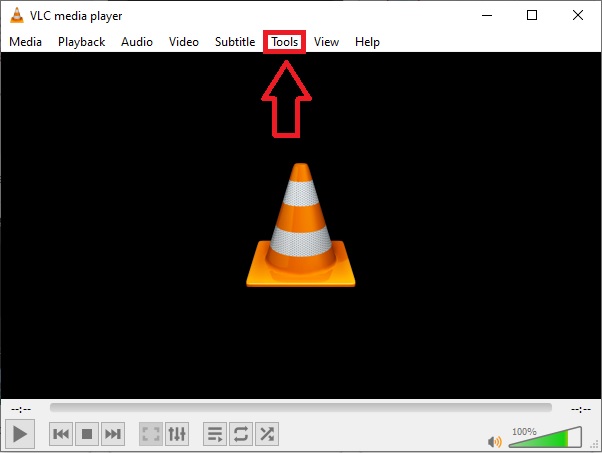
1. lépés: Nyisd meg a VLC médialejátszót Windows alatt, és kattints az Eszközök menüpontra. Miután rákattintottál az Eszközök fülre, válaszd a Beállítások lehetőséget.
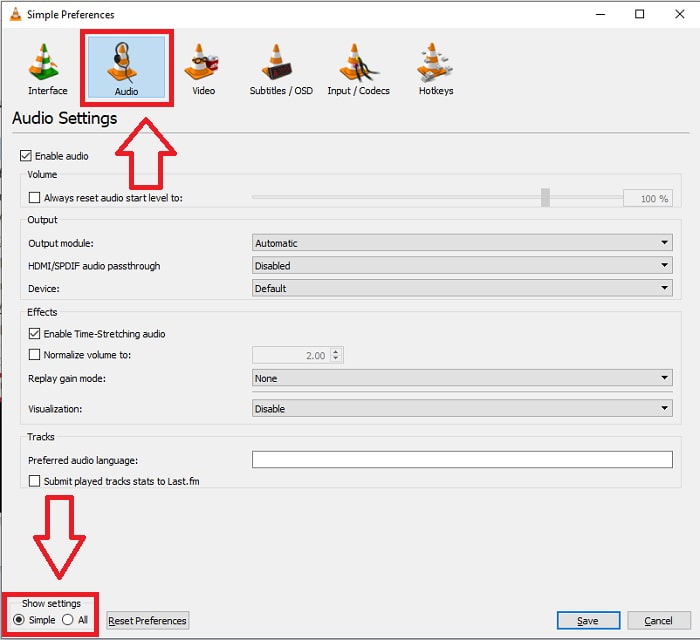
2. lépés: Egy új felület jelenik meg a képernyőn. Folytasd a folyamatot az Audio fülre kattintva. Bal alsó sarokban válaszd az Összes lehetőséget, hogy hozzáférj a speciális beállításokhoz.
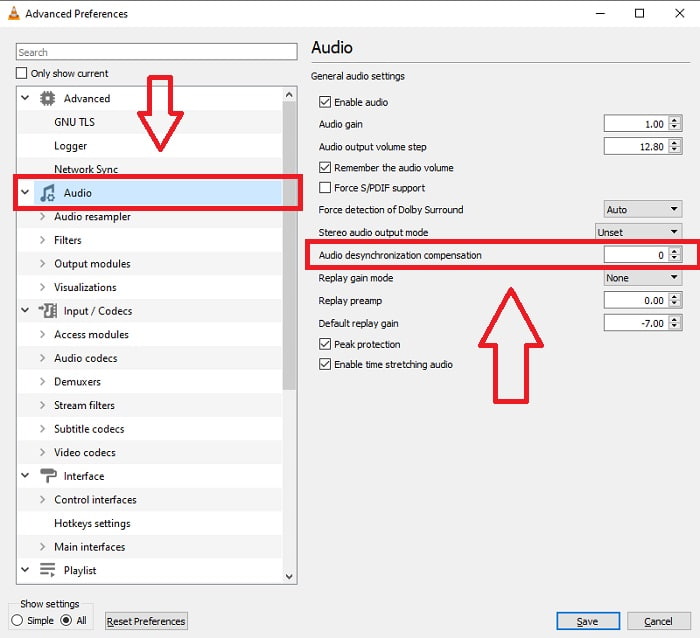
3. lépés: A speciális beállítások teljes körű opciókat biztosítanak. Keresd meg az Audio részt a speciális beállítások fülön. Miután rákattintasz, látni fogod az általános hangbeállításokat, és módosíthatod az Audio Desynchronization Compensation értékét. Ha a hang lemarad a videó mögött, állítsd az értéket pozitívra a kompenzáláshoz. Ha a hang a videó előtt jár, negatív értékeket kell használnod. A VLC szinkronhiba ezzel a folyamattal véglegesen kijavítható.
Összefüggő:
Hogyan javítható ki, ha a VLC lejátszó nem játssza le az MKV-fájlt
Hogyan javítható a VLC, ha nem játssza le a DVD-t
3. Használja a Premiere Pro programot
Ha műsorszórási minőségű, nagy felbontású videót szeretnél készíteni, a Premiere Pro a legjobb választás. Ezzel a szoftverrel bármilyen médiát – többek között videót és hangot – importálhatsz. Ezután szerkesztheted ezeket, és a terjesztéshez szükséges formátumban exportálhatod. A Premiere Pro használatával különböző videók és állóképek szerkeszthetők össze egy videóvá. A videókhoz címek, szűrők és egyéb effektek adhatók. Ez a szoftver nagy segítséget jelent, ha az audió és a videó nincs szinkronban, különösen asztali gépen vagy laptopon. Az alábbi lépések segítenek a folyamat helyes végrehajtásában.
1. lépés: Helyezd egymás alá az idővonalon az audio- és videófájlokat, ahogy az illusztráción látható.
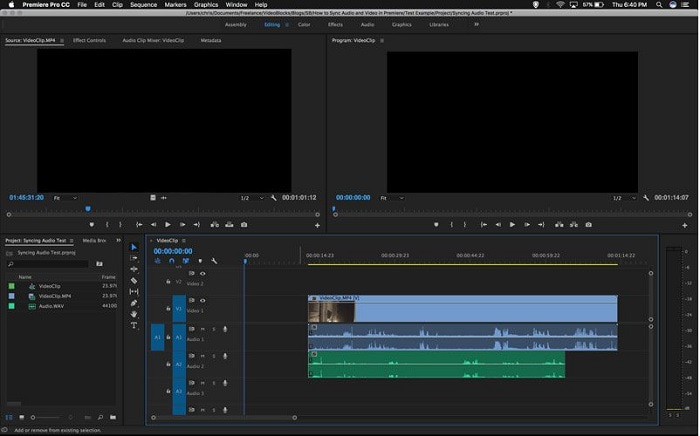
2. lépés: Jobb gombbal kattints, hogy kijelöld mind a hang-, mind a videosávot. Megjelenik egy legördülő menü. Válaszd a Synchronize lehetőséget a megjelenő menüből.
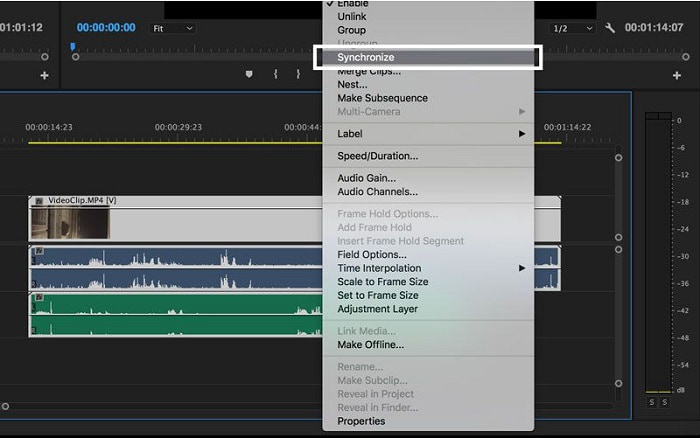
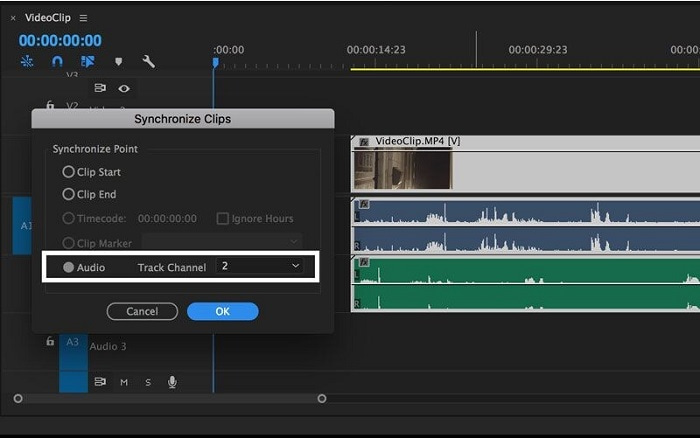
3. lépés: Most válaszd az Audio-t szinkronizálási pontként. Jelöld ki azt a sávot, amelyet szinkronizálni szeretnél. Végül töröld a segédsávot, és válaszd a Link opciót a klipek összekapcsolásához.
3. rész. Gyakran ismételt kérdések az audió és a kép szinkronizálásából
Ha megváltoztatom a mintavételi gyakoriságot, romlik a hangminőség?
Ha csak a videoklipben lévő hangot szeretné hallgatni, és nem szeretne változtatásokat végrehajtani, módosítania kell a mintavételezési frekvenciát, hogy lépést tartson. A videó hangját csak úgy tudja szinkronizálni, ha módosítja a videoklip hangkésleltetését az FVC Video Converter Ultimate alkalmazásban. A mintavételi gyakoriság beállításakor többé nem kell aggódnia a hangminőség romlása miatt. Ezzel a szoftverrel nem kell aggódnia a videóban nem szinkronizált hang miatt. Ez a szoftver tartalmaz egy olyan funkciót, amely képes megoldani az adott problémát; más funkciókkal is rendelkezik, amelyek minden felhasználó számára előnyösek, és könnyen használhatók.
Mi az a hang deszinkronizációs kompenzáció?
Állítson be pozitív vagy negatív hang deszinkronizálási kompenzációs késleltetést ezredmásodpercben a VLC-beállításokban az Audio elemre kattintva, majd a Speciális beállítások jelölőnégyzet bejelölésével.
Mi a másik oka annak, hogy a kép és a hang nincs szinkronban?
A másik ok, amiért a kép és a hang nincs szinkronban, az a nem támogatott videokimenet, amelyet az audioeszköz nem tud használni, és fordítva.
Következtetés
Összegzésképpen: a hang- és videókésés nehéz helyzetet jelenthet a legtöbb ember számára az online világban. Különösen a pandémia idején, amikor a kütyük és az online eszközök rendkívül népszerűek, de hogyan tudsz megfelelően működni vagy rendesen elvégezni a feladataidat, ha akadályt jelentenek ezek az online problémák, például az a kérdés, hogyan szinkronizáld a hangot és a videót? Ha késés lép fel. Összefoglalva: az összes bemutatott módszer és alternatíva itt található a cikkben, hogy tisztázza a felmerülő kérdéseket. A jövőbeni felesleges problémák elkerülése érdekében a Video Converter Ultimate használatát javasoljuk.
-
 Az 5 legfontosabb lassított videólejátszó a számítógépen (Windows / Mac / Linux)
 A lassított mozgás nagyon hasznos funkció sok helyzetben. Ha lassú sebességgel szeretne videókat nézni, hogy részletesebb információkhoz jusson a röpke felvételekből, ebben a cikkben megismerheti az 5 legfontosabb lassított videólejátszót.
-
 [2 legjobb megoldás] Hogyan játszhat le egyszerűen AVI-filmeket iPhone-on/iPadon
 Nem tud AVI-filmeket lejátszani iPhone/iPad készülékén, és nem szeretne harmadik féltől származó videolejátszót letölteni? Megtanulhat két hatékony módszert az AVI-videók iPhone-on való lejátszására való konvertálására.
-
 Lejátszhat Wii / Wii U DVD-ket Homebrew nélkül? 2 megoldás az Ön számára
 Ha DVD-lemezeket helyez be a Wii-be, azt tapasztalhatja, hogy a Wii nem tudja olvasni és lejátszani a DVD-ket a regionális zárolás miatt. Ebből a cikkből megtudhatja, hogyan játszhat le egyszerűen DVD-ket Wii/Wii U-n a Homebrew feltörése nélkül.
