


 Video Converter Ultimate
 Screen Recorder
 Videó javítás
 Biztonságos letöltés
Részletes eljárások az AVI fájlok M4V formátumba konvertálására
Az AVI multimédiás konténerformátum, amely az Audio Video Interleaved rövidítése, a Windows videószoftverének egyik funkciója. Lehetővé teszi a hang- és videoadatok egyetlen fájlba kombinálását és egyidejű lejátszását. Egyedi képességeinek – például a szinkronizált vezérlésnek és a valós idejű megjelenítésnek – köszönhetően az AVI gyorsan a leggyakrabban használt videoformátumok egyikévé vált. Ha azonban Macen szeretné lejátszani a videót, át kell konvertálnia az AVI-t M4V formátumba, mivel az M4V egy Apple-formátum, amely lejátszható az iTunesban, az Apple QuickTime Playerben és iOS-eszközökön. Előfordulhat, hogy időnként Macen szeretné az .avi fájlokat egy univerzálisabb formátumba, például M4V-be konvertálni. Ilyen esetben az AVI M4V-vé alakítása javasolt, hogy a Mac OS rendszeren megfelelően működjön. Megmutatjuk a legjobb módszereket, hogyan lehet AVI-t M4V-vé konvertálni online és offline alkalmazások segítségével.

1. rész: Bevezetés az AVI-ba és az M4V-be
| AVI | M4V | |
| Fájl név | Audio Video Interleave | MPEG-4 videó |
| Fájlkiterjesztés | .avi | .m4v |
| Leírás | Az AVI fájlformátum az egyik legnépszerűbb multimédiás tároló, amelyet valaha készítettek. Az AVI mozaikszót, amely az audio-video interleaved rövidítése, a Microsoft először 1992-ben tette elérhetővé a nagyközönség számára multimédiás keretrendszerének, a „video for Windows”-nak a részeként. A.avi fájlnévkiterjesztésű AVI-fájlok szinkronizált videó- és hangtartalmat is tartalmazhatnak, mivel ez egy konténerformátum. Így a szerzők szerkeszthetik és kódolhatják az audio-videó szekvenciákat vagy videoszekvenciákat a szabvány segítségével. | Az Apple létrehozta az M4V fájlkiterjesztést, amely rendkívül hasonlít az MP4 fájlkiterjesztéshez, az iTunes Store tartalmához. Az Apple készülékek az egyetlenek, amelyek M4V fájlokat tudnak lejátszani. Az Apple-eszközökön való lejátszáshoz más videoformátumok, például az MP4 és a MOV konvertálhatók M4V formátumba. Az M4V és MP4 fájlformátumok közötti elsődleges különbség az, hogy az előbbi támogatja a DRM-Copyright Protection-t, amely tiltja a médiatartalom szerzői jogának megsértését. A számítógépnek engedélyt kell adnia az iTunes-fiókba való bejelentkezéssel, hogy megvásárolja a médiafájlt a DRM-védett M4V fájl lejátszásához. Ha azonban a fájlok nem DRM-védettek, a felhasználó egyszerűen átnevezheti az M4V fájlkiterjesztést MP4-re, hogy kompatibilis legyen a nem Apple eszközökkel. |
| Által kifejlesztett | Microsoft | Apple Inc. |
| Kapcsolódó programok | VLC Media Player Apple QuickTime Player Adobe Premiere Pro 2020 Windows médialejátszó | KMPlayer Media Player Classic Zoom Player \VLC Media Player |
| Fájl kategória | Videó | Videó |
| MIME típus | videó/x-videó | video/x-m4v |
2. rész: A legjobb módja az AVI konvertálásának M4V-re
Ingyen szeretné átkonvertálni az AVI-t M4V-be? Használhatja a FVC Free Video Converter Online eszközt. Ez az eszköz könnyedén képes az AVI fájlformátumot M4V-vé alakítani. Emellett több további videoformátumot is támogat, például FLV, MP4, MOV, WMA és mások. Ha pedig több AVI fájlt szeretne különböző formátumokba konvertálni, szintén használhatja ezt az alkalmazást, mivel kötegelt (batch) konvertálási folyamatot kínál. A videókat a konvertálás előtt szerkesztheti is, például módosíthatja a képkockasebességet, a felbontást és a bitrátát. Ezenfelül a FVC Free Video Converter Online audiofájlokat is képes konvertálni, mint az MP3, AAC, AC3, FLAC stb.
Jellemzők
◆ Számos videofájl formátum konvertálása, például M4V, AVI, MP4, MOV, VOB, FLV, WMV stb.
◆ Módosíthatja a videó felbontását, bitsebességét és képsebességét.
◆ Hangfájlok konvertálása, például MP3, AAC, AC3, FLAC stb.
Kövesse az alábbi egyszerű útmutatókat az AVI egyszerű M4V formátumba konvertálásához.
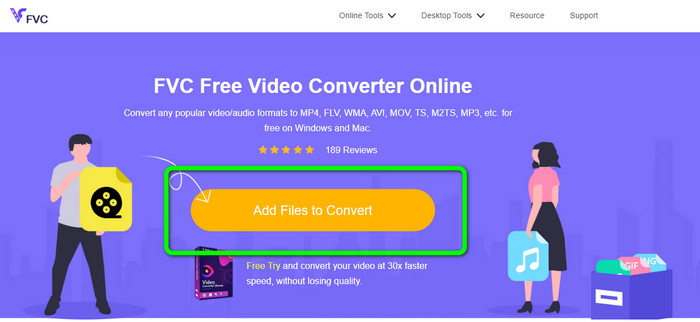
1. lépés: Először nyissa meg a böngészőt, és látogasson el a FVC Free Video Converter Online weboldalára. Nyomja meg az Add Files to Convert gombot az AVI fájl feltöltéséhez.
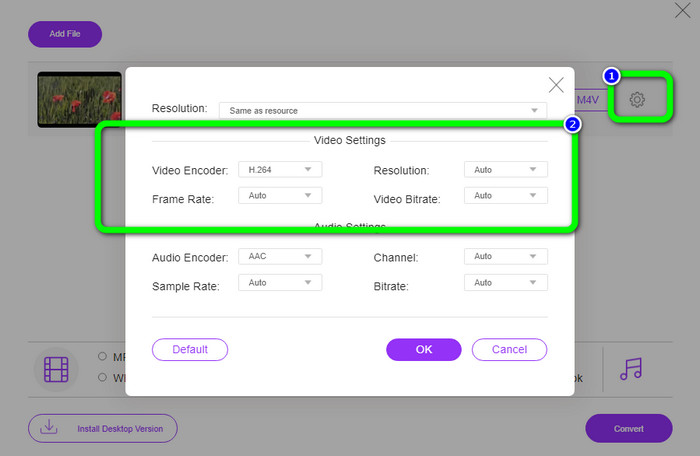
2. lépés: Ha szeretné módosítani a videó felbontását, képkockasebességét vagy bitrátáját, kattintson a Beállítások (Settings) ikonra a felület bal oldalán. Ha végzett a módosításokkal, nyomja meg az OK gombot.
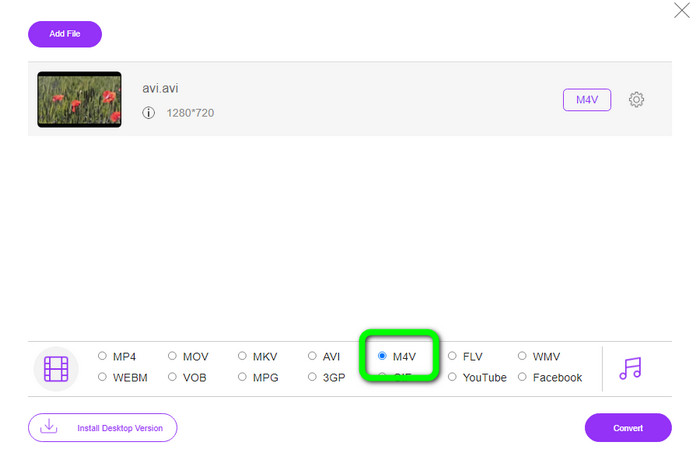
3. lépés: Ezután a felület alsó részén válassza ki az M4V fájlt kimeneti formátumként.
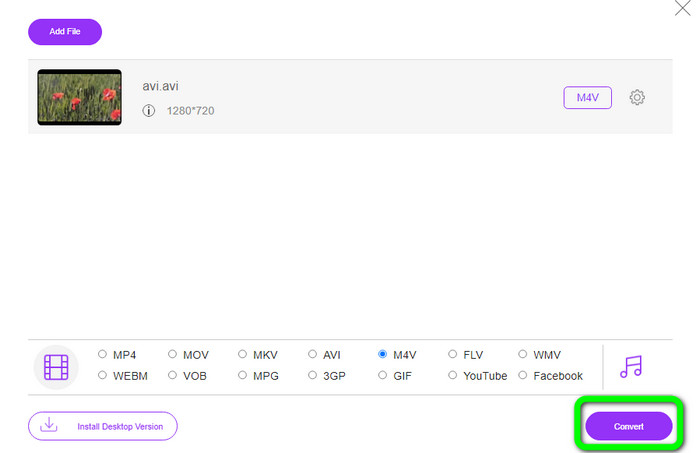
4. lépés: Végül a videófájl mentéséhez kattintson a Convert gombra. Várja meg az átalakítási folyamatot, majd töltse le a végső kimenetet.
3. rész: Egyszerű módszer az AVI konvertálására M4V-re Windows és Mac rendszeren
Egy másik kiváló konverter, amelyet használhat, a FVC Video Converter Ultimate. Ez az eszköz képes AVI-t M4V-vé konvertálni Windows rendszeren. A fájlokat villámgyorsan tudja átalakítani, mivel ultra-gyors, akár 30x-os sebességű konvertálási folyamatot kínál. Emellett egyszerre több fájlt is konvertálhat, mivel támogatja a kötegelt konvertálást. Továbbá egyszerű munkamenettel és áttekinthető felhasználói felülettel rendelkezik, ami kezdők számára is tökéletes. Ráadásul ez az offline eszköz nem csak Windowson érhető el, hanem Macen is. Ezenkívül a videókon is végezhet módosításokat a konvertálás közben. Szerkesztheti a videókat például javítással, vágással, szűrők hozzáadásával és még sok mással.
Funkciók
◆ Több mint 100 videofájlt konvertál, köztük M4V, MP4, AVI, FLV, MKV, MOV, VOB, WMV és még sok mást.
◆ Kollázs készítése ingyenes sablonokkal és szűrőkkel elérhető.
◆ Zenevideó készítőt kínál.
◆ Videók szerkesztése videójavítóval, vágóval (trimmer), vízjel-eltávolítóval, tömörítővel stb.
◆ Képfájlformátumok konvertálása, például BMP, JPG, PNG stb.
◆ Videó felgyorsítása és lassítása.
Az alábbi részletes útmutatók segítségével megtudhatja, hogyan konvertálhat AVI-t M4V-re Windows és Mac rendszeren az FVC Video Converter Ultimate használatával. A Windows verziót fogjuk használni.
1. lépés: Töltse le a FVC Video Converter Ultimate programot Windows vagy Mac rendszerére a letöltés gombra kattintva.
Ingyenes letöltés Windows 7 vagy újabb rendszerre Biztonságos letöltés
Ingyenes letöltés macOS 10.7 vagy újabb rendszerre Biztonságos letöltés
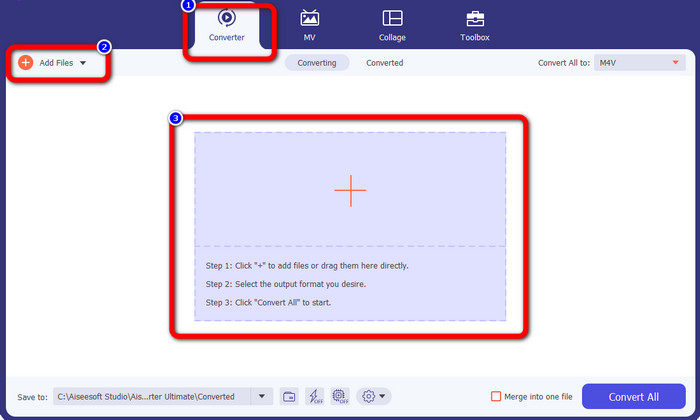
2. lépés: Nyissa meg az alkalmazást, majd lépjen a Converter panelre. Ezután három lehetősége van az AVI fájl hozzáadására. Először is rákattinthat az Add File gombra a második dobozban. A második lehetőség, hogy a harmadik dobozban található Plusz jelre kattint. Végül pedig egyszerűen húzza a fájlt a középső területre.
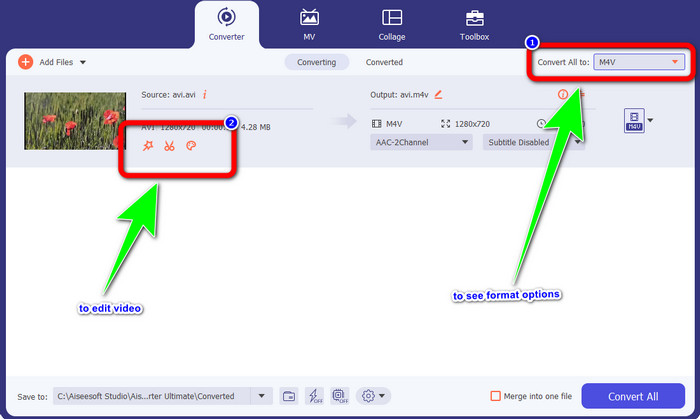
3. lépés: Miután hozzáadta az AVI fájlt, kattintson a Convert All to gombra a formátumok megjelenítéséhez, majd válassza ki az M4V fájlformátumot. Ha ezután szerkeszteni szeretné a videót, lépjen a második dobozhoz. Itt különböző eszközökkel szerkesztheti a videót, például szűrők hozzáadásával, forgatással és vágással, darabolással és egyebekkel.
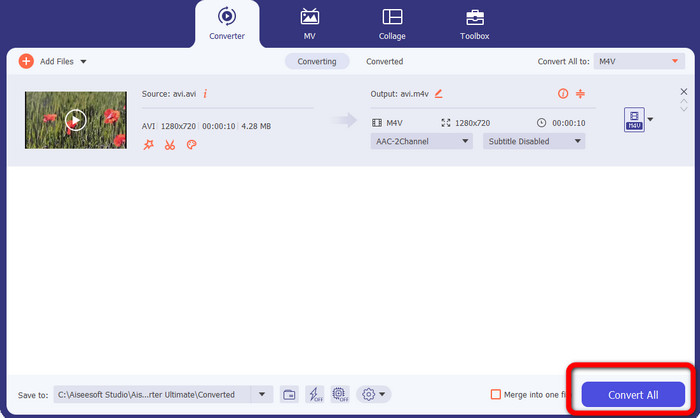
4. lépés: Az utolsó lépésként kattintson a Convert gombra. Várja meg a gyors konvertálási folyamatot, majd mentse az átalakított videót.
4. rész: Az AVI konvertálása M4V-re kézifékkel
A Handbrake egy másik konverter, amellyel ingyenesen alakíthatja át az AVI-t M4V-vé. Számos formátum konvertálására képes, mint például WEBM, M4V, MP4, MKV stb. Ennek az eszköznek a segítségével könnyen átalakíthat sok fájlt. A Handbrake használata azonban bonyolult. Megfelelő ismeretekre van szükség ehhez a konverterhez. Emellett a telepítési folyamata is zavaros. Számos lépést kell végrehajtania a használat előtt, ami időigényes a felhasználók számára.
1. lépés: Töltse le a Handbrake programot a számítógépére.
2. lépés: Válassza ki azt az AVI fájlt, amelyet konvertálni szeretne.
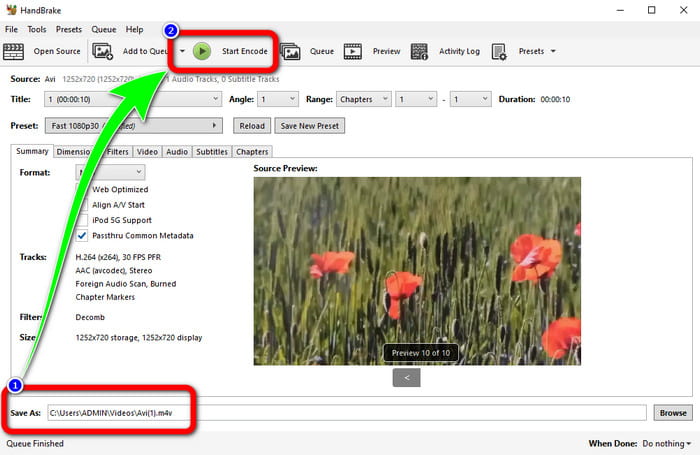
3. lépés: Lépjen a formátumbeállításokhoz, és válassza az M4V-t. Ezután indítsa el az átalakítási folyamatot a Start gomb megnyomásával.
5. rész: GYIK az AVI konvertálásáról M4V-re
1. Hogyan lehet AVI-t M4V-re konvertálni Mac-en?
Használhatja az FVC Video Converter Ultimate programot. Ez a konverter könnyen konvertálhatja az AVI-t M4V-re a Mac segítségével.
2. Mekkora egy AVI fájl?
Mivel az AVI videók tömörítetlenek, több helyet foglalnak el a merevlemezen. Például egyetlen óra 352x288 AVI videófelvétel akár 33 GB (3300 MB) merevlemez-területet is igénybe vehet.
3. Univerzális az AVI fájl?
Igen. Bár az AVI formátumot mára modernebb formátumok, például az MP4, MOV vagy WMV nagyrészt felváltották, az emberek még mindig használják az AVI-t hordozhatósága miatt. Szinte bármilyen számítógép vagy eszköz képes AVI-fájlokat lejátszani.
Következtetés
Ez az útmutató bemutatja a kiváló módszereket, hogyan lehet AVI fájlokat M4V-vé konvertálni a három konverter segítségével. Ha azonban ultra-gyors átalakítási folyamatra van szüksége, használja a FVC Video Converter Ultimate programot. Ha pedig egyszerűbb megoldást szeretne, válassza a FVC Free Video Converter Online eszközt.
-
 A legjobb 5 M4V lejátszó Windows / Mac / Android / iOS rendszerhez, amelyeket tudnia kell
 Ha nem tudja lejátszani M4V-videóit a QuickTime Player segítségével, tudjon meg többet az 5 kiváló M4V-lejátszóról Windows, Mac, Android és iOS rendszerre ebből a cikkből.
-
 AVI VS MP4 - Különbségek és hasonlóságok az AVI és az MP4 formátumok között
 Melyik a jobb videóformátum, az AVI vagy az MP4? Ha részletes összehasonlítást szeretne kapni, nézze meg ezt az AVI VS MP4 cikket. Sok szempontból ismerheti az AVI és az MP4 közötti különbségeket és hasonlóságokat
-
 3 Video Converter program, amellyel az iTunes M4V AVI-t konvertálhat Mac rendszeren
 Nincs ötleted, hogyan lehet az MKV-t AVI formátumba konvertálni? A cikk olvasása közben megismerjük azt a 3 eszközt, amelyek segíthetnek konvertálni ezt a fájlformátumot
