


 Video Converter Ultimate
 Screen Recorder
 Videó javítás
Az AVI konvertálása WMV-vé ingyenes konverterekkel [Gyors lépések]
Az AVI (Audio Video Interleave) fájlok, amelyeket eredetileg a Microsoft Corporation fejlesztett ki, nagy teljesítményű videoformátumnak számítanak. Ez a fájlformátum nagy felbontású minőséget nyújt, azonban a fájlméretük túl nagy. Az egyik gyakori módja annak, hogy a videódat bármely platformon lejátszd vagy használd, az AVI fájl WMV formátumba konvertálása. Ha tehát szeretnél többet megtudni arról, hogyan lehet AVI-t WMV-vé konvertálni, olvass tovább: bemutatjuk a különböző konvertereket, lépésről lépésre.

1. rész. Konvertálja az AVI-t WMV-vé Windows 10/11 rendszeren
A Windows 10 operációs rendszer számos, az interneten elérhető fájltípust támogat. Az AVI és a WMV fájlokat egyaránt támogatja a Windows 10. Ezért az AVI fájl WMV formátumba történő konvertálása egyszerű lesz, különösen, ha ezt a villámgyors konvertert, a FVC Video Converter Ultimate-et használod. Ez a konverter az egyik megbízható, manapság népszerű eszköz. Emellett lehetővé teszi a fájl szerkesztését, javítását és tömörítését is. Könnyen használható, és gyorsan képes AVI fájlokat WMV formátumba konvertálni Windows 10-en.

FVC Video Converter Ultimate
Több mint 5 689 200 letöltés- Lehetővé teszi a különféle fájlformátumok konvertálását, beleértve az AVI-t WMV-re, MP4-re, MOV-ra, VOB-ra stb.
- Olyan funkciókkal rendelkezik, amelyek lehetővé teszik több fájl egyesítését.
- Szerkesztheti, javíthatja és tömörítheti a fájlt.
Ingyenes letöltés Windows 7 vagy újabb rendszerre Biztonságos letöltés
Ingyenes letöltés macOS 10.7 vagy újabb rendszerre Biztonságos letöltés
Íme az AVI-fájl WMV-formátumba konvertálásának lépései:
1. lépés. A FVC Video Converter Ultimate Windows 10-re történő telepítéséhez kattints az alábbi letöltés gombra. Ezután kövesd a telepítési folyamatot, majd indítsd el az alkalmazást.
Ingyenes letöltés Windows 7 vagy újabb rendszerre Biztonságos letöltés
Ingyenes letöltés macOS 10.7 vagy újabb rendszerre Biztonságos letöltés
2. lépés. Miután megnyitottad az alkalmazást, kattints a Add files gombra a képernyő bal felső sarkában, vagy a + jelre, hogy hozzáadd az AVI fájlokat a szoftver fő felületéhez. Megjelennek a számítógépeden lévő fájlok, majd válaszd ki azt az AVI fájlt, amelyet WMV-vé szeretnél konvertálni. A fájl feltöltéséhez kattints az Open gombra.
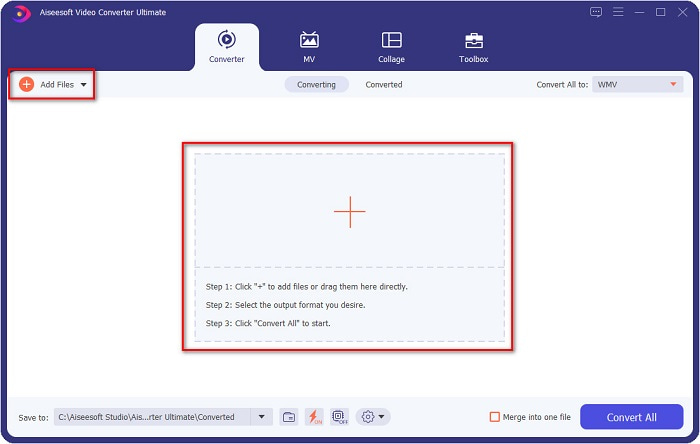
3. lépés. A fájlformátum módosításához kattints a Convert All to gombra a szoftver felületének jobb felső sarkában. Megjelenik a formátumok listája, majd válaszd a WMV lehetőséget a Video kategóriából.
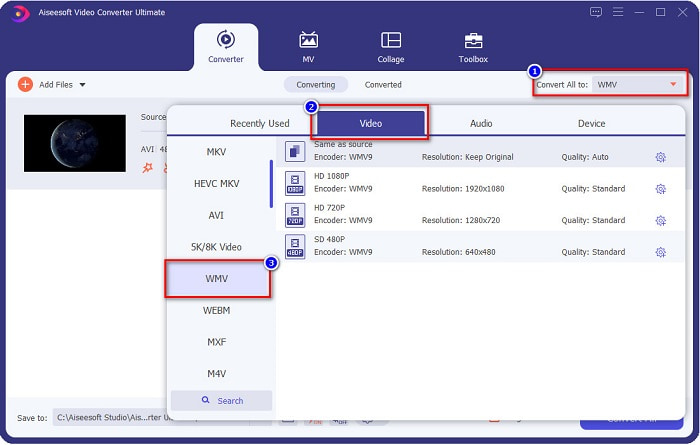
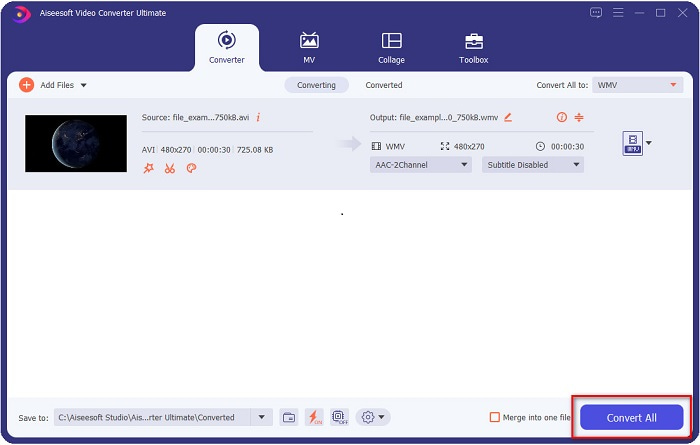
4. lépés. Miután kiválasztottad a WMV formátumot, kattints a Convert All gombra, hogy az AVI fájlodat WMV-vé konvertáld. Várj néhány másodpercet, és kész is! Ilyen egyszerűen konvertálhatod AVI fájlodat WMV formátumba.
2. rész: AVI konvertálása WMV-re ingyen
Amikor AVI fájlokat konvertálsz WMV-be, használhatsz ingyenesen letölthető konverterprogramokat is. Egy ismert konverter a Freemake Video Converter. Ez az offline konverter több mint 500 formátumot támogat, például AVI-t WMV-vé, MP3-má, MP4-é, DVD-vé és sok más formátummá alakíthatsz vele. Ugyanakkor a grafikus felhasználói felület (GUI) nem túl jó, és a kezelőfelülete sem túl felhasználóbarát. Ennek ellenére még mindig sokan használják fájlok konvertálására.
Rövid útmutató az AVI-fájl WMV-fájllá konvertálásához a Freemake Video Converter segítségével:
1. lépés. Töltsd le az alkalmazást úgy, hogy a böngésződben rákeresel a Freemake Video Converterre. Letöltés után indítsd el az alkalmazást.
2. lépés. Az alkalmazás megnyitása után kattints a Video gombra; amikor megjelennek a számítógépen lévő fájlok, válaszd ki az AVI fájlodat. A sorhoz való hozzáadáshoz nyomd meg az Open gombot.

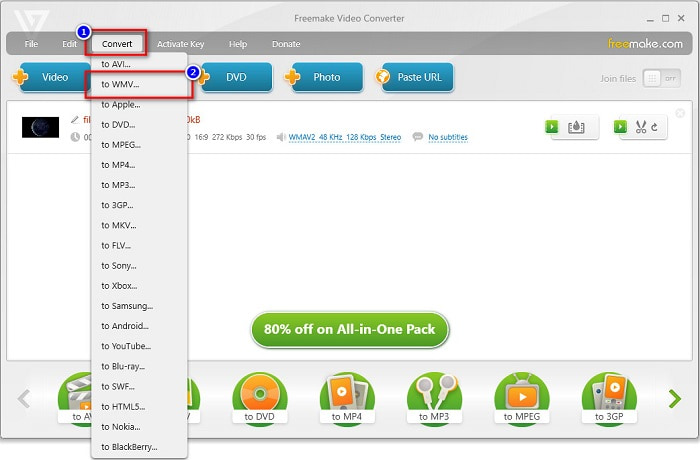
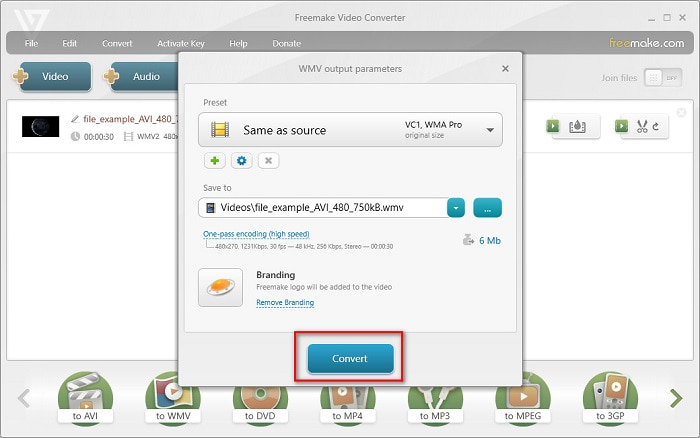
3. lépés. Miután kiválasztottad az AVI fájlt, kattints a Convert opcióra a szoftver felületének felső részén. Megjelenik a formátumok listája, majd válaszd a WMV-t.
4. lépés. Megjelenik egy új felület, ahol most már konvertálhatod a fájlt. Kattints a Convert gombra, hogy elindítsd az AVI fájl WMV-vé alakítását.
3. rész: AVI-fájlok konvertálása WMV-fájlokká online
Tagadhatatlan, hogy sokkal kényelmesebb online konvertálni a fájlokat. Ezért kipróbáltunk néhány online konvertert AVI-ból WMV-be történő konvertáláshoz, és a FVC Free Video Converter Online-t választottuk a legjobbnak, amelyet ajánlani tudunk. Ez a konverter lehetővé teszi nagy fájlok korlátozás nélküli konvertálását. Ugyanakkor lassú konvertálással is találkozhatsz, mivel ez a konverter az internetre támaszkodik. Ez azt jelenti, hogy a konvertálás sebessége az internetkapcsolattól függ. Ennek ellenére a FVC Free Video Converter Online-t sokan használják, és bizonyítottan az egyik legjobb online konverter.
Lépések az AVI fájl WMV-vé konvertálásához a FVC Free Video Converter használatával
1. lépés. A böngésződben keresd meg a FVC Free Video Converter Online oldalt.
2. lépés. Amikor már az oldalon vagy, kattints az Add Files to Convert gombra. Ezután töltsd le az indítóprogramot, amely akkor jelenik meg, amikor az Add Files to Convert gombra kattintasz. Ezután válaszd ki az AVI fájlodat.
Töltse le az asztali verziót a fájlok kötegelt konvertálásához.
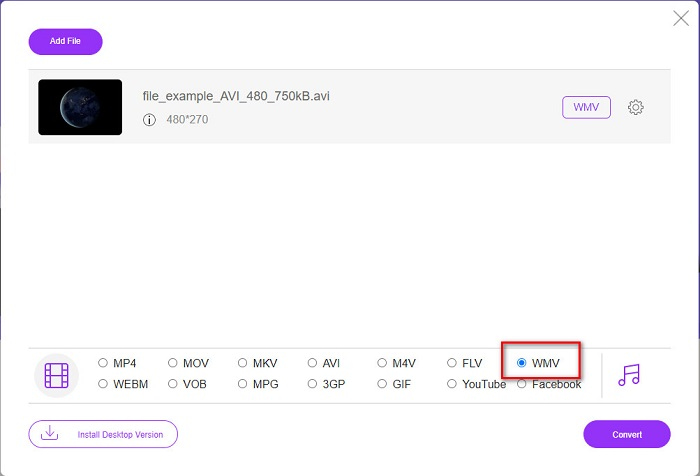
3. lépés. Miután kiválasztottad a fájlt, a szoftver második felületén látni fogod a formátumok listáját, majd kattints a WMV formátumra.
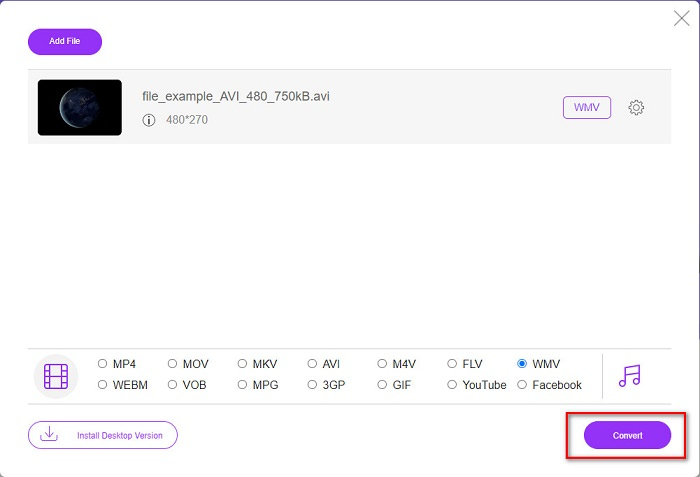
4. lépés. Végül kattints a Convert gombra a szoftver felületének jobb alsó sarkában. Megjelennek a számítógépen lévő fájlok, ahol kiválaszthatod az átalakított fájl célmappáját. Ezután megkezdődik az AVI-ból WMV-vé történő konvertálás.
4. rész. További információ az AVI-ról és a WMV-ről
Az AVI vagy Audio Video Interleave fájlok a Windows gépek szabványos videoformátumai. Ezek a fájlok hangot és videót is tartalmaznak, és különböző kodekeket használnak, többek között a DivX-et és az XviD-et. Ugyanakkor ez a formátum csak minimálisan tömörített, ezért a fájlmérete meglehetősen nagy. Ezzel szemben a WMV vagy Windows Media Video számos szoftvereszköz által támogatott, és a Windows Media Player tömöríti ezeket a fájltípusokat. Emellett a Windows rendszer általában gond nélkül lejátssza ezt a típusú fájlt. Ha könnyedén szeretnél WMV fájlokat lejátszani, olvasd el a Legjobb WMV lejátszók című útmutatót.
AVI vs. WMV
A Resource Interchange File Format (RIFF) alapján az AVI formátumot a Microsoft 1992-ben vezette be. Kiváló minőségű videót/hangot tud menteni, mivel kevesebb tömörítést használ. Ez azonban az AVI-fájlok nagy fájlméretét is okozza, ami problémát jelenthet, ha korlátozott a hely.
A Microsoft által gyártott WMV a 2000-es években az egyik leggyakoribb videóformátum volt. Megtekinthető az interneten, és lejátszható különféle Windows médialejátszókkal. És ez a Windows Media Player alapértelmezett videofájl-formátuma is. De a közelmúltban más formátumok is átvették.
5. rész. GYIK az AVI konvertálásáról WMV fájlformátumra
Az AVI WMV-re váltása rontja a fájl minőségét?
Amikor az AVI-t WMV-vé konvertálja, a fájlok minősége nem változik meg. Egyes konverterek azonban nem támogatják a jó minőségű pixel videókat, ami a minőség romlását okozza.
Lehet tömöríteni az AVI fájlokat?
Igen. Használhatsz online elérhető videótömörítőket. Az AVI fájlodat WMV formátumba is konvertálhatod a fájlméret csökkentése érdekében. Emellett használhatod a FVC Video Converter Ultimate programot is, hogy tömörítsd az AVI fájljaidat.
Megváltozik az AVI-fájlom fájlmérete a konvertálás után?
Előfordulhat, hogy az AVI-fájl fájlmérete eltér az eredetitől. Mivel a fájlok konvertálásakor a tömörített fájlok ki lesznek tömörítve, aminek következtében a fájl mérete kissé megváltozik.
Következtetés
Összefoglalva, a fent bemutatott online és offline eszközök ígéretes konvertáló szolgáltatásokat mutatnak, amelyek kielégítik az Ön igényeit, amikor az AVI-t WMV-fájlokká konvertálják. De ha olyan konvertert keres, amely számos olyan funkciót tartalmaz, amelyek segítenek kielégíteni igényeit, javasoljuk az FVC Video Converter Ultimate használatát – még mindig kétségei vannak ezzel kapcsolatban? Próbálja ki most, és hozza ki a legtöbbet fájljaiból!
-
 Konkrét útmutató az AVI ingyenes FLV formátumba konvertálásához
 Az AVI FLV formátumba konvertálásához nagy teljesítményű videokonverterre van szükség. Szerencsére ebből a cikkből kettőt és lépésenkénti útmutatót tanulhat meg.
-
 Az AVI videók konvertálása animált GIF fájlokká Windows / Mac rendszeren
 Szeretné kiválasztani az érdekes AVI szegmenseket a GIF mémek létrehozásához? Ez a cikk megmondja a 2 legjobb módszert az AVI videók klipelésére és az AVI animált GIF fájlokká történő ingyenes konvertálására.
-
 Döntse el, melyik az ideális AVI–MP3 konvertáló szoftver [PC és Mac]
 Szeretné tudni, hogyan lehet AVI-t MP3 audio formátummá konvertálni? Az alábbi listában különböző eszközökkel és lépésekkel találkozhat, amelyek megfelelnek az Ön igényeinek.

