


 Video Converter Ultimate
 Screen Recorder
 Videó javítás
Konvertálja az MPEG-et AVI-vé az 5 hozzáférhető MPEG-ből AVI-vé videó konverterrel
Az MPEG az egyik legjobb formátum, amellyel valószínűleg már találkozott, mivel videó- és hangfájlok tárolására szolgál. Ráadásul nem csupán egy konténerformátum, hanem MPEG‑1 és MPEG‑2 tömörítést is használ. Az MPEG‑1 és MPEG‑2 azonban régebbi formátumok, amelyeket korábban Blu-ray lemezeken tároltak. Most tehát elmagyarázzuk, hogyan lehet ezt javítani azzal, hogy a formátumot AVI-vá alakítjuk. Az alábbi listában bemutatunk több különböző eszközt, amellyel MPEG-et AVI-vá konvertálhat, valamint részletesebb információkat az MPEG és az AVI formátumról.
1. rész. Az MPEG és az AVI fájlformátum rövid magyarázata
Az MPEG és az AVI az egyik legmodernebb formátum, amellyel médiafájlokat tárolhat. Bár nagyszerűek, mégis van néhány oka annak, hogy miért kell MPEG–AVI videokonvertálót használnia. Egyelőre azonban sok részletet elmagyarázunk a két formátumról, és van elképzelésünk az MPEG-ről és az AVI-ról.
Mint korábban említettük, az MPEG nem csak egy konténer, hanem beépített kompresszorral is rendelkezik. Alapvetően ez egy kettős célú fájlformátum. Ezenkívül ez a formátum a Blu-ray leggyakrabban használt formátuma a minőség és a tömörítés miatt. Ezenkívül az MPEG formátumot 6 kategóriába sorolják, de megvitatjuk a két gyakran használt formátumot, ez az MPEG-1 és MPEG-2. Ezenkívül az MPEG-1 az MPEG-ek első generációja. Ez a formátum szabványos felbontást tárol, de a másik formátum felbontásához képest az MPEG-1 sokkal kisebb. Bár az MPEG-2 sokkal jobb minőséget kínál, mint az MPEG-1, azonban Blu-ray és DVD-lemezeken működik a legjobban. Ezenkívül ezt a formátumot használják leggyakrabban a tévéállomások videók átvitelére és lejátszására.
Az AVI azonban jelentősen különbözik az MPEG-től, mivel tömörítetlen. A formátum által nyújtott képminőség is magas, mert nem tömöríti a benne lévő fájlt. Bár a formátum mérete nagy, mégis sokkal szélesebb körű támogatást élvez minden platformon, mint az MPEG fájlok.
Az MPEG AVI formátumú offline konvertálásához használt legjobb konverter 2. 2. része
1. FVC Video Converter Ultimate
Ha többcélú MPEG–AVI konvertálót és letöltőprogramot keres, akkor a FVC Video Converter Ultimate az Ön számára való eszköz. Ez az eszköz azért kapott kiemelt helyet ebben a cikkben, mert olyan funkciókat és egyszerű kezelhetőséget kínál. Noha könnyű használni, mégis elérheti vele azt a kiemelkedő minőséget, amelyre mindig is vágyott. Emellett, más konverterekkel ellentétben, ez a szoftver magasra teszi a mércét. Ha tehát 100% sikert szeretne elérni az átalakítás előtt, közben és után, akkor mindenképpen ezt az eszközt érdemes használnia. Most pedig nézzük lépésről lépésre, hogyan kell használni a FVC Video Converter Ultimate programot.
1. lépés. A program letöltéséhez az asztalra kattintson az alább látható gombra. A letöltés befejezése után telepítse, végezze el a gyors beállítást, majd kattintson a Start Now gombra.
Ingyenes letöltés Windows 7 vagy újabb rendszerre Biztonságos letöltés
Ingyenes letöltés macOS 10.7 vagy újabb rendszerre Biztonságos letöltés
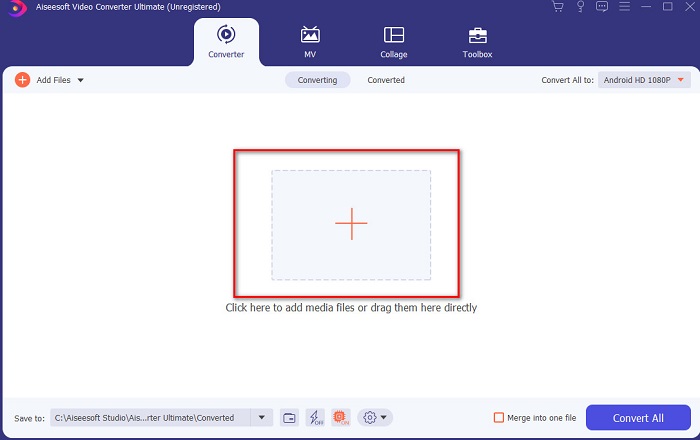
2. lépés. Az eszköz felülete így fog kinézni, majd kattintson a középső részen lévő + jelre. A képernyőn ezután megjelenik egy mappaablak; válassza ki az átalakítani kívánt MPEG videófájlt, és kattintson az Open gombra.
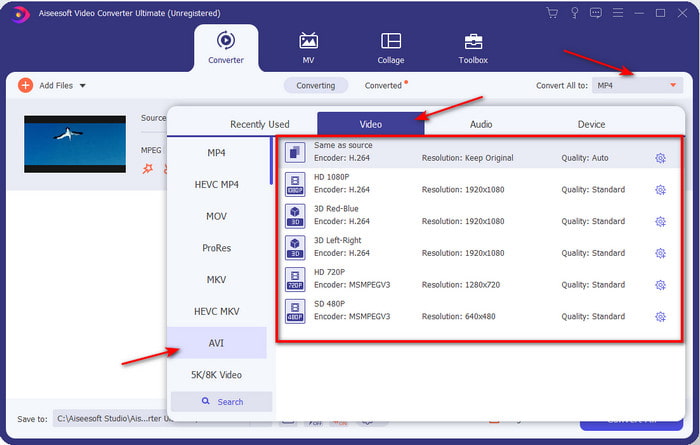
3. lépés. Ha a fájl már megjelent a felületen, kattintson a Convert All to: lehetőségre, és keresse meg az AVI formátumot.
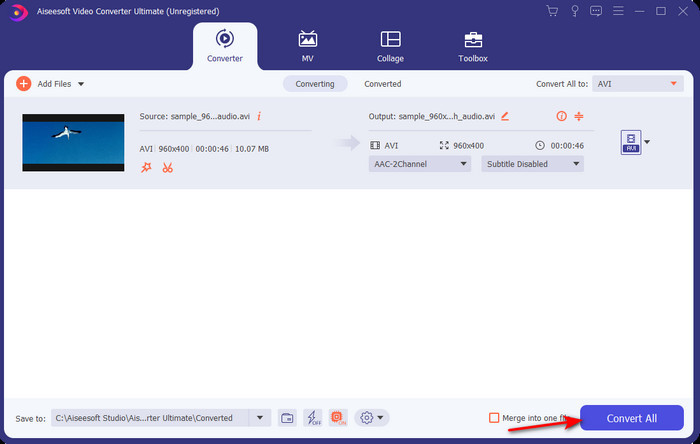
4. lépés. Most pedig az MPEG‑4 filmek AVI formátumba való átalakításának elindításához nyomja meg a Convert All gombot.
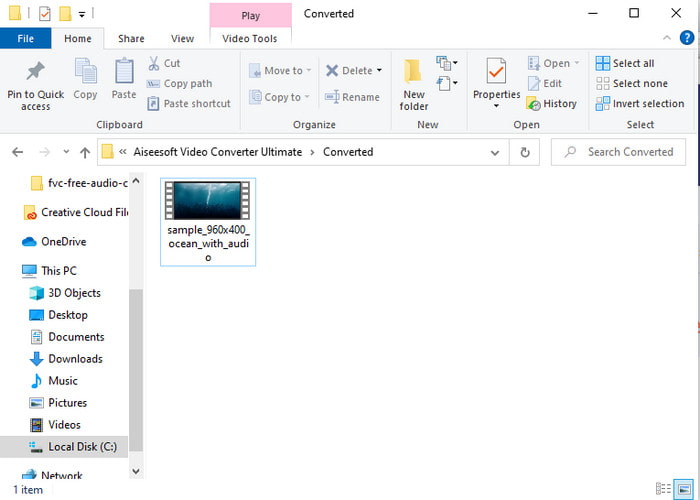
5. lépés. A fájl letöltése csak néhány percet vesz igénybe, és ha elkészült, megjelenik egy mappa az átalakított formátummal. Most kattintson a fájlra, hogy lejátszhassa az MPEG-ből frissen átalakított fájlt.
2. FFmpeg
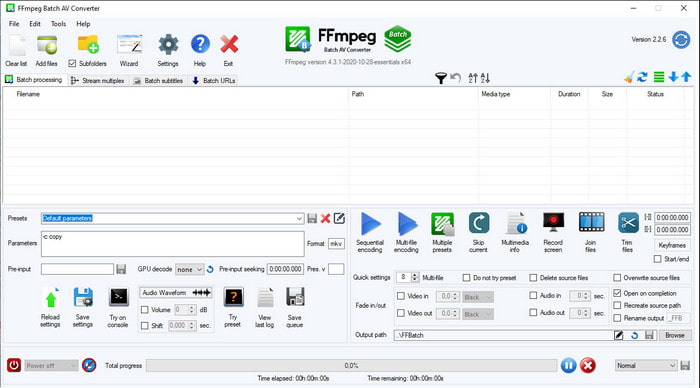
Egy másik, ebben a listában szereplő szoftver a FFmpeg. Ha nyílt forráskódú programot keres, ez az egyik olyan választás, amelyet megtalálhat a weben. Az eszköz felülete azonban nehezen érthető, különösen kezdőknek és még haladó felhasználóknak is. A konvertálási folyamat viszont általánosságban kiváló, és olyan magas minőségű kimenetet ad, mint bármely más konverter. Ha tehát FFmpeg segítségével szeretné az MPEG-et AVI-vá alakítani, akkor kövesse az alábbi lépéseket; mi leegyszerűsítve mutatjuk be a folyamatot.
1. lépés. Töltse le az FFmpeg-et az asztalra, hozzon létre egy új mappát, majd ebbe csomagolja ki a fájlt.
2. lépés. Keresse meg a CDM-et a Windows-on, és nyissa meg.
3. lépés. Parancssor segítségével keresse meg a fájlt, majd írja be a következő kódot: ffmpeg -i input.mpeg -vn -ar 44100 -ac 2 -b:a 192k output.avi, és nyomja meg az Enter billentyűt a folyamat elindításához.
3. rész. 3. Az MPEG AVI formátumba konvertálásához használt legjobb konverter online
3. FVC Free Video Converter
Ha a legjobb ingyenes online MPEG–AVI konvertert keresi, akkor a FVC Free Video Converter az az online konverter, amely minden igényt kielégít. Ez elsősorban az egyszerű, áttekinthető webes felületének köszönhető. További előnye, hogy kedvenc böngészőjéből könnyedén elérhető. Ráadásul az eszközzel való konvertálásnak nincs korlátja, vagyis bármilyen formátumot bármikor átalakíthat. Viszont nem támogatja a kötegelt konvertálást, ellentétben a FVC Video Converter Ultimate programmal. Ha szeretné kipróbálni és használni ezt az online eszközt, akkor kövesse az alábbi lépéseket.
1. lépés. Az FVC konverter fő weboldalára úgy juthat el, ha először erre a linkre kattint.
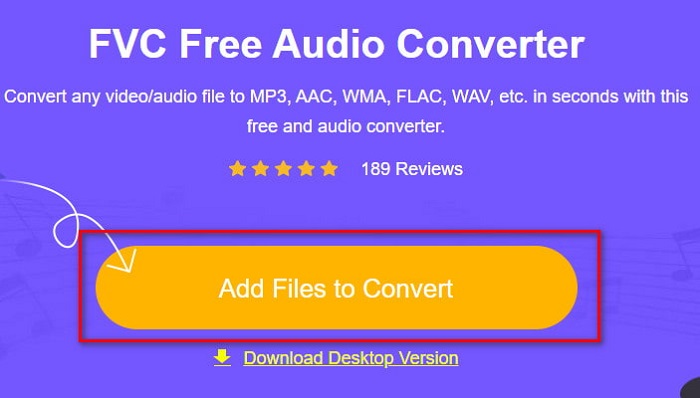
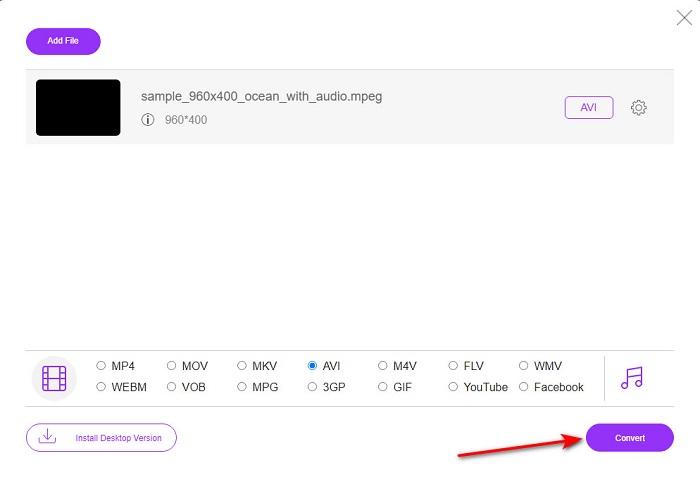
2. lépés. Kattintson az Add Files to Convert gombra, ekkor elindul a webes eszköz, és megjelenik egy mappaablak. Keresse meg a fájlt, majd kattintson az Open gombra.
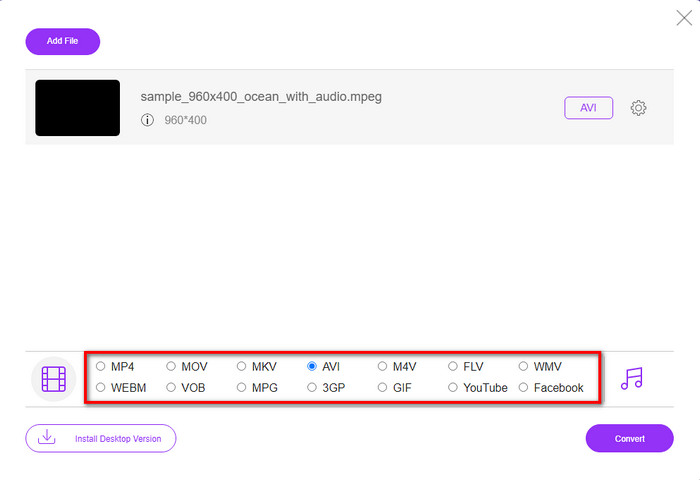
3. lépés. Miután a webes eszköz már elindult, válassza ki a formátumot, amely ebben a szakaszban látható.
4. lépés. Ha már kiválasztotta a formátumot, akkor ideje elindítani az átalakítást a Convert gombra kattintva.
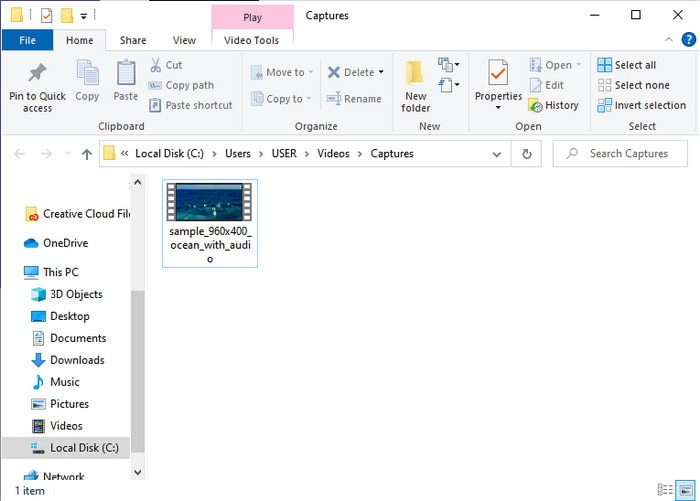
5. lépés. Várjon egy rövid ideig, amíg a folyamat megkezdődik. Ha a folyamat befejeződött, megjelenik egy mappa azzal az átalakított fájllal, amelyet az imént készített.
4. Freeconvert.com
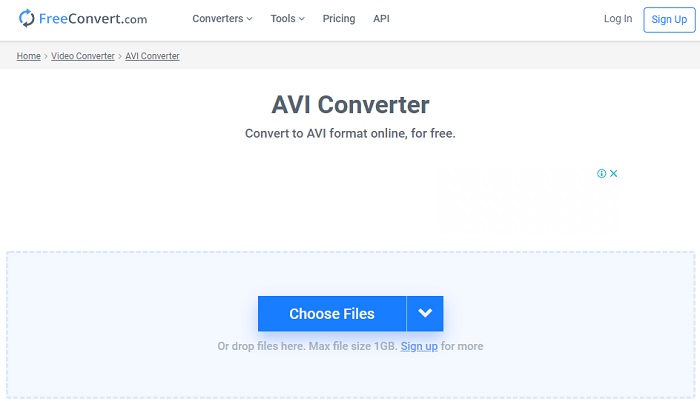
Ahogy a fent említett online eszköz, ez is egy másik online szolgáltatás, amelyet használhat: Freeconvert.com. Ez a webes eszköz már komoly népszerűségre tett szert az internetes felhasználók körében. Sokan dicsérik, mert rendkívül könnyű használni, és több egyéb funkciót is kínál. Ha azonban ezt a webes eszközt választja, fontos hátránya, hogy a támogatott formátumok köre korlátozott. Továbbá az átalakítás folyamata valamivel lassabb a vártnál. Ha szeretné megtudni, hogyan használhatja ezt az online konvertert, kövesse az alábbi lépéseket.
1. lépés. Keresse fel a freeconvert.com weboldalt a böngészőjében. Ezután kattintson az AVI lehetőségre a Video Converters alatt.
2. lépés. Nyomja meg a Choose File gombot, és a következőként megjelenő mappaablakban keresse meg az MPEG fájlt. A fájl kiválasztása után kattintson a Convert To AVI gombra.
3. lépés. Várjon, amíg a feltöltési folyamat befejeződik, majd kattintson a Download AVI gombra a fájl mentéséhez.
4. rész. GYIK az MPEG AVI konvertálásról
Az MPEG konvertálása veszít a minőségéből?
Nos, ez attól függ, hogy milyen formátumba fordítod. Tehát, ha az MPEG-et GIF-re változtatja, akkor drasztikus változásra számíthat, mivel kevesebb színkombinációt támogat, mint a másik formátum. Ha azonban a GIF-től eltérő formátumot használ, ne számítson veszteségre.
Az MPEG veszteséges vagy veszteségmentes?
Az MPEG támogatja a veszteséges tömörítést, így ha ezt a formátumot használja, akkor kisebb fájlméretre számítson, még akkor is, ha hosszú videó és hangja van.
Az MPEG jó formátum?
Korábban ez volt az egyik legjobb formátum, amellyel adatokat tárolhat a DVD-n. Ebben a korszakban azonban az MPEG nem a legjobb választás az adatok tárolására. De ha DVD-n, CD-n vagy Blu-ray-n szeretné tárolni, és sokkal gyorsabban szeretné átvinni őket, akkor ezt a választást kell választania.
Következtetés
Összefoglalva, az itt bemutatott összes online és offline szoftver nagyszerűen használható a formátum konvertálására. Van azonban egy eszköz, amely bizonyítja, hogy az FVC Video Converter Ultimate segítségével egyszerűen fenomenális konverziót érhet el. Valójában 3 szóban el tudjuk magyarázni, és ez könnyen használható, hatékony és biztonságos is. Tehát, ha nagyszerűséget szeretne elérni, töltse le most ezt az eszközt, és próbálja ki.
-
 Hogyan lehet konvertálni MPEG fájlokat MP4 fájlokba ingyen Windows, Mac, Online rendszereken
 Olvassa el és szerezzen be 3 ingyenes módszert az MPEG konvertálására MP4 fájlokká a számítógépen. Az online és asztali videokonverterek segítségével könnyedén áttérhet az MPEG-ről MP4-formátumra.
-
 [2021] A legjobb eszközök és egyszerű módszerek az MPEG MP3-má konvertálásához
 Ez a cikk elsősorban arról szól, hogyan konvertálhatja MPEG-videóit MP3-ra a listán szereplő legmegbízhatóbb eszközök használatával.
-
 Bemutató az MP4 konvertálásához AVI fájlokká 7 ingyenes videokonverterrel
 Szeretne minden ingyenes módot az AVI-ból MP4-videóvá konvertálni? Ezt a cikket nem szabad kihagyni. Íme 7 módja annak, hogy AVI fájlokat MP4 formátumba konvertáljon ingyenesen Windowson, Macen, iPhone-on, Androidon és online.
