


 Video Converter Ultimate
 Screen Recorder
 Videó javítás
 Biztonságos letöltés
50 MB-tól 5 MB-ig - Hogyan tömörítsük az MP4 fájlt másodpercek alatt
Néhány videó elkészítése után érdemes feltölteni őket az Instagram történetébe, vagy megoszthatja azokat barátaival. A legtöbb közösségi média platformon azonban fájlméret-korlátozás van érvényben a feltöltésekhez. Tehát, amikor MP4-videót küld a WhatsApp-on keresztül, vagy MP4-mellékletet ad hozzá az e-mailhez, előfordulhat, hogy túl nagynak találja őket néha a feltöltéshez.
Ezért a probléma megoldásához tömörítened kell az MP4 fájlokat, vagyis más szavakkal: „fogyókúrára” kell fogni a videóidat.
Az alábbi cikk lépésről lépésre bemutatja, hogyan tudod csökkenteni az MP4 videók méretét anélkül, hogy romlana a megjelenítés minősége.

1. rész: Az MP4 videók online és ingyenes tömörítése
Ha olyan ingyenes online MP4-tömörítőt keresel, amelyhez nem kell regisztráció, és nincsenek rejtett díjak, kipróbálhatod a FVC Free Video Compressor eszközt. Ezzel bármilyen 4K, HD vagy SD videót kisebb fájlméretre csökkenthetsz vízjel nélkül. És más ingyenes tömörítőkkel ellentétben annyi MP4 videót tömöríthetsz vele ingyen, amennyit csak szeretnél, fájlméret- vagy videóhossz-korlátozás nélkül.
Sőt, mivel ez a kompresszor webalapú termék, tökéletesen működik Windows, Mac és Linux rendszereken. Könnyen tudja használni online egy böngészővel, mindaddig, amíg csatlakozik az internethez.
A tömörítő eszköz gyors elsajátításához kövesse az alábbi lépéseket.
1. lépés. Nyisd meg a böngésződben a FVC Free Video Compressor weboldalát, majd kattints az Add Files to Compress gombra a kliens elindításához. Ha először használod az eszközt, előbb töltsd le és telepítsd az indítót.
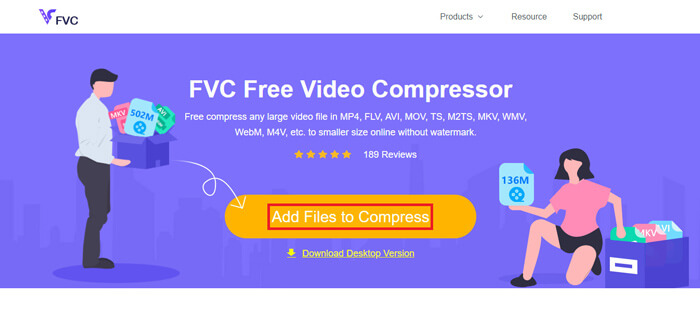
2. lépés. Telepítés után válaszd ki a tömöríteni kívánt MP4 fájl(oka)t. Igény szerint állítsd be a videó méretét, formátumát, felbontását és bitrátáját.
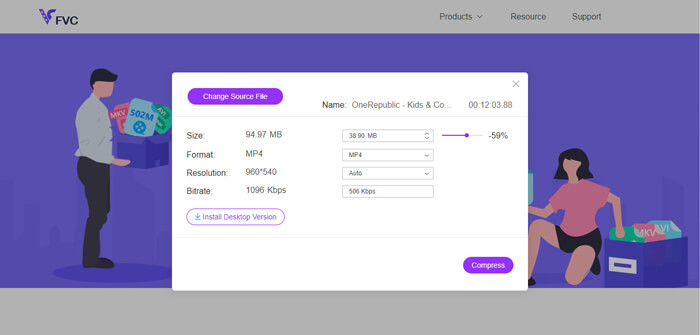
3. lépés. Kattints a Compress gombra a tömörítés elindításához.
2. rész: Az MP4 tömörítése offline Freeware használatával
Ha a hálózata nem olyan stabil, akkor inkább válassza a video offline tömörítését az asztalon, ezzel elkerülhető a hálózati állapot befolyásolása.
A Video Converter Ultimate egy minden az egyben ingyenes program videó- és hangfájlok tömörítésére, konvertálására és szerkesztésére PC-n. Több mint 1000 formátumot támogat, és 10 kimeneti felbontás közül választhatsz. A tömörítés előtt át is nevezheted a videót, így könnyebben megkülönböztetheted a többi MP4 fájltól. Az új Video Converter Ultimate számos hasznos szerkesztőeszközt és remek funkciót tartalmaz, például Metaadat-szerkesztőt, GIF-készítőt, 3D-készítőt, Video enhancer modult stb.
Ingyenes letöltés Windows 7 vagy újabb rendszerre Biztonságos letöltés
Ingyenes letöltés macOS 10.7 vagy újabb rendszerre Biztonságos letöltés
1. lépés. Indítsd el a Video Converter Ultimate programot a számítógépeden.
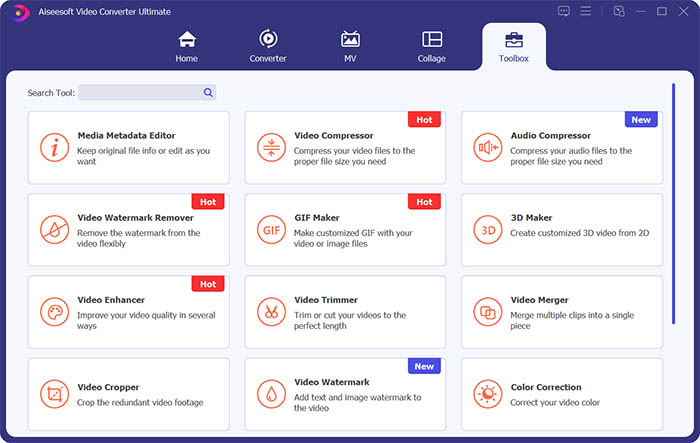
2. lépés. Kattints a Toolbox menüpontra. Keresd meg a Video Compressor eszközt a Toolbox menüben. Kattints a + ikonra, majd add hozzá a tömöríteni kívánt videót.
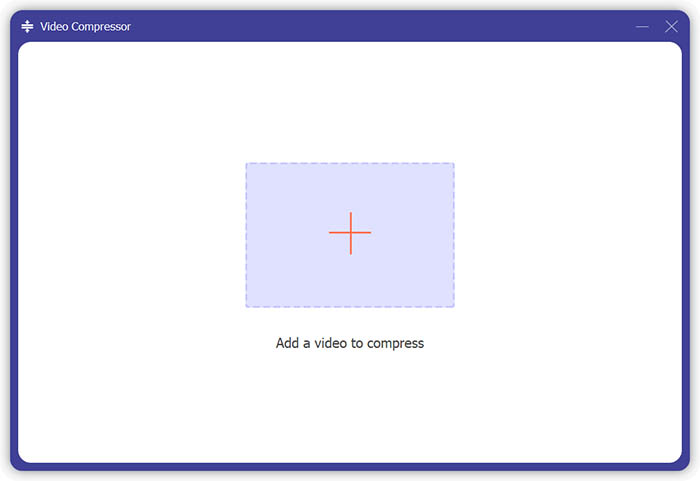
3. lépés. Beállíthatod a kimeneti fájl méretét, nevét, formátumát, felbontását és bitrátáját.
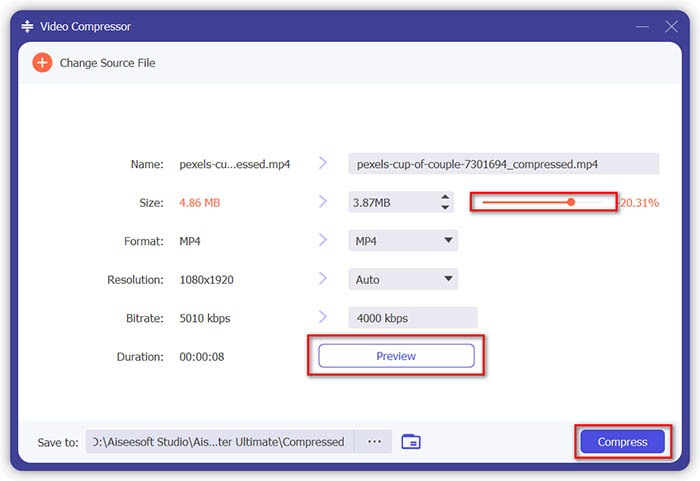
4. lépés. Kattints a Compress gombra, és várd meg, amíg elkészül az MP4 videó.
3. rész: Az MP4 fájlok tömörítése a HandBrake segítségével
A HandBrake egy ingyenes videotömörítő eszköz is, amely segít minimalizálni az MP4 fájl méretét.
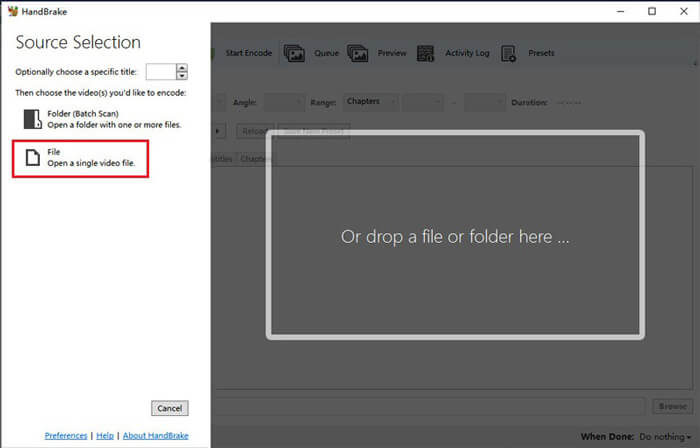
1. lépés. Töltsd le és telepítsd a HandBrake programot a számítógépedre. Ezután nyisd meg, és kattints a bal oldalon található File lehetőségre. Válaszd ki a tömöríteni kívánt fájlt.
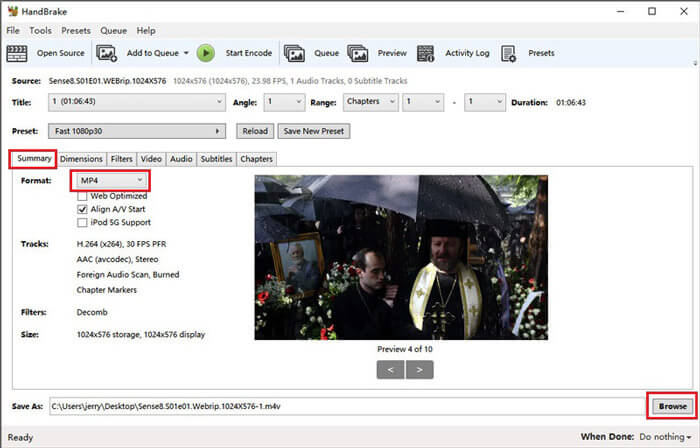
2. lépés. A tömörített videó mentési helyét a Browse gombra kattintva módosíthatod. A videót át is nevezheted. Ezután válaszd ki az MP4 formátumot kimeneti formátumként.
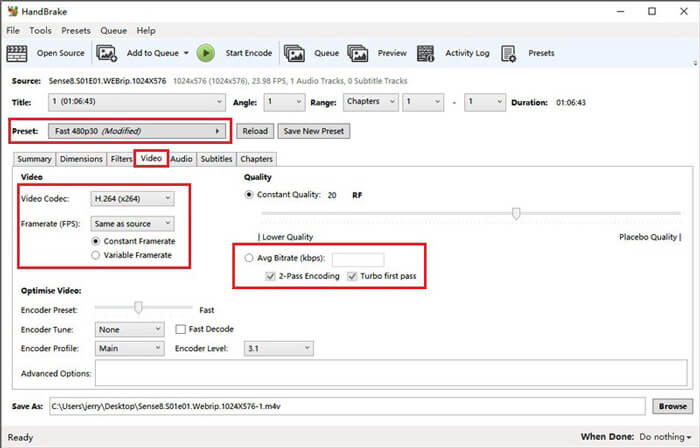
3. lépés. A fent található Preset beállításnál a Fast 480p30 megfelelő lesz. Lépj a Video fülre, és ellenőrizd, hogy a videokódek H.264 (x264). Ezután válaszd ki a képkockasebességet a forrásvideónak megfelelően. Ha nem tudod, mit válassz, állítsd Same as source értékre. Pipáld be a Constant Framerate opciót a jobb kompatibilitás érdekében. Adj meg egy Average Bitrate (kbps) értéket a videóhoz (5000 és 10 000 között).
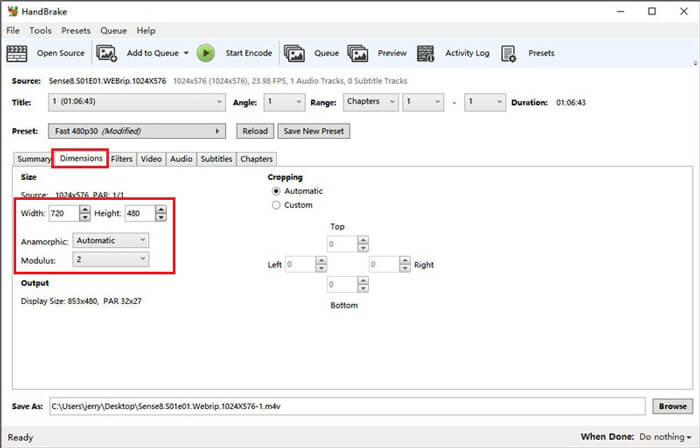
4. lépés. Kattints a Dimensions fülre, és módosítsd a videó képméretét vagy felbontását. Állítsd az Anamorphic beállítást None értékre, a Modulus értékét pedig 2-re. Ezután jelöld be a Keep Aspect Ratio opciót. Ha szükséges, a Width melletti arrow down gombbal csökkentheted a szélességet.
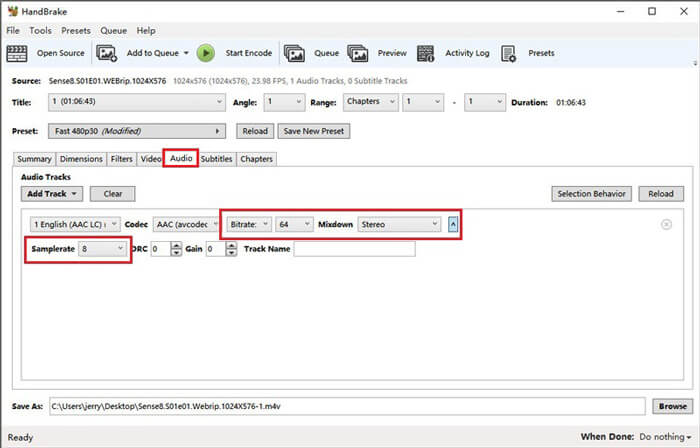
5. lépés. Válaszd az Audio fület, majd nyisd le a rejtett beállítási menüt. A Samplerate értékéhez válaszd a 8-at, a Mixdown opciónál pedig a Stereo beállítást.
6. lépés. Kattints a Start Encode gombra a tömörítés elindításához.
Kezdőknek valójában nem javasoljuk a HandBrake használatát, mert nehéz megérteni és beállítani a paramétereket. És valóban sok időbe telik a tömörített fájl megszerzése.
4. rész: Gyakran ismételt kérdések az MP4 tömörítésről
1. Az ffmpeg képes tömöríteni az MP4-et?
Igen, használhatsz egy ilyen karakterláncot az MP4 fájl tömörítéséhez:
$ ffmpeg -i input.mp4 -vcodec h264 -acodec mp2 output.mp4
De előfordulhat, hogy egyeseknél épp nő a fájlméret, nem pedig csökken, ha a videó eleve nagyon kicsi.
2. Exportálhatja-e a HandBrake a WMV-t, a MOV-t és az FLV-t?
A HandBrake csak MP4(.M4V) és MKV formátumba tud tömörített videót exportálni, ami azt jelenti, hogy nem tud más formátumokba menteni, például WMV, MOV, FLV, AVI stb. Ha HandBrake-kel tömöríted a videókat, akkor utólag neked kell MP4-ből WMV-t konvertálnod, vagy más formátumra átalakítanod őket.
3. Az MP4 videók tömörítése elveszíti a minőségét?
Az MP4 fájlok teljes méretéről kisebb méretre történő tömörítésekor a minőség bizonyos mértékig mindenképpen romlani fog. Ugyanakkor egy professzionális videótömörítővel, például az FVC Free Video Compressor vagy a Video Converter Ultimate használatával az eredeti képminőség nagy része megőrizhető. Emellett egy jó MP4 lejátszó használata is segíthet abban, hogy a lehető legjobb minőségben játszd le az MP4 fájlokat.
Következtetés
Összefoglalva, 3 módszert mutattunk be arra, hogyan tudod az MP4 fájlokat kisebb méretre tömöríteni. Ha nem szeretnél túl sok programot telepíteni a számítógépedre, kipróbálhatod az online és ingyenes FVC Free Video Compressor eszközt. Ha azonban egy igazán sokoldalú, erős videófeldolgozóra van szükséged, a Video Converter Ultimate a legjobb választás. Reméljük, hasznosnak találtad ezt a cikket, és ne felejts el üzenetet hagyni, hogy megoszd velünk a véleményed.
-
 MP4 konvertálása WMV formátumba Mac / Windows rendszerre
 Ez a bejegyzés megosztja az MP4 videó konvertálását WMV formátumba Mac vagy Windows rendszeren. Számos lehetőséget kínálunk Önnek, beleértve az asztali szoftvert és a webalapú online konvertereket is. Készen áll a legjobb MP4 - WMV konvertáló eszközök megismerésére?
-
 Hogyan lehet átalakítani az MP4 videofájlokat animált GIF képekké minőségromlás nélkül
 Az MP4 videó animált GIF formátumba alakításának legjobb módját keresi? Itt van egy részletes útmutató a Photoshop, a Windows Movie Maker, az online videó konverter és így tovább elvégzéséhez.
-
 MOV VS MP4 - melyik a jobb
 MOV VS MP4, melyik a jobb? Ez a bejegyzés elmondja a különbséget az MP4 és a MOV között, így jobb választást kaphat a videofájlokhoz.
