


 Video Converter Ultimate
 Screen Recorder
 Videó javítás
 Biztonságos letöltés
Megoldások online videók vágására [Lépésről lépésre oktatóanyagok]
Hogyan tudja lerövidíteni a hosszú videóját? Ha nem ismeri a legjobb módszereket, akkor érdemes elolvasnia ezt az útmutatót. A cikk során minden fontos információt megadunk a videó hossznak csökkentéséről. Emellett bemutatunk online és offline videoszerkesztő szoftvereket is, amelyeket használhat. Így nagyobb esélye lesz elérni a célját. Szóval, további halogatás nélkül olvassa el ezt a bejegyzést, és tanulja meg, hogyan lehet videót vágni online.

1. rész: Kiváló módszerek online videovágásra
1. Videóba ágyazott
Az egyik hasznos videószerkesztő eszköz, amelyet online találhat, az InVideo videóvágó. Ez a webalapú szoftver könnyen használható elrendezést kínál. A webhely meglátogatása után nem kell telepítenie az eszközt. Nincs más dolgod, mint hozzáadni a videót, és máris folytathatod a vágást. Ráadásul, mivel egyszerű az elrendezése, lesz egy érthető módszer is. Így akár professzionális, akár nem professzionális felhasználóról van szó, használhatja az InVideo funkciót. Ezenkívül az InVideo szinte minden webes platformon elérhető. Az eszközt használhatja a Google Chrome, a Mozilla Firefox, az Internet Explorer és más böngészőkben. Az InVideo-nak azonban vannak hátrányai. Az ingyenes verzió használatakor az InVideo nem tud jó videóminőséget kínálni. Ezenkívül csak gyenge videóminőséget kínál, ami nem kielégítő. Ha kiváló videóminőséget szeretne, előfizetési csomagot kell vásárolnia. Kövesse az alábbi lépéseket a videó kivágásához/kivágásához az InVideo videovágóval.
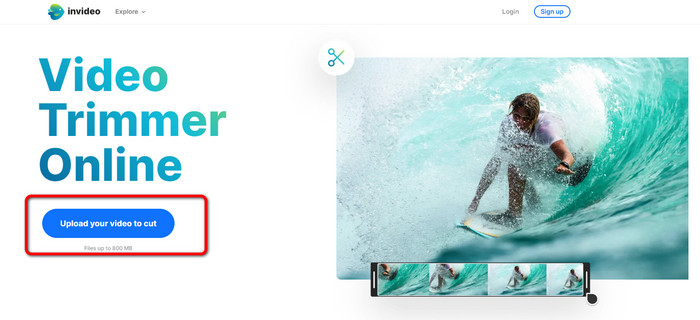
1. lépés. Nyissa meg a böngészőjét, és lépjen az InVideo hivatalos weboldalára. Ha már az oldalon van, kattintson az Upload your video to cut (Töltse fel a vágni kívánt videót) gombra. Amikor megjelenik a fájlkezelő ablak, válassza ki a vágni/kurtítani kívánt videót, majd nyissa meg.
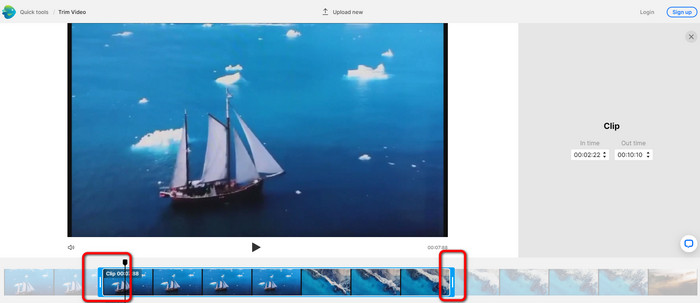
2. lépés. A videó kiválasztása után átirányítják arra a felületre, ahol megvághatja. A videó vágásához húzza a csúszkákat a videó két végén arra az időpontra, amelyet meg szeretne tartani.
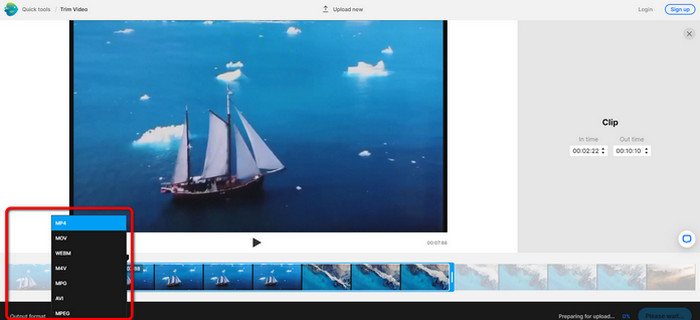
3. lépés. A videó megvágása után többféle formátumban is elmentheti. Lépjen az Output Format (Kimeneti formátum) lehetőségre a felület bal alsó részén. Amikor megjelennek a formátumopciók, válassza ki a kívánt kimeneti formátumot. Ezután kattintson a Done (Kész) gombra.
4. lépés. Mielőtt elmenthetné a videót, regisztrálnia kell egy InVideo-fiókot, vagy be kell jelentkeznie egy már meglévőbe. Miután megadta a bejelentkezési adatait, néhány másodpercen belül elérhető lesz a videó mentésre.
2. Ezgif
Egy másik ingyenes online videóvágó az Ezgif. Egyszerű lépésekkel lehet vele lerövidíteni egy videót. Az Ezgif egy ingyenes online eszköz, tehát nem kell pénzt költenie rá. Ráadásul bármely böngészőből elérheti az online eszközt, például Google Chrome, Edge, Firefox, Explorer és mások használatával. Azonban az online eszköz csak GIF-et támogat. Tehát, ha más formátumú videót szeretne vágni, az Ezgif nem a megfelelő választás. Emellett a használat közben sok zavaró reklám jelenik meg a képernyőn, ami szerkesztés közben kifejezetten kellemetlen lehet.
1. lépés. Lépjen az Ezgif weboldalára, és válassza a Cut (Vágás) opciót.
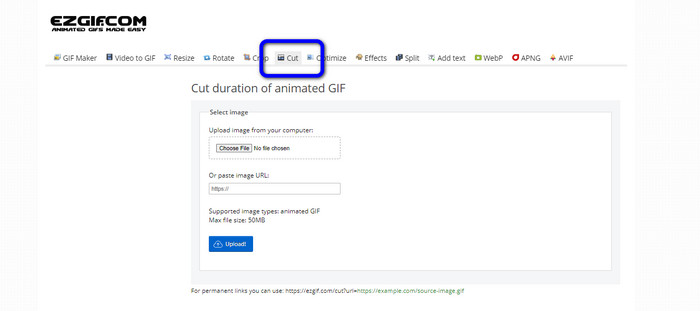
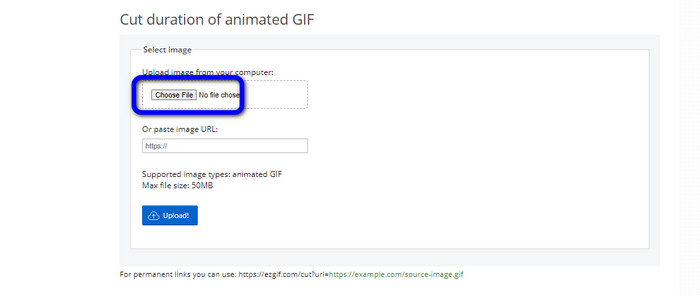
2. lépés. Ezután kattintson a Choose File (Fájl kiválasztása) gombra. Adja hozzá a feltölteni kívánt GIF-fájlt a számítógép mappájából.
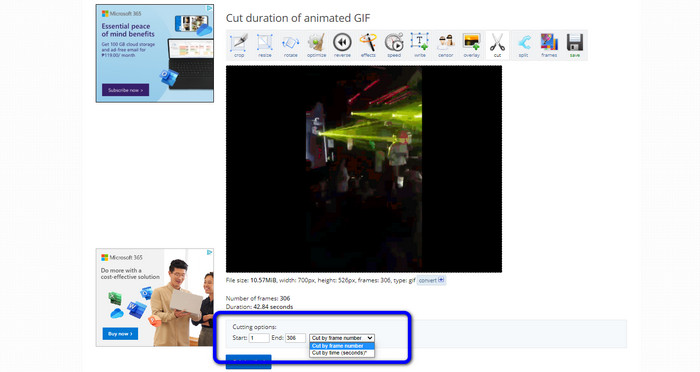
3. lépés. A GIF feltöltése után már vághatja is. Két módon vághatja a GIF-et: képkocka (frame) szerint vagy idő alapján. Vágja a saját preferenciájának megfelelő módon.
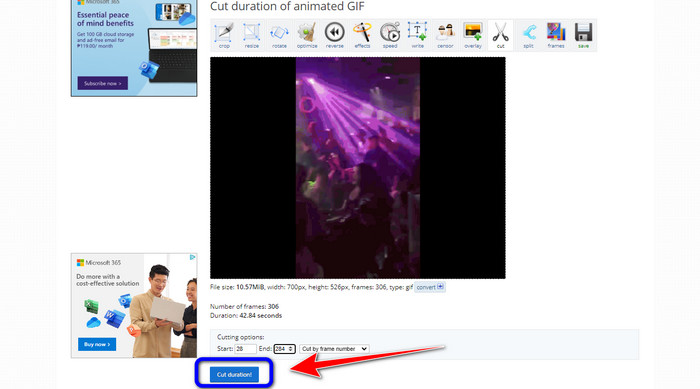
4. lépés. Kattintson a Cut Duration (Időtartam vágása) gombra a vágási folyamat elindításához.
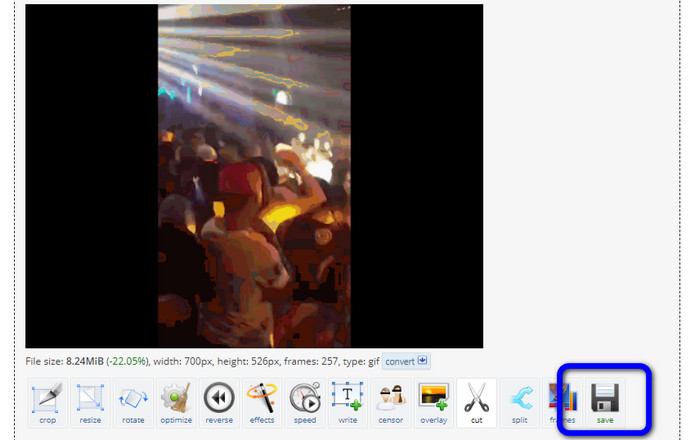
5. lépés. Ezt követően megjelenik a szerkesztett változat. Kattintson a Save (Mentés) opcióra, hogy letöltse a végső kimenetet a számítógépére.
3. Kapwing
A videó vágásához használhatja a Kapwing videóvágót is. Ez a webalapú eszköz lehetővé teszi a videók egyszerű, gondtalan vágását. Emellett többféle böngészőplatformon is elérhető, például Chrome, Mozilla, Edge és mások alatt. Továbbá a Kapwing számos videóformátumot támogat, mint az MP4, MOV, AVI, FLV, WEBM és egyebek, ami kényelmessé teszi minden felhasználó számára. A Kapwingnek azonban vannak hátrányai is. Zavaró reklámok jelennek meg folyamatosan a képernyőn. Ráadásul az ingyenes verzióval legfeljebb 720p felbontású videót tölthet fel. Emellett a videó szerkesztése után zavaró vízjeleket helyez el a kimeneten. Ha vízjel nélküli videót szeretne, és több hasznos funkciót akar élvezni, elő kell fizetnie valamelyik csomagra.
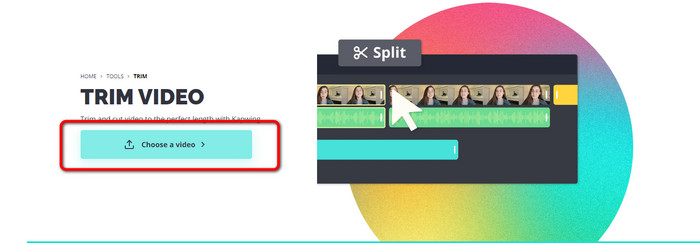
1. lépés. Lépjen a Kapwing weboldalára. Ezután kattintson a Choose a video (Válasszon videót) opcióra, hogy a fő felületre jusson.
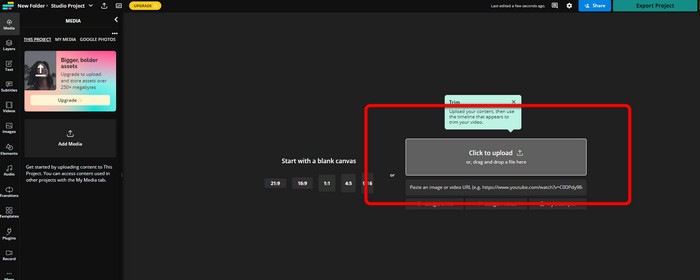
2. lépés. Kattintson a Click to upload (Kattintson a feltöltéshez) gombra, hogy a fájlkezelőből beillessze a videót.
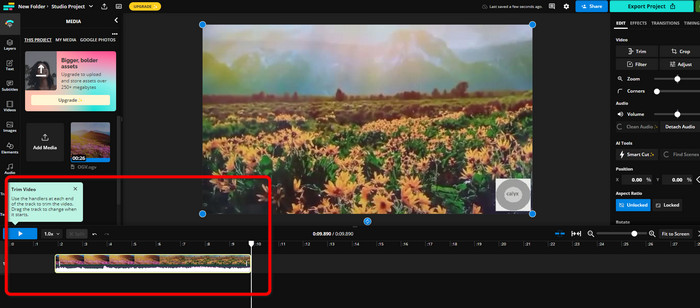
3. lépés. Amint a videó a timeline-ra kerül, a két végén lévő fogantyúkat (handlereket) húzva kezdheti el a vágást.
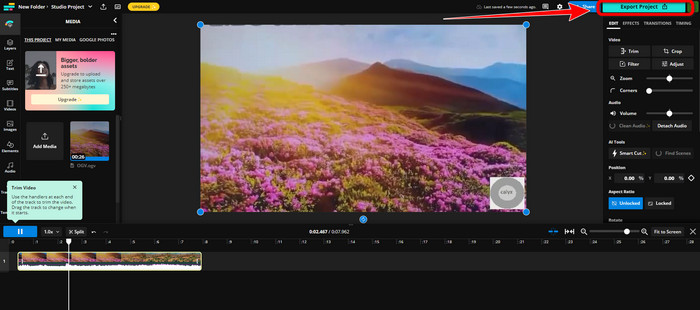
4. lépés. Ha végzett, menjen a felület jobb felső sarkába, és kattintson az Export Project (Projekt exportálása) gombra. Így elmentheti a szerkesztett videót az asztalára.
2. rész. Alternatív módja a videó offline vágásának
Használja a Video Converter Ultimate programot a videók lehető legjobb offline szerkesztéséhez. Ez az eszköz egyszerűvé teszi a videók kivágását és/vagy megnyirbálását. Emellett letisztult felületet és egyértelmű menürendszert kínál, így minden felhasználó számára ideális. A végső fájlt számos formátumban elmentheti, például MOV, AVI, MP4, MKV és egyebek formájában. Vágás közben további beállításokat is végezhet. Az Output (Kimenet) beállításoknál különféle paramétereket módosíthat, például a videó képkocka-sebességét, felbontását, kódolóját, minőségét stb. A Video Converter Ultimate ráadásul nem helyez vízjelet a szerkesztett videóra. Így a módosított felvételt zavaró elemek nélkül nézheti meg. A Video Converter Ultimate Windows és Mac rendszeren egyaránt használható, ami azt jelenti, hogy mindkét platform felhasználói számára kényelmes megoldás. Kövesse az alábbi részletes útmutatót a videó vágásának megkezdéséhez.
1. lépés. Kattintson az alábbi Letöltés gombra, hogy a számítógépére töltse a Video Converter Ultimate programot. A telepítés befejezése után nyissa meg az alkalmazást.
Ingyenes letöltés Windows 7 vagy újabb rendszerre Biztonságos letöltés
Ingyenes letöltés macOS 10.7 vagy újabb rendszerre Biztonságos letöltés
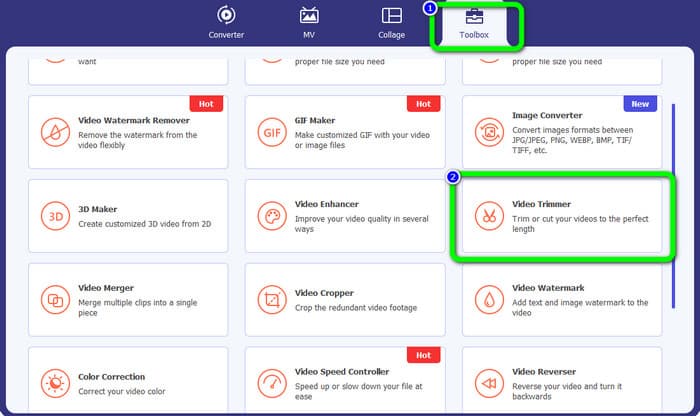
2. lépés. A felületen kattintson a Toolbox (Eszköztár) menüre, majd válassza a Video Trimmer (Videóvágó) eszközt.
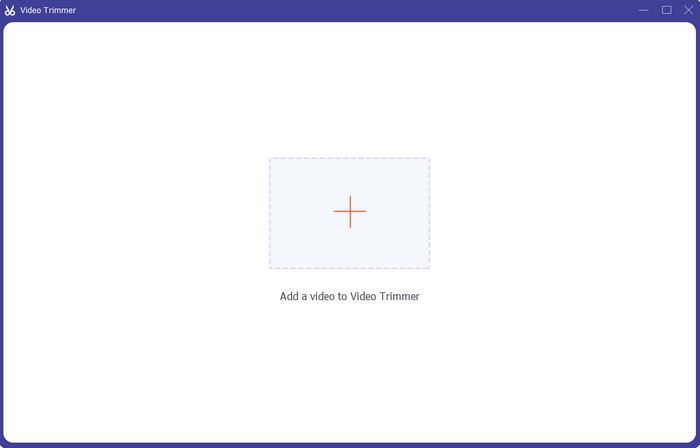
3. lépés. Amikor megjelenik az új felület, kattintson a Plusz ikonra, és illessze be a szerkeszteni kívánt videót.
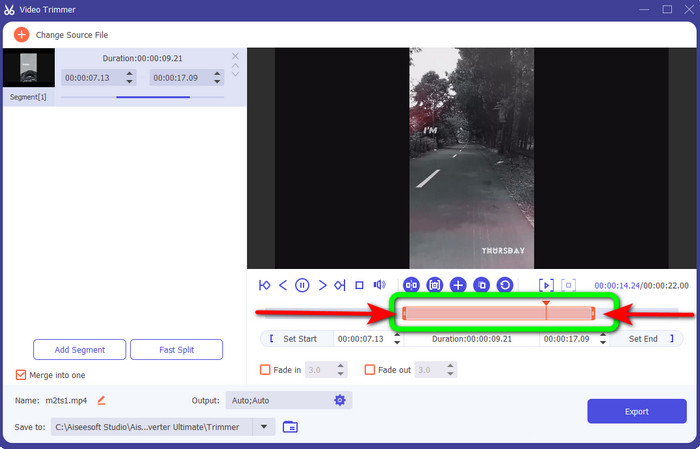
4. lépés. Ezután már neki is láthat a videó szerkesztésének ezen a részen. A videó szélein lévő határokat elmozdítva szabályozhatja, hogyan szeretné vágni/kurtítani a felvételt. A jobb és bal széleket az igényeinek megfelelően állíthatja.
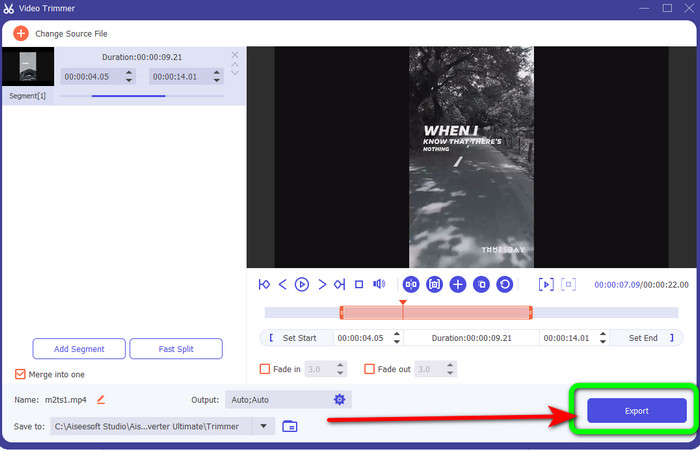
5. lépés. Ha elégedett a videóval, kattintson az Export (Exportálás) gombra az exportálás folytatásához. Ezután mentse el a végleges, szerkesztett videót.
3. rész. GYIK a Videó online vágásával kapcsolatban
Hogyan lehet videót vágni iPhone-on?
Az indítás után érintse meg a szerkeszteni kívánt videót a Képek alkalmazásban. Kattintson a Szerkesztés gombra. Módosítsa a kezdési és befejezési időt a videó idővonalának mindkét oldalán lévő csúszkák húzásával. A lejátszás gombbal megtekintheti a szerkesztett videó előnézetét. A Kész kiválasztása után válassza a Videó mentése vagy a Videó mentése új klipként lehetőséget.
Hogyan vágjunk videókat a Shotcutban?
Húzza a videofájlt az idővonalra, miután importálta a Shotcutba. Helyezze a lejátszófejet a vágni kívánt szegmens elejére. Ezután nyomja meg az I gyorsbillentyűt. Nyomja meg az O billentyűt, miután a lejátszófejet a szakasz végére vitte. A szegmens most el lesz választva a videó többi részétől.
Melyik a legjobb szoftver az MP4 fájlok offline vágásához?
Ha MP4 fájlokat szeretne offline vágni, használja a Video Converter Ultimate programot. Ez az ingyenesen letölthető szoftver lehetővé teszi az MP4 fájlok gondtalan vágását.
Következtetés
Ezek a leghatékonyabb módszerek, hogy videót vágjon online. A fent említett összes videoszerkesztő eszközt használhatja videóvágásra. Azonban online eszköz használatakor előfordulhat, hogy gyenge internetkapcsolat miatt nem működik megfelelően. Ilyen esetben használja a Video Converter Ultimate programot. Ez egy letölthető alkalmazás, amellyel internetkapcsolat nélkül is szerkeszthet videókat.
-
 [4 módszer] Hogyan gyorsíthatja fel könnyedén online videóit
 Szeretnéd felgyorsítani az online videózást? Olvassa el ezt a cikket, hogy többet tudjon meg a videó felgyorsításáról különböző lehetséges módokon.
-
 Hogyan válasszuk ki és egyesítsük a dalokat online - 4 legjobb módszer, amelyet tudnunk kell
 Ha online vágni és egyesíteni akarja a dalokat, hogy egy darab zenét hozzon létre, akkor többet megtudhat a 4 legjobb online eszközről a dalok klipelésére és a cikk fájljainak egyesítésére.
-
 Fedezze fel a legjobb MP4 nyírót eljárással és információkkal
 Szeretnéd megtanulni, hogyan vágj ki olyan videókat, mint az általad nézett vloggerek? Ezután olvassa tovább ezt a bejegyzést, hogy megtudja, milyen MP4 trimmereket használhat.
