


 Video Converter Ultimate
 Screen Recorder
 Videó javítás
 Biztonságos letöltés
Színhelyesbítés az 5 legjobb kötelező eszközzel
A színkorrekció alapvető folyamat a videószerkesztésben: javítja és összehangolja a videó színeit, így vizuálisan vonzó, figyelemfelkeltő eredményt ad. A kontraszt, a telítettség, a fényerő és az árnyalatok módosítását jelenti, hogy elérjük a tökéletes vizuális hangulatot. Akár profi videográfus, akár kezdő tartalomkészítő vagy, a színkorrekció helyes alkalmazásának megértése sorsfordító lehet a magával ragadó vizuális élmény nyújtásában. A folyamat azzal kezdődik, hogy azonosítjuk és elemezzük a meglévő színegyensúlyt, a csúcsfényeket, az árnyékokat és a középtónusokat a videófelvételen belül. Ezt követően speciális szoftverrel történik a finomhangolás, amely valós kontrollt biztosít ezek felett a színelemek felett. Merüljünk el mélyebben ebben a cikkben, és nézzük meg, hogyan javíthatod ki a videó színproblémáit a legjobb, megbízható eszközökkel.

1. rész. Öt módszer a videó színének javítására
Lehet, hogy olyan egyszerű, mint gondolná, különféle ingyenes videószerkesztő színkorrekciókat találni az interneten a videó vizuális vonzerejének növelése érdekében. A fejlettebb és megbízhatóbbak keresése azonban meglehetősen körülményes a megfelelő hangulat megteremtése a videóidhoz. Fedezzen fel öt hatékony módszert a videó színeinek tökéletesítésére a különféle sokoldalú szoftverek segítségével, javítva a történetmesélést és lekötve a közönséget.
1. Video Converter Ultimate
A Video Converter Ultimate egy minden az egyben videoszoftver, amely lehetővé teszi a videó minőségének javítását az olyan alapvető paraméterek beállításával, mint a fényerő, a kontraszt és a telítettség. Ez a praktikus színkorrekciós eszköz vágási, körbevágási és egyesítési funkciókkal is támogatja a videószerkesztést. Emellett számos videokonvertálási opciót kínál, így a videókat több ezer formátumba alakíthatod át, és különböző eszközökhöz igazíthatod, például MP4, MKV, MOV, MP3, AAC, GIF, iPhone, Samsung és Apple TV, biztosítva, hogy különféle platformokon gond nélkül lejátszhatók legyenek. Továbbá feliratokat és vízjeleket is adhatsz a videókhoz, hogy még személyre szabottabbá tedd őket. Egyszerű, áttekinthető felületének köszönhetően ez az eszköz tökéletes választás kezdőknek és haladó felhasználóknak egyaránt. Kövesd az alábbi lépéseket, hogy megtanuld, hogyan végezz sikeres színkorrekciót videóidon a Video Converter Ultimate segítségével.
1. lépés: Színkorrekciós eszköz letöltése és telepítése
Először szerezd be az eszközt az alábbi egyik Ingyenes letöltés gombra kattintva. A számítógéped operációs rendszerétől függően ügyelj rá, hogy a gépedhez megfelelő Video Converter Ultimate verziót töltsd le. Kövesd az utasításokat a telepítéshez.
Ingyenes letöltésWindows 7 vagy újabb rendszerreBiztonságos letöltés
Ingyenes letöltésMacOS 10.7 vagy újabb rendszerreBiztonságos letöltés
2. lépés: Indítsa el a Video Converter Ultimate programot
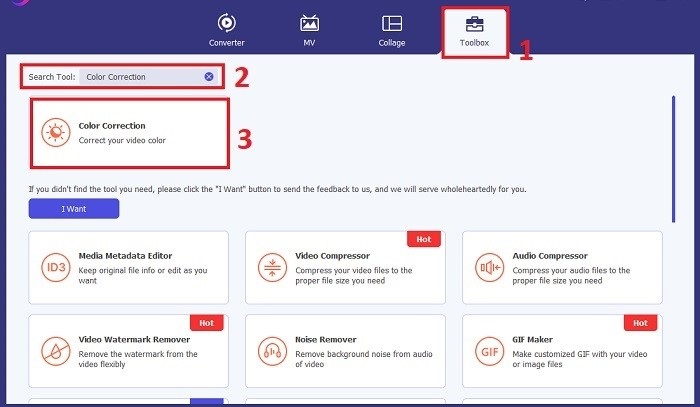
A telepítés után nyisd meg a Video Converter Ultimate programot. Navigálj a főmenüben a Toolbox részhez, és keresd meg a Color Correction funkciót. Kattints rá a folytatáshoz.
3. lépés: A videó importálása színkorrekcióhoz
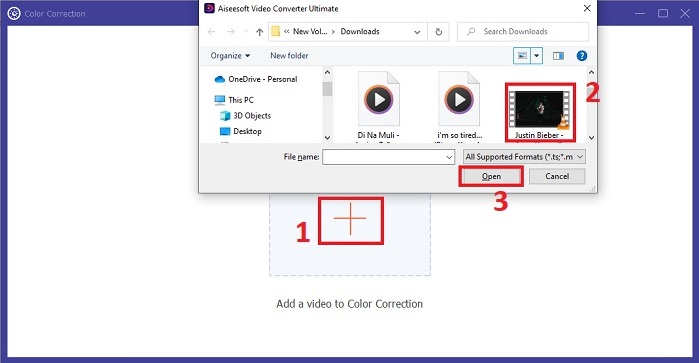
Most kattints a Plusz gombra, hogy importáld a színkorrekcióra szánt videót. Keresd meg a videófájlt a számítógépeden, majd válaszd az Open lehetőséget, hogy betöltsd a szoftverbe.
4. lépés: A videó színbeállításainak módosítása és mentés
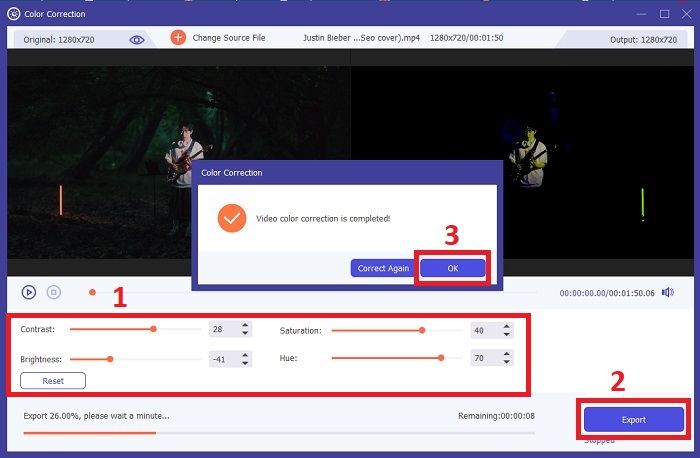
Miután importáltad a videót, finomhangold a színparamétereket – például a fényerőt, kontrasztot, telítettséget és árnyalatot –, hogy elérd a kívánt színkorrekciót. Ha elégedett vagy a módosításokkal, kattints az Export gombra. Hagyd, hogy az eszköz feldolgozza a videót, és mentse a javított változatot az általad választott helyre.
2. Színkorrekció Premiere Pro
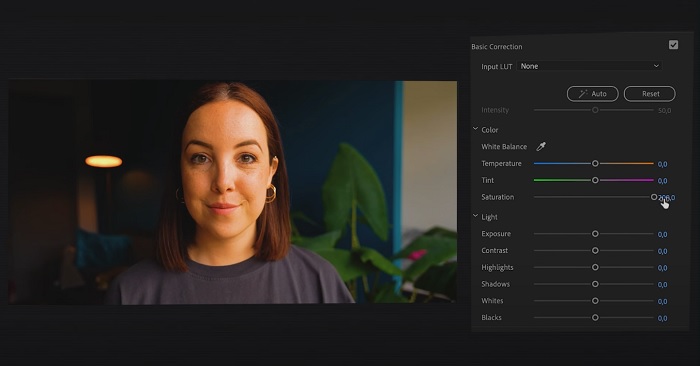
A Premiere Pro kiváló minőségű videószerkesztő szoftveréről és átfogó színkorrekciós képességeiről ismert. Különféle színbesorolási eszközöket és effektusokat kínál a pontos beállítások elvégzéséhez. A Color Correction Premiere Pro lehetővé teszi a színegyensúly és az expozíció beállítását, vagy kreatív megjelenést a kívánt vizuális stílus elérése érdekében. Több száz beépített videoeffektus és átmenet közül is választhat, vagy professzionálisan megtervezett sablonokkal kezdheti, és módosíthatja azokat a kívánt kimenet létrehozásához. Ezenkívül együttműködési funkciókkal rendelkezik, és zökkenőmentesen integrálható más Adobe-szoftverekkel, így a legjobb választás a szakemberek körében.
1. lépés. Először nyisd meg a Premiere Pro-t, és importáld a videódat. Ezután menj a Color workspace nézetre.
2. lépés. A Color workspace nézeten belül használd a Lumetri Color panelt az expozíció, a színegyensúly és a kreatív megjelenések beállításához.
3. lépés. Használd a scope-okat, hogy biztosítsd: a színbeállítások pontosan megfelelnek a kívánt eredménynek. Végül nézd meg az előnézetet, majd exportáld a javított videót.
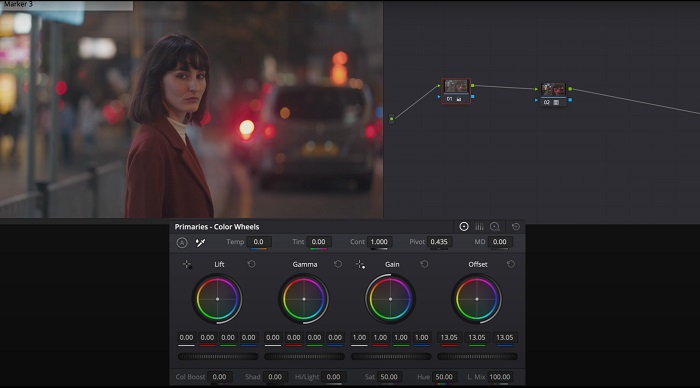
3. Davinci Resolve színkorrekció
Fedezze fel a kivételes színbesorolási képességeket. Ez a többfunkciós szoftver egyesíti a professzionális szerkesztést, színkorrekciót, vizuális effektusokat és audio-utómunkát. Az eszköz felhasználóbarát felületével és átfogó szolgáltatáskészletével precízen és stílusosan életre keltheti kreatív elképzeléseit. A Davinci Resolve Color Correction fejlett színbesorolási eszközeivel kiemelheti videóit. Akár élvonalbeli hollywoodi filmeken, akár személyes projekteken dolgozik, ez az eszköz lehetővé teszi a szakembereknek és a rajongóknak, hogy lenyűgöző, páratlan minőségű narratívákat alkossanak.
1. lépés. Nyisd meg a Davinci Resolve-ot, és importáld a videódat. Miután betöltötted, navigálj a Color fülre.
2. lépés. A Color fülön használd a színkerekeket, a görbéket és a node-okat a videó színének javításához. A pontosabb beállításokhoz igénybe veheted a rendelkezésre álló scope-okat is.
3. lépés. A szükséges színmódosítások elvégzése után tekintsd meg a javított videót, hogy meggyőződj róla: megfelel az elvárásaidnak. Ha elégedett vagy, exportáld a javított videót, így készen áll a felhasználásra.
4. Final Cut Pro színkorrekció
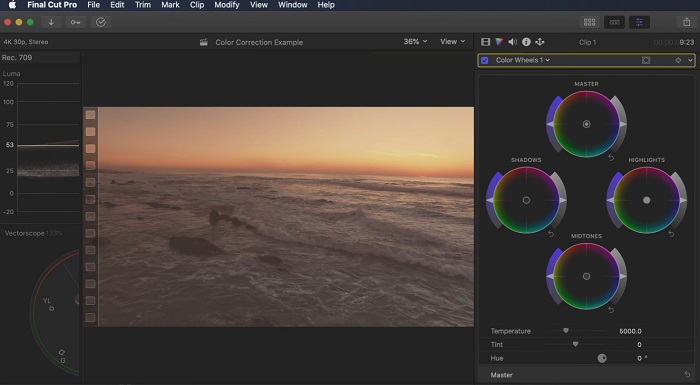
Ha Ön Mac-felhasználó, aki csúcsminőségű videószerkesztő alkalmazást keres, a Final Cut Pro nagyszerű választás. Felhasználóbarát kezelőfelülettel és hatékony funkciókkal büszkélkedhet, amelyek a szerkesztést könnyűvé teszik. Ha színkorrekcióról van szó, a Final Cut Pro színes táblát és színtárcsákat kínál az expozíció, a telítettség és a színárnyalat beállításához. Valós idejű színeffektusokat alkalmazhat, és fejlett osztályozási eszközöket használhat a felvételek javításához. Ráadásul zökkenőmentesen exportál Apple eszközökre és népszerű online platformokra. Ha Ön egy profi, aki a hatékonyságra és a kreativitásra vágyik, a Final Cut Pro nem számít. Az optimális teljesítmény érdekében győződjön meg arról, hogy macOS 13.4-es vagy újabb verziója van, valamint Apple szilikonnal ellátott Mac számítógépe.
1. lépés. Importáld a videódat a Final Cut Pro-ba, majd lépj a Color workspace nézetre.
2. lépés. Használd a Color Board vagy a Color Wheels eszközöket az alapvető expozíció-, telítettség- és árnyalatbeállítások elvégzéséhez.
3. lépés. Finomítsd tovább a videó színeit kiegészítő color grading eszközökkel, hogy a lehető legjobb eredményt érd el. Ha elkészültél, nézd meg az előnézetet, majd exportáld a javított videót.
5. Színkorrekciós After Effects
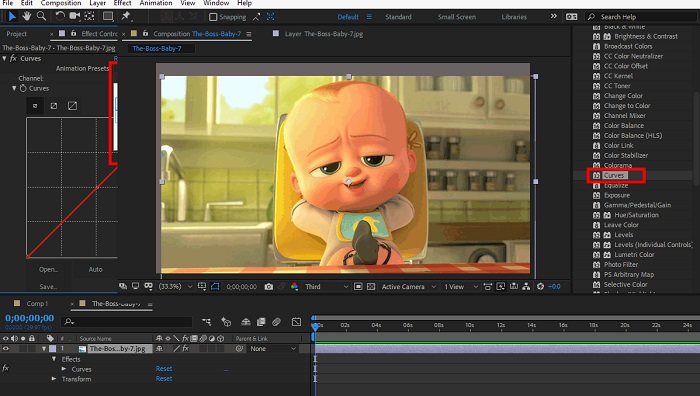
Az After Effects egy híres mozgógrafikus és vizuális effektus-szoftver robusztus színkorrekciós képességekkel. Az alapvető színkorrekciós effektusokon kívül különféle korrekciós rétegeket és effektusokat biztosít a színek javításához és módosításához. Gyorsan animálhatja a szöveget és a grafikát, és magával ragadó mozdulatokkal keltheti életre azokat. A Color Correction After Effects lehetővé teszi a szintek, görbék és keverési módok kihasználását a kívánt színbesorolás eléréséhez. Ez egy sokoldalú színkorrekciós lehetőség, köszönhetően a különböző Adobe-termékekkel való integrációnak, valamint az oktatóanyagokat és bővítményeket kínáló nagy közösségnek. Ezenkívül a szoftver folyamatosan fejlődik, és olyan funkciókat vezet be, mint például az intuitív tulajdonságpanel, az átlátszó rétegvezérlés és a hatékony többkockás renderelés, amelyek leegyszerűsítik a munkafolyamatokat és a kreativitás élvonalában tartják az alkotásokat.
1. lépés. Importáld a videoklipet a projektbe. Alkalmazz színkorrekciós effektusokat az Effects & Presets panelre navigálva, és válassz megfelelő eszközöket, például Curves, Levels vagy Color Balance.
2. lépés. Kattints az alkalmazott színkorrekciós effektusra a paraméterek eléréséhez. Ezután módosítsd az olyan beállításokat, mint az expozíció, a kontraszt, a telítettség és az árnyalat, hogy korrigáld és javítsd a videó színeit.
3. lépés. Nézd meg a videót a Composition panelen, hogy lásd, hogyan hatnak a felvételre a színkorrekciók. Az előnézet alapján finomhangold a beállításokat, amíg el nem éred a kívánt színkorrekciót, majd rendereld vagy exportáld a javított videót.
További olvasnivaló:
Legjobb ingyenes fotós színjavító appok Androidra és iOS-re
4 lenyűgöző módszer videószűrők hozzáadására Windows és macOS rendszeren
2. rész. GYIK a videó színkorrektorokról
Hogyan végezhetek színkorrekciót egy iMovie-on?
Az iMovie-ban a színek korrigálásához importáld a videoklipet, jelöld ki, majd kattints a Color Correction gombra (varázspálca ikon). Állítsd a csúszkákat az expozíció, a telítettség és a szín szabályozásához, amíg el nem éred a kívánt megjelenést.
Hogyan érhetem el a színkorrekciós eszközöket az OpenShotban?
Az OpenShot Video Editor színkorrekciójához válassz ki egy klipet, menj az Effects fülre, és kattints a Color Correction opcióra. Állítsd a fényerő, a kontraszt, az árnyalat és a telítettség csúszkáit, hogy elérd a kívánt színkorrekciót.
Hogyan érhetem el a színkorrekciós eszközöket a Sony Vegasban?
A Sony Vegas színkorrekciójához válaszd ki a javítani kívánt klipet, menj a Video FX fülre, és keresd meg a Color Corrector effektet. Húzd rá a klipre, majd állítsd be a színeket az Effect Controls ablakban.
Következtetés
A színkorrekció elsajátítása alapvető fontosságú ahhoz, hogy fokozd a videóid vizuális vonzerejét és lebilincselő nézői élményt teremts. Ebben az útmutatóban öt hatékony színkorrekciós eszközt ismertünk meg a kifogástalan színkorrekció érdekében. Ha kiváló minőségű videoszerkesztő programot keresel, érdemes megfontolni a Video Converter Ultimate, a Premiere Pro, a Final Cut Pro, a DaVinci Resolve vagy az After Effects használatát. Ezek a szoftverek rengeteg funkciót és lehetőséget kínálnak professzionális megjelenésű videók készítéséhez. Mindegyik program saját eszközkészlettel és szolgáltatásokkal rendelkezik, amelyek különböző igényekhez és tapasztalati szintekhez igazodnak.
-
 Hogyan adjunk hozzá és készítsünk Instagram-szűrőt a képek és videók közzététele előtt
 Milyen szűrők vannak az Instagramon? Hogyan kell alkalmazni? Hogyan készítsünk egyet? Ezekre a kérdésekre ebben a bejegyzésben egyértelmű válaszok lesznek, ezért olvassa el őket.
-
 Problémamentes módszerek a képek fekete-fehérre konvertálására
 Szeretnéd a fotóidat nosztalgikussá varázsolni? Van egy válaszunk az Ön számára. Ez a bejegyzés figyelemre méltó módokat kínál a színes képek fekete-fehérré alakítására.
-
 6 kedvenc Snapchat animált Snapchat szűrő a Snapchatben
 Szeretné tudni, hogyan lehet szűrőket hozzáadni a Snapchat videókhoz? Nos, rákattinthat erre, és megismerheti a különböző szűrőket, amelyeket a Snapchat-videókra használhat.
