


 Video Converter Ultimate
 Screen Recorder
 Videó javítás
 Biztonságos letöltés
Méretezze át a videót az Instagramhoz az elköteleződés és az Instagram-jelenlét fokozása érdekében
Eleged van az Instagram hírfolyamod kínosan vágott videóiból? Itt az ideje, hogy fokozd a tartalomjátékodat, és kiemeld videóidat! A videotartalom térnyerésével minden eddiginél fontosabb annak biztosítása, hogy a vizualitás tökéletesen optimalizálva legyen az Instagram számára. De ne aggódj. Nem kell professzionális szerkesztőnek lenned ahhoz, hogy profi módon vágd le videóidat.
Ebben az útmutatóban mindent bemutatunk, amit tudnia kell ahhoz, hogy az Instagram követelményei szerinti specifikációk alapján Instagramra vágja a videóit, és lenyűgöző tartalmat hozzon létre, amely megragadja követői figyelmét. Kezdjük is!

1. rész. Instagram videó képarány szabvány
Az Instagram videó képaránya 1:1, ami azt jelenti, hogy a videó szélességének és magasságának egyenlőnek kell lennie. Ez a négyzetes képarány az Instagram-videók alapértelmezett beállítása, és ez a platform leggyakrabban használt formátuma. Az Instagram azonban más képarányokat is támogat, köztük a 4:5, 16:9 és 9:16.
Ezek a különböző képarányok nagyobb rugalmasságot tesznek lehetővé a videók létrehozásakor, de fontos megjegyezni, hogy bizonyos arányok miatt előfordulhat, hogy a videók levágásra vagy átméretezésre kerülnek, ami negatívan befolyásolhatja azok minőségét. Ezért ez lehet a lehető legjobb válasz azok számára, akiknek olyan kérdéseik vannak, mint például: "Miért vágja le az Instagram a videómat?" Az Instagram videó képarány-szabványának követésével gondoskodhat arról, hogy videói csiszolt és professzionális megjelenésűek legyenek, és optimalizálva legyenek a platformon való megtekintésre.
2. rész: Videó átméretezése az Instagram offline használatához
A FVC Video Converter Ultimate kiváló választás videói Instagramra való vágásához. Számos funkciót és eszközt kínál, amelyekkel egyszerűen készíthet lenyűgöző, a platformra optimalizált tartalmakat. Az FVC Video Converter Ultimate egyik kiemelkedő funkciója, hogy többféle képarányt támogat, köztük az 1:1-et is, amely az Instagram szabványos képaránya.
Ez azt jelenti, hogy tökéletesen vághatja videóit az Instagram számára anélkül, hogy aggódnia kellene a minőség vagy a felbontás romlása miatt. Ez a segédprogram nagyszerű alkalmazás videók kivágására Instagramon, különösen bejegyzések, tekercsek és történetek esetén. Ezenkívül más képarányokat is kihasználhat, mint például a 16:9, 4:3, 21:9 és még sok más. Kövesse az alábbi egyszerű lépéseket, hogy megtanulja, hogyan vághat le videókat az Instagram számára:
1. lépés. Szerezze be és telepítse a programot
Először is töltse le az alkalmazást a számítógépére a számítógépe operációs rendszerének megfelelő Ingyenes letöltés gombra kattintva. Ezután telepítse és indítsa el a programot a telepítés befejeztével.
Ingyenes letöltésWindows 7 vagy újabb rendszerreBiztonságos letöltés
Ingyenes letöltésMacOS 10.7 vagy újabb rendszerhezBiztonságos letöltés
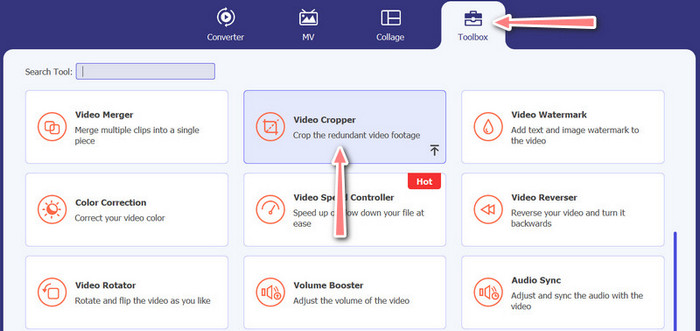
2. lépés. Lépjen be az Eszköztárba és a Videóvágóba
Most lépjen a program Eszköztárába a Eszköztár fülre kattintva. Ez a panel számos lehetőséget jelenít meg. Válassza a Videóvágó opciót.
3. lépés. Videó importálása vágáshoz
Adja hozzá a vágni kívánt videót a Plusz jel gombra kattintva a Videóvágó opció feltöltési területén. Ekkor egy másik panelre kerül, ahol kivághatja a feltöltött videót.
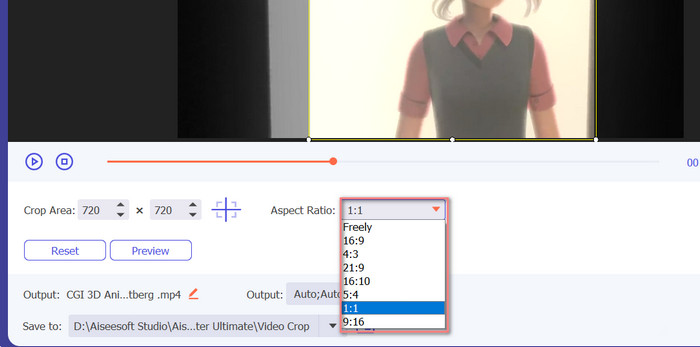
4. lépés. A videó kivágása
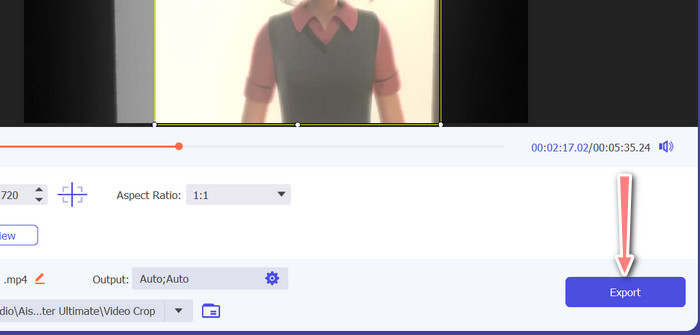
Válassza ki azt a képarányt, amelyet a videójához használni szeretne. Instagram esetén a szabványos képarányok az 1:1 (négyzetes) és a 4:5 (álló). A kívánt képarányt a videó előnézete alatti legördülő menüre kattintva választhatja ki. Az exportáláshoz kattintson az Export gombra a felület jobb alsó sarkában. Ezután megoszthatja követőivel, vagy közzéteheti Instagram-fiókján.
3. rész: Vágja le az Instagram Online videót
A Kapwing egy népszerű online videószerkesztő, amely tökéletes azok számára, akik gyorsan és egyszerűen szeretnék kivágni videóikat Instagramra anélkül, hogy bonyolult szoftverekkel kellene foglalkozniuk. Arról nem is beszélve, hogy a Kapwinget felhasználóbarátnak tervezték, így még ha nem is vagy tapasztalt videószerkesztő, akkor is használhatod a platformot kiváló minőségű tartalom létrehozására. Íme a lépések ahhoz, hogy a Kapwing segítségével ingyenesen vághasson videót az Instagram számára:
1. lépés. Lépjen a Kapwing weboldalára, és kattintson a Start Editing (Szerkesztés indítása) gombra.
2. lépés. Töltse fel a vágni kívánt videót úgy, hogy behúzza a Kapwing szerkesztőbe, vagy kattintson az Upload (Feltöltés) gombra, és válassza ki a fájlt a számítógépéről.
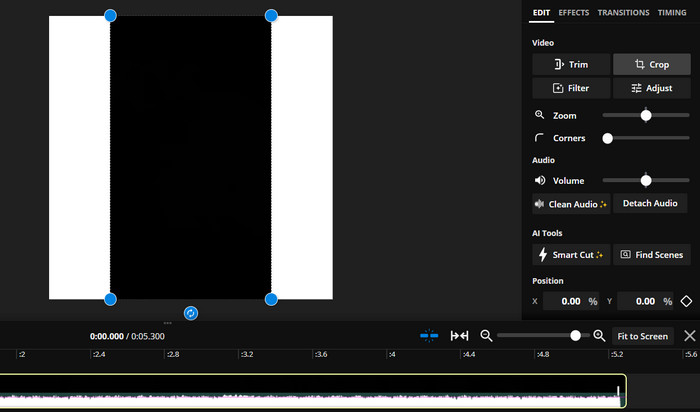
3. lépés. Kattintson a Crop (Vágás) eszközre a jobb oldali menüben. Ezután válassza ki azt a képarányt, amelyre a videót vágni szeretné, egy előre beállított opciót választva vagy egyéni képarány megadásával. Használja a videó előnézetén lévő fogantyúkat, hogy a kívánt méretre vágja a videót. Megjegyzés: ugyanezzel az eljárással az Instagram-posztokhoz is vághat videókat.
4. rész. Videók vágása az Instagramhoz Androidon
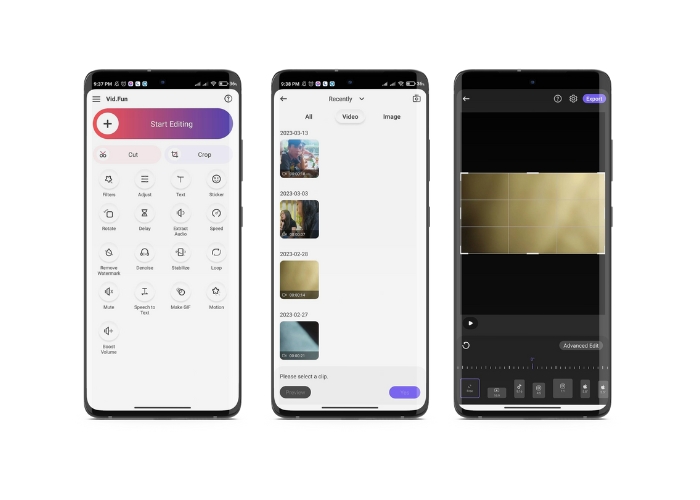
A Vid.fun segítségével tökéletes méretre vághatja videóit Instagramhoz, akár okostelefont, akár táblagépet használ. Az alkalmazás rengeteg funkciót kínál a kiváló minőségű videók készítéséhez, köztük egy hatékony videóvágót, amellyel néhány érintéssel könnyedén kivághatja a videókat. Emellett különböző képarányokat is kínál, így biztos lehet benne, hogy videói nagyszerűen fognak kinézni Instagramon. Az alábbi útmutató bemutatja, hogyan vághatja a videókat Instagram-hoz készült Reelsekhez ezzel az alkalmazással Android-eszközén.
1. lépés. Töltse le és telepítse a Vid.funt a Google Play Áruházból. Közvetlenül utána indítsa el. Érintse meg a Vágás ikont a főképernyőn.
2. lépés. Adjon hozzá egy médiafájlt az eszköz galériájából választva. Ezután válassza ki a kívánt képarányt a képernyő alján lévő menüből. Alternatívaként használhatja a videó előnézetén lévő fogantyúkat is, hogy beállítsa a vágást, és a kívánt pozícióba helyezze a videót.
3. lépés. Nézze meg előnézetben a kivágott videót, hogy megbizonyosodjon róla, úgy néz ki, ahogy szeretné. Ha elégedett a vágással, koppintson a jobb felső sarokban található Export gombra.
További olvasnivaló:
Gyakorlati útmutató – 2 módszer videók kombinálására Instagramhoz
Különböző módok GIF közzétételére Instagramon [Webes és programalapú eszköz]
5. rész. GYIK az Instagram videók átméretezésével kapcsolatban
Mi történik, ha a videóm nem felel meg az Instagramhoz szükséges képaránynak?
Ha a videód nem felel meg az Instagramhoz szükséges képaránynak, akkor vagy fekete sávokkal jelenik meg az oldalakon vagy a tetején és az alján, vagy automatikusan le van vágva, hogy illeszkedjen a kerethez.
Vághatok olyan videót, amelyet már feltöltöttek az Instagramra?
Nem, nem vághatsz le olyan videót, amelyet már feltöltöttek az Instagramra. A videót le kell vágnia, mielőtt feltölti az Instagramra.
Vághatok egy videót a minőség romlása nélkül?
Igen, vághat videót minőségromlás nélkül, amíg nem vág túl sokat. Ha túlságosan megvágja a videót, az minőségromláshoz vezet, mivel csökkenti a videó felbontását.
Következtetés
Instagram-sztorikhoz, posztokhoz vagy Reelsekhez a videó vágása elengedhetetlen, hogy a videó jól nézzen ki, és megfeleljen az előírt képaránynak. A megfelelő eszközökkel, mint az FVC Video Converter Ultimate, a Kapwing vagy a Vid.fun, könnyedén vághat videókat Instagramhoz a megfelelő képarányra.
-
 Hogyan adhatunk hozzá és készíthetünk Instagram-szűrőt a kép közzététele előtt
 Milyen szűrők vannak az Instagramon? Hogyan kell alkalmazni? Hogyan készítsünk egyet? Ezekre a kérdésekre ebben a bejegyzésben egyértelmű válaszok lesznek, ezért olvassa el őket.
-
 A legjobb technikák egy videó gyorsítására az Instagramon, mint egy profi
 Fel szeretnél tölteni egy gyorsító videót az Instagramra? Ebben az esetben ez a cikk bemutatja a legjobb technikákat, amelyek segítségével könnyedén felgyorsíthatja a videókat.
-
 Méretezze át a fényképeket az Instagramhoz asztali számítógépen, iPhone-on vagy Androidon
 Ha át szeretné méretezni a fotóit az Instagram számára, akkor megmutatjuk ennek lépéseit. Olvassa el a fotók Instagram számára való átméretezésének lépéseit.
