


 Video Converter Ultimate
 Screen Recorder
 Videó javítás
Hasznos tippek lassított videók készítéséhez az iMovie-ban
Az iMovie egy nagyszerű videoszerkesztő, amely minden iOS- és Mac-operációs rendszerben elérhető. Az alkalmazás ingyenesen letölthető, és különféle eszközöket kínál, amelyek nagyon hasznosak a videón végrehajtott jelentős módosításokhoz, különösen, ha a lejátszási sebesség megváltoztatásáról vagy lassított felvétel készítéséről van szó. Mivel ez az alkalmazás felhasználóbarát, mégis nehéz lehet megérteni és használni, ha pontosan olyan lassítást szeretnél megvalósítani, amilyet a videódra alkalmaznál. Hogy teljes mértékben megérts minden részletet, hogyan tudsz lassított videókat készíteni iMovie-ban, olvasd el ezt a cikket, és kövesd figyelmesen a lépéseket.

1. rész: Lassított videók készítése az iMovie-ban iPhone használatával
Ahogy a fenti nyilatkozatban szerepel, az iMovie csak iOS-rendszereken, például iPhone-on működik. Ahhoz, hogy ezzel az alkalmazással a legjobb lassított videókat készíthesse, az alábbiakban felsoroljuk azokat az eljárásokat, amelyek elvezetik Önt az alkalmazás használatához is.
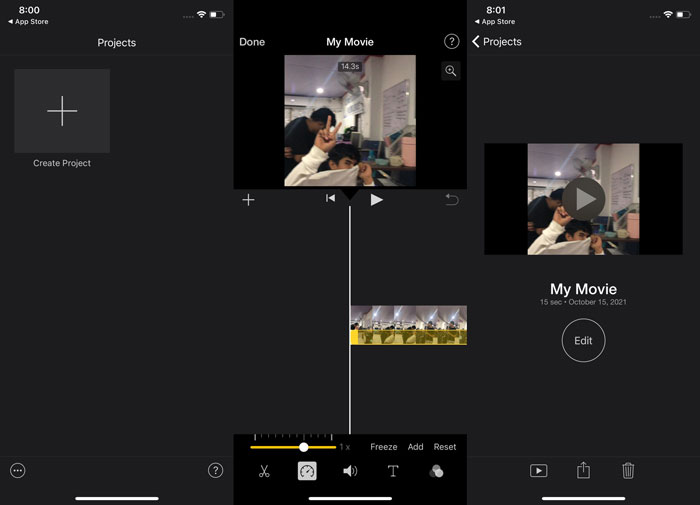
1. lépés. iPhone vagy iPad használatával indítsd el az iMovie alkalmazást. Ha megjelenik a felhasználói felület áttekintése, látható lesz a Folytatás gomb. Válaszd a Projektek fülön található + plusz jel ikont egy új videoklip szerkesztéséhez. A folytatáshoz lépj az Új projektek ablakba, és válaszd a Film lehetőséget.
2. lépés. Miután kiválasztottál egy videót a filmtekercsből, és megnyomtad a Film készítése gombot a képernyő alján, a sebesség eszközt – amely egy sebességmérőre hasonlít – úgy találod meg, hogy ráböksz az idővonalon lévő videoklipre, majd megvárod, míg megjelennek a szerkesztőeszközök, és azok közül kiválasztod. A videoklipet előre- vagy visszatekerni egyszerűen úgy tudod, hogy az alsó sárga Csúszkát jobbra vagy balra húzod. Az elemeket akár kétszeresére is felgyorsíthatod az eredeti tempóhoz képest, vagy az eredeti sebesség nyolcadára is lelassíthatod.
3. lépés. A telefonod képernyőjének bal felső sarkában érintsd meg a Kész gombot, ha mindennel elkészültél. A befejezett filmed mentéséhez kattints az oldal alján található Megosztás ikonra, és válaszd ki a mentés helyét.
2. rész: Lassított videók készítése az iMovie-ban Mac számítógépen
Az iMovie Mac-en is elérhető, így a lehető legegyszerűbb módon készítheti el a legkiválóbb lassított videókat. Ha meg szeretné tudni, hogyan lehet ilyen típusú videókat elérni, kövesse az alábbi lépéseket:
1. lépés. Módosítsd a klip sebességét a iMovie programban Macen úgy, hogy kiválasztod az idővonalon, majd megváltoztatod a klip sebességét.
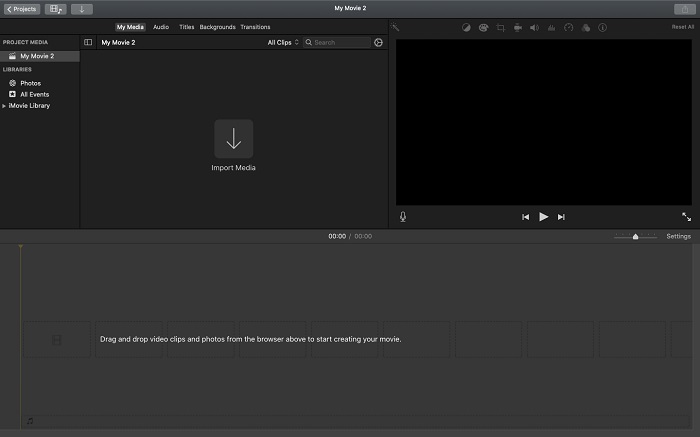
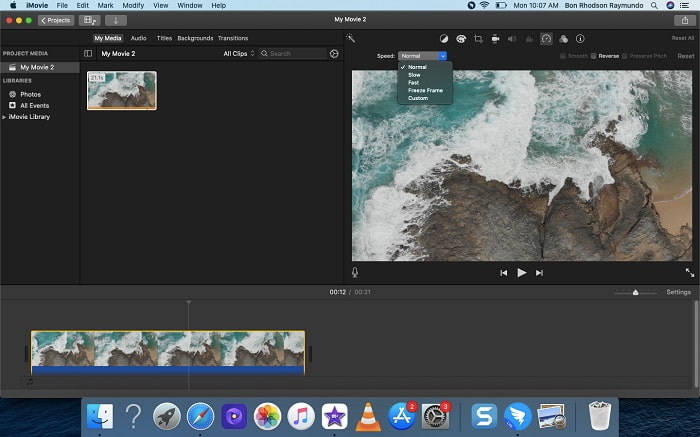
2. lépés. A sebességbeállításokat a képernyő jobb felső sarkában található Sebesség gombra kattintva érheted el. A letöltési sebesség finomhangolásához egyszerűen válassz a Lassú és Gyors sebességek közül a számítógép asztalán megjelenő sebességgomb segítségével.
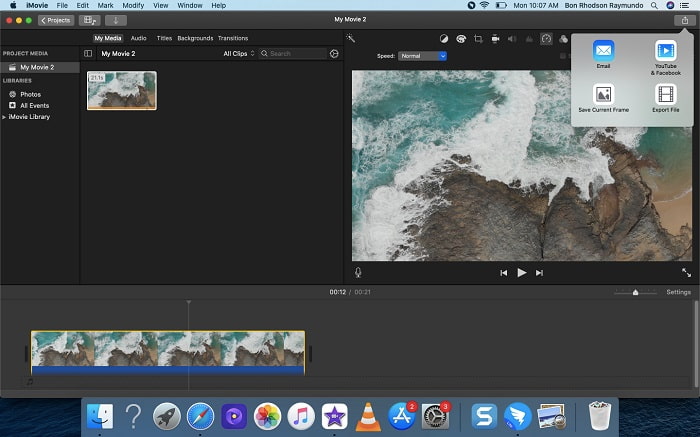
3. lépés. A fájl számítógéped merevlemezére mentéséhez kattints a képernyő jobb felső sarkában található Feltöltés ikonra.
3. rész. A lassított videók készítésének legjobb alternatívája
Az iMovie használata mellett lassított videók készítésére ez a legjobb alternatíva minden asztali gép és laptop felhasználó számára. A Video Converter Ultimate egy ingyenesen letölthető szoftver, amely Windows és Mac operációs rendszeren egyaránt elérhető. Könnyen használható, felhasználóbarát felülete pedig megkönnyíti az eszközök áttekintését és kiválasztását lassított videók készítéséhez. Az egyik legjobb funkciója a Video Speed Controller, amellyel a videó lejátszási sebességét állíthatod, és ezzel normál sebességű felvételből lassított videót készíthetsz. Ha többet szeretnél megtudni arról, hogyan használd ezt a szoftvert a kívánt lassított hatás eléréséhez, íme a szükséges lépések:
1. lépés. A szoftver használata előtt először le kell töltened az alábbi letöltési linkre kattintva, az operációs rendszerednek megfelelően. A telepítés olyan egyszerű, mint letölteni az asztalra, majd a Start Now (Indítás most) gombra kattintani.
Ingyenes letöltés Windows 7 vagy újabb rendszerre Biztonságos letöltés
Ingyenes letöltés macOS 10.7 vagy újabb rendszerre Biztonságos letöltés
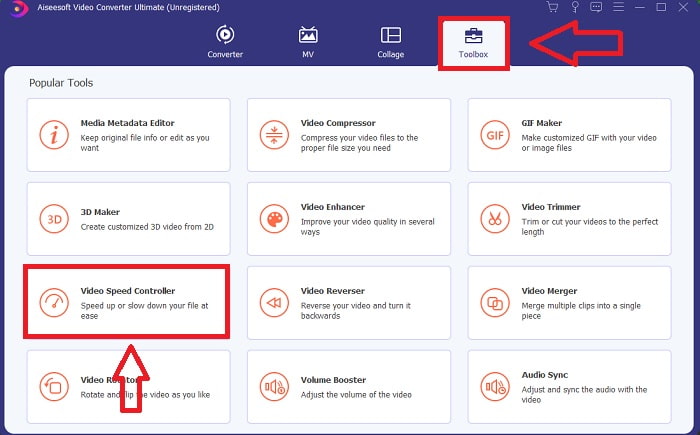
2. lépés. A program elindítása után a főfelületen látható lesz a Converter (Konverter) funkció. Ezután használd a Toolbox (Eszköztár) funkciót, hogy megtaláld a lassított videók készítéséhez szükséges eszközt. Ha meg akarod változtatni a videód sebességét, vagy egyszerűen lassított felvételt szeretnél készíteni, válaszd a Video Speed Controller lehetőséget az elérhető eszközök listájából.
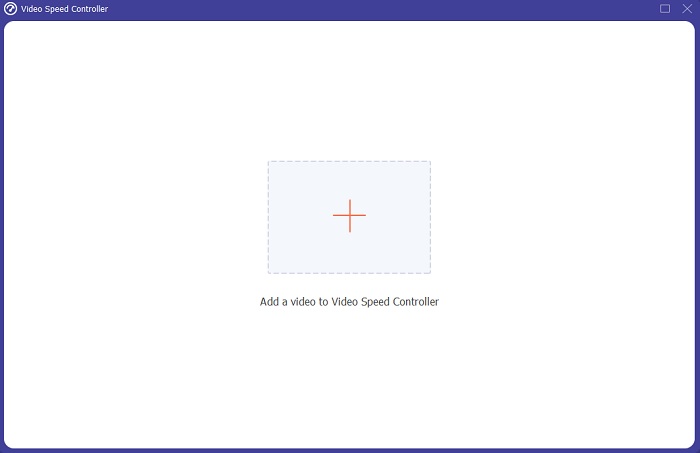
3. lépés. A folytatás után egy új ablak nyílik meg a számítógép képernyőjén. A szerkesztés megkezdéséhez kattints a + plusz jelre.
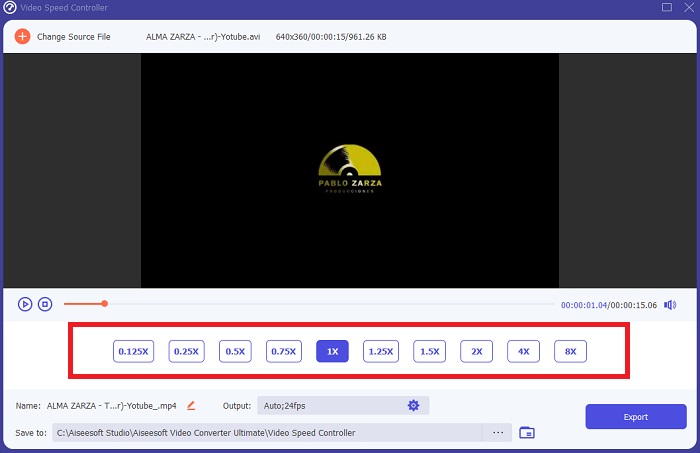
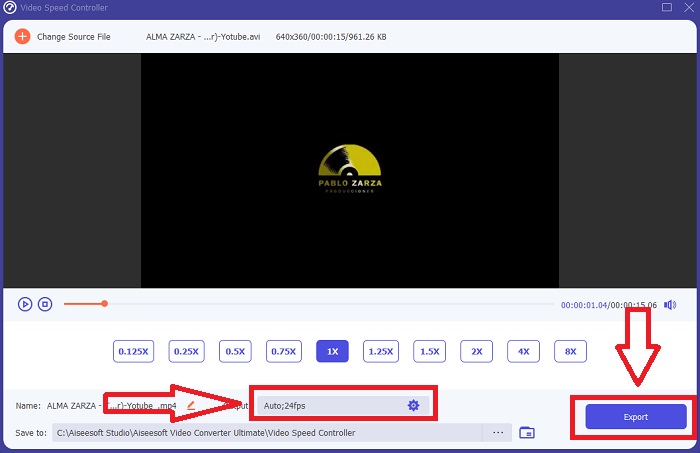
4. lépés. A szerkesztés megkezdéséhez válaszd ki, hogy a videó képkockasebessége hányszorosára növekedjen vagy mennyivel csökkenjen lejátszás közben, hogy lásd, milyen gyors vagy lassú lesz; ez határozza meg a videóra alkalmazott lassított hatást. Mivel lassított videót készítesz, a sebességet úgy csökkented, hogy az átlagosnál alacsonyabb lejátszási sebességet választasz. Ha elégedett vagy a videó sebességével, tovább javíthatod a minőséget a formátum, a felbontás, a képkockasebesség stb. módosításával. Lehetőséged lesz a videó kimeneti fájl átnevezésére is.
5. lépés. Kattints az Export gombra, és válaszd ki azt a helyet a számítógéped fájlrendszerében, ahová menteni szeretnéd a munkádat.
Összefüggő:
4. rész. GYIK a lassított videók készítéséről az iMovie-ban
Mi van, ha az iMovie nem működik?
Hacsak nem áll rendelkezésre opció, a videoklip nem elég hosszú ahhoz, hogy támogassa a gyorsított lejátszást. Az is előfordulhat, hogy konvertálnia kell a videót. Bizonyos típusú videókat, például azokat, amelyeket iPhone-on vagy Flip kamerán H.264-ben rögzítettek, a sebesség megváltoztatása előtt konvertálni kell. A Project böngészőben kattintson a videofájlra, majd kattintson duplán a megnyitásához. Ha a megnyíló ellenőrzőben megjelenik a Teljes klip konvertálása gomb, jelölje ki. Ismételje meg a klipet, majd folytassa a Lassított mozgás / Gyors előretekerés folyamattal.
Le tudod lassítani a time-lapse videót az iMovie-on?
Az időzített videó lejátszása azonnal megkezdődik, amint felengedi az exponáló gombot a felvétel befejezéséhez. Az időzített sebesség csúszkája a képernyő alján található. Ha lenyomva tartja a felvételt, az időzített videó lejátszása automatikusan elindul. Az időzített sebesség csúszkája a képernyő alján található.
Hogyan lassítod a Youtube videókat?
Játssz le egy videót a Youtube alkalmazásban, keresd meg a fogaskerék ikont vagy a beállítás ikont. Kattintson a Lejátszási sebesség elemre, és válassza a normál sebesség feletti lehetőségeket a lejátszott videó lelassításához.
Következtetés
Összefoglalva, az iMovie egy remek videoszerkesztő, amely kizárólag iOS- és Mac-operációs rendszereken érhető el. De mi a helyzet akkor, ha Windows rendszeren szeretnél lassított videót készíteni? A kívánt lassított videó eléréséhez a Video Converter Ultimate használatát javasoljuk. Ez a szoftver Windowsra és Macre is elérhető. Emellett ingyenes, és számos eszközt kínál a videószerkesztéshez. Tartalmaz egy kifejezetten a lejátszási sebesség módosítására szolgáló funkciót is, amellyel könnyedén készíthetsz lassított videókat. A beépített eszközökön túlmenően különböző videóformátumokat is támogat, így nem lesz nehéz dolgod a videóid konvertálásával.
-
 [Ingyenes és fizetős] GIF-sebességváltó: 2021 legjobb választásai
 Elégedetlen az online GIF-fel, mert fárasztó és lassú? Ez lesz a szerencsés napod, mert bemutatunk egy cikket a GIF sebességváltóról, valamint a használatában és elsajátításában segítő részletekről.
-
 A 4 legjobb sebességvezérlővel rendelkező videólejátszó 2021-ben
 Nem vetted észre az összes médialejátszó lejátszási sebességét, amikor videót játszol le? Ez a cikk alkalmas arra, hogy mindent megtudjon a sebességszabályozással rendelkező videolejátszókról.
-
 3 módszer a videó felgyorsítására iPhone-on [Bizonyított&93;
 Problémái vannak a videó lejátszási sebességének beállításával, mert iPhone-t használ? Ez egy kiváló cikk, amely segíthet a problémájában.
