


 Video Converter Ultimate
 Screen Recorder
 Videó javítás
Tippek és trükkök a hangerő növeléséhez Windows/Mac/iPhone/Android rendszeren
A legtöbb PC, Mac, Android‑telefon vagy iPhone csak közepes hangerőre képes. Ez azonban nem elég ahhoz, hogy a hideg futkározzon a hátunkon, vagy igazán élvezzük a hangot. Persze megpróbálhatjuk a hangerőt maximumra állítani. Még ha fel is hangosítjuk, egyes videók hangja így is halk marad. Ezért most különböző módszereket mutatunk be, amelyek közül választhat, hogy saját eszközeivel is jó hangerőn hallgathasson videókat. Ha készen áll, nézzük is meg, hogyan lehet egyszerűen hangerőt növelni különböző platformokon.

1. rész: A hangerő növelése Windows/Mac/iPhone/Android rendszeren
1. Windows
Az MP3 hangerejének növelése Windows PC-n sokkal egyszerűbb, még akkor is, ha nem kell harmadik felet használnia. Ha azonban növelni szeretné a hangot itt, akkor ne számítson valami különlegesre. Mert ez az operációs rendszer nem tartalmaz hangszínszabályzót, amely segítene manipulálni. De beállíthatja a többi alkalmazás hangerejét magasabbra vagy alacsonyabbra. Tehát most folytassuk az alábbi lépéseket annak meghatározásához, hogyan tehetjük tisztábbá a videó hangját Windows PC-n.
Hogyan növeljük a videó hangerejét Windows rendszeren:
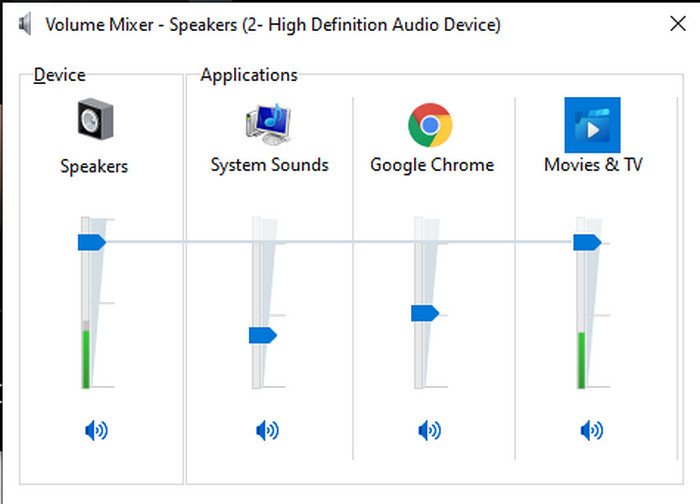
1. lépés. A Windows PC felületén keresse meg a jobb alsó sarokban a Hangszóró ikont.
2. lépés. Kattintson az egérrel jobb gombbal az ikonra, majd válassza az Open Volume Mixer (Hangerőkeverő megnyitása) lehetőséget.
3. lépés. Állítsa a Device (Eszköz) csúszkát magasabbra vagy alacsonyabbra, hogy az összes hangot módosítsa. Ha csak egyetlen alkalmazás hangerejét szeretné beállítani, akkor a megfelelő csúszkát húzza fel vagy le.
2. Mac
Csakúgy, mint a Windows, egyszerűen manipulálhatja és növelheti a videó hangerejét Mac számítógépen. Ezen túlmenően, ha növelni szeretné a hangkimenetet a Mac-en, akkor ezt kell választania a könnyű végrehajtáshoz. Azonban, ahogy korábban említettük, ez olyan, mint a Windows, de egy másik programban ez az operációs rendszer nem rendelkezik beépített hangszínszabályzóval, amely drasztikusan megváltoztatná a hangerőt. És most, ha meg akarja tanulni, hogyan lehet hangosítani, kövesse az alábbi lépést.
Hogyan növeljük a videó hangerejét Macen:
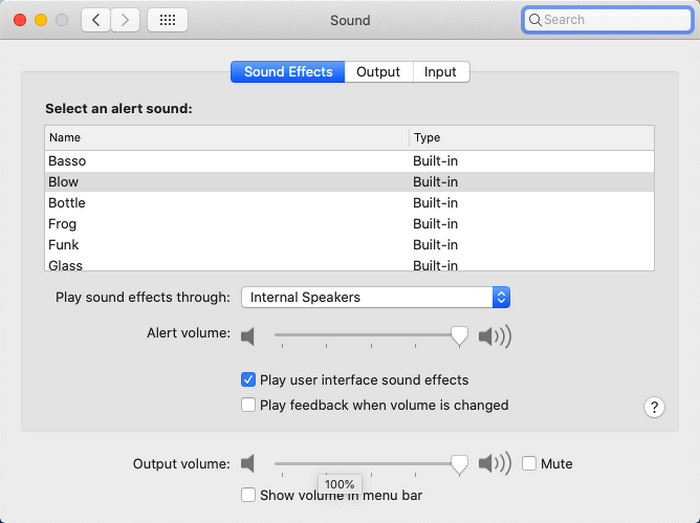
1. lépés. Nyissa meg a Mac gépét, és kattintson a felső sávban lévő alma alakú gombra.
2. lépés. Ezután kattintson a System Preference (Rendszerbeállítások) menüpontra. Ezután nyomja meg a Sound (Hang) ikont, hogy továbblépjen az utolsó lépésre.
3. lépés. Állítsa az Output Volume (Kimeneti hangerő) értékét a csúszka húzásával, így növelheti vagy csökkentheti a hangot.
3. iPhone
Ha iPhone-ja van, könnyen megtanulhatja, hogyan teheti hangosabbá és jobbá a hangerőt. Mert ez a készülék beépített hangszínszabályzóval rendelkezik, amely biztosan a segítségedre lesz. Sőt, a telefon hangerejének növelésének képessége még mindig lenyűgöz bennünket. Mert nem tudtuk, hogy létezik egy hordozható hangszínszabályzó, amelyet az iOS felhasználók használhatnak. Tehát most, ha nincs ötlete, hogyan használja, akkor a következő lépések segítenek megtenni.
Hogyan növeljük a videó hangerejét iPhone-on:
1. lépés. Lépjen a Settings (Beállítások) menübe, keresse meg a Music (Zene) opciót, majd kattintson rá.
2. lépés. Nyomja meg az EQ lehetőséget, és válasszon a listából, majd a választás után lépjen vissza a Home (Főképernyő) felületre.
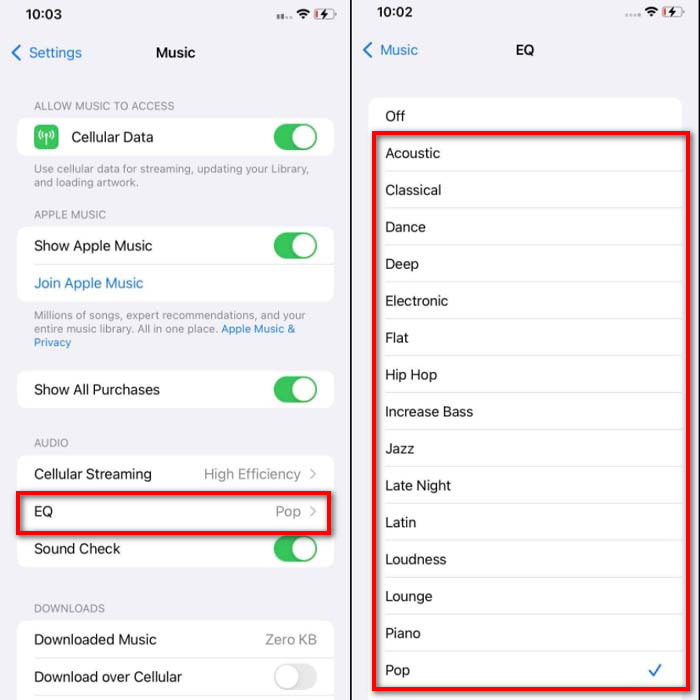
3. lépés. Nyissa meg most a Music (Zene) alkalmazást, és indítsa el a zenét. Ezután növelje a hangerőt az iPhone oldalán található hangerő fel vagy le gombbal.
4. Android
Az Android soha nem hagyja cserben a felhasználóját, mert ez a mobilkészülék beépített hangszínszabályzóval is rendelkezik. Bár ha növeli a minőséget és magát a hangerőt az itt elérhető hangszínszabályzóval, az mégsem olyan hatékony, mint az iPhone-on. Ha azonban fülhallgató vagy hangszóró mellett használja és állítja a hangerőt, akkor érezni fogja a hangerő drasztikus változását. De vegye figyelembe, hogy a lépések az eszköz márkájától és típusától függően változhatnak. Ezek a lépések a Realme 7 pro, az Android 11-es és újabb verzióinál is működtek. Tehát ha kíváncsi arra, hogyan növelhetem a hangerőt Android-telefonomon, kövesse az alábbi lépéseket.
Hogyan növeljük a videó hangerejét Androidon:
1. lépés. Lépjen a Settings (Beállítások) menübe, és keresse meg a Sound & Vibration (Hang és rezgés) részt.
2. lépés. Görgessen le a Dolby Atmos opcióig, majd kattintson rá a folytatáshoz.
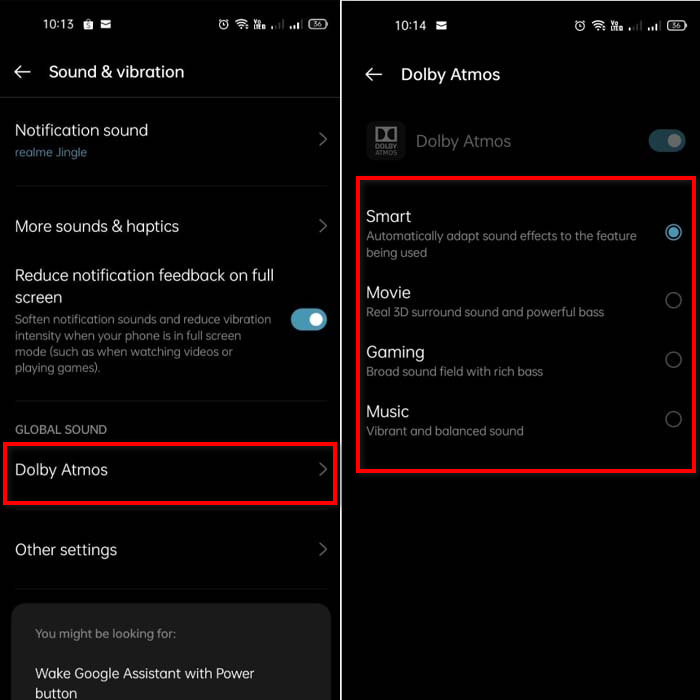
3. lépés. Módosítsa az equalizert a listából választva. Ha jobb hangminőséget szeretne, csatlakoztasson fejhallgatót, így a hang erősebb és tisztább lesz. Ezután az Android‑telefon oldalán lévő hangerő fel és le gombokkal állítsa a hangot magasabbra vagy alacsonyabbra.
2. rész. Még mindig nem hallja a videók mennyiségét? Próbálja meg fokozni a Video Converter Ultimate segítségével
Bár a fenti lépések sokat segítenek, mégsem tudják igazán nagymértékben felerősíteni a hangerőt. Ezért most bemutatjuk a kivételes hangerőnövelő megoldást, amellyel a halk hangú videókat felerősítheti: a Video Converter Ultimate programot. Ezt a szoftvert már több mint 10 millió felhasználó használja világszerte. Mobil eszközön azonban nem érhető el, mert nem támogatott. PC-n vagy Macen viszont használhatja, elmentheti a fájlt a meghajtóra, majd később átmásolhatja a telefonjára. Nézzük meg, hogyan használható a programban található hangerőnövelő funkció, és hogyan teheti a hangot hangosabbá, mint valaha.
Hogyan erősítsük fel a videó hangerejét a Video Converter Ultimate segítségével:
1. lépés. Mielőtt használná a Video Converter Ultimate programot, először le kell töltenie a merevlemezre. Ezután telepítse a szoftvert, végezze el a beállításokat, majd a Start Now gombra kattintva indítsa el.
Ingyenes letöltés Windows 7 vagy újabb rendszerre Biztonságos letöltés
Ingyenes letöltés macOS 10.7 vagy újabb rendszerre Biztonságos letöltés
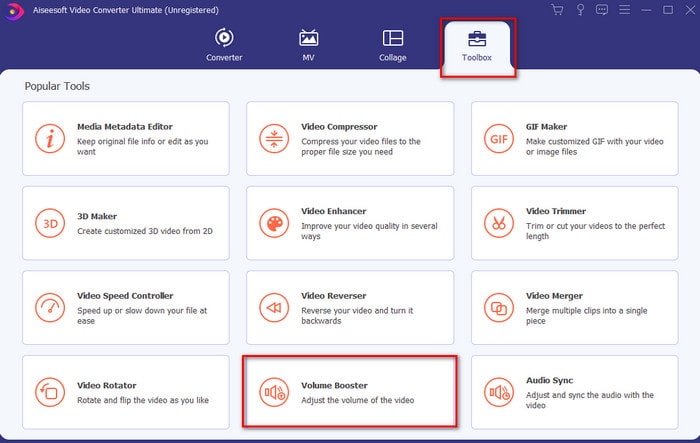
2. lépés. A program elindítása után lépjen a következő lépésre: menjen a Toolbox (Eszköztár) menübe, és keresse meg a Volume Booster (Hangerőnövelő) eszközt.
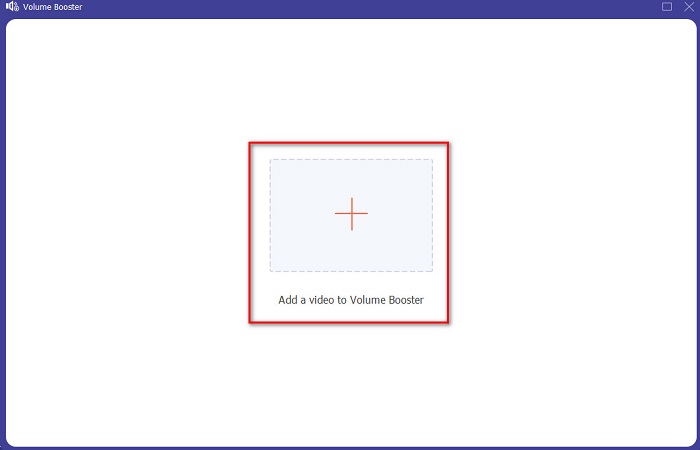
3. lépés. Kattintson a + jelre, hogy hozzáadja a felerősíteni kívánt videót. Keresse meg a fájlt a megjelenő mappában, majd a folytatáshoz kattintson az open (Megnyitás) gombra.
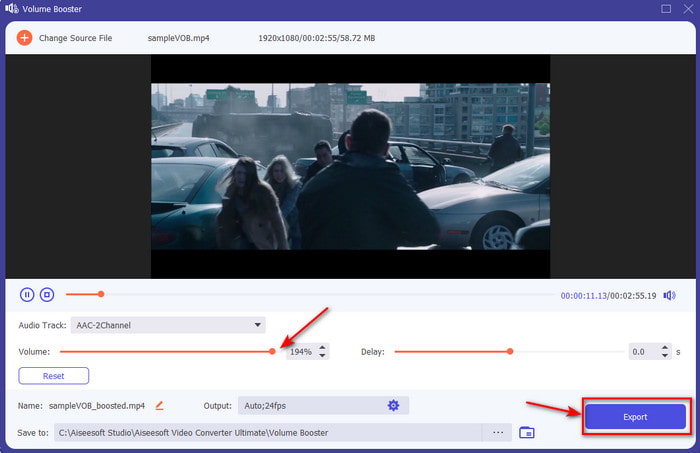
4. lépés. A program felületén állítsa a hangerőcsúszkát a maximumra vagy az Önnek tetsző szintre. Ha elégedett az így beállított hangerővel, kattintson az Export gombra a fájl letöltéséhez.
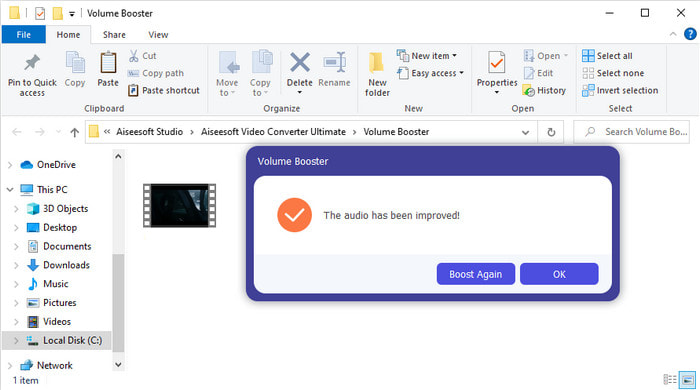
5. lépés. Várjon néhány másodpercet a feldolgozás befejezéséig. Ha a fájl elkészült, egy mappa automatikusan megjelenik a képernyőn; kattintson a fájlra, és hallgassa meg az Ön által beállított hangerővel a videót.
3. rész. GYIK a hangerő növelésével kapcsolatban
Növelhetem a hangerőt VLC-n?
Valójában igen, a hangerőnövelő használata helyett használhatja a VLC Playert a videó hangkimenetének növelésére. Ezenkívül ahelyett, hogy a hangot 100%-ra korlátozná, a hangerőt akár 125%-ig is növelheti, ha akarja.
A videók konvertálása rontja a videó és a hang minőségét?
Nos, ez attól függ, milyen formátumba szeretne konvertálni. Például ha AVI‑t alakít MP4‑re, számítson némi minőségromlásra, mert az AVI formátum tömörítetlen. Ezt azonban elkerülheti, ha elolvassa az erről szóló cikket – a folytatáshoz kattintson erre a linkre. Ha tömörített fájlt alakít át tömörítetlenre, vagy egy másik tömörített formátumra, szintén számítson bizonyos változásokra, különösen, ha ezt rendszeresen teszi; ha viszont csak egyszer végzi el a konvertálást, a minőség várhatóan nem fog érezhetően romlani.
Hogyan lehet kijavítani a kép- és hangkésést?
Alapvetően két módon lehet megoldani a problémát. Az első, hogy törli, majd újra letölti a videót, ha az elérhető a weben. Ügyeljen rá, hogy a letöltési folyamat ne szakadjon meg, és legyen stabil internetkapcsolata, hogy ne hiányozzanak fájlok. Ha viszont a fájl csak az Ön számára készült, akkor mindenképp olyan szoftvert érdemes választania, amely segít a hang és a kép szinkronizálásában. Ha szeretne tájékozódni az elérhető programokról és arról, hogyan szinkronizálja a hangot és a videót egyszerűen, kattintson a linkre, és olvassa el az ismertetőt. Összegyűjtöttünk többféle szoftvert, amelyek közül választhat.
Következtetés
Most, hogy már tudjuk, hogyan javítsuk ki a halk hangot a videóinkban, eljött az idő, hogy meg is tegyük. Csak kövesse a fent leírt egyszerű lépéseket, hogy a hangerőt jobbá tegye, mint korábban. Bár a lépések nem pusztán a hangerőgombok nyomogatásáról szólnak, a többi ismertetett módszer segítségével könnyedén javíthat a hangon. Ha mégis úgy érzi, hogy a PC‑n, Macen, Android‑telefonon vagy iPhone‑on továbbra is halk az audio, akkor erősítse fel a Video Converter Ultimate segítségével. Emelje a hangerőt egy új szintre, és élvezze a sokkal hangosabb és jobb minőségű hangot.
-
 7 egyszerű lépés az OBS hangkésleltetési problémák megoldásához [Megoldva]
 Nehezen nézi meg a videoklipet a felvétel után, mert az OBS Studio használatakor késik a hang? Olvassa el az alábbi cikket, hogy megtudja, hogyan javíthatja hatékonyan a szinkronon kívüli hangot.
-
 Kiváló lehetőségek lehetségesek | A VLC audio késleltetés javítása [2021]
 Nehezen nézi meg kedvenc filmjét VLC médialejátszóján a hang bizonytalansága miatt? Olvassa tovább ezt a cikket, hogy megismerje a VLC audio késleltetésének javításának összes lehetséges módját.
-
 Az MP4 hangerő növelésének legjobb módjai online és offline módban
 Nehezen hallod a videokliped hangjait? Olvassa el az alábbi cikket, hogy megtudja, hogyan növelheti az mp4 hangerejét különböző módokon.
