


 Video Converter Ultimate
 Screen Recorder
 Videó javítás
 Biztonságos letöltés
Az Animaker vízjel eltávolítása a legjobb vízjeleltávolító eszközökkel
Próbáltad már az Animakert a videód szerkesztéséhez? Ha nem, akkor ne hagyja ki a lehetőséget. Ez a platform lehetővé teszi több tervező, animátor, kezdő, profi, tartalomkészítő és mások számára, hogy rövidesen animációs filmet készítsenek. És igen, ez egy teljes eszköz; az összes szükséges sablon elérhető itt. Az összes animációs és élőszereplős funkcióval meg kell vásárolnia a szoftvert, hogy rendszeresen használhassa, anélkül, hogy problémát okozna a vízjellel és a korlátozásokkal.
Szomorú vagy, amiért nem tudod megvásárolni a szoftvert? Szerencsére az itt bemutatott eszközökkel eltávolíthatod a vízjelet az általad készített animációról. Itt megtanítjuk, hogyan távolítsd el az Animaker vízjelét kevesebb mint 5 perc alatt. Olvasd tovább a cikket, hogy átlásd a lényeget; később megérted, miért ezeket választottuk.

1. rész: Az Animaker vízjel eltávolítása Windows, macOS és online rendszeren [ingyenes és fizetős]
Az Animakernek van vízjele? Igen, vízjelet ad az itt szerkesztett animált videókhoz, különösen, ha nem a kereskedelmi verziót használja. Az általa hozzáadott vízjel elkerülhető, ha megvásárolja a kereskedelmi verziót, de ha nem szeretne költeni, akkor az alább hozzáadott vízjel-eltávolítót kell használnia.
FVC Video Converter Ultimate [Windows és macOS]
Tegyük fel, hogy egy megbízható eszközre van szükséged a vízjel hatékony eltávolításához. Ebben az esetben a FVC Video Converter Ultimate programot érdemes választanod. Ez az eszköz minden asztali gépen elérhető, akár Windows-, akár Mac-felhasználó vagy. Ezzel az eszközzel maradéktalanul eltávolíthatod az Animakerrel készített animált videóid vízjelét. Akkor is érdemes ezt a szoftvert használnod, ha nincs tapasztalatod az ilyen jellegű problémákkal, mert egyszerű a kezelése és intuitív a felülete.
Ez az eszköz nemcsak hatékony vízjel-eltávolító, hanem más célokra is hatékony átfogó eszköz. Letöltheti az eszközt az asztalra, hogy ellenőrizze, milyen egyéb funkciói vannak. Ha szeretnéd a videót, exportáld az Animakerbe vízjel nélkül; kövesse az alábbi eljárást.
1. lépés. Ha szeretnéd használni ezt a sokoldalú eszközt, kattints a letöltés gombra, és töltsd le a Windowsra vagy Macre készült verziót. Telepítsd a szoftvert, majd kattints a Start Now gombra az eszköz megnyitásához.
Ingyenes letöltés Windows 7 vagy újabb rendszerre Biztonságos letöltés
Ingyenes letöltés macOS 10.7 vagy újabb rendszerre Biztonságos letöltés
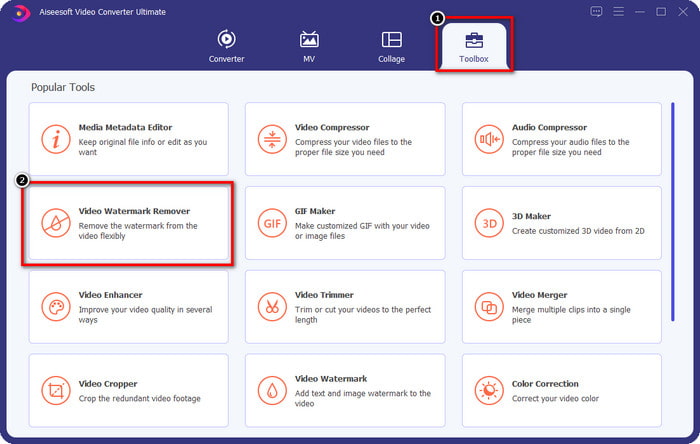
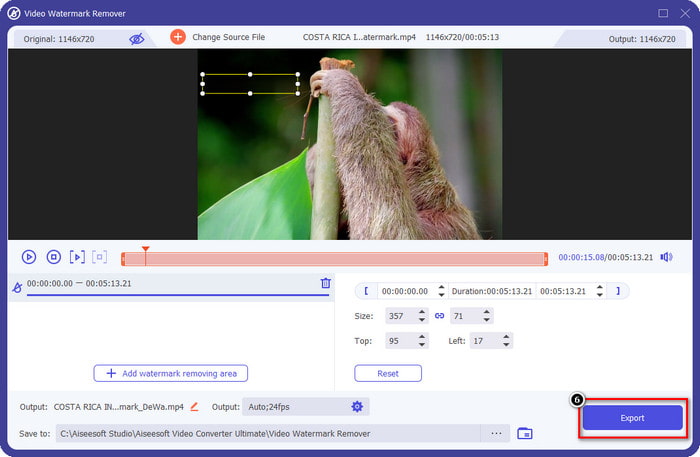
2. lépés. A felület bal felső részén kattints a Toolbox menüre, majd nyisd meg a Video Watermark Remover funkciót. A Toolbox alatt további funkciókat és lehetőségeket is láthatsz, amelyekkel ez az eszköz rendelkezik.
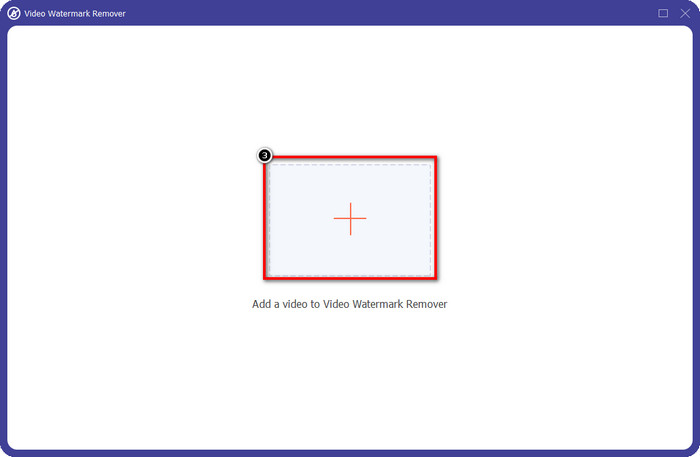
3. lépés. Töltsd fel az Animakerben készített animációdat a + ikonra kattintva. Válaszd ki a fájlt a helyi meghajtóról, kattints rá, majd nyomd meg az Open gombot.
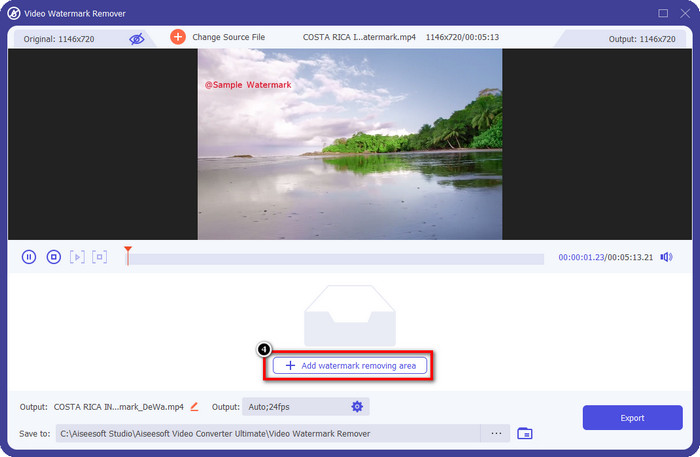
4. lépés. A vízjel-eltávolító használatának folytatásához kattints az Add Watermark Removing Area lehetőségre.
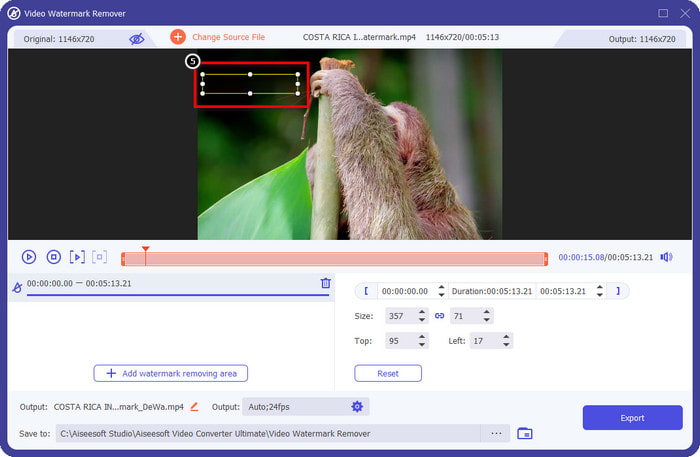
5. lépés. Helyezd a kijelölő négyzetet a vízjel területére, hogy a vízjel-eltávolítás érvénybe lépjen.
6. lépés. Nyomd meg az Export gombot, hogy letöltsd a videót az Animaker vízjele nélkül. Egyszerű, igaz? Intuitív felülete miatt ez az egyik legjobb választás a vízjel eltávolítására.
Embléma eltávolítása a videókról 123 APPS-on keresztül [Online]
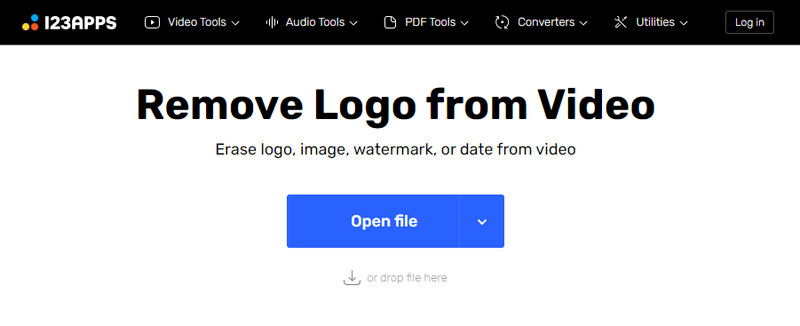
A Remove Logo from Videos via 123 APPS lehetővé teszi, hogy hatékonyan kezeld a vízjelet a videódon az eltávolító funkcióinak köszönhetően. A letölthető vízjel-eltávolítóktól eltérően ehhez az eszközhöz nem szükséges telepítő, mivel webböngészőből használható. Emellett biztonságos is, így nem véletlen, hogy megbízható vízjel-eltávolítóvá vált, amely jól kezeli a videókon lévő vízjeleket. Szeretnéd ezt az online vízjel-eltávolítót használni, hogy Animaker-vízjel nélküli videót kapj? Az alábbi lépések bemutatják, hogyan.
1. lépés. Nyisd meg a webböngésződet, és töltsd be az online vízjel-eltávolítót.
2. lépés. A hivatalos weboldalon kattints az Open File gombra, hogy feltöltsd a videót, amelyről el szeretnéd távolítani a vízjelet.
3. lépés. Jelöld ki azt a területet, ahol a vízjel található a videón.
4. lépés. Kattints a Save gombra, hogy letöltsd az animációs videót vízjel nélkül.
Gilisoft Video Watermark Removal Tool [Windows]
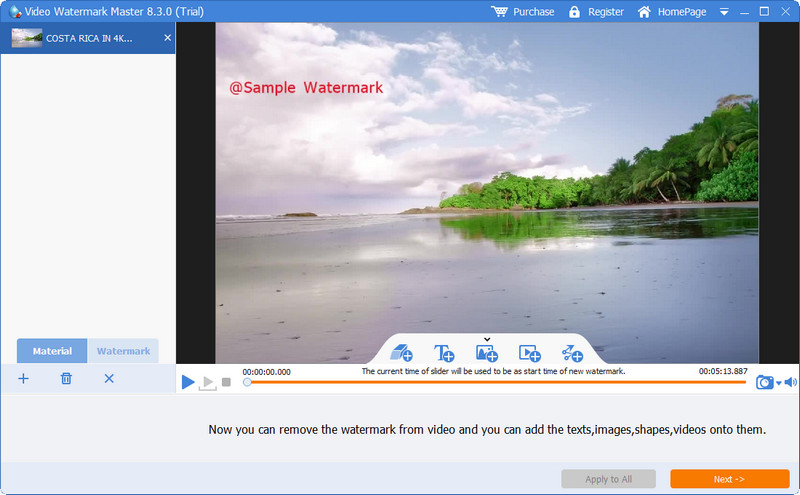
A Gilisoft Video Watermark Removal Tool egy Windowsra készült vízjel-eltávolító, amellyel eltávolíthatod az Animakerben készített animált videódról a vízjelet. Ez egy olyan eszköz, amelyet le kell töltened Windows rendszerre, hogy eltávolítsd a helyi meghajtón tárolt videó vízjelét. Mac-felhasználók számára ez a szoftver nem érhető el. Ezzel az eszközzel igény szerint akár új vízjelet is hozzáadhatsz képek, szöveg vagy alakzat formájában. Olvass tovább, hogy megtudd, hogyan távolíthatod el az Animaker-vízjelet Windows alatt a lehető leghatékonyabban.
1. lépés. Töltsd le a vízjel-eltávolító eszközt Windowsra, kövesd a telepítési folyamatot, majd kattints a Launch Video Watermark Master gombra.
2. lépés. Nyomd meg az Add File/s gombot, hogy importáld az Animakerben ingyen szerkesztett, vízjeles animációs videót.
3. lépés. Kattints az eraser ikonra, hogy hozzáadj egy vízjel-eltávolítási területet, és alkalmazd azt a vízjelet tartalmazó részre.
4. lépés. Ha végeztél a vízjel-eltávolítási terület beállításával a videón, kattints a Next gombra, ekkor egy kis ablak jelenik meg a képernyőn. Itt módosíthatod a formátumot, megváltoztathatod a kimeneti mappát, ha szeretnéd, majd kattints a Start gombra a folyamat elindításához.
További olvasnivaló:
Hogyan távolítsd el a B612-vízjelet a képeidről
Hogyan távolítsd el ingyen a WOW Slider vízjelet
2. rész. GYIK az Animaker vízjel eltávolításával kapcsolatban
Miért nem tudom használni a többi sablont az Animakeren?
Ennek az az oka, hogy az ingyenes verzió korlátozott hozzáféréssel rendelkezik az Animakerben elérhető sablonokhoz. A prémium sablonok nem állnak rendelkezésre a nem regisztrált Animaker számára; Ha hozzá szeretne férni a pro verzióhoz, akkor látnia kell az eszköz által biztosított árterveket.
Hányszor tölthetem le a sablont az Animaker ingyenes verzióján?
Az Animaker ingyenes verziója lehetővé teszi a felhasználók számára, hogy ötször készítsenek és töltsenek le animált videókat, mindegyiken vízjellel. Tegyük fel, hogy több animált videót szeretne létrehozni ezzel a platformmal. Ebben az esetben meg kell vásárolnia az alap-, kezdő-, pro- vagy vállalati verziót.
Miért nem tudok 6 perces animációs videót készíteni az Animakeren?
Tegyük fel, hogy az Animaker ingyenes verzióját használja. Ebben az esetben gondot okoz a 6 perces videó feltöltése vagy létrehozása. Megoldhatja ezt a problémát, ha igénybe vesz egy tervet ebben az eszközben, vagy használja az FVC Video Converter Ultimate-et, hogy hosszkorlátozás nélkül készítsen videót.
Következtetés
Tehát melyik eszközt használja szívesebben? Itt választhatja ki az eszközöket, miután elolvasta a részleteket, és megtanítottuk, hogyan távolítsa el az Animaker vízjelet mindegyikről. Gondja van, mit válasszak? Ha igen, az FVC Video Converter Ultimate választása a legbiztonságosabb használható szoftver. Mivel hatékonyan látja el a feladatot a különböző problémákban, ha egyszer használja ezt az eszközt, akkor megtenné; többet kell aggódnia a videóján lévő vízjelek miatt. A megoldás az Ön kezében van, ha a legjobb szoftvert választja Windows és Mac rendszeren.
-
 3 módszer a Viva videó vízjel eltávolítására a videókon [leggyorsabb módszer]
 A videókon található Viva Video vízjel eltávolításához külön vízjeleltávolítóra lesz szüksége. Olvassa el ezt a cikket, hogy többet megtudjon róla!
-
 Végső eszközök a vízjel eltávolítására a Renderforestből exportált videókból
 A vízjel eltávolításához a Renderforestből vízjel-eltávolítóra lesz szüksége az eszközén, az összes használható eszköz itt található.
-
 A hatékony PlaceIt vízjeleltávolítók teljes áttekintése [2022]
 Az itt áttekintett PlaceIt vízjel-eltávolító hatékony eszközök, amelyek segítségével eltávolíthatja a vízjelet a PlaceIt-re exportált videóról.
