


 Video Converter Ultimate
 Screen Recorder
 Videó javítás
 Biztonságos letöltés
Távolítsa el a Bandicam vízjelet a 3 legnépszerűbb vízjeleltávolítóval
A Bandicam egy olyan eszköz, amelyet mindenki szívesen használ, különösen akkor, ha minden egyes akciót rögzíteni szeretne játék közben, egy értekezleten, videónézéskor és hasonló helyzetekben. Más képernyőfelvevőkkel ellentétben ez a program képes akár 480 FPS sebességű videót is rögzíteni DirectX/OpenGL/UWP/Vulkan csatlakozással és más fejlett gyorsítási technológiákkal. Még ha nem is vásároltad meg a prémium verziót, akkor is használhatod, és rögzíthetsz 60 vagy 120 FPS-es – lehetőleg magas – videót, de vízjellel. Ha Bandicammal vízjel nélkül szeretnél videót menteni, akkor meg kell vásárolnod a teljes verziót.
Szerencsére a cikkben szereplő eszközök képesek eltávolítani a vízjelet, amelyet a Bandicam ad hozzá az exportált videóhoz. Szeretné tudni, mik ezek? Akkor tovább kell olvasnia ezt a cikket, hogy megértse az ötletet!

1. rész: Bandicam vízjel eltávolítása a 3 leghatékonyabb vízjeleltávolítóval
FVC Video Converter Ultimate
A Bandicam vízjelének eltávolításának leghatékonyabb módja egy olyan eszköz használata, amely ebben segít, például az FVC Video Converter Ultimate. Ez az eszköz úgy érzékeli a vízjelet a videón, hogy a kijelölő mezőt a vízjel fölé helyezed, és hopp, már el is tűnt. Úgy működik, mint a varázslat: a fájl exportálása után a videón nem marad vízjelnek nyoma sem. Így végre élvezheted a Bandicammal készített felvételeket a zavaró logó nélkül.
Ennek az eszköznek a legvalószínűbb jellemzői a konverterek, javítók, szerkesztők az Eszköztáron és egyebek. Mindezekkel a szolgáltatásokkal és funkciókkal rendelkezhet, ha használja ezt az eszközt, és most letölti az asztalára. Ha meg szeretné tanítani, hogyan távolítsa el a Bandicam vízjelet ezzel a végső szoftverrel, kövesse az alább hozzáadott teljes írásos oktatóanyagot.
1. lépés. Először is le kell töltened a hivatalos szoftvert az asztali gépedre az itt elhelyezett letöltés gomb megnyomásával. Nem kell aggódni, a letöltési hivatkozás biztonságos Windows és Mac felhasználók számára is. A fájl letöltése után kattints rá a telepítéshez, kövesd a WinRAR telepítési folyamatát, majd kattints a Start Now gombra az eszköz elindításához.
Ingyenes letöltés Windows 7 vagy újabb rendszerre Biztonságos letöltés
Ingyenes letöltés macOS 10.7 vagy újabb rendszerre Biztonságos letöltés
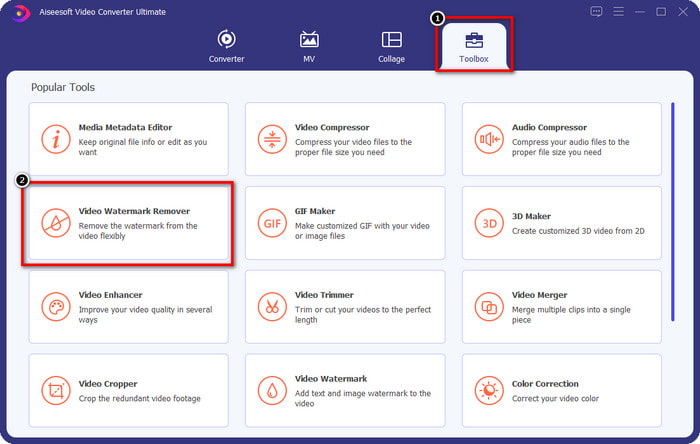
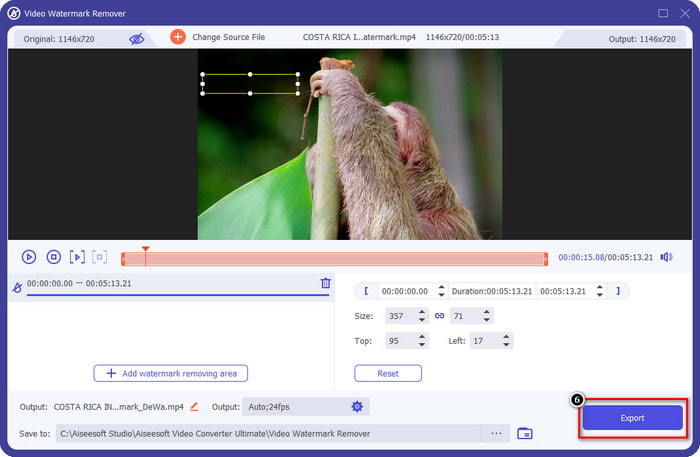
2. lépés. Az eszköz fő felületén lépj a Toolbox részhez, és alatta keresd meg a Video Watermark Remover lehetőséget; kattints rá a funkció megnyitásához.
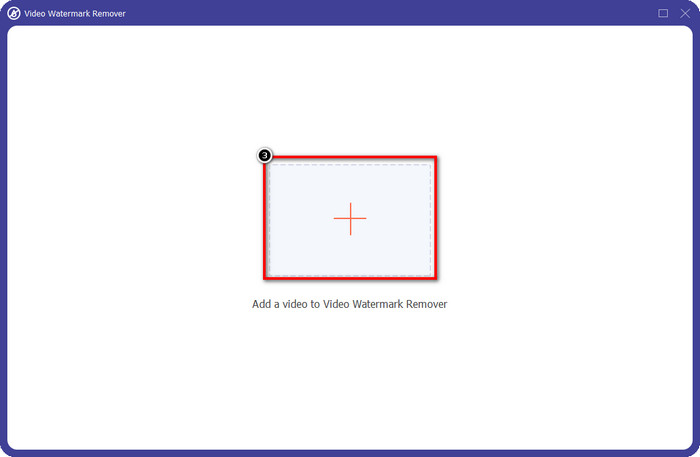
3. lépés. Egy új ablak jelenik meg a képernyőn; kattints a + ikonra annak a videófájlnak a feltöltéséhez, amelyen vízjel van. Keresd meg a videót a helyi meghajtón, majd kattints az Open gombra.
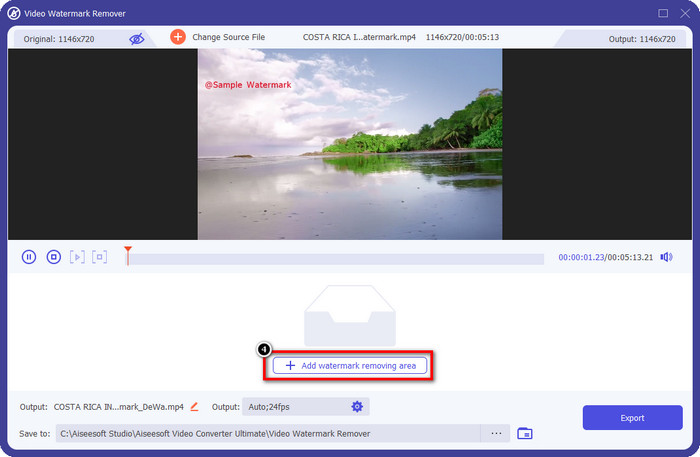
4. lépés. Mindezek után kattints az Add Watermark Removing Area opcióra a használat megkezdéséhez, hogy a Bandicammal készült videóid vízjel nélküliek lehessenek.
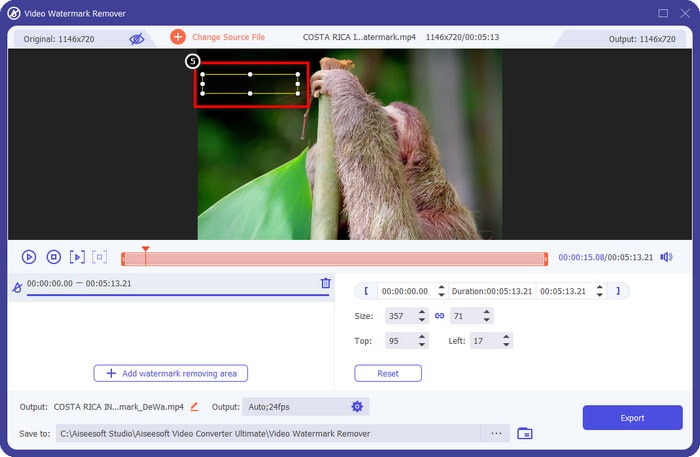
5. lépés. Az előnézetben helyezd a kijelölő mezőt a vízjelre; a méretét is módosíthatod, hogy a kép pontosan lefedje a vízjelet.
6. lépés. Miután a kijelölő mezőt a vízjelre helyezted, kattints az Export gombra, hogy letöltsd a videót a Bandicam által hozzáadott vízjel nélkül.
Távolítsa el a logót most!
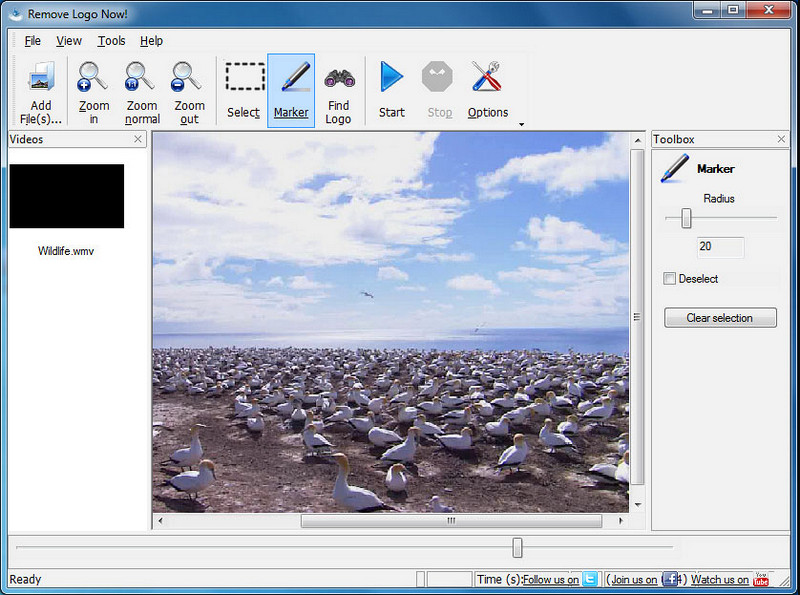
A Remove Logo Now! egy teljes körű vízjel-eltávolító, amellyel eltüntetheted a videóidra rögzített logókat. Ez az eszköz algoritmusok segítségével képes automatikusan felismerni a vízjelet, de manuálisan is követheted és kijelölheted a vízjelet. Bármilyen típusú vízjel eltávolítására használhatod, különösebb erőfeszítés nélkül. Ugyanakkor a program csak Windows-felhasználók számára érhető el, és a felülete kissé elavult. Ha azonban ki szeretnéd próbálni Windows PC-den, megmutatjuk, hogyan távolíthatod el ingyen a Bandicam vízjelét.
1. lépés. Látogasd meg a weboldalát a Remove Logo Now! letöltéséhez. Mindenképpen ellenőrizd a weboldal biztonságát, hogy megbizonyosodj róla: a szóban forgó eszköz hivatalos oldalán jársz.
2. lépés. Nyisd meg az általad telepített szoftvert, majd kattints a File menüpontra a vízjeles Bandicam-videó feltöltéséhez.
3. lépés. Miután a videó betöltődött, kattints a Find Logo opcióra, hogy a program automatikusan érzékelje a vízjelet a videón.
Opcionális: Ha a Find Logo nem érzékeli a videón lévő vízjelet, akkor használd a Marker eszközt a vízjel manuális kijelöléséhez, majd kattints a Clear Selection gombra az eltávolításához.
4. lépés. Kattints a Start opcióra a videó exportálásához, és így megkapod a felvételed Bandicam-vízjel nélküli változatát.
Apowersoft online vízjel eltávolító
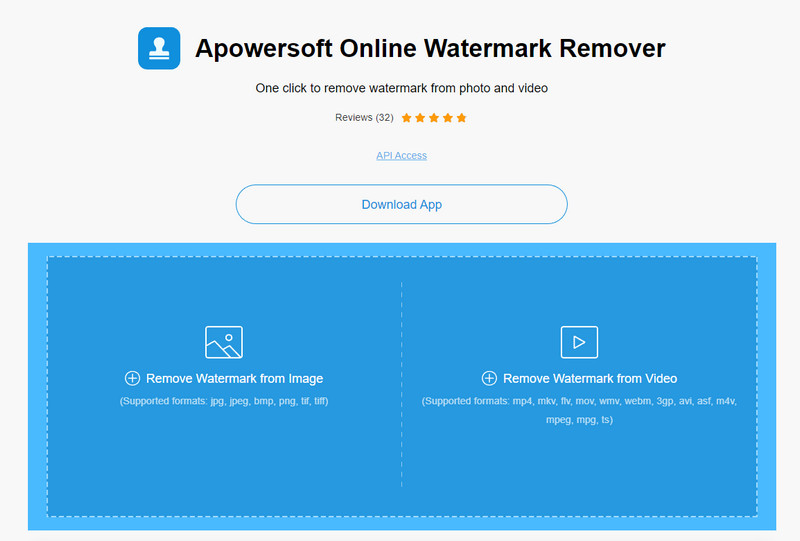
Az Apowersoft Online Watermark Remover egy megbízható, letöltést nem igénylő eszköz, amellyel hatékonyan szabadulhatsz meg a képeken és videókon lévő vízjelektől. Az eszköz vízjel-eltávolító funkciói jól ismertek, mert úgy végzi el a feladatot, hogy az exportált videón nem marad maradvány. Annak ellenére, hogy webes eszközről van szó, az exportálás után sem fogod a videóminőség romlását tapasztalni. Ahelyett, hogy megvásárolnád a Bandicam teljes, vízjelmentes verzióját, kövesd az alábbi lépéseket a vízjel eltávolításához.
1. lépés. Nyisd meg a kedvenc böngésződet, és keresd rá ennek az online vízjel-eltávolítónak a nevére.
2. lépés. Itt két lehetőség közül választhatsz: kattints a Remove Watermark from Video opcióra. Válaszd ki azt a videófájlt a meghajtódról, amelyen a Bandicam logója szerepel, majd nyomd meg az Open gombot. Várd meg a feltöltési folyamat végét; ez időbe telhet, különösen hosszabb videók esetén.
3. lépés. Rajzolj egy kijelölő mezőt a videón, és ügyelj rá, hogy a vízjel a téglalap alakú területen belül legyen.
4. lépés. Kattints az Erase gombra a videófájl letöltéséhez, immár a vízjeltől megszabadítva.
Összefüggő:
Hogyan távolítsd el a vízjelet a Renderforesttel exportált videókról
Hogyan távolítsd el a Viva Video vízjelét a videókról
2. rész. GYIK a Bandicam vízjel eltávolításával kapcsolatban
Van a Bandicamnek vízjele?
Az ingyenes próbaverziót használó felhasználók számára az exportálás után vízjel jelenik meg. A probléma elkerülése érdekében megvásárolhatja az eszközt a Bandicam hivatalos honlapján.
Vannak korlátozások a Bandicam ingyenes verziójának használatában?
A Bandicam ingyenes verziójának használatakor számos korlátozás érvényesül, a 10 perces felvétel, a vízjel hozzáadása, a 60-120 FPS támogatott, a fájlformátumok és a feldolgozási sebesség. Bár ez a legtöbb számára problémát jelenthet, továbbra is az egyik legjobb képernyőrögzítőnek számít, amelyet a Windows rendszeren használhat.
Hogyan lehet eltávolítani a vízjelet a Bandicamról?
Nincs más lehetőség a vízjel eltávolítására a Bandicamről, és ez az, ha megvásárolja a Pro verzióját. Nyissa meg a Bandicam hivatalos webhelyét, kattintson a Teljes verzió letöltése lehetőségre, válassza ki a kívánt licencet, majd kattintson a Vásárlás most gombra.
Következtetés
Valójában a Bandicam egy csúcsminőségű képernyőrögzítő, amelyet ingyenesen használhat. De egy dolog biztos; az ingyenes verzió használata vízjelet ad az exportált videóhoz. A cikkben ismertetett módszerekkel sikeresen eltávolíthatja a vízjelet az ideális vízjeleltávolítóval, amelyet Ön választhat. Mi a teendő, ha nem akar eszközt használni a vízjel eltávolításához? Ezután azt javasoljuk, hogy vásárolja meg a Bandicam-ot, hogy eltávolítsa a vízjelet a videókról. Ez sokba kerül, de a pro verziót érdemes használni. Reméljük, hogy ez a cikk megadja azokat az információkat, amelyekre szüksége lesz a vízjel eltávolításához a Bandicamról.
-
 A hatékony PlaceIt vízjeleltávolítók teljes áttekintése [2022]
 Az itt áttekintett PlaceIt vízjel-eltávolító hatékony eszközök, amelyek segítségével eltávolíthatja a vízjelet a PlaceIt-re exportált videóról.
-
 5 módszer a B612 vízjel eltávolítására a legjobb eszközökkel
 Szeretné tudni, hogyan távolíthatja el a B612 vízjeleket fotóiról? Ezekkel a kiváló eszközökkel könnyedén eltávolíthatja a B612 vízjelet a képeiről.
-
 Egyszerű lépések a WOW Slider vízjel eltávolításához [Megoldva]
 A WOW Slider egy fantasztikus diavetítés létrehozására szolgáló alkalmazás. Azonban vízjeleket ágyaz be a kimenetébe. Az alábbiakban megtudhatja, hogyan távolíthatja el a WOW Slider vízjelet.
