


 Video Converter Ultimate
 Screen Recorder
 Videó javítás
 Biztonságos letöltés
Csodálatos módszerek az embléma eltávolítására a videókról az eszközei segítségével
A kedvenc videóid nézése élvezetes – egészen addig, amíg a videón nincs valamilyen felesleges elem, például logó, vízjel, szöveg stb. Ha a lehető legjobb és leghasznosabb módszereket keresed, olvasd el ezt a cikket, hogy képet kapj a lehetőségekről. Kiváló alkalmazások használatával számos módon eltávolíthatod a logókat a videókból, akár offline, akár online. Ezeknek a logóeltávolítóknak a segítségével gondtalanul élvezheted kedvenc filmjeidet, videoklipjeidet, diavetítéseidet és még sok mást. Így többé nem fogsz ugyanabba a problémába ütközni. Ha meg akarod tanulni a hatékony módszereket, hogyan lehet eltávolítani a logót a videóidról, ne hagyd ki ennek az informatív cikknek az elolvasását.

1. rész: A legjobb módszer a logó eltávolítására a videóról
Ha ingyenes logóeltávolítót keresel, a legjobb alkalmazás, amit használhatsz, a Video Converter Ultimate. Ez az alkalmazás segít eltávolítani a logót a videódról. Nemcsak a logót, hanem bármely más felesleges elemet is a videóidon, például vízjeleket, szövegeket, képeket stb. Emellett a logó eltávolítása nagyon egyszerű, mivel csak néhány lépésből áll, amelyeket még egy kezdő is könnyedén követni tud.
Ezenkívül a Video Converter Ultimate gyors eltávolítási folyamattal rendelkezik, ellentétben a többi alkalmazással, amelyek sok időt vesznek igénybe a logók eltávolítása a videókról. Ezzel az alkalmazással két egyszerű eszközzel távolíthatja el a logót: a videó vízjel-eltávolítóval és a videóvágóval. Ezenkívül olyan funkciókkal rendelkezik, amelyeket élvezhet, mint például a videó konverter, a videó sebességvezérlő, a videó tömörítő, a színkorrekció, a videóvágó, a kollázskészítő és még sok más. Ha szeretné megismerni a logók Video Converter Ultimate használatával történő eltávolításának két módját, kövesse az alábbi lépéseket.
1. A Video Watermark Remover funkció használata
1. lépés: Első lépésként látogass el a Video Converter Ultimate weboldalára, és töltsd le a szoftvert. A letöltés után kezdd el a telepítést, majd indítsd el a Video Converter Ultimate programot az asztalodon.
Ingyenes letöltés Windows 7 vagy újabb rendszerre Biztonságos letöltés
Ingyenes letöltés macOS 10.7 vagy újabb rendszerre Biztonságos letöltés
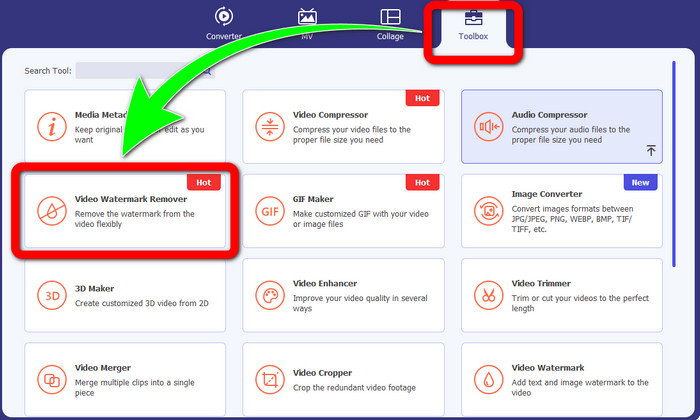
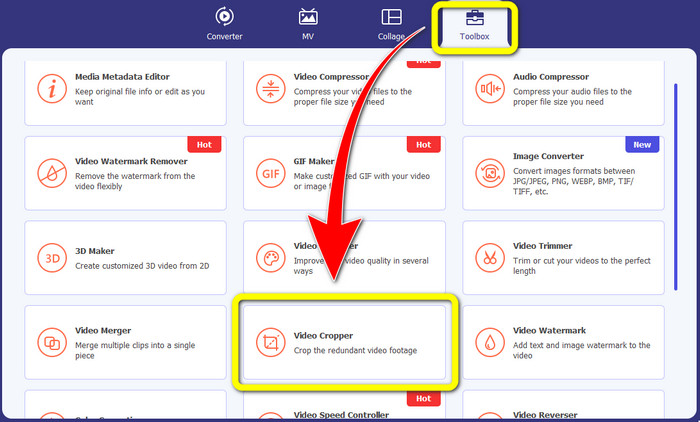
2. lépés: A szoftver elindítása után lépj a Toolbox (Eszköztár) panelre. Ezután keresd meg a Video Watermark Remover (Video vízjel eltávolító) opciót, és kattints rá.
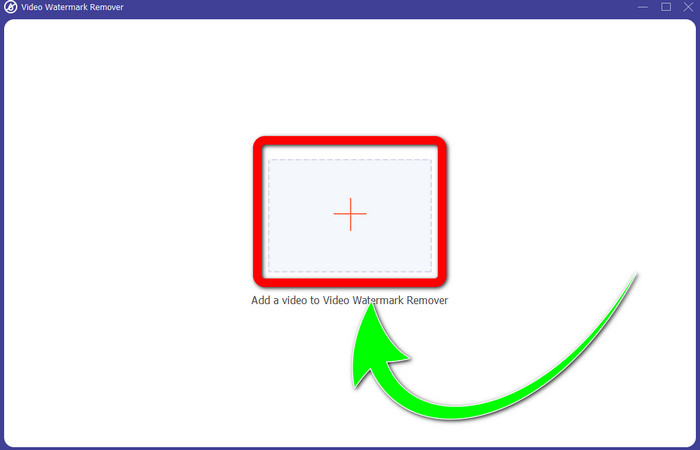
3. lépés: Miután rákattintottál a Video Watermark Remover opcióra, egy új felület jelenik meg az asztalodon. Válaszd a Plusz jel gombot, és importáld a logóval ellátott videódat.
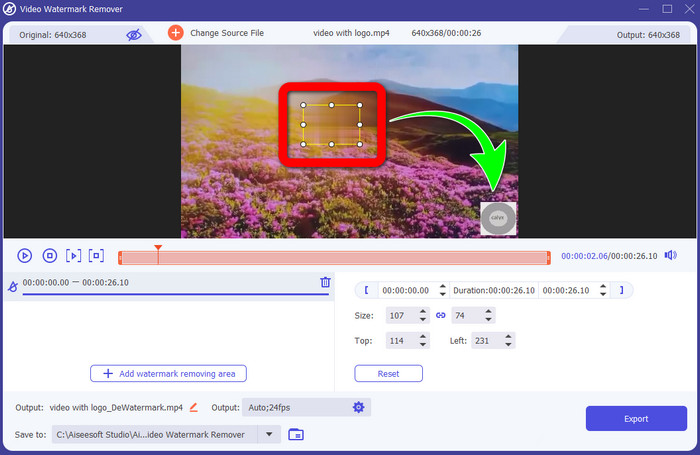
4. lépés: Válaszd az Add Watermark Removing Area (Vízjel-eltávolítási terület hozzáadása) gombot. Egy kis doboz jelenik meg a videódon. Húzd a dobozt a logóra, hogy lefedd azt.
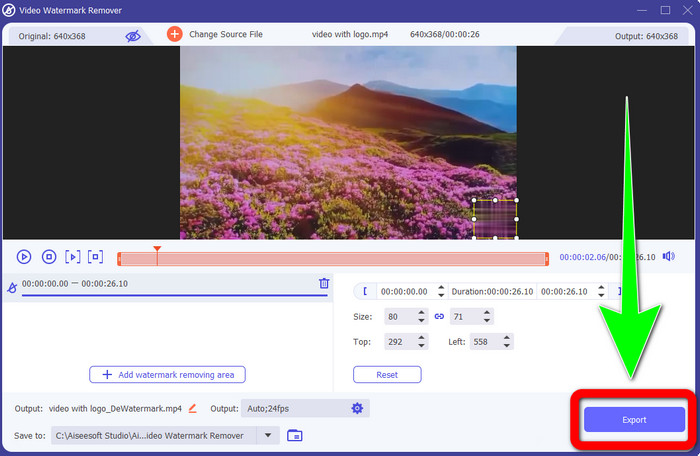
5. lépés: Miután a dobozt a logóra húztad és lefedted, kattints az Export gombra a végleges videó mentéséhez.
1. A Video Cropper funkció használata
1. lépés: Nyisd meg a Video Converter Ultimate programot, lépj a Toolbox részre, és kattints a Video Cropper (Videóvágó) gombra. Ekkor egy új felület jelenik meg a képernyőn.
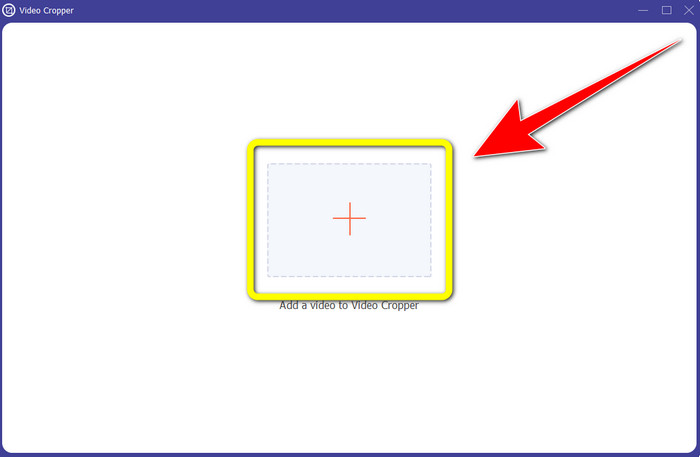
2. lépés: Amikor az új felület megjelenik, kattints a Plusz jel gombra, és importáld a logóval ellátott videódat.
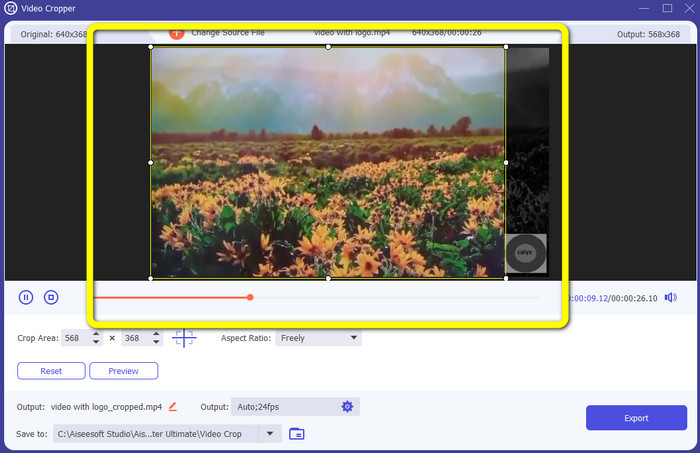
3. lépés: A videó importálása után kivághatod a videót úgy, hogy a logó kikerüljön a képből.
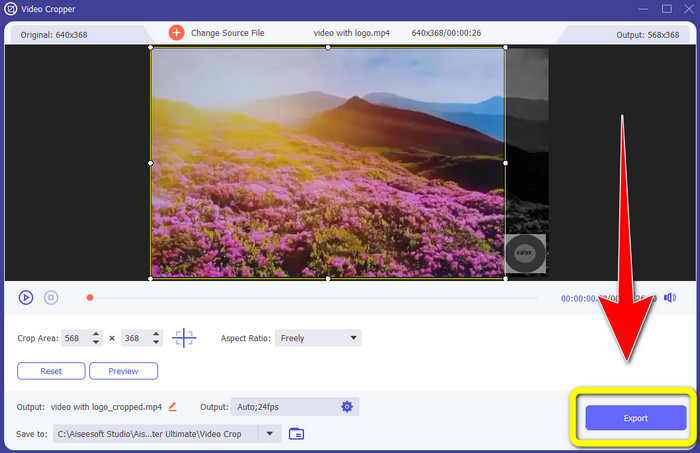
4. lépés: A videó kivágása után kattints az Export gombra.
2. rész: Hogyan távolítsuk el a logót a Video Online-ból
Ha egy nagyszerű alkalmazást keresel, amely segít a logó eltávolításában videóról, használhatod a 123APPS online eszközt. Ez az alkalmazás gyorsan és erőfeszítés nélkül segít eltávolítani a logót a videódról, így tökéletesen alkalmas kezdők számára. Ráadásul ez az online eszköz ingyenes, ezért nem kell aggódnod amiatt, hogy meg kell-e vásárolni. Az alkalmazás egyik hasznos funkciója, hogy eltávolítja a zavaró elemeket a videóidról, például vízjeleket, szövegeket, képeket stb. Továbbá számos fájlformátumot támogat, például MOV, WMV, AVI, MP4 és egyebek. Hátránya viszont, hogy minden egyes feltöltés hosszú időt vesz igénybe. Emellett maga az eltávolítási folyamat is elég lassú. Ha el akarod távolítani a logót a videóidról, kövesd ezeket az egyszerű lépéseket.
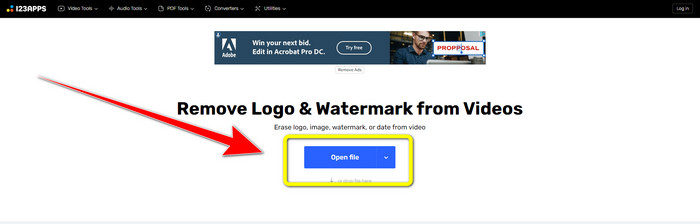
1. lépés: Látogass el a 123APPS weboldalára. Kattints az Open file (Fájl megnyitása) gombra, és add hozzá a TikTok-logóval ellátott videódat.
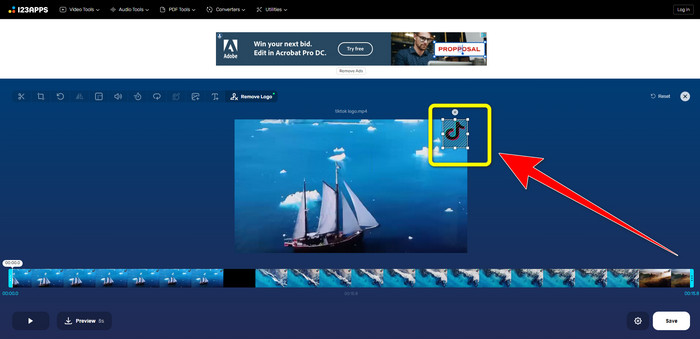
2. lépés: Miután csatoltad a videót, készíts egy doboz alakú kijelölést az egérrel a képernyőn, és húzd a logó fölé, hogy lefedd azt.
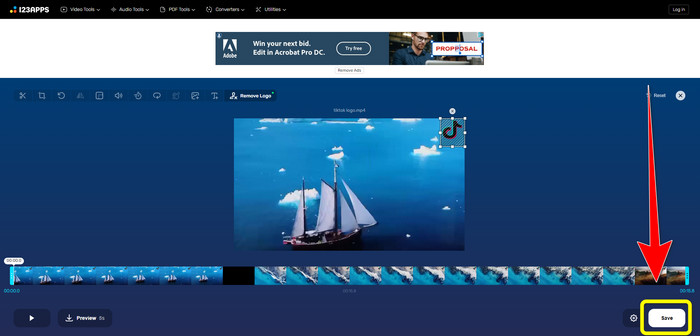
3. lépés: Miután lefedted a logót, kattints a Save (Mentés) gombra, hogy elmentsd a logó nélküli végleges videót.
3. rész: Hogyan távolítsuk el a logót a videóból iPhone és Android készülékeken
Hogyan lehet törölni a logót a videóból Androidon
Ha szeretnéd megtudni, hogyan távolíthatod el a logót videóról Androidon, a Remove and Add Watermark az az alkalmazás, amelyet használhatsz. Ez a szoftver azonnal segít eltávolítani a logót a videóidról. Emellett nemcsak a felesleges elemek eltávolítására alkalmas a videódból, hanem képekről is el tudod távolítani a logókat, ami kényelmes a felhasználók számára. Továbbá ez az eltávolító egyszerű és könnyen használható. Végül pedig gyorsan elmenti a videóidat. Ha el akarod tüntetni a logót a videóidról, kövesd az alábbi egyszerű lépéseket.
1. lépés: Töltsd le a Remove and Add Watermark alkalmazást az androidos készülékedre.
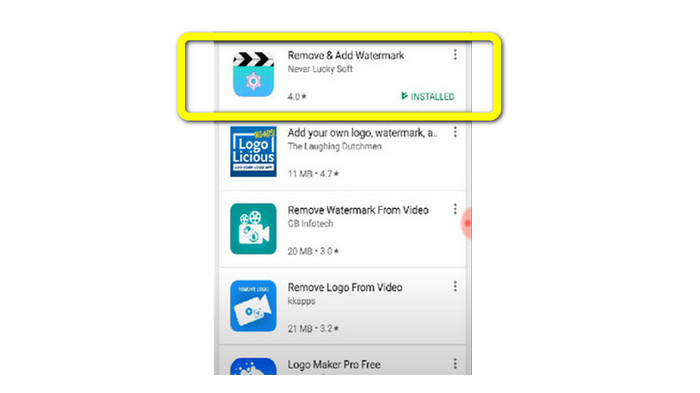
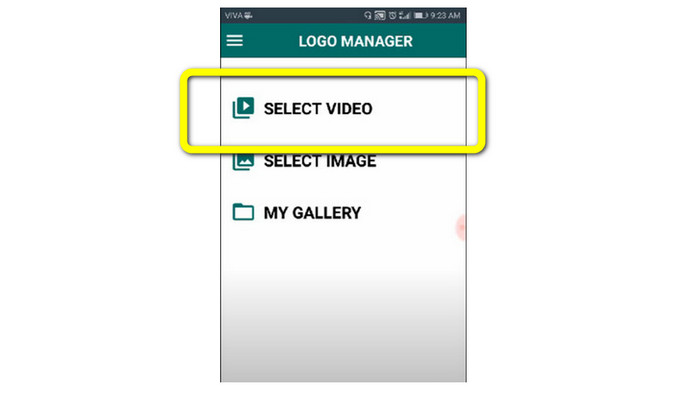
2. lépés: A letöltés után kattints a Select Video > Remove Logo (Videó kiválasztása > Logó eltávolítása) gombra, hogy hozzáadd a logóval ellátott videódat.
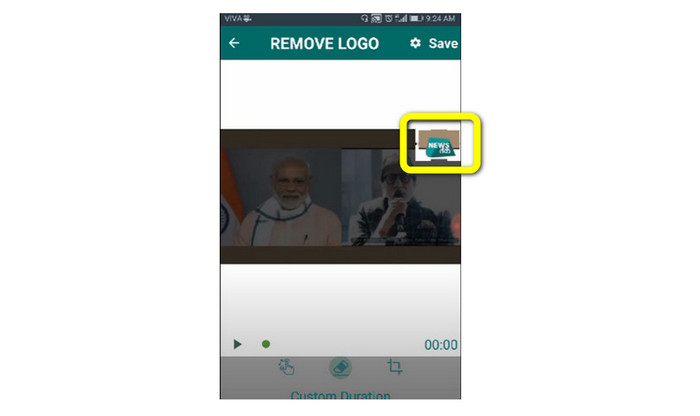
3. lépés: Miután hozzáadtad a videót, egy kis doboz jelenik meg a képernyőn. Használd ezt a dobozt a logó eltávolításához.
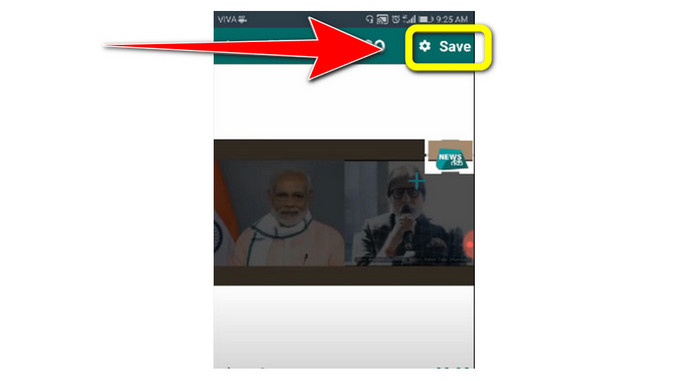
4. lépés: Ha végeztél a logó lefedésével, kattints a Save gombra, hogy elmentsd a logó nélküli videót.
Hogyan lehet törölni a logót a videóból az iPhone készüléken
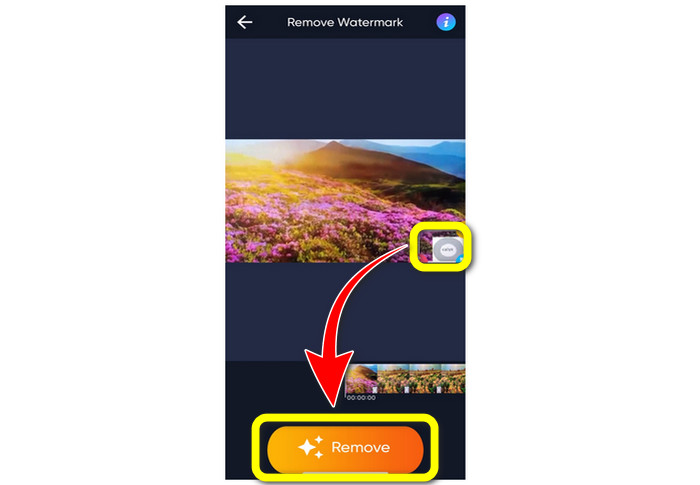
Ha iPhone-on szeretnéd eltávolítani a logót a videóidról, a legjobb alkalmazás, amit használhatsz, a Watermark Remover Retouch. Ez az alkalmazás lehetővé teszi, hogy eltávolítsd a felesleges elemeket a videóidról, például logókat, vízjeleket, szövegeket, képeket stb. Ráadásul gyorsan dolgozik, ami ideálissá teszi az új felhasználók számára. Emellett az alkalmazás felülete egyszerű, így könnyen használható. Ha ezzel az alkalmazással szeretnél logót eltávolítani az iPhone-odra mentett videókról, kövesd az alábbi egyszerű lépéseket.
1. lépés: Töltsd le a Watermark Remover Retouch alkalmazást az iPhone-odra. Ezután indítsd el az alkalmazást, és add hozzá a logóval ellátott videót.
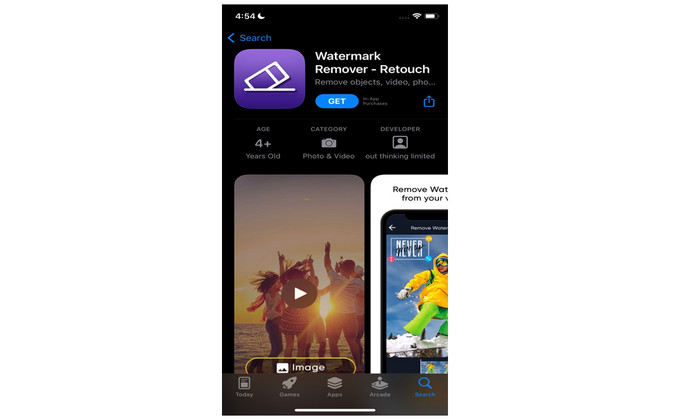
2. lépés: Amint a videót hozzáadtad, egy kis doboz jelenik meg rajta. Használd ezt a dobozt a logó lefedésére. Ezután kattints a Remove (Eltávolítás) gombra, és mentsd el a vízjel nélküli videót.
Kapcsolódik:
Hogyan lehet ingyen eltávolítani a Filmora vízjelet a videóidról vagy projektjeidről
A leggyorsabb trükk az Adobe Stock vízjel eltávolítására videóról [Útmutató]
4. rész: GYIK a logó videóról való eltávolításával kapcsolatban
Biztonságos az embléma online eltávolítása?
Igen, ez az! Az online alkalmazások biztonságosak és biztonságosak. A legjobb, amit tennie kell, ha keres egy alkalmazást, amely segít eltávolítani és felhasználni a logókat.
Lehetséges eltávolítani az aláírásokat a videóimról?
Természetesen igen. Eltávolíthatod az aláírásokat a videóidról a Video Converter Ultimate segítségével. Aláírások, vízjelek, logók és szövegek egyaránt könnyedén eltávolíthatók ezzel a kiváló alkalmazással.
Melyik a legjobb alkalmazás a logók eltávolítására a Mac gépemen?
A legjobb alkalmazás, amellyel Macen logókat távolíthatsz el, a Video Converter Ultimate. Ez az alkalmazás nemcsak Windowsra, hanem Macre is elérhető, ami rendkívül kényelmes a felhasználók számára.
Következtetés
Ez a cikk hatékony és megbízható módszereket mutatott be, hogyan lehet logókat eltávolítani a videóidról. Így gondtalanul élvezheted kedvenc videóidat logó nélkül. Végül, ha a legegyszerűbb és legkönnyebb módszert keresed a logók eltávolítására a videóidról, mindenképpen a Video Converter Ultimate-et érdemes választanod.
-
 Az Animaker vízjel eltávolítása költség nélkül [Bevált módszerek]
 Hogyan lehet eltávolítani az Animaker vízjelet? Az ebben a blogban található legjobb eszközökkel megszabadulhat a vízjeltől.
-
 Oktatóanyag a vízjel eltávolításáról az eredetdiagramról [100% Working]
 A vízjel eltávolításához az Origin Graphból segítségre lesz szüksége. Ebben a cikkben megtalálható a szükséges segítség, ezt elolvashatja.
-
 A vízjel egyszerű eltávolítása a SmartDraw-ban [2 bevált módszer]
 Hogyan lehet eltávolítani a vízjelet a Smart Draw-ban? Ha ugyanilyen kérdése van, számíthat erre a cikkre, mivel mi foglalkozunk vele!
