


 Video Converter Ultimate
 Screen Recorder
 Videó javítás
 Biztonságos letöltés
A logó videóról való eltávolításának legegyszerűbb módjai a Windows Movie Maker segítségével
Hogyan lehet eltávolítani a logót a videókról a Windows Movie Makerrel? Ezt a kérdést teszik fel a leggyakrabban azok, akik szeretik a kedvenc filmjeiket, videoklipjeiket, diavetítéseiket és egyebeket nézni. Nem túl élvezetes úgy nézni egy videót, hogy közben egy logót látunk rajta. De emiatt többé nem kell aggódnia. Hatékony módszereink vannak a logó eltávolítására a videóiból a Windows Movie Maker használatával. Emellett van egy másik eszköz is, amellyel a Windows Movie Makeren kívül eltávolíthatja a logót. Ha szeretne többet megtudni erről az alkalmazásról és ezekről az egyszerű módszerekről, olvassa tovább ezt a cikket.

1. rész: Logó eltávolítása a videóról a Windows Movie Maker segítségével
Ha Windows-felhasználó, feltétlenül próbálja ki a Windows Movie Makert a logó eltávolításához a videóiból. Ez az eszköz ráadásul különféle módszereket kínál a videóin lévő elemek – például logók, vízjelek, szövegek, bélyegzők stb. – eltávolítására. A Windows Movie Maker egy olyan videószerkesztő szoftver, amely segít a felhasználóknak videók létrehozásában és javításában. Továbbá egyszerű kezelőfelülettel rendelkezik, így a folyamat jóval átláthatóbb, ami tökéletes a nem profi felhasználók számára. A logó eltávolításakor lecserélheti azt más elemekre, például képekre vagy szövegre. Ezenfelül az alkalmazás számos szerkesztőeszközt kínál, amelyeket élvezhet, például a videók vágását, egyesítését, forgatását és kivágását. Átmeneteket, szövegeket, effektusokat és még sok mást is hozzáadhat. Ha meg szeretné ismerni ezt az egyszerű módszert, kövesse az alábbi lépéseket.
1. lépés: Először töltse le a Windows Movie Makert a Windows rendszerére. Várja meg a telepítési folyamatot, majd nyissa meg az alkalmazást.
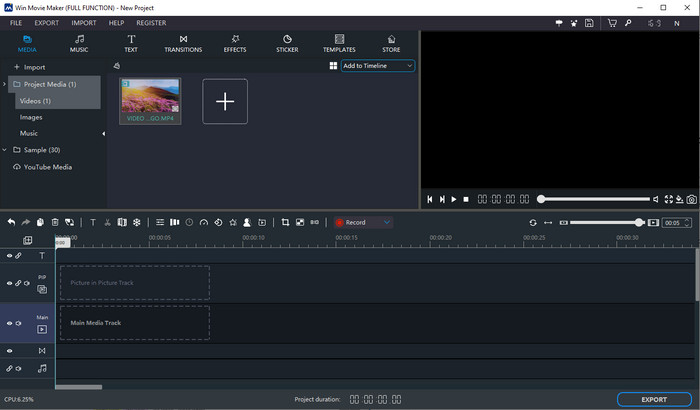
2. lépés: Kattintson a Plusz ikonra, hogy hozzáadja a logót tartalmazó videóját. Ha a videó már be van illesztve, húzza azt a Main Media Track (fő médiacsatorna) sávra.
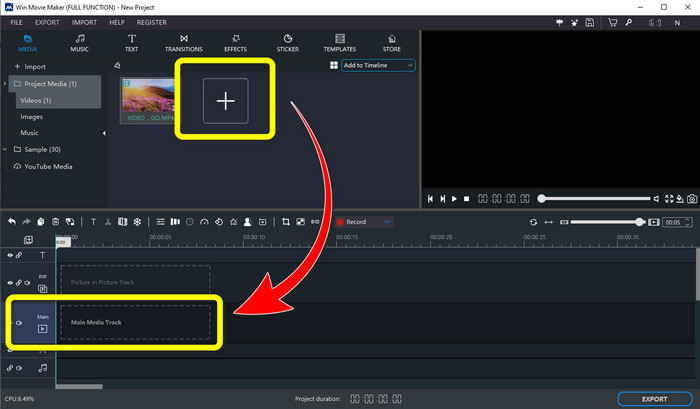
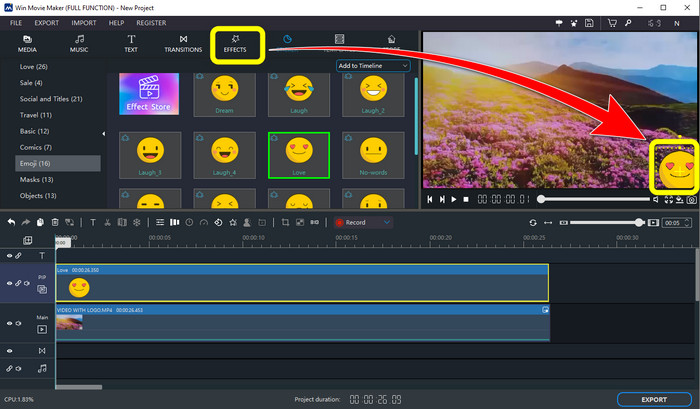
3. lépés: A logó lecseréléséhez kattintson a Sticker (matrica) gombra. Ezután válassza ki a kívánt matricát vagy más elemet, és helyezze rá a logó területére, hogy eltakarja azt.
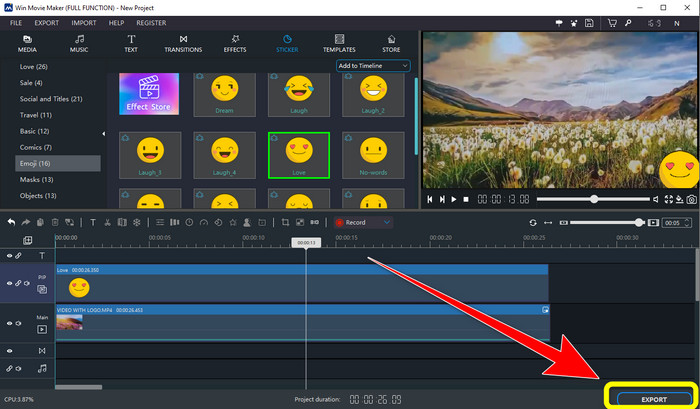
4. lépés: Végül, ha végzett a logó letakarásával a videón, válassza az Export gombot a végső eredmény mentéséhez.
2. rész: A logó videóról való eltávolításának legjobb alternatívája
A Video Converter Ultimate a Windows Movie Maker egyik legjobb alternatívája a logók egyszerű eltávolítására a videókból. Ez az alkalmazás lehetővé teszi, hogy eltávolítsa a felesleges elemeket, például vízjeleket, logókat, aláírásokat, bélyegzőket stb. Emellett használhatja a vágóeszközt is, hogy eltávolítsa azokat a logókat, amelyek a videó szélén vagy sarkában találhatók. A Video Converter Ultimate egyszerű, intuitív felületet kínál, amely alkalmas nem profi felhasználók számára is. A logók videókból való eltávolításán túl ez a szoftver számos egyéb szerkesztőeszközt biztosít, amelyeket élvezhet. Van benne videókompresszor, videósebesség-szabályozó, GIF-készítő, kollázskészítő, vízjelek hozzáadása és eltávolítása, videóforgató és még sok más. Számos fájlformátumot támogat, például MP4, MKV, FLV, MOV, XVID, DIVX, TRP, MTS stb. Végül a Video Converter Ultimate Windowsra és Macre is elérhető, ami kényelmes a felhasználók számára. Kövesse ezeket a részletes útmutatókat a logók eltávolításához a videókból a Video Watermark Remover és a Video Cropping funkciók használatával.
A Video Watermark Remover funkció használata
1. lépés: Először töltse le a Video Converter Ultimate programot, és telepítse Windows vagy Mac rendszerére.
Ingyenes letöltés Windows 7 vagy újabb rendszerre Biztonságos letöltés
Ingyenes letöltés macOS 10.7 vagy újabb rendszerre Biztonságos letöltés
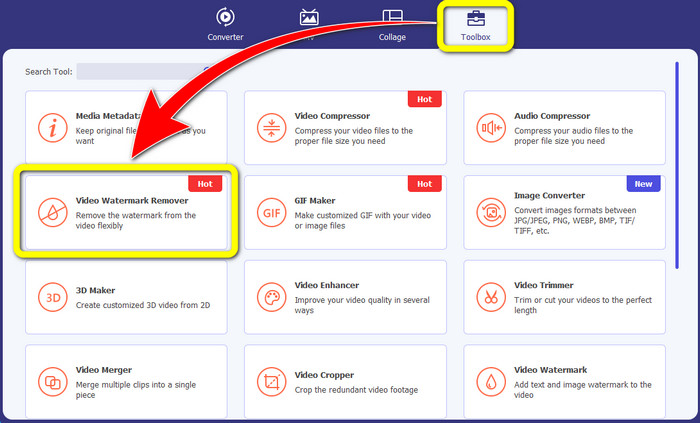
2. lépés: Az alkalmazás elindítása után lépjen a Toolbox (Eszköztár) panelre, keresse meg a Video Watermark Remover (videóvízjel-eltávolító) opciót, és válassza ki.
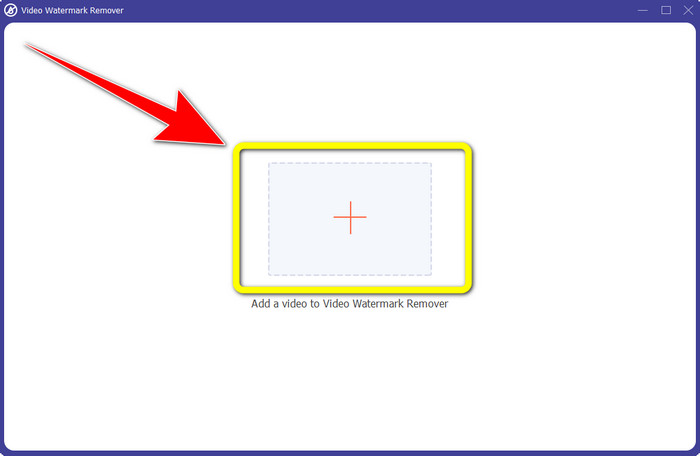
3. lépés: Ezután egy másik felület jelenik meg. Kattintson a plusz ikonra, és adja hozzá azt a videót, amelyről el szeretné távolítani a logót.
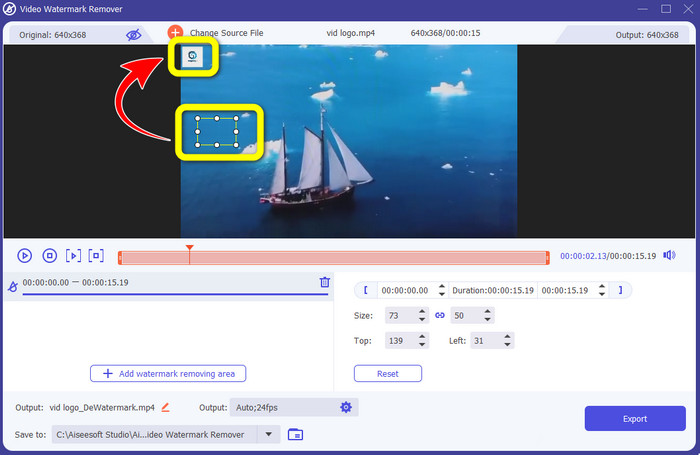
4. lépés: Ha már csatolta a fájlt, megjelenik a képernyőn egy kis doboz. Húzza a dobozt a logó fölé, hogy lefedje azt.
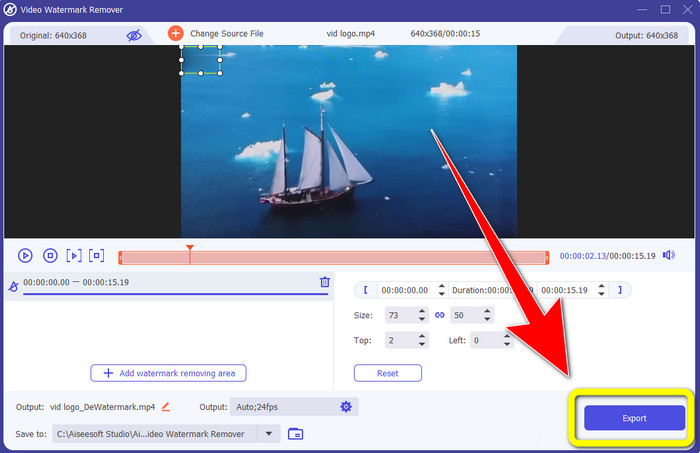
5. lépés: Ha végzett a logó eltávolításával a videóiból, válassza az Export gombot a logó nélküli videó exportálásához és mentéséhez.
A Video Cropper funkció használata
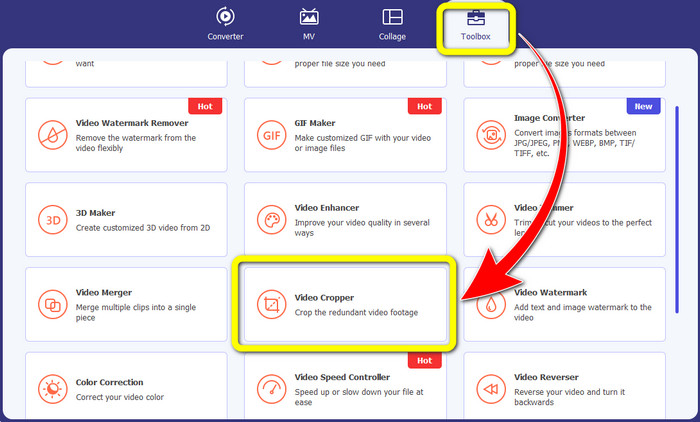
1. lépés: Először kattintson a Toolbox panelre. Ezután keresse meg a Video Cropper (videóvágó) eszközt, és válassza ki.
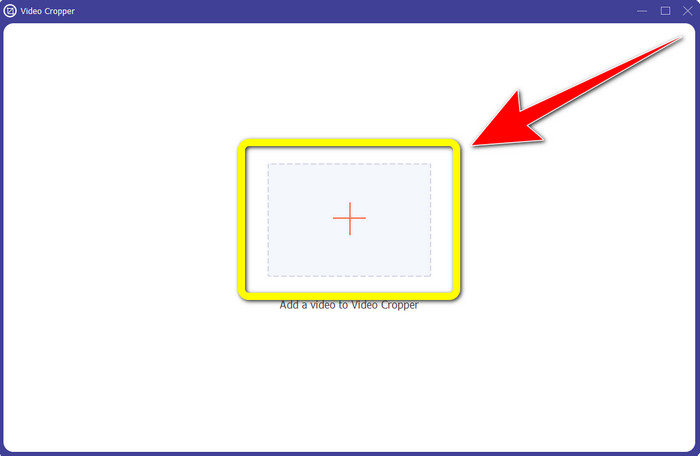
2. lépés: Ezután kattintson a Plusz ikonra, hogy importálja a logót tartalmazó videót.
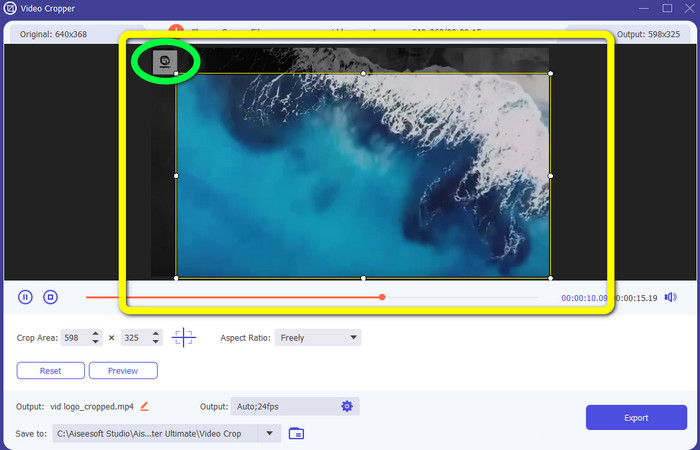
3. lépés: Ebben a funkcióban a videó mindkét oldalát, illetve a felső és alsó részét is levághatja, hogy eltávolítsa a logót a videóról.
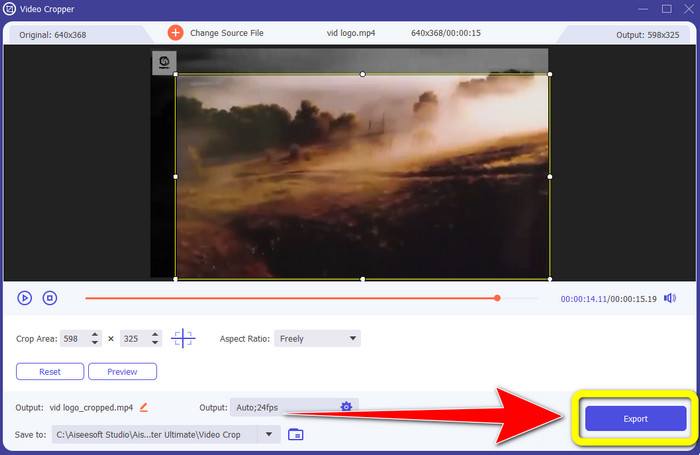
4. lépés: Az utolsó lépésként kattintson az Export gombra, és mentse a videót a számítógépére.
3. rész: GYIK az embléma videóról való eltávolításával kapcsolatban a Windows Movie Maker használatával
Mennyi ideig tart a videóim exportálása a Windows Movie Maker programba az embléma eltávolítása után?
A Windows Movie Maker használatával az embléma eltávolítása után mindössze egy percen belül exportálhatja videóját.
Melyik alkalmazás a legjobb logók eltávolításához a videókról?
Ha a legjobb és legmegbízhatóbb, logóeltávolító funkcióval rendelkező alkalmazást keresi, használhatja a Video Converter Ultimate programot. Ezzel az alkalmazással élvezheti a videóit, miután eltávolította róluk a logókat.
Van olyan hasznos alkalmazás, amellyel eltávolíthatom a logókat a videókról a telefonommal?
Természetesen, hogy van! Használhatja a PicLab alkalmazást. Androidon és iPhone-on egyaránt elérhető. Íme egy általános útmutató:
1. Töltse le a PicLab alkalmazást a telefonjára, és nyissa meg.
2. Csatolja a fájlt, majd válassza a jelölő (marker) eszközt.
3. Válassza ki az eltávolítandó részt, majd nyomja meg az erase (törlés) gombot, és mentse el.
Eltávolítható a logó a videóról a minőség romlása nélkül?
Igen, az! A leginkább ajánlott alkalmazás, amelyet használhat, a Video Converter Ultimate.
Van olyan online eszköz, amellyel eltávolíthatok logót a videóimról?
Természetesen igen! Számos online eszközt használhat a logó eltávolítására a videókról. Használhatja például az Apowersoft Online Watermark Remover szolgáltatást. Íme a használatának egyszerű lépései:
1. Lépjen az Apowersoft Online Watermark Remover weboldalára, és kattintson a remove watermark from video (vízjel eltávolítása videóról) gombra.
2. Csatolja a fájlt. Használja a dobozt a logó lefedéséhez.
3. Kattintson az Erase (törlés) gombra, majd töltse le a videót.
Következtetés
Ez a cikk kiváló módszereket mutatott be arra vonatkozóan, hogyan lehet eltávolítani a logót egy videóról Windows Movie Maker segítségével a számítógépén. Emellett a Windows Movie Maker használatán túl a cikk bemutatott egy másik, rendkívül megbízható alternatívát is a logó eltávolítására. Ez a megbízható alkalmazás a Video Converter Ultimate. Ez a szoftver két egyszerű módszerrel segíthet a logó eltávolításában. Az egyik a Video Watermark Remover eszköz, a másik pedig a Video Cropper eszköz.
-
 Hogyan távolítsuk el a Bandicam vízjelet könnyedén [3 hatékony módszer]
 Hogyan lehet eltávolítani a Bandicam vízjelet? A hozzáadott eszközökkel tudni fogja, hogyan kezelje hatékonyan!
-
 Az iStock vízjel eltávolítása a leghatékonyabb módszerekkel
 Hogyan lehet eltávolítani az iStock vízjelet a videókról és képekről? Ha kiutat keresel, hogy megszabadulj a vízjeltől, olvasd el ezt!
-
 Távolítsa el a DaVinci Resolve vízjelet az exportált videókról a teljes oktatóanyag segítségével
 A Davinci Resolve vízjel eltávolításához egy eszközt kell használnia, vagy meg kell vásárolnia annak hivatalos verzióját. Olvassa tovább ezt, hogy többet megtudjon.
