


 Video Converter Ultimate
 Screen Recorder
 Videó javítás
 Biztonságos letöltés
A ManyCam logó eltávolításának legegyszerűbb módjai az eszközről
Szeretnéd megtanulni, hogyan távolíthatod el a ManyCam logót Windows és Mac rendszeren? Ebben az esetben ez a bejegyzés többféle módszert is bemutat, amelyekkel eltávolíthatod a logót a videóidról, és amelyeket mindenképpen érdemes kipróbálnod. Elég zavaró, ha a kedvenc videóid vízjelezve vagy logóval ellátva jelennek meg. Így nem tudod igazán élvezni a videókat, és folyton elterelik a figyelmed. Előfordulhat az is, hogy a vízjelek, képek, szövegek vagy logók miatt bizonyos részeket egyáltalán nem látsz. Szerencsére léteznek kiváló szoftverek beépített vízjel-eltávolító funkcióval, amelyekkel eltávolíthatod ezeket a felesleges objektumokat a videóidról.
Ezen alkalmazások segítségével soha többé nem fog csalódni. Ha érdekli a ManyCam logó eltávolításának legjobb módja, a legjobb választás, ha elolvassa ezt a cikket.

1. rész: A ManyCam logó eltávolítása az előfizetés aktiválásával
Ha szeretnéd megtanulni, hogyan kell eltávolítani a vízjeleket a ManyCam-ből, jó helyen jársz. A ManyCam olyan élő közvetítő szoftver, amely Windows és Mac alatt egyaránt elérhető. Ezzel az alkalmazással egyedi közvetítéseket hozhatsz létre a különböző platformokon, készíthetsz oktatóanyagokat, üzleti prezentációkat, játékstreamet és még sok mást. Emellett számos további hasznos funkciót is kínál, például zene hozzáadását, képernyőfelvételt, green screen használatát, játékok streamelését stb. Tartalomkészítők számára a ManyCam különösen értékes és hasznos. Olyan alapvető eszközöket biztosít számukra, mint a képernyőmegosztás és a képernyőfelvétel, ami rendkívül kényelmessé teszi a munkájukat.
Azonban minden alkalommal, amikor létrehozza vagy szerkeszti a videót, egy manycam logó található a videó alsó részén, ami zavaró. Szerencsére eltávolíthatja ezt az emblémát a ManyCam előfizetés aktiválásával. Kövesse az alábbi lépéseket, hogy megtudja, hogyan távolíthatja el a manycam logót az előfizetés aktiválásával.
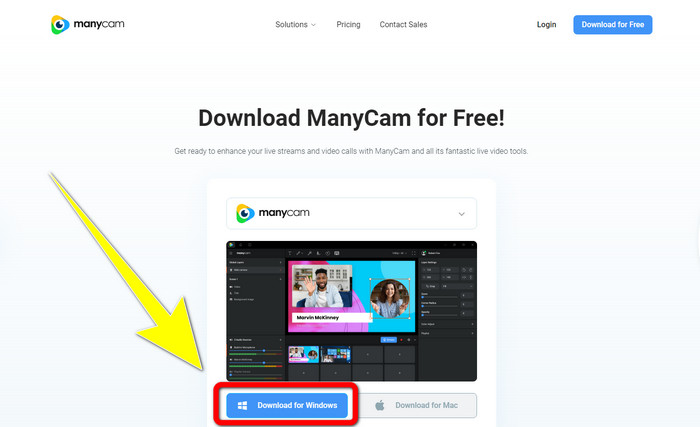
1. lépés: A ManyCam letöltéséhez kattints a Download for Windows gombra. Ezután folytasd a telepítési folyamattal.
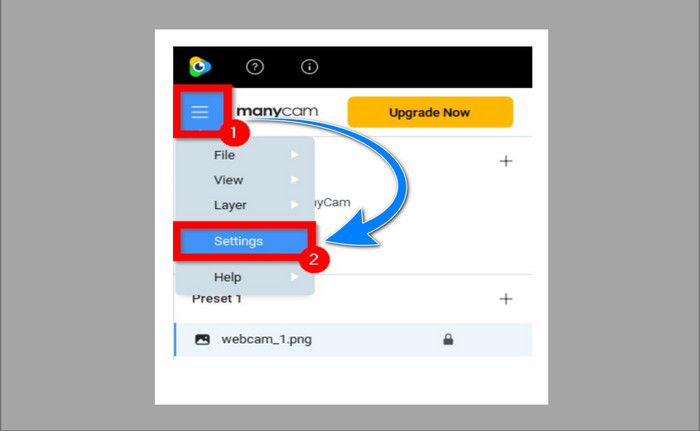
2. lépés: Indítsd el az alkalmazást a számítógépeden, kattints a ManyCam háromvonalas (szendvics) ikonjára, majd lépj a Settings > Account menüpontra, és jelentkezz be abba a fiókba, amelyet az előfizetés megvásárlása után hoztál létre.
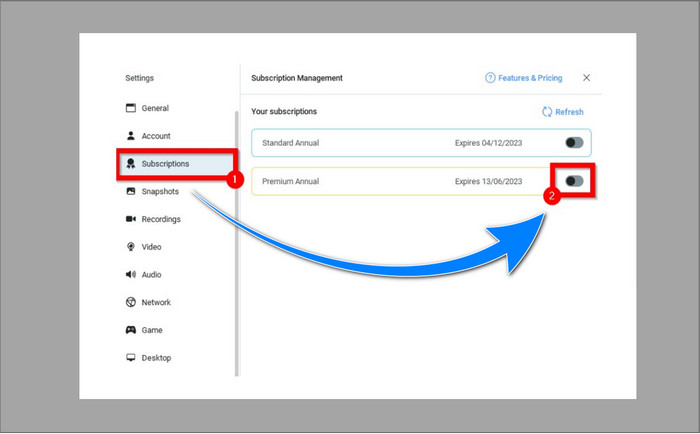
3. lépés: Lépj a Subscription (Előfizetés) fülre, hogy megbizonyosodj arról, az előfizetés engedélyezve van-e.
4. lépés: Ha az előfizetés már engedélyezve van, megjelenik egy Pop-up üzenet, és ezzel készen is vagy.
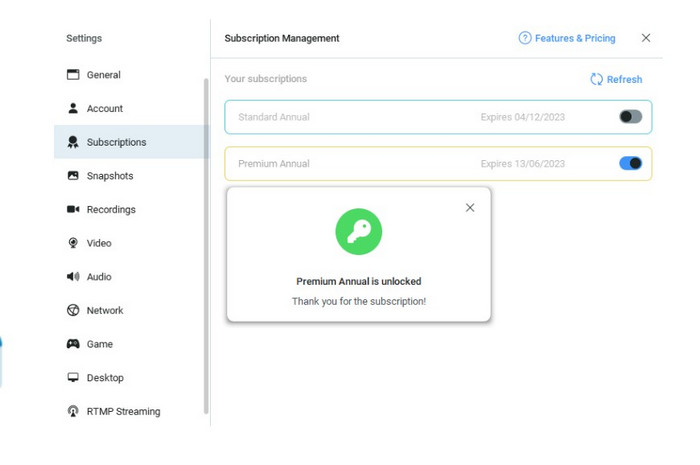
Ha a ManyCam alkalmazás már aktiválva van, a vízjelek vagy logók a videóidon automatikusan eltávolítódnak. Élvezheti kedvenc videóit anélkül, hogy vízjeleket találna rajtuk.
2. rész: A ManyCam logó eltávolítása előfizetés nélkül
Szeretnéd ingyen eltávolítani a vízjelet a ManyCam-ről? A ManyCam alkalmazáson kívül más programot is használhatsz a ManyCam logójának eltávolítására. Az egyik legjobb eszköz, amelyet érdemes kipróbálni, a Video Converter Ultimate. Ez az alkalmazás képes eltávolítani a videóidról a felesleges objektumokat, például szöveget, vízjeleket, logókat stb. Emellett a Video Converter Ultimate rengeteg szerkesztőeszközt kínál, például videósebesség-szabályzót, videóminőség-javítót, vízjelek hozzáadását és eltávolítását, színkorrekciót, hangerőnövelőt és még sok mást. A Video Converter Ultimate-ben a vízjelek eltávolítására használható legjobb eszköz a Video Watermark Remover (Videó vízjel-eltávolító).
Ez az eszköz segít a vízjelek egyszerű eltávolításában. Ezenkívül ez az alkalmazás Windows és Mac rendszeren is elérhető. Ezenkívül nem lesz nehéz használni ezt az alkalmazást. Számos audio- és videofájlformátumot is támogat, például MP4, FLV, MOV, MKV, MP3, AAC és még sok más. Ha el szeretné távolítani a ManyCam logót a Video Converter Ultimate segítségével, ez a cikk két módszert mutat be. Ezek a módszerek a videóvágó és a videó vízjel-eltávolító használata.
1. A Video Cropper használata
1. lépés. Töltsd le az FVC Video Converter Ultimate programot, és hajtsd végre a telepítést.
Ingyenes letöltés Windows 7 vagy újabb rendszerre Biztonságos letöltés
Ingyenes letöltés macOS 10.7 vagy újabb rendszerre Biztonságos letöltés
2. lépés: A telepítés után indítsd el az alkalmazást. Kattints a Toolbox > Video Cropper menüpontra.
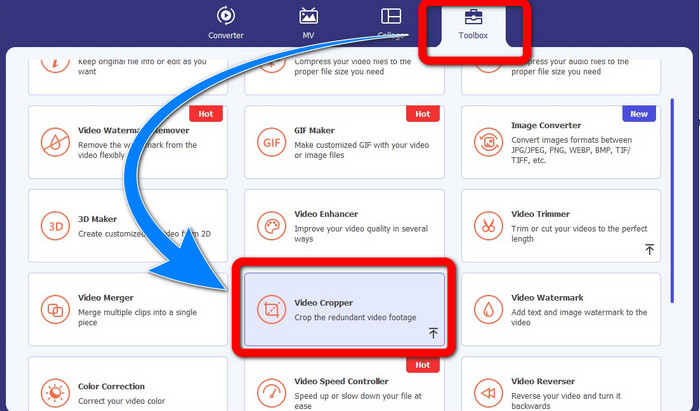
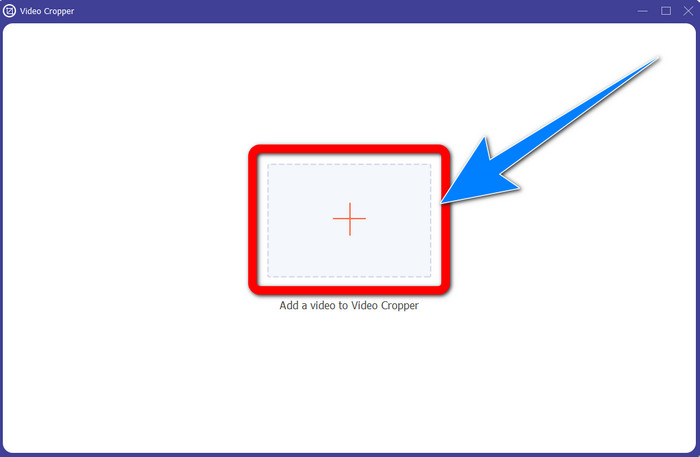
3. lépés: A Video Cropper gombra kattintva egy új felület jelenik meg. Kattints a Plus jelre, és add hozzá a ManyCam vízjellel ellátott videóidat.
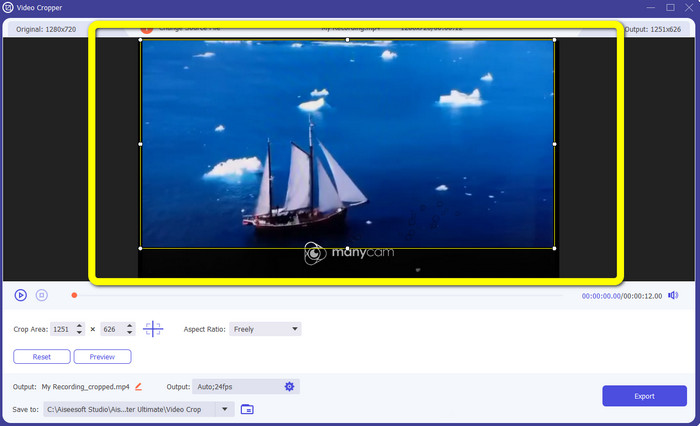
4. lépés: Miután a fájlt hozzáadtad, levághatod (kivághatod) a videót úgy, hogy eltávolítsd róla a vízjelet.
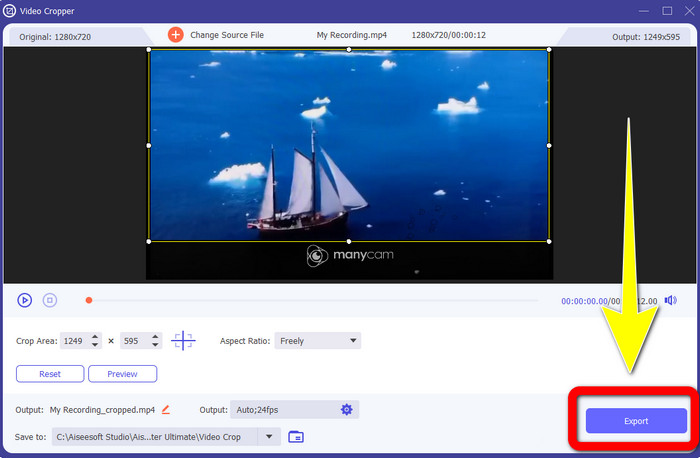
5. lépés: Ha a vízjelet eltávolítottad, kattints az Export gombra a végleges fájl mentéséhez. Ezután már vízjel nélkül játszhatod le a kedvenc videódat.
2. A Video Watermark Remover használata
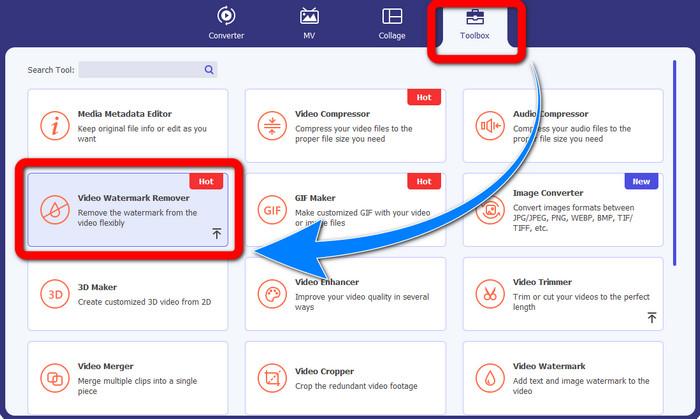
1. lépés: Nyisd meg az alkalmazást. Lépj a Toolbox > Video Watermark Remover menüpontra.
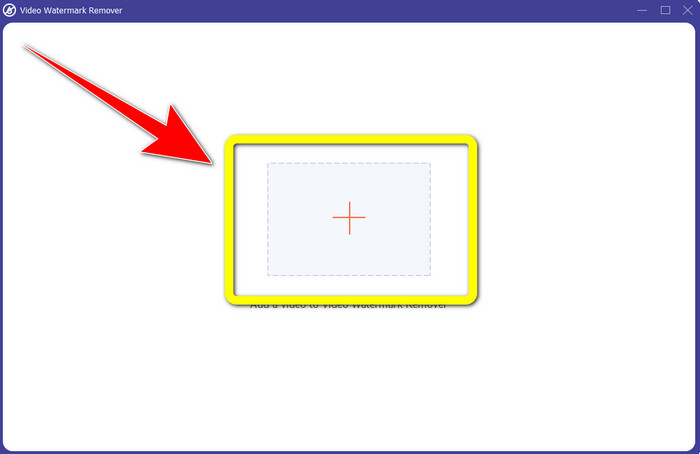
2. lépés: A Video Watermark Remover gombra kattintva új felület jelenik meg. Kattints a Plus jelre, és csatold a ManyCam vízjellel ellátott videódat.
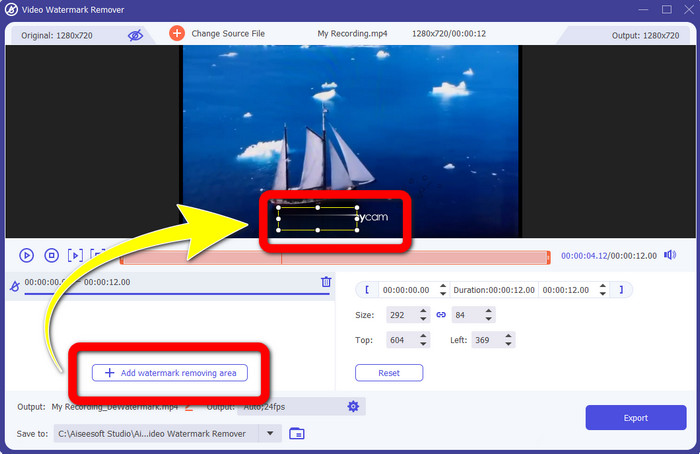
3. lépés: Miután csatoltad a videót, kattints az Add Watermark Removing Area gombra, ekkor megjelenik egy doboz a videón. Húzd ezt a dobozt a vízjel fölé, hogy lefedd azt.
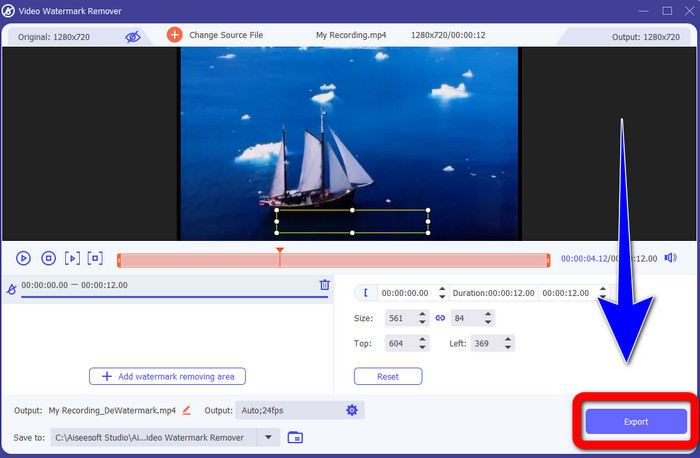
4. lépés: Ha befejezted a vízjelek eltávolítását a videóidról, kattints az Export gombra a fájl mentéséhez. Ez a legjobb módja annak, hogy ingyen eltávolítsd a ManyCam logót.
3. rész: GYIK a ManyCam logó eltávolításával kapcsolatban
Mennyi ideig tart a logó eltávolítása?
Nem kell tovább várnia, mert a logó vagy a felesleges tárgyak eltávolítása csak néhány másodpercet vesz igénybe.
Eltávolíthatom a ManyCam logót a telefonomról?
Igen! Eltávolíthatja a ManyCam logót androidos vagy iPhone készülékéről vízjeleltávolítókkal ellátott különböző szoftveralkalmazásokkal. Keresse meg az alkalmazást a Play áruházban vagy az alkalmazásboltban, és próbálja meg azokat az alkalmazásokat használni, amelyeket a legjobb eredmények között láthat.
Van a legjobb módszer a vízjelek eltávolítására a Mac gépemen?
Természetesen igen! Használhatsz egy kiváló alkalmazást beépített vízjel-eltávolítóval, hogy eltávolítsd a vízjeleket Mac gépeden. Ez az alkalmazás a Video Converter Ultimate. Tökéletesen működik Windows és Mac alatt is. Ez a szoftver segít eltávolítani a videóidról a felesleges objektumokat, például logókat, vízjeleket, képeket és szöveget.
Használhatom a ManyCam alkalmazás Vágó eszközét a ManyCam logó eltávolítására?
Sajnos nem! A vágó (cropping) eszköz használata nem hatékony módszer a ManyCam logójának eltávolítására. Még ha meg is próbálod levágni a videót a logó eltüntetéséhez, az továbbra is látható marad. A logó eltávolításának egyetlen megoldása, ha aktiválod a ManyCam-előfizetést.
A ManyCam mellett van más módszer a vízjelek eltávolítására a videóimról?
Igen van! A ManyCam mellett több vízjeleltávolító alkalmazás is létezik, amelyeket vásárlás nélkül is használhat. Az egyik legjobb alkalmazás, amellyel eltávolíthatja a vízjeleket a videóiról, a Video Converter Ultimate. Egyszerű és könnyen használható, kezdőknek is megfelelő.
Következtetés
A fenti információk alapján megtanulhatod, hogyan távolíthatod el a ManyCam logót Windows és Mac rendszeren. Használhatod a ManyCam alkalmazást, és az előfizetésed aktiválása után könnyedén eltávolíthatod a logót. Emellett, ha ingyenes vízjel-eltávolító alkalmazást szeretnél használni, érdemes a Video Converter Ultimate programot választanod. Ez az alkalmazás nagy segítséget jelent a videóidról eltávolítandó, felesleges objektumok eltüntetésében.
-
 A legegyszerűbb módszerek a vízjel eltávolítására a fényképekről
 Irritálnak a vízjelek a fotóin? Ne aggódj! Ez a cikk egyszerű és egyszerű módszereket kínál a vízjelek eltávolítására a fényképekről.
-
 A Powtoon vízjel eltávolítása 4 hatékony módszerrel
 Olvassa el ezt a cikket, hogy megtudja, hogyan távolítsa el a Powtoon vízjelet az itt található legjobb eszközök és egy oktatóanyag segítségével.
-
 Apowersoft vízjel-eltávolító áttekintése – Jellemzők, előnyök és hátrányok, valamint árak
 Az Apowersoft Watermark Remover az egyik legjobb vízjeleltávolító, amely támogatja az online és offline módot is, kattintson erre, ha többet szeretne tudni!
