


 Video Converter Ultimate
 Screen Recorder
 Videó javítás
 Biztonságos letöltés
Teljes módszerek a Picsart-szűrő vízjelének hatékony eltávolítására a videókról
Napjainkban elengedhetetlen „fegyver”, hogy legyen egy megbízható vizuális médiaszerkesztő szoftvered az asztali gépeden, mint a Picsart. Ezzel néhány beállítást módosítva egy hétköznapi képből olyan fotót varázsolhatsz, amilyet még senki sem látott! A saját magad által készített, figyelemfelkeltő képekkel több ügyfelet vagy nézőt szerezhetsz. Van azonban egy gond a Picsart használatával: a vízjel, amelyet az exportálás után hozzáad. A vízjel meglehetősen zavaró, és elvonhatja a figyelmet a látványról, ha nem távolítjuk el. Ha tehát szükséged van a szoftverre, és egy útmutatóra arról, hogyan történik a Picsart szűrő vízjelének eltávolítása, olvasd tovább ezt a cikket, és tudj meg róla többet!

1. rész: A Picsart Filter vízjel eltávolítása az asztali ingyenes szoftver használatával
FVC Video Converter Ultimate – első számú vízjel-eltávolító Windows és Mac rendszeren
Kezdjük a szoftver bemutatását a számunkra első számú választással, amely segíthet és megtaníthat arra, hogyan távolítsd el a Picsart-vízjelet. A FVC Video Converter Ultimate nélkülözhetetlen eszköz az arzenálodban: ezzel könnyedén eltávolíthatod a vízjelet a videókról, miközben profi kimenetet kapsz. Teljesítményének és páratlan funkcióinak köszönhetően már sokan kipróbálták, és az eszköz nem okozott nekik csalódást. Ha segítségre van szükséged a videódon lévő vízjel eltávolításához, próbáld meg lemásolni az alább megadott lépéseket, és hajtsd végre őket.
1. lépés. Szerezd be az ultimate szoftvert az eszközödre az alábbi, megfelelő letöltés gomb megnyomásával. Ezután telepítsd a programot a számítógépedre, majd kattints a Start Now gombra a szoftver megnyitásához.
Ingyenes letöltés Windows 7 vagy újabb rendszerre Biztonságos letöltés
Ingyenes letöltés macOS 10.7 vagy újabb rendszerre Biztonságos letöltés
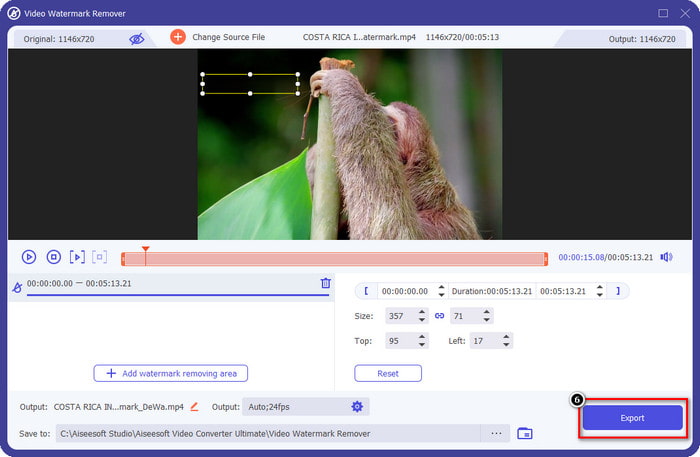
2. lépés. A Toolbox részben számos egyéb funkciót is láthatsz, amelyekkel még látványosabbá teheted a videódat. Ma azonban kattints a Video Watermark Remover lehetőségre.
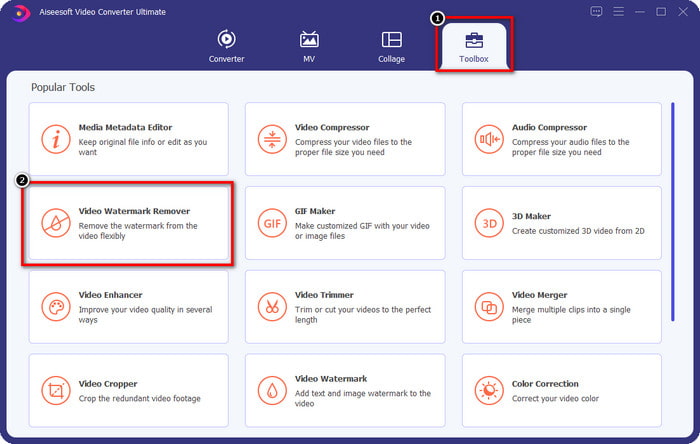
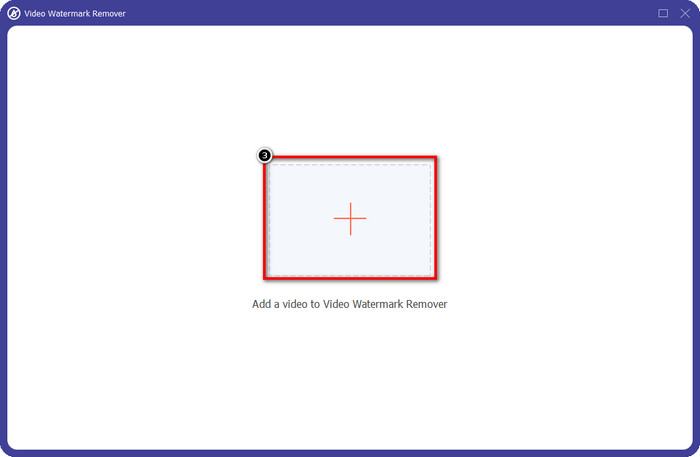
3. lépés. Töltsd fel a Picsarttal szerkesztett videót a + ikonra kattintva. Keresd meg a fájlt a képernyőn megjelenő mappában, majd kattints az Open gombra.
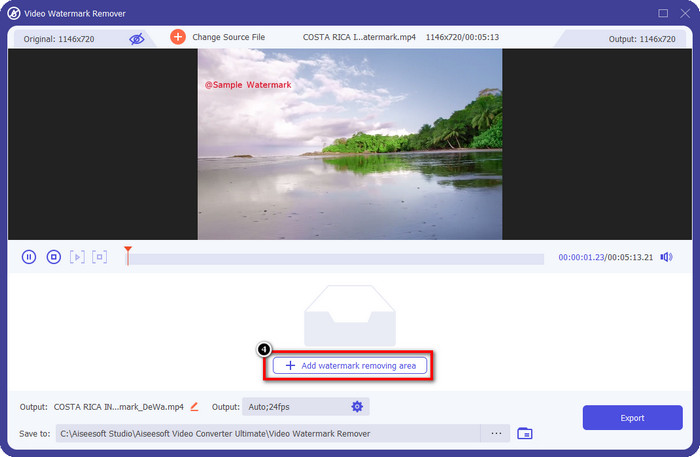
4. lépés. Nyomd meg az Add Watermark Removing Area gombot, hogy eltávolítsd a feltöltött videóba ágyazott vízjelet.
5. lépés. Fogd meg és helyezd a kijelölődobozt a vízjelre, majd takard le vele. A dobozt igény szerint nagyíthatod vagy kicsinyítheted.
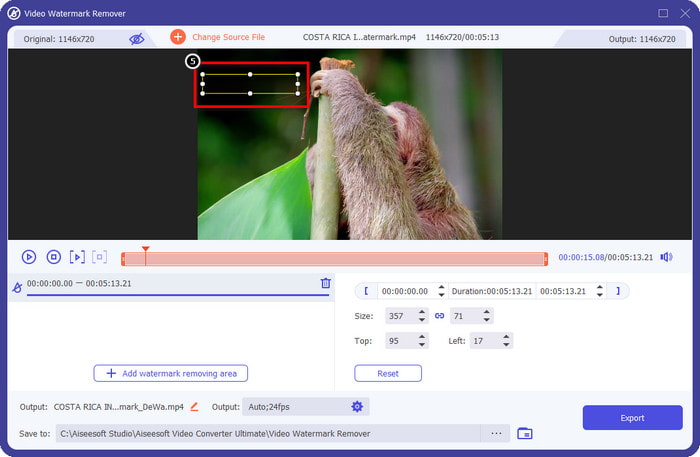
6. lépés. Miután teljesen lefedted a vízjelet a kijelölődobozzal, kattints az Export gombra, hogy a kész videót elmentsd a helyi meghajtóra.
Fényképek a Windows rendszeren – fedje le a vízjelet 3D dizájnnal
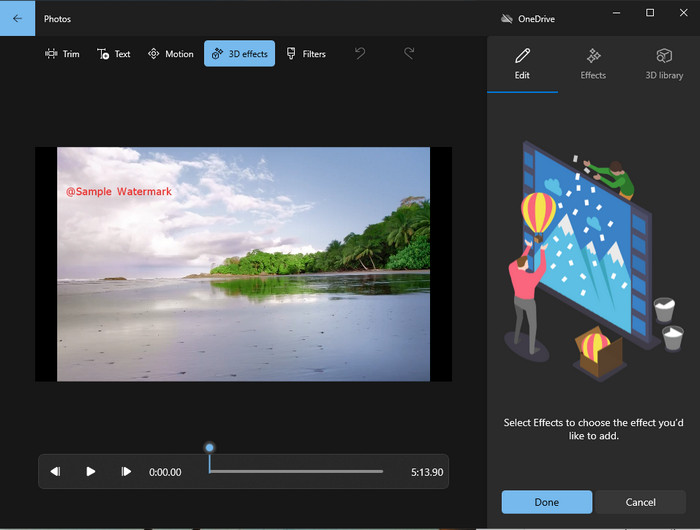
Ha a programletöltés nem a te világod, és Windows-felhasználó vagy, akkor érdemes kipróbálnod a Photos alkalmazást a videón lévő vízjel szerkesztésére. Ezzel az eszközzel a Picsart-vízjel eltávolításának elsajátítása még gyorsabb lehet, mivel nem kell letölteni egy külön alkalmazást. A program ugyan nem távolítja el magát a vízjelet a videóról, de 3D-s dizájnelemekkel lefedheted azt. Ennek ellenére ez az alapértelmezett vizuális médianézegető és -szerkesztő jól teljesít. Nem vagy benne biztos? Akkor olvasd el az alábbi lépéseket, és kövesd őket, ha szeretnéd.
1. lépés. Kattints a Windows gombra a tálcán, és keresd meg a Photos alkalmazás nevét, majd nyisd meg.
2. lépés. Miután megnyitottad a beépített szerkesztőt, kattints a + jelre, hogy feltöltsd a videót, amelyet itt szeretnél szerkeszteni.
3. lépés. Lépj a 3D Effects menüpontra, kattints a 3D Library elemre, és keresd meg azt a dizájnt, amellyel le akarod fedni a vízjelet. Helyezd el a kiválasztott dizájnt a vízjellel ellátott területen.
4. lépés. Nyomd meg a Finish Video gombot, hogy a végleges videót elmentsd a Windows helyi meghajtójára.
PickFrom Blur Video Online
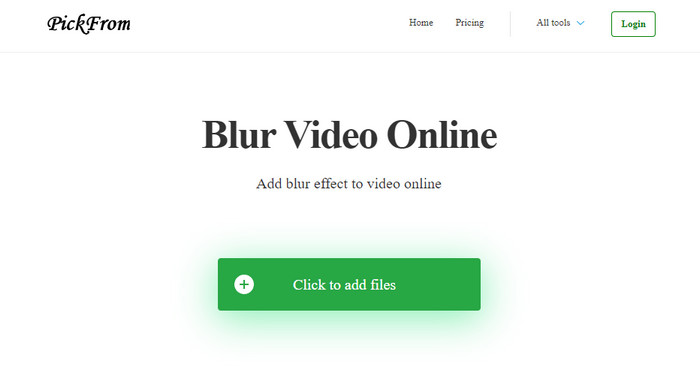
A PickFrom Blur Video Online segíthet eltávolítani a PicsArt-vízjelet azokon a videókon, amelyek az interneten vannak. Sokan nem ismerik ezt az eszközt, de ma bemutatjuk. Azért vettük fel a listára, mert hatékonyan távolítja el a vízjeleket a feltöltött videókról. A felülete egyszerű és letisztult, így nem fogsz eltévedni a használata közben. Ha el akarod távolítani a vízjelet, kövesd az alábbi folyamatot.
1. lépés. Nyisd meg a webböngésződet, keresd meg az eszköz nevét, majd kattints az első találatra az online vízjel-eltávolító megnyitásához.
2. lépés. Kattints a Click to Add File gombra, hogy feltölthesd ide a videót.
3. lépés. Pipáld ki a Blur Part of the Video opciót, majd helyezd a kijelölődobozt a vízjelre.
4. lépés. Nyomd meg a Start gombot, hogy letöltsd a videót a vízjel nélkül.
2. rész: A Picsart vízjel eltávolítása a prémium verzió megvásárlásával
Meg kell vásárolnia a szoftvert, ha nem akar bajba kerülni a Picsart arany vízjel eltávolításával. Ez bizonyos összegbe fog kerülni, mert fizetnie kell érte, mielőtt használhatná, majd exportálhatja a videót beágyazott vízjel nélkül. Tehát, ha lépésről lépésre szeretne útmutatót kapni a Picsart megvásárlásáról, kövesse az általunk hozzáadott következő oktatóanyagot.
1. lépés. Nyisd meg a Picsart hivatalos webhelyét, és jelentkezz be a fiókodba. Ha még nincs fiókod, akkor itt kell létrehoznod egyet a Sign up lehetőséggel.
2. lépés. A főoldalon kattints a Pricing menüpontra, és nézd meg az egyes elérhető termékek árait.
3. lépés. Válaszd ki a kívánt csomagot – havi vagy éves –, majd kattints a Go to Payment gombra.
4. lépés. Add meg a számlázási adatokat az összes szükséges mező kitöltésével, majd kattints a Purchase Now gombra.
Összefüggő:
Vízjel eltávolítása ballagási képekről
3. rész. GYIK a Picsart-vízjel eltávolításával kapcsolatban
Véglegesen megvásárolhatom a Picsart Goldot?
Nem támogatja az egyszeri fizetést vagy a tervet, így ha a Picsart Goldot szeretné használni, akkor a havi vagy éves előfizetést kell igénybe vennie. Nézze meg az egyes csomagok árát a hivatalos webhelyén.
Létrehozhatok személyre szabott előfizetést a Picsart-on?
Igen, létrehozhat előfizetést egy csapat számára a Picsart-on. Beállíthatja, hogy hányan használják az alkalmazást.
Hol érhetem el a Picsartot?
A Picsart letölthető Windows, Android és iOS rendszerre. Sajnos az alkalmazásnak jelenleg nincs Mac verziója, de ne keseredj el, mert használhatsz a rendszereden elérhető más médiaszerkesztő szoftvereket is.
Következtetés
A korábban tanított oktatóanyag ötletet ad a vízjelek PicsArt és a legjobb használható vízjeleltávolítók segítségével történő eltávolításáról. Mostantól élvezheti a Picsarton szerkesztett videót anélkül, hogy a termék vízjelével bajlódna, amelyet a végső kimenethez ad. Tehát, ha még mindig nem vagy meggyőződve az általunk bemutatott eszközökről, először feltétlenül próbáld ki őket, különösen az FVC Video Converter Ultimate-et. Kattintson a letöltés gombra, és töltse le ingyenesen Windows és Mac számítógépén, majd élvezze az általa nyújtott szolgáltatásokat és funkciókat, amelyeket kihasználhat.
-
 A Pond5 vízjel eltávolítása az Ultimate Tools segítségével
 Tanulja meg, hogyan távolíthatja el a Pond5 vízjelet az alábbi egyszerű lépések végrehajtásával. Ezekkel a lenyűgöző eszközökkel könnyedén eltávolíthatja a Pond5 vízjelet a képéről.
-
 2 hatékony módszer a Dxtory vízjel eltávolítására
 Tanulja meg a Dxtory vízjel eltávolítását a két legjobb módszer követésével. Ha a legmegfelelőbb eszközt keresi a Dxtory vízjel eltávolításához, olvassa el itt.
-
 Kiváló Arnold Maya vízjeleltávolítók, amelyeket nem szabad kihagyni
 Sok vízjeleltávolító képes eltávolítani az Arnold Maya vízjelet. De ha szeretné tudni, melyek a legjobb Arnold Maya vízjeleltávolítók, olvassa el ezt az oldalt.
