


 Video Converter Ultimate
 Screen Recorder
 Videó javítás
 Biztonságos letöltés
Remek módszer a vízjel eltávolítására a Camtasia 9-ről, amelyet ki kell próbálnia
Ha egyszerű és egyben legjobb megoldást keresel arra, hogyan tudod eltávolítani a vízjelet a Camtasia 9-ben, akkor jó helyen jársz. Számos remek videó van, amit szívesen megnéznénk. Némelyiken azonban nagy vízjel található, ami zavaró, és megakadályozza, hogy igazán a videó tartalmára figyeljünk. Ráadásul ezek miatt a felesleges elemek miatt a videó bizonyos részei nem is láthatók, ami tovább fokozza a nézők csalódottságát. Szerencsére léteznek olyan szoftverek vízjel-eltávolító funkcióval, amelyekkel megszabadulhatsz a vízjelektől a videóidon, így zavartalanul élvezheted kedvenc filmjeidet. Ha szeretnél többet megtudni arról, hogyan lehet gyorsan eltávolítani a vízjeleket a videóidról, olvasd el figyelmesen ezt a cikket az elejétől a végéig.

1. rész: A vízjel eltávolításának legjobb módja a Camtasia-ból
A Video Converter Ultimate használata
Ha olyan kiváló és megbízható alkalmazást keresel, amely vízjel-eltávolító eszközöket kínál, a Video Converter Ultimate egy nagyszerű szoftver, amelyet használhatsz. Ezzel az alkalmazással eltávolíthatod a vízjeleket a videóidról. Akkor is használhatod, ha a videódon más programok, például a Camtasia vízjelei szerepelnek. Emellett könnyen kezelhető és egyszerű, ezért kezdők számára is ideális. Továbbá különféle szerkesztőeszközöket is kínál, mint például Video Compressor, Video Enhancer, Video Trimmer, Audio Compressor, Video Reverser, Video Rotator és még sok más. Ebben a cikkben kétféle módszert mutatunk be arra, hogyan távolíthatod el a vízjeleket a videóidról a Video Converter Ultimate segítségével.
1. A Video Watermark Remover használata
1. lépés: Töltsd le a Video Converter Ultimate programot az asztali gépedre. Ezután folytasd a telepítési folyamattal.
Ingyenes letöltés Windows 7 vagy újabb rendszerre Biztonságos letöltés
Ingyenes letöltés macOS 10.7 vagy újabb rendszerre Biztonságos letöltés
2. lépés: Ha a telepítés befejeződött, nyisd meg az alkalmazást, és menj a Toolbox > Video Watermark Remover menüpontra. Ekkor egy új felület jelenik meg a képernyőn.
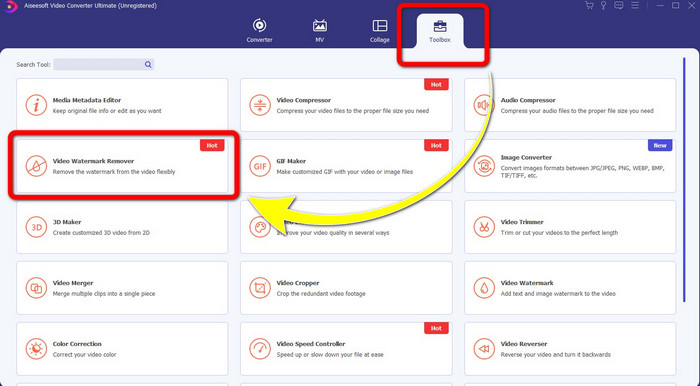
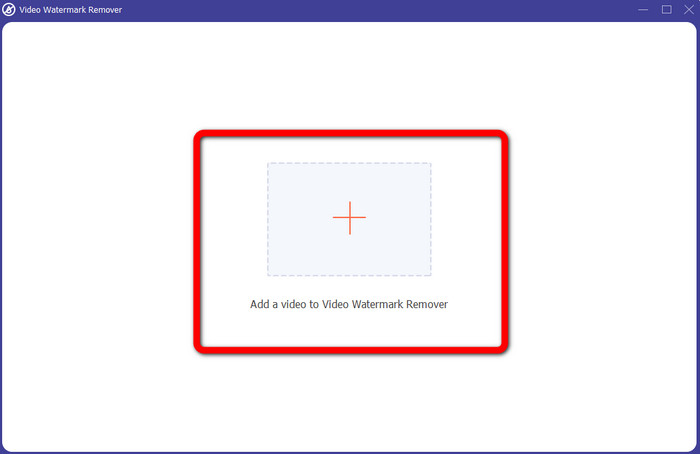
3. lépés: Amikor az új felület már megjelent, kattints a Plusz jelre, és add hozzá a vízjeles videót.
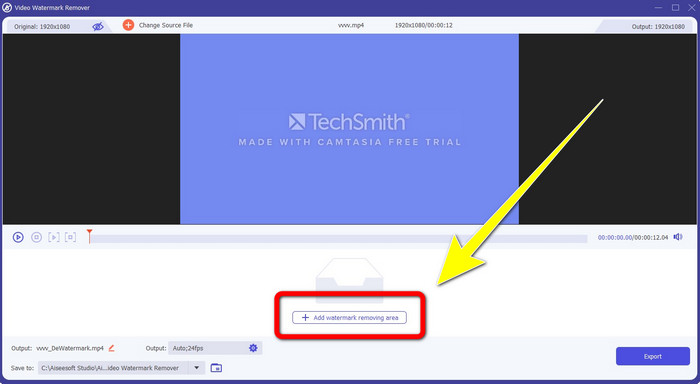
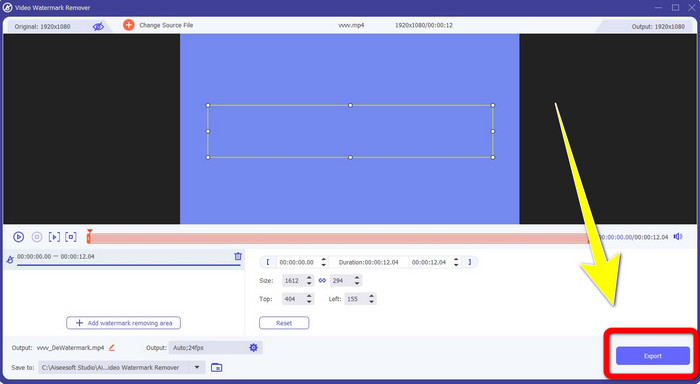
4. lépés: Miután hozzáadtad a vízjeles videót, kattints az Add Watermark Removing Area opcióra.
5. lépés: Egy doboz alakú kijelölés jelenik meg a képernyőn. Használd ezt a dobozt, hogy lefedd vele a videón lévő vízjelet.
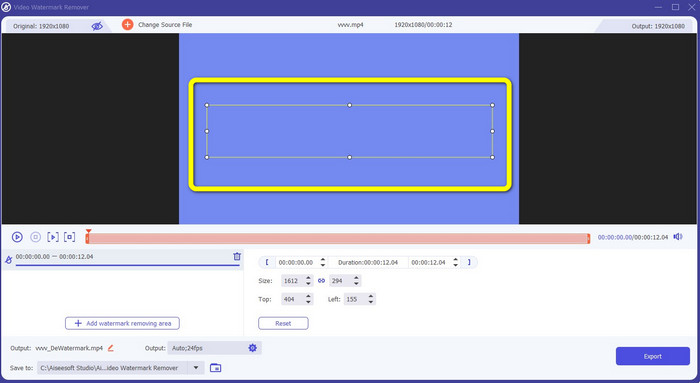
6. lépés: Amint a vízjelet lefedted, az el fog tűnni a videóról. Kattints az Export gombra a videó mentéséhez. Így eltávolíthatod a Camtasiából származó vízjelet a videóról.
2. A Vágási funkciók használata
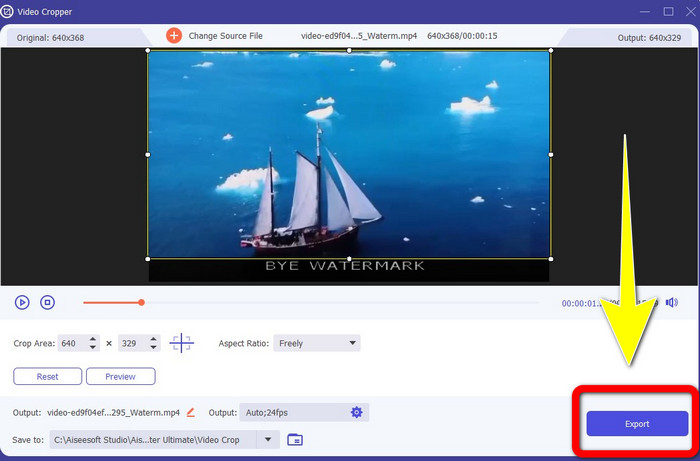
Egy másik módszer, amit kipróbálhatsz, a Video Converter Ultimate vágási (crop) funkciója. Ez az egyik legegyszerűbb módja a vízjelek eltávolításának, különösen akkor, ha a vízjel csak a videó sarkában vagy szélén helyezkedik el. A videó körülvágásával azonnal eltüntetheted a felesleges elemeket. Kövesd az alábbi egyszerű lépéseket, hogy vágóeszközzel távolítsd el a vízjeleket.
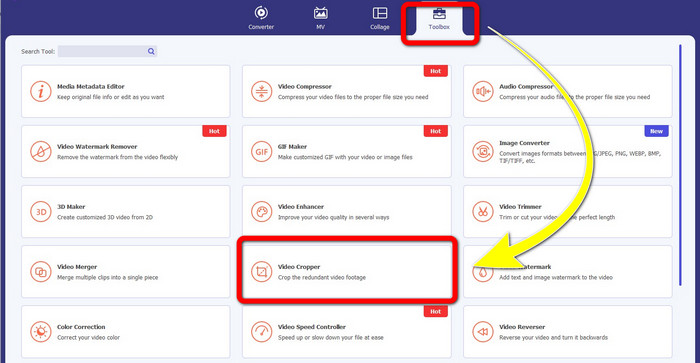
1. lépés: Nyisd meg a Video Converter Ultimate programot. Kattints a Toolbox > Video Cropper menüpontra. Ezután új felület jelenik meg a képernyőn.
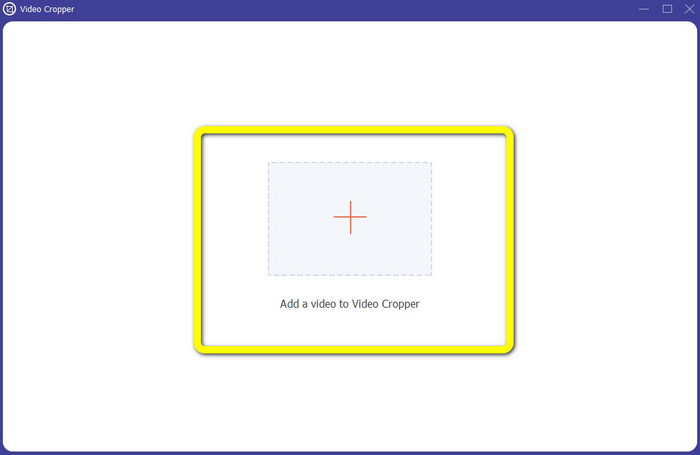
2. lépés: Kattints a Plusz jelre, és add hozzá a vízjeles videót, amelyről el szeretnéd távolítani a vízjelet.
3. lépés: Miután már betöltötted a vízjeles videót, vágd le a videó széleit a vízjel területéig. Így eltávolíthatod a vízjeleket.
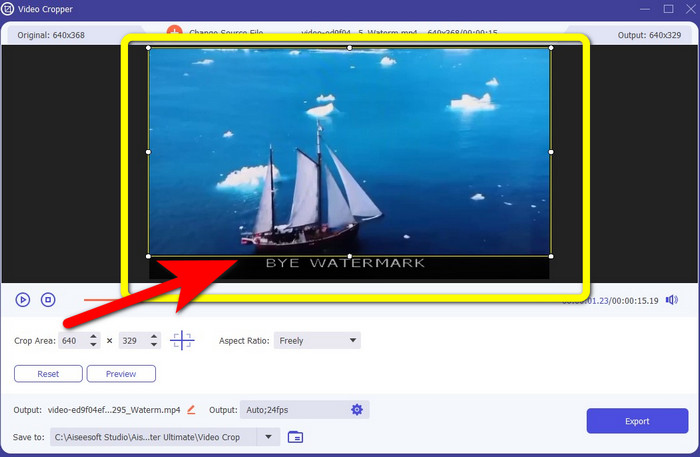
4. lépés: Ha befejezted a vágást, és látod, hogy a vízjel eltűnt, kattints az Export gombra a szerkesztett videó mentéséhez. Mostantól élvezheted a videót a képernyőn megjelenő vízjelek nélkül.
2. rész: Hogyan készítsünk videókat a Camtasia-ban vízjel nélkül
Szeretnéd megtanulni, hogyan készíts Camtasia-videót vízjel nélkül? Először nézzük meg, mi is az a Camtasia. A Camtasia egy egyszerű és hasznos szerkesztőeszköz, amelyet használhatsz. Emellett képernyőfelvevő szoftver is. Továbbá különböző szerkesztőfunkciókat kínál, amelyeket élvezhetsz, például annotációk, átmenetek, animációk, hangeffektek, videoeffektek és még sok más. Ezen kívül diavetítést is készíthetsz az alkalmazással.
Az alkalmazás segítségével vonzóbbá és egyedibbé teheti videóit a nézők számára. A Camtasia-ban gyönyörű videókat készíthet, amelyeket élvezhet. Ennek az alkalmazásnak azonban vízjele van a videó exportálása után, hacsak nem vásárolja meg az alkalmazást. Kövesse ezeket az egyszerű lépéseket, hogy sok mindent megtanuljon ebben az alkalmazásban, különösen a Camtasia-ban videók létrehozásához.
Az alkalmazás segítségével vonzóbbá és egyedibbé teheti videóit a nézők számára. A Camtasia-ban gyönyörű videókat készíthet, amelyeket élvezhet. Ennek az alkalmazásnak azonban vízjele van a videó exportálása után, hacsak nem vásárolja meg az alkalmazást. Kövesse ezeket az egyszerű lépéseket, hogy sok mindent megtanuljon ebben az alkalmazásban, különösen a Camtasia-ban videók létrehozásához.
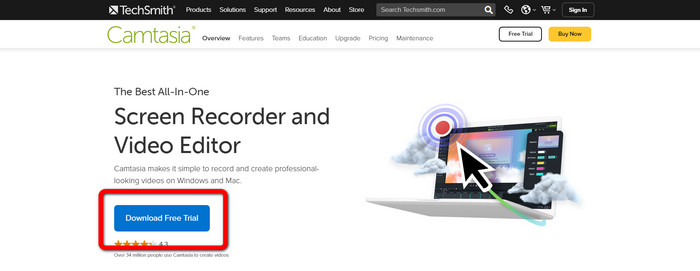
1. lépés: Töltsd le a Camtasiát Windows rendszerre. Kattints a Download Free Trial gombra az alkalmazás letöltéséhez. Ezután a telepítés befejeztével nyisd meg az alkalmazást.
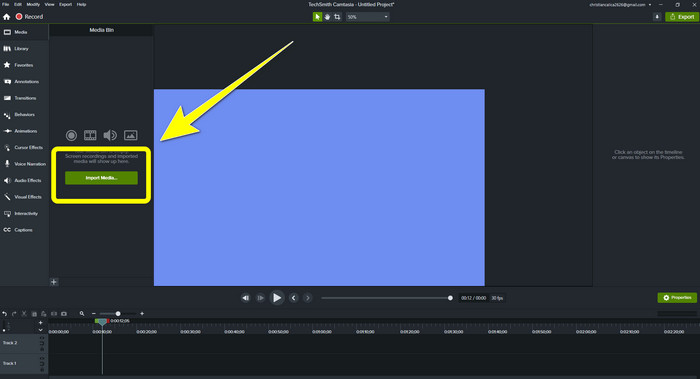
2. lépés: Az alkalmazás elindítása után kattints az Import Media gombra, hogy hozzáadd a szerkeszteni kívánt fájlt.
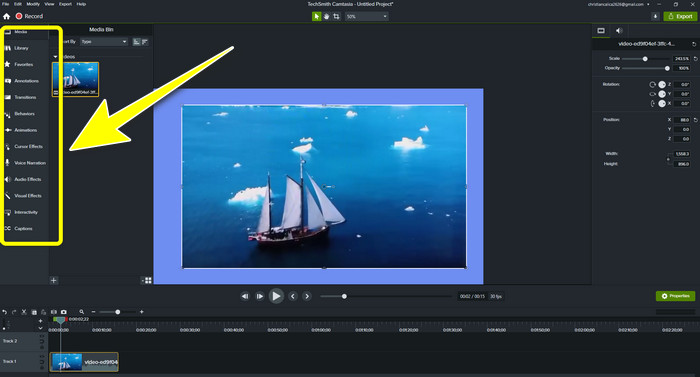
3. lépés: Most már szerkesztheted a fájljaidat ebben az alkalmazásban az editing tools (szerkesztőeszközök) segítségével, például feliratok, átmenetek, animációk, annotációk, viselkedések és egyebek hozzáadásával.
4. lépés: Ha elkészültél, és elégedett vagy a videó szerkesztésével, kattints az Export > Local File gombra az eredmény mentéséhez.
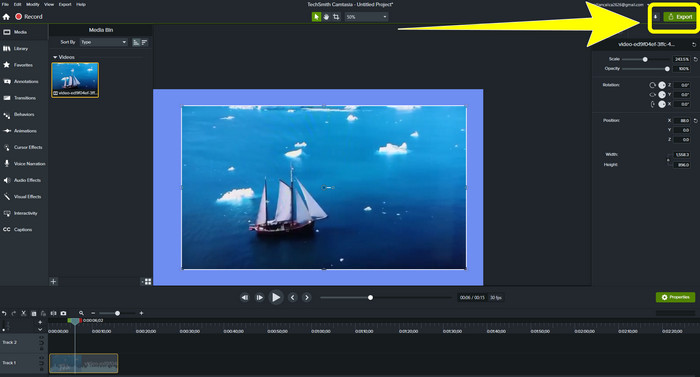
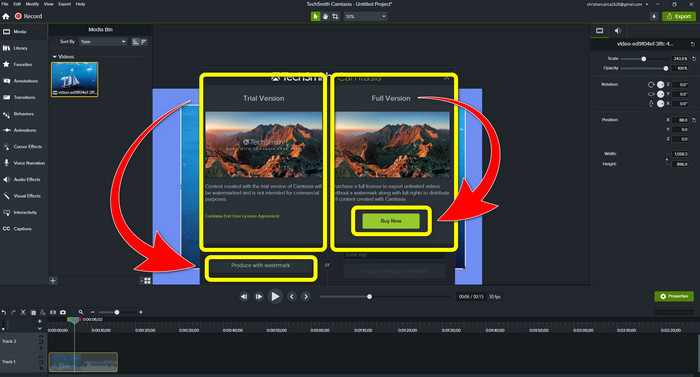
5. lépés: Miután a Export > Local File Button gombra kattintottál, egy új felület jelenik meg. Ha meg akarod vásárolni az alkalmazást, kattints a Buy gombra, így vízjel nélküli videót készíthetsz Camtasiában. Ha azonban csak a próbaverziót használod, a videódon vízjel lesz az exportálás és mentés után.
Kapcsolódik:
Hogyan lehet ingyen eltávolítani a Filmora vízjelet a videóidról vagy projektjeidről
A leggyorsabb trükk az Adobe Stock vízjel eltávolítására egy videóról [Útmutató]
3. rész: GYIK a vízjelek eltávolításával kapcsolatban
Van egy kiváló vízjel-eltávolító, amit használhatok a Mac gépemen?
Határozottan igen! Használhatsz olyan alkalmazásokat vízjel-eltávolító funkcióval, mint a Video Converter Ultimate. Képes eltávolítani a vízjeleket a videóidról. Emellett Windows és Mac rendszeren is elérhető, ami még kényelmesebbé teszi.
Lehet valahogy eltávolítani a vízjeleket a fényképekről?
Teljes mértékben igen! Eszközén számos alkalmazással eltávolíthatja a vízjeleket a fényképekről. A legjobb dolog, amit tennie kell, hogy keressen a böngészőjében a vízjel-eltávolító eszközökről, és keresse meg a 10 legjobb eredményt az eredményoldalon.
Eltávolíthatom a vízjeleket a telefonommal?
Igen tudsz! A vízjel-eltávolítóval rendelkező alkalmazások némelyike már elérhető Mac és Windows rendszeren, valamint mobiltelefonokon, például Android telefonokon és iPhone-okon.
Hogyan távolíthatom el a vízjeleket egy vágóeszközzel?
A vízjelek vágási eszközzel történő eltávolítása a fényképekről vagy videókról nem könnyű feladat, különösen, ha a vízjel a kép szélén található. Mindössze annyit kell tennie, hogy levágja, eltünteti a vízjelet, és kész.
Következtetés
Amint láthatod, ez a cikk bemutatja a legjobb módszereket, hogyan lehet eltávolítani a vízjelet a Camtasia 9-ből. Emellett egy kiváló és megbízható alkalmazást is ajánl két módszerrel, hogy megszabadulj a felesleges elemekről a videóidon. Ez az alkalmazás a Video Converter Ultimate.
-
 5 módszer a vízjel eltávolítására egy videóról professzionális módon
 El kell távolítania a vízjelet a videóból, hogy professzionálisan nézzen ki? Nos, olvassa el ezt a cikket, miközben oktatóanyagot adunk hozzá, hogyan kell csinálni!
-
 A 3 legújabb Shutterstock vízjeleltávolító, amire valaha is szüksége lesz
 Nem tetszik az exportált videóhoz csatolt Shutterstock vízjel? Használhat Shutterstock vízjeleltávolítót a hatékony törléshez.
-
 A legegyszerűbb módszerek a vízjel eltávolítására a fényképekről
 Irritálnak a vízjelek a fotódon? Ne aggódj! Ez a cikk egyszerű és egyszerű módszereket kínál a vízjelek eltávolítására a fényképekről
