


 Video Converter Ultimate
 Screen Recorder
 Videó javítás
 Biztonságos letöltés
Könnyű eljárás a vízjelek eltávolítására MP4-videókról
Találkozik olyan problémákkal, mint hogy fogalma sincs, hogyan távolítsa el a vízjeleket az MP4‑videókról Macen vagy Windowson? Akkor ez a cikk a legjobb megoldást kínálja önnek. Ha ön is azok közé tartozik, akik imádnak filmeket, klipeket és egyéb videókat nézni, akkor valószínűleg átérzi, mennyire zavaró és idegesítő, amikor kedvenc videóin vízjelek vagy más felesleges objektumok láthatók. Ráadásul a képernyő teljes részét sem látja, mert ezeket a vízjelek kitakarják. A legfrusztrálóbb pedig az, hogy néhány videón óriási vízjelek vannak, így egyáltalán nem tudja élvezni a kedvenc videói nézését.
Szerencsére már létezik egy óriási és figyelemreméltó szoftveralkalmazás egy videó vízjel-eltávolítóval, amellyel eltávolíthatja a videóin lévő felesleges objektumokat, például vízjeleket, logókat, szövegeket, képeket és egyebeket. Gyorsan törölheti vagy eltávolíthatja ezeket az objektumokat, és élvezheti a videók megtekintését vagy lejátszását ezekkel az alkalmazásokkal. Ezekkel az alkalmazásokkal soha többé nem lesz frusztrált vagy ingerült. Ezután, ha megragadja ez a téma, el kell olvasnia ezt a cikket, hogy elegendő információt kapjon, különösen a vízjelek egyszerű eltávolításához az MP4-videóin.

1. rész: A vízjel eltávolításának legjobb módja MP4 videóról
Ha a legkiemelkedőbb és leglenyűgözőbb alkalmazást keresi az MP4‑videók vízjeleinek eltávolításához, a Video Converter Ultimate a legjobb eszköz. Ez az alkalmazás képes eltávolítani a zavaró elemeket a videóiból, mint például vízjelek, logók, szövegek vagy képek. Emellett nem kell sokáig várnia a mentési folyamat során sem, mivel a vízjelek eltávolítása után gyorsan elmentheti a videóit.
Ezenkívül a Video Converter Ultimate számos használható szerkesztő eszközzel rendelkezik, például videójavító, vízjelek eltávolítása, vízjelek hozzáadása, videó sebességvezérlő, GIF készítő, kollázskészítő, video- és hangrögzítő, videó/audio tömörítő, különféle fájlok konvertálása. formátumok, például MP4, FLV, MOV, TRP, MTS, M2TS, MKV, AAC, MP3 és még sok más. Ezenkívül a legjobb az egészben az, hogy többé nem kell megvásárolnia vagy megvásárolnia ezt az alkalmazást. Ezt ingyen működtetheti. Ezenkívül ez az alkalmazás nagyon egyszerű és könnyen használható. Ha el szeretné távolítani a vízjeleket MP4-videóiról, a Video Converter Ultimate kétféle lehetőséget kínál. Folyamatosan olvassa el, hogy megtudja, hogyan lehet vízjeleket eltüntetni a videókon.
1. A Video Watermark Remover használata
1. lépés: Látogasson el a Video Converter Ultimate weboldalára. Töltse le ingyen az alkalmazást. Ezután folytassa a telepítési folyamattal.
Ingyenes letöltés Windows 7 vagy újabb rendszerre Biztonságos letöltés
Ingyenes letöltés macOS 10.7 vagy újabb rendszerre Biztonságos letöltés
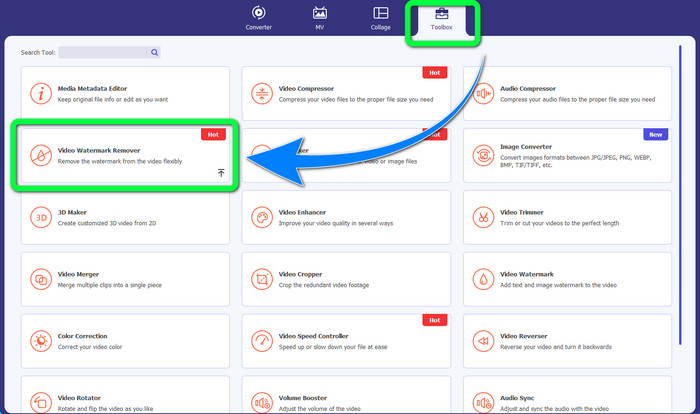
2. lépés: Indítsa el az alkalmazást. Válassza a Toolbox > Video Watermark Remover menüpontot.
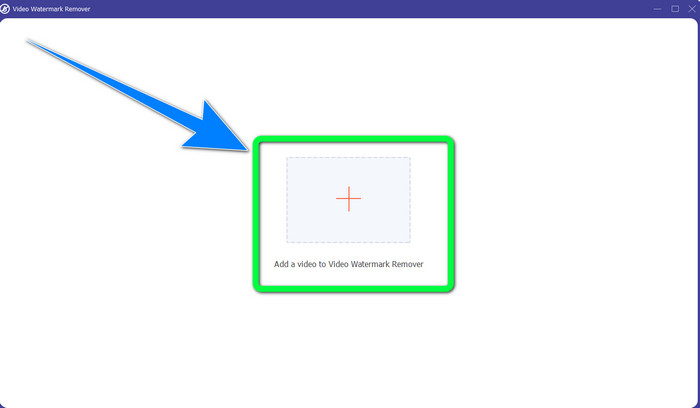
3. lépés: Egy új felület fog megjelenni. Kattintson a Plusz ikonra, és adja hozzá a vízjellel ellátott MP4‑videót.
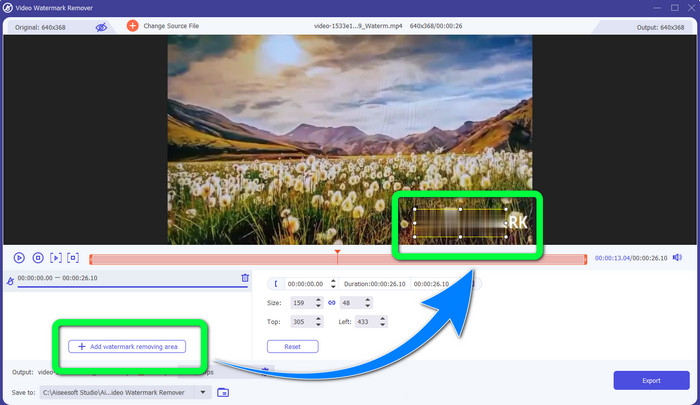
4. lépés: Kattintson az Add Watermark Removing Area gombra. Ezután megjelenik egy kis doboz a videón; húzza ezt a dobozt, és használja arra, hogy lefedje a vízjeleket a videón.
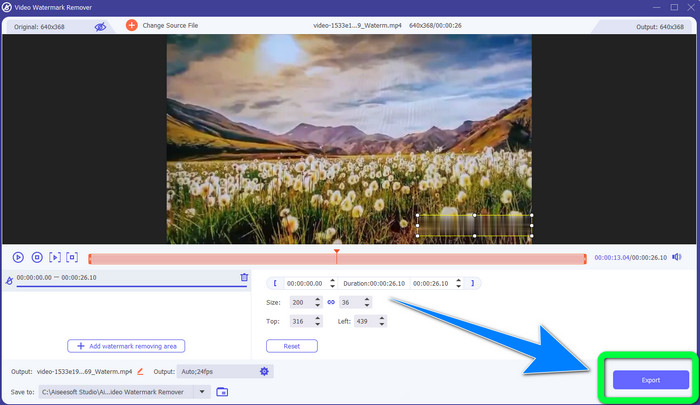
5. lépés: Ha végzett a vízjel eltávolításával, kattintson az Export gombra a videók mentéséhez. Mostantól gondtalanul élvezheti kedvenc filmjeit vízjelek nélkül.
2. A Video Cropper használata
1. lépés: Indítsa el a Video Converter Ultimate programot. Ezután kattintson a Toolbox > Video Cropper lehetőségre.
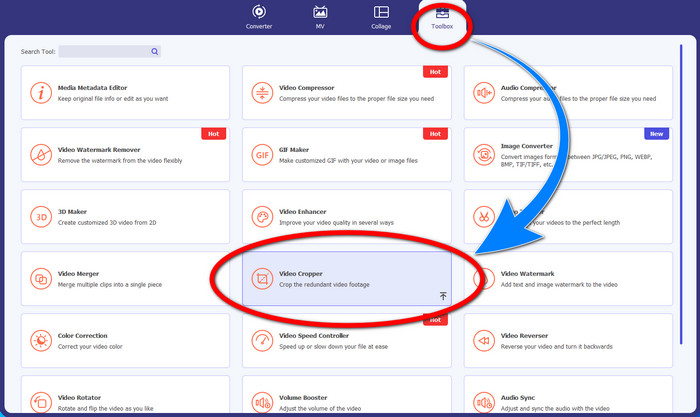
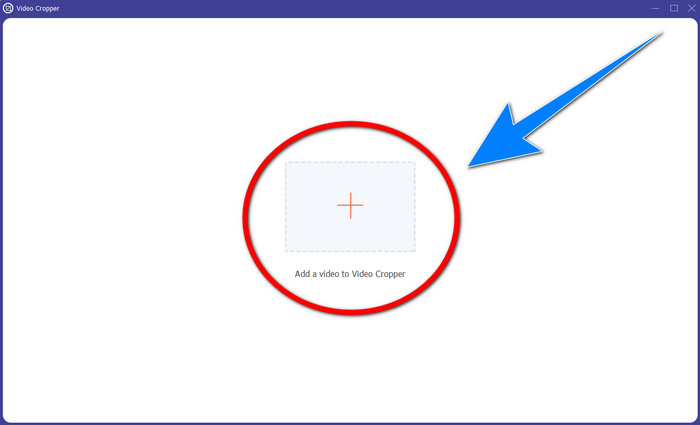
2. lépés: Egy másik felület ugrik fel a Video Cropper gombra kattintás után. Kattintson a Plusz szimbólumra, hogy hozzáadja a vízjeles MP4‑videót.
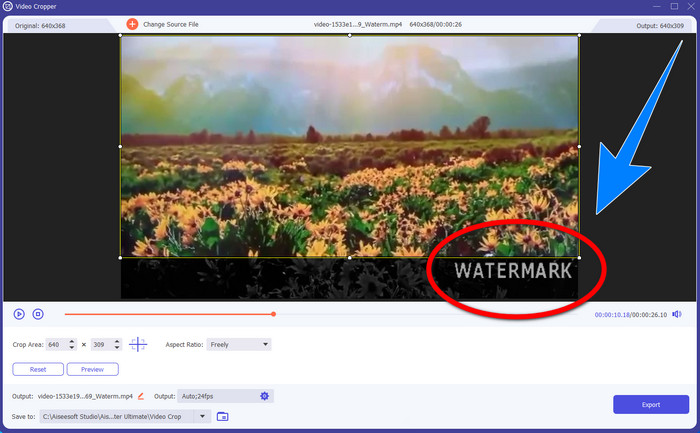
3. lépés: Miután már csatolta a videót, kivághatja az MP4‑videót, és eltávolíthatja a vízjelet.
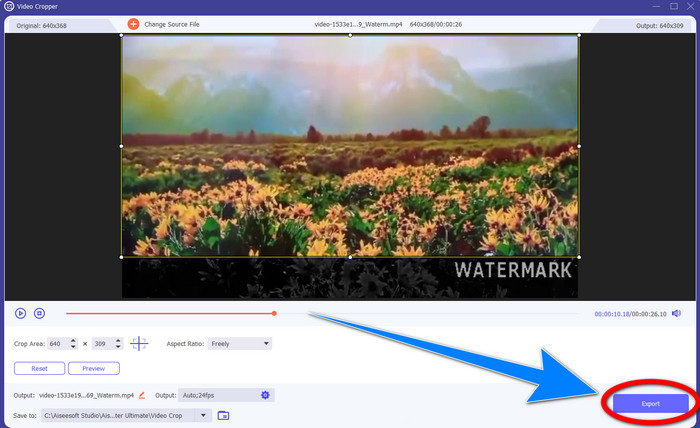
4. lépés: Ha végzett a videó kivágásával a vízjel eltávolítása érdekében, kattintson az Export gombra a videó mentéséhez. Így már vízjel nélkül nézheti a videót.
2. rész: Távolítsa el a vízjelet az MP4 Video Online-ból
Olyan kiváló alkalmazást keres, amellyel ingyenesen, online eltávolíthatja a vízjeleket MP4‑videójáról? Akkor a HitPaw Online Watermark Remover az az alkalmazás, amelyre számíthat. Emellett az alkalmazást úgy használhatja, hogy nem kell semmit vásárolnia, mert teljesen ingyenes. Továbbá korlátlanul távolíthat el vízjeleket, logókat és aláírásokat, és nincs benne reklám sem. Ráadásul egyszerű és könnyen használható. Mindössze három lépésben eltávolíthatja a vízjeleket a videóiból, ami tökéletes kezdők számára.
A HitPaw Online Watermark Remover minden eszközzel elérhető, például Windows, Mac, iPhone és Android. Ez az alkalmazás is biztonságos, és biztosítja, hogy Ön az egyetlen, aki megtekintheti és szerkesztheti videóit. Ha azonban eltávolítja a vízjeleket a videóiról, a terület néha elmosódottá és zavaróvá válik. Ezenkívül a mentési folyamat lassú. Ha el szeretné távolítani a vízjeleket MP4-videóin online, kövesse az alábbi egyszerű lépéseket.
1. lépés: Lépjen a HitPaw Online Watermark Remover weboldalára. Kattintson a Remove Watermark Now gombra, majd válassza a Choose File opciót, hogy hozzáadja a vízjeles MP4‑videót.
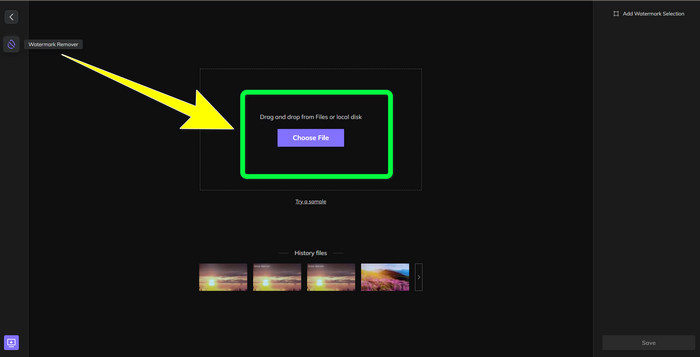
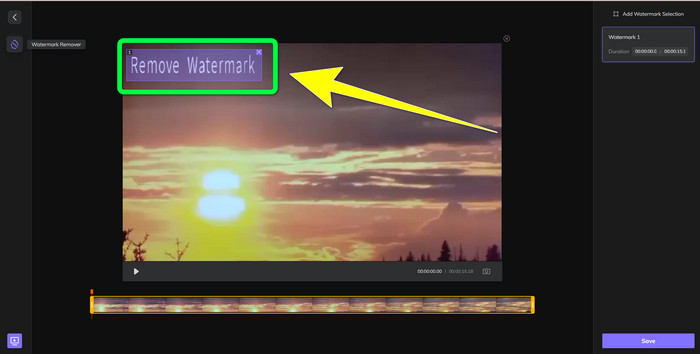
2. lépés: Miután hozzáadta a videót, egy téglalap alak fog megjelenni a videón. Húzza ezt úgy, hogy lefedje és eltávolítsa a vízjeleket.
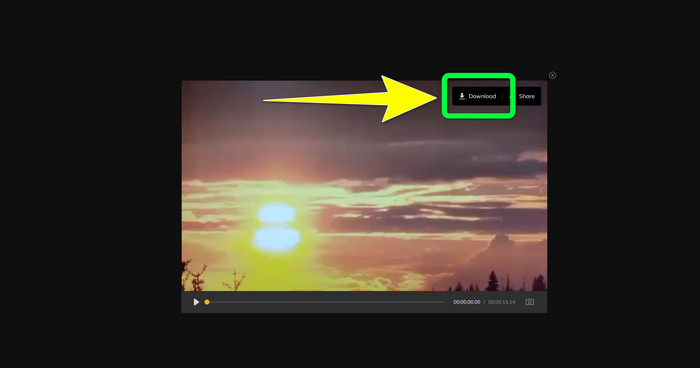
3. lépés: Miután eltávolította a vízjeleket a videóról, kattintson a Save gombra. Várja meg a mentési folyamatot, majd kattintson a Download gombra, hogy elmentse az eszközére.
3. rész: GYIK a vízjel eltávolításával kapcsolatban az MP4-ről
Az aláírásokat is el lehet távolítani a videóimról?
Igen, lehetséges. A Video Converter Ultimate az aláírások eltávolítására is képes a videókból. Minden olyan felesleges objektum, amely zavaró a videóiban, könnyedén eltávolítható ezzel az alkalmazással.
Időigényes a vízjelek eltávolítása az MP4-videókról?
Ez a használt alkalmazásoktól függ. Ha el szeretné távolítani a vízjeleket MP4-videóiról, használja a Video Converter Ultimate alkalmazást. Azonnal eltávolíthatja a vízjeleket.
Melyik a legjobb videó vízjel eltávolító, amit használhatok?
Ha megbízható alkalmazást keres, amellyel eltávolíthatja a vízjeleket a videójáról, a Video Converter Ultimate kiváló szoftver, amelyet használhat. Eltávolíthatja a vízjeleket, és elmentheti a videóit anélkül, hogy azok minősége romlana.
Használhatom a HitPaw Online Watermark Remover vágóeszközét a vízjelek eltávolítására?
Teljes mértékben igen! Az alkalmazás körbevágó eszközét is használhatja, ha el szeretné távolítani a vízjeleket a videóiról, különösen, ha a vízjelek a videó sarkán vagy szélén voltak.
A vízjelek eltávolításán kívül lehetséges-e vízjeleket hozzáadni a Video Converter Ultimate segítségével a videóimhoz?
Határozottan igen! A Video Converter Ultimate nem csak a vízjelek eltávolítására korlátozódik a videóidon. Ez az alkalmazás vízjeleket is hozzáadhat a videóidhoz, különösen, ha szöveget, logókat, aláírásokat stb.
Következtetés
Amint fentebb olvashatta, könnyedén eltávolíthatja a vízjeleket az MP4‑videókról a Video Converter Ultimate segítségével. Emellett ez a cikk bemutat néhány olyan szoftvert is, amelyet használhat arra, hogy online távolítson el felesleges objektumokat az MP4‑videókról.
-
 Hogyan távolíthatja el a Filmora vízjelet videóiról vagy projektjeiről ingyen
 Hogyan lehet eltávolítani a Filmora vízjelet? Ez a kérdés körbejárja az internetet, és itt felsorolunk különböző megközelítéseket, amelyeket használhat!
-
 A leggyorsabb trükk az Adobe Stock vízjel eltávolítására egy videóból [oktatóanyag]
 Problémája van az Adobe Stock vízjellel? Olvassa el ezt, és tanulja meg, hogyan távolíthatja el az Adobe Stock vízjelet a videóból.
-
 5 módszer a vízjel eltávolítására egy videóról professzionális módon
 El kell távolítania a vízjelet a videóból, hogy professzionálisan nézzen ki? Nos, olvassa el ezt a cikket, miközben oktatóanyagot adunk hozzá, hogyan kell csinálni!
