


 Video Converter Ultimate
 Screen Recorder
 Videó javítás
 Biztonságos letöltés
Hogyan távolítsuk el hatékonyan a vízjelet a származási grafikonról a grafikonon
Előfordulhat, hogy az Origin Graphot kell használnod sablon készítéséhez olyan matematikai vagy tudományos adatokhoz, amelyeket túl bonyolult szavakkal leírni. Ez a szoftver már sok diáknak, kutatónak, professzornak, üzletembernek és másoknak is segített, akiknek saját grafikont kell készíteniük. A választható sablonkészletének köszönhetően tetszetős, figyelemfelkeltő grafikont hozhatsz létre. A probléma, amivel a legtöbb esetben a ingyenes verzió használatakor találkozol, az, hogy szöveges vízjelet ad a végső kimenetre. Gondot okoz a vízjel kezelése? Többé nem! Mert van rá megoldásunk. Itt hasznos tippeket mutatunk be arra, hogyan lehet eltávolítani a vízjelet az Origin Graphból, majd hogyan lehet a Wordben vagy PowerPointban használt prezentációba beilleszteni.

1. rész: Vízjel eltávolítása az Origin Graph-ról az Online Image Watermark Remover segítségével
A FVC Free Watermark Remover Online egy elsőrangú szöveges vízjel-eltávolító, amellyel megszabadulhatsz az Origin Graph vízjelétől. Ez az eszköz a leghatékonyabb bármilyen objektum eltávolítására a képekről, így a vízjel törlése után még professzionálisabban néznek ki. Biztosak lehetünk benne, hogy ez egy megbízható, kifejezetten vízjel-eltávolításra szolgáló eszköz, amelyre számíthatsz, amikor ilyen problémád adódik. Kíváncsi vagy, mennyire egyszerű használni ezt az eszközt? Többé ne aggódj! Az alábbiakban bemutatott lépéseket kell követned, hogy eltüntesd a képről az Origin Graph által hozzáadott szöveges vízjelet.
1. lépés. Kattinthatsz erre a linkre, hogy megnyisd az online képes vízjel-eltávolítót; ez közvetlenül egy új lapon nyílik meg, ahol hozzáférsz az eszközhöz.
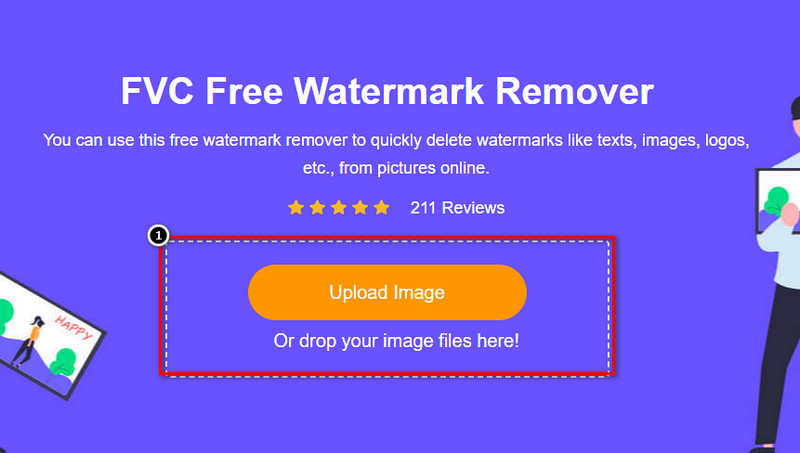
2. lépés. Nyomd meg az Upload Image gombot, hogy hozzáadd a vízjellel ellátott fotót, keresd meg a fájlt a mappában, majd kattints az Open gombra a sikeres feltöltéshez.
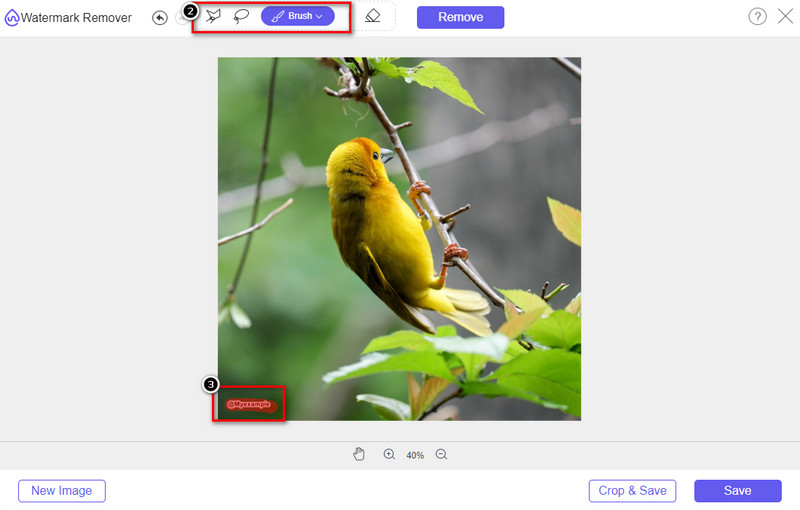
3. lépés. Három eszközt használhatsz a vízjel kiemelésére; bár különböző módon működnek, a hatékonyságuk azonos. Válassz egy eszközt, majd jelöld ki vele a kép vízjeles területét.
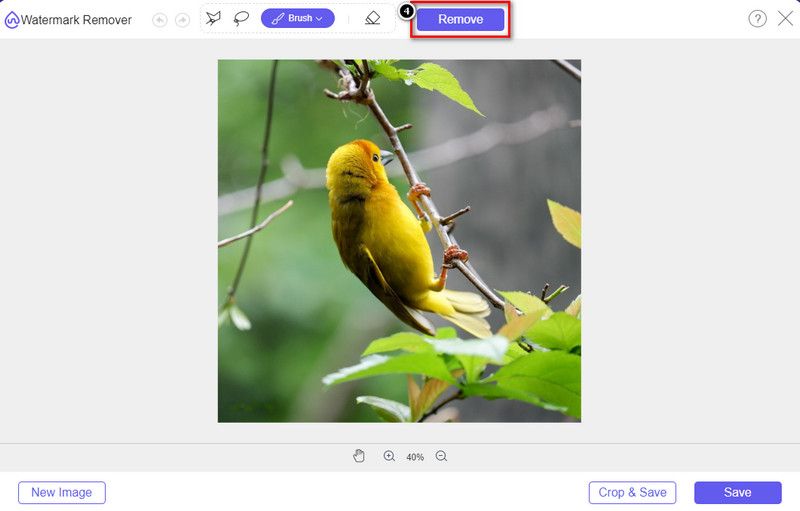
4. lépés. Ügyelj rá, hogy a vízjel kijelölése után kattints a Remove ikonra. Ez a lépés elengedhetetlen, hogy az exportált képen már ne legyen rajta a vízjel.
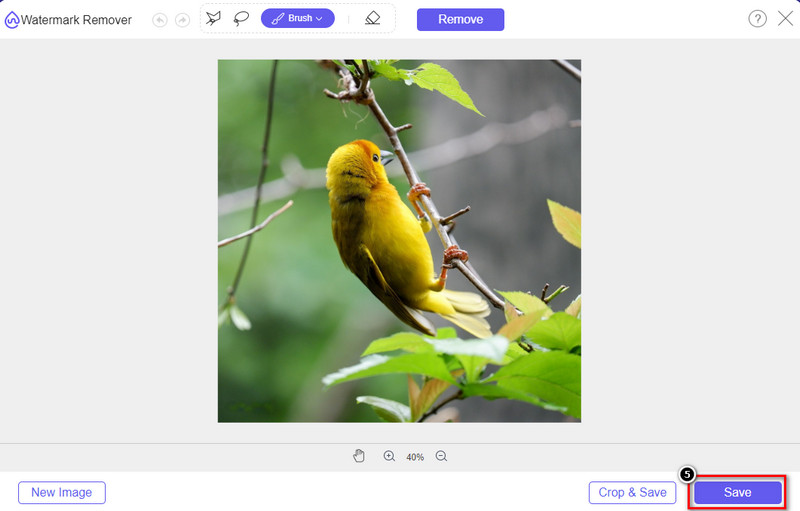
5. lépés. Az exportálási folyamat elindításához most már rákattinthatsz a Save gombra. Várd meg a folyamat végét, majd ellenőrizd a képet: az Origin Graph vízjele már nem lesz látható a kijelölt területen.
Előnyök
- Egy ingyenes webalapú vízjel-eltávolító, amellyel hozzáférhet.
- Hatékonyan eltávolítja a vízjelet az AI-technológia támogatásával.
- A helyi meghajtón található képformátumok széles skáláját támogatja.
- Az exportált képeken nincs vízjel.
Hátrányok
- A működéshez internetkapcsolat szükséges.
- A hangsúly a vízjel eltávolításán van, és semmi máson.
2. rész: Grafikonok másolása az eredetről Word vagy PowerPoint rendszerbe vízjel nélkül
A cikk ezen részében bemutatjuk azt az eljárást, amelyet tudnia kell az Origin Graphon létrehozott grafikon vízjel nélküli hozzáadásához. Kövesse ennek megfelelően a Microsoft Word és PowerPoint rendszerben elkészített grafikon vízjel nélküli sikeres hozzáadásához.
A hatalmas fájlméret miatt legalább 1,9 GB-ot kell felszabadítania. Az 1,9 GB-os fájlban megkaphatja a szükséges segítséget, de ha nem szeretne segítséget, letöltheti a 652 MB-os verziót .zip vagy .exe fájlokon keresztül.
A vízjel nélküli eredetdiagramon való grafikon létrehozásának lépései:
1. lépés. Először töltsd le az Origin Graphot az operációs rendszeredre a hivatalos weboldaláról. Nyisd meg az eszközt, hogy elkezdhesd a kívánt grafikon létrehozását.
2. lépés. A szoftver elindítása után add hozzá a szükséges táblázatértékeket. Itt több változót és ezzel együtt több grafikont is hozzáadhatsz.
Megjegyzés: A további grafikonok megtekintéséhez, például Basic 2D, oszlopdiagram, statisztikai és más típusokhoz, kattints a Plot menüpontra.
3. lépés. Kattints a File menüre, majd nyomd meg a Save gombot, hogy exportáld az itt létrehozott grafikont.
4. lépés. Kövesd az 1. részben ismertetett lépéseket, és a FVC Free Watermark Remover Online segítségével távolítsd el az Origin Graph vízjelét.
A grafikon használata a Wordben vízjel nélkül:
1. lépés. Nyisd meg a Word alkalmazást az asztali gépeden, majd kattints az Üres dokumentumra. Ha már létrehoztál Word-dokumentumot, akkor nyisd meg azt a fájlt.
2. lépés. Lépj az Insert (Beszúrás) menüpontra, majd kattints a Pictures (Képek) lehetőségre. Keresd meg a grafikon fájlt a helyi meghajtón, kattints rá egyszer, majd nyomd meg az Open gombot, hogy feltöltsd a Wordbe.
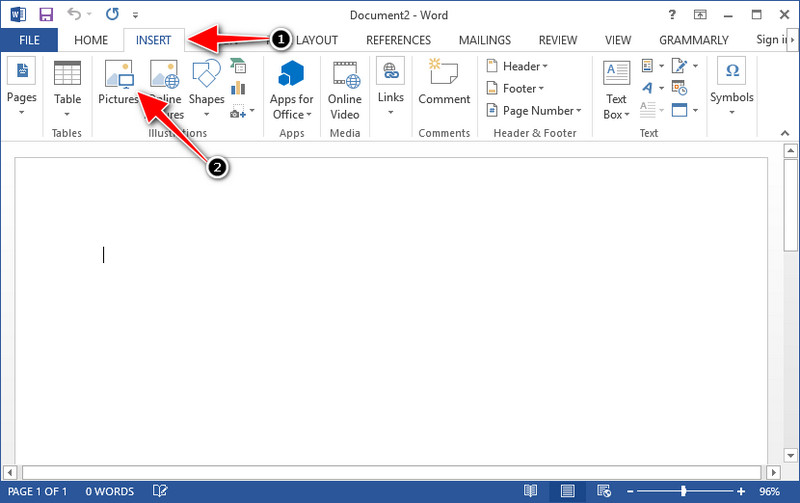
3. lépés. A grafikon automatikusan betöltődik a megnyitott vagy létrehozott Word-dokumentumba; most már szabadon elhelyezheted úgy, hogy lenyomva tartod és áthúzod a dokumentumon belül.
A grafikon használata a Powerpointon vízjel nélkül:
1. lépés. Indítsd el a PowerPointot a számítógépeden, majd kattints az Üres bemutatóra. A bal oldalon megtekintheted a korábban létrehozott prezentációkat is. Ha van köztük az a fájl, amelyhez a grafikont hozzá szeretnéd adni, kattints rá a megnyitáshoz.
2. lépés. Nyomd meg az Insert (Beszúrás), majd a Picture (Kép) gombot, hogy beilleszd az Origin Graphban létrehozott grafikonképet.
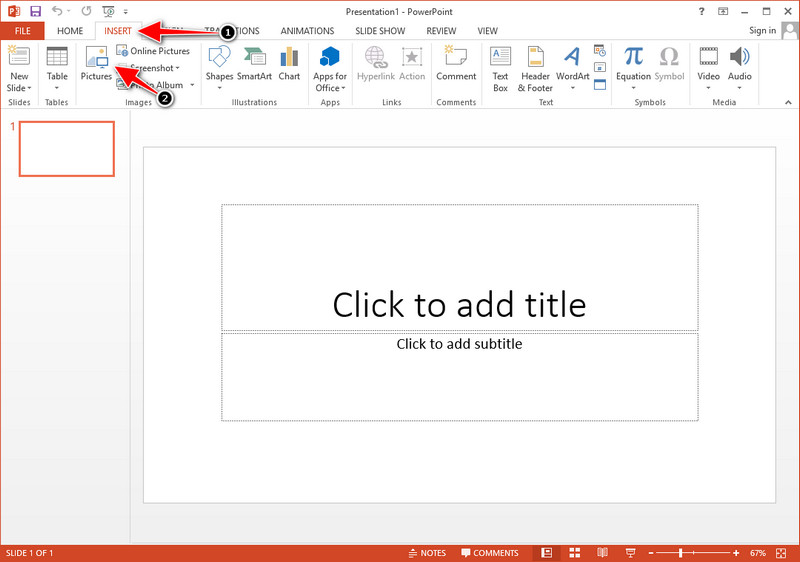
3. lépés. Igazítsd a grafikon képét és helyezd el a dián.
További olvasnivaló:
Hogyan távolítsd el a B612-vízjelet a képeidről
Hogyan távolítsd el ingyen a WOW Slider vízjelet
3. rész. Gyakran ismételt kérdések a vízjel eltávolításával kapcsolatban az Origin Graph-ról
Mennyibe kerül az Origin Pro?
Az egyéni felhasználók számára az Origin Graph prémium verzióját kaphatja meg az $435-höz. Meglátogathatja hivatalos üzletét az Origin Lab-on.
Honnan tölthetem le hivatalosan az Origin Graph-ot?
Az Origin Graph letöltéséhez keresse fel az Origin Labot. Mielőtt letöltené a szoftvert az asztalra, kérdéseket tesz fel. Ezt követően kétféleképpen lehet letölteni a fájlt, ha le akarjuk tölteni segítséggel vagy sem, .exe vagy zip formátumban.
Az Excel és az Origin ugyanaz?
Az Excel és az Origin egy táblázatszerű grafikus felhasználói felülettel rendelkezik az adatok elrendezéséhez, a számításokhoz és a címkék meghatározásához. Az Excel azonban arra összpontosít, hogy sok használható oszlopot és sort tartalmazzon. Az Origin esetében azonban olyan attribútumok rendezésére szolgál, amelyek oszlopképletet használnak, nem pedig cellaképletet, mint például az Excel által támogatott.
Következtetés
Most, hogy megtanulta, hogyan távolítsa el a vízjelet az Origin Graphból, itt az ideje, hogy használja a létrehozott grafikont, és professzionálisan mutassa be. Ha az a célja, hogy Wordben vagy Powerpointban használja, olvassa el a 2. részt, ahol megtudhatja, hogyan kell ezt megtenni. A vízjel eltávolítása ezzel az eszközzel messze a legszívesebben mindenki számára, aki el akarja távolítani a vízjelet a képekről. A probléma ezzel az eszközzel megoldható. Ha ez a cikk segített, hagyjon 5 csillagot alább.
-
 Hogyan távolítsuk el a vízjelet a Pixlr segítségével részletes lépésekben [Hatásos]
 Szeretné tudni, hogyan távolíthat el vízjelet a Pixlr segítségével? Ha igen, folytassa az alábbi olvasást, hogy megtudja, hogyan kell ezt megtenni és milyen alternatívákat használhat.
-
 Távolítsa el az Animotica vízjelet az exportált videókról 3 bevált módszerrel
 Gondolkozott már azon, hogy lehetséges-e eltávolítani az Animotica vízjelet az exportált videókról? Ez a cikk bemutatja a teendőket.
-
 Ingyenes módszerek a VideoShop vízjel eltávolítására a videókon [könnyen]
 A VideoShop vízjel eltávolításához az eszköznek vízjeleltávolítóra lesz szüksége. Ha tudni szeretné, mik ezek, olvassa el ezt a cikket.
