


 Video Converter Ultimate
 Screen Recorder
 Videó javítás
 Biztonságos letöltés
Hogyan távolítsuk el a WeVideo vízjelet a szerkesztett videóról, mint egy profi
Nem szeretne letölteni vagy használni a havi videószerkesztőt az asztalon, mert nincs rá elég költségvetése? A WeVideo egy kihagyhatatlan eszköz, ha olyan ingyenes videószerkesztőt szeretne, amely nem lopná el a pénzt. Ez a webes eszköz lehetővé teszi, hogy néhány egyszerű lépéssel elképesztő videó kimenetet készítsen elérhető közelségben és még szebb módon. Népszerűségének köszönhetően az eszköz az egyik leglátogatottabb videószerkesztővé vált, amelyet az interneten elérhet.
Ettől a naptól kezdve egyre nagyobb eséllyel azért fogják felkeresni a felhasználók a weboldalt, mert a videószerkesztőjét szeretnék használni. A felhasználóknak azonban vannak kérdéseik az online videószerkesztővel kapcsolatban, és nagyon gyakran azt kérdezik, hogy van‑e vízjel a WeVideo‑n az általuk szerkesztett videón. Hogy megválaszoljuk ezt a kérdést, olvasd el a cikket a végéig, és kiderül, hagy‑e vízjelet a szerkesztett videón vagy sem.

1. rész. Van-e a WeVideónak vízjele?
Igen, hozzáadja a WeVideo vízjelet, miután exportálta az ide szerkesztett videót. Különféle módszerek léteznek a WeVideo vízjel eltávolítására, de nem minden, a piacon látható vízjeleltávolító olyan hatékony, mint a többi vízjeleltávolító. Ahelyett, hogy az összes eszközt kipróbálnánk, hogy megtudjuk, melyik illik hozzád, itt a legjobb dolgokat vesszük figyelembe, hiszen mi adjuk Önnek az általunk választott, kézzel kiválasztott vízjeleltávolítót, amely a legjobb eredményt nyújtja a vízjel eltávolításához. Bár profi vagy, akár nem, ezzel a vízjel-eltávolítóval könnyedén eltávolíthatod a vízjelet a videódból.
2. rész Hogyan lehet megszabadulni a WeVideo vízjeltől
FVC Video Converter Ultimate
A FVC Video Converter Ultimate a legjobb minőségű videókimenetet biztosítja kezdőknek és profiknak egyaránt. Mivel képes eltávolítani a vízjelet a videóról, sok felhasználó körében vált népszerűvé, és ez lett az első számú választásuk, ha vízjelet szeretnének eltávolítani a videójukról. Kompatibilis Windows és macOS rendszerrel, így a legrégebbitől a legújabb verziókig több platformot is támogat. Bár az eszköz nem ingyenes, a lehető legjobb eredményt érheted el, ha ezt a szoftvert használod. Azoknak a felhasználóknak, akik használni szeretnék, illetve akik már kipróbálták, de szeretnék tudni, hogyan lehet eltávolítani a WeVideo vízjelét, az alábbi, lépésről lépésre követhető útmutató mutatja meg, hogyan szabadulhatsz meg hatékonyan a videódban lévő vízjeltől.
1. lépés. Töltsd le a szoftvert az alábbi letöltés gombra kattintva, válaszd ki az általad használt operációs rendszert, és ügyelj rá, hogy a megfelelő gombot nyomd meg. Ezután azonnal telepítsd a programot, kövesd a beállítási útmutatót, majd indítsd el.
Ingyenes letöltés Windows 7 vagy újabb rendszerre Biztonságos letöltés
Ingyenes letöltés macOS 10.7 vagy újabb rendszerre Biztonságos letöltés
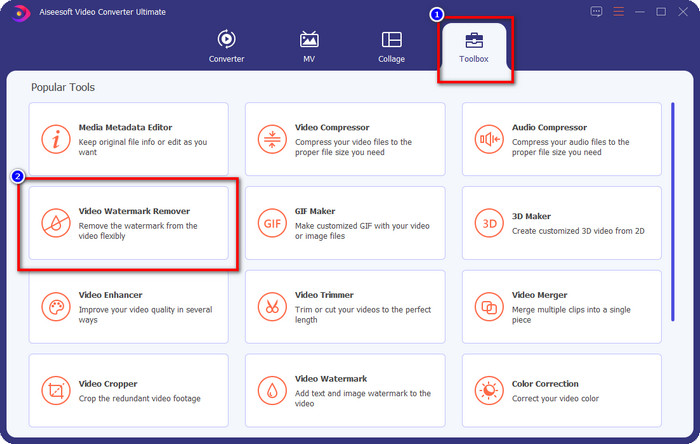
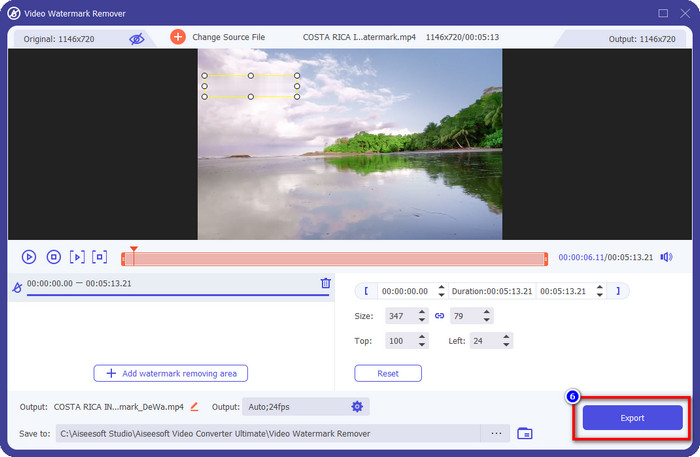
2. lépés. A Eszköztár menüben keresd meg a Video Watermark Remover (videovízjel‑eltávolító) eszközt, majd kattints rá a folytatáshoz.
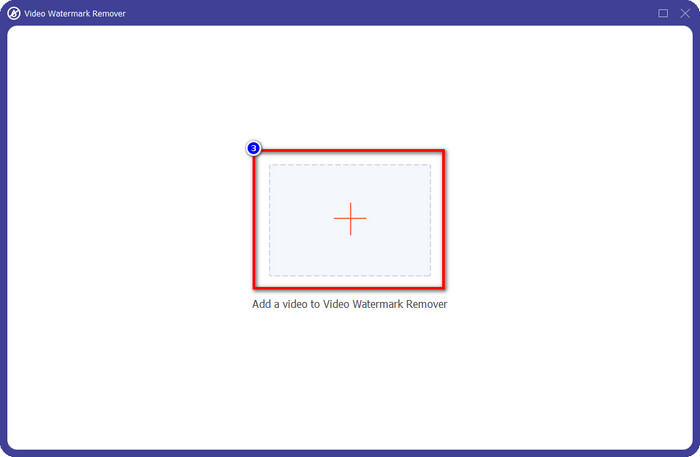
3. lépés. A + ikonra kattintva töltsd fel azt a videót, amelyen vízjel található. Keresd meg a megjelenő mappában, kattints rá egyszer a fájlra, majd nyomd meg az Open (Megnyitás) gombot a feltöltéshez.
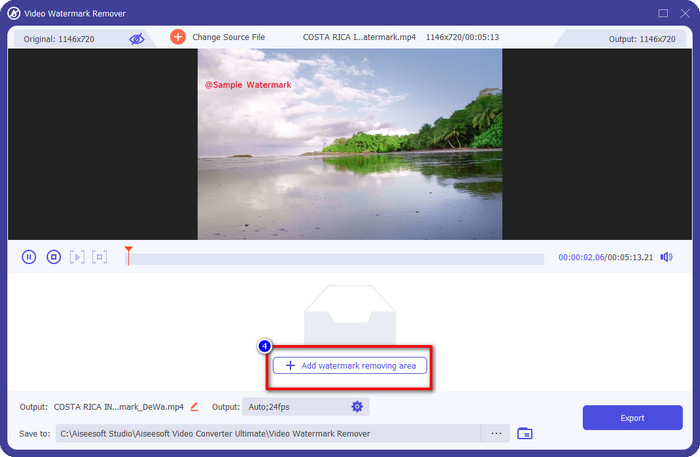
4. lépés. Miután feltöltötted a vízjeles videót, kattints az Add Watermark Removing Area (Vízjel‑eltávolítási terület hozzáadása) gombra, és várd meg a rövid betöltési folyamatot.
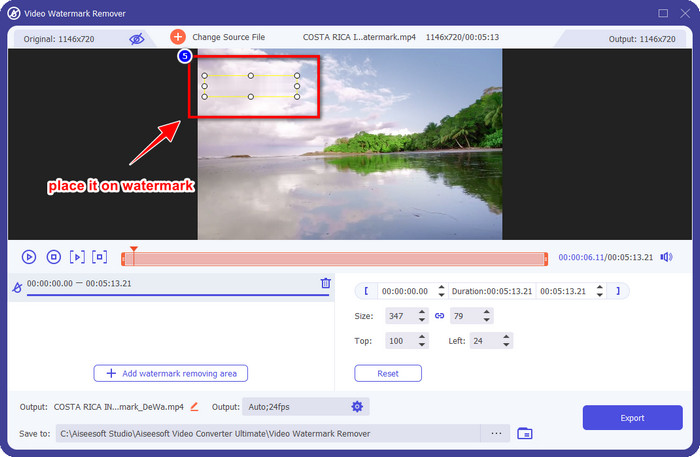
5. lépés. Helyezd a kijelölő keretet a WeVideo vízjel fölé, és fedd le teljesen, hogy az exportált videón a végén már ne látszódjon a vízjel legkisebb nyoma sem.
6. lépés. Most már elmentheted a videót: kattints az Export gombra a vízjel eltávolításához. A mentési folyamat nem tart sokáig, mert a program ultra‑gyors feldolgozást és hardveres gyorsítást támogat.
iMyFone Mark Go
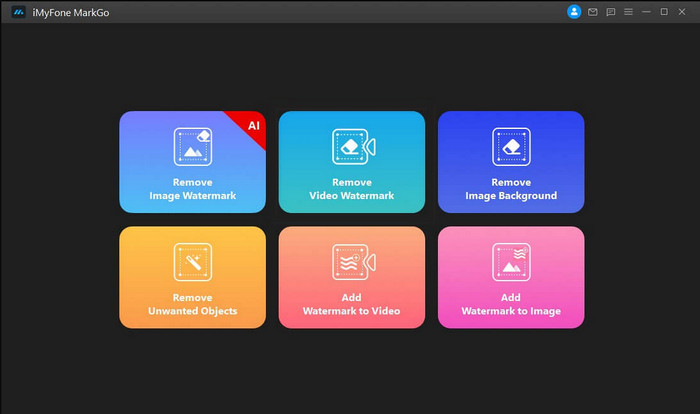
Az iMyFone Mark Go egy másik vízjel‑eltávolító, amelyet Windowsra és Macre is letölthetsz, hogy segítsen eltávolítani a WeVideo vízjelét. Ez az eszköz a végső megoldáshoz hasonlóan hatékonyan tünteti el a vízjelet a videódból. Ahogy más, letölthető offline szoftvereknél, itt is meg kell vásárolnod a programot, hogy eltávolíthasd a vízjelet, és kihasználd a prémium verzió előnyeit. Bár fizetős, nem olyan drága, mint sok más vízjel‑eltávolító. Ha tehát könnyen és hatékonyan szeretnéd eltávolítani a vízjelet a videódról, kövesd az alább megadott lépéseket, amelyek lépésről lépésre bemutatják a folyamatot.
1. lépés. Töltsd le a szoftvert az asztali gépedre a hivatalos weboldaláról.
2. lépés. A program elindítása után kattints a Remove Video Watermark (Videovízjel eltávolítása) lehetőségre.
3. lépés. Add hozzá a videófájlt az Add the Video (Videó hozzáadása) gombra kattintva. Válaszd ki azt a videófájlt, amely vízjelet tartalmaz.
4. lépés. Mozgasd a megjelenő téglalap alakú keretet a vízjel fölé, és fedd le vele. Bár három másik vízjel‑eltávolítási opció is elérhető, ezekhez nem férsz hozzá, mert csak prémium felhasználók számára nyitottak.
5. lépés. Kattints az Export gombra a videó elmentéséhez, amelyről eltávolítottad a vízjelet.
Online Video Cutter – Távolítsa el a logót a videóból
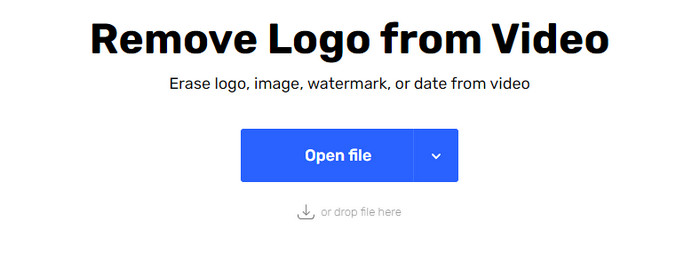
Hogyan lehet ingyen eltávolítani a WeVideo vízjelet? Használd az Online Video Cutter – Remove Logo From Video eszközt. Ez egy ingyenes webes alkalmazás, amellyel a böngészőből, letöltés és fizetés nélkül távolíthatod el a vízjelet a videódról. Ha összehasonlítjuk más, piacon elérhető vízjel‑eltávolító eszközökkel, ez is hatékony, bár nem éri el a végső szoftver szintjét. Képes elfedni a videón lévő vízjelet, így javítja a vizuális megjelenést. Ha azonban nincs internetkapcsolatod, ez az eszköz nem a legjobb választás vízjel‑eltávolításra. Ha viszont van, akkor az alábbi lépések követésével kezdheted el használni a programot a videód vízjelének eltávolítására.
1. lépés. Nyiss egy új böngészőlapot, és keresd rá az eszköz nevére, hogy elkezdhesd a vízjel eltávolítását a videóról.
2. lépés. Kattints az Open File gombra a WeVideo‑videó feltöltéséhez, így az eszköz előnézetet készít a feltöltött videóról.
3. lépés. Kattints a vízjelre, hogy alkalmazd az eszköz vízjel‑eltávolítási területét. Miután a videó bármely részére kattintasz, megjelenik egy kijelölő doboz.
4. lépés. Nyomd meg a Save gombot, hogy elmentsd a vízjel nélküli videót.
Összefüggő:
3. rész. GYIK a WeVideo vízjel eltávolításával kapcsolatban
Melyik eszköz a legjobb a WeVideo vízjel eltávolításához?
Kétségtelenül ez az FVC Video Converter Ultimate; ez az eszköz biztosítja a legjobb eredményt a vízjel eltávolításához a videóban. A kiválasztott vízjeleltávolítók közül nem tagadhatjuk, hogy a tökéletes eszköz jobb, mint a többi vízjeleltávolító.
Kivághatom a WeVideo vízjelet?
Igen, kivághatja a WeVideo által a videón hagyott vízjelet. A videó mérete azonban csökkenni fog, és előfordulhat, hogy romlik a minősége, mert kiiktatja a képarányt.
Mitől a WeVideo a legjobb videószerkesztő az interneten?
Teljes alapvető videószerkesztő funkcióival meg lehet szokni, és milyen egyszerű az eszköz használata. Ezek a legáltalánosabb ismeretek arról, hogy mi teszi a WeVideót az egyik legjobb videószerkesztővé, amelyet az interneten használhat. De ez nem olyan jó, mint a többi videószerkesztő Adobe Premiere Pro, Final Cut Pro stb.
Következtetés
Végre, a fent ismertetett módszerekkel most már van egy ötlete, hogyan lehet megszabadulni a WeVideo vízjeltől. De mi a véleménye az általunk használt eszközről? Ha még mindig nincs ötlete, mit használjon, véleményünk szerint ki kell próbálnia az FVC Video Converter Ultimate-et. A legjobbat nyújtja a vízjel eltávolításában, és könnyen használható. Mire vársz még? Kattintson a letöltés gombra a vízjel-eltávolító azonnali használatához.
-
 123rf vízjeleltávolítók – Az Ultimate Tools alapos áttekintése
 Ha tudni szeretné, melyek a legkiemelkedőbb 123rf vízjeleltávolítók, olvassa el alaposan ezt a cikket. Ez a cikk részletes áttekintést nyújt az eszközökről.
-
 A DeviantArt vízjel eltávolítása Windows és Mac rendszeren
 Szeretné megtanulni, hogyan távolíthatja el a DeviantArt vízjelet a képekről? A legkiválóbb DeviantArt vízjeleltávolítókkal könnyedén eltávolíthatja ezeket a bosszantó vízjeleket.
-
 Ultimate szoftverek a Video Helper vízjel eltávolítására az exportált videókon [2022]
 Szeretné tudni, hogyan távolíthatja el a vízjelet a Video Helper segítségével letöltött videóról? Ha igen, olvassa el ezt a cikket, hogy megtudja.
