


 Video Converter Ultimate
 Screen Recorder
 Videó javítás
A TikTok videók felgyorsítása a Tiktokon vagy más alternatív szoftverek használata
Az egyik leggyorsabban növekvő videós szórakoztató alkalmazás, amelyet használhatsz a mobiltelefonodon, a TikTok. Bár a TikTokot 2016-ban adták ki, néhány hónappal a megjelenés után azonnal nagyon népszerűvé vált. Egyik gyakori szerkesztési trükk, amit itt használnak, a videó felgyorsítása látványos vizuális hatás létrehozásához. Ha te is közéjük tartozol, és szeretnéd tudni, hogyan kell ezt csinálni, akkor jó helyen jársz. Most különböző eszközöket mutatunk be, amelyek segítenek megtanulni, hogyan lehet felgyorsítani a videót TikTokon.

1. rész: Videó felgyorsítása a TikTokon
Ahogy már említettük, a TikTok az egyik leghíresebb rövid videós platformmá vált, ezért itt a videószerkesztés is egyszerűen elvégezhető. Vedd figyelembe, hogy a videót már a felvétel közben is fel tudod gyorsítani, nem csak a befejezése után. Ha viszont megpróbálsz felgyorsítani egy videót a TikTok-on, akkor úgy kell megbecsülnöd a teljes sebességet, hogy közben nem vagy biztos benne, tényleg ezt a tempót szeretnéd-e elérni. Ha azonban nem akarsz harmadik féltől származó eszközt letölteni a videó felgyorsításához, akkor a TikTok önmagában is elvégzi a feladatot. Kövesd az alábbi lépéseket, hogy felgyorsíts egy videót TikTokon.
Lépések egy felgyorsított videó felvételéhez TikTokon:
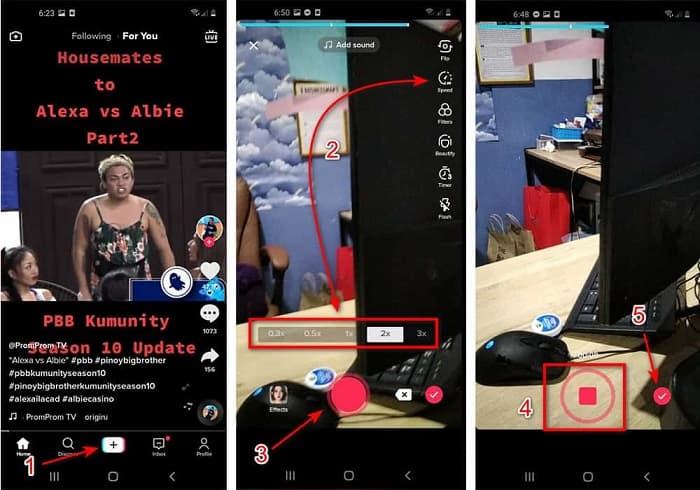
1. lépés. Először töltsd le a TikTokot a mobiltelefonodra, és indítsd el, miután a letöltés befejeződött.
2. lépés. Koppints a + jelre a felvétel indításához. Ezután kattints az „add sound” lehetőségre, hogy háttérzenét és – ha szeretnéd – szűrőt adj hozzá. A videó felgyorsításához kattints a Speed opcióra, és válaszd ki az alatta megjelenő sebességbeállítások egyikét. A felvétel megkezdéséhez nyomd meg a kerek gombot, és nyomd meg újra, ha le akarod állítani.
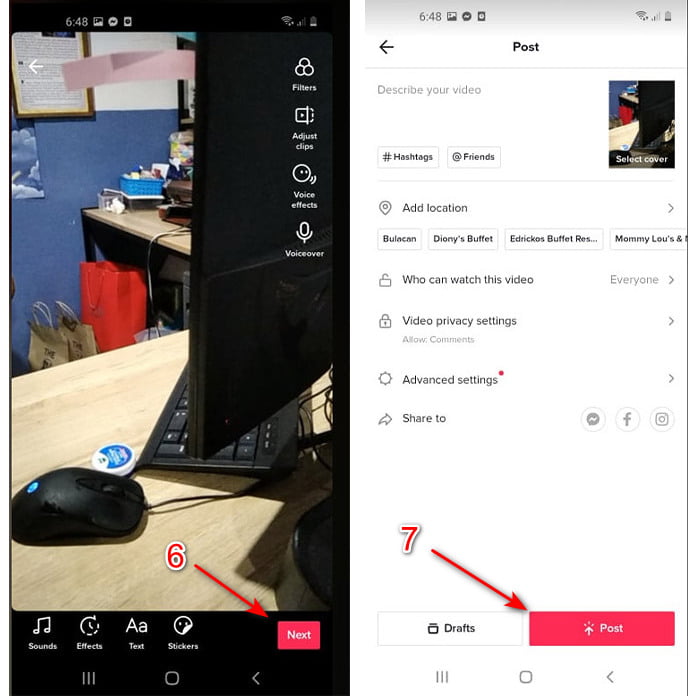
3. lépés. A videó ellenőrzéséhez nyomd meg a check gombot, majd kattints a Next gombra. Ezután kattints a Post gombra, hogy feltöltsd TikTokra.
2. rész: A TikTok videók felgyorsítása a Video Converter Ultimate alkalmazásban
A TikTok beépített szerkesztési funkciójával ellentétben a Video Converter Ultimate lehetővé teszi, hogy manuálisan, de mégis egyszerűbben gyorsítsd fel a videót. Ráadásul a gyorsítás közben előnézetet is láthatsz, így azonnal eldöntheted, hogy a videó sebessége megfelel-e az elképzeléseidnek. Ez a rendkívüli szoftver már most is lehetővé teszi a felhasználóinak, hogy haladó, profi szintű szerkesztési funkciókat élvezzenek, egyszerűsített lépésekkel. A fejlett funkciók miatt néhány dollárt fizetni kell érte, de nem kell aggódnod, mert nem fog ezer vagy akár száz dollárba kerülni. Ha tudni szeretnéd, milyen előnyöket vagy kulcsfunkciókat kapsz ezzel az eszközzel, nézd át az alábbi listát.
A legjobb kulcsfunkciók, amelyeket a Video Converter Ultimate-ben találsz:
◆ Ez egy platformfüggetlen szoftver, ami azt jelenti, hogy letöltheti PC-re, Mac-re vagy Linuxra.
◆ Az összes speciális szerkesztési, konvertáló, GIF-készítő és egyebek elérhetőek ebben az eszközben.
◆ Az eszköz használhatósága nagyon hasznos bárki számára, még a szerkesztésben profi vagy újonc számára is.
◆ Lehetővé teszi a felhasználók számára, hogy kifejezzék kreatív oldalukat az itt elérhető különféle szerkesztési funkciókon keresztül.
◆ Bár az eszköz fizetős, mégis olcsóbb és nagyon megfizethető mindenki számára, aki szeretné kipróbálni.
Most pedig, ha szeretnéd megtudni, hogyan lehet felgyorsítani a TikTok‑videókat ezzel a kiváló alternatív szerkesztővel, olvasd el és kövesd az alábbi útmutatót, hogy 100% sikert érj el.
Lépések a TikTok‑videók felgyorsításához a Video Converter Ultimate segítségével:
1. lépés. A szoftver használatához először le kell töltened PC-re vagy Macre. Ezután telepítsd, végezd el az egyszerű beállításokat, majd a folytatáshoz kattints a befejezés gombra.
Ingyenes letöltés Windows 7 vagy újabb rendszerre Biztonságos letöltés
Ingyenes letöltés macOS 10.7 vagy újabb rendszerre Biztonságos letöltés
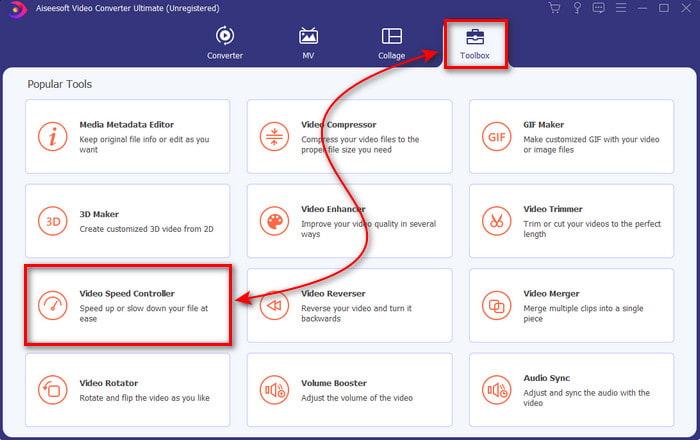
2. lépés. Kattints a Toolbox menüpontra, majd válaszd ki alatta a Video Speed Controller opciót.
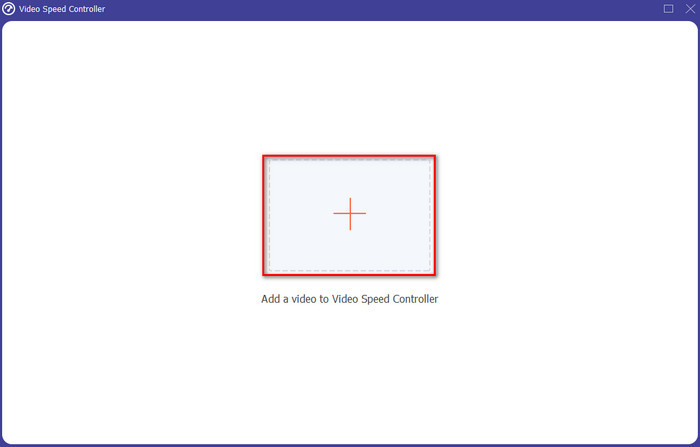
3. lépés. A felgyorsítani kívánt fájl hozzáadásához kattints a + gombra. Ezután válaszd ki a fájlt a megjelenő mappából, és kattints az Open gombra a folytatáshoz.
4. lépés. A videó sebességének beállításához válaszd ki a lenti speed opciót. A fájl letöltéséhez kattints az Export gombra a letöltési folyamat elindításához.
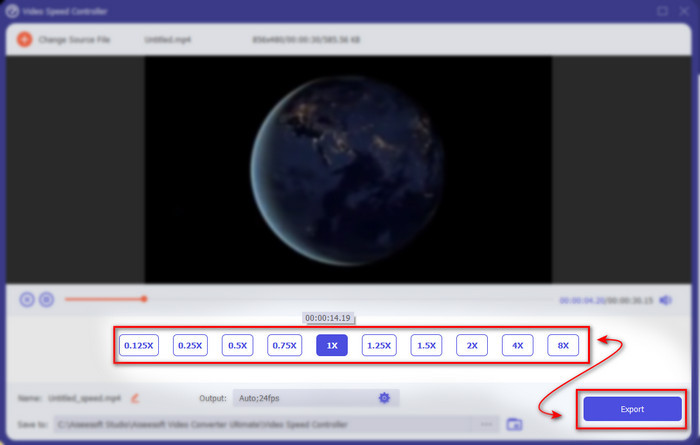
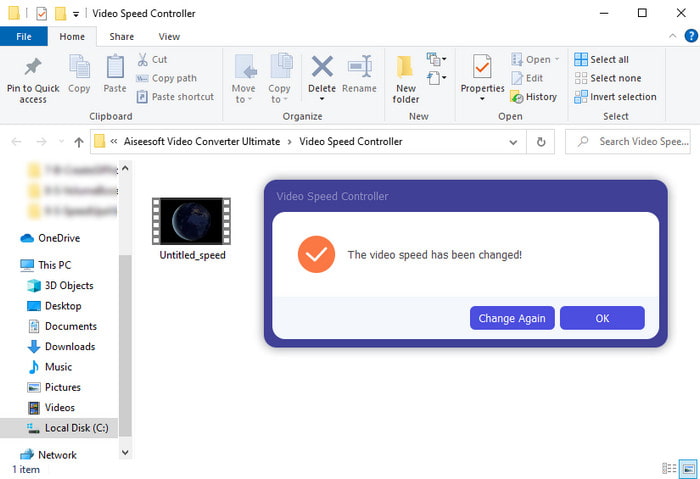
5. lépés. Nem kell egy percet sem várnod, mert a fájl néhány másodpercen belül elkészül. Ha ezután megjelenik egy mappa a képernyődön, az azt jelenti, hogy a fájl már exportálva van. Kattints a fájlra, hogy lejátszd a felgyorsított videót.
Összefüggő:
Hogyan lehet felgyorsítani az MP4-et
Hogyan lehet lelassítani az MP4-et
3. rész. GYIK a Videó felgyorsításáról a Tiktokon
Hogyan lehet felgyorsítani egy olyan TikTok-videót, amely nem a tiéd?
Ha olyan videót szeretnél felgyorsítani, ami nem a tiéd, akkor először le kell töltened a TikTok‑videót. Kattints a + gombra és az Upload lehetőségre, majd válaszd ki a videót a galériából. Válaszd ki a sebesség opciót, és kattints a Next gombra a feltöltéshez. Vagy használd a Video Converter Ultimate programot a felgyorsításhoz, a fent leírt lépéseket követve.
Rögzíthetek egy 3 perces videót a Tiktokon?
Abszolút igen, ha külön rögzítik őket, nem rögzíthet egyenes 3 perces videót. Mivel a felvétel hossza ezzel az alkalmazástámogatással 15-60 teljes másodperc. Tehát, ha a rögzíteni kívánt videó hossza több mint egy perc, akkor jobb, ha külön rögzíti. Ha azonban Ön azon felhasználók közé tartozik, akiket a Tiktok kiválasztott a 3 perces felvétel kipróbálására, akkor szerencsés vagy, mert ezt csak emberek egy kis csoportja számára tesztelték.
Hozzáadhatok MP3-at a videóimhoz a Tiktokon?
Amikor a TikTok először megjelent, a felhasználók hozzáadhattak zenét a videójukhoz, de most eltávolították ezt a funkciót. A TikTok számára bejelentett szerzői jogi probléma miatt. Ezért a probléma elkerülése érdekében eltávolítják, és hozzáadnak egy elérhető zenemintát, vagy használhat egy másik alkalmazást, hogy megcsinálja helyette.
A Tiktok rendelkezik korhatárral?
A TikTok feltételei szerint 13 éves vagy annál idősebbnek kell lennie az alkalmazást használó felhasználó életkorának. Ezenkívül a Tiktok nem rendelkezik életkor-ellenőrzéssel, amikor regisztrál, ezért számítson arra, hogy körülbelül 16 év feletti tartalom jelenik meg a hírfolyamban.
Következtetés
Most, hogy már tudod, hogyan lehet felgyorsítani egy videót TikTokon, itt az ideje, hogy kiélvezd a lehetőségeket. Válaszd ki azt a megoldást, amely szerinted a legjobban illik hozzád. Ha úgy gondolod, hogy a TikTok beépített gyorsítási funkciója megfelelő, használd azt. De ha jobb, előnézettel ellátott gyorsítást szeretnél, válaszd a Video Converter Ultimate programot. Bármelyik lehetőséget is választod, kiváló eredményre számíthatsz a funkcióiknak és az általános teljesítményüknek köszönhetően.
-
 7 egyszerű lépés az OBS hangkésleltetési problémák megoldásához [Megoldva]
 Nehezen nézi meg a videoklipet a felvétel után, mert az OBS Studio használatakor késik a hang? Olvassa el az alábbi cikket, hogy megtudja, hogyan javíthatja hatékonyan a szinkronon kívüli hangot.
-
 Kiváló lehetőségek lehetségesek | A VLC audio késleltetés javítása [2021]
 Nehezen nézi meg kedvenc filmjét VLC médialejátszóján a hang bizonytalansága miatt? Olvassa tovább ezt a cikket, hogy megismerje a VLC audio késleltetésének javításának összes lehetséges módját.
-
 Az MP4 hangerő növelésének legjobb módjai online és offline módban
 Nehezen hallod a videokliped hangjait? Olvassa el az alábbi cikket, hogy megtudja, hogyan növelheti az mp4 hangerejét különböző módokon.
