


 Video Converter Ultimate
 Perekam Layar
 Perbaikan Video
Berbagai Cara untuk Mengonversi RMVB ke MOV untuk Offline dan Online
Karena banyaknya format file video yang membingungkan di internet, banyak pengguna kesulitan memilih pemutar media yang tepat untuk video yang mereka dapatkan. Percaya atau tidak, memutar video tidak selalu semudah saat mengunduhnya. Beberapa format bersifat eksklusif hanya untuk pengembang aslinya, dan ada juga yang praktis dapat diputar di mana saja. Namun, mengetahui format file video mana yang didukung oleh pemutar yang Anda miliki sangatlah penting. Tetapi kita juga tidak boleh berhenti sampai di situ saja. Mengetahui cara mengonversi format file yang tidak sering Anda jumpai adalah cara terbaik. Karena itu, kami menyediakan semua cara yang memungkinkan untuk mengonversi RMVB ke MOV demi kenyamanan Anda.
Bagian 1. Gambaran Umum: RMVB dan MOV
RMVB dan MOV adalah dua format video berbeda dari dua perusahaan lain yang mengembangkannya. Anda harus tahu tentang file RMVB, kependekan dari RealMedia Variable Bitrate, ekstensi bitrate variabel yang dikembangkan oleh RealNetworks ke format wadah digital multimedia RealMedia. Beberapa orang menggunakan RMVB untuk materi multimedia yang disimpan secara lokal. Karena menampilkan ukuran file yang lebih kecil dan bitrate yang lebih rendah, tetapi dengan kualitas yang lebih baik, file RMVB telah menjadi format populer untuk judul film Anime dan Asia. Ekstensi file '.rmvb' digunakan untuk format ini.
Di sisi lain, MOV adalah format file wadah multimedia yang dikembangkan Apple yang disimpan dalam QuickTime File Format (QTFF). Format wadah dapat menangani berbagai format media untuk memfasilitasi transmisi multimedia di seluruh perangkat, sistem operasi, dan aplikasi. File multimedia QTFF menyimpan file .mov. Namun, mereka juga dapat menyimpan sebagai file .qt.
| Ekstensi File | RMVB | MOV |
| Jenis File | File Laju Bit Variabel RealMedia | Film Apple QuickTime |
| Pengembang | Jaringan Nyata | apel |
| Keuntungan | RMVB adalah format untuk menyimpan dan berbagi informasi multimedia. Dan itu terkenal karena mendistribusikan konten Asia, seperti episode dan film televisi China. | File MOV dapat mencakup banyak trek data, masing-masing berisi aliran media digital atau terkait dengan aliran di file lain. Akibatnya, Anda dapat dengan mudah mengubah file tanpa harus mengulang data sesudahnya. |
| Kekurangan | Mereka tidak lazim, karena ketidakcocokan mereka dengan pemutar media lainnya. | Setiap file MOV dapat menyertakan salah satu dari beberapa codec yang berbeda, sehingga sulit untuk dimainkan. |
| Program mendukung file | Pemutar media VLC RealPlayer iOrgSoft Video Converter | Microsoft Windows Media Player Apple QuickTime Player VideoLAN VLC media player |
Bagian 2. Metode yang Dapat Diakses dan Terbaik dalam Mengonversi RMVB ke MOV [Offline]
Mengonversi video dari RMVB ke MOV terkadang diperlukan pada waktu dan hari yang tidak terduga. Seluruh proses sebagian besar membutuhkan koneksi internet yang tidak selalu tersedia di sembarang tempat. Jadi, Video Converter Ultimate adalah cara yang tepat jika Anda ingin mengonversi video ke format yang sesuai dengan situasi Anda. Bahkan memungkinkan Anda mengonversi beberapa video secara bersamaan, sehingga tidak perlu repot dengan proses berulang. Bahkan memberi Anda berbagai opsi seperti memilih resolusi, kecepatan bingkai, dan kecepatan bit tertentu untuk video Anda. Beri nama resolusi dan Video Converter Ultimate akan memberikannya kepada Anda.
Langkah 1: Buka situs webnya, dan Anda akan melihat tombol bertuliskan Free Download dan For Mac OS. Klik tombol tersebut untuk mengunduh file .exe. Anda perlu memasang (install) perangkat lunak itu dan menunggu hingga selesai. Setelah selesai, buka file tersebut untuk melanjutkan proses instalasi.
Unduh GratisUntuk Windows 7 atau yang lebih baruUnduhan Aman
Unduh GratisUntuk MacOS 10.7 atau yang lebih baruUnduhan Aman
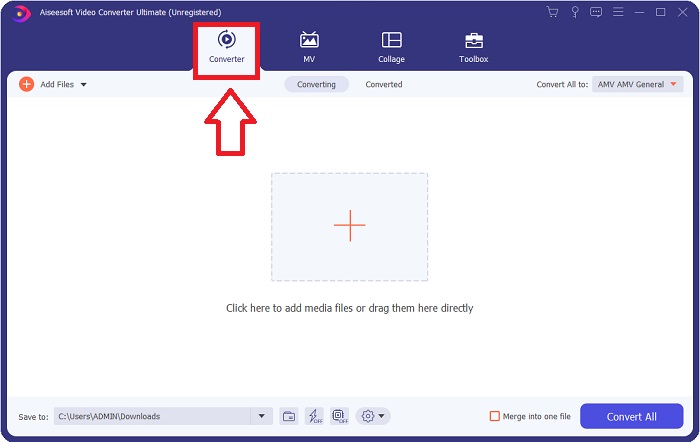
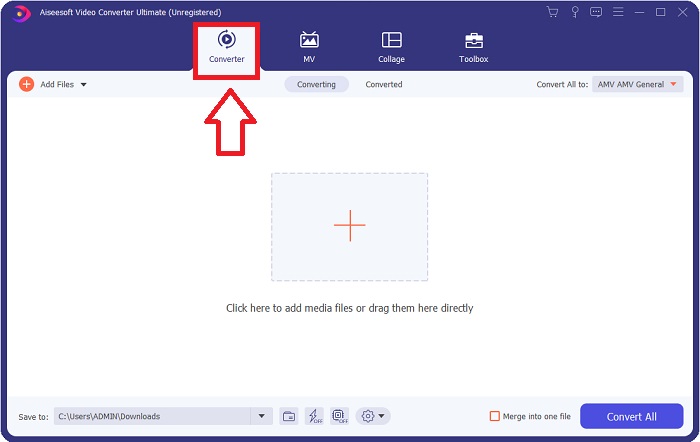
Langkah 2: Setelah instalasi selesai, jalankan perangkat lunak, dan sebuah jendela akan terbuka. Anda akan melihat antarmuka dengan tab di bagian atas. Secara default, Anda berada di tab Converter, jika belum, pilih tab tersebut.
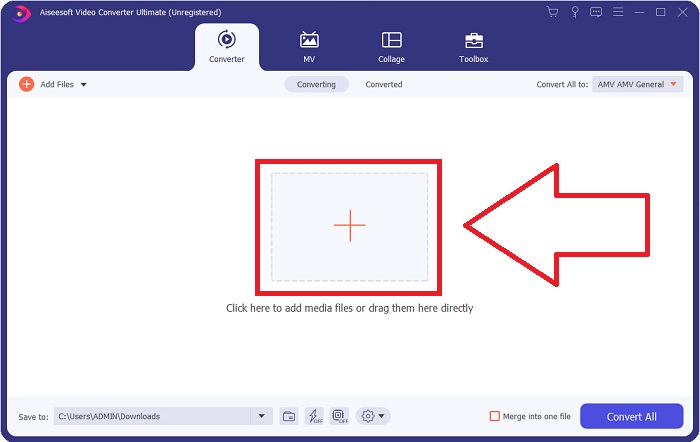
Langkah 3: Di antarmuka, Anda akan melihat tombol berbentuk kotak dengan ikon + di tengahnya. Klik tombol itu untuk mengimpor file video yang ingin Anda konversi, atau Anda juga bisa menyeret dan menjatuhkan (drag and drop) file tersebut tanpa repot.
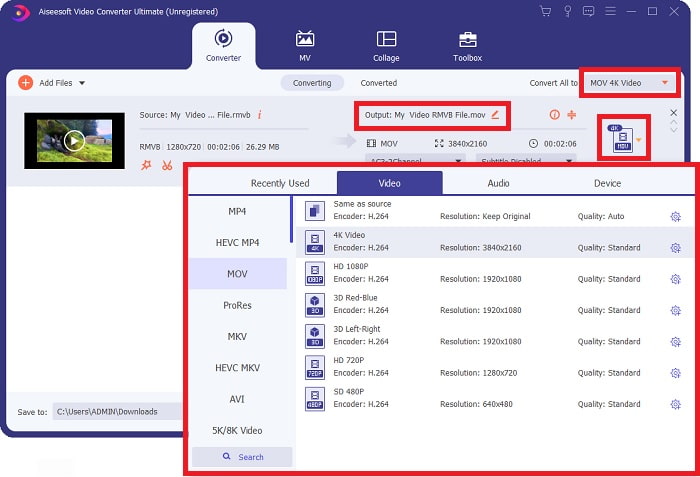
Langkah 4: Antarmuka baru yang menampilkan semua opsi untuk mengedit video Anda akan muncul. Di sisi paling kanan, di sanalah Anda memilih format yang Anda inginkan untuk video hasil konversi. Cukup klik panah tarik-turun, dan semua format yang tersedia akan ditampilkan.
Dalam kasus ini, pilih MOV. Anda juga dapat mengklik ikon roda gigi di samping resolusi yang Anda pilih untuk mengedit pengaturan seperti frame rate untuk video dan sample rate untuk audio. Untuk menyimpan perubahan, klik Create New.
Langkah 5: Jika Anda sudah selesai dengan semua perubahan yang dibuat pada video, Anda sekarang dapat memulai proses konversi dengan mengklik tombol Convert All di sudut kanan bawah jendela.
Bagian 3. Metode Luar Biasa Lainnya untuk Mengonversi RMVB ke MOV [Online]
Jika mengunduh dan memasang perangkat lunak di desktop bukan gaya Anda dan Anda hanya membutuhkan konversi satu kali untuk film Anda, berikut opsi sepenuhnya online yang bisa Anda coba. FVC Free Video Converter Online, sebuah alat web yang menawarkan berbagai opsi pengaturan video dan audio sekaligus menghemat waktu Anda dari proses instalasi perangkat lunak. Hanya ada tiga langkah sederhana untuk menyelesaikan pekerjaan ini:
Langkah 1: Untuk memulai, buka situs web tersebut, di mana Anda akan menemukan tombol berwarna kuning di tengah halaman yang bertuliskan Add Files to Convert. Klik tombol itu untuk mengimpor file video yang ingin Anda konversi.
Unduh Versi Desktop untuk mengonversi file secara batch.
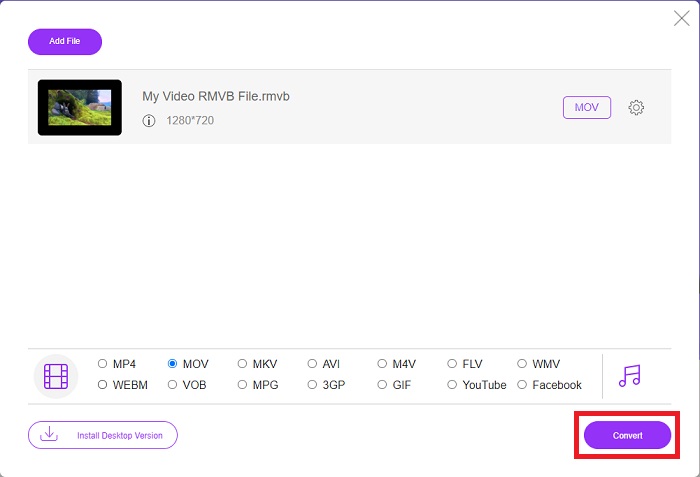
Langkah 2: Sebuah jendela akan muncul yang menampilkan file video yang telah Anda impor di bagian atas dan semua format yang tersedia di bagian bawah. Karena Anda ingin mengonversi file RMVB ke MOV, pilih MOV. Untuk opsi tambahan, klik ikon roda gigi di sisi kanan untuk mengedit pengaturan video dan audio pada opsi tambahan tersebut. Untuk menyimpan perubahan, klik OK.
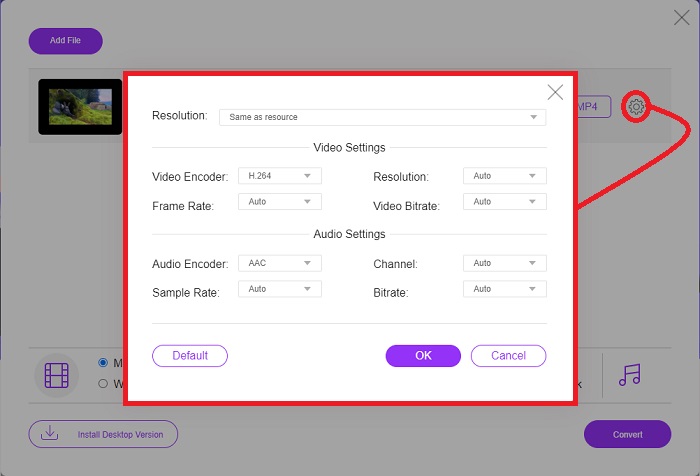
Langkah 3: Jika semua perubahan yang dibuat sudah sesuai dengan kebutuhan Anda untuk video tersebut, Anda sekarang dapat mulai mengonversi video dengan mengklik tombol Convert di sudut kanan bawah jendela. Pilih folder tempat Anda ingin menyimpan file yang sudah sepenuhnya dikonversi dan tunggu hingga proses selesai.
RMVB vs. MOV
RMVB, variasi yang lebih baru dari format Real Media (.RM) standar, adalah format file video Real Media yang dikompres menggunakan bitrate variabel. Ini adalah format populer untuk film dan anime Asia. File RMVB berukuran lebih kecil dan memiliki bitrate lebih rendah tetapi kualitas lebih baik.
Format MOV dapat digunakan untuk menyimpan film, acara TV, klip video pendek, atau film rumahan. Itu sebenarnya disimpan dalam QuickTime File Format (QTFF), yang diperkenalkan oleh Apple pada tahun 1991. File MOV sering digunakan ketika orang ingin menyimpan video dengan kualitas tinggi.
Bagian 4. FAQ tentang Konversi RMVB ke MOV
Apa sebenarnya file RMVB itu?
File RMVB apa pun adalah file video Real Media yang dikompres menggunakan bitrate variabel yang optimal untuk konten video. Ini adalah versi yang lebih baru dari format file Real Media (.RM) dasar yang menawarkan kompresi yang lebih baik.
Apa yang bisa memutar file RMVB?
Karena berbagai aplikasi menggunakan file dengan ekstensi RMVB untuk tujuan yang berbeda-beda, Anda memerlukan perangkat lunak yang kompatibel dengan jenis file yang sedang Anda coba buka. RealNetworks RealPlayer (Windows), VLC media player (multiplatform), dan GRETSCH GOM Player (Windows) semuanya adalah pemutar media gratis yang dapat memutar file RMVB.
Apakah ada kemungkinan kesalahan dengan file .rmvb?
Jika Anda tidak memiliki Real Media Player atau alat pembuka file lain yang sesuai, Anda dapat mengalami masalah saat membuka file .rmvb jika file menjadi rusak karena sektor yang salah pada hard drive atau unduhan yang salah. Jika masalah muncul di registri sistem Windows, tempat informasi asosiasi file untuk file .rmvb disimpan, kesalahan ketiga mungkin terjadi.
Kesimpulan
Memilih apakah akan menyimpan perangkat lunak atau hanya menggunakan alat online untuk mengonversi video tidak perlu khawatir tentang apakah FVC harus digunakan. Baik perangkat lunak maupun versi online-nya menawarkan opsi terbaik untuk kebutuhan konversi Anda. Namun, kami sangat menyarankan untuk mengunduh Video Converter Ultimate untuk Toolbox tambahan yang diberikannya kepada Anda saat mencari pengeditan lebih lanjut untuk video Anda selain konversi saja. Anda tidak pernah tahu kapan Anda membutuhkan perangkat lunak ramah pemula, jadi lebih baik selalu memilikinya di komputer Anda.
-
 Panduan tentang Cara Mengonversi RMVB ke MP4 di Windows / Mac (3 Cara Gratis)
 Ingin mengonversi RMVB ke MP4 agar mudah diputar di komputer atau ponsel Anda? Anda akan menemukan cara sederhana untuk mengonversi file RMVB Anda ke MP4 dalam panduan ini.
-
 4 Aplikasi Konverter RMVB ke FLV Gratis Terbaik di Desktop atau Online
 Artikel ini akan memberi tahu Anda perangkat lunak dan aplikasi web konverter RMVB ke FLV terbaik yang dapat mengonversi file RMVB (RealMedia Variable Bitrate) ke video FLV.
-
 Bagaimana mengkonversi MP4 ke MOV di Mac / PC / Online
 Bagaimana cara mengubah MP4 ke MOV di Mac? Apakah ada cara gratis untuk mengonversi MP4 ke MOV tanpa kehilangan kualitas? Posting ini membagikan 4 cara sederhana untuk membantu Anda melakukan konversi video dari MP4 ke MOV di Mac, Windows PC, dan online.

